

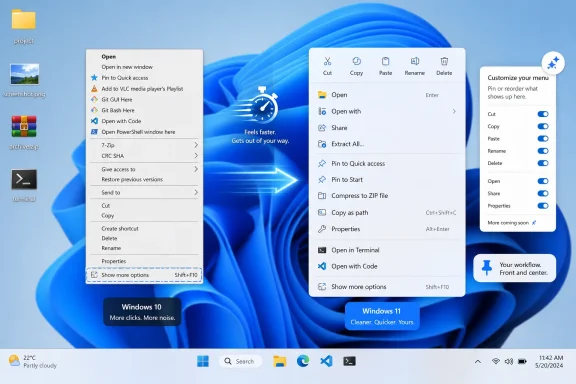
Windows 11’s right-click context menu appears headed for another redesign after Microsoft design lead Marcus Ash recently signaled that the company is working on changes aimed at making the menu simpler, faster, and more customizable for users. The details are still thin, and that matters: Windows users have heard “simpler” before and ended up with an extra click. But the direction is unmistakable. Microsoft is revisiting one of Windows 11’s most visible UX compromises because the compromise never really settled.
The Windows context menu is not glamorous, but it is muscle memory baked into the operating system. Right-click a file, a folder, the desktop, an image, or a compressed archive, and Windows is supposed to respond with the thing you are most likely trying to do next. That small transaction is one of the reasons Windows has always felt less like an appliance and more like a workbench.
Windows 10’s version of that workbench had become a junk drawer. Every backup tool, cloud-sync client, graphics driver, archiver, code editor, antivirus product, and shell extension wanted a spot. The result could be a towering, inconsistent menu where Microsoft’s own commands mingled with third-party additions in a way that made sense only to the registry and to users who had slowly acclimated to the mess.
So Microsoft’s Windows 11 redesign had a legitimate target. The company wanted a modern menu with clearer spacing, a cleaner command bar, better touch ergonomics, and a more predictable place for common actions such as cut, copy, rename, share, and delete. It also wanted to push older shell extensions into a legacy fallback rather than letting the whole experience be governed by decades of accumulated add-ons.
The problem is that Windows users do not experience clutter as an abstract design disease. They experience it as “the command I need is there.” When Microsoft hid many of those commands behind “Show more options,” it may have improved the first impression, but it made the second action worse. In an operating system used by people who repeat tiny workflows hundreds of times per week, the second action is often the product.
For casual users, the streamlined menu may have been fine. If your right-click life consists mostly of copy, paste, rename, delete, share, and properties, Windows 11’s menu is less visually chaotic than Windows 10’s. It also aligns better with the rest of the operating system’s softened, spaced-out design language.
For power users, administrators, developers, and anyone who depends on shell integrations, the story was different. Archive commands, Git tools, file comparison utilities, image editors, terminal launchers, security scanners, and cloud storage actions often lived in the older menu layer. That meant the new system did not remove complexity so much as hide it behind a trapdoor.
That distinction matters. Good simplification reduces the number of decisions without reducing capability. Bad simplification moves capability somewhere less convenient and declares the surface clean. Windows 11’s context menu too often felt like the latter: neater, yes, but at the cost of immediacy.
The frustration was sharpened by inconsistency. Some applications adopted the new model, some did not, and some appeared in ways that made the modern menu feel both sparse and bloated at the same time. The user could not easily predict whether the command they wanted would be visible, hidden, duplicated, renamed, or available only after summoning the classic menu.
Windows has always invited third parties deep into the shell. That openness is part of its strength. It is why a developer tool can add “Open with Code,” a compression utility can add extraction commands, a graphics tool can add conversion options, and a cloud provider can expose sync status without forcing users into a separate app.
But shell extensibility is also a tax on coherence. When every application treats the context menu as prime real estate, the menu stops being contextual in the user-centered sense and becomes contextual in the vendor-centered sense. The item is there because the app installed it, not necessarily because the user needs it at that moment.
Microsoft’s redesign tried to impose order on this unruly ecosystem. Apps with modern extensions could participate in the new menu; older verbs remained available through the fallback path. On paper, this was a compatibility bridge. In practice, it often felt like a two-tier citizenship system for commands, where Microsoft’s preferred actions lived up front and long-standing user workflows were exiled to the basement.
That tension is the heart of the current overhaul. The Windows shell cannot simply go back to the old free-for-all, because the old free-for-all was one of the reasons the redesign happened. But it cannot continue treating hidden commands as acceptable collateral damage, because Windows users have made clear that the “less cluttered” menu is not automatically the better one.
That sounds obvious, but Windows 11’s original context menu often behaved as if Microsoft could infer universal priority. It assumed that a cleaner default could satisfy most users while the rest could tolerate the fallback. The past several years suggest that was too optimistic.
A customizable context menu would change the bargain. Instead of forcing users to choose between the modern menu and the classic layer, Microsoft could allow frequently used commands to surface directly. A photographer might pin image conversion or “Open with” actions. A developer might surface terminal, Git, or editor commands. An administrator might prioritize compression, hashing, scanning, or permissions-related tools.
The risk, of course, is that customization can become another form of complexity. If Microsoft simply exposes a giant preference panel full of shell verbs, the company will have recreated the old chaos in Settings. The trick is to make the menu learnable without making it mysterious.
The best version would probably combine three ideas. Windows should preserve a clean default layout for new and casual users. It should allow explicit pinning, hiding, or reordering of commands for people who care. And it should give developers better rules for grouping related actions so the menu does not again become a flat parade of brand names.
Microsoft can redesign the default menu, but third-party software determines whether the system feels coherent. If archivers, editors, cloud clients, device utilities, graphics tools, and security products do not adopt the modern extension model cleanly, users will keep falling back to “Show more options.” If they do adopt it but flood the top-level menu, Microsoft will have traded one failure mode for another.
This is why submenu support and better grouping matter. A photo file does not need five top-level “edit” commands from adjacent apps. A compressed archive does not need every extraction option shoved into the first layer. A developer folder does not need half a dozen unrelated tools competing with basic file operations.
But those commands do need to exist. The purpose of the context menu is not aesthetic minimalism. It is contextual power. If Microsoft can persuade developers to group related verbs under app-attributed submenus, the menu can become both shorter and more capable.
That is also where enterprise IT will be watching. A right-click menu that behaves differently across machines, user profiles, app versions, and deployment methods is not just annoying; it is a support burden. The more Microsoft leans on developer participation, the more administrators will want predictable policy controls and documentation.
Windows users are unusually sensitive to shell latency because Explorer is the operating system’s front door. A context menu that takes half a second too long to open feels broken even when nothing has technically failed. It interrupts the tiny rhythm of work: select, right-click, act, move on.
Microsoft’s original Windows 11 rationale included performance and reliability concerns around the old extension model. That was reasonable. Legacy shell extensions have long been capable of slowing or destabilizing Explorer, and a modernized model gives Microsoft more room to control the experience.
Yet users judge the result by observed behavior, not architecture. If the modern menu still hesitates, or if the fallback menu is required for common tasks, the theoretical performance benefit becomes hard to appreciate. A clean menu that appears slowly is not a success. A fast menu that hides the needed command is not a success either.
This is why the coming overhaul has to be judged in practical terms. Does the menu open quickly on real machines with real third-party software installed? Are common commands visible without hunting? Does the system reduce duplication? Does it behave consistently across File Explorer, the desktop, OneDrive folders, images, archives, and development directories?
The context menu is too small a surface to survive on promises. It is clicked too often. Every delay, omission, and redundant submenu becomes measurable irritation.
The taskbar followed this arc. The Start menu has followed it. Widgets, File Explorer, and default app flows have all been pulled between simplification and control. The context menu now appears to be entering the same phase: not a full retreat, but a negotiated settlement.
That is not necessarily a bad thing. Operating systems evolve through feedback, and Windows has a uniquely broad user base. A design that works for a student on a touchscreen laptop may not work for a sysadmin managing remote shares, a developer juggling repositories, or a technician moving files across external drives all day.
The danger is that Microsoft sometimes frames user resistance as nostalgia. In the case of the context menu, nostalgia is only part of the story. Users were not simply asking for uglier menus because they feared change. They were asking why an action that took one click in Windows 10 required two clicks in Windows 11.
That is a productivity argument, not a sentimental one. Windows can look modern without making expert workflows feel like contraband.
A good context menu should be quiet. It should not make the user think about menu architecture, legacy verbs, extension models, or whether the command is hiding in a second layer. It should surface the likely action, keep dangerous actions understandable, and make less common tools reachable without turning the menu into a billboard.
That means Microsoft should be careful with the word “customizable.” If customization becomes a substitute for good defaults, the overhaul will merely shift labor onto users. If every new PC requires ten minutes of context-menu grooming before it feels usable, Microsoft has not fixed the design problem.
The better approach is progressive control. Most users should never need to touch the settings. Frequent commands should become easier to keep visible. Third-party apps should have incentives and constraints that prevent clutter. Administrators should have policy levers where consistency matters more than personal preference.
There is also an accessibility dimension that should not be overlooked. Larger spacing and clearer icons can help touch users and users with motor impairments, but hidden commands and icon-only affordances can hurt discoverability. Windows 11’s original menu sometimes improved physical targeting while weakening semantic clarity. The next version needs both.
Windows 11’s launch was defined by visual confidence. Centered taskbar, rounded corners, new icons, calmer surfaces, and a more controlled shell all signaled a break from Windows 10’s visual sprawl. But visual confidence is not the same as interaction confidence.
The context menu exposed that gap. It looked more modern, but it did not always behave like a better tool. It made a strong first impression in screenshots and a weaker impression in repetitive work.
If Microsoft is now revisiting these choices, it suggests the company understands that Windows loyalty is built in small moments. The user who right-clicks to extract a file, print a document, open a terminal, resize an image, or access a cloud action is not engaging with a branding exercise. They are trying to finish something.
A good Windows release is not merely one that looks cleaner on stage. It is one that lets users keep moving.
Organizations standardize tools, document workflows, train users, and troubleshoot problems based on what appears where. If a right-click action moves, disappears, or requires a legacy fallback, that can become a help desk ticket. If a vendor’s shell extension behaves differently after an update, that can become a deployment concern.
Customizability could help, but only if it is governable. Microsoft should not assume that personal control and enterprise control are the same thing. A home user may want to pin a favorite image editor. A corporate administrator may want to suppress consumer cloud actions, ensure approved security tools are visible, or standardize archive commands across a fleet.
The menu also intersects with security. Shell extensions run close to user workflows and can influence file handling. A cleaner, more controlled extension model can reduce instability and possibly reduce abuse, but only if the ecosystem moves with it. Legacy fallback menus preserve compatibility, but they also preserve the old model’s messier inheritance.
That leaves IT pros in a familiar Windows position: hoping Microsoft modernizes without breaking the workflows that made Windows valuable in the first place. The right answer is not maximal freedom or maximal control. It is predictable extensibility.
One extra click is not much. One extra click multiplied by years of file management, development work, administrative tasks, and support procedures becomes part of how an operating system feels. That feeling shapes whether users describe Windows 11 as modern or as needlessly obstructive.
The context menu also became a stand-in for a broader complaint about Windows 11: Microsoft sometimes removed configurability before it had earned trust in the replacement. The cleaner interface asked users to accept fewer choices. When those fewer choices did not map to real workflows, the bargain failed.
A successful overhaul would therefore do more than fix a menu. It would show that Microsoft has learned a more general lesson: simplification should be reversible where possible, adaptive where useful, and respectful of expert users who know exactly what they want.
That does not mean every Windows 10 behavior should return. Some should not. But the path forward should not require users to choose between old power and new polish.
The most interesting possibility is not merely that the menu gets shorter. It is that the menu gets more personal without becoming chaotic. A Windows desktop used for software development should not need the same right-click priorities as a Surface tablet used for schoolwork. A managed corporate image should not behave like a hobbyist gaming rig. Context should mean more than file type; it should include user intent.
Microsoft also has to avoid solving the wrong problem. If the menu becomes tidier by pushing even more commands into nested flyouts, users may rebel again. A submenu is better than clutter only when the grouping is intuitive and the extra movement is justified.
The current signs point to Microsoft understanding at least part of the complaint. The company has already restored or surfaced some practical commands over time, and public hints around simplicity and customization suggest a shift away from the rigid first version of the Windows 11 menu. But until the implementation lands in broadly available builds, caution is warranted.
The context menu does not need drama. It needs humility. It should open fast, show the right commands, let users correct Microsoft’s assumptions, and then disappear.
 Microsoft Tried to Fix Clutter and Created a Trust Problem
The Windows context menu is not glamorous, but it is muscle memory baked into the operating system. Right-click a file, a folder, the desktop, an image, or a compressed archive, and Windows is supposed to respond with the thing you are most likely trying to do next. That small transaction is one of the reasons Windows has always felt less like an appliance and more like a workbench.Windows 10’s version of that workbench had become a junk drawer. Every backup tool, cloud-sync client, graphics driver, archiver, code editor, antivirus product, and shell extension wanted a spot. The result could be a towering, inconsistent menu where Microsoft’s own commands mingled with third-party additions in a way that made sense only to the registry and to users who had slowly acclimated to the mess.
So Microsoft’s Windows 11 redesign had a legitimate target. The company wanted a modern menu with clearer spacing, a cleaner command bar, better touch ergonomics, and a more predictable place for common actions such as cut, copy, rename, share, and delete. It also wanted to push older shell extensions into a legacy fallback rather than letting the whole experience be governed by decades of accumulated add-ons.
The problem is that Windows users do not experience clutter as an abstract design disease. They experience it as “the command I need is there.” When Microsoft hid many of those commands behind “Show more options,” it may have improved the first impression, but it made the second action worse. In an operating system used by people who repeat tiny workflows hundreds of times per week, the second action is often the product.
“Show More Options” Became the Symbol of Windows 11’s UX Gamble
No single button better captured early Windows 11 frustration than “Show more options.” It was not merely an extra menu entry. It was a confession that the old Windows was still there, still necessary, and now one click farther away.For casual users, the streamlined menu may have been fine. If your right-click life consists mostly of copy, paste, rename, delete, share, and properties, Windows 11’s menu is less visually chaotic than Windows 10’s. It also aligns better with the rest of the operating system’s softened, spaced-out design language.
For power users, administrators, developers, and anyone who depends on shell integrations, the story was different. Archive commands, Git tools, file comparison utilities, image editors, terminal launchers, security scanners, and cloud storage actions often lived in the older menu layer. That meant the new system did not remove complexity so much as hide it behind a trapdoor.
That distinction matters. Good simplification reduces the number of decisions without reducing capability. Bad simplification moves capability somewhere less convenient and declares the surface clean. Windows 11’s context menu too often felt like the latter: neater, yes, but at the cost of immediacy.
The frustration was sharpened by inconsistency. Some applications adopted the new model, some did not, and some appeared in ways that made the modern menu feel both sparse and bloated at the same time. The user could not easily predict whether the command they wanted would be visible, hidden, duplicated, renamed, or available only after summoning the classic menu.
The Old Menu Was Ugly Because It Was Useful
It is tempting to romanticize the Windows 10 context menu now that Windows 11 has made it comparatively harder to reach. That would be a mistake. The old menu really was overloaded, and Microsoft’s diagnosis was not wrong.Windows has always invited third parties deep into the shell. That openness is part of its strength. It is why a developer tool can add “Open with Code,” a compression utility can add extraction commands, a graphics tool can add conversion options, and a cloud provider can expose sync status without forcing users into a separate app.
But shell extensibility is also a tax on coherence. When every application treats the context menu as prime real estate, the menu stops being contextual in the user-centered sense and becomes contextual in the vendor-centered sense. The item is there because the app installed it, not necessarily because the user needs it at that moment.
Microsoft’s redesign tried to impose order on this unruly ecosystem. Apps with modern extensions could participate in the new menu; older verbs remained available through the fallback path. On paper, this was a compatibility bridge. In practice, it often felt like a two-tier citizenship system for commands, where Microsoft’s preferred actions lived up front and long-standing user workflows were exiled to the basement.
That tension is the heart of the current overhaul. The Windows shell cannot simply go back to the old free-for-all, because the old free-for-all was one of the reasons the redesign happened. But it cannot continue treating hidden commands as acceptable collateral damage, because Windows users have made clear that the “less cluttered” menu is not automatically the better one.
Customization Is the Escape Hatch Microsoft Should Have Used First
Marcus Ash’s hint that simplicity and customizability are coming to the context menu is notable because it points toward the only durable answer: let Windows make sane defaults, but let users decide what their defaults are.That sounds obvious, but Windows 11’s original context menu often behaved as if Microsoft could infer universal priority. It assumed that a cleaner default could satisfy most users while the rest could tolerate the fallback. The past several years suggest that was too optimistic.
A customizable context menu would change the bargain. Instead of forcing users to choose between the modern menu and the classic layer, Microsoft could allow frequently used commands to surface directly. A photographer might pin image conversion or “Open with” actions. A developer might surface terminal, Git, or editor commands. An administrator might prioritize compression, hashing, scanning, or permissions-related tools.
The risk, of course, is that customization can become another form of complexity. If Microsoft simply exposes a giant preference panel full of shell verbs, the company will have recreated the old chaos in Settings. The trick is to make the menu learnable without making it mysterious.
The best version would probably combine three ideas. Windows should preserve a clean default layout for new and casual users. It should allow explicit pinning, hiding, or reordering of commands for people who care. And it should give developers better rules for grouping related actions so the menu does not again become a flat parade of brand names.
The Context Menu Is Really a Developer Platform
Most commentary about the right-click menu treats it as a user interface component. That is true, but incomplete. It is also a platform surface, and platform surfaces live or die by developer adoption.Microsoft can redesign the default menu, but third-party software determines whether the system feels coherent. If archivers, editors, cloud clients, device utilities, graphics tools, and security products do not adopt the modern extension model cleanly, users will keep falling back to “Show more options.” If they do adopt it but flood the top-level menu, Microsoft will have traded one failure mode for another.
This is why submenu support and better grouping matter. A photo file does not need five top-level “edit” commands from adjacent apps. A compressed archive does not need every extraction option shoved into the first layer. A developer folder does not need half a dozen unrelated tools competing with basic file operations.
But those commands do need to exist. The purpose of the context menu is not aesthetic minimalism. It is contextual power. If Microsoft can persuade developers to group related verbs under app-attributed submenus, the menu can become both shorter and more capable.
That is also where enterprise IT will be watching. A right-click menu that behaves differently across machines, user profiles, app versions, and deployment methods is not just annoying; it is a support burden. The more Microsoft leans on developer participation, the more administrators will want predictable policy controls and documentation.
Performance Is the Complaint Design Language Cannot Solve
The context menu controversy is not only about what appears. It is also about how quickly it appears.Windows users are unusually sensitive to shell latency because Explorer is the operating system’s front door. A context menu that takes half a second too long to open feels broken even when nothing has technically failed. It interrupts the tiny rhythm of work: select, right-click, act, move on.
Microsoft’s original Windows 11 rationale included performance and reliability concerns around the old extension model. That was reasonable. Legacy shell extensions have long been capable of slowing or destabilizing Explorer, and a modernized model gives Microsoft more room to control the experience.
Yet users judge the result by observed behavior, not architecture. If the modern menu still hesitates, or if the fallback menu is required for common tasks, the theoretical performance benefit becomes hard to appreciate. A clean menu that appears slowly is not a success. A fast menu that hides the needed command is not a success either.
This is why the coming overhaul has to be judged in practical terms. Does the menu open quickly on real machines with real third-party software installed? Are common commands visible without hunting? Does the system reduce duplication? Does it behave consistently across File Explorer, the desktop, OneDrive folders, images, archives, and development directories?
The context menu is too small a surface to survive on promises. It is clicked too often. Every delay, omission, and redundant submenu becomes measurable irritation.
Windows 11 Is Slowly Admitting That Enthusiasts Were Not Just Complaining
There is a pattern in Windows 11’s evolution. Microsoft launches a cleaner, more opinionated interface. Enthusiasts object that useful flexibility has been removed. Microsoft spends the next few years adding back options, refining layouts, and rediscovering that Windows is not iPadOS with a registry.The taskbar followed this arc. The Start menu has followed it. Widgets, File Explorer, and default app flows have all been pulled between simplification and control. The context menu now appears to be entering the same phase: not a full retreat, but a negotiated settlement.
That is not necessarily a bad thing. Operating systems evolve through feedback, and Windows has a uniquely broad user base. A design that works for a student on a touchscreen laptop may not work for a sysadmin managing remote shares, a developer juggling repositories, or a technician moving files across external drives all day.
The danger is that Microsoft sometimes frames user resistance as nostalgia. In the case of the context menu, nostalgia is only part of the story. Users were not simply asking for uglier menus because they feared change. They were asking why an action that took one click in Windows 10 required two clicks in Windows 11.
That is a productivity argument, not a sentimental one. Windows can look modern without making expert workflows feel like contraband.
The Better Menu Will Be the One That Knows When to Stay Out of the Way
The hardest design challenge here is not making the menu prettier. Microsoft already did that. The challenge is making it feel obvious again.A good context menu should be quiet. It should not make the user think about menu architecture, legacy verbs, extension models, or whether the command is hiding in a second layer. It should surface the likely action, keep dangerous actions understandable, and make less common tools reachable without turning the menu into a billboard.
That means Microsoft should be careful with the word “customizable.” If customization becomes a substitute for good defaults, the overhaul will merely shift labor onto users. If every new PC requires ten minutes of context-menu grooming before it feels usable, Microsoft has not fixed the design problem.
The better approach is progressive control. Most users should never need to touch the settings. Frequent commands should become easier to keep visible. Third-party apps should have incentives and constraints that prevent clutter. Administrators should have policy levers where consistency matters more than personal preference.
There is also an accessibility dimension that should not be overlooked. Larger spacing and clearer icons can help touch users and users with motor impairments, but hidden commands and icon-only affordances can hurt discoverability. Windows 11’s original menu sometimes improved physical targeting while weakening semantic clarity. The next version needs both.
The “Project K2” Framing Shows Microsoft Knows This Is Bigger Than Right-Click
Reports around Microsoft’s current Windows work have described a broader effort to revisit pain points and get the operating system’s everyday experience back to basics. Whether users know or care about the internal label is secondary. The important part is that the context menu is being treated as part of a larger UX debt problem.Windows 11’s launch was defined by visual confidence. Centered taskbar, rounded corners, new icons, calmer surfaces, and a more controlled shell all signaled a break from Windows 10’s visual sprawl. But visual confidence is not the same as interaction confidence.
The context menu exposed that gap. It looked more modern, but it did not always behave like a better tool. It made a strong first impression in screenshots and a weaker impression in repetitive work.
If Microsoft is now revisiting these choices, it suggests the company understands that Windows loyalty is built in small moments. The user who right-clicks to extract a file, print a document, open a terminal, resize an image, or access a cloud action is not engaging with a branding exercise. They are trying to finish something.
A good Windows release is not merely one that looks cleaner on stage. It is one that lets users keep moving.
Enterprise IT Will Measure the Overhaul by Predictability, Not Polish
For enterprise administrators, the context menu is not just a matter of preference. It is part of the managed desktop experience.Organizations standardize tools, document workflows, train users, and troubleshoot problems based on what appears where. If a right-click action moves, disappears, or requires a legacy fallback, that can become a help desk ticket. If a vendor’s shell extension behaves differently after an update, that can become a deployment concern.
Customizability could help, but only if it is governable. Microsoft should not assume that personal control and enterprise control are the same thing. A home user may want to pin a favorite image editor. A corporate administrator may want to suppress consumer cloud actions, ensure approved security tools are visible, or standardize archive commands across a fleet.
The menu also intersects with security. Shell extensions run close to user workflows and can influence file handling. A cleaner, more controlled extension model can reduce instability and possibly reduce abuse, but only if the ecosystem moves with it. Legacy fallback menus preserve compatibility, but they also preserve the old model’s messier inheritance.
That leaves IT pros in a familiar Windows position: hoping Microsoft modernizes without breaking the workflows that made Windows valuable in the first place. The right answer is not maximal freedom or maximal control. It is predictable extensibility.
The Stakes Are Small Until You Count the Clicks
It is easy to dismiss the context menu as a minor annoyance. Compared with kernel security, update reliability, AI integration, or hardware requirements, a right-click menu sounds trivial. But operating systems are lived at the scale of repetition.One extra click is not much. One extra click multiplied by years of file management, development work, administrative tasks, and support procedures becomes part of how an operating system feels. That feeling shapes whether users describe Windows 11 as modern or as needlessly obstructive.
The context menu also became a stand-in for a broader complaint about Windows 11: Microsoft sometimes removed configurability before it had earned trust in the replacement. The cleaner interface asked users to accept fewer choices. When those fewer choices did not map to real workflows, the bargain failed.
A successful overhaul would therefore do more than fix a menu. It would show that Microsoft has learned a more general lesson: simplification should be reversible where possible, adaptive where useful, and respectful of expert users who know exactly what they want.
That does not mean every Windows 10 behavior should return. Some should not. But the path forward should not require users to choose between old power and new polish.
The Next Right-Click Era Has to Earn Its First Click
Here is the practical shape of what Windows users should expect if Microsoft follows through on the hinted changes: not a nostalgic restoration of the Windows 10 menu, but a more organized Windows 11 menu with better grouping, fewer redundant top-level entries, and some degree of user control over what appears first.The most interesting possibility is not merely that the menu gets shorter. It is that the menu gets more personal without becoming chaotic. A Windows desktop used for software development should not need the same right-click priorities as a Surface tablet used for schoolwork. A managed corporate image should not behave like a hobbyist gaming rig. Context should mean more than file type; it should include user intent.
Microsoft also has to avoid solving the wrong problem. If the menu becomes tidier by pushing even more commands into nested flyouts, users may rebel again. A submenu is better than clutter only when the grouping is intuitive and the extra movement is justified.
The current signs point to Microsoft understanding at least part of the complaint. The company has already restored or surfaced some practical commands over time, and public hints around simplicity and customization suggest a shift away from the rigid first version of the Windows 11 menu. But until the implementation lands in broadly available builds, caution is warranted.
The context menu does not need drama. It needs humility. It should open fast, show the right commands, let users correct Microsoft’s assumptions, and then disappear.
The Menu Microsoft Broke Is the Menu Microsoft Can Still Make Better
The most concrete lesson from this saga is that Windows users did not reject modernization. They rejected modernization that made familiar work slower. If Microsoft wants the next context menu to be accepted, it has to treat customization not as a concession to complainers but as part of the design.- Microsoft appears to be preparing more changes to the Windows 11 context menu, with public hints pointing toward a simpler and more customizable experience.
- The original Windows 11 menu reduced visual clutter but pushed many useful commands behind “Show more options.”
- The old Windows 10 menu was messy for real reasons, especially third-party shell extension sprawl, so a simple rollback would not solve the underlying problem.
- The success of the redesign will depend heavily on whether third-party developers adopt cleaner grouping and modern menu extensions.
- Power users and administrators will judge the overhaul by speed, predictability, and policy control rather than by visual polish alone.
- The best outcome would preserve Windows 11’s cleaner surface while letting users and organizations decide which commands deserve first-click access.
References
- Primary source: Guiding Tech
Published: 2026-06-19T00:19:09.750891
The Windows 11 Context Menu Is Getting an Overhaul – What to Expect - Guiding Tech
Microsoft is planning changes to the Windows 11 context menu, with a focus on simplicity, customization, and a better user experience.www.guidingtech.com
- Official source: techcommunity.microsoft.com
Windows 11: Turn the "Show more options" context menu into a slide down menu | Microsoft Community Hub
Turn the "Show more options" context menu into a slide down menu and show those extra options in modern style Change the Windows 11 context menu so that... techcommunity.microsoft.com
- Related coverage: windowslatest.com
Microsoft is upgrading right-click context menus in Windows 11
With Windows 11, Microsoft is modernizing the right-click context menus for UWP and Win32 (desktop) apps. As part of the update, Microsoft is also improving the contextual file operations and introducing new opportunities for Windows apps, including unpackaged Win32 apps. Unlike Windows 10... www.windowslatest.com
- Official source: learn.microsoft.com
Win 11 'Show more options' doesn't show 'more options' with the one of the recent updates - Microsoft Q&A
Hello, since the introduction of win11 all custom context menu items were moved to 'show more options' sub-menu. That's annoying and generally awful, but who cares, right? However, with one of the recent updates, this even this sub-menu doesn't show…learn.microsoft.com - Official source: blogs.windows.com
Extending the Context Menu and Share Dialog in Windows 11
 blogs.windows.com
- Related coverage: howtogeek.com
How to Find Missing Right-Click Context Menu Options on Windows 11
Reveal Windows 10-style context options from a secret menu. www.howtogeek.com
- Official source: support.microsoft.com
File Explorer in Windows - Microsoft Support
Find and open File Explorer in Windows, and customize Quick access by pinning and removing files and folders.support.microsoft.com - Related coverage: techspot.com
Not a fan of Windows 11's new right-click context menu? Here's how to revert it | TechSpot
Instead of showing options like Display Settings, Personalize, or any number of custom context menu entries (such as "edit with Notepad++" for text files), it shows only...www.techspot.com - Related coverage: windowscentral.com
Microsoft promises a cleaner, faster context menu experience in Windows 11 | Windows Central
Microsoft is cleaning up Windows 11’s cluttered right‑click menus with a smarter, split‑view design.www.windowscentral.com - Related coverage: moneycontrol.com
- Related coverage: techdator.net
Windows 11 Context Menu is Redesigned to be More Helpful and Easy
Microsoft has detailed the changes it made to context menu in Windows 11 in a blog post, explaining all of them. techdator.net
- Official source: answers.microsoft.com
Windows 11's Right Click Context Menu has got to go. - Microsoft Q&A
This is the most terrible, stupid, and annoying thing Microsoft has ever designed into a UI. They've completely abandoned us power users here, and even normal users. Get rid of that stupid 'Show more Options' button and give us everything relevant to the…answers.microsoft.com - Related coverage: windowsforum.com
Windows 11 Context Menus Reworked: Faster, Simpler, and Finally Configurable | Windows Forum
Microsoft’s Windows design lead said on June 3, 2026, that Windows 11 context menus are being reworked to become faster, simpler by default, and...windowsforum.com - Related coverage: techradar.com
Windows 11 review | TechRadar
Windows 11 is the latest operating system from Microsoft, and while it gets a lot right, there's still work to be done.www.techradar.com - Related coverage: tomsguide.com
Microsoft reportedly redesigning Start Menu in Windows 11 after actually listening to user complaints | Tom's Guide
Microsoft is reportedly working on yet another redesign of the Start Menu in Windows.www.tomsguide.com - Related coverage: cincodias.elpais.com
- Related coverage: deploymentresearch.com
- Related coverage: fullcirclecomputing.com
What's New in Windows 11 Quick Reference
Handy What's New in Windows 11 with commonly used shortcuts, tips and tricks. Free for personal and professional training.www.fullcirclecomputing.com
