

Rolling back a problematic Windows feature update is often the fastest way to restore a stable, usable PC—but doing it safely requires a clear plan, the right recovery path, and an awareness of the trade‑offs involved.
Background / Overview
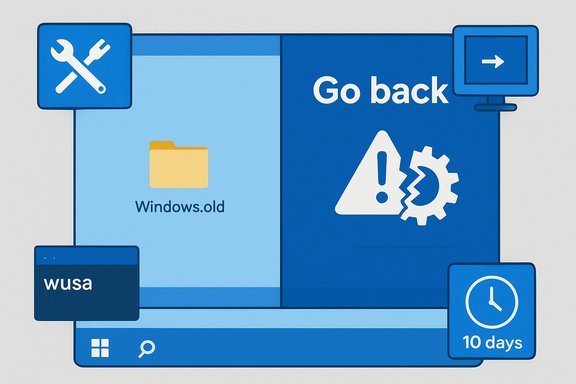
Microsoft builds a safety net into Windows feature updates so users can revert to the prior major build if something goes wrong. In practice, Windows saves the prior installation in folders such as Windows.old and retains the built‑in “Go back” rollback option for a limited period (generally 10 days by default). If you act within that window, the rollback process is fast, user‑friendly, and typically preserves your personal files while removing apps or drivers installed after the update. This 10‑day rollback design and the Windows.old dependency are described in official recovery guidance and widely documented community guides.Despite the built‑in safeguards, major feature updates (for example, the Windows 11 24H2 rollout) have triggered a wave of compatibility and stability reports, prompting many users to pursue rollbacks through several available methods. Community reporting and step‑by‑step walkthroughs explain three primary ways to return to a previous Windows version: the Settings “Go back” flow, recovery environment (WinRE) uninstall options, and full reinstallation from ISO or system image when rollback artifacts are gone.
This article synthesizes the practical steps, technical alternatives, troubleshooting tactics, and risk analysis you need when planning a rollback on Windows 11.
Why rollback exists and when to use it
Rolling back a feature update is intended to:- Mitigate regressions introduced by a new build (compatibility, driver, or performance regressions).
- Restore productivity quickly when a device becomes unstable.
- Provide an easy escape hatch for users who decide the new feature set or behavior is unsuitable for their workflow.
Quick summary of rollback options
- Settings → Recovery → Go back — the simplest path if Windows still boots and the rollback window remains. Preserves most personal files; removes apps/drivers installed after the update.
- Advanced Startup (WinRE) → Troubleshoot → Uninstall Updates — use when the GUI “Go back” option is missing or the OS is unstable but WinRE is reachable. This can uninstall the latest feature update or the latest quality update.
- Uninstall a specific KB with wusa — targeted removal of a problematic cumulative update (wusa /uninstall /kb:#####) for cases where a specific update is to blame. Requires admin command prompt, and not all KBs are removable.
- System Image Recovery — restore from a previously created full system image if you prepared one before the upgrade. This is the safest way to fully restore the exact prior environment.
- Clean reinstall using Media Creation Tool or ISO — the final option when rollback artifacts are deleted or the system is irreparably broken. This is disruptive and requires backup and reinstallation of apps.
Detailed rollback methods
1) Use the Settings “Go back” (the easiest, fastest method)
This is the recommended first step if Windows still boots and you’re within the rollback window.Steps:
- Open Settings (Windows + I).
- Go to System → Recovery.
- Under Recovery options, look for Go back (it appears only if Windows retains the previous version files).
- Click Go back, choose a reason, and follow the on‑screen prompts.
- Windows will automatically uninstall the feature update and restore the previous build.
- Personal files are normally preserved, but apps and device drivers installed after the feature update may be removed.
- The process can take tens of minutes to a few hours depending on device speed and installed software.
- The rollback window expired (default ~10 days).
- Disk cleanup or third‑party cleaners removed Windows.old or upgrade files.
- Some OEM recovery tools or custom storage configurations may alter how rollback is retained.
2) Advanced Startup (WinRE) rollback — when the system won’t boot normally
Use this method if Windows fails to boot or the Go back option is not visible.Steps to reach WinRE:
- Interrupt the boot three times (force shutdown at the Windows logo) to trigger Automatic Repair, then select Advanced options.
- Or boot from Windows recovery media and choose Repair your computer → Troubleshoot.
- Choose Troubleshoot → Advanced options → Uninstall Updates.
- Select Uninstall latest feature update (or Uninstall latest quality update if a cumulative patch is the issue).
- Confirm and allow the environment to perform the rollback.
3) Uninstall a specific update with wusa (targeted KB removal)
Sometimes a single cumulative update or security rollup (a KB) is responsible for an issue. If you can identify that KB, you can attempt to remove it.Steps:
- Boot to an admin Command Prompt (from Windows or WinRE).
- Run: wusa /uninstall /kb:XXXXX (replace XXXXX with the KB number).
- Restart when prompted and verify the result.
- Not every KB is uninstallable; some security updates cannot be removed.
- Uninstalling security updates can reduce your system’s protection; treat it as a temporary mitigation and reapply or patch with a fixed update when available. Community rollback playbooks warn about this trade‑off.
4) Restore from a System Image (best if you created one before updating)
If you created a full system image beforehand, restoring that image will return the machine to the exact pre‑update state.Steps:
- Boot into WinRE.
- Choose Troubleshoot → Advanced options → System Image Recovery.
- Select your image and follow the wizard.
5) Reinstall Windows (clean install when no rollback files exist)
If Windows.old is gone or the system is too corrupted, perform a clean install:Steps:
- On another PC, download the official Media Creation Tool (or ISO) for the target Windows 11 build you want.
- Create a bootable USB (8GB+).
- Boot the troubled PC from the USB and run Setup → Install now.
- Choose Keep personal files if you have a suitable option and you’re sure the installer is offering the correct older build; otherwise, use a clean install and restore your backups afterward.
- Clean installs are disruptive: apps and many settings are lost unless you back them up.
- Always verify ISO integrity and use trusted sources. Community posts emphasize careful backup and verification before proceeding with a reinstall.
Practical troubleshooting checklist before rolling back
- Backup immediately: copy Documents, Desktop, Pictures, and any configuration files to external media or cloud storage. Create a full disk image if possible. Community guides stress that backups are the single best insurance.
- Check for targeted fixes: device OEMs or Microsoft might publish a hotfix. Search official advisories before performing a full rollback.
- Try non‑destructive fixes first: roll back drivers in Device Manager, uninstall a recent problematic app, or uninstall a specific KB via Settings → Update history → Uninstall updates before rolling back the entire feature update.
- If you must rollback, pause updates afterward for a few weeks and watch for vetted fixes or official guidance.
Enterprise and power‑user alternatives (avoid full rollback when possible)
For IT admins and power users who want to avoid the disruption of broad rollbacks, several alternatives exist:- Pause feature updates or set a Target Release Version via Group Policy or Windows Update for Business (to block a particular feature release until validated). This is best practice for staged deployments.
- Use Known Issue Rollback (KIR): in some cases Microsoft can flip a server‑side switch to mitigate a bad change without requiring users to uninstall updates. KIR is not always available, but it’s less disruptive when applicable. Community guidance highlights KIR as a preferable mitigation when Microsoft offers it.
- Test rings and pilot deployments: for organizations, validate feature updates across representative hardware before pushing them enterprise‑wide. This avoids mass rollbacks.
Security and functional trade‑offs — critical risks of rollback
- Re‑exposure to security vulnerabilities: A rollback may remove security patches included in the update. If the update addressed an actively exploited vulnerability, you must adopt compensating controls (network isolation, tightened firewall rules) until a safe fix is available. Community playbooks explicitly warn that removing security KBs is a time‑limited mitigation.
- Loss of recent app installs and settings: Apps installed after the feature update may be lost; some settings revert to previous defaults. Backups mitigate this, but reinstallation is often necessary.
- Limited rollback window: If Windows.old is cleaned up or the 10‑day period expires, the built‑in rollback is no longer available and only a system image or clean install remains. Plan accordingly.
- Potential for incomplete fixes: Rollback might hide a deeper hardware or firmware issue that coincidentally surfaced after an update. Do not assume the update is the sole cause without evidence collection (logs, dump files). Community recommendations encourage documenting errors and collecting evidence before rollback, especially in enterprise settings.
Advanced tips and tactical playbook
- Document everything: record your Windows build (winver), installed KBs, and exact error messages before altering the system. This helps vendors and Microsoft support diagnose issues.
- If you identify a problematic KB, test wusa uninstall on a non‑production machine before applying across devices. Remember that uninstalling security updates is a stop‑gap with clear risk.
- Preserve a copy of any ISOs and system images you use. Keeping a library of validated installation media for your preferred build avoids future scramble when Microsoft moves on to newer builds. Community guides urge users to save older ISOs for emergencies.
- After rollback, reinstall drivers from OEM vendors rather than relying solely on Windows Update — OEM driver packages are often matched to tested firmware versions and may reduce future incompatibilities.
When rollback is not enough: escalation and recovery
If rolling back does not resolve your issue, consider these steps:- Collect logs and error dumps, then escalate to the device OEM or Microsoft Support.
- Attempt System Image Recovery if you created a pre‑update image.
- As last resort, plan a clean reinstall and staged reintroduction of applications and data from verified backups. Always verify ISOs and tools before using them.
Strengths and weaknesses of rollback as a strategy (critical analysis)
Strengths- Fast remediation: Restores a known good state that often eliminates update‑introduced regressions quickly.
- User‑centric safety net: The 10‑day Go back window balances disk space and user protection, making rapid reversions accessible to everyday users.
- Diagnostic clarity: If issues disappear after rollback, it more strongly implicates the update as the root cause.
- Security exposure: Reverting can remove security fixes. Use rollback only with compensating controls and a plan to re‑patch when a safe update is released.
- Limited time window and dependence on retained files: Once Windows.old is deleted, rollback becomes far more painful. Community advice stresses routine imaging and backups to avoid this trap.
- Not a substitute for root‑cause analysis: Frequent rollbacks can mask underlying hardware or firmware faults that should be investigated with vendor support.
Quick checklist (ready‑to‑use)
- Back up user files now (copy Desktop, Documents, Pictures).
- Check Settings → System → Recovery for Go back; use it if present.
- If Go back is missing, boot to WinRE and use Uninstall Updates.
- If a specific KB is suspected, test wusa /uninstall /kb:##### on a spare machine.
- If you have a system image, prefer System Image Recovery for total restoration.
- If all else fails, prepare a clean install media and reinstall from ISO, restoring files from backups afterward.
Final thoughts and recommendations
Rolling back a Windows 11 feature update is an essential skill for users and administrators when an update introduces instability. The built‑in “Go back” flow provides a simple and generally reliable path for most users within the 10‑day window, while WinRE and command‑line tools provide deeper recovery options for broken systems. However, rollback is not risk free: it can remove security fixes and may mask larger hardware or firmware problems, so it should be used in concert with careful backups, logging, and a plan to re‑patch once a safe update becomes available. The community and Microsoft guidance converge on a cautious, evidence‑based approach: collect data, try targeted fixes, and use rollback or image restores only when necessary.For anyone managing multiple systems, adopt staged deployments and test rings to avoid broad rollbacks, and keep a library of tested ISOs and system images to shorten recovery time. When used correctly and with appropriate safeguards, rollback is a powerful tool to preserve productivity and stability while the broader ecosystem works out update issues.
Conclusion: Follow the recovery path that matches your scenario—Settings “Go back” for convenience, WinRE uninstall for broken systems, wusa for targeted KB problems, system image for full restoration, or a clean reinstall when rollback artifacts are gone—and always backup and document before making major system changes.
Source: Windows Report How to Roll Back a Windows Feature Update in Windows 11
