

Windows 11 can be removed from a PC in several reliable ways — a timed rollback, a system restore, a built‑in Reset, or a full clean install — and each path carries distinct trade‑offs in complexity, data loss risk, and long‑term support.
Windows installations accumulate configuration, vendor drivers, preinstalled apps, and sometimes corruption that make a fresh start attractive. Common reasons to remove or replace Windows 11 include compatibility problems with legacy software or hardware, poor performance on older machines, privacy or telemetry concerns, or simply a preference for a previous Windows release or a different operating system.
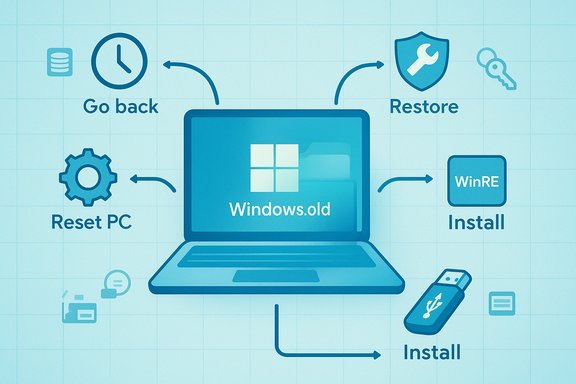
There are four realistic removal strategies for most users:
Source: MSPoweruser How To Delete Windows 11: A Step-by-Step Guide For Easy Removal
 Background / Overview
Windows installations accumulate configuration, vendor drivers, preinstalled apps, and sometimes corruption that make a fresh start attractive. Common reasons to remove or replace Windows 11 include compatibility problems with legacy software or hardware, poor performance on older machines, privacy or telemetry concerns, or simply a preference for a previous Windows release or a different operating system.There are four realistic removal strategies for most users:
- Revert (rollback) to a previous Windows build — fast and low risk if you act within the rollback window.
- Reset this PC or System Restore — good when you need a quick repair without external media.
- Clean install of another Windows version or different OS — the “nuclear” option that delivers a pristine system but erases everything unless backed up.
- Use recovery/WinRE tools when the system won’t boot and you must remove recent updates or revert using the Recovery Environment.
Reverting to a Previous Version (the rollback window)
What it is and when it works
Windows keeps a copy of the previous installation in a Windows.old folder after an upgrade. If you act within the rollback window (the default is commonly 10 days on consumer installs, though OEMs and admins may modify this), you can restore the prior OS with your files and settings mostly intact. This is the least disruptive method for users who recently upgraded and want to go back.Step‑by‑step: Use the Settings app to go back
- Open Settings (Windows key + I).
- Go to System → Recovery.
- Under Recovery options, select Go back (or Go back to earlier build) and follow the prompts.
- Provide feedback when requested and confirm the rollback. The PC will restart and restore the previous build.
Important caveats and gotchas
- The Go back option disappears after the rollback period or if Windows has deleted Windows.old (automatic cleanup or a storage cleanup operation).
- Some drivers or apps installed after the upgrade may not be present after rollback; verify device functionality and reinstall drivers if needed.
- Rollback is not a substitute for a clean install when system files are corrupted; if rollback fails, WinRE or a clean install may be required.
Using System Restore (when available)
When System Restore helps
System Restore returns Windows system files and settings to a previous restore point — it does not replace your user files. It only works if restore points were created before the Windows 11 upgrade or before the issue you want to fix. System Restore can be useful for undoing problematic driver installs or system configuration changes.How to run System Restore
- Search for “Create a restore point” and open System Properties.
- Click System Restore…, then choose a restore point from before the upgrade.
- Follow prompts and allow the system to restart and apply the restore.
Limits
- Restore points are not always present; many users do not have meaningful restore history. If there is no restore point from before the upgrade, this method isn’t available.
- System Restore does not remove all installed apps and will not replace a full OS image or handle severe corruption.
Reset This PC and Windows Recovery Environment (WinRE)
Reset This PC: a middle ground
Reset This PC (Settings → System → Recovery → Reset PC) offers two main choices: Keep my files (reinstalls Windows while preserving user files) or Remove everything (full wipe). There’s also a Cloud download option that fetches the latest Windows image or a Local reinstall that uses existing files. This is an excellent compromise for users who want a fresh OS without creating boot media.WinRE when Windows won’t boot
If Windows is unbootable, the Windows Recovery Environment (WinRE) is vital. Use it to uninstall the most recent feature update, access Startup Repair, or perform a reset. You can force WinRE by interrupting boot a few times or by booting from recovery media. For rollback scenarios where Settings is inaccessible, WinRE’s Troubleshoot → Advanced options → Uninstall Updates path can roll back the last feature update.Performing a Clean Installation (erase Windows 11)
Why you’d do a clean install
A clean installation is ideal when you want to remove all traces of Windows 11, start fresh, or install a different OS entirely. It solves deep corruption, eliminates accumulated bloat, and gives you full control over partitioning and the installed image.Preparation checklist (do this first)
- Full backup of personal files (external drive or cloud).
- Export and record software licenses, product keys, and any two‑factor backup codes.
- If BitLocker is enabled, save the recovery key outside the device (Microsoft account, paper, external storage).
- Download installation media for the target OS and have a separate USB for drivers if needed.
Create bootable installation media
- Use Microsoft’s Media Creation Tool or an ISO writer like Rufus for custom flows. The installer media should be 8GB+ USB. On UEFI/GPT systems, choose GPT partitioning and UEFI target; for older BIOS systems use MBR as required.
Step‑by‑step clean install
- Insert the bootable USB and reboot. Enter BIOS/UEFI and set the USB as the first boot device.
- Boot the installer and choose Custom: Install Windows only (advanced).
- On the partitions screen, select the system drive (usually Drive 0) and delete the Windows-related partitions if you want a fully fresh layout (this is irreversible).
- Select the unallocated space and click Next — Windows will create the needed partitions and proceed.
- Complete OOBE (Out‑Of‑Box Experience), install drivers, apply updates, and restore data from backup.
Activation and drivers
- Machines with prior digital licenses usually reactivate automatically once connected to the internet; check Settings → System → Activation. OEM product keys embedded in firmware will also reactivate automatically. However, have vendor drivers ready if Windows Update doesn’t provide them.
Advanced topics, risks, and enterprise considerations
BitLocker, TPM, and firmware considerations
If BitLocker is enabled, suspend or decrypt before wiping the drive and ensure the recovery key is stored externally. Enabling TPM/fTPM and Secure Boot is recommended for security, but modifying firmware settings without understanding the consequences can complicate future restores.Unsupported installs and community workarounds
Community tools (Rufus extended options, registry LabConfig bypasses, or custom slim ISOs like Tiny11) let users bypass Microsoft’s hardware checks or create minimal images. These approaches can work but carry trade‑offs: they may remove updateability, break support, or eliminate protection components (e.g., Defender), increasing security risk. They should be used only by experienced users who maintain separate update and security strategies.Enterprise fleets and administrators
For managed devices, a one‑off clean install is not scalable. Administrators should create validated golden images, manage drivers via Intune/WSUS, and maintain tested rollback plans and recovery images. Clean installs must be part of a documented deployment process, not an ad‑hoc fix for many managed endpoints.Practical step‑by‑step checklist (quick reference)
- Back up everything: user files, application installers, license keys, BitLocker recovery keys.
- Decide your method: rollback (if within the window) → Settings; Reset (if you want an easier reinstall) → Settings → Recovery; Clean install (if you want a pristine system) → bootable USB.
- Prepare media: Media Creation Tool or ISO writer (8GB+ USB). Prepare driver USB if needed.
- If BitLocker is enabled: decrypt or suspend and copy the recovery key somewhere safe.
- Perform the operation (follow prompts); do not interrupt the process; allow multiple restarts.
- After reinstall: install chipset/network/GPU drivers, run Windows Update repeatedly, restore backups, and create a system image of the clean system.
Critical analysis of the MSPoweruser guide (strengths and omissions)
Strengths
- The MSPoweruser guide is pragmatic and user‑focused: it lays out the three core approaches (rollback, clean install, System Restore) in clear steps and emphasizes backing up data and preparing installation media. Its checklist mentality helps reduce mistakes for casual users.
- It correctly frames Reset This PC and clean installs as distinct options with different risks and recovery time. This helps users pick a method that matches technical comfort and time available.
Important omissions and risks the guide underplays
- BitLocker and TPM handling — the guide mentions backups but does not explicitly warn many users to suspend BitLocker or export recovery keys before any partition changes. Failing to do this can render data inaccessible or complicate a reinstall. This article emphasizes BitLocker handling as mandatory.
- Activation and OEM recovery partitions — some OEMs include recovery partitions and factory images; removing Windows without preserving those images can eliminate an easy vendor restore path. Users planning to revert to vendor images should consult their OEM recovery instructions before deleting partitions. This detail is often glossed over in quick guides.
- Unsupported install workarounds — while the MSPoweruser guide mentions Media Creation Tool steps, it lightly treats community bypasses. These carry long‑term update and security costs that should be clearly flagged. If you consider bypassing hardware checks, be prepared to manage updates manually and accept possible loss of official support.
- Enterprise impact — the guide is oriented at consumers; enterprises need a different playbook (golden images, Intune/WSUS management). For organizations, a clean install without standardized imaging processes can create management fragmentation.
Flagging unverifiable or variable claims
- The default rollback window is commonly 10 days, but this can be changed by Windows updates, OEM provisioning, or by the user/administrator. Treat the specific number as typical rather than absolute and verify on the target PC before assuming rollback is available.
Recommendations and best practices
- Always perform a full image backup (disk image) in addition to file‑level backups before any OS removal. An image gives a single‑click return path if anything goes wrong.
- Export BitLocker recovery keys and confirm you can access them offline. If your Microsoft account stores the key, copy it to an external drive or print it for safekeeping.
- For drivers: prioritize chipset and storage drivers first, then network, then GPU. If Windows Update does not deliver a driver you expect, download the latest vendor driver before wiping the machine.
- If you want a local account or a minimal first boot, disconnect from the network during OOBE or use installer flows that allow creating an offline account; Windows 11’s installer tends to prefer Microsoft accounts on Home SKUs.
- For long‑term peace of mind after a clean install, create an image of your fresh, fully patched system so you can restore a known good baseline quickly.
Conclusion
Removing Windows 11 is straightforward when you choose the right method for your situation. The easiest, lowest‑risk path is a rollback if you are still within the rollback window; the fastest way to refresh without external media is Reset This PC; and a clean install is the most thorough — but it demands the most prep and carries the highest data‑loss risk. Across all approaches, meticulous backups, BitLocker key management, driver planning, and careful firmware checks separate a swift, successful removal from a recovery ordeal. The MSPoweruser guide provides a useful starting point, but for any operation that touches partitions, encryption, or corporate policies, augment that checklist with a full disk image and a detailed recovery plan.Source: MSPoweruser How To Delete Windows 11: A Step-by-Step Guide For Easy Removal
