

Windows 11 appears to be preparing a more ambitious answer to screen fatigue than the familiar amber glow of Night Light, with a newly spotted Screen Tints feature that could give users targeted overlays for migraines, photophobia, harsh contrast, and long work sessions. Reported by XDA and surfaced by the well-known Windows feature watcher PhantomOfEarth, the hidden Insider-era setting suggests Microsoft is experimenting with color presets beyond ordinary blue-light reduction. If it ships broadly, the feature could turn display comfort from a simple bedtime toggle into a more flexible accessibility and wellness tool built directly into Windows.
For years, Windows users have relied on Night Light as the default answer to late-night screen exposure. The feature warms the display by reducing blue-heavy output, making the screen look more amber after sunset or on a user-defined schedule. It is simple, visible, and familiar, but it was never designed to address every form of visual discomfort.
That limitation matters because people do not experience screen strain in one uniform way. Some users are sensitive to bright white backgrounds, some struggle with fluorescent-style blue light, some prefer low-contrast interfaces, and others have migraine or photophobia triggers that cannot be solved by merely making a display warmer. A one-size-fits-all tint can help some people while leaving others searching for third-party utilities, monitor settings, browser extensions, or specialized eyewear.
Windows already includes several accessibility display controls, including color filters, contrast themes, dark mode, text scaling, Magnifier, and display calibration-related options. Yet those tools sit in different conceptual buckets: color filters are mostly associated with color vision differences, contrast themes are system-wide interface treatments, and Night Light is framed primarily around evening use and blue-light reduction. Screen Tints, if Microsoft proceeds with it, appears to bridge those categories.
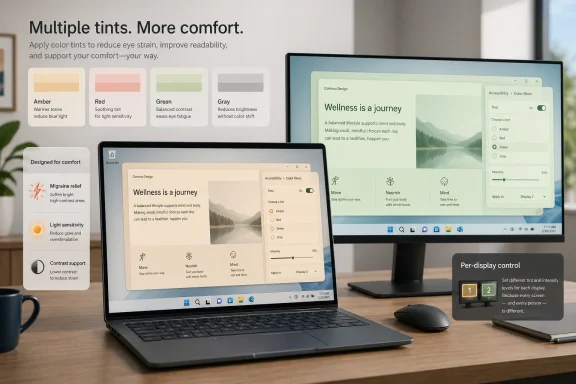
The newly spotted presets are especially notable because they are labeled around practical experiences rather than abstract color science. A red tint is reportedly described as reducing migraine triggers, a green tint is associated with photophobia, and a gray tint is aimed at easing harsh black-and-white contrast. That language suggests Microsoft is thinking less about display color as a technical setting and more about the human experience of using a PC for hours at a time.
Screen Tints point toward a broader model. Instead of assuming that amber is the universal comfort color, Microsoft appears to be testing multiple overlays that match different user needs. That is important because visual stress can come from brightness, contrast, flicker perception, color temperature, glare, content density, and individual neurological sensitivity.
The reported presets also make the feature easier to understand for ordinary users. Most people do not think in terms of wavelength bands or white-point adjustment. They think in terms of this screen makes my head hurt, white pages feel too sharp, or bright light is uncomfortable today.
Windows enthusiasts know this rhythm well. The Insider program frequently contains dormant code paths, controlled feature rollouts, A/B experiments, and UI scaffolding for settings that are not ready for general use. PhantomOfEarth and similar feature trackers often uncover these pieces before Microsoft decides whether to document them publicly.
That means users should treat Screen Tints as a credible sign of direction, not a guaranteed feature with a confirmed release date. The fact that it appears in the Insider ecosystem suggests engineering work is underway. It does not tell us when, or even whether, the feature will arrive for every Windows 11 user.
A likely rollout path would involve several stages:
The most interesting part is how Screen Tints could reduce friction. Today, a user who needs a softer screen may have to combine dark mode, Night Light, browser reader mode, monitor brightness, contrast themes, and perhaps a third-party overlay. That patchwork works, but it is fragile and inconsistent. A built-in tint layer could provide a system-level baseline that follows the user across apps.
For enterprises, this matters because workplace accommodations often depend on tools that IT can deploy, explain, and support. A built-in Windows feature is easier to justify than a random utility downloaded from the web. It can also be governed through documentation, policy, and support workflows if Microsoft eventually exposes the right controls.
There is real scientific and clinical interest in how light color, brightness, and wavelength affect migraine and light sensitivity. Some users report relief from specific tints or specialized lenses, while others find that a different tint worsens discomfort. Green light has been discussed in migraine research and patient communities, but individual response is not universal.
That makes customization essential. A rigid “migraine tint” could be misleading if it implies one color works for everyone. A set of presets plus manual adjustment would be more responsible because users can experiment safely and stop using a tint if it causes discomfort.
A well-designed feature should also make it easy to disable quickly. During a migraine aura, an intense overlay might help one user and bother another. During color-sensitive work, any tint could be unacceptable.
Key guardrails should include:
Windows already has experience here. Night Light and adaptive display features must avoid extreme or unpleasant color shifts, especially when multiple adjustments stack together. If Screen Tints sits in the same pipeline, Microsoft will need to prevent conflicts where a green photophobia overlay combines badly with Night Light, HDR tone mapping, or an OEM “eye care” mode.
Multi-monitor setups add another layer. A laptop display, external OLED monitor, HDR TV, and USB-C portable display can all interpret color differently. A tint that looks gentle on one panel may look harsh on another.
The ideal implementation would include:
The gray preset may become especially popular. Many users dislike high-contrast black text on bright white backgrounds but do not want full dark mode. A gray overlay could soften web pages, PDF documents, email clients, and legacy apps that ignore dark-mode preferences.
Gaming and media consumption will be more complicated. Some users may like a tint during casual play, while others will disable it for accurate visuals. Streaming video, photo viewing, and game art direction are all sensitive to color shifts.
Consumer benefits may include:
This is particularly relevant for schools, universities, call centers, government offices, healthcare organizations, and software teams where users spend long stretches in front of displays. A simple tint option may help reduce friction for employees who currently request monitor filters, alternate lighting, specialized glasses, or permission to install overlay software.
Enterprises will still need nuance. Not every visual comfort request can be solved through software, and some users may require occupational health assessments, ergonomic adjustments, lighting changes, or medical evaluation. But a first-party option gives IT one more low-risk tool to offer.
Administrators will want answers to practical questions:
If Microsoft executes well, Windows could differentiate itself not by inventing tinting, but by making it more granular and accessible. The PC ecosystem is uniquely diverse, with many display types, usage patterns, and professional workflows. A flexible tint system could be more valuable on Windows than on more tightly controlled platforms.
There is also a competitive accessibility story. Microsoft has often used accessibility features as proof that Windows can serve a broad user base across consumer, enterprise, education, and assistive technology contexts. Screen Tints could strengthen that story if the feature is thoughtfully integrated.
Hardware vendors may respond as well. Many laptop makers already advertise eye-comfort displays, low-blue-light certification, DC dimming, anti-flicker panels, and ambient color sensors. A richer Windows tint feature could become part of that marketing stack, especially on premium laptops and Copilot+ PCs.
The competitive landscape may shift around these points:
The most logical home would be under Accessibility, Display, or both. A duplicate entry point would be helpful because users may search for “migraine,” “eye strain,” “tint,” “photophobia,” “contrast,” “blue light,” or “Night Light.” Settings search should recognize all of those terms.
Quick Settings integration is equally important. Users should be able to switch tints without opening the full Settings app, especially if discomfort appears suddenly. A keyboard shortcut would make the feature more accessible still.
A practical model would include:
Night Light is mainly about warming the display and reducing blue-heavy output, often in the evening. Color filters help users distinguish colors or adapt the screen palette for vision differences. Contrast themes change interface colors more structurally, affecting the Windows shell and supported apps. Screen Tints would likely sit as a broad overlay for comfort and visual sensitivity.
If Microsoft presents these as siblings rather than substitutes, users will understand them better. A “Display comfort” hub could bring them together without collapsing them into one confusing control panel.
Microsoft should consider a guided setup flow:
The second question is how much control users get. Presets are useful, but intensity, scheduling, custom colors, and per-display behavior will determine whether Screen Tints becomes a daily tool or a curiosity. The more personal the condition, the more important customization becomes.
Watch for these signals in future Windows builds:
If Screen Tints reaches stable Windows 11, it could mark a subtle but important shift in how Microsoft thinks about the PC display. The screen would no longer be treated merely as a color-accurate output device or a canvas for apps, but as a human-facing surface that must adapt to comfort, context, and health. That is the kind of practical accessibility improvement that may not dominate a keynote, but could make Windows feel more humane for millions of users who simply want their PC to hurt less after a long day.
Source: XDA Windows 11's new screen tints will reduce migraines, visual stress, and eye strain from long-term use
 Overview
For years, Windows users have relied on Night Light as the default answer to late-night screen exposure. The feature warms the display by reducing blue-heavy output, making the screen look more amber after sunset or on a user-defined schedule. It is simple, visible, and familiar, but it was never designed to address every form of visual discomfort.That limitation matters because people do not experience screen strain in one uniform way. Some users are sensitive to bright white backgrounds, some struggle with fluorescent-style blue light, some prefer low-contrast interfaces, and others have migraine or photophobia triggers that cannot be solved by merely making a display warmer. A one-size-fits-all tint can help some people while leaving others searching for third-party utilities, monitor settings, browser extensions, or specialized eyewear.
Windows already includes several accessibility display controls, including color filters, contrast themes, dark mode, text scaling, Magnifier, and display calibration-related options. Yet those tools sit in different conceptual buckets: color filters are mostly associated with color vision differences, contrast themes are system-wide interface treatments, and Night Light is framed primarily around evening use and blue-light reduction. Screen Tints, if Microsoft proceeds with it, appears to bridge those categories.
The newly spotted presets are especially notable because they are labeled around practical experiences rather than abstract color science. A red tint is reportedly described as reducing migraine triggers, a green tint is associated with photophobia, and a gray tint is aimed at easing harsh black-and-white contrast. That language suggests Microsoft is thinking less about display color as a technical setting and more about the human experience of using a PC for hours at a time.
Why Screen Tints Matter
Beyond the blue-light story
The traditional blue-light filter narrative is easy to understand: reduce short-wavelength light at night, make the display warmer, and potentially reduce sleep disruption. That story helped Night Light become mainstream across Windows, macOS, iOS, Android, and many monitor firmware interfaces. But it also narrowed the conversation around eye comfort to a single axis.Screen Tints point toward a broader model. Instead of assuming that amber is the universal comfort color, Microsoft appears to be testing multiple overlays that match different user needs. That is important because visual stress can come from brightness, contrast, flicker perception, color temperature, glare, content density, and individual neurological sensitivity.
The reported presets also make the feature easier to understand for ordinary users. Most people do not think in terms of wavelength bands or white-point adjustment. They think in terms of this screen makes my head hurt, white pages feel too sharp, or bright light is uncomfortable today.
- Amber-style tint remains useful for familiar Night Light behavior.
- Red tint may appeal to users who associate certain colors or brightness patterns with migraine discomfort.
- Green tint may be useful for some users with light sensitivity, though individual responses vary.
- Gray tint could soften the visual jump between black text and white backgrounds.
- Custom overlays could let users tune Windows around personal comfort rather than vendor defaults.
The Insider Clue Trail
A work in progress, not a shipping promise
The feature has reportedly been spotted in a Windows Insider build rather than announced in a polished Microsoft release note. That distinction matters. Hidden or unfinished Windows features often appear months before public rollout, change names, move locations, lose capabilities, or disappear entirely before reaching the Release Preview or stable channel.Windows enthusiasts know this rhythm well. The Insider program frequently contains dormant code paths, controlled feature rollouts, A/B experiments, and UI scaffolding for settings that are not ready for general use. PhantomOfEarth and similar feature trackers often uncover these pieces before Microsoft decides whether to document them publicly.
That means users should treat Screen Tints as a credible sign of direction, not a guaranteed feature with a confirmed release date. The fact that it appears in the Insider ecosystem suggests engineering work is underway. It does not tell us when, or even whether, the feature will arrive for every Windows 11 user.
A likely rollout path would involve several stages:
- Hidden implementation in Canary or Dev builds.
- Limited enablement for select Insiders.
- Settings copy, icons, and accessibility wording refinement.
- Feedback collection from users with different displays and vision needs.
- Gradual movement to Beta, Release Preview, and finally stable Windows.
The Accessibility Context
From accommodation to everyday usability
Microsoft has spent years repositioning accessibility as a mainstream design principle rather than a set of niche accommodations. Windows 11 already offers tools for vision, hearing, mobility, neurodiversity, focus, and interaction. Screen Tints would fit naturally into that wider strategy because light sensitivity is not limited to users with formal diagnoses.The most interesting part is how Screen Tints could reduce friction. Today, a user who needs a softer screen may have to combine dark mode, Night Light, browser reader mode, monitor brightness, contrast themes, and perhaps a third-party overlay. That patchwork works, but it is fragile and inconsistent. A built-in tint layer could provide a system-level baseline that follows the user across apps.
For enterprises, this matters because workplace accommodations often depend on tools that IT can deploy, explain, and support. A built-in Windows feature is easier to justify than a random utility downloaded from the web. It can also be governed through documentation, policy, and support workflows if Microsoft eventually exposes the right controls.
- Students may benefit during long reading sessions.
- Office workers may reduce discomfort during spreadsheet-heavy days.
- Developers may use tints alongside dark themes during long coding sessions.
- Migraine-prone users may gain a quick mitigation option when symptoms begin.
- Photophobia-sensitive users may find Windows more usable in bright environments.
- IT departments may prefer a built-in feature over unsupported overlay software.
Migraine, Photophobia, and the Limits of Software
Helpful settings are not medical treatment
The reported red and green presets will attract attention because they are associated with migraines and photophobia. That language should be handled carefully. Migraine is a neurological condition, photophobia can have many causes, and screen discomfort can overlap with eye strain, dry eye, binocular vision issues, vestibular disorders, concussion recovery, or environmental lighting problems.There is real scientific and clinical interest in how light color, brightness, and wavelength affect migraine and light sensitivity. Some users report relief from specific tints or specialized lenses, while others find that a different tint worsens discomfort. Green light has been discussed in migraine research and patient communities, but individual response is not universal.
That makes customization essential. A rigid “migraine tint” could be misleading if it implies one color works for everyone. A set of presets plus manual adjustment would be more responsible because users can experiment safely and stop using a tint if it causes discomfort.
What Microsoft must avoid
Microsoft should avoid presenting Screen Tints as a cure. It can describe the feature as a comfort and accessibility aid, but it should not imply diagnosis, treatment, or guaranteed migraine prevention. The safest framing is practical: these tints may help some users reduce discomfort from screen use.A well-designed feature should also make it easy to disable quickly. During a migraine aura, an intense overlay might help one user and bother another. During color-sensitive work, any tint could be unacceptable.
Key guardrails should include:
- Clear disclaimers that tints are not medical care.
- Quick toggles for enabling and disabling overlays.
- Intensity sliders rather than fixed color strength.
- Per-display behavior for multi-monitor setups.
- Keyboard shortcuts for users who need immediate relief.
- Compatibility warnings for color-critical workflows.
Technical Challenges Under the Hood
Color output is messier than it looks
Applying a tint to a screen sounds simple, but Windows display output is complicated. Modern PCs may use SDR and HDR modes, wide-gamut panels, ICC profiles, GPU color pipelines, vendor display utilities, content-adaptive brightness, adaptive color sensors, Night Light, color filters, and app-level color management. A system tint has to coexist with all of that.Windows already has experience here. Night Light and adaptive display features must avoid extreme or unpleasant color shifts, especially when multiple adjustments stack together. If Screen Tints sits in the same pipeline, Microsoft will need to prevent conflicts where a green photophobia overlay combines badly with Night Light, HDR tone mapping, or an OEM “eye care” mode.
Multi-monitor setups add another layer. A laptop display, external OLED monitor, HDR TV, and USB-C portable display can all interpret color differently. A tint that looks gentle on one panel may look harsh on another.
The color-management problem
Color accuracy is a real concern. Designers, photographers, video editors, game artists, and print professionals cannot leave a global tint enabled while judging color. Windows must make the feature obvious enough that users understand when it is active.The ideal implementation would include:
- A persistent but subtle status indicator when a tint is active.
- Per-monitor enablement for mixed work and comfort setups.
- Automatic pause options for full-screen video, games, or color-managed apps.
- Integration with Quick Settings for fast switching.
- Compatibility messaging when Night Light or color filters are already enabled.
Consumer Impact
A better default for long PC sessions
For everyday Windows 11 users, Screen Tints could become one of those quiet features that changes habits. Night Light is often scheduled for evening use, but Screen Tints may be useful at noon, in an office, during travel, while recovering from a headache, or when reading long documents. That makes it less of a bedtime feature and more of a daily comfort control.The gray preset may become especially popular. Many users dislike high-contrast black text on bright white backgrounds but do not want full dark mode. A gray overlay could soften web pages, PDF documents, email clients, and legacy apps that ignore dark-mode preferences.
Gaming and media consumption will be more complicated. Some users may like a tint during casual play, while others will disable it for accurate visuals. Streaming video, photo viewing, and game art direction are all sensitive to color shifts.
Where users will feel it first
If Microsoft integrates Screen Tints into Settings and Quick Settings, the feature could become highly discoverable. That would be a major advantage over third-party screen overlay tools, which often require startup permissions, tray icons, and manual configuration.Consumer benefits may include:
- Less reliance on third-party utilities for simple screen overlays.
- More comfortable reading across apps that do not support dark mode.
- Better personalization for users who dislike amber-only Night Light.
- A quick response option when headaches or light sensitivity appear.
- Improved accessibility awareness among mainstream Windows users.
Enterprise and Education Impact
IT wants built-in, manageable tools
In business and education environments, built-in Windows features carry more weight than consumer tweaks. IT administrators need tools that are documented, supportable, secure, and predictable. If Screen Tints ships as a standard Windows 11 feature, it could become part of workplace accommodation playbooks.This is particularly relevant for schools, universities, call centers, government offices, healthcare organizations, and software teams where users spend long stretches in front of displays. A simple tint option may help reduce friction for employees who currently request monitor filters, alternate lighting, specialized glasses, or permission to install overlay software.
Enterprises will still need nuance. Not every visual comfort request can be solved through software, and some users may require occupational health assessments, ergonomic adjustments, lighting changes, or medical evaluation. But a first-party option gives IT one more low-risk tool to offer.
Administrative questions
The enterprise value will depend heavily on manageability. Microsoft could make Screen Tints far more useful by supporting policy controls, Settings search integration, accessibility documentation, and perhaps deployment guidance for managed devices.Administrators will want answers to practical questions:
- Can the feature be configured through Group Policy or modern device management?
- Can users change tints without administrator rights?
- Can organizations set a default but allow personal overrides?
- Does the tint affect remote support tools or screen sharing?
- Does it interact with Windows 365, Azure Virtual Desktop, or Remote Desktop sessions?
- Can it be disabled for exam environments, kiosks, or color-critical workstations?
Competitive Implications
Windows catches up, but can leap ahead
Most modern operating systems have some form of Night Light, Night Shift, blue-light reduction, or color filtering. Apple, Google, Linux desktop environments, smartphone vendors, and monitor manufacturers all offer variations. What makes the reported Windows 11 approach interesting is its potential to combine mainstream display comfort with condition-oriented presets.If Microsoft executes well, Windows could differentiate itself not by inventing tinting, but by making it more granular and accessible. The PC ecosystem is uniquely diverse, with many display types, usage patterns, and professional workflows. A flexible tint system could be more valuable on Windows than on more tightly controlled platforms.
There is also a competitive accessibility story. Microsoft has often used accessibility features as proof that Windows can serve a broad user base across consumer, enterprise, education, and assistive technology contexts. Screen Tints could strengthen that story if the feature is thoughtfully integrated.
Pressure on apps and hardware vendors
A system-wide tint may also pressure app developers to take visual comfort more seriously. If users routinely enable gray or green overlays to tolerate harsh interfaces, that is a signal that app design still leans too heavily on bright white canvases and thin low-contrast text. Operating system features can compensate, but they should not excuse poor design.Hardware vendors may respond as well. Many laptop makers already advertise eye-comfort displays, low-blue-light certification, DC dimming, anti-flicker panels, and ambient color sensors. A richer Windows tint feature could become part of that marketing stack, especially on premium laptops and Copilot+ PCs.
The competitive landscape may shift around these points:
- Apple remains strong in color consistency and integrated display behavior.
- Google has broad reach through Android and ChromeOS display comfort tools.
- Linux desktops offer flexibility but often require more manual configuration.
- Monitor vendors provide hardware-level modes but lack OS-wide context.
- Microsoft can win by combining accessibility, policy, and broad hardware support.
How Screen Tints Should Work
The design details will decide adoption
The difference between a beloved feature and a forgotten Settings page often comes down to workflow. Screen Tints must be easy to find, easy to understand, and easy to toggle. If Microsoft buries it three menus deep, many users who need it most will never discover it.The most logical home would be under Accessibility, Display, or both. A duplicate entry point would be helpful because users may search for “migraine,” “eye strain,” “tint,” “photophobia,” “contrast,” “blue light,” or “Night Light.” Settings search should recognize all of those terms.
Quick Settings integration is equally important. Users should be able to switch tints without opening the full Settings app, especially if discomfort appears suddenly. A keyboard shortcut would make the feature more accessible still.
A sensible feature model
A strong implementation might include presets, customization, scheduling, and app-aware behavior. Microsoft does not need to make the first release overly complex, but the foundation should be flexible enough to grow.A practical model would include:
- Preset tints for amber, red, green, gray, and custom color.
- Intensity controls to avoid harsh overlays.
- Scheduling by time of day or sunrise and sunset.
- Per-display selection for multi-monitor users.
- Temporary pause for full-screen media and games.
- Quick Settings tile for instant switching.
- Keyboard shortcut support for accessibility scenarios.
- Profile naming so users can create “Reading,” “Migraine,” or “Evening” modes.
Relationship to Night Light, Color Filters, and Contrast Themes
One family, different jobs
Screen Tints should not replace Night Light, color filters, or contrast themes. Each tool serves a different purpose. The challenge is to make their relationship clear enough that users do not stack features accidentally and end up with a strange-looking display.Night Light is mainly about warming the display and reducing blue-heavy output, often in the evening. Color filters help users distinguish colors or adapt the screen palette for vision differences. Contrast themes change interface colors more structurally, affecting the Windows shell and supported apps. Screen Tints would likely sit as a broad overlay for comfort and visual sensitivity.
If Microsoft presents these as siblings rather than substitutes, users will understand them better. A “Display comfort” hub could bring them together without collapsing them into one confusing control panel.
Avoiding feature clutter
Windows Settings already has a discoverability problem. Useful features can feel scattered across System, Accessibility, Personalization, Privacy, and device-specific pages. Screen Tints could either improve that situation or make it worse.Microsoft should consider a guided setup flow:
- Ask what the user is trying to improve: sleep, glare, contrast, light sensitivity, or color distinction.
- Suggest the relevant Windows feature.
- Show a live preview.
- Let the user adjust strength.
- Offer a Quick Settings shortcut.
Strengths and Opportunities
Screen Tints could become one of Windows 11’s most meaningful quality-of-life additions if Microsoft treats it as an accessibility-first feature rather than a novelty display effect. Its strength lies in making comfort personal, visible, and available without asking users to become display experts.- Personalized comfort goes beyond the amber-only model of traditional Night Light.
- Accessibility visibility improves when terms like migraine, photophobia, and contrast relief appear in mainstream settings.
- Enterprise supportability improves if organizations can rely on a built-in Windows feature.
- Reduced third-party dependence may improve security and consistency for users who currently install overlay tools.
- Better long-session usability could help workers, students, gamers, and readers who spend hours at a screen.
- Hardware ecosystem alignment could pair Windows settings with low-blue-light panels and ambient color sensors.
- Future profile support could make Windows more adaptive to context, time, task, and user health needs.
Risks and Concerns
The promise is real, but so are the pitfalls. A display tint touches perception, accessibility, color accuracy, and health-adjacent claims, which means Microsoft must be more careful than it would be with a cosmetic personalization option.- Medical overclaiming could mislead users if presets appear to promise migraine prevention or photophobia treatment.
- Individual variability means a tint that helps one person may worsen discomfort for another.
- Color accuracy issues could disrupt creative work, shopping, design review, and media editing.
- Feature conflicts may arise with Night Light, HDR, adaptive color, OEM utilities, and GPU control panels.
- Poor discoverability could leave the feature unused by the people who would benefit most.
- Multi-monitor inconsistency may create confusing differences between displays.
- Support complexity could increase if users forget a tint is active and report washed-out or unusual colors.
What to Watch Next
The immediate question is whether Microsoft moves Screen Tints from hidden Insider work to a documented Windows Insider rollout. If that happens, the wording of the Settings page will be just as important as the colors themselves. Microsoft’s labels will reveal whether it views this as a health-adjacent accessibility feature, a display personalization option, or an expansion of Night Light.The second question is how much control users get. Presets are useful, but intensity, scheduling, custom colors, and per-display behavior will determine whether Screen Tints becomes a daily tool or a curiosity. The more personal the condition, the more important customization becomes.
Watch for these signals in future Windows builds:
- Official release notes mentioning Screen Tints or expanded display comfort settings.
- Quick Settings integration that makes tint switching fast and visible.
- Accessibility documentation explaining migraine, photophobia, and contrast language carefully.
- Policy or management hooks for business and education deployments.
- Interaction changes involving Night Light, color filters, HDR, and adaptive color.
If Screen Tints reaches stable Windows 11, it could mark a subtle but important shift in how Microsoft thinks about the PC display. The screen would no longer be treated merely as a color-accurate output device or a canvas for apps, but as a human-facing surface that must adapt to comfort, context, and health. That is the kind of practical accessibility improvement that may not dominate a keynote, but could make Windows feel more humane for millions of users who simply want their PC to hurt less after a long day.
Source: XDA Windows 11's new screen tints will reduce migraines, visual stress, and eye strain from long-term use
