

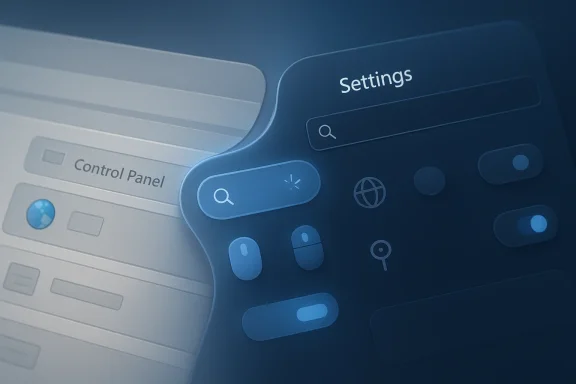
Microsoft’s long-running split between the modern Settings app and the legacy Control Panel is finally narrowing, and that matters more than a cosmetic refresh. Over the last year and a half, Windows 11 updates have steadily moved classic configuration surfaces into Settings, while Microsoft has also started layering in a more coherent visual language across dialogs, system pages, and related experiences. The result is not a single dramatic redesign, but a slow, deliberate unification of how Windows looks and behaves.
For years, Windows users have lived with a strange compromise. Some core options live in the newer Settings app, while others still hide behind decades-old Control Panel pages, MMC snap-ins, and legacy dialogs. Microsoft has not only acknowledged that split, it has been actively reducing it by moving more options into Settings in recent Windows 11 Insider builds and release previews.
That migration is important because the Settings app is now Microsoft’s preferred front door for Windows configuration. Microsoft’s support documentation describes it as designed for simplicity, accessibility, and ease of use, and notes that it is continually updated to support the latest Windows features. In contrast, the old Control Panel is increasingly treated as a compatibility layer rather than the primary destination.
The change is also part of a broader shift in Windows 11’s design strategy. Microsoft has been progressively modernizing dialogs, improving dark mode consistency, and bringing more surfaces in line with the operating system’s current visual identity. In other words, the company is not just relocating settings; it is trying to make the entire OS feel architecturally consistent again.
This move has been visible in multiple Insider and preview releases. Microsoft added more time, language, keyboard, and mouse-related controls to Settings over time, and has repeatedly documented these changes as part of Windows 11’s ongoing settings modernization work. The trend has been steady enough that the question is no longer whether Control Panel will fade, but how long the transition will take.
The timing is telling as well. Windows 10 reached end of support on October 14, 2025, which reinforces Microsoft’s push toward Windows 11 as the main platform for future experience work. That does not mean every lingering Control Panel feature disappears overnight, but it does mean Microsoft has far more incentive to streamline the modern Windows stack for both consumers and IT administrators.
The practical benefit is obvious: fewer places to hunt for the same option. Microsoft has been adding Settings-side entry points for time and language controls, mouse settings, and other system functions that used to require detours through Control Panel. That means fewer duplicated menus, fewer mismatched layouts, and fewer moments where Windows seems to contradict itself.
What makes this especially important is that Windows 11 now serves a much broader audience than the old desktop OS did. It has to work for casual consumers, power users, admins, and AI-assisted experiences that expect a structured settings model. A fragmented UI stack is simply harder to scale in that environment.
That matters for accessibility too. A more searchable Settings app reduces the burden on users who struggle with dense hierarchical menus. It also complements Microsoft’s broader accessibility work, which has been increasingly folded into Windows 11’s modern shell rather than being left behind in older tools.
Still, the direction is unmistakable. Microsoft support pages already route common app-management tasks through Settings first, then mention Control Panel as a fallback for programs that cannot yet be removed elsewhere. Likewise, Windows Insider notes continue to highlight specific settings that have been moved out of Control Panel.
That strategy is familiar in Windows history. Microsoft has often introduced a new system, let both coexist, and only later let the old layer wither once enough functionality has moved. The difference now is that Settings is finally beginning to look like the long-term winner.
There is also a compatibility issue in reverse. When users have muscle memory built over decades, a wholesale removal would be disruptive even if the replacement were technically superior. Microsoft’s cautious pace is therefore less indecisive than it looks; it is a recognition that Windows is still a living platform with old and new expectations colliding in real time.
This is the kind of change users often notice only when it is absent. Mixed styling, old dialog chrome, and inconsistent spacing make a desktop feel unfinished even when each individual component still works. Microsoft appears determined to reduce that feeling by updating the hidden seams in the interface.
Microsoft’s continued investment in Fluent and Windows 11-aligned visuals also suggests that this is not a one-off cleanup. The company is building a future where new experiences—especially AI-driven ones—can sit comfortably beside core system tools without feeling bolted on. That is a strategic design decision, not just a cosmetic one.
That also has marketing value. Windows 11 can finally be sold not just as “Windows, but rounded,” but as an operating system that has matured into a clearer product identity. The more Microsoft removes visual relics, the easier it becomes to argue that Windows 11 is the platform for the next era of PC computing.
The other major consumer benefit is discoverability through search and assistance. Microsoft’s Copilot on Windows can now provide direct links into relevant Settings pages, which reinforces the idea that users should describe a problem rather than browse a taxonomy. That is a very modern approach, and it fits the way many people already interact with software.
It also helps that Microsoft is increasingly surfacing settings through search, assistant prompts, and Settings home-page features. The OS becomes less about memorizing location and more about task completion, which is exactly the kind of shift modern consumer software has been making for years.
There is also the learning-curve issue. When familiar paths move, longtime users sometimes interpret the change as “things are missing” rather than “things have been relocated.” Microsoft will need to keep search, cross-links, and explanatory prompts strong enough to make the transition feel intentional instead of confusing.
Microsoft’s cautious rollout is therefore sensible from an enterprise perspective. It preserves compatibility while gradually shifting behavior toward the modern model, which gives admins time to adjust scripts, help desk articles, and training material. The company appears to be balancing design modernization with operational continuity.
This is especially true for hybrid environments where some machines are on Windows 11 while others are still transitioning. Support teams may have to maintain two mental models for the same task, which is precisely the kind of redundancy Microsoft is trying to eliminate in the product itself.
That is also why Microsoft’s design changes matter strategically. If the company can make Windows 11 feel cleaner without breaking old expectations, it strengthens the case for adopting new Windows releases at scale. The settings migration may look small, but for enterprise trust it is part of a much larger credibility test.
There is also the AI factor. Windows is being reoriented around search, natural-language help, and agent-like assistance, and those experiences need a coherent destination to point users toward. A fragmented settings architecture makes AI guidance less useful because the assistant still has to work around the platform’s own inconsistencies.
This also explains why Microsoft keeps adding more search-friendly pathways and direct links into Settings. An assistant cannot be truly helpful if the target surface is inconsistent or scattered, so the underlying OS must become more legible before the AI experience can feel complete.
The company is also competing on perception. Windows needs to feel modern to consumers, credible to enterprises, and flexible enough for AI-first interactions. A fractured settings story undermines all three goals, so this cleanup is more than housekeeping—it is platform positioning.
The most interesting thing to watch is whether Microsoft begins removing more high-traffic Control Panel surfaces in favor of Settings pages that feel complete rather than temporary. If the company can keep that pace up through future Windows 11 releases, the OS may finally start to look like one product instead of several generations stitched together. That would be a real design win, not just a superficial refresh.
Source: thewincentral.com Microsoft Is Finally Fixing Windows 11’s Design - WinCentral
 Background
For years, Windows users have lived with a strange compromise. Some core options live in the newer Settings app, while others still hide behind decades-old Control Panel pages, MMC snap-ins, and legacy dialogs. Microsoft has not only acknowledged that split, it has been actively reducing it by moving more options into Settings in recent Windows 11 Insider builds and release previews.That migration is important because the Settings app is now Microsoft’s preferred front door for Windows configuration. Microsoft’s support documentation describes it as designed for simplicity, accessibility, and ease of use, and notes that it is continually updated to support the latest Windows features. In contrast, the old Control Panel is increasingly treated as a compatibility layer rather than the primary destination.
The change is also part of a broader shift in Windows 11’s design strategy. Microsoft has been progressively modernizing dialogs, improving dark mode consistency, and bringing more surfaces in line with the operating system’s current visual identity. In other words, the company is not just relocating settings; it is trying to make the entire OS feel architecturally consistent again.
This move has been visible in multiple Insider and preview releases. Microsoft added more time, language, keyboard, and mouse-related controls to Settings over time, and has repeatedly documented these changes as part of Windows 11’s ongoing settings modernization work. The trend has been steady enough that the question is no longer whether Control Panel will fade, but how long the transition will take.
The timing is telling as well. Windows 10 reached end of support on October 14, 2025, which reinforces Microsoft’s push toward Windows 11 as the main platform for future experience work. That does not mean every lingering Control Panel feature disappears overnight, but it does mean Microsoft has far more incentive to streamline the modern Windows stack for both consumers and IT administrators.
Why the Settings App Is the Real Center of Gravity
The Settings app is no longer just a convenience layer. It has become the place where Microsoft can introduce new Windows capabilities, expose AI-assisted controls, and build a cleaner onboarding path for ordinary users who do not want to memorize legacy Windows terminology. Microsoft’s support and blog posts make clear that Settings is the primary target for new system features, while Control Panel is now mostly a fallback for older workflows.The practical benefit is obvious: fewer places to hunt for the same option. Microsoft has been adding Settings-side entry points for time and language controls, mouse settings, and other system functions that used to require detours through Control Panel. That means fewer duplicated menus, fewer mismatched layouts, and fewer moments where Windows seems to contradict itself.
The user experience problem Microsoft is trying to solve
The old split between Settings and Control Panel created avoidable friction. Users would search one place, fail to find a familiar option, and then be sent somewhere older and more technical-looking. Microsoft’s current trajectory suggests it wants to remove that confusion by making Settings the authoritative, consistently branded surface for routine tasks.What makes this especially important is that Windows 11 now serves a much broader audience than the old desktop OS did. It has to work for casual consumers, power users, admins, and AI-assisted experiences that expect a structured settings model. A fragmented UI stack is simply harder to scale in that environment.
- Fewer duplicated paths to the same option.
- More predictable search behavior inside Settings.
- Less dependence on older dialog boxes.
- Better alignment with Windows 11’s visual identity.
Why search matters inside Windows
Search is becoming the hidden backbone of Windows navigation. Microsoft has repeatedly emphasized improved discoverability in Settings and Windows Search, including semantic indexing on Copilot+ PCs and direct links from Copilot into relevant settings pages. This is a meaningful shift because it assumes users may not know where a function lives, but can still describe what they want to change.That matters for accessibility too. A more searchable Settings app reduces the burden on users who struggle with dense hierarchical menus. It also complements Microsoft’s broader accessibility work, which has been increasingly folded into Windows 11’s modern shell rather than being left behind in older tools.
Control Panel Is Not Gone, But It Is Clearly in Retreat
Microsoft has not announced a hard cutoff date for Control Panel, and that is consistent with its cautious migration style. Instead, the company is moving features in waves, ensuring older tools remain available for compatibility while newer interfaces absorb more daily tasks. That approach is slower, but it avoids breaking enterprises and long-tail workflows that still depend on legacy behavior.Still, the direction is unmistakable. Microsoft support pages already route common app-management tasks through Settings first, then mention Control Panel as a fallback for programs that cannot yet be removed elsewhere. Likewise, Windows Insider notes continue to highlight specific settings that have been moved out of Control Panel.
A slow fade-out, not a sudden switch-off
The most realistic reading is that Control Panel will behave like a legacy compatibility zone for quite a while. Microsoft has shown no interest in abruptly cutting off old configuration paths, especially because some settings are buried in enterprise-friendly workflows and obscure administrative dialogs. The company is instead normalizing Settings as the default while leaving the old route open when necessary.That strategy is familiar in Windows history. Microsoft has often introduced a new system, let both coexist, and only later let the old layer wither once enough functionality has moved. The difference now is that Settings is finally beginning to look like the long-term winner.
- Legacy pathways remain for compatibility.
- New features are landing in Settings first.
- Migration is happening in increments, not all at once.
- Administrators still need older tools for edge cases.
Why Microsoft cannot rush this
Windows is still too varied a platform for a clean break. OEM devices, managed enterprise fleets, and older applications all rely on assumptions about where configuration lives and how it behaves. A sudden removal of Control Panel would create more support pain than design clarity, which is why Microsoft appears to be taking the safer, slower path.There is also a compatibility issue in reverse. When users have muscle memory built over decades, a wholesale removal would be disruptive even if the replacement were technically superior. Microsoft’s cautious pace is therefore less indecisive than it looks; it is a recognition that Windows is still a living platform with old and new expectations colliding in real time.
The New Windows 11 Design Language Is Becoming More Consistent
The Settings changes are only one part of the story. Microsoft has also been modernizing system dialogs and UI surfaces so that they look more at home in Windows 11, including visual updates that support dark mode and newer design conventions. That makes the OS feel less like a patchwork and more like a single product with one design grammar.This is the kind of change users often notice only when it is absent. Mixed styling, old dialog chrome, and inconsistent spacing make a desktop feel unfinished even when each individual component still works. Microsoft appears determined to reduce that feeling by updating the hidden seams in the interface.
Visual polish is not superficial
A more consistent interface improves trust. When settings pages, system prompts, and app dialogs all share the same visual cues, users are less likely to think they have been dropped into a separate subsystem. That matters especially on Windows, where the operating system has always been a stack of layers rather than a monolithic design.Microsoft’s continued investment in Fluent and Windows 11-aligned visuals also suggests that this is not a one-off cleanup. The company is building a future where new experiences—especially AI-driven ones—can sit comfortably beside core system tools without feeling bolted on. That is a strategic design decision, not just a cosmetic one.
- More consistent dark mode support.
- Better spacing and readability.
- Dialogs that match modern Windows styling.
- Reduced visual mismatch between old and new components.
Why this helps Microsoft’s broader platform strategy
A coherent design layer lowers the cost of shipping new features. If Microsoft wants to keep adding assistant-like experiences, intelligent search, and system guidance, it needs those features to land on top of a consistent shell. Otherwise each addition risks increasing fragmentation instead of reducing it.That also has marketing value. Windows 11 can finally be sold not just as “Windows, but rounded,” but as an operating system that has matured into a clearer product identity. The more Microsoft removes visual relics, the easier it becomes to argue that Windows 11 is the platform for the next era of PC computing.
What This Means for Consumers
For everyday users, the biggest benefit is simpler navigation. Fewer legacy detours should make it easier to find common settings, adjust accessibility options, and manage devices without remembering which era of Windows a control belongs to. That alone could reduce a lot of low-level frustration.The other major consumer benefit is discoverability through search and assistance. Microsoft’s Copilot on Windows can now provide direct links into relevant Settings pages, which reinforces the idea that users should describe a problem rather than browse a taxonomy. That is a very modern approach, and it fits the way many people already interact with software.
The day-to-day upside
The average user does not care whether a control lives in Win32-era plumbing or a modern XAML shell. What they care about is whether it is easy to find, easy to understand, and visually consistent. If Microsoft keeps moving in this direction, everyday maintenance tasks should feel less intimidating and more guided.It also helps that Microsoft is increasingly surfacing settings through search, assistant prompts, and Settings home-page features. The OS becomes less about memorizing location and more about task completion, which is exactly the kind of shift modern consumer software has been making for years.
- Easier access to common controls.
- Better guided navigation.
- Less confusion over duplicate menus.
- Stronger alignment with modern app design.
Where consumers may still feel pain
Transition periods are messy, and Windows is no exception. Users may still bounce between Settings and Control Panel when a feature has not yet moved, and that inconsistency can be more frustrating than the old system if the two experiences do not line up cleanly. Microsoft’s gradual rollout strategy reduces risk, but it also prolongs the awkward middle phase.There is also the learning-curve issue. When familiar paths move, longtime users sometimes interpret the change as “things are missing” rather than “things have been relocated.” Microsoft will need to keep search, cross-links, and explanatory prompts strong enough to make the transition feel intentional instead of confusing.
What This Means for Enterprises and IT Admins
For IT departments, the settings migration is both promising and annoying. On one hand, a more consistent Settings app should make onboarding, troubleshooting, and user support easier because there are fewer places to explain. On the other hand, enterprises often depend on stable, predictable admin paths, and any UI migration can create documentation churn.Microsoft’s cautious rollout is therefore sensible from an enterprise perspective. It preserves compatibility while gradually shifting behavior toward the modern model, which gives admins time to adjust scripts, help desk articles, and training material. The company appears to be balancing design modernization with operational continuity.
Documentation and support implications
In enterprise environments, the cost of a UI change is rarely the change itself. The real cost comes from updating internal documentation, knowledge bases, and training flows to reflect new locations for familiar controls. That means Microsoft’s migration has downstream effects even when the technical feature set is unchanged.This is especially true for hybrid environments where some machines are on Windows 11 while others are still transitioning. Support teams may have to maintain two mental models for the same task, which is precisely the kind of redundancy Microsoft is trying to eliminate in the product itself.
- Reduced need for legacy navigation in support calls.
- Potential training refreshes for admins and help desks.
- Better alignment with modern management workflows.
- Some temporary duplication during the migration window.
Enterprise versus consumer priorities
Consumers mostly want clarity, while enterprises want consistency over time. That means Microsoft has to satisfy both, which is why the company cannot simply rip out Control Panel and call it progress. The path forward has to be boring, reliable, and backwards-compatible even if it is not elegant.That is also why Microsoft’s design changes matter strategically. If the company can make Windows 11 feel cleaner without breaking old expectations, it strengthens the case for adopting new Windows releases at scale. The settings migration may look small, but for enterprise trust it is part of a much larger credibility test.
Why Microsoft Is Doing This Now
A major reason is competitive pressure. Apple’s macOS and Google’s ChromeOS have long projected simpler, more unified settings experiences, even if they have their own internal complexity. Microsoft knows it cannot keep shipping a visually modern OS if the core management surfaces still feel like they belong to another century.There is also the AI factor. Windows is being reoriented around search, natural-language help, and agent-like assistance, and those experiences need a coherent destination to point users toward. A fragmented settings architecture makes AI guidance less useful because the assistant still has to work around the platform’s own inconsistencies.
The AI layer changes the design requirement
Once the operating system starts helping users find settings rather than merely hosting them, discoverability becomes a feature in its own right. That means Microsoft is not only modernizing for aesthetics; it is modernizing for machine-assisted navigation. In that sense, Settings is becoming both a UI and a data structure.This also explains why Microsoft keeps adding more search-friendly pathways and direct links into Settings. An assistant cannot be truly helpful if the target surface is inconsistent or scattered, so the underlying OS must become more legible before the AI experience can feel complete.
- Stronger support for natural-language help.
- Better alignment with Copilot-driven workflows.
- Cleaner infrastructure for future feature rollout.
- Less friction when settings move or evolve.
Legacy baggage is now a strategic liability
Old Windows components are not just old; they are expensive. They add maintenance burden, complicate visual consistency, and make the platform harder to explain. Microsoft’s willingness to keep migrating settings suggests it has decided the long-term cost of that baggage is finally too high.The company is also competing on perception. Windows needs to feel modern to consumers, credible to enterprises, and flexible enough for AI-first interactions. A fractured settings story undermines all three goals, so this cleanup is more than housekeeping—it is platform positioning.
Strengths and Opportunities
The current direction is genuinely strong because it addresses one of Windows’ oldest usability problems without forcing a disruptive break. Microsoft has the chance to make Windows 11 feel clearer, more discoverable, and more visually coherent, while also improving the foundation for future AI-assisted system management. If executed well, this could become one of the quietest but most meaningful improvements to the platform in years.- Better discoverability for everyday users who rely on search instead of memory.
- Cleaner visual consistency across system dialogs, settings pages, and support flows.
- Stronger accessibility through more logical grouping and clearer navigation.
- Improved AI integration as Copilot and related features point into a more coherent Settings architecture.
- Lower confusion from removing duplicate paths to the same control.
- More scalable design for future Windows 11 features and services.
- Better enterprise supportability as modern surfaces become the default reference point.
Risks and Concerns
The biggest risk is that Microsoft stretches the transition out so long that the user experience remains inconsistent for years. Partial migration can create a sense that Windows is always halfway done, which is a dangerous perception for a company trying to convince people that Windows 11 is mature. There is also the danger that legacy users will feel punished if familiar routes disappear too quickly or without clear guidance.- Fragmentation during transition if Settings and Control Panel remain split for too long.
- Documentation churn for IT departments, trainers, and support teams.
- User frustration when familiar options move without obvious signposting.
- Compatibility edge cases where older workflows still depend on Control Panel.
- Perception risk if users see migration as inconsistency rather than progress.
- Feature asymmetry if modern pages are polished while older ones remain clunky.
- AI overpromising if assistant-driven navigation lands before the UI is truly unified.
Looking Ahead
The next stage of this story is not about one big announcement. It is about whether Microsoft can keep moving settings into the modern shell while simultaneously making Windows feel less like an accumulation of historical layers. The signals so far are positive, especially because the company is pairing settings migration with broader visual cleanup and more intelligent navigation tools.The most interesting thing to watch is whether Microsoft begins removing more high-traffic Control Panel surfaces in favor of Settings pages that feel complete rather than temporary. If the company can keep that pace up through future Windows 11 releases, the OS may finally start to look like one product instead of several generations stitched together. That would be a real design win, not just a superficial refresh.
- More settings migrations in future Insider and Preview builds.
- Additional dark-mode and dialog polish across system surfaces.
- Wider AI-assisted navigation inside Settings and Copilot.
- Continued reduction in Control Panel dependence.
- More cross-links between search, assistance, and system configuration.
Source: thewincentral.com Microsoft Is Finally Fixing Windows 11’s Design - WinCentral
