

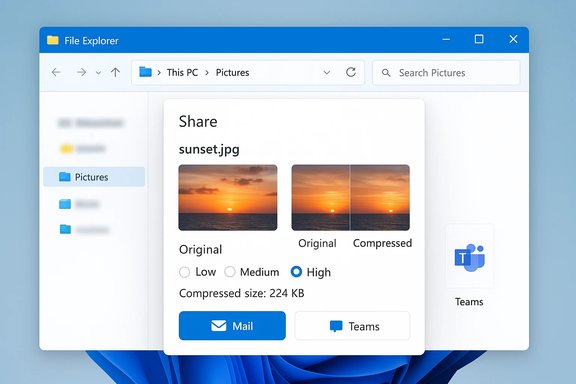
Thanks to a recent Windows 11 update, you can now shrink image files directly from File Explorer’s Share window before sending them — no extra app, no manual re-save and no fiddly export dialog. The feature is quick, built into the Share workflow, and exposes a simple menu with Original / Low / Medium / High options that preview the resulting file size before you hand the image off to an email client, chat app, or other target.
This addition places straightforward image compression where it’s most useful: at the moment you share. Rather than opening an image editor to change resolution or export at a lower quality, you can right‑click the file in Explorer, choose Share, pick Using more options (the extended share dialog), and select one of the compression presets. Explorer then shows the compressed file size and delivers a compressed copy to the app you choose — leaving your original untouched.
The change is subtle but practical: it performs lossy compression (like a JPEG quality change) while keeping the image’s pixel dimensions intact. That means you can preserve the resolution for scenarios that need exact pixel counts — while still getting dramatic file‑size reductions that speed upload, save space, and avoid annoying attachment limits.
The downsides are limited and predictable: a lack of fine‑grain control, potential visible artifacts at the lowest setting, and staggered rollout that means not all users will see it at once. For routine sharing, however, this feature is a winner — faster sharing, smaller attachments, and fewer steps.
Conclusion
Making images smaller in Windows 11 no longer requires a detour into a separate app. The Share window now gives a fast, integrated way to reduce file size while maintaining resolution, and it shows you the expected compressed size before you send. For quick sharing, choose Medium for a good balance; save originals when fidelity matters; and use specialist tools when you need fine control. This small but useful change smooths a persistent friction point in daily Windows workflows and fits cleanly into how people actually send images.
Source: PCWorld How to make images smaller in Windows 11 in no time at all
 Overview
This addition places straightforward image compression where it’s most useful: at the moment you share. Rather than opening an image editor to change resolution or export at a lower quality, you can right‑click the file in Explorer, choose Share, pick Using more options (the extended share dialog), and select one of the compression presets. Explorer then shows the compressed file size and delivers a compressed copy to the app you choose — leaving your original untouched.The change is subtle but practical: it performs lossy compression (like a JPEG quality change) while keeping the image’s pixel dimensions intact. That means you can preserve the resolution for scenarios that need exact pixel counts — while still getting dramatic file‑size reductions that speed upload, save space, and avoid annoying attachment limits.
Background: why this matters
Image sizes have been steadily growing. Modern phone and mirrorless camera photos easily surpass several megabytes each — inconvenient when you need to attach screenshots to an email, paste photos into a chat, or upload multiple images on a slow connection. Historically, Windows users have reduced image sizes in one of three ways:- Resize (change pixel dimensions) with Paint, Photos, or a dedicated editor.
- Re-export/re-save as a lower‑quality JPEG in an editor.
- Use third‑party tools (online or desktop) to batch compress.
What the feature does (and doesn’t)
How it behaves
- Compression presets: You’ll see a small selector under the file name in the Share window. The default is Original; open the dropdown and choose Low, Medium, or High quality/compression presets.
- Size preview: Explorer calculates and displays the resulting file size for the chosen preset so you know how big the forwarded file will be.
- Creates a copy: The system hands a compressed copy to the target app. Your original file remains unchanged.
- Preserves resolution: The process adjusts JPEG encoding parameters rather than changing pixel dimensions, so the width and height of the image stay the same in most cases.
What it likely does under the hood
- The tool appears to change JPEG encoding (quality/compression level), not the image’s resolution. That’s why file sizes can drop dramatically without obvious changes to pixel count.
- It’s a lossy adjustment: lower settings discard more image data and can introduce visible artifacts.
- The feature appears focused on photographic images; vector formats and lossless images may not get identical handling.
What it does not (yet) do
- It isn’t a full image editor — there’s no slider for precise quality percentages, no built‑in downscaling of resolution (except where other UI actions like cropping are performed), and it doesn’t provide advanced format conversions.
- It’s not a metadata/EXIF manager. Whether all EXIF fields are preserved for every file/format is not definitively documented and can vary by format and build.
- It currently offers a small set of presets only — no custom profiles or batch compression outside the share workflow.
Step‑by‑step: compress and share an image in seconds
- In File Explorer, right‑click the image you want to send.
- Choose Share (or Share with → Using more options, depending on your build).
- In the Share dialog that appears, look under the file name for the small menu that reads Original by default.
- Click the dropdown arrow and select Low, Medium, or High.
- Watch the displayed file size update — Explorer shows the compressed size that will be passed on.
- Choose the app to receive the compressed copy (Mail, Teams, your messaging app, etc. and complete the share.
Quick checks if you don’t see the option
- Make sure Windows Update is current. Microsoft rolls out UI changes in preview builds and gradual public releases; an older cumulative update may not include this feature.
- Try different user accounts or restart Explorer — small UI rollouts sometimes appear after a reboot or an Explorer restart.
- If you’re on a managed device (corporate laptop), your admin may block new features or delay updates.
- If you’re enrolled in preview/insider channels you may see it earlier than standard release channels; conversely, some features are gated and only enabled for a subset of devices at first.
- If the Share dialog looks different, try selecting a JPEG (most reliable) rather than a PNG or other format — support for non‑JPEG formats can vary by build.
Practical tips: get the best balance between size and quality
- For everyday chat and email: choose Medium. It’s a safe tradeoff between quality and size.
- For quick previews or where bandwidth is scarce: Low gives the biggest reduction but can create visible artifacts, especially on text or diagrams.
- For work that needs high fidelity: use Original or compress only for quick sharing while archiving the original elsewhere.
- Always preview the compressed copy at 100% zoom if text or small details matter.
- Keep originals in a dedicated folder or backup location to avoid accidental quality loss.
- Use a descriptive file‑naming scheme — the system tends to append identifiers like “_compressed” to the new file, which is helpful but can clutter folders over time.
Security and privacy considerations
- Built‑in compression is safer than third‑party cloud compressors because it doesn’t require uploading images to external servers. That reduces the risk of data exposure when compressing sensitive photos.
- However, the final recipient app may upload the compressed image (for instance, webmail or cloud apps). Be mindful of where the file is being sent and the destination app’s policies.
- The feature itself does not imply additional data collection, but standard telemetry and update mechanisms still operate on Windows devices. If you require a privacy‑tight workflow, ensure you understand your system and app policies.
Strengths: why this is a useful addition
- Speed and convenience: Compression happens where you already are — no detours into apps and no extra files to manage.
- Preserves resolution: By avoiding automatic downscaling, the feature keeps images suitable for situations where pixel dimensions matter.
- User friendly: Simple three‑way preset choices are approachable for non‑technical users.
- Integrated workflow: Works within the Share UI, so compressed copies are ready for email, chat, and other apps without manual saving or reattaching.
Limitations and risks (what to watch for)
- Quality loss on low settings: Aggressive compression creates artifacts; don’t use Low for professional or detail‑critical images.
- Limited format support: Non‑JPEG formats, vectors, or high‑dynamic‑range formats may not be handled identically.
- No precise control: Power users who need granular control (specific bitrate, chroma subsampling, or exact quality percent) will still need a dedicated image tool.
- Rollout inconsistency: Feature availability can vary by Windows build, Insider channel, region, and device, so not everyone sees it immediately.
- Uncertain metadata behavior: Whether EXIF or geolocation metadata is preserved in all cases is not consistently documented — treat that as an unknown for sensitive workflows.
Alternatives for advanced needs
If you want more control than the built‑in presets offer, consider these options:- PowerToys Image Resizer — great for batch resizing (changes resolution).
- Dedicated editors (Photoshop, Affinity Photo, GIMP) — full control over quality and format.
- Lightweight tools (IrfanView, XnConvert) — fast batch compression and format conversion.
- Desktop compressors (NXPowerLite, FileOptimizer) — aimed at office workflows and batch processes.
- Online compressors (browser‑based) — convenient for occasional use but require uploading to third‑party servers; avoid for sensitive images.
Recommended workflows
- Casual sharing: Use the Share dialog’s Medium preset to minimize size while keeping reasonable image fidelity.
- Professional/print work: Always send the original file or prepare a professionally exported copy from an editor.
- Batch tasks: Use a dedicated batch tool rather than the Share UI; the built‑in option is designed for single‑image, on‑the‑fly operations.
- Archive before compression: Keep originals in OneDrive, an external drive, or a versioned folder to ensure you can revert if a compressed version isn’t acceptable.
Developer/professional notes
- The built‑in approach is ideal for end users but not a replacement for automated server‑side compression in content pipelines.
- Photographers and designers should treat the Share UI option as a convenience feature rather than a production tool. For color‑critical work and professional deliverables, export with color management and precise JPEG settings from an editor.
- Enterprise admins can embed compression guidance in user training or script bulk compression with command‑line tools for standardized outputs when needed.
Troubleshooting checklist
- Feature missing: Update Windows and reboot. If still missing, your device may not have the phased rollout enabled yet.
- Share dialog doesn’t show size: Try selecting a JPEG and open the extended share/options UI.
- Compressed output looks wrong: Preview at 100% zoom; switch to a higher preset or send the original.
- Folder clutter from compressed copies: Use search and file filters to find files with the “_compressed” suffix and archive or clean them periodically.
Final verdict
This built‑in compression option is a small change with tangible day‑to‑day payoff. It neatly answers a common pain point — sending images quickly without bloating messages or cloud storage — while keeping the user in File Explorer. It’s not a replacement for professional export tools, but for most users and most uses it’s exactly the kind of time‑saving convenience Windows needs.The downsides are limited and predictable: a lack of fine‑grain control, potential visible artifacts at the lowest setting, and staggered rollout that means not all users will see it at once. For routine sharing, however, this feature is a winner — faster sharing, smaller attachments, and fewer steps.
Conclusion
Making images smaller in Windows 11 no longer requires a detour into a separate app. The Share window now gives a fast, integrated way to reduce file size while maintaining resolution, and it shows you the expected compressed size before you send. For quick sharing, choose Medium for a good balance; save originals when fidelity matters; and use specialist tools when you need fine control. This small but useful change smooths a persistent friction point in daily Windows workflows and fits cleanly into how people actually send images.
Source: PCWorld How to make images smaller in Windows 11 in no time at all
