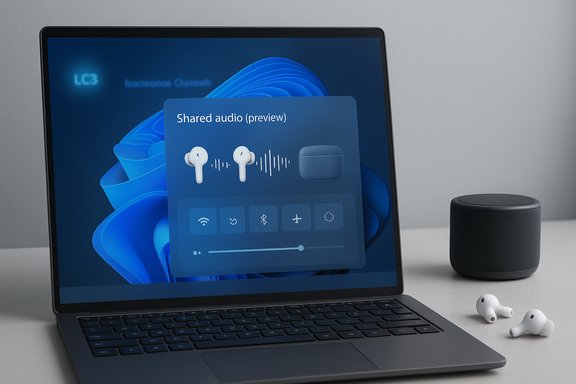
Microsoft is quietly rolling out a long‑requested convenience: a built‑in Shared audio (preview) for Windows 11 that can stream the same audio feed to two Bluetooth devices at once, leveraging the new Bluetooth Low Energy (LE Audio) stack and arriving first for Windows Insiders in Windows 11 Insider Preview Build 26220.7051.
For years, sharing private audio from a PC required awkward workarounds — wired splitters, third‑party apps, or carrier‑grade dongles — because the legacy Bluetooth Classic profiles were not designed for efficient multi‑sink media distribution. The Bluetooth Special Interest Group’s LE Audio specification (LC3 codec, isochronous channels, and Auracast‑style broadcast primitives) changes that by enabling efficient, synchronized one‑to‑many audio streams. Microsoft’s Shared audio is a pragmatic, Windows‑focused implementation of those standards: it exposes a simple Quick Settings control that lets one PC transmit a synchronized audio stream to two compatible Bluetooth LE Audio accessories at the same time. This is a preview feature deployed to Windows Insiders (Dev and Beta channels) and intentionally hardware‑gated: initial availability is restricted to a list of Copilot+ PCs where Bluetooth radios, firmware, and vendor drivers already expose the necessary LE Audio primitives. The official rollout details and supported models are documented in the Windows Insider announcement.
The preview’s strengths are clear: standards compliance, user‑friendly discovery, and a cautious rollout strategy that minimizes immediate breakage. The risks are equally real: fragmentation, variable latency, and vendor dependence mean many users will have to wait or update hardware before enjoying the experience seamlessly.
For users: test the preview if you can, update firmware, and temper expectations for universal compatibility today. For the industry: Shared audio is a signal that LE Audio is maturing on the PC, and coordinated firmware/driver updates in the coming months will determine whether this becomes a ubiquitous convenience or a niche novelty for early adopters.
Microsoft’s Shared audio (preview) shows how a standards‑driven feature can translate into everyday convenience on the desktop — provided the hardware and firmware ecosystems catch up. The immediate experience will be patchy for many, but for those on supported Copilot+ PCs with LE Audio accessories, the feature promises to finally make shared, private listening on Windows simple and reliable.
Source: en.bd-pratidin.com Windows 11 to let you stream audio to two Bluetooth devices at once|50042|News24 TV
 Background / Overview
For years, sharing private audio from a PC required awkward workarounds — wired splitters, third‑party apps, or carrier‑grade dongles — because the legacy Bluetooth Classic profiles were not designed for efficient multi‑sink media distribution. The Bluetooth Special Interest Group’s LE Audio specification (LC3 codec, isochronous channels, and Auracast‑style broadcast primitives) changes that by enabling efficient, synchronized one‑to‑many audio streams. Microsoft’s Shared audio is a pragmatic, Windows‑focused implementation of those standards: it exposes a simple Quick Settings control that lets one PC transmit a synchronized audio stream to two compatible Bluetooth LE Audio accessories at the same time. This is a preview feature deployed to Windows Insiders (Dev and Beta channels) and intentionally hardware‑gated: initial availability is restricted to a list of Copilot+ PCs where Bluetooth radios, firmware, and vendor drivers already expose the necessary LE Audio primitives. The official rollout details and supported models are documented in the Windows Insider announcement. Why this matters: the problem LE Audio solves
Bluetooth on PCs historically forced a trade‑off:- A2DP gave high‑quality one‑way stereo playback but no reliable mic support.
- HFP/HSP gave mic support but dropped playback quality and often forced mono.
- LC3 codec — better perceived audio quality at far lower bitrates than legacy SBC, enabling higher fidelity and less radio time.
- Isochronous Channels (ISO) — timing primitives that provide synchronized packet delivery for low‑jitter multi‑sink playback.
- TMAP (Telephony and Media Audio Profile) and multi‑stream — allow media and telephony streams to coexist without downgrading the media path.
What Microsoft shipped in Build 26220.7051
The core user‑facing elements of the preview are straightforward:- A Shared audio (preview) tile appears in Quick Settings once the OS and vendor drivers expose the capability.
- Users pair and connect two LE Audio‑capable accessories (headphones, earbuds, speakers, or compatible hearing aids).
- From Quick Settings, select the two connected accessories and press Share to begin streaming the same audio to both devices in sync.
- A Stop sharing control terminates the session.
Supported devices and compatibility
Microsoft’s preview is intentionally conservative. Compatibility breaks down into two sides: the host PC and the audio accessories.- Host requirements (initial list — Copilot+ PCs):
- Surface Laptop 13.8‑inch and 15‑inch (Qualcomm Snapdragon X)
- Surface Laptop for Business (13.8 and 15‑inch)
- Surface Pro 13‑inch and Surface Pro for Business 13‑inch (Qualcomm Snapdragon X)
- A “coming soon” list includes several Galaxy Book5 variants and additional Surface SKUs; OEM driver updates will enable more hosts over time.
- Accessory requirements:
- The accessory must support Bluetooth LE Audio (LC3, ISO channels, and relevant profiles).
- Microsoft lists example devices that are already LE Audio capable (or have firmware updates available): Samsung Galaxy Buds2 Pro, Buds3, Buds3 Pro, Sony WH‑1000XM6, and recent LE Audio‑capable hearing aids from vendors such as ReSound and Beltone. This list is illustrative, not exhaustive.
How Shared audio works (technical primer)
At a high level, Shared audio uses LE Audio’s broadcast and multi‑stream primitives to create a synchronized stream that multiple receivers can consume. The key technical pieces:- The PC encodes the audio into LC3 frames. LC3 provides better perceived fidelity at lower bitrates, reducing radio airtime and battery drain.
- The host opens Isochronous Channels (ISO) and transmits packets with timing guarantees so receivers play audio in tight sync — crucial to avoid audible drift between listeners.
- Microsoft currently constrains the preview to two simultaneous sinks, rather than enabling an unrestricted Auracast broadcast, to manage complexity and driver interoperability as the ecosystem ramps up.
Step‑by‑step: how to try Shared audio (Insiders)
- Confirm your PC is a supported Copilot+ model on Microsoft’s compatibility list.
- Enroll the device in the Windows Insider Program and choose the Dev or Beta channel.
- Update Windows to Build 26220.7051 (or later) and accept OEM driver updates via Settings > Windows Update.
- Update firmware on your Bluetooth accessories using the manufacturer’s companion app (highly recommended). Many vendors ship LE Audio features by firmware update.
- Pair and connect two LE Audio‑capable devices from Settings > Bluetooth & devices. Verify both show as connected.
- Open Quick Settings, tap Shared audio (preview), select the two accessories, and press Share to begin streaming. Use Stop sharing to end the session.
- If an accessory is paired and connected but doesn’t appear in the Shared audio picker, remove and re‑pair it after confirming firmware/driver updates.
- Ensure the OEM driver updates have been applied; the Quick Settings tile only shows up when the drivers expose the capability to Windows.
Practical use cases
- Shared entertainment — two people can watch a movie or stream on a laptop without disturbing others or swapping earbuds.
- Study groups and co‑working — share a lecture, podcast, or language lesson with a partner in near‑perfect sync.
- Travel — private in‑flight listening for two users using their own earbuds.
- Accessibility — direct streaming to LE Audio‑capable hearing aids alongside a companion’s headphones enables shared listening without extra hardware.
- Small venue audio — in time, Auracast‑style broadcasts could power localized audio streams for exhibitions or airport announcements; Shared audio’s early two‑sink model is a stepping stone.
Strengths: what Microsoft got right
- Standards‑based approach — building on LE Audio (LC3, ISO channels, broadcast primitives) maximizes interoperability potential across vendors and avoids proprietary lock‑in.
- User‑friendly UI — surfacing the feature in Quick Settings keeps the workflow simple and discoverable for average users.
- Conservative rollout — gating to Copilot+ PCs and limiting to two sinks during preview reduces the blast radius for driver and firmware bugs, giving partners time to align updates.
- Accessibility focus — explicit mention and support for LE Audio hearing aids is an important inclusion for assistive listening scenarios.
Risks, limitations, and areas to watch
- Ecosystem readiness — the biggest limitation is not Microsoft’s software but the broader ecosystem. Many existing headsets do not support LE Audio or require firmware updates; PC Bluetooth radios also vary by chipset and driver support. Expect uneven availability for months.
- Vendor fragmentation — mixed‑brand setups may exhibit buffering discrepancies or codec fallbacks that harm sync or quality. This is a real risk until vendors converge on stable firmware behavior.
- Latency and synchronization — while LE Audio ISO channels provide timing guarantees, practical latency depends on accessory buffering, Bluetooth radio load, and environmental RF conditions. For professional audio production or tight competitive gaming, wired or dedicated multi‑output workflows may still be necessary. Do not assume Shared audio will meet pro‑audio latency budgets.
- Battery and power claims — LE Audio’s LC3 codec is more efficient in theory, but real battery life gains vary by device and usage pattern; any claim of "better battery life" should be treated as conditional on accessory implementation and the chosen codec bitrate. Flag these as vendor‑dependent.
- Security and privacy — broadcast‑style audio introduces new surfaces (Auracast-like models) where ambiguous discovery settings could expose audio streams to nearby devices. Microsoft’s preview limits sharing to paired devices, but broader broadcast scenarios will need clear discovery controls and consent mechanisms to prevent accidental exposure.
How this compares to mobile ecosystems
Apple has long offered a tightly integrated audio‑sharing workflow for AirPods and Beats — a product advantage born of full vertical control over hardware and firmware. Android vendors (Google, Samsung) began adopting Auracast on phones, and some manufacturers already expose LE Audio broadcast UIs. Microsoft’s Shared audio brings parity to Windows in a standards‑forward way, but because Windows runs on many OEM configurations, the PC experience will necessarily be more fragmented in the near term. The value proposition for Windows is breadth: when the ecosystem aligns, the same open LE Audio stack can support many accessory brands and PC vendors, not just a single proprietary ecosystem.Enterprise and IT considerations
- Procurement teams should include LE Audio and driver update management in RFPs and evaluation criteria for new mobile devices and laptops.
- IT admins must treat the preview as a pilot. Do not replace wired workflows where determinism and low latency are required (e.g., audio production, contact centers).
- For privacy‑sensitive deployments, audit the Quick Settings exposure and telemetry around any broadcast features — group policies or Intune controls may be required if broad rollout begins. Microsoft’s gradual toggle model suggests administrators will retain control over feature exposure.
Recommendations for users and early adopters
- If you have a supported Copilot+ PC and LE Audio‑capable accessories, enroll in the Windows Insider Program (Dev/Beta) to test Shared audio and provide feedback in Feedback Hub (Bluetooth → Audio quality, glitches, stuttering).
- Update accessory firmware using the vendor’s app before pairing with Windows. Firmware is often the missing piece for LE Audio support.
- Test mixed‑brand pairings early to understand practical behavior: buffering, dropouts, and codec fallbacks may vary.
- Keep a wired fallback for mission‑critical sessions and for tasks that demand low latency or deterministic audio.
What Microsoft, OEMs and accessory makers should do next
- Publish clear compatibility matrices and firmware update guides for consumers, so buyers can understand whether their existing headphones can be upgraded to LE Audio.
- Provide firmware and vendor driver updates via Windows Update or OEM companion tools to minimize friction for deployment.
- Expose robust user consent and discovery UI for any future Auracast‑style public broadcasts to prevent accidental or unauthorized listening.
- Expand the preview beyond Copilot+ gating once driver and firmware ecosystems stabilize, accompanied by telemetry‑backed performance targets (sync accuracy, re‑connect behavior, battery impact).
Final assessment: a practical, standards‑first step
Shared audio (preview) is not a headline‑grabbing revolution; it’s a practical and standards‑based advance that fixes a long‑standing user pain in a way that scales. By building on Bluetooth LE Audio and exposing a simple Quick Settings UX, Microsoft has given Windows a viable path to match mobile platforms’ multi‑sink conveniences — but the real win depends on an ecosystem alignment that includes PC radios, OEM drivers, and accessory firmware.The preview’s strengths are clear: standards compliance, user‑friendly discovery, and a cautious rollout strategy that minimizes immediate breakage. The risks are equally real: fragmentation, variable latency, and vendor dependence mean many users will have to wait or update hardware before enjoying the experience seamlessly.
For users: test the preview if you can, update firmware, and temper expectations for universal compatibility today. For the industry: Shared audio is a signal that LE Audio is maturing on the PC, and coordinated firmware/driver updates in the coming months will determine whether this becomes a ubiquitous convenience or a niche novelty for early adopters.
Microsoft’s Shared audio (preview) shows how a standards‑driven feature can translate into everyday convenience on the desktop — provided the hardware and firmware ecosystems catch up. The immediate experience will be patchy for many, but for those on supported Copilot+ PCs with LE Audio accessories, the feature promises to finally make shared, private listening on Windows simple and reliable.
Source: en.bd-pratidin.com Windows 11 to let you stream audio to two Bluetooth devices at once|50042|News24 TV