

Microsoft has quietly restored the long-missed option to use smaller taskbar icons in Windows 11 — but with a distinctly modern twist: the icons can now scale down independently while the taskbar itself keeps its original height, and you can choose whether this happens all the time, only when the bar is getting crowded, or not at all.
Windows users who upgraded from Windows 7, 8 or 10 quickly noticed that Windows 11 removed the familiar "Use small taskbar buttons" toggle. That absence annoyed many power users who wanted to cram more pinned and running apps into the taskbar or who preferred a denser desktop layout. Microsoft has responded by reintroducing a smaller-icons option, but implemented it differently from the legacy setting.
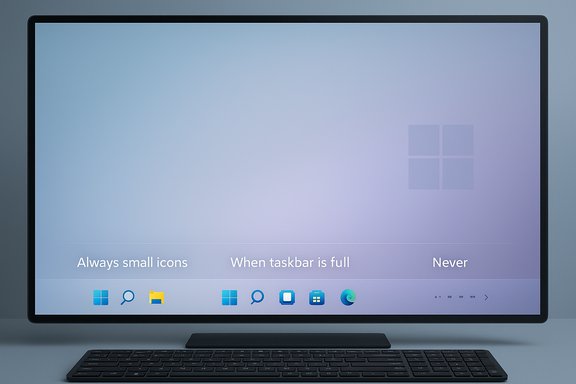
The modern implementation favors horizontal efficiency — the feature reduces the size of the icons only, rather than compressing the whole taskbar. The goal is to let more icons remain visible before Windows moves extras into the overflow menu. Microsoft exposed the control in the Settings UI under Personalization → Taskbar → Taskbar behaviors with three distinct choices: Always, Never, and When taskbar is full. Early testing began in Insider preview builds and the option has been rolled into broader preview and cumulative updates across 2025; availability depends on your Windows update channel and installed build.
However, it’s not a one-size-fits-all improvement. There are trade-offs in clickability, touch ergonomics, and compatibility with third-party taskbar modifications. Organizations should pilot the setting before enforcing it, and home users should test the When taskbar is full option first to get the benefits without committing to permanently smaller targets.
For anyone who has ever felt constrained by the overflow menu on a narrow laptop screen, this is a practical and well-thought-out tweak that restores control without altering the taskbar’s familiar appearance.
Source: Windows Central https://www.windowscentral.com/micr...-smaller-icons-in-the-taskbar-for-windows-11/
 Background
Windows users who upgraded from Windows 7, 8 or 10 quickly noticed that Windows 11 removed the familiar "Use small taskbar buttons" toggle. That absence annoyed many power users who wanted to cram more pinned and running apps into the taskbar or who preferred a denser desktop layout. Microsoft has responded by reintroducing a smaller-icons option, but implemented it differently from the legacy setting.The modern implementation favors horizontal efficiency — the feature reduces the size of the icons only, rather than compressing the whole taskbar. The goal is to let more icons remain visible before Windows moves extras into the overflow menu. Microsoft exposed the control in the Settings UI under Personalization → Taskbar → Taskbar behaviors with three distinct choices: Always, Never, and When taskbar is full. Early testing began in Insider preview builds and the option has been rolled into broader preview and cumulative updates across 2025; availability depends on your Windows update channel and installed build.
Overview: what changed, and why it matters
Windows 11’s reworked small-icons option changes the trade-offs that users face.- Previously, choosing small taskbar buttons also reduced the taskbar height — a two-fold reduction that affected vertical screen real estate.
- Now, only the icon graphic scales, while the taskbar retains the same surface area and spacing. This preserves the visual structure and any taskbar affordances (like jump lists and hover targets) while fitting more icons in a row.
- The new behavior is not a vertical-space optimization. It’s a horizontal packing optimization to delay overflow into the extra apps menu.
How the feature works — technical behavior explained
The updated control provides three configurable behaviors:- Always — the Taskbar uses the smaller icon size permanently, regardless of how many icons are pinned or running. This is the closest functional equivalent to the old "Use small Taskbar buttons" but it still does not change taskbar height.
- When taskbar is full — the default for many systems. The Taskbar uses the regular, larger icons until available space approaches overflow; at that point icons automatically scale down so that more items remain visible and the overflow menu appears less often.
- Never — disables the smaller-icon behavior and enforces the original icon size and overflow behavior.
How to enable smaller Taskbar icons (step-by-step)
Follow these steps to change the Taskbar icon size using the Settings app:- Open Settings (Windows key + I).
- Click Personalization.
- Select Taskbar on the right-hand pane.
- Expand the Taskbar behaviors section.
- Find Show smaller taskbar buttons and choose one of:
- Always — use smaller icons all the time.
- When taskbar is full — use standard size until the bar is crowded (default on many systems).
- Never — keep the regular icon size.
Advanced enablement methods for power users and IT
If the UI option is missing on your device, or you need to manage behavior centrally, there are a few advanced approaches:- Group Policy (GPO) — For domain-joined or on-prem managed devices, the policy is exposed as Configure Taskbar Small Button Behavior under Administrative Templates → Start Menu and Taskbar. The policy accepts three values:
- Always — force small icons.
- When taskbar is full — dynamic scaling (typically the default).
- Never — enforce the original icon size.
- MDM / Start CSP — Mobile Device Management (Intune and other MDM solutions) can set the same behavior through the Start CSP entry. The CSP supports device and user scope and accepts the same numeric values for automation and scriptable deployments.
- Registry / ADMX — The policy maps to the explorer policies registry location used by ADMX templates. Administrators who push ADMX/ADML files for 25H2/24H2 can configure the setting centrally as part of taskbar layout controls.
- ViveTool (Insider / hidden settings) — In early testing, some hidden taskbar options were reachable with ViveTool. This is an unsupported tweak utility and should be used only by advanced users who understand the risks; enabling hidden features with third-party tools can cause instability and is not recommended for production devices.
Troubleshooting: why the option might not appear and how to fix it
If you can't find Show smaller taskbar buttons in Settings, try the following:- Confirm Windows Update status. This feature rolled out through Insider builds and then as part of cumulative updates; devices that are not on the correct update channel or lack the cumulative package won't see the UI.
- Restart Explorer or sign out and back in. In some cases the Settings UI or taskbar layout won't refresh until Explorer is restarted.
- Check for Group Policy or MDM controls. If your PC is managed by an organization, an enforced policy may hide the option or lock the behavior.
- For advanced users: verify build and feature flags. Some early implementations were gated behind feature-flags or preview builds; enabling those flags with third-party tools was reported in early testing but is not recommended for most users.
- If icons look wrong after changing the setting, toggle the selection back to the previous state or reboot. There have been occasional reports where third-party taskbar mods or older shell customizations caused layout anomalies.
Known issues and user-reported problems
Early adopters and IT administrators reported several real-world cases to be aware of:- Click target difficulties — extremely small icons are harder to hit precisely, especially with touch or when using high-resolution monitors and lower cursor precision settings. Users with motor impairments or touch-only devices may prefer Never.
- Third-party taskbar mods — tools that alter the taskbar height or spacing (popular community mods) sometimes conflict with the built-in scaling, causing visual glitches or spacing anomalies.
- Inconsistent visibility across displays — on multi-monitor setups with mixed DPI/resolution, scaled icons may render differently between displays, creating a jarring visual mismatch in workflows that span screens.
- Partial rollouts / missing settings — because the feature passed through Insider channels before broader distribution, some systems received behavior via cumulative patches before the Settings UI update landed; this led to confusion where behavior changed without a visible setting to control it.
- Accessibility concerns — screen readers and keyboard navigation should still function, but reduced target size can create longer navigation times for users relying on keyboard focus or assistive tech.
Accessibility and usability analysis
Reducing icon size increases information density but reduces the size of interactive targets. For accessibility-focused deployments, the following points are critical:- Motor impairment and precision — smaller icons increase the chance of misclicks and require higher pointer precision. This can negatively affect users with tremors or limited fine motor control.
- Touch devices — touch targets should be large enough to meet platform guidelines; shrinking icons may violate comfortable touch target sizes for tablets or convertible PCs.
- High-DPI considerations — Windows scales UI elements based on display DPI and this new icon-only scaling interacts with display scaling settings. On very high-resolution displays, icons may appear tiny if display scaling is low; conversely, high scaling (e.g., 150% or 200%) may neutralize the benefit by enlarging everything.
- Keyboard and screen readers — those technologies are unaffected in functionality but navigate by logical items rather than pixel targets; their performance remains intact.
Enterprise implications: management and policy controls
Enterprise IT now has supported knobs to control this behavior across fleets:- Group Policy — Administrators can deploy a policy that enforces a chosen behavior. This is useful for maintaining a consistent end-user experience and for preventing user-level changes that could cause support calls.
- MDM / CSP — Intune and other MDM solutions can deploy the same configuration to cloud-managed devices, allowing per‑user or per‑device targeting.
- ADMX templates — Updated ADMX files for newer Windows 11 feature updates include the taskbar policy, so administrators should update their central store to gain granular control.
- Compatibility testing — Administrators should test the setting alongside corporate desktop customization tools, third-party shell replacements, or any agent that rewrites shell behavior. Some community-made taskbar mods were reported to conflict with the newer scaling logic.
Comparison to legacy Windows behavior
- On Windows 7/8/10, Use small taskbar buttons reduced both icon size and taskbar height. That meant a denser vertical footprint and was useful for freeing screen space.
- Windows 11’s design philosophy puts greater emphasis on consistency of chrome and spacing; the reintroduced small-icons option reflects that by keeping taskbar height constant.
- The net result: you get more icons in the row without changing hover behavior or the overall look and feel of the bar.
Practical tips and recommendations
- If you use a 13–14" laptop or a narrow external monitor and you keep lots of apps pinned, try When taskbar is full first — it gives the best balance between target size and visible icons.
- For precision-focused workflows (photo editing, gaming, design where accidental clicks are costly), keep the setting on Never.
- On touch-driven devices or tablets, avoid Always to prevent too-small touch targets.
- If your goal is to free up vertical space rather than horizontal density, this feature won’t help — consider adjusting display scaling, using virtual desktops, or reducing taskbar items.
- For IT rollouts, use Group Policy or MDM to enforce the preferred setting and test with ADMX from the latest Windows feature update.
- If the option is missing and you’re comfortable with preview builds, verify your Insider/preview status or update history; on unsupported devices, avoid third‑party tweaks.
Risks, caveats and things to test before switching
- Click accuracy — smaller icons require more pointer accuracy. Expect a measurable uptick in misclicks for some users.
- Third-party integration — shell-enhancing utilities that change taskbar height or spacing may conflict with the new behavior.
- Mixed-DPI setups — test multi-monitor setups to ensure consistent appearance; mixed displays may show visible differences.
- Support overhead — a unilateral Always rollout may produce support tickets from users who prefer larger targets; pilot first.
- Hidden or staged rollouts — because Microsoft introduced the feature via Insider builds, you may see it arrive before its complete controls are available on your exact build. Verify updates before troubleshooting.
A short primer for IT: deployable values and automation
For administrators automating deployments, the supported values correspond to a simple numeric mapping:- 0 — Always
- 1 — When taskbar is full (dynamic)
- 2 — Never
Final verdict — useful, but not a universal fix
The return of smaller taskbar icons in Windows 11 is a welcome, low-friction addition for users who need better horizontal density without changing the taskbar’s overall visual layout. It brings back a familiar capability in a way that respects Windows 11’s design language and modern accessibility patterns. The configurable choices — Always, Never, and When taskbar is full — provide sensible defaults for both individual users and administrators.However, it’s not a one-size-fits-all improvement. There are trade-offs in clickability, touch ergonomics, and compatibility with third-party taskbar modifications. Organizations should pilot the setting before enforcing it, and home users should test the When taskbar is full option first to get the benefits without committing to permanently smaller targets.
For anyone who has ever felt constrained by the overflow menu on a narrow laptop screen, this is a practical and well-thought-out tweak that restores control without altering the taskbar’s familiar appearance.
Source: Windows Central https://www.windowscentral.com/micr...-smaller-icons-in-the-taskbar-for-windows-11/
