

Microsoft’s recent round of UI polish for Windows 11 centers on the taskbar and desktop icons — subtle changes that aim to reduce clutter, improve discoverability, and prepare the shell for deeper AI integration — and they matter more than you might think because the taskbar is now the primary hub for search, Copilot, and ongoing system affordances.
Windows 11 launched with a dramatic redesign: centered taskbar icons, rounded corners, and a new visual language that traded some long-standing customization freedoms for a cleaner, curated experience. Since then Microsoft has iterated repeatedly, returning some classic options (like ungrouped icons) while introducing new behaviors intended to improve information density and AI surface area on the taskbar. Those iterative updates are now converging on two visible areas: the taskbar’s icon behavior and desktop/iconography refinements.
Microsoft is rolling these changes through the Windows Insider channels first (Dev, Beta, Canary), then gradually to broader rings. That staged rollout is important: many of the tweaks are behavioral (how icons shrink, when badges appear, how Copilot is surfaced), and Microsoft is fine-tuning the settings and telemetry before wider release. The changes are small on the surface, but they reflect a larger design trajectory: more dynamic, context-aware UI elements and the taskbar becoming an active command center rather than a passive launcher.
Why this matters: on small screens or multi-window heavy workflows this reduces friction — you see more app states at a glance and reduce reliance on an overflow menu that interrupts muscle memory. Multiple outlets covering Insider builds confirm the setting is present in Settings > Personalization > Taskbar under Taskbar behaviors.
If you want more hands-on guidance or a step-by-step walkthrough for trying the Insider builds (safely on a secondary device), follow the Settings path described above and monitor Insider release notes for the specific build numbers that bring the changes to your channel. The taskbar’s quiet revolution may not make headlines like big feature launches, but it will change the cadence of daily interactions on Windows 11 in ways that add up quickly.
Source: BornCity Windows 11: Microsoft poliert Taskbar und Desktop-Icons auf - BornCity
 Background / Overview
Windows 11 launched with a dramatic redesign: centered taskbar icons, rounded corners, and a new visual language that traded some long-standing customization freedoms for a cleaner, curated experience. Since then Microsoft has iterated repeatedly, returning some classic options (like ungrouped icons) while introducing new behaviors intended to improve information density and AI surface area on the taskbar. Those iterative updates are now converging on two visible areas: the taskbar’s icon behavior and desktop/iconography refinements. Microsoft is rolling these changes through the Windows Insider channels first (Dev, Beta, Canary), then gradually to broader rings. That staged rollout is important: many of the tweaks are behavioral (how icons shrink, when badges appear, how Copilot is surfaced), and Microsoft is fine-tuning the settings and telemetry before wider release. The changes are small on the surface, but they reflect a larger design trajectory: more dynamic, context-aware UI elements and the taskbar becoming an active command center rather than a passive launcher.
What changed — concrete features and visual updates
Taskbar icon scaling / auto-shrinking
One of the most noticeable practical changes is taskbar icon scaling (auto-shrinking). When space gets tight because the taskbar is full of icons, Windows 11 can now automatically reduce icon sizes to keep more apps visible rather than pushing items into an overflow menu. This behavior is configurable with three modes: Always, Never, and When taskbar is full — the last being the dynamic auto-shrink mode. The feature has been introduced to Insiders and is being rolled out gradually.Why this matters: on small screens or multi-window heavy workflows this reduces friction — you see more app states at a glance and reduce reliance on an overflow menu that interrupts muscle memory. Multiple outlets covering Insider builds confirm the setting is present in Settings > Personalization > Taskbar under Taskbar behaviors.
“Show smaller taskbar buttons” — user control restored
Microsoft also reintroduced a more explicit Show smaller taskbar buttons option so you can permanently choose smaller icons without shrinking the bar height. The UX keeps the taskbar height the same while reducing icon size, allowing denser pinning without compromising on the UI’s visual rhythm. This option is toggled in taskbar behaviors for users on updated builds. This is both a usability and accessibility tweak — it helps power users maintain more visible apps and benefits low-resolution devices.Battery and other system icon refinements
The system tray has received icon refinements as well. Microsoft updated the battery icon to include colored indicators (green for charging, yellow for low-battery/energy-saver thresholds), clearer overlays, and an optional battery percentage setting. These small visual signals are aimed at faster state recognition without opening the full Quick Settings. The updates first appeared in Insider release notes and have been reported by Windows-specialist outlets.Desktop Spotlight interaction and desktop icon polish
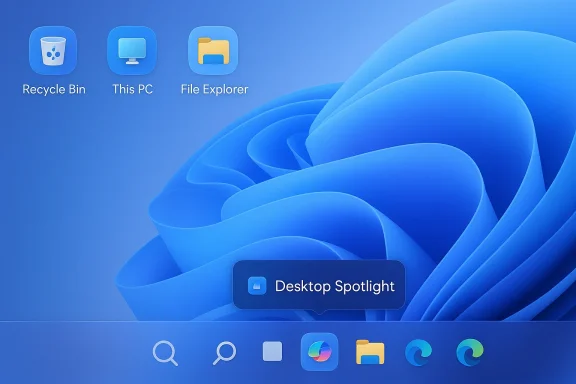
Microsoft is also rolling out changes to Desktop Spotlight and the desktop’s iconography surface. Desktop Spotlight’s “learn about this picture” affordance has been refined so users can hover or click a hotspot to fetch contextual information about the current background image. Separately, desktop icons and File Explorer assets continue to be iteratively refreshed under Microsoft’s iconography guidelines that strive for visual coherence across device families. These changes are being shipped selectively to Insider channels and will expand as Microsoft gathers feedback.Copilot and AI agent presence on the taskbar
The most structural change — and the reason Microsoft is carefully polishing icons and behaviors — is the taskbar’s increasing role as a host for AI. Copilot and related agent experiences are being integrated into the taskbar, turning icons into active anchors for agent status, progress, and quick actions. Microsoft has also experimented with replacing the traditional search box with an AI-first conversational experience. As Copilot capabilities expand, the taskbar will host both static app launchers and agent icons that reflect active background work. That shift explains why Microsoft invests effort in how icons scale, indicate state, and present hover affordances.How to enable or test these features (Insider guidance)
If you want to try the taskbar polish and icon behavior as they evolve, you’ll need to use the Windows Insider Program. Key points and steps:- Join the Windows Insider Program in Settings > Windows Update > Windows Insider Program and pick a channel (Dev for earliest access, Beta for more stable previews).
- Once on an Insider build with the features, navigate to Settings > Personalization > Taskbar.
- Open Taskbar behaviors:
- Toggle Show smaller taskbar buttons to permanently reduce icon size.
- Choose options for icon scaling (Always / Never / When taskbar is full) if available on your build.
- For Desktop Spotlight and other preview features, look for new Desktop personalization tiles or opt-in prompts shown when a feature is staged.
Benefits — what users gain
- Increased information density: Auto-shrinking and smaller icons let you keep more app indicators visible, improving situational awareness in multitasking scenarios.
- Cleaner overflow handling: Reduced reliance on the overflow menu maintains workflow continuity and reduces extra clicks.
- Faster glanceability: Colored system icons (battery etc.) and refined badges help users assess device state faster without opening flyouts.
- Seamless path to AI: Polished taskbar affordances prepare the UI to represent AI agents and interactive Copilot experiences in a way users can reliably read and control.
Risks, trade-offs, and edge cases
- Discoverability vs consistency: Dynamic behaviors (icons that shrink when the bar is full) add utility but also increase state variability. Users who prefer a static layout could find the intermittent change disorienting. Microsoft mitigates this with explicit toggles, but the default behavior matters for discoverability.
- Third-party compatibility: Some legacy shell extensions and customization utilities have historically conflicted with deep taskbar changes. Power users who rely on third-party customization tools should be cautious when updating to builds that change taskbar internals.
- Privacy and agent affordances: Copilot and agent-related UI may surface data or offer actions that trigger background analysis (for example, sharing a window with Copilot Vision). Microsoft has settings to opt out, but users should review privacy controls for agentic features.
- Visual fatigue on very small displays: Permanently smaller icons can increase cramping and make targets harder to hit for touch users. That’s why Microsoft preserves the taskbar height and offers multiple modes. Still, touch-first devices may want larger tap targets.
Where this fits into Microsoft’s broader UI strategy
Microsoft’s work on the taskbar is not an isolated cosmetic refresh; it aligns with a broader roadmap that includes:- Bringing AI into the desktop experience (Copilot and agentic workspaces) and making the taskbar the single most visible locus of those agents. This is why taskbar icons are being rethought as statusful controls, not just static app shortcuts.
- Consistency across devices: Iconography refreshes and battery icon tweaks reflect a cross-device design language that stretches from desktop to Surface and OEM skins. Colored battery indicators and unified icon shapes are part of that harmonization.
- Restoring choice where users demanded it: Microsoft has returned features that were controversial at launch (example: ungrouping icons, taskbar behaviors) while keeping the simplified aesthetics. The result is a hybrid: curated defaults with opt-in power-user controls.
Third-party customization vs Microsoft’s approach
For years a robust third-party ecosystem (ExplorerPatcher, StartAllBack, Start11, Windhawk) has filled gaps Microsoft intentionally or unintentionally created. Those tools remain useful for users who want full control (moving the taskbar to the top, restoring legacy Start menus, or finer icon control). Microsoft’s direction, however, is to reduce the number of necessary hacks by reintroducing configurable options in Settings, while keeping the modern shell consistent across devices. If you prefer surgical control, third-party tools still offer depth; if you want an OS-supported experience, the new Settings entries will cover many common demands.Developer and enterprise considerations
- App devs — iconography and jump lists: If your app relies on jump lists, badge counts, or overlay icons, test them against the latest Insider builds. The density and scaling options may change how overlay glyphs appear and how quickly users notice them. Design icon assets at multiple scales to preserve legibility when the taskbar shrinks.
- IT admins — rollout planning: Enterprises should watch Insider notes and pilot updates internally. Because some changes touch UX and potential accessibility settings, pilot groups should confirm that policies and management tools (e.g., MDM) preserve required behaviors before broad deployment.
- Telemetry and remote support: Dynamic state changes mean support teams should update troubleshooting playbooks: what looked like a “missing icon” might simply be an auto-shrink event rather than a failure. Make sure documentation shows how to toggle behaviors.
Verification, sources, and caveats
- The core taskbar icon scaling and the smaller-icon toggle were documented in Windows Insider release notes and confirmed by major Windows news outlets covering Insider builds. These are actively rolling out in Dev and Beta channels at the time of reporting.
- Battery icon refinements and other system tray adjustments were announced in later Insider builds and reported by specialist outlets; timing of public availability varies by ring and OEM.
- Copilot and agent-related integrations are official Microsoft direction and have been called out as a fundamental shift in how taskbar icons behave — reflecting both agent presence and interactive AI affordances. Because agentic features are complex and roll out with privacy controls, expect configuration and policy surfaces to evolve.
Practical recommendations for everyday users
- If you’re happy with your current setup: wait for the stable channel. These are polish changes and are not required for daily work.
- If you want to test: join the Windows Insider Program on a secondary device and enable the Beta or Dev channel. Toggle the smaller icons or auto-shrink features in Taskbar behaviors to see if they improve your workflow. Back up your settings before large preview updates.
- For touch-first devices: prefer toggling smaller icons off unless your device’s tap targets are large enough; smaller icons can impede touch accuracy.
- For admins and support teams: add a short note to helpdesk KBs explaining the new behaviors (shrinking vs overflow) so end-user reports of “missing icons” don’t trigger unnecessary incident escalation.
Conclusion
What looks like a small cosmetic pass is actually an important alignment between Microsoft’s design language and the platform’s evolving role as an AI-enabled workspace. The taskbar is being retooled from a static launcher into a context-aware surface that balances density, legibility, and agent status; the desktop’s iconography is being sharpened to support that shift. For most users the changes will be welcome: clearer battery state, fewer surprises when the taskbar gets crowded, and an easier path to Copilot’s agentic capabilities. For power users and enterprises, the rollout is a reminder to test and to keep customization toolchains up to date.If you want more hands-on guidance or a step-by-step walkthrough for trying the Insider builds (safely on a secondary device), follow the Settings path described above and monitor Insider release notes for the specific build numbers that bring the changes to your channel. The taskbar’s quiet revolution may not make headlines like big feature launches, but it will change the cadence of daily interactions on Windows 11 in ways that add up quickly.
Source: BornCity Windows 11: Microsoft poliert Taskbar und Desktop-Icons auf - BornCity
