

Windows 11’s newest surface-level additions — a top‑of‑screen Snap Assist flyout and a persistent Drag Tray for quick file sharing — are small in isolation but consequential when judged by how they change muscle memory, focus, and power‑user workflows.
Microsoft has steadily evolved Windows 11 since its initial 2021 release, layering new multitasking aids, sharing primitives, and AI integrations across the desktop. Many of those changes are genuinely useful: Snap Layouts and Snap Assist have modernized window management for touch and high‑DPI displays, and Microsoft’s Connected Devices Platform underpins increasingly seamless file and device workflows. But design is a series of tradeoffs. Recent additions such as the Snap Assist flyout (the UI that appears when you drag a window to the top edge) and the Drag Tray (a share/move tray that appears when you drag files toward the top of the screen) are intended to make features more discoverable. For long‑time Windows users and people who rely on precise drag‑and‑drop behavior, the result has been friction: an extra intermediary layer that interrupts established workflows.
This article summarizes what these features do, explains how to disable them if they interfere with your work, assesses the user experience and technical implications, and offers practical advice for power users and administrators who need consistent behavior across machines.
Key points to weigh:
Checklist (for readers who want action now):
Source: Digg Windows 11’s latest additions feel like classic Microsoft overthinking | technology
 Background
Microsoft has steadily evolved Windows 11 since its initial 2021 release, layering new multitasking aids, sharing primitives, and AI integrations across the desktop. Many of those changes are genuinely useful: Snap Layouts and Snap Assist have modernized window management for touch and high‑DPI displays, and Microsoft’s Connected Devices Platform underpins increasingly seamless file and device workflows. But design is a series of tradeoffs. Recent additions such as the Snap Assist flyout (the UI that appears when you drag a window to the top edge) and the Drag Tray (a share/move tray that appears when you drag files toward the top of the screen) are intended to make features more discoverable. For long‑time Windows users and people who rely on precise drag‑and‑drop behavior, the result has been friction: an extra intermediary layer that interrupts established workflows.This article summarizes what these features do, explains how to disable them if they interfere with your work, assesses the user experience and technical implications, and offers practical advice for power users and administrators who need consistent behavior across machines.
What the new UI elements are and why they exist
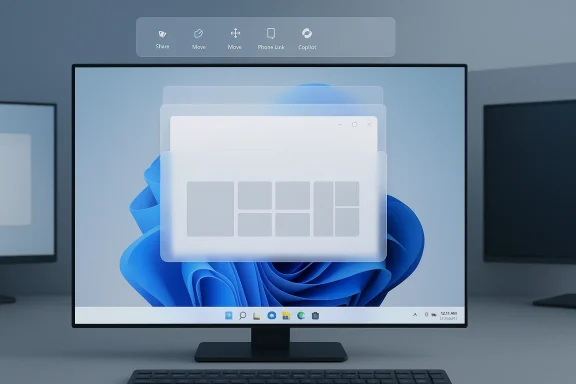
Snap Assist flyout (top‑edge Snap layouts)
Snap Layouts and Snap Assist were designed to make window tiling easier on a variety of devices, from tablets to widescreens. The “Snap Assist flyout” is a pop‑up that appears when the system detects a window being dragged to the top edge of the screen; it surfaces layout choices so you can quickly dock the window into a grid or quadrant without relying on precise pointer placement.- Intent: Improve discoverability for users unfamiliar with Win+Arrow hotkeys or the maximize‑button hover menu.
- Device targets: Particularly useful on touch and convertible devices where hovering is less available and gestures are common.
- Side effect: On multi‑monitor setups and for users who simply want to reposition windows, the flyout can trigger inadvertently, blocking parts of a window and changing sizes unexpectedly.
Drag Tray (drag‑to‑share overlay)
The Drag Tray appears as a compact strip at the top of the screen when you drag files from File Explorer or the Desktop. It lists relevant apps, folders, and actions (Share, Move, Send to Phone Link, Copilot actions, etc.) intended to speed sharing and attachment workflows.- Intent: Reduce menu hunting for common share targets and enable touch‑friendly quick sharing gestures.
- Device targets: Touch and hybrid PCs where an edge gesture is a logical way to reveal quick actions.
- Side effect: Because activation is tied to global drag activity toward the screen edge, the tray can appear during ordinary file organization tasks, preventing users from dropping files into folders near the top of the screen or interrupting document workflows.
Why long‑time users find these features intrusive
Muscle memory and interruptions
Experienced Windows users develop fast, keyboard‑centric, or precise pointer workflows. A UI that appears unexpectedly while you’re trying to move a window or tidy desktop icons breaks that rhythm. People report the flyouts are triggered too easily and lack sufficient contextual awareness (for example: reorganizing icons vs. invoking a share).Visual clutter and attention shift
Both the Snap Assist flyout and the Drag Tray introduce new visual elements that sit above or over existing content. That overlay momentarily shifts attention away from the primary task and adds a decision point — do I use the flyout, dismiss it, or keep dragging? For users who want quiet, predictable behavior, that’s an unwelcome cognitive tax.Poor fit for multi‑monitor setups and certain workflows
On large multi‑monitor rigs or ultrawide displays, dragging windows across screens often involves crossing a top bezel or shared edge. The flyout can appear in these transitions and force window resizing at the wrong moment. Similarly, the Drag Tray’s activation zone can be hit while moving files between tabs or explorer windows, obstructing targets that are otherwise easy to access.How to turn them off (practical steps)
If the flyouts are disrupting your work, Microsoft has provided supported ways to disable them without breaking the underlying functionality you may still want (snapping itself, normal drag‑and‑drop). Below are concise, verified steps you can follow. Use the Settings UI where possible; registry edits and third‑party tools are for advanced or scripted deployments.Disable the Snap Assist top‑edge flyout (keep snapping)
- Open Settings (press Win + I).
- Go to System → Multitasking.
- Expand the Snap windows section.
- Uncheck Show snap layouts when I drag a window to the top of my screen.
- Close Settings and test by dragging a window to the top edge — the flyout should no longer appear while snap behavior (Win + Arrow, hover over maximize, FancyZones) remains intact.
- This preserves Snap Layouts via keyboard and the maximize button, while removing the top‑edge popup.
- For enterprise rollout, you can script an equivalent registry change where needed (see the advanced section below).
Disable Drag Tray via Settings (recommended)
- Open Settings (press Win + I).
- Go to System → Nearby sharing.
- Toggle off Drag Tray at the top of the page.
Advanced: registry and tooling options (power users and admins)
If you need to script or deploy changes to multiple systems, the following options are available. Use them with caution, back up registries, and test on a small set of machines first.- To disable Drag Tray for the current user:
- Edit: HKEY_CURRENT_USER\Software\Microsoft\Windows\CurrentVersion\CDP
- Create or set the DWORD value DragTrayEnabled = 0.
- To re‑enable: set DragTrayEnabled = 1.
- For advanced deployments, some community tools and feature‑toggle utilities (ViVeTool) have been used historically to enable or disable testing flags, but rely on official Settings toggles where possible to avoid unsupported states.
- Path (example, community‑documented): HKEY_CURRENT_USER\Software\Microsoft\Windows\CurrentVersion\Explorer\Advanced
- Value: EnableSnapAssistFlyout (DWORD)
- Note: Registry key names and behaviors can change between Windows builds. Prefer the Settings UI for one‑off changes; use registry edits in managed environments only after testing.
Step‑by‑step disable checklist (copyable)
- Win + I → System → Multitasking → Snap windows → uncheck “Show snap layouts when I drag a window to the top of my screen.”
- Win + I → System → Nearby sharing → toggle Drag Tray to Off.
- If you manage many PCs:
- Test registry scripting on a handful of machines before broad deployment.
- Consider Group Policy configurations or MDM profiles to enforce settings in corporate fleets.
- Document rollback steps and include a user education note so your team knows what changed and why.
Design analysis: discoverability versus expertise
Microsoft’s additions reflect a common design tension: making features discoverable to new or casual users while not obstructing expert workflows. The Snap Assist flyout and the Drag Tray are classic examples of increased discoverability at the expense of predictability.- Strengths:
- Lower friction for new users and touch device owners.
- Makes sharing and snapping features visible without hunting menus.
- Encourages adoption of new sharing surfaces (Nearby Sharing, Copilot integration, phone linking) that can be genuinely productive.
- Risks:
- Interrupts established workflows for power users and administrators.
- Creates inconsistency across devices — the feature may be toggled on by default on some builds but not others, which complicates training and support.
- Adds UI bloat if too many overlays accumulate (media flyouts, notification badges, AI prompts).
Community reaction and evidence
Reaction has been mixed. Notebook and touchscreen users often praise convenience once they adapt to the gestures, while desktop power users consistently report irritation. The consensus in community forums is straightforward:- If you like quick share targets and you primarily work on a Surface or convertible, the Drag Tray can be helpful once you learn it.
- If you use many monitors, rely on precision drag‑and‑drop for file organization, or use window‑management tools like FancyZones, the flyouts are more often a nuisance than a help.
Practical recommendations for different user types
For power users and professionals who prefer predictability
- Turn off both the Snap Assist top‑edge flyout and the Drag Tray via Settings. Keep FancyZones (PowerToys) installed for deterministic multi‑window layouts.
- Map snapping and window switching to keyboard shortcuts (Win + Arrow keys, Win + Z) to avoid accidental pointer activations.
- Use the registry toggle and script the change across your machines if you must ensure consistent behavior for many systems.
For touch and hybrid device users
- Try keeping Drag Tray enabled for a week to see if it improves sharing speed.
- Practice using it in non‑critical workflows before relying on it. The tray is easiest to exploit on a single screen where targets are predictable.
- If you find it intrusive, the Settings toggle gives an immediate opt‑out.
For IT administrators and support teams
- Test the UI changes on representative devices and create a short guide for end users explaining how to disable the features.
- If you must enforce a default across workstations, consider:
- A scripted registry deployment after testing.
- MDM/Intune configuration profiles handling the setting where supported.
- Communicate changes clearly in change logs and user support channels to avoid elevated helpdesk traffic.
Security and reliability considerations
The Drag Tray is tied to the Connected Devices Platform and Nearby Sharing mechanics, which means it interacts with cross‑device communication stacks. That raises a few operational considerations:- Telemetry and privacy: Quick sharing surfaces may surface nearby devices or cloud targets; ensure your organization’s privacy and data‑sharing policies are considered before enabling cross‑device sharing on corporate machines.
- Attack surface: Any feature that exposes share targets and actions increases the number of UI paths; keep systems patched and maintain least‑privilege practices. For managed environments, prefer centrally defined policies around sharing features.
- Stability: Community reports indicate that poorly implemented overlays can occasionally interfere with drag events and window painting. If you notice graphical glitches or intermittent problems after enabling these features, try disabling them to see if the behavior stops.
Is Windows getting “too busy”?
There is a wider debate about Windows’ direction. Critics argue that the OS is layering in many small features and AI touches that, cumulatively, make daily use noisier. Supporters respond that the changes are targeted at discovery and modern workflows, especially for devices that blend touch and mouse.Key points to weigh:
- Windows still needs to serve a vast and diverse user base: from power admins to casual tablet users. That plurality makes any single default contentious.
- Microsoft’s move to provide toggles and supported off‑ramps for controversial features is a pragmatic approach: innovate, watch behavior, and give control back to users.
- The danger is not the individual feature — it’s the accumulation. When overlays multiply, even configurable ones create a “busy” surface that weakens the cohesion of the OS.
Developer and power‑user alternatives
If you turn off Microsoft’s overlays but still want modern, predictable behavior, third‑party and Microsoft tooling fill gaps:- FancyZones (Microsoft PowerToys) — deterministic tiling with modifier‑drag behavior; preferred by many power users.
- Scripting and automation — AutoHotkey or Win32 scripting for custom drag behaviors and window placement.
- Third‑party flyouts — community projects exist to replace or refine flyouts (media and sharing), but treat these as optional and validate security before wide deployment.
Final thoughts and a practical checklist
Windows 11 continues to accumulate features aimed at discoverability and modern workflows. The Snap Assist flyout and the Drag Tray illustrate both good intentions and the friction that follows when new surfaces interrupt existing patterns. Fortunately, Microsoft has made it straightforward to turn these features off in Settings — a practical win for users who want quiet, predictable behavior.Checklist (for readers who want action now):
- If annoyed by the top‑edge popup when moving windows:
- Win + I → System → Multitasking → Snap windows → uncheck the top‑edge flyout option.
- If the file‑drag tray keeps appearing and disrupting file organization:
- Win + I → System → Nearby sharing → toggle Drag Tray to Off.
- For mass deployments:
- Test registry keys or MDM settings in a small group.
- Prepare rollback documentation and user guidance.
- For power users who still want superior tiling:
- Install PowerToys FancyZones and map modifier‑drag workflows.
Source: Digg Windows 11’s latest additions feel like classic Microsoft overthinking | technology
