

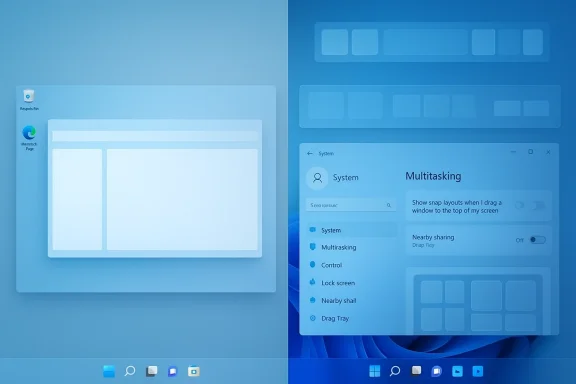
Windows 11’s latest interface additions — the top-of-screen Snap flyout (Snap Bar) and the Drag Tray file‑sharing overlay — were designed to make multitasking and quick sharing feel more discoverable for newcomers, but for many experienced users they behave like unnecessary, attention‑stealing intermediaries that break long‑established muscle memory. These two features are now widely configurable (you can turn them off in Settings), yet their presence reveals a larger tension in Windows design: balancing discoverability for new users against the predictable, minimal friction power users expect. In this feature, I’ll summarize what these features do, verify the precise settings and history behind them, analyze why they clash with long‑running Windows philosophies, and propose practical, realistic improvements Microsoft should consider to keep Windows focused rather than “busy.”
Windows’ window management has been evolving for decades, from manual resizing and tiling to automatic snapping and layout suggestions. The modern Snap system in Windows 11 combines several interaction surfaces:
In parallel, Microsoft has been experimenting with a mobile‑inspired, gesture‑style file sharing overlay called Drag Tray — a UI that surfaces app targets and sharing controls when you drag files to the top of the screen. That overlay first showed up in Insider channels and then migrated into broader preview releases; following user feedback Microsoft added an explicit toggle to disable the feature in Settings > System > Nearby sharing. Multiple reporting outlets and community guides confirm that the Drag Tray disable option arrived with recent 24H2/25H2 preview updates and cumulative packages.
Community conversations — from forum threads to subreddits — make it clear that many long‑time Windows users find both overlays jarring, especially when they interrupt fast drag operation r UI elements. Those patterns and specific user complaints are visible in community threads collected from Windows‑focused forums and discussion archives.
But the existence of an on/off switch is a remedial measure, not a design solution. Here are practical, prioritized recommendations for Microsoft that would respect both newcomers and power users:
Microsoft deserves credit for making both features configurable and for responding to feedback with toggles and preview fixes. But patching a UX problem with a Settings toggle is a defensive move. The proactive solution is better intent modeling, smarter heuristics, and a clearer separation between discoverability and everyday workflow. If Microsoft wants Windows 11 to be embraced by both novices and power users, it needs fewer surprise overlays and more predictable controls — the kind of polish that makes an OS feel mature rather than busy.
For now, if you’re tired of overlays stealing your focus, use the Settings toggles described earlier and consider PowerToys FancyZones for deterministic layout control. If you’re a Windows admin, keep an eye on preview release notes and community guides that document registry or tooling options to enforce behavior at scale. The control is already there — Microsoft just needs to make the defaults smarter and the experience less interruptive.
In the end, Windows 11 is still evolving. These features show Microsoft’s ambition to modernize and teach, but they also remind us that optionality and predictability are core desktop virtues — virtues that should guide the next wave of Windows refinements.
Source: Windows Central Windows 11’s latest additions feel like classic Microsoft overthinking
 Background
Windows’ window management has been evolving for decades, from manual resizing and tiling to automatic snapping and layout suggestions. The modern Snap system in Windows 11 combines several interaction surfaces:- the Snap Flyout (hover the maximize/restore button or press Win + Z to open layout presets),
- the Snap Bar / Snap Assist overlay (appears when dragging a window toward the top edge), and
- the Snap Groups feature (remembering and restoring collections of snapped windows).
In parallel, Microsoft has been experimenting with a mobile‑inspired, gesture‑style file sharing overlay called Drag Tray — a UI that surfaces app targets and sharing controls when you drag files to the top of the screen. That overlay first showed up in Insider channels and then migrated into broader preview releases; following user feedback Microsoft added an explicit toggle to disable the feature in Settings > System > Nearby sharing. Multiple reporting outlets and community guides confirm that the Drag Tray disable option arrived with recent 24H2/25H2 preview updates and cumulative packages.
Community conversations — from forum threads to subreddits — make it clear that many long‑time Windows users find both overlays jarring, especially when they interrupt fast drag operation r UI elements. Those patterns and specific user complaints are visible in community threads collected from Windows‑focused forums and discussion archives.
What exactly are these features, and how do they behave?
Snap Flyout vs. Snap Bar (top‑of‑screen overlay)
- The Snap Flyout (also called the maximize button menu or Snap layouts) appears when you deliberately hover over a window’s maximize/restore control or press Win + Z. It’s a deliberate, discoverable affordance that shows preset grid layouts and then helps you fill them. It’s designed for intentional layout selection. Microsoft documents both the flyout and the keyboard shortcut (Win + Z) as supported ways to invoke Snap layouts.
- The Snap Bar / Snap Assist overlay at the top of the screen appears when you drag a window toward the top edge. Instead of simply maximizing the window or snapping it, Windows shows a translucent overlay presenting several layout slots. The idea is to let users choose a more complex arrangement without stopping to hover the maximize button or press a shortcut, but in practice the overlay can appear unexpectedly during quick drag gestures and demand visual attention. Microsoft’s Settings page exposes the exact toggle that controls this behavior, so it’s not a baked‑in immovable behavior.
Drag Tray (file sharing flyout)
- Drag Tray triggers when you drag files toward the top of the screen. Windows surfaces a row of app icons or sharing targets (including Nearby sharing and the Windows share sheet) so you can drop files directly onto an app or send them elsewhere. The intention is to make sharing and direct app delivery faster and more tactile — a small slice of mobile UX transplanted to desktop. Early Insider builds introduced Drag Tray behaviors, and subsequent preview updates added the per‑user Settings toggle in Nearby sharing to turn it off.
How to turn them off (exact steps verified)
If you prefer a minimal, interruption‑free workflow, Windows exposes switches to disable both behaviors. I verified the exact Settings paths.- Disable the Snap Bar (top drag Snap flyout)
- Open Settings (Win + I).
- Go to System → Multitasking.
- Click the arrow to expand Snap windows options.
- Clear the option Show snap layouts when I drag a window to the top of my screen.
- Disable Drag Tray (drag‑to‑share overlay)
- Open Settings (Win + I).
- Go to System → Nearby sharing.
- Turn off the Drag Tray toggle.
Why people are annoyed: the UX mon
The annoyance isn’t just emotional — it’s technical and behavioral. Here are the core reasons experienced users push back.- Muscle memory and speed: Power users have decades of practiced gestures — quick drags to corners and short pulls to maximize. When an overlay appears mid‑gesture, it interrupts the flow and requires a decision (“do I pick a layout or keep going?”). That split second is enough to turn a quick action into a disruptive modal moment. Community threads document users reporting blocked access to tabs and obscured drag targets because the Drag Tray or Snap Bar appears while they’re trying to reach a specific UI element.
- False positives from heuristics: The overlays rely on spatial heuristics (cursor near top edge or file being dragged close to top). Those heuristics are imperfect — they fire when the user merely intended to move a window slightly or reorganize files, instead of explicitly wanting layout suggestions or sharing targets.
- Visual interruption is cognitive load: Even small overlays demand attention. The Snap Bar and Drag Tray present multiple icons or layout tiles that the eye reads as options; users feel compelled to parse them, which breaks concentration.
- Interference with existing workflows: People who used drag‑and‑drop into tabs or between File Explorer panes find those actions blocked. Multiple posts from forum archives and social platforms describe workflows where the overlay literally covers a tab or destination folder until dismissed.
- Mixed discoverability value: For newcomers, the overlays are useful educational nudges. For experienced users they’re an annoyance. Windows has always tried to serve both cohorts; finding the right balance is the challenge.
Strengths of the features — why Microsoft built them
It’s important to be fair: both features offer legitimate benefits when they work as intended:- Discoverability for new users: Not everyone knows keyboard shortcuts like Win + Z or that the maximize button hides Snap layouts. Visual, context‑aware overlays nudge new users toward capabilities they might otherwise never learn.
- Faster one‑step sharing: The Drag Tray reduces the number of clicks to share a file with an app or nearby device. For users who share frequently and prefer drag‑based gestures, the tray is a genuine time saver.
- Consistency with mobile metaphors: Many people now learn interfaces on phones and tablets; bringing a “drag to share” mental model to desktop can feel natural to those users.
- Configurable: Crucially, both behaviors are user‑configurable. Microsoft shipped Settings switches (Multitasking and Nearby sharing) specifically so people could opt out if the overlays interfere. That’s a strong UX practice when a feature has polarized reception.
Risks and downsides — why these feel like “classic Microsoft overthinking”
Despite the good intentions, the implementation choices introduce measurable downsides.- Default‑on for a divisive UX: Making overlays default behavior ensures maximum exposure, which is great for discoverability but bad for users who prefer a static desktop. Defaults matter: a small, controversial feature can feel much larger when every user encounters it repeatedly.
- Inconsistent behavior across apps: Not all apps surface the same affordances. The maximize‑hover flyout and drag heuristics behave differently depending on the app’s window composition. The inconsistency amplifies frustration because behavior is predictable only some of the time. Multiple community reports point out edge cases and apps that ignore or mis-handle Snap layouts.
- Accessibility considerations: Overlays that rely on spatial movement can disadvantage users who use assistive technologies or keyboard‑only workflows. While Microsoft’s Snap features include keyboard shortcuts, the overlays themselves are inherently visual and can create unnecessary barriers if they obscure important content.
- Enterprise and power‑user friction: In managed environments or scripting workflows, unpredictable overlays complicate automation and support. Administrators need deterministic behavior; features that appear to “help” but unpredictably change focus can be a support burden.
- Perception problem: clutter vs. polish: The larger problem is perception. Additive features that create visible, persistent UI surfaces can make the OS feel busy, even if each feature individually offers value. That cumulative clutter dilutes the sense of polish many users expect from a mature desktop OS.
What Microsoft already did — and what it should do next
Microsoft has reacted — at least partially. The company added toggles to disable Drag Tray and the Snap Bar, and preview builds introduced fixes and refinements. Community guides even document registry and ViVeTool options to force‑disable the Drag Tray for multiple users, which is useful for enterprise deployment scenarios.But the existence of an on/off switch is a remedial measure, not a design solution. Here are practical, prioritized recommendations for Microsoft that would respect both newcomers and power users:
- Smarter intent detection
- Use velocity, modifier keys, and touch vs. mouse heuristics to reduce false positives. For example, only show the Drag Tray if the user pauses near the top for a threshold time, or requires a shortcut modifier (e.g., hold Ctrl) to activate for mouse drags while keeping the overlay immediate for touch gestures.
- Make overlays context‑aware and non‑blocking
- Allow the overlay to intelligently reposition (or collapse) when it would cover a likely drop target, or present a smaller, transient hint instead of a full row of icons.
- Per‑app and global defaults
- Add a settings page where users can set a global preference and exceptions for specific apps (e.g., enable Drag Tray only in File Explorer but not in third‑party file managers).
- Better discoverability without interruption
- Promote Snap and Drag Tray in unobtrusive educational surfaces: short “try this” banners, first‑run tutorials, or contextual tips that don’t force overlays mid‑gesture.
- Enterprise management and telemetry transparency
- Provide Group Policy/Intune controls for enterprises to set default behavior, and make telemetry about overlay firings optional and transparent so admin decisions are data‑driven.
- Respect the keyboard-first user
- Keep keyboard shortcuts (Win + Z, Win + Arrows) central and ensure overlays do not change the keyboard flow of window management.
For power users: alternatives and tips
If you’re a power user and want control now, here are verified, practical options:- Turn off the Snap Bar and Drag Tray in Settings using the steps above to restore a cleaner drag experience.
- Use keyboard shortcuts for predictable behavior:
- Win + Z opens Snap layouts deliberately.
- Win + Arrow keys still implement the classic Snap behavior without invoking overlays. Guides and reference lists enumerate these shortcuts.
- Consider PowerToys FancyZones if you prefer custom, deterministic tiling: FancyZones provides a zone editor and modifier keys so zones appear only when you explicitly want them. It’s a robust alternative to the built‑in Snap behavior for those who want programmatic control over layouts. Microsoft’s PowerToys documentation explains how to configure FancyZones to either augment or override the Windows Snap mechanism.
- For enterprise or scripted environments, use the documented registry/ViVeTool methods to enforce behavior across multiple machines, but only after validating these changes in a test environment. Community guides step through these options for organizations that need predictable defaults.
How this fits into a broader UI philosophy problem
What’s happening with Snap Bar and Drag Tray is not a bug in a single feature; it is a symptom of a design philosophy tension that has shaped Windows for years. Microsoft increasingly adds anticipatory UI elements — AI suggestions, contextual boards, and dynamic overlays — to help users discover features. That’s a valuable ambition, but it should be executed with humility and restraint.- A desktop OS differs from a mobile OS: users expect persistent, reliable surfaces where the same gesture produces the same result every time. Frequent, context‑switched overlays erode that expectation.
- Defaults matter: features aimed at discovery should ship off by default or be gated behind first‑run tutorials and gentle discovery prompts, not abrupt overlays that disrupt established workflows.
- Give users a clear, centralized control panel for suggestion/assistive surfaces so they can set a global preference for “show me nudges” or “leave me alone.” This would align with longtime Windows philosophies of giving power users agency while still supporting newcomers.
Final analysis — helpful, but mishandled
Snap Flyout and Drag Tray are not catastrophically bad features. They are useful, well‑intentioned additions for many users. The problem is execution and defaults: Microsoft shipped overlays that are visually prominent and default‑on, and those two choices amplify annoyance for longtime users.Microsoft deserves credit for making both features configurable and for responding to feedback with toggles and preview fixes. But patching a UX problem with a Settings toggle is a defensive move. The proactive solution is better intent modeling, smarter heuristics, and a clearer separation between discoverability and everyday workflow. If Microsoft wants Windows 11 to be embraced by both novices and power users, it needs fewer surprise overlays and more predictable controls — the kind of polish that makes an OS feel mature rather than busy.
For now, if you’re tired of overlays stealing your focus, use the Settings toggles described earlier and consider PowerToys FancyZones for deterministic layout control. If you’re a Windows admin, keep an eye on preview release notes and community guides that document registry or tooling options to enforce behavior at scale. The control is already there — Microsoft just needs to make the defaults smarter and the experience less interruptive.
In the end, Windows 11 is still evolving. These features show Microsoft’s ambition to modernize and teach, but they also remind us that optionality and predictability are core desktop virtues — virtues that should guide the next wave of Windows refinements.
Source: Windows Central Windows 11’s latest additions feel like classic Microsoft overthinking
