

Paul Thurrott’s July 12, 2026 Windows 11 Field Guide entry uses the “st-settings” attachment to document a deceptively important change in everyday Windows work: Snipping Tool is no longer merely a screenshot accessory, but the operating system’s default capture, recording, markup, extraction, and sharing hub. The attachment page itself is almost comically modest—titled “st-settings,” attributed to Thurrott, and showing a share count of zero—but the interface it preserves explains a much larger shift in how Microsoft expects people to capture information. Windows now treats a screenshot less like a photograph and more like the beginning of a workflow.
That is progress, but it comes with a familiar Windows qualification. Microsoft has packed enough capability into Snipping Tool to satisfy most casual users, yet the experience remains divided among keyboard conventions, two app interfaces, separate storage locations, hardware-dependent AI features, and editing handoffs to Paint or Clipchamp. The result is a tool that is substantially more useful than its name suggests—and still less coherent than it should be.
Thurrott’s “st-settings” attachment belongs to a broader Windows 11 Field Guide chapter covering screenshots and screen recordings. Its significance is not that a settings page exists; it is that Snipping Tool now has enough behavior, storage, recording, and clipboard decisions to need a settings page.
The old mental model was simple. Print Screen copied the display, Alt + Print Screen captured the active window, and Windows key + Print Screen wrote an image to disk. Those conventions still matter, but Windows 11 has placed a modern application between the user and one of the keyboard’s oldest commands.
Pressing Print Screen now opens the Snipping Tool capture interface by default. Instead of immediately copying the entire display, Windows dims the screen and asks the user to choose an image or recording operation, a capture area, and potentially one of several additional tools. Thurrott correctly treats this as a default worth explaining rather than an implementation detail: Microsoft has changed the meaning of a familiar hardware key.
Users who prefer the older behavior can restore it through Settings by navigating to Bluetooth & devices, opening Keyboard, and turning off “Use the Print screen key to open screen capture.” That escape hatch is important because the newer behavior is not universally faster. If a user always wants the complete desktop placed on the clipboard, turning a one-step action into an interface is friction disguised as flexibility.
But Microsoft’s default also makes strategic sense. The keyboard key is scarce, universally recognizable territory, and assigning it to Snipping Tool gives Windows a single front door for screenshots, recordings, text extraction, annotation, color sampling, and hardware-specific AI operations. Microsoft is not merely modernizing Print Screen; it is trying to make capture a first-class operating-system service.
The official Microsoft documentation reinforces that broader role. It presents Snipping Tool as the Windows interface for freeform, rectangular, window, full-screen, and video captures, with Windows key + Shift + S opening image capture and Windows key + Shift + R opening video capture. Microsoft also exposes Snipping Tool to packaged applications through its screen-capture protocol, allowing an app to request image or video capture and receive the result.
Windows key + Print Screen continues to capture the entire screen, save the image as a PNG in the Screenshots folder, and copy it to the clipboard. Alt + Print Screen captures the active window and copies it without requiring the full Snipping Tool workflow. Game Bar adds another route, with Windows key + Alt + Print Screen taking an active-window screenshot and Windows key + Alt + R starting a recording.
These are not redundant commands so much as different answers to the same question: What should happen immediately after I decide to capture something? One shortcut opens an interactive surface, another saves automatically, another limits the result to the foreground window, and another routes the job through gaming-oriented infrastructure.
The complication is OneDrive. According to Thurrott, users signed into Windows 11 with a Microsoft account may see a OneDrive prompt the first time they use Windows key + Print Screen or Alt + Print Screen. The prompt offers to save captures to OneDrive, defer the decision, or decline.
That may be convenient for consumers who want captures available across devices, but the prompt also illustrates how a local keyboard action can become entangled with an account and cloud-storage decision. A screenshot may contain a support credential, customer record, internal dashboard, unreleased interface, or personal conversation. Users should know whether the capture is merely on the clipboard, written to a local folder, or being copied into cloud-backed storage.
This is why the settings attachment matters more than its anonymous filename suggests. Capture is no longer a momentary action. It creates a file, changes clipboard state, may trigger synchronization, and frequently leads to editing or sharing. The relevant settings determine where that chain begins and how much residue it leaves behind.
The first source of confusion is that Snipping Tool has two interfaces. Launch it from Start or Windows Search and it appears as a small floating application window. Press Print Screen and it instead dims the display and presents a compact toolbar across the capture surface.
The distinction affects which controls are visible. The normal window provides the “+ New” command and access to the app’s settings. The full-screen experience places capture-oriented controls directly over the desktop, reducing the distance between seeing something and acting on it.
In screenshot mode, users can select rectangular, window, full-screen, or freeform capture. A delayed capture can wait three, five, or ten seconds, which remains essential when the object being documented is a temporary menu, tooltip, or state that disappears as soon as another window gains focus.
Microsoft has also pushed capture beyond pixels. The text extractor can identify visible text and copy it as plain text, with options to copy automatically and remove line breaks. For anyone documenting an error message, transferring text out of a non-selectable dialog, or quoting a configuration screen, this may be more useful than the screenshot itself.
Quick markup shifts basic annotation into the capture stage. Pen, highlighter, eraser, and shape controls can be used before the image is saved, reducing the familiar cycle of capturing a screen, opening an editor, drawing an arrow, saving a duplicate, and then finding the correct file to send.
The color picker is another small but revealing addition. It can retrieve an on-screen color in hex, RGB, or HSL form and copy the value as text. That moves Snipping Tool into territory traditionally occupied by design utilities and browser extensions.
The full editor adds ballpoint-pen and highlighter controls, an eraser, shapes, cropping, text scanning, undo and redo, zoom, printing, sharing, and a virtual ruler for drawing straight lines. It can hand an image to Paint and send a visual search to Bing, while the “Open file” command lets users apply parts of the workflow to an existing image rather than only a newly captured one.
No single feature is revolutionary. The important change is accumulation. Microsoft has assembled the ordinary operations that occur immediately after a capture and moved them into the capture application itself.
That gives Windows a credible built-in answer to many support and documentation jobs. A technician can capture a dialog, extract its text, obscure or annotate the relevant region manually, place the edited result on the clipboard, and share it without installing a specialized screenshot suite. A user can select an exact color or turn an interface state into a marked-up explanation without first deciding which image editor to use.
The interface still exposes its history, however. “Snipping Tool” is a name inherited from an era when the job was simply to cut out a rectangular piece of the display. It now describes an image editor, OCR front end, screen recorder, color utility, clipboard source, sharing client, and launch point for other Windows applications. Microsoft has expanded the product faster than it has clarified the product.
The first interface problem is physical. Snipping Tool normally opens as a small floating window, but its settings are displayed inside that same window rather than in a separate dialog. In the default compact size, much of the page can be cut off, so the user must resize or maximize the app to see it properly.
That is a small usability defect with disproportionate consequences. A person looking for a storage setting may reasonably conclude it does not exist because Windows has hidden it below a cramped viewport. The “st-settings” attachment documents the configuration surface, but Thurrott’s surrounding explanation supplies the crucial instruction: enlarge the window.
“Automatically copy changes” is available separately for screenshots and recordings and is enabled by default. That behavior is efficient when the next step is pasting the result into chat, email, a ticket, or a document. It can also be surprising if the user expected the clipboard to retain previously copied text.
The save-location controls are more important. Screenshots and recordings are different classes of output with different storage costs and handling requirements, and Snipping Tool lets users configure where each is saved. Thurrott reports that screenshots are otherwise written as PNG files under Pictures, while recordings are saved as MP4 files under Videos.
This separation should be treated as a workflow choice rather than housekeeping. Screenshots are often numerous and small; recordings are less frequent but can consume substantially more space. Mixing both into a general download or desktop folder makes retention, cleanup, and backup harder.
A sensible configuration depends on the use case. A writer may want screenshots inside a project asset directory, a support technician may want them in a temporary working folder, and a trainer may need recordings placed where an editor can ingest them. The default folders are reasonable for general users, but defaults are not an information-management strategy.
The save location is part of the capture operation. If users cannot predict where the file went, Windows has not completed the task—it has merely created another search problem.
This is especially relevant because automatic saving can be invoked by software as well as by a person clicking through the interface. Microsoft’s developer documentation says packaged applications can call Snipping Tool for image or video capture, but an automatic-save request still respects the user’s Snipping Tool settings. In other words, the configuration page is not merely cosmetic; it helps govern how integrated capture workflows behave.
The concept is practical. Capturing a panel, image, dialog, or content card often leaves unwanted borders and background material around the subject. If Windows can identify the prominent object and snap the crop to it, the feature eliminates one of the most repetitive post-capture edits.
Perfect screenshot is available when the capture area is set to Rectangle, and Thurrott notes that holding Ctrl can invoke it. Microsoft’s own support material similarly describes the feature as an automatic adjustment that tightly frames prominent on-screen content while leaving crop handles available for fine-tuning.
Click to Do introduces a broader ambition. Rather than treating what is displayed as a flat picture, Windows can present actions related to the text and graphics it sees. Snipping Tool becomes an entry point into a system that interprets the visible desktop instead of merely recording it.
This is a logical place for Microsoft to demonstrate local AI. Screen capture has a bounded input, an immediate user request, and an output the user can inspect before saving. Automatic cropping is also far easier to explain than an assistant making opaque decisions across an entire workflow.
But it creates another capability split inside a basic Windows utility. Two users can follow the same instructions and see different controls because one has a Copilot+ PC and the other does not. Documentation, training material, and support scripts therefore need to distinguish the universal Snipping Tool from its hardware-dependent additions.
The good news is that the core capture and annotation workflow does not appear to require those AI features. Rectangle, window, full-screen, freeform, recording, markup, text extraction, and sharing remain the substance of the application. Perfect screenshot improves the edge of the selection; it does not define the utility.
That is the right hierarchy. Microsoft’s AI additions are most convincing when they shorten a familiar manual task without making the underlying operation dependent on an AI model. A user who does not have Perfect screenshot can still crop an image. A user who does have it may simply need to crop less often.
There is no dedicated full-screen recording choice in Thurrott’s account. A user can approximate one by selecting a rectangle that stretches from one corner of the display to the other, but that workaround exposes a gap in an otherwise straightforward interface. Full-screen capture is an explicit image mode; it should be an equally explicit video mode.
After recording stops, the file is saved under Videos in a Screen Recordings folder and reopened in Snipping Tool with playback and editing controls. Users can save another copy, copy the file, share it, open its folder, or turn it into an animated GIF using low- or high-quality output presets.
The built-in editor does one central job: trimming the beginning and end. That sounds limited because it is limited, but it aligns with how short screen recordings are usually repaired. The recorder starts too early while the user returns to the correct window, and it ends too late while the pointer travels to the Stop control.
For anything more complicated, Snipping Tool offers “Edit in Clipchamp.” Microsoft’s support documentation likewise directs users to Clipchamp when they want to add captions or audio after a video capture.
This handoff establishes a reasonable product boundary. Snipping Tool captures and performs the most likely cleanup; Clipchamp handles a real edit. Trying to embed tracks, transitions, caption management, detached audio, and a full timeline into Snipping Tool would reproduce another application inside an already crowded utility.
The division also reflects Microsoft’s increasingly modular approach to in-box software. The operating system supplies a chain of focused apps rather than one enormous program: Snipping Tool captures, Paint performs deeper image work, and Clipchamp handles richer video editing.
The weakness is continuity. Every handoff introduces another interface, another save state, and another opportunity to create duplicate files. The workflow works best when the user needs a quick recording with a clean start and finish. Once the task requires pointer emphasis, multiple clips, overlays, complex audio, or deliberate production, a dedicated recording environment becomes the better choice.
This omission is more consequential than it first appears. A pointer is often the subject of an instructional image. It shows which icon to select, which boundary to drag, which menu item is active, or where an otherwise ambiguous hover state originated.
An annotation arrow can be added later, but that is not the same as preserving the pointer in context. For screen recordings, the absence can make a demonstration harder to follow because the viewer sees menus opening and controls changing without always seeing the motion that caused them.
The output formats impose another boundary. Thurrott says screenshots are saved as PNG and recordings as MP4, with no option to choose alternative image or video formats inside Snipping Tool. These are sensible defaults with broad compatibility, but a production tool would normally provide more control.
Together, the pointer and format limitations reveal Microsoft’s intended audience. Snipping Tool is designed for fast, broadly compatible captures rather than highly configurable production. It aims to eliminate the need for a third-party utility in ordinary situations, not to eliminate the third-party category.
That distinction should guide deployment decisions. Standardizing on Snipping Tool for simple support evidence, internal instructions, and quick demonstrations is reasonable. Demanding that it replace specialized capture software for every training, accessibility, design, testing, or media workflow is not.
A screenshot can be evidence, documentation, or an accidental disclosure. A recording can preserve a reproducible failure or expose several minutes of unrelated desktop activity. The convenience of capturing content does not remove the need to handle the result deliberately.
Support teams should also decide which capture path they expect users to follow. “Press Print Screen” may now produce a selection interface instead of the full-screen image an older script assumes. “Take a screenshot” is no longer sufficiently precise when Windows offers several routes with different results.
The same applies to recordings. Snipping Tool is appropriate when a user needs to show a small sequence quickly. Game Bar may fit an application-oriented capture, while Clipchamp or another recorder may be necessary for a polished explanation. Standard operating procedures should name the tool, selection scope, audio expectations, and destination rather than leaving each decision implicit.
The protocol supports separate image and video paths, rectangle, freeform, and window image modes, recording mode, automatic-save requests, callbacks, and capability discovery. Microsoft also says a caller should specify the protocol version it expects rather than relying indefinitely on the default.
For developers, this turns Snipping Tool into reusable Windows infrastructure. An application does not necessarily need to build its own region-selection overlay, window picker, recording prompt, or capture-consent experience. It can call the system tool and receive the user-approved result.
That arrangement has security and consistency advantages. The operating system owns the visible capture surface, while the invoking application receives the selected output through a defined mechanism. Microsoft requires the responding integration to come from a packaged app so Windows can provide identity and route the response securely.
For users, the developer protocol explains why the settings page matters beyond direct launches. A save preference or disabled automatic-save option can affect capture requests initiated from other software. The user is configuring a system-mediated service, not merely choosing how one accessory app behaves.
This is the larger story hidden inside “st-settings.” Windows has moved from keyboard-driven screen copying toward a capture platform with a user interface, persistent preferences, app integration, media handling, AI-assisted selection, and downstream editing relationships.
It is not perfectly unified. Game Bar remains separate, Clipchamp supplies deeper recording and editing tools, Paint handles more elaborate image work, and third-party utilities remain necessary for some essential capabilities. But the center of gravity has clearly shifted toward Snipping Tool.
Thurrott’s July 12, 2026 field-guide entry captures Snipping Tool at the point where it has become too capable to ignore and too fragmented to take for granted. Microsoft has successfully turned screenshotting into a useful Windows service; its next task is to make that service more predictable—particularly around full-screen recording, pointer visibility, feature differences, and the transitions between capture, storage, editing, and sharing.
That is progress, but it comes with a familiar Windows qualification. Microsoft has packed enough capability into Snipping Tool to satisfy most casual users, yet the experience remains divided among keyboard conventions, two app interfaces, separate storage locations, hardware-dependent AI features, and editing handoffs to Paint or Clipchamp. The result is a tool that is substantially more useful than its name suggests—and still less coherent than it should be.
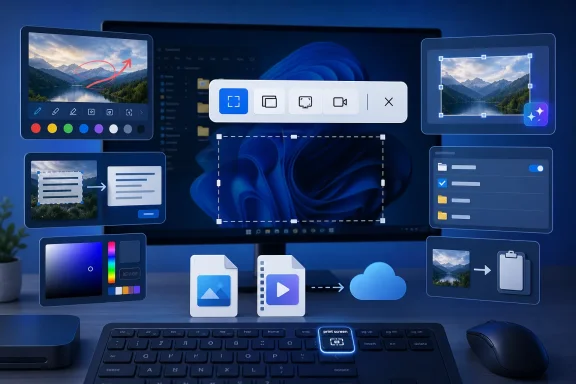 A Settings Screenshot Reveals Microsoft’s Larger Capture Strategy
Thurrott’s “st-settings” attachment belongs to a broader Windows 11 Field Guide chapter covering screenshots and screen recordings. Its significance is not that a settings page exists; it is that Snipping Tool now has enough behavior, storage, recording, and clipboard decisions to need a settings page.The old mental model was simple. Print Screen copied the display, Alt + Print Screen captured the active window, and Windows key + Print Screen wrote an image to disk. Those conventions still matter, but Windows 11 has placed a modern application between the user and one of the keyboard’s oldest commands.
Pressing Print Screen now opens the Snipping Tool capture interface by default. Instead of immediately copying the entire display, Windows dims the screen and asks the user to choose an image or recording operation, a capture area, and potentially one of several additional tools. Thurrott correctly treats this as a default worth explaining rather than an implementation detail: Microsoft has changed the meaning of a familiar hardware key.
Users who prefer the older behavior can restore it through Settings by navigating to Bluetooth & devices, opening Keyboard, and turning off “Use the Print screen key to open screen capture.” That escape hatch is important because the newer behavior is not universally faster. If a user always wants the complete desktop placed on the clipboard, turning a one-step action into an interface is friction disguised as flexibility.
But Microsoft’s default also makes strategic sense. The keyboard key is scarce, universally recognizable territory, and assigning it to Snipping Tool gives Windows a single front door for screenshots, recordings, text extraction, annotation, color sampling, and hardware-specific AI operations. Microsoft is not merely modernizing Print Screen; it is trying to make capture a first-class operating-system service.
The official Microsoft documentation reinforces that broader role. It presents Snipping Tool as the Windows interface for freeform, rectangular, window, full-screen, and video captures, with Windows key + Shift + S opening image capture and Windows key + Shift + R opening video capture. Microsoft also exposes Snipping Tool to packaged applications through its screen-capture protocol, allowing an app to request image or video capture and receive the result.
Print Screen Has Become a Workflow Launcher
Windows still supports several capture paths because decades of user habit cannot be consolidated without breaking somebody’s routine. Thurrott’s account is valuable here because it distinguishes the old shortcuts that still behave conventionally from those Microsoft has redirected into the modern experience.Windows key + Print Screen continues to capture the entire screen, save the image as a PNG in the Screenshots folder, and copy it to the clipboard. Alt + Print Screen captures the active window and copies it without requiring the full Snipping Tool workflow. Game Bar adds another route, with Windows key + Alt + Print Screen taking an active-window screenshot and Windows key + Alt + R starting a recording.
These are not redundant commands so much as different answers to the same question: What should happen immediately after I decide to capture something? One shortcut opens an interactive surface, another saves automatically, another limits the result to the foreground window, and another routes the job through gaming-oriented infrastructure.
| Capture path | Intended result | Selection scope | Default destination | Immediate follow-up |
|---|---|---|---|---|
| Print Screen / Snipping Tool | Screenshot or recording | Rectangle, window, full screen, or freeform for images; rectangle or window for video | Configurable through Snipping Tool settings | Mark up, copy, save, share, or edit |
| Windows key + Print Screen | Screenshot | Entire screen | Screenshots folder as PNG | Also copied to clipboard |
| Alt + Print Screen | Screenshot | Active window | Clipboard | Paste into another app |
| Windows key + Alt + Print Screen | Game Bar screenshot | Active window | Captures folder under Videos | Open or share the saved capture |
| Windows key + Alt + R | Game Bar recording | Active application context | Captures folder under Videos | Stop and work with the saved video |
That may be convenient for consumers who want captures available across devices, but the prompt also illustrates how a local keyboard action can become entangled with an account and cloud-storage decision. A screenshot may contain a support credential, customer record, internal dashboard, unreleased interface, or personal conversation. Users should know whether the capture is merely on the clipboard, written to a local folder, or being copied into cloud-backed storage.
This is why the settings attachment matters more than its anonymous filename suggests. Capture is no longer a momentary action. It creates a file, changes clipboard state, may trigger synchronization, and frequently leads to editing or sharing. The relevant settings determine where that chain begins and how much residue it leaves behind.
Snipping Tool Is Now Several Utilities Wearing One Name
Thurrott calls Snipping Tool a modern application that should meet most users’ screenshot and recording needs. That judgment is fair, but it almost understates the transformation. The app now combines functions that previously required several utilities, even if Microsoft still uses the slightly awkward terms “static image snips” and “video snips.”The first source of confusion is that Snipping Tool has two interfaces. Launch it from Start or Windows Search and it appears as a small floating application window. Press Print Screen and it instead dims the display and presents a compact toolbar across the capture surface.
The distinction affects which controls are visible. The normal window provides the “+ New” command and access to the app’s settings. The full-screen experience places capture-oriented controls directly over the desktop, reducing the distance between seeing something and acting on it.
In screenshot mode, users can select rectangular, window, full-screen, or freeform capture. A delayed capture can wait three, five, or ten seconds, which remains essential when the object being documented is a temporary menu, tooltip, or state that disappears as soon as another window gains focus.
Microsoft has also pushed capture beyond pixels. The text extractor can identify visible text and copy it as plain text, with options to copy automatically and remove line breaks. For anyone documenting an error message, transferring text out of a non-selectable dialog, or quoting a configuration screen, this may be more useful than the screenshot itself.
Quick markup shifts basic annotation into the capture stage. Pen, highlighter, eraser, and shape controls can be used before the image is saved, reducing the familiar cycle of capturing a screen, opening an editor, drawing an arrow, saving a duplicate, and then finding the correct file to send.
The color picker is another small but revealing addition. It can retrieve an on-screen color in hex, RGB, or HSL form and copy the value as text. That moves Snipping Tool into territory traditionally occupied by design utilities and browser extensions.
The full editor adds ballpoint-pen and highlighter controls, an eraser, shapes, cropping, text scanning, undo and redo, zoom, printing, sharing, and a virtual ruler for drawing straight lines. It can hand an image to Paint and send a visual search to Bing, while the “Open file” command lets users apply parts of the workflow to an existing image rather than only a newly captured one.
No single feature is revolutionary. The important change is accumulation. Microsoft has assembled the ordinary operations that occur immediately after a capture and moved them into the capture application itself.
That gives Windows a credible built-in answer to many support and documentation jobs. A technician can capture a dialog, extract its text, obscure or annotate the relevant region manually, place the edited result on the clipboard, and share it without installing a specialized screenshot suite. A user can select an exact color or turn an interface state into a marked-up explanation without first deciding which image editor to use.
The interface still exposes its history, however. “Snipping Tool” is a name inherited from an era when the job was simply to cut out a rectangular piece of the display. It now describes an image editor, OCR front end, screen recorder, color utility, clipboard source, sharing client, and launch point for other Windows applications. Microsoft has expanded the product faster than it has clarified the product.
The Settings Page Controls the Part Users Usually Lose
Thurrott’s strongest practical advice is also the least glamorous: configure Snipping Tool before relying on it. The app’s settings separate screenshot behavior from screen-recording behavior and expose decisions about automatic copying and save locations.The first interface problem is physical. Snipping Tool normally opens as a small floating window, but its settings are displayed inside that same window rather than in a separate dialog. In the default compact size, much of the page can be cut off, so the user must resize or maximize the app to see it properly.
That is a small usability defect with disproportionate consequences. A person looking for a storage setting may reasonably conclude it does not exist because Windows has hidden it below a cramped viewport. The “st-settings” attachment documents the configuration surface, but Thurrott’s surrounding explanation supplies the crucial instruction: enlarge the window.
“Automatically copy changes” is available separately for screenshots and recordings and is enabled by default. That behavior is efficient when the next step is pasting the result into chat, email, a ticket, or a document. It can also be surprising if the user expected the clipboard to retain previously copied text.
The save-location controls are more important. Screenshots and recordings are different classes of output with different storage costs and handling requirements, and Snipping Tool lets users configure where each is saved. Thurrott reports that screenshots are otherwise written as PNG files under Pictures, while recordings are saved as MP4 files under Videos.
This separation should be treated as a workflow choice rather than housekeeping. Screenshots are often numerous and small; recordings are less frequent but can consume substantially more space. Mixing both into a general download or desktop folder makes retention, cleanup, and backup harder.
A sensible configuration depends on the use case. A writer may want screenshots inside a project asset directory, a support technician may want them in a temporary working folder, and a trainer may need recordings placed where an editor can ingest them. The default folders are reasonable for general users, but defaults are not an information-management strategy.
The save location is part of the capture operation. If users cannot predict where the file went, Windows has not completed the task—it has merely created another search problem.
This is especially relevant because automatic saving can be invoked by software as well as by a person clicking through the interface. Microsoft’s developer documentation says packaged applications can call Snipping Tool for image or video capture, but an automatic-save request still respects the user’s Snipping Tool settings. In other words, the configuration page is not merely cosmetic; it helps govern how integrated capture workflows behave.
Copilot+ PCs Turn a Universal Utility Into a Tiered Experience
Snipping Tool’s core operations work broadly in Windows 11, but Thurrott identifies additional functionality on Copilot+ PCs. Perfect screenshot uses local, on-device AI to analyze a rectangular selection and trim it more intelligently, while still providing handles for manual correction.The concept is practical. Capturing a panel, image, dialog, or content card often leaves unwanted borders and background material around the subject. If Windows can identify the prominent object and snap the crop to it, the feature eliminates one of the most repetitive post-capture edits.
Perfect screenshot is available when the capture area is set to Rectangle, and Thurrott notes that holding Ctrl can invoke it. Microsoft’s own support material similarly describes the feature as an automatic adjustment that tightly frames prominent on-screen content while leaving crop handles available for fine-tuning.
Click to Do introduces a broader ambition. Rather than treating what is displayed as a flat picture, Windows can present actions related to the text and graphics it sees. Snipping Tool becomes an entry point into a system that interprets the visible desktop instead of merely recording it.
This is a logical place for Microsoft to demonstrate local AI. Screen capture has a bounded input, an immediate user request, and an output the user can inspect before saving. Automatic cropping is also far easier to explain than an assistant making opaque decisions across an entire workflow.
But it creates another capability split inside a basic Windows utility. Two users can follow the same instructions and see different controls because one has a Copilot+ PC and the other does not. Documentation, training material, and support scripts therefore need to distinguish the universal Snipping Tool from its hardware-dependent additions.
The good news is that the core capture and annotation workflow does not appear to require those AI features. Rectangle, window, full-screen, freeform, recording, markup, text extraction, and sharing remain the substance of the application. Perfect screenshot improves the edge of the selection; it does not define the utility.
That is the right hierarchy. Microsoft’s AI additions are most convincing when they shorten a familiar manual task without making the underlying operation dependent on an AI model. A user who does not have Perfect screenshot can still crop an image. A user who does have it may simply need to crop less often.
Screen Recording Is Useful Because Microsoft Resisted Building an Editor
The recording side of Snipping Tool is narrower than the screenshot side, but that is not necessarily a weakness. Users can select a rectangular area or a window, toggle microphone and system audio, start after a three-second countdown, pause, stop, or discard the recording, and monitor its duration through the overlay.There is no dedicated full-screen recording choice in Thurrott’s account. A user can approximate one by selecting a rectangle that stretches from one corner of the display to the other, but that workaround exposes a gap in an otherwise straightforward interface. Full-screen capture is an explicit image mode; it should be an equally explicit video mode.
After recording stops, the file is saved under Videos in a Screen Recordings folder and reopened in Snipping Tool with playback and editing controls. Users can save another copy, copy the file, share it, open its folder, or turn it into an animated GIF using low- or high-quality output presets.
The built-in editor does one central job: trimming the beginning and end. That sounds limited because it is limited, but it aligns with how short screen recordings are usually repaired. The recorder starts too early while the user returns to the correct window, and it ends too late while the pointer travels to the Stop control.
For anything more complicated, Snipping Tool offers “Edit in Clipchamp.” Microsoft’s support documentation likewise directs users to Clipchamp when they want to add captions or audio after a video capture.
This handoff establishes a reasonable product boundary. Snipping Tool captures and performs the most likely cleanup; Clipchamp handles a real edit. Trying to embed tracks, transitions, caption management, detached audio, and a full timeline into Snipping Tool would reproduce another application inside an already crowded utility.
The division also reflects Microsoft’s increasingly modular approach to in-box software. The operating system supplies a chain of focused apps rather than one enormous program: Snipping Tool captures, Paint performs deeper image work, and Clipchamp handles richer video editing.
The weakness is continuity. Every handoff introduces another interface, another save state, and another opportunity to create duplicate files. The workflow works best when the user needs a quick recording with a clean start and finish. Once the task requires pointer emphasis, multiple clips, overlays, complex audio, or deliberate production, a dedicated recording environment becomes the better choice.
The Missing Mouse Pointer Defines Snipping Tool’s Ceiling
Thurrott highlights one limitation that matters particularly for technical documentation: Snipping Tool does not capture the mouse pointer in its screenshot or recording modes. He directs users who require that capability toward third-party tools such as Greenshot or ShareX.This omission is more consequential than it first appears. A pointer is often the subject of an instructional image. It shows which icon to select, which boundary to drag, which menu item is active, or where an otherwise ambiguous hover state originated.
An annotation arrow can be added later, but that is not the same as preserving the pointer in context. For screen recordings, the absence can make a demonstration harder to follow because the viewer sees menus opening and controls changing without always seeing the motion that caused them.
The output formats impose another boundary. Thurrott says screenshots are saved as PNG and recordings as MP4, with no option to choose alternative image or video formats inside Snipping Tool. These are sensible defaults with broad compatibility, but a production tool would normally provide more control.
Together, the pointer and format limitations reveal Microsoft’s intended audience. Snipping Tool is designed for fast, broadly compatible captures rather than highly configurable production. It aims to eliminate the need for a third-party utility in ordinary situations, not to eliminate the third-party category.
That distinction should guide deployment decisions. Standardizing on Snipping Tool for simple support evidence, internal instructions, and quick demonstrations is reasonable. Demanding that it replace specialized capture software for every training, accessibility, design, testing, or media workflow is not.
Capture Defaults Are Now an Administrative Concern
For organizations, the important question is not whether Snipping Tool has enough features. It is whether users and support teams understand the side effects of those features: where files are written, what is copied, which cloud prompts may appear, what is omitted from recordings, and which options differ by hardware.A screenshot can be evidence, documentation, or an accidental disclosure. A recording can preserve a reproducible failure or expose several minutes of unrelated desktop activity. The convenience of capturing content does not remove the need to handle the result deliberately.
Support teams should also decide which capture path they expect users to follow. “Press Print Screen” may now produce a selection interface instead of the full-screen image an older script assumes. “Take a screenshot” is no longer sufficiently precise when Windows offers several routes with different results.
The same applies to recordings. Snipping Tool is appropriate when a user needs to show a small sequence quickly. Game Bar may fit an application-oriented capture, while Clipchamp or another recorder may be necessary for a polished explanation. Standard operating procedures should name the tool, selection scope, audio expectations, and destination rather than leaving each decision implicit.
Action checklist for admins
- Confirm whether Print Screen should open Snipping Tool or retain the older full-screen clipboard behavior in your standard user workflow.
- Open Snipping Tool, maximize its window, and review the complete settings page rather than relying on the cramped default view.
- Set and document separate save locations for screenshots and screen recordings.
- Decide whether automatic copying is desirable for both capture types, particularly on systems handling sensitive information.
- Test OneDrive prompts and storage behavior for users signed in with Microsoft accounts.
- Keep an approved alternative available when pointer capture, other output formats, richer editing, or more advanced recording is required.
Microsoft Has Built a Platform Where Windows Once Had a Shortcut
The most technically significant development sits beneath the user interface. Microsoft documents a Snipping Tool protocol through which packaged Windows applications can request an image or video capture, specify available modes, discover supported capabilities, and receive the completed result.The protocol supports separate image and video paths, rectangle, freeform, and window image modes, recording mode, automatic-save requests, callbacks, and capability discovery. Microsoft also says a caller should specify the protocol version it expects rather than relying indefinitely on the default.
For developers, this turns Snipping Tool into reusable Windows infrastructure. An application does not necessarily need to build its own region-selection overlay, window picker, recording prompt, or capture-consent experience. It can call the system tool and receive the user-approved result.
That arrangement has security and consistency advantages. The operating system owns the visible capture surface, while the invoking application receives the selected output through a defined mechanism. Microsoft requires the responding integration to come from a packaged app so Windows can provide identity and route the response securely.
For users, the developer protocol explains why the settings page matters beyond direct launches. A save preference or disabled automatic-save option can affect capture requests initiated from other software. The user is configuring a system-mediated service, not merely choosing how one accessory app behaves.
This is the larger story hidden inside “st-settings.” Windows has moved from keyboard-driven screen copying toward a capture platform with a user interface, persistent preferences, app integration, media handling, AI-assisted selection, and downstream editing relationships.
It is not perfectly unified. Game Bar remains separate, Clipchamp supplies deeper recording and editing tools, Paint handles more elaborate image work, and third-party utilities remain necessary for some essential capabilities. But the center of gravity has clearly shifted toward Snipping Tool.
The Practical Rules Behind the New Capture Model
The Windows 11 capture system makes more sense once it is treated as a group of intentional workflows rather than a collection of overlapping shortcuts. The right method is the one that produces the required scope, destination, and follow-up action with the fewest surprises.- Use Print Screen or Windows key + Shift + S when selection and immediate editing matter.
- Use Windows key + Print Screen when the goal is a full-screen PNG saved automatically.
- Use Alt + Print Screen when only the active window is needed on the clipboard.
- Configure screenshot and recording folders before making Snipping Tool part of a routine workflow.
- Use Snipping Tool for quick recordings and trims, but move to Clipchamp or a specialized utility for substantial editing.
- Plan on another tool when pointer capture or greater format control is required.
Thurrott’s July 12, 2026 field-guide entry captures Snipping Tool at the point where it has become too capable to ignore and too fragmented to take for granted. Microsoft has successfully turned screenshotting into a useful Windows service; its next task is to make that service more predictable—particularly around full-screen recording, pointer visibility, feature differences, and the transitions between capture, storage, editing, and sharing.
References
- Primary source: thurrott.com
Published: 2026-07-12T19:10:08.689958
st-settings - Thurrott.com
 www.thurrott.com
- Official source: support.microsoft.com
Use Snipping Tool to capture screenshots | Microsoft Support
Learn how to use Snipping Tool to capture a screenshot, or snip, of any object on your screen, and then annotate, save, or share the image.support.microsoft.com - Official source: learn.microsoft.com
Launch Snipping Tool - Windows apps | Microsoft Learn
This topic describes how to use the protocol launch framework for Snipping Tool. Your app can use these URI schemes to launch Snipping Tool's capture overlay to create a new snip or recording.learn.microsoft.com - Official source: microsoft.com
How to use Windows Snipping Tool | Microsoft Windows
Learn how to take screenshots and recordings using Snipping Tool in Windows 11. Discover snip shortcuts, smart features, and tips to boost productivity.www.microsoft.com
- Related coverage: windowscentral.com
How to get started with the Snipping Tool app in Windows 11 | Windows Central
In this guide, I will show you how to use the Snipping Tool app to take screenshots and screen-record videos on Windows 11. No extra software required.www.windowscentral.com - Related coverage: tomshardware.com
How to Take Screenshots in Windows 10 or Windows 11 | Tom's Hardware
Capture your entire desktop, a single window, a region or a scrolling area.www.tomshardware.com
- Related coverage: tomsguide.com
Windows 11 gets new AI-powered features in latest update — here's 4 tools to try out now | Tom's Guide
Microsoft rolls out all-new AI features in its latest Windows 11 update, with Copilot+ PCs packing Snapdragon chips now being able to change settings with an AI agent, edit photos with Relight and more. Here are 4 tools to try out now.www.tomsguide.com