

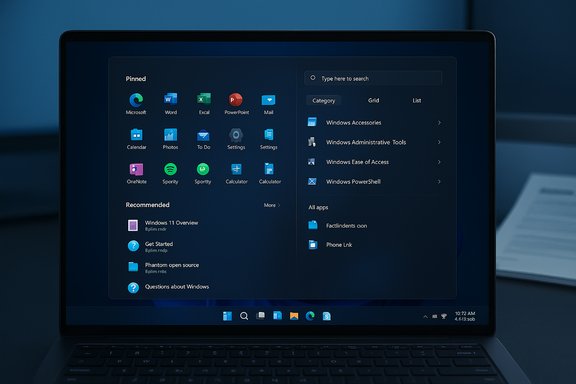
Microsoft has quietly rolled out a major Start‑menu redesign for Windows 11 that many users describe bluntly: the Start menu is suddenly huge — taller, more scrollable, and more intrusive than before — and the change is arriving through recent servicing updates rather than a single, optional UI pack. This is not a cosmetic tweak: Microsoft moved the complete All Apps inventory onto the main Start surface, added new Category/Grid/List views and Phone Link integration, and changed how pinned layouts behave for enterprise provisioning. While the redesign improves discoverability and modernizes the launcher for large and high‑DPI displays, the practical effect on many laptops and lower‑resolution screens has been a Start surface that dominates vertical screen real estate and, in early deployments, triggered several regressions that admins and power users need to weigh before broad rollout. Microsoft’s official update notes and hands‑on reporting confirm the timeline and feature set, and community forums are lit with examples of the “giant” Start experience and practical workarounds.
Microsoft packaged the new Start experience into preview and cumulative servicing updates in late 2025 rather than a separate UX-only release. The October 28, 2025 preview (KB5067036) introduced the redesigned Start menu to Release Preview/Insider channels; the November 11, 2025 cumulative (KB5068861) confirmed the feature in mainstream servicing with additional fixes and enterprise policy tweaks. The official update notes make the intent explicit: a single, vertically scrollable Start canvas that houses Pinned, Recommended, and the full All‑apps list, plus three presentation modes for the All section. These changes are being enabled progressively by Microsoft through server‑side feature gating, meaning installing the update does not always flip the UI immediately on every device. Why Microsoft moved to this model
This article summarized the rollout mechanics, documented user‑facing behavior, and verified key technical details against Microsoft’s KBs and independent hands‑on reporting; it also incorporated community feedback to illustrate real‑world impact and practical workarounds.
Source: Inbox.lv News feed at Inbox.lv -
 Background: what changed and how it was delivered
Microsoft packaged the new Start experience into preview and cumulative servicing updates in late 2025 rather than a separate UX-only release. The October 28, 2025 preview (KB5067036) introduced the redesigned Start menu to Release Preview/Insider channels; the November 11, 2025 cumulative (KB5068861) confirmed the feature in mainstream servicing with additional fixes and enterprise policy tweaks. The official update notes make the intent explicit: a single, vertically scrollable Start canvas that houses Pinned, Recommended, and the full All‑apps list, plus three presentation modes for the All section. These changes are being enabled progressively by Microsoft through server‑side feature gating, meaning installing the update does not always flip the UI immediately on every device. Why Microsoft moved to this model- The single‑surface, scrollable layout reduces the number of interactions required to reach seldom‑used apps — an improvement for users with large software libraries or those who prefer a single, continuous launcher.
- New presentation modes (Category, Grid, List) aim to match different mental models: activity grouping, dense visual scanning, and familiar A→Z lists respectively.
- The update also folds in tighter Phone Link integration and an “apply once” policy toggle for pinned apps that helps enterprise provisioning while preserving user personalization after first sign‑in.
What users are actually seeing (symptoms and complaints)
Early hands‑on coverage and community threads converge on a handful of observable outcomes that explain why the Start menu feels “giant” to many users:- A much taller Start canvas: the All apps list is now on the main page, so Start frequently extends well down the vertical axis, often reducing visible desktop context. Independent reports show the Start surface can consume most of a 1080p laptop screen in certain configurations. This is largely a function of the new single‑page layout combined with display resolution and scale settings.
- New All apps views and density variations: Category and Grid views increase visible content when space permits; List view is the most compact option but still sits in the same single‑page canvas. Users on smaller screens report feeling overwhelmed by the default presentation.
- Inconsistent rollout and mixed experiences: because Microsoft uses phased server‑side enablement, two identical machines might behave differently after installing the same KB. This inconsistency creates support challenges for help desks and admins.
- Regressions appearing with the same updates: alongside the Start redesign, community‑reported issues surfaced in preview builds — examples include a Task Manager duplication bug that leaves background taskmgr.exe processes alive after closing, and other unrelated shell oddities. Those regressions amplified the frustration of users who installed the update expecting only a cosmetic UI change.
Technical verification: builds, KBs, and exact changes
A quick set of checks for IT staff and advanced users:- Build and KB identifiers to look for:
- Preview (October 28, 2025): KB5067036 — OS builds in the 26100/26200 families listed in the preview notes.
- November cumulative (November 11, 2025): KB5068861 — includes the same Start menu changes for 24H2 and 25H2 channels and bundles additional fixes.
- Verified feature list (as published by Microsoft):
- Single, vertically scrollable Start canvas with Pinned, Recommended, and All on one page.
- New All apps presentation modes: Category, Grid, List (the Start menu remembers the last selected view).
- Responsive layout that adapts to screen size and DPI.
- Additional UI refinements and an admin policy toggle to apply Start pins once at provisioning.
- Independent confirmation: major outlets (Windows Central, Tom’s Guide and others) validated the same behaviors, reported the large visual footprint in real hardware testing, and documented the Task Manager and other regressions present around the same preview window. Cross‑referencing Microsoft’s KB and independent reporting verifies that both the feature set and the delivery mechanism (servicing + server‑side gating) are accurate.
Critical analysis — strengths, real gains, and why this matters
The redesign is not purely cosmetic. There are concrete, defensible reasons Microsoft moved Start in this direction:- Improved discoverability for large app libraries. Putting All apps on the main canvas removes a click and reduces navigation friction, which benefits users who install many applications or use Start frequently for discovery.
- Flexible presentation modes tailor Start to different workflows. Category view helps find apps by task rather than name; Grid suits fast visual scanning on widescreens; List remains an option for keyboard-centric users.
- Enterprise provisioning improvements. The Configure Start Pins boolean that allows admin pins to be applied on day 0 and then be left editable by users is a practical compromise between locked-down images and user personalization. This reduces friction on first sign-in while respecting user choice thereafter.
- Integration opportunities. Phone Link inside Start and tighter Copilot/File Explorer hooks show Microsoft’s intent to converge continuity and AI surfaces into primary shell components, which may reduce context switches for cross‑device tasks.
Risks, trade‑offs, and real operational concerns
For many users and organizations, the new Start brings identifiable downsides:- Screen real estate on small or 1080p laptop displays. The single, tall canvas can cover most or all of the visible workspace, creating an interruption to workflows that previously relied on short, contextual Start pop‑ups. Community tests reported configurations where the Start menu occupied 80–90% of a 1080p display before collapsing — numbers derived from field testing rather than Microsoft’s published pixel specification, so results vary. Treat these figures as experiential, not guaranteed.
- Accessibility and muscle‑memory regressions. Longtime users and those reliant on assistive tech may experience broken flows. Any major reflow of a core launcher must be validated against screen readers, keyboard navigation, and other accessibility tools. Early pilots should include assistive‑technology regression testing.
- Lack of a supported rollback toggle. Server‑side gating means that once Microsoft enables the feature for a device, there’s no simple “switch back” in consumer settings. Reversing the experience can require uninstalling updates, relying on unsupported community tools, or waiting for Microsoft to offer policy controls — all imperfect options for mass deployments.
- Coupled regressions from preview code. The Start redesign arrived at the same time as other shell and platform changes. Some early adopters saw unrelated regressions (Task Manager duplication, WSL networking issues with specific VPNs, and File Explorer menu glitches) that together increase the risk profile of immediate adoption on production machines. These regressions are documented in community testing and independent coverage and matched in Microsoft’s broader servicing notes.
- Inconsistent user experience within organizations. Server‑side enabling can produce mixed UX across identical hardware, complicating support scripts, training materials, and documentation. Help desks may need to triage two different Start experiences for identical builds for the foreseeable rollout window.
Practical guidance — how to manage the “giant” Start menu (consumer and IT advice)
If the new Start is active on your machine and feels too large or intrusive, try the following steps (ordered from safe to advanced). Each item includes rationale and exact locations where appropriate.- Change the All apps view (compact option)
- Open Start > Settings (gear icon) or go to Settings > Personalization > Start.
- Switch the All apps view to List (the most compact view). This reduces density and vertical length compared with Category or Grid.
- Why: List view presents a traditional A→Z layout and generally reduces visible canvas height.
- Hide or collapse the Recommended area
- Settings > Personalization > Start: disable “Show recently added apps,” “Show most used apps,” and “Show recommended files.”
- Why: Removing Recommended collapses one of the largest vertical sections and shifts the app list upward. This is the single most effective supported way to reclaim vertical space.
- Adjust display scaling or resolution
- Settings > System > Display: experiment with Scale (125% / 150%) or change resolution when using external monitors.
- Why: The Start layout adapts to DPI; higher effective DPI on high‑res screens compresses Start relative to the desktop. Use cautiously — scaling affects all UI.
- Use an external higher‑resolution monitor when possible
- On docking stations, the Start surface is less domineering on 4K or large displays. For laptop users switching to a docked monitor, the experience often feels less invasive.
- Advanced / unsupported: ViVeTool
- Tech communities documented ViVeTool command flags that can toggle preview features if the servicing binaries are present.
- Warning: This is unsupported by Microsoft and should only be used by advanced users who understand the risk. Back up before attempting.
- For IT: pilot, policy validation, and communications
- Pilot the update in rings, test assistive tech and deployment scripts, and validate Group Policy/Intune interactions with the new Start layout.
- Consider delaying broad deployment until Microsoft’s server gating completes and any regressions in your environment have been resolved. Record precise build numbers and create user guidance documentation showing how to switch views or hide Recommended.
- Regressions: Task Manager duplication workaround
- If you see multiple background Task Manager processes: use the command line to kill them (taskkill /im taskmgr.exe /f) or kill the orphaned processes from an elevated command prompt / Process Explorer until an official patch is applied. This is a practical but temporary mitigation.
What enterprises should do now
Enterprises face a tougher calculus because a single cumulative update can create mixed-user experiences through phased enablement. Recommended steps:- Identify affected build and feature state
- Use winver and update inventory to confirm whether KB5067036/KB5068861 are installed and whether server flags have flipped for representative devices.
- Controlled pilot
- Move the update through pilot rings that include desktop, laptop, docked, and assistive‑tech users to spot display, accessibility, and provisioning regressions.
- Validate management tooling
- Confirm Intune and Group Policy behaviors for Start pin provisioning and any new policy booleans (the “apply once” Start pins option) to ensure desired provisioning outcomes.
- Triage and rollback strategy
- Prepare tactical steps for rollback where necessary: block the KB via WSUS/Update rings for problem devices, or use standard uninstallation of the offending KB with caution in production. Remember that uninstalling updates can have side effects and should be tested.
- Communications plan
- Inform users that Start may look different after updates and prepare quick how‑to guides for hiding Recommended or switching to List view. This reduces helpdesk load and frustration.
What remains uncertain and what to watch for
- Exact pixel/percentage claims about how much of a given display the new Start consumes are hardware‑dependent; community figures (e.g., “90% of 1080p screens”) are useful as anecdotal evidence but not as universal specifications. Treat them as experiential reports that motivate testing rather than objective guarantees.
- Microsoft’s staged enablement timing is outside your control; even if you install the KB, the feature may appear days or weeks later once server flags flip. That complicates predictable rollout schedules.
- Microsoft is actively patching regressions reported in preview; monitor official KB updates and security/quality rollups for fixes to Task Manager duplication, WSL/VPN interactions, and other shell issues. Applying the latest cumulative updates after validation is the best path to a stable experience.
Final verdict — who should adopt now, who should wait
- Adopt now (or test early): Enthusiasts, power users with large displays, IT teams running controlled pilots, and early adopters who want the improved discoverability and can tolerate occasional preview regressions.
- Wait and validate: Organizations with large fleets of 1080p laptops, accessibility‑sensitive deployments, or those that require strict UI consistency across users should delay mass deployment until Microsoft’s phased enablement completes and early regressions are resolved.
- Mitigation steps: For anyone who sees the Start menu as too large, use the supported controls first (hide Recommended, switch to List view, adjust scaling) before resorting to unsupported tooling. For enterprise admins, pilot, validate policies, and maintain a rollback path if the experience materially impacts productivity.
This article summarized the rollout mechanics, documented user‑facing behavior, and verified key technical details against Microsoft’s KBs and independent hands‑on reporting; it also incorporated community feedback to illustrate real‑world impact and practical workarounds.
Source: Inbox.lv News feed at Inbox.lv -
