

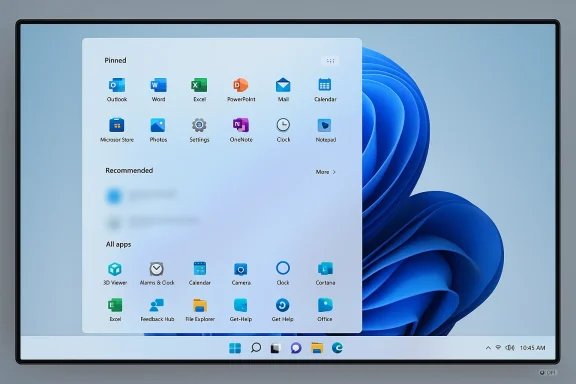
Microsoft's redesigned Start menu for Windows 11 has won praise for its unified, scrollable layout — but an unexpected and widespread complaint has already become the defining user story: the new Start menu is simply too large, and people want a manual resize control back.
Since late 2025 Microsoft has been rolling out a major Start menu redesign that consolidates Pinned apps, Recommended items, and the All apps list into a single vertical surface. The change was introduced through preview updates and servicing releases (notably the optional preview package that shipped in the October/November servicing wave) and has been expanded to broader channels via staged rollouts in subsequent security updates. The redesign adds two new All‑apps views (Category and Grid), a Phone Link pane that can be expanded inside Start, and a responsive layout that attempts to adapt to screen size, DPI scaling, and the amount of content you keep pinned.
The stated design goal is straightforward: make the Start menu a single, scrollable canvas so you can find, browse, and launch apps with fewer clicks. In doing so, Microsoft moved away from the old page‑based All Apps model toward a continuous app surface. The company also added new toggles in Settings > Personalization > Start so users can hide the Recommended content and control what types of recommendations appear.
That all sounds sensible on paper. In practice, many users — especially those on smaller laptops or lower resolutions — find the new surface dominates their screen and removes a degree of control they had under Windows 10.
However, there’s an important distinction many users miss: the content inside Start is responsive in the sense that pinned rows collapse and recommendations can disappear, but the enclosing Start panel (the visible frame you click to open) is not engineered to be manually resized by the user. That design decision is the root of much of the frustration.
The new Windows 11 Start opts for a dynamic, algorithmic approach rather than a direct manual control. For many modern machines the result looks great — but on smaller laptops (14‑inch or 13‑inch) at default high resolutions and system scaling, the Start surface can appear disproportionately large.
At the same time Microsoft has defended the overall design intent: Start is meant to be adaptive and to make better use of screen real estate on modern devices. The company is monitoring user feedback and has not closed the door on adding new controls, but it has indicated the UI was not originally conceived as a manually resizable floating panel in the same way Windows 10’s Start was.
That staged delivery has real implications:
Microsoft has said they are monitoring feedback, and there are indications they are open to future adjustments. In parallel, the community of third‑party developers who produce Start replacements and desktop customization tools are already iterating; that ecosystem will continue to offer alternatives, though relying on external tools is not a substitute for native OS settings.
The fix is straightforward and should be simple: give people a way to tell Start exactly how much screen real estate it can use. That would preserve the unified, scrollable experience for people who want it while restoring agency to those who don’t.
Until Microsoft offers that manual control, expect continued user friction, helpdesk noise, and a persistent demand across Feedback Hub posts and community forums: let us resize the Windows 11 Start menu.
The redesigned Start menu is a clear effort to evolve Windows for modern hardware and cross‑device workflows. But design is as much about giving users control as it is about automation. Restoring a simple, explicit resize option would reconcile Microsoft’s responsive ambitions with the practical needs of millions of Windows users who still expect the Start menu to behave like a window they control.
Source: Windows Latest Nobody wants a massive Windows 11 Start menu. Let us resize it, say users, as Microsoft monitors feedback
 Background
Since late 2025 Microsoft has been rolling out a major Start menu redesign that consolidates Pinned apps, Recommended items, and the All apps list into a single vertical surface. The change was introduced through preview updates and servicing releases (notably the optional preview package that shipped in the October/November servicing wave) and has been expanded to broader channels via staged rollouts in subsequent security updates. The redesign adds two new All‑apps views (Category and Grid), a Phone Link pane that can be expanded inside Start, and a responsive layout that attempts to adapt to screen size, DPI scaling, and the amount of content you keep pinned.The stated design goal is straightforward: make the Start menu a single, scrollable canvas so you can find, browse, and launch apps with fewer clicks. In doing so, Microsoft moved away from the old page‑based All Apps model toward a continuous app surface. The company also added new toggles in Settings > Personalization > Start so users can hide the Recommended content and control what types of recommendations appear.
That all sounds sensible on paper. In practice, many users — especially those on smaller laptops or lower resolutions — find the new surface dominates their screen and removes a degree of control they had under Windows 10.
What users are complaining about
- The Start menu often occupies an unexpectedly large portion of the display, sometimes covering the majority of the screen height or width depending on resolution and scaling.
- There is no supported manual handle or drag edge that lets you shrink the Start panel the way you could on Windows 10.
- The Start surface itself does not shrink even when the content inside collapses; sections such as Pinned or Recommended will reduce rows, but the menu frame remains large.
- Some users see the Start menu take up almost the entire display when the Phone Link panel is enabled or when scaling/DPI combinations interact poorly with the responsive layout.
- Power users miss Windows 10’s fine‑grained manual control (drag to resize, tile grouping and free movement) and ask for the ability to switch to a compact mode or to control Start menu density.
The technical realities: why Start appears so big
Microsoft’s redesign relies on a set of layout heuristics that consider multiple inputs:- Display physical size, resolution, and scaling (DPI) settings.
- The number of pinned apps and whether you’ve enabled “Show all pins by default.”
- Whether Recommended items are available or toggled off.
- The chosen All‑apps view (Category vs Grid vs List).
However, there’s an important distinction many users miss: the content inside Start is responsive in the sense that pinned rows collapse and recommendations can disappear, but the enclosing Start panel (the visible frame you click to open) is not engineered to be manually resized by the user. That design decision is the root of much of the frustration.
How this compares with Windows 10
Windows 10’s Start menu was explicitly a window-like surface you could resize by dragging the top or the side edges; tiles and groups reorganized to fill the new area. That gave users explicit control over how much screen real estate Start consumed, independent from scaling. Power users could create tight, compact Start surfaces that didn’t overwhelm their workspace.The new Windows 11 Start opts for a dynamic, algorithmic approach rather than a direct manual control. For many modern machines the result looks great — but on smaller laptops (14‑inch or 13‑inch) at default high resolutions and system scaling, the Start surface can appear disproportionately large.
Where Microsoft stands (and what they’ve said)
Microsoft has acknowledged feedback about size and responsiveness and has explained the new logic behind the layout: the Start menu’s sections are responsive and can show more or fewer rows based on content. The company points out that if your Pinned section has only a few apps it will shrink to a single row and other sections will slide up. There is also a settings toggle to show all pins by default if you prefer all pins expanded.At the same time Microsoft has defended the overall design intent: Start is meant to be adaptive and to make better use of screen real estate on modern devices. The company is monitoring user feedback and has not closed the door on adding new controls, but it has indicated the UI was not originally conceived as a manually resizable floating panel in the same way Windows 10’s Start was.
The rollout context and operational risks
This change was deployed via servicing updates — an approach that bundles the new Start as an experience switch that can be flipped on gradually by Microsoft. That method reduces the blast radius for regressions but introduces variability: two machines with identical builds can have different Start experiences depending on whether the server‑side feature gate has been enabled for them.That staged delivery has real implications:
- IT teams and trainers will see inconsistent UIs across user fleets.
- Helpdesk workflows must account for both legacy and new Start when assisting users.
- Third‑party shell utilities and Start‑replacement tools may break or behave unpredictably.
- Recent optional updates that introduced the new Start were also associated with a handful of stability problems in late 2025 and early 2026 (for example, reports of task‑manager duplication and other bugs in preview releases), reminding administrators to test thoroughly before wide deployment.
Strengths of the redesigned Start menu
- Unified surface and discoverability: Putting Pinned, Recommended, and All on one canvas eliminates a click and makes large app libraries easier to scan.
- New All‑apps views: Category and Grid views can help users find apps faster than flipping between pages.
- Responsive content sections: Pinned and Recommended content collapse automatically when empty or sparse, which reduces clutter in many typical scenarios.
- Phone Link integration: The collapsible Phone Link panel brings basic phone interactions into Start in a neat way.
- Policy improvements for admins: The “apply pins once” policy gives IT better control during provisioning while still enabling user personalization.
The usability and accessibility problems Microsoft must address
The issues users are raising are not trivial cosmetic complaints; they affect productivity workflows and accessibility.- Loss of direct control: A significant subset of Windows users prefer manual control over system surfaces. Removing a straightforward resize grip replaces an intuitive action with opaque heuristics.
- Inconsistent density on laptops: On smaller screens the default canvas can overwhelm other applications, and users don’t always want the Start surface to dictate screen layout.
- Accessibility concerns: Any major layout shift changes keyboard navigation order, visual focus, and Narrator behavior. There have been reports in Insider flights of Narrator or voice choices causing issues, and large canvases can complicate scanning for users who rely on screen readers or magnifiers.
- Enterprise manageability gaps: Admins need deterministic control for training, documentation, and kiosk‑style devices. Server‑side enablement and lack of a revert option make change management harder.
- Third‑party compatibility: Tools such as Start replacement apps and desktop customizers must be updated, or they will break. Relying on Microsoft to expose APIs or documented hooks is critical for an ecosystem used to Windows extendability.
Practical workarounds for users today
If the new Start menu rollout has reached your device and the size bothers you, try the following steps to mitigate the issue:- Adjust system scaling/DPI in Settings > System > Display. Lowering scale can reduce how much Start fills the screen, but it makes all UI elements smaller.
- Use Settings > Personalization > Start to turn off the Recommended items if you want fewer rows visible.
- Reduce the number of pinned items or enable “Show all pins by default” if you prefer a consistent single‑row pin area — the Pinned section will collapse when it contains fewer items.
- If you must have a smaller or classic Start, consider reputable third‑party Start replacement utilities that preserve Windows 10‑style behavior. Note: these tools may need updates after major OS changes and can introduce their own compatibility issues.
- For enterprise users, delay or block the optional servicing update on your deployment rings until you’ve tested the experience on representative hardware.
Recommendations for Microsoft — what would fix this correctly
From a product‑design and deployment perspective, the simplest, highest‑value changes Microsoft could make are also among the least risky:- Add a manual resize handle or a “Compact / Wide / Full” layout selector so users can explicitly choose Start’s frame size independent of content density.
- Honor a user preference that pins Start size (e.g., keep the last manual size) so the responsive heuristics don’t override personal settings.
- Offer a compact mode that scales icons and font sizes inside the Start surface without forcing global DPI changes.
- Expose GPO/CSP controls for Start size/density for enterprise administration (not only pin policies).
- Publish accessibility guidance and test results for keyboard, Narrator, and magnifier users. Provide a quick “switch to accessibility friendly layout” toggle for assistive technology users.
- Provide an official reversion path to the legacy Start for users or organizations who prefer the older experience, at least until the new design matures.
- Document a stable API for third‑party start customizers and keep that API consistent across servicing releases to preserve ecosystem investments.
What this means for enterprises and IT administrators
- Treat the Start redesign as a UI change that requires pilot testing across representative device classes. Test laptops with typical user scalings (125%, 150%, 200%) as well as 1080p and 4K panels.
- Use deployment controls to stage the update — keep affected machines on slower rings until you’ve validated the experience with standard corporate applications and assistive technologies.
- Update training materials and support documentation. Expect Helpdesk calls from users who are surprised by the larger surface or who rely on muscle memory from Windows 10.
- Audit third‑party desktop utilities and signpost any that may conflict with the new Start. Have remediation guidance ready if users install third-party Start replacements.
- Leverage the “apply Start pins once” policy to provision pinned apps predictably on new devices; this prevents the admin‑provided layout from being reimposed on users after they customize their desktops.
The community response and where things stand now
Feedback channels exploded as the rollout widened. Many users upvoted requests for a resize control and lamented the loss of Windows 10’s drag‑to‑resize behavior. Social forums and feedback posts show a mix: some users like the unified, app‑library feel; many power users and those on smaller laptops want a compact option.Microsoft has said they are monitoring feedback, and there are indications they are open to future adjustments. In parallel, the community of third‑party developers who produce Start replacements and desktop customization tools are already iterating; that ecosystem will continue to offer alternatives, though relying on external tools is not a substitute for native OS settings.
Verdict: reasonable design, avoidable pain
The Start redesign is a well‑intentioned modernization with real usability gains for certain device classes. But it made a tradeoff — prioritizing a consistent single surface and automated density over explicit user control — that did not land well for a meaningful cohort of users.The fix is straightforward and should be simple: give people a way to tell Start exactly how much screen real estate it can use. That would preserve the unified, scrollable experience for people who want it while restoring agency to those who don’t.
Until Microsoft offers that manual control, expect continued user friction, helpdesk noise, and a persistent demand across Feedback Hub posts and community forums: let us resize the Windows 11 Start menu.
Quick checklist — what to try if the new Start is too big for you
- Change scaling in Settings > System > Display (be aware of side effects).
- Turn off Recommended content in Settings > Personalization > Start.
- Reduce pinned items or enable/disable the “Show all pins by default” option to influence Pinned section density.
- For admins: use the Configure Start Pins policy to provision pins predictably.
- Consider third‑party Start utilities as a last resort — and accept the support and compatibility tradeoffs.
The redesigned Start menu is a clear effort to evolve Windows for modern hardware and cross‑device workflows. But design is as much about giving users control as it is about automation. Restoring a simple, explicit resize option would reconcile Microsoft’s responsive ambitions with the practical needs of millions of Windows users who still expect the Start menu to behave like a window they control.
Source: Windows Latest Nobody wants a massive Windows 11 Start menu. Let us resize it, say users, as Microsoft monitors feedback
