

Microsoft's quiet tweak to the Windows 11 Start menu has given users a long-requested way to remove the "Recommended" feed — but it's come with an unexpected and, for many, unacceptable trade-off: disabling the new toggle also turns off File Explorer's Recent files and the taskbar Jump Lists, because all three surfaces share the same recent-activity engine.
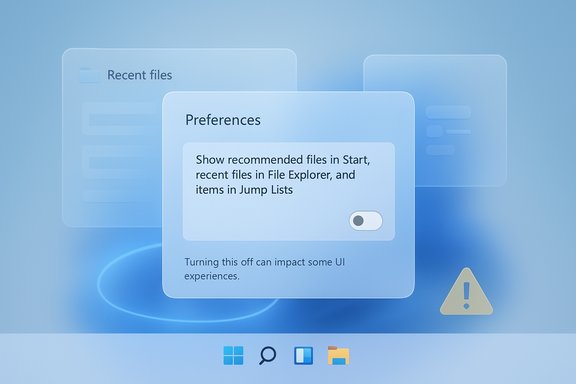
Microsoft rolled the redesigned Start menu into Windows 11 as part of the non-security preview updates delivered in the KB5067036 release. The update is targeted at Windows 11 versions 24H2 and 25H2 and appears on builds starting at 26100.7019 and 26200.7019. The refreshed Start consolidates Pinned, Recommended, and All into a single scrollable surface, introduces adaptive layout behavior to use more screen real estate on large displays, and adds an explicit settings toggle labelled "Show recommended files in Start, recent files in File Explorer, and items in Jump Lists." The setting is discoverable under Settings > Personalization > Start and is Microsoft's official way to let users hide the Recommended section without editing the registry or using third-party tools. However, flipping that single control disables all surfaces powered by the system recent-items list — Start, Explorer, and Jump Lists — rather than giving users granular control over each surface.
Administrators can use Group Policy and registry keys to control behaviour centrally, while enthusiasts can test the new Start via KB5067036 and ViVeTool (with the usual warnings about unsupported tweaks). For most users and organizations, the sensible next step is for Microsoft to decouple the surfaces — or at least clarify exactly what the toggle does — so people can have a clean Start without sacrificing core productivity features. If Microsoft decides to split the controls, add a compact sizing option, or ship the Search panel changes being discussed, the new Start could deliver both minimalism and muscle — but for now the trade-offs are real and deserve better communication and finer controls from Microsoft.
Source: Windows Latest Windows 11 Start menu's hide Recommended toggle also disables Recent files in File Explorer
 Background / Overview
Microsoft rolled the redesigned Start menu into Windows 11 as part of the non-security preview updates delivered in the KB5067036 release. The update is targeted at Windows 11 versions 24H2 and 25H2 and appears on builds starting at 26100.7019 and 26200.7019. The refreshed Start consolidates Pinned, Recommended, and All into a single scrollable surface, introduces adaptive layout behavior to use more screen real estate on large displays, and adds an explicit settings toggle labelled "Show recommended files in Start, recent files in File Explorer, and items in Jump Lists." The setting is discoverable under Settings > Personalization > Start and is Microsoft's official way to let users hide the Recommended section without editing the registry or using third-party tools. However, flipping that single control disables all surfaces powered by the system recent-items list — Start, Explorer, and Jump Lists — rather than giving users granular control over each surface. How the Recent-Activity Link Works (the technical reality)
One recent-activity engine: shared state across UI surfaces
Windows maintains a centralized recent-activity feed — a system-managed list that records recently opened files, apps, and sites. Multiple UI surfaces (Start's Recommended feed, File Explorer's Recent files / Quick Access, and taskbar Jump Lists) all reference that single store when presenting recent items. That means a single user-facing toggle that disables "recommended files" can actually stop the engine from being populated or read by all clients. This is not just a hypothesis: the registry flag documented by Microsoft — Start_TrackDocs under HKCU\Software\Microsoft\Windows\CurrentVersion\Explorer\Advanced — controls whether those recent items are tracked and surfaced. When the OS stops tracking recent items (Start_TrackDocs = 0 or the equivalent policy enforced), Explorer and Jump Lists no longer have data to show, so their Recent or Recent Items sections become empty. This explains the behaviour many users saw: toggling off recommendations in Start clears and prevents recent entries everywhere, not only in the Start menu.The registry and policy controls you should know
- Registry: HKCU\Software\Microsoft\Windows\CurrentVersion\Explorer\Advanced\Start_TrackDocs (DWORD). 0 = off, 1 = on.
- Group Policy: "Do not keep history of recently opened documents" under User Configuration → Administrative Templates → Start Menu and Taskbar. Enabling the policy disables recent-item history and prevents end users from re-enabling it.
What users are seeing: vertical size, UX friction, and the search mismatch
The redesigned Start menu is taller and more adaptive than the previous version, expanding to show more columns and items on larger displays. That adaptiveness is deliberate — Microsoft designed the layout to scale up to multiple columns of pinned apps and recommended items on wide/high-resolution screens — but it also creates ergonomics issues on smaller laptops where the Start surface can dominate screen real estate. Several outlets have documented that the new Start can feel tall on 14-inch screens and above, and that the Search panel still looks and feels comparatively small, producing a jarring visual transition. Microsoft has publicly stated it's experimenting with complementary UI changes to the Search surface to make transitions between Start and Search feel more natural, but a clear, authoritative confirmation about a fully resizable Start menu or a specific timetable for a "taller Search panel" was not found in Microsoft's official update notes or support pages at the time of reporting; that detail appears in a few secondary news reports and should be treated as something Microsoft is exploring rather than a committed release. Flag: this specific "Search panel taller" claim cannot be fully verified from official Microsoft release notes.Why this is a UX problem — and why it matters
1) A single toggle for three independent behaviours is poor affordance
Users expect the Start menu toggle labelled "Show recommended files in Start..." to control only the Start menu's content. Instead, it disables the centralized recent-items list and removes recent files everywhere. That violates a basic principle of UI design: control labels should match the scope of the effect. The current behaviour is surprising and likely to frustrate users who legitimately want to declutter Start but keep their File Explorer recents available for productivity. Multiple outlets and community testers flagged this as "bad UX" and called for separate toggles or better explanatory language.2) Productivity and workflow implications
Power users and knowledge workers rely heavily on File Explorer's Recent files and Jump Lists for quick access to ongoing work. Removing those surfaces along with Start recommendations forces manual navigation or re-pinning files — a regression for workflows that were previously faster. For enterprise users and support desks, this behaviour complicates support documentation and user training, because the visible setting in Start is not a one-to-one mapping to Explorer functionality.3) Privacy, telemetry, and expectation management
There is a privacy benefit for users who choose to disable the tracking of recent items — disabling the centralized engine does reduce the footprint of locally cached activity history. However, the conflation of UI-level “recommendations” and system-wide activity history creates an all-or-nothing choice where users who only want to avoid content suggestions (or targeted prompts) in Start must also opt out of a valuable productivity feature in Explorer. For privacy-sensitive contexts (hot-desking, shared machines, VDI) administrators may prefer the broader disable, but typical consumers likely want finer-grained choices.Workarounds, controls, and admin options
If you want to keep File Explorer's Recent files while removing Recommended items from Start, there is currently no supported per-surface toggle that does exactly that. The realistic options are:- Use the Settings toggle (easy, but disables recents everywhere). Settings > Personalization > Start > turn off "Show recommended files in Start, recent files in File Explorer, and items in Jump Lists." This clears the tracked list immediately.
- For enthusiasts who want the new Start menu before Microsoft fully rolls it out, install KB5067036 and use ViVeTool to enable feature flags. Community-discovered ViVeTool IDs are widely published and can unlock the new Start UI immediately, but this is unsupported and can expose you to instability or later mismatches when Microsoft changes feature IDs. Use with caution. Typical command bundles reported in community guides include vivetool /enable /id:57048231,47205210,56328729,48433719 (IDs change between builds so verify before use).
- Admins can control the behaviour for all users via Group Policy: configure "Do not keep history of recently opened documents" to enforce a system-wide policy that prevents recent items from being recorded or shown in Explorer and Jump Lists. This is a blunt instrument but is appropriate for managed fleets and privacy-conscious environments.
- Registry edits: Advanced users can set HKCU...\Explorer\Advanced\Start_TrackDocs to 0 to stop the recent-item recording. This mirrors what the Settings toggle does and is reversible. Back up the registry before editing.
Recommendations for Microsoft — a short wishlist based on observed behavior
- Offer separate toggles: one to hide Recommended only in Start, another to disable tracking for Explorer and Jump Lists. This preserves user choice and eliminates the surprise of disabling productivity features unintentionally.
- Improve label clarity: change the Settings label or add contextual help explaining that toggling this also disables File Explorer and Jump Lists; a concise explanation would reduce support calls and surprise.
- Consider a filter or scoped control: allow Start to consume the recent-activity list but filter out file-type recommendations or let users exclude specific folders (for example, exclude downloads or user-specified paths) from Start's Recommended feed while keeping Explorer recents intact.
- Make Start resizable: allow manual resizing (or at least a compact mode) to accommodate small laptops without changing system-wide scaling settings.
Privacy and enterprise implications — practical notes for IT
- For environments that must prevent recent-file leakage, rely on Group Policy: set "Do not keep history of recently opened documents" to Enabled and push via policy. This prevents users from re-enabling tracking and is the recommended enterprise control.
- For BYOD or mixed-use machines where users want personal convenience without enterprise tracking, document the exact behavior and provide a clear support KB: toggling the Start setting clears recent items; to keep Explorer recents, leave that toggle on and advise users how to remove Start items manually if they object to a particular recommendation.
- Telemetry: even when Windows stops populating the recent-items list, many applications maintain independent MRU (most recently used) lists — Microsoft Office, Adobe products, and others keep their own histories. Disabling the Windows centralized feed does not change those app-level histories. Clarify that for users concerned about privacy.
What Microsoft could have done differently (design alternatives)
Here are three practical implementations that would have avoided the current conflict:- Separate feature flags per surface
- Start: Hide Recommended (affects only Start UI)
- Explorer: Show Recent files (affects Quick Access)
- Jump Lists: Show Recent (affects taskbar context menus)
This keeps controls predictable and scoped. - Provide an "Exclude from Start" filter for the recent-activity engine
- Start could ask the engine to hide certain classes of recent entries (e.g., downloads, temporary files, or file types) while letting Explorer display them.
- Add a compact Start mode (manual resize)
- Let users choose default Start height: compact, normal, or expanded. This restores the flexibility that many power users miss from Windows 10 without sacrificing the adaptive behavior on larger screens.
Practical how-to: step-by-step (concise)
- To hide Recommended (and disable recents everywhere)
- Open Settings (Win + I) → Personalization → Start.
- Toggle off: Show recommended files in Start, recent files in File Explorer, and items in Jump Lists.
- That clears existing recent items immediately.
- To re-enable recent items globally (via registry)
- Open regedit and navigate to HKCU\Software\Microsoft\Windows\CurrentVersion\Explorer\Advanced.
- Set Start_TrackDocs = 1 (DWORD). Restart Explorer or sign out/in.
- To enforce a policy across machines (Group Policy)
- Run gpedit.msc → User Configuration → Administrative Templates → Start Menu and Taskbar.
- Edit "Do not keep history of recently opened documents": Enabled to disable history, Not Configured or Disabled to allow it. Use AD GPO for domain-wide enforcement.
- To try the new Start immediately (unsupported)
- Install KB5067036 so your build is at or beyond 26100.7019 / 26200.7019.
- Download ViVeTool from its GitHub repository.
- Run the ViVeTool enable commands from an elevated prompt (community IDs exist in public docs). Reboot. Use at your own risk.
Conclusion
The new Windows 11 Start menu brings real improvements — a cleaner, more adaptive layout and a long-overdue way to hide the controversial Recommended section. But the current implementation links that cosmetic control to the central recent-activity engine, unintentionally disabling File Explorer's Recent files and taskbar Jump Lists when users try to declutter Start. That linkage is a classic example of a UI decision that trades immediate simplicity for a loss of user control and predictability.Administrators can use Group Policy and registry keys to control behaviour centrally, while enthusiasts can test the new Start via KB5067036 and ViVeTool (with the usual warnings about unsupported tweaks). For most users and organizations, the sensible next step is for Microsoft to decouple the surfaces — or at least clarify exactly what the toggle does — so people can have a clean Start without sacrificing core productivity features. If Microsoft decides to split the controls, add a compact sizing option, or ship the Search panel changes being discussed, the new Start could deliver both minimalism and muscle — but for now the trade-offs are real and deserve better communication and finer controls from Microsoft.
Source: Windows Latest Windows 11 Start menu's hide Recommended toggle also disables Recent files in File Explorer
