

Thurrott.com has published a new Windows 11 field-guide entry covering the built-in Sound Recorder and Camera apps, alongside Windows Studio Effects—the system-level AI processing layer for compatible microphones and webcams.
The practical point is that these are not just barebones utilities. Sound Recorder supports AAC by default, plus MP3, WMA, FLAC, and WAV output, with selectable recording quality and the ability to mark moments during a live recording. Recordings are saved under the user’s Documents folder, while imported compatible audio is copied into the same library.
As Thurrott notes, Sound Recorder takes its input device from Windows’ default microphone configuration, though users can switch devices from inside the app. The relevant Windows 11 controls are under Settings > System > Sound > Input, where admins and users can select an input, adjust format, and—where hardware allows—enable audio enhancements.
The Camera app similarly relies on system-level camera configuration, available under Settings > Bluetooth & devices > Cameras. It can capture photos and videos, with resolution choices dependent on the attached camera, and supports document, whiteboard, and barcode scanning modes on supported hardware. Captured media is stored in the user’s Pictures\Camera Roll folder.
Neither app replaces dedicated production software, but both cover the routine needs of recording a voice memo, capturing a quick webcam clip, scanning a document, or testing a newly deployed camera and microphone.
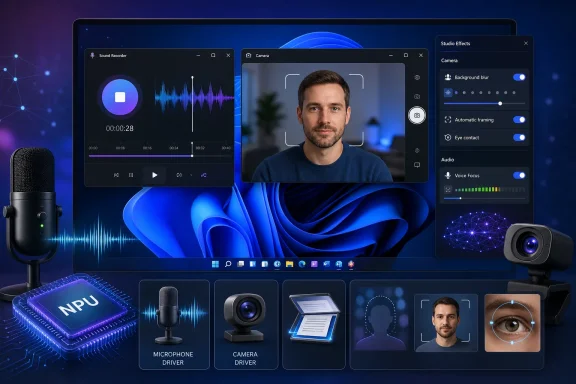
Available effects can include automatic framing, background blur, eye-contact correction, portrait lighting, creative filters, and Voice Focus noise reduction. Microsoft says availability varies by device capability: a supported neural processing unit and an OEM-provided Studio Effects driver are required, and the broader feature set is generally tied to higher-performance Copilot+ PC hardware.
This distinction matters for support desks. A Windows 11 PC can be fully patched and still lack the Studio Effects control because its processor, camera, or driver stack does not qualify. The absence of the Quick Settings “Studio effects” tile is a strong initial indication that the device does not support the feature.
Microsoft also cautions that effects such as background blur, eye contact, and automatic framing can affect performance and battery life. That is worth remembering on portable systems, particularly during long meetings.
For Windows users and admins, the immediate action is simply to check the camera and microphone settings pages on eligible PCs and enable only the effects that improve the actual call experience.
The practical point is that these are not just barebones utilities. Sound Recorder supports AAC by default, plus MP3, WMA, FLAC, and WAV output, with selectable recording quality and the ability to mark moments during a live recording. Recordings are saved under the user’s Documents folder, while imported compatible audio is copied into the same library.
 Sound Recorder and Camera remain useful built-ins
As Thurrott notes, Sound Recorder takes its input device from Windows’ default microphone configuration, though users can switch devices from inside the app. The relevant Windows 11 controls are under Settings > System > Sound > Input, where admins and users can select an input, adjust format, and—where hardware allows—enable audio enhancements.The Camera app similarly relies on system-level camera configuration, available under Settings > Bluetooth & devices > Cameras. It can capture photos and videos, with resolution choices dependent on the attached camera, and supports document, whiteboard, and barcode scanning modes on supported hardware. Captured media is stored in the user’s Pictures\Camera Roll folder.
Neither app replaces dedicated production software, but both cover the routine needs of recording a voice memo, capturing a quick webcam clip, scanning a document, or testing a newly deployed camera and microphone.
Studio Effects are hardware-dependent
The more consequential part of the guide is Windows Studio Effects. Microsoft describes these as AI-powered effects applied at the camera or microphone level, meaning a selected effect can carry into compatible apps rather than being limited to one conferencing client.Available effects can include automatic framing, background blur, eye-contact correction, portrait lighting, creative filters, and Voice Focus noise reduction. Microsoft says availability varies by device capability: a supported neural processing unit and an OEM-provided Studio Effects driver are required, and the broader feature set is generally tied to higher-performance Copilot+ PC hardware.
This distinction matters for support desks. A Windows 11 PC can be fully patched and still lack the Studio Effects control because its processor, camera, or driver stack does not qualify. The absence of the Quick Settings “Studio effects” tile is a strong initial indication that the device does not support the feature.
Where to configure it
For supported systems, Studio Effects can be managed through Quick Settings, the Camera app, or the per-camera Settings page. Video settings are under Bluetooth & devices > Cameras > [camera]; Voice Focus is associated with the microphone under System > Sound > Input.Microsoft also cautions that effects such as background blur, eye contact, and automatic framing can affect performance and battery life. That is worth remembering on portable systems, particularly during long meetings.
For Windows users and admins, the immediate action is simply to check the camera and microphone settings pages on eligible PCs and enable only the effects that improve the actual call experience.
References
- Primary source: thurrott.com
Published: 2026-07-18T21:02:29+00:00
Sound Recorder, Camera, and Windows Studio Effects - Thurrott.com
Windows 11 provides useful audio and video recording apps and a set of related features that can help the output from each look better.www.thurrott.com - Official source: learn.microsoft.com
Windows Studio Effects Overview - Windows apps | Microsoft Learn
Windows Studio Effects applies AI effects that utilize the device camera (currently supported) or microphone (coming soon), including Background Blur, Background Segmentation, Eye Contact and Auto Framing, leveraging NPU to optimize performance and using standardized control interaces.learn.microsoft.com - Official source: support.microsoft.com
