

Task Manager is one of those built‑in Windows utilities that feels simple at first glance—and dangerously powerful once you learn its shortcuts, views, and hidden controls.
Task Manager in Windows 11 is no longer just a process killer; it’s a compact diagnostics console, a lightweight performance dashboard, and a quick‑access troubleshooting toolbox rolled into a single app. The modern Task Manager introduced in recent Windows 11 builds adds features such as Efficiency Mode, richer per‑process telemetry, dark mode and theming, and floating performance widgets—capabilities that make it useful for everyone from beginners to power users.
This article distills three practical Task Manager tricks that every Windows 11 user should know: how to expand and customize the Processes view (columns), how to use the compact Graph Summary View for always‑on monitoring, and how to quickly revive a broken desktop shell by restarting Explorer. Each trick includes step‑by‑step instructions, real‑world benefits, and the risks to watch for when using the tool. All recommendations are based on the behavior of Task Manager as shipped in current Windows 11 builds; some UI labels and menu placement can vary slightly between releases and OEM customizations.
A note on origins: Task Manager’s roots date to early Windows releases in the 1990s and earlier (it has been a component of Windows for decades). Available community archives reference Task Manager behavior changing across Windows 95, NT and later Windows releases, but exact release‑by‑release historical claims require primary Microsoft documentation for precise dating; treat historical dates cited in casual web posts as approximations unless verified. This article focuses on practical, current‑day usage of the Windows 11 Task Manager UI rather than deep archival history.
Task Manager is a small app with outsized impact; learning three workflows today will save time and frustration later—especially the next time Windows’s desktop shell decides to misbehave.
Source: Pocket-lint 3 Task Manager tricks I wish I knew when I bought my first Windows 11 PC
 Overview
Task Manager in Windows 11 is no longer just a process killer; it’s a compact diagnostics console, a lightweight performance dashboard, and a quick‑access troubleshooting toolbox rolled into a single app. The modern Task Manager introduced in recent Windows 11 builds adds features such as Efficiency Mode, richer per‑process telemetry, dark mode and theming, and floating performance widgets—capabilities that make it useful for everyone from beginners to power users.This article distills three practical Task Manager tricks that every Windows 11 user should know: how to expand and customize the Processes view (columns), how to use the compact Graph Summary View for always‑on monitoring, and how to quickly revive a broken desktop shell by restarting Explorer. Each trick includes step‑by‑step instructions, real‑world benefits, and the risks to watch for when using the tool. All recommendations are based on the behavior of Task Manager as shipped in current Windows 11 builds; some UI labels and menu placement can vary slightly between releases and OEM customizations.
Background
Task Manager has evolved from a basic process list into a sophisticated monitoring tool over several Windows generations. Community documentation and product guides show a steady expansion of capabilities: more column metrics, per‑process power information, GPU and temperature readouts, and new power‑saving controls such as Efficiency Mode. These additions aim to make it easier to identify performance bottlenecks, manage startup load, and troubleshoot unresponsive programs directly from the interface.A note on origins: Task Manager’s roots date to early Windows releases in the 1990s and earlier (it has been a component of Windows for decades). Available community archives reference Task Manager behavior changing across Windows 95, NT and later Windows releases, but exact release‑by‑release historical claims require primary Microsoft documentation for precise dating; treat historical dates cited in casual web posts as approximations unless verified. This article focuses on practical, current‑day usage of the Windows 11 Task Manager UI rather than deep archival history.
1) Expand and contract columns — don’t leave Task Manager in its default state
Why customize columns?
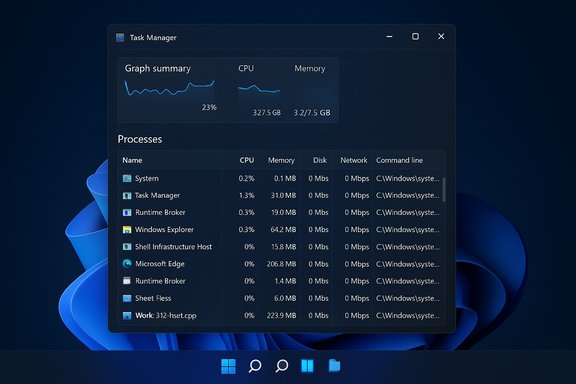
Out of the box, Task Manager’s Processes view shows a compact set of columns (Name, Status, CPU, Memory, Disk, Network). Those are useful, but they don’t tell the whole story. Enabling and rearranging extra columns gives you context at a glance—Process ID (PID), Command line, Power usage, GPU usage or engine, I/O metrics, and more—so you can make faster, safer decisions about which process to investigate or terminate.How to add, resize and reorder columns (step‑by‑step)
- Open Task Manager (Ctrl + Shift + Esc is the fastest method).
- Switch to the Processes tab if Task Manager doesn’t default to it. You can set your preferred default tab in Settings if you always want a particular view.
- Right‑click any column header (for example, the “Name” or “CPU” header). The context menu will list additional columns you can toggle. Select items such as Command line, PID, Power usage / Power usage trend, GPU engine, and I/O columns.
- Drag the vertical separator between column headers to resize a column. Click and drag a header left or right to reorder columns to match your investigative workflow.
Practical examples
- Add Command line to verify where a rogue process was launched from; this helps spot malware or misinstalled utilities.
- Add GPU engine and GPU % when diagnosing GPU‑bound workloads (games, video encodes).
- Add Power usage and Power usage trend on laptops to see what background apps are draining battery.
Benefits
- Faster root‑cause discovery without guessing.
- Cleaner, role‑specific layouts (e.g., “developer” vs “gamer” vs “everyday user”).
- Easier comparison when sorting by different metrics (click a header to sort).
Risks and caveats
- Displaying many columns makes the table dense; on small screens you might need to scroll horizontally.
- Some columns depend on hardware/drivers (GPU metrics, temperature) and may not appear on older PCs or with outdated drivers. Verify driver support if metrics are missing.
2) Make use of Graph Summary View — monitor without the clutter
What is Graph Summary View?
Hidden inside the Performance tab is a useful compact mode: double‑click any performance graph (CPU, Memory, Disk, Wi‑Fi, GPU) to turn it into a floating Graph Summary View. This small, always‑on‑top window gives you a tight, persistent overview without the distraction of the full Task Manager UI. It’s ideal for keeping an eye on CPU spikes, memory pressure, or disk activity while you work in full‑screen apps.How to use Graph Summary View
- Open Task Manager and go to Performance.
- Double‑click the graph you want to monitor (for example, CPU). Task Manager minimizes to a dockable floating widget that remains above your other windows.
- To return to full Task Manager, double‑click the floating widget again or close it.
When Graph Summary View is most helpful
- While gaming: watch CPU/GPU load and temperatures in real time without alt‑tabbing.
- When rendering or compiling: spot runaway threads or I/O spikes.
- During long downloads or transfers: monitor disk and network rates unobtrusively.
Quick pro tips
- If you want the Task Manager graphs to stay visible, enable the Always on top setting in Task Manager Settings so the widget isn’t hidden behind full‑screen apps.
- For per‑core visibility: right‑click the CPU graph and switch the graph to show Logical processors for granular diagnostics.
Limitations
- The floating widget is deliberately minimal; it’s a monitoring aid, not a replacement for the full Performance tab. For deep analysis (I/O breakdown, driver details), return to the main UI.
3) Restart Explorer with ease — a quick way to get Windows back on its feet
Why restart Explorer?
When the desktop, taskbar, Start menu, or context menus behave erratically—icons go missing, taskbar becomes unresponsive, the Start menu won’t open—the underlying Windows Shell process (explorer.exe) has often become unstable. Restarting Explorer is a fast, low‑impact fix that usually restores the UI without a full reboot. It’s a core troubleshooting move for Windows 11 users.How to restart Explorer safely (two common methods)
- Using Task Manager’s Restart command (preferred when Task Manager is responsive):
- Open Task Manager (Ctrl + Shift + Esc).
- In the Processes tab, find Windows Explorer (or explorer.exe).
- Right‑click it and choose Restart. If the Restart option is present it will gracefully kill and restart the Explorer process, restoring desktop and taskbar items.
- If Restart is not available or Task Manager is partially unresponsive:
- Select Windows Explorer, click End task. This forces explorer.exe to stop (your desktop and taskbar may disappear temporarily).
- In Task Manager, choose Run new task, type explorer and press Enter to launch a fresh instance. This recreates the shell.
Step‑by‑step: Restart Explorer
- Ctrl + Shift + Esc → Processes tab → locate Windows Explorer.
- Right‑click → Restart (if available). If not, End task → Run new task → type explorer → press Enter.
Benefits
- Often fixes UI freezes without rebooting.
- Restores system tray icons, Start menu, and the taskbar quickly.
- No data loss for open documents in other apps (Explorer restart only affects the shell).
Risks and caveats
- If you End task rather than Restart, any Explorer‑hosted windows (File Explorer windows, open Save dialogs) will close—unsaved data in other applications is generally safe, but save any open file dialogues first.
- Avoid killing random system processes; terminating core system services can cause instability that requires a reboot. Use Restart/End task only on explorer.exe or clearly non‑system processes.
Advanced Task Manager tips you’ll actually use
Efficiency Mode: When and when not to use it
Task Manager’s Efficiency Mode can throttle background processes to free CPU headroom for foreground tasks. Enable it by right‑clicking a process and selecting Efficiency Mode. It’s useful for extending battery life on laptops and nudging priority to a foreground app, but use with care: putting critical system services or apps that require real‑time responsiveness into Efficiency Mode may cause instability.Pause live updates (freeze view)
Hold Ctrl while Task Manager is active to freeze live updates—handy when the process list refreshes too fast to select the offending entry. Release Ctrl to resume live data. This makes precise selection for kill/inspect actions much easier.Create memory dumps and analyze wait chains
For advanced troubleshooting you can create a memory dump of a misbehaving process (right‑click → Create memory dump file) or use Analyze wait chain from the Details tab to discover blocking dependencies when an app hangs. These are developer‑oriented features useful when submitting issues to software vendors or when debugging drivers.Manage startup impact
Open the Startup tab to disable apps that slow boot times; Task Manager shows a startup impact rating that helps prioritize what to disable. This is often the fastest way to speed up a slow boot.Safety checklist before using Task Manager aggressively
- Save your work before killing applications—End Task is forceful and does not prompt to save.
- Don’t kill processes you don’t recognize without checking the Command line or performing an online lookup; some critical services use obscure names. Use the Search online context menu where available.
- Prefer Restart over End task for Explorer when possible; Restart is gentler.
- On laptops, watch the Power usage and Power usage trend columns before throttling processes to avoid unexpected battery behavior.
Critical analysis — strengths, weaknesses, and risks
Strengths
- Task Manager is integrated, low latency, and available when other UI elements fail—making it the first line of defense for many troubleshooting scenarios.
- Feature set covers casual and advanced users: from simple End Task to memory dumps, per‑process power telemetry, and floating performance widgets. That makes Task Manager a single, versatile tool rather than many disconnected utilities.
- Customization (columns, default tab) and shortcuts (Ctrl + Shift + Esc, Run new task, freeze updates) speed up diagnosis and remediation.
Weaknesses and usability gaps
- Certain metrics (GPU temps, per‑engine GPU usage) depend on hardware and driver support. On some older systems these columns will not appear, which can confuse users expecting parity across devices.
- Some advanced features are still aimed at developers (memory dumps, wait chain analysis) and lack inline explanation for everyday users; novices may misuse them or create large dump files accidentally.
Risks and things to watch
- Force‑terminating processes can cause data loss. The addition of quick kill options (taskbar End Task) increases convenience but also the risk of accidental termination; been warned.
- Using Efficiency Mode indiscriminately can introduce instability in background services; it should be used selectively.
Quick reference — commands, shortcuts and one‑line reminders
- Open Task Manager: Ctrl + Shift + Esc.
- Run new task (quickly launch explorer, cmd): Task Manager → File / Run new task or top‑right Run new task button. Hold Ctrl while clicking Run new task to speed certain flows.
- Freeze Task Manager view: Hold Ctrl.
- Create floating performance widget: Performance tab → double‑click a graph.
- Restart Explorer: Processes → Windows Explorer → Right‑click → Restart (or End task + Run new task → explorer).
Final thoughts
For anyone who bought their first Windows 11 PC and treats Task Manager like a last‑resort hammer, these three practical tricks—custom columns, Graph Summary View, and restarting Explorer—turn the app from a blunt instrument into a hand‑held diagnostic suite. Task Manager now blends accessibility with depth: casual users gain monitoring widgets and startup controls, while power users keep access to dumps, wait chains, and fine‑grained telemetry. Use the UI customizations to make Task Manager yours, use the Graph Summary View to keep essential metrics in sight, and remember the gentle power of restarting Explorer before resorting to reboots.Task Manager is a small app with outsized impact; learning three workflows today will save time and frustration later—especially the next time Windows’s desktop shell decides to misbehave.
Source: Pocket-lint 3 Task Manager tricks I wish I knew when I bought my first Windows 11 PC
