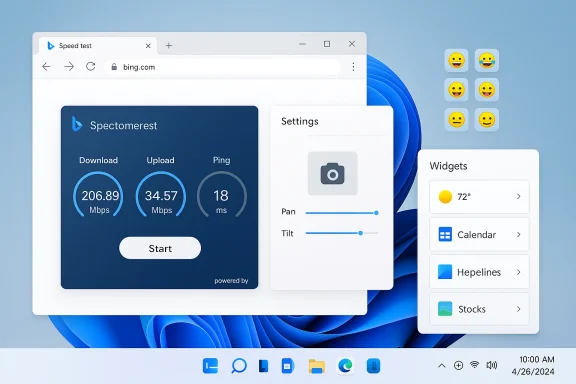
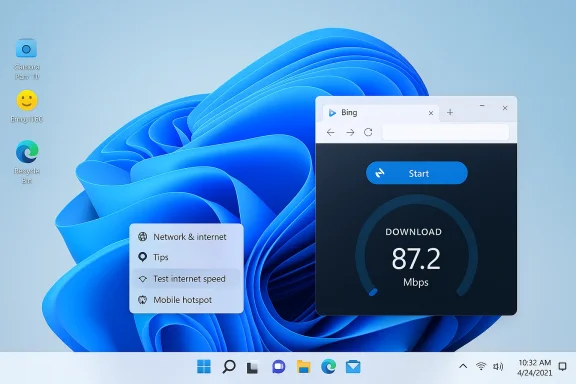
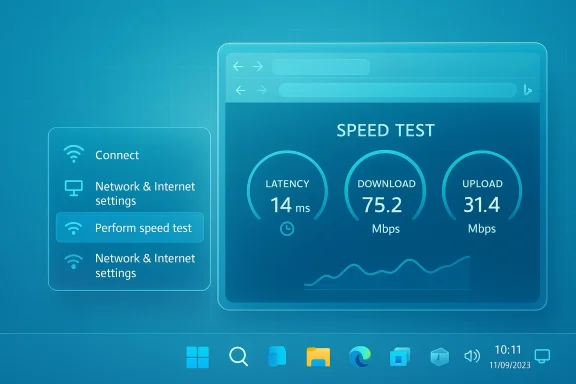
Microsoft has quietly added a one‑click network speed test to the Windows 11 taskbar in the Release Preview channel — but it’s important to understand that the new control is a launcher that opens a browser‑hosted speed‑test widget (currently surfaced via Bing) rather than a native, in‑OS measurement tool.
Windows 11 continues to evolve through incremental Insider and Release Preview updates that place small but highly discoverable utilities where users already look for them. The March 2026 preview wave, distributed as KB5077241 and reflected in builds 26100.7918 (24H2 lineage) and 26200.7918 (25H2 lineage), includes several quality‑of‑life additions — chief among them a taskbar‑accessible Perform speed test / Test internet speed control in the network flyout and the network icon’s right‑click menu.
This change is clearly aimed at convenience: everyday users and helpdesk technicians frequently need an ad‑hoc throughput sanity check, and surfacing a shortcut where people already check connectivity removes friction. But the implementation choice — routing the test to a browser widget instead of building a local measurement engine — shapes the feature’s accuracy, telemetry footprint, and enterprise suitability in meaningful ways.
At the same time, the implementation choice imposes limitations that matter to power users and IT teams: browser interference, backend dependencies (e.g., Ookla/Bing), and limited enterprise visibility. Those trade‑offs are not fatal; they are simply important to understand. Users and administrators should treat the feature as a quick sanity check, not an authoritative network benchmark.
For now, treat the new taskbar shortcut as what it is: a convenient, browser‑backed sanity check. If you need reproducible, auditable network measurements, stick with scripted or agent‑based tools. And if you manage fleets of devices, test KB5077241 in your environment before broad deployment so you understand how the web‑based measurement interacts with your proxies, filters, and telemetry policies.
In short: fast, easy, and useful — but know its limits.
Source: www.guru3d.com https://www.guru3d.com/story/window...ds-taskbar-based-network-speed-test-shortcut/
 Background / Overview
Windows 11 continues to evolve through incremental Insider and Release Preview updates that place small but highly discoverable utilities where users already look for them. The March 2026 preview wave, distributed as KB5077241 and reflected in builds 26100.7918 (24H2 lineage) and 26200.7918 (25H2 lineage), includes several quality‑of‑life additions — chief among them a taskbar‑accessible Perform speed test / Test internet speed control in the network flyout and the network icon’s right‑click menu.This change is clearly aimed at convenience: everyday users and helpdesk technicians frequently need an ad‑hoc throughput sanity check, and surfacing a shortcut where people already check connectivity removes friction. But the implementation choice — routing the test to a browser widget instead of building a local measurement engine — shapes the feature’s accuracy, telemetry footprint, and enterprise suitability in meaningful ways.
What Microsoft shipped in KB5077241 (Release Preview)
Key user‑visible items
- Taskbar network speed test: A new “Perform speed test” or “Test internet speed” entry appears in the Taskbar network flyout and the network icon context menu. Activating it launches the default browser and initiates a web‑based speed test.
- Sysmon in‑box (optional): Sysinternals’ System Monitor is now installable as an optional Windows feature and integrates with the Windows Event Log.
- Camera pan/tilt (PTZ) controls: Basic pan and tilt controls for compatible webcams are exposed in Settings.
- Taskbar overflow behavior improvements, .webp background support, and other platform fixes round out the release.
How the Taskbar Speed Test Works
Launcher, not local engine
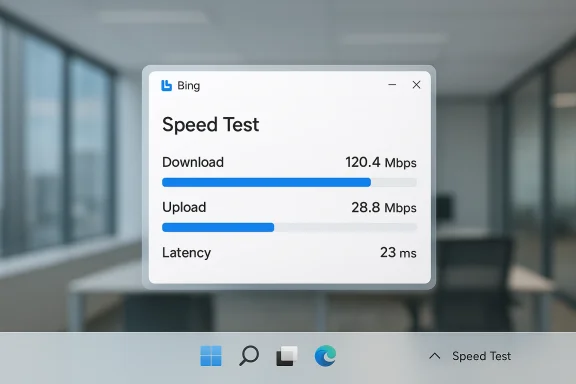
When you click the new taskbar control, Windows opens your default browser to a Bing‑hosted speed‑test widget. The UI appears as a normal web measurement page that reports download, upload, and latency numbers; Windows itself does not run the measurement inside the OS kernel or networking stack. That design makes the feature lightweight to ship and easy to update, because Microsoft can change the web measurement logic without issuing an OS update.Backend and partnerships
Bing’s speed‑test widget has been observed to redirect or rely on established speed‑test backends (notably Ookla/Speedtest) in recent implementations. Microsoft’s Bing experience has integrated Speedtest‑style tooling and redirection logic for some time, and the taskbar shortcut effectively gives a one‑click path to that web experience. This means the measurement methodology is that of the web widget and its backend provider, not necessarily a Microsoft‑authored native test.Why Microsoft likely chose a web‑hosted approach
- Rapid deployment: Web widgets can be updated centrally without OS servicing cycles, letting Microsoft iterate on measurement logic quickly.
- Lightweight client footprint: No need to bundle or maintain a dedicated measurement binary or kernel‑level hooks in Windows itself.
- UX consistency: Bing already offers a standardized speed‑test surface, so linking to it keeps the UI and result experience consistent across devices and channels.
Accuracy and measurement caveats
Browser environment matters
Because the test runs inside a browser tab, results are subject to the browser’s own environment:- Browser extensions (ad blockers, privacy tools) can alter network requests or block measurement scripts.
- Browser caching, pre‑fetch behavior, and connection pooling can skew short tests.
- System proxy, VPNs, or corporate web filtering will affect measurements differently than a native socket‑level test.
What the numbers represent
Web‑hosted tests typically measure throughput by uploading/downloading content to pre‑selected test servers, then extrapolating transfer speeds and Round‑Trip Time (RTT). The choice of test server (geographic proximity and peering quality), number of parallel connections, and test duration all influence reported results. Because the taskbar shortcut defers to an online widget, Microsoft’s measurement behavior will mirror whatever backend and methodology that widget uses — which may vary over time. For users who require precise, repeatable telemetry, that variability matters.Not a replacement for in‑depth diagnostics
For network engineering or forensic troubleshooting, tools like iperf/iperf3, tcpdump/Wireshark, or enterprise‑grade network monitoring provide far richer and more repeatable data than a quick browser test. The new taskbar shortcut is useful for sanity checks and quick support calls, but it should not be portrayed as a full diagnostic replacement.Privacy and telemetry implications
What data might be shared
Because the measurement runs in a browser and is handled by the upstream web service, the test may exchange connection metadata and IP information with the web backend (CDN/test server), and potentially log that usage under the backend’s telemetry policies. Users expecting a fully local, ephemeral test may be surprised that the measurement involves third‑party endpoints.Corporate and managed environments
Enterprises that control egress policies, inspect TLS traffic, or restrict telemetry flows should be aware:- The browser will connect to external test endpoints subject to company firewall and proxy rules.
- If the browser is configured to go through a corporate proxy or DLP appliance, results will reflect that path.
- Administrators may prefer to disable the UI if the centralized measurement flow conflicts with corporate telemetry or audit requirements.
Enterprise considerations and manageability
Policy control and discoverability
Organizations need clarity on these management questions:- Can IT block the taskbar control (so it does not open web tests) via Group Policy or MDM settings?
- Will the taskbar shortcut respect system‑level proxy and WinHTTP/WinINET proxy configurations consistently across browsers?
- Does the in‑box experience expose enterprise telemetry or does it simply hand off to the browser with no extra OS telemetry?
Why some IT teams will prefer native tooling
Enterprises that require consistent, auditable network measurements will likely continue to use:- Dedicated CLI tools (iperf3, Speedtest CLI) for scripting and automation.
- Endpoint monitoring agents that record throughput trends over time.
- On‑premises test harnesses that avoid public test servers.
Alternatives for power users and IT pros
If you need more reliable, reproducible, or locally instrumented measurements than the taskbar shortcut provides, consider these options:- iperf3: precise, configurable client/server throughput testing for TCP/UDP.
- Speedtest CLI (Ookla): scriptable, repeatable tests that use Ookla’s network of servers.
- Network performance monitoring solutions (PRTG, SolarWinds, Datadog, or managed telemetry agents) for longitudinal data and alerting.
- WireShark/tcpdump for packet‑level inspection when diagnosing specific transfer anomalies.
UX, discoverability, and everyday value
Why this will matter to most users
For non‑technical users, the taskbar speed‑test shortcut removes a persistent friction point: remembering a site, opening a browser, finding the measurement button. The control matches common support scripts (e.g., “right‑click the network icon and run a speed test”) and will reduce support time for helpdesks handling home/remote user connections.Small UX improvements can have outsized impact
Placing quick diagnostics exactly where users look — the network flyout — is an example of contextual discovery: the UI meets users in situ rather than forcing them to leave the flow of a support call. For many day‑to‑day support interactions, convenience equals faster resolution.Risks, limits, and honest trade‑offs
- False sense of parity: Labeling this a “built‑in” speed test risks implying parity with native diagnostics. Microsoft’s own notes clarify it launches a browser‑based widget; users must not assume kernel‑level measurement fidelity.
- Privacy/telemetry: Because the measurement interacts with remote servers, enterprises and privacy‑conscious users should be aware of what the web backend logs.
- Browser variability: Results can differ across browsers and configurations, which complicates support workflows that depend on repeatable numbers.
- Not a monitoring substitute: The feature does not replace scheduled monitoring or long‑term telemetry required by service‑level agreements.
Recommendations for Microsoft and admins
For Microsoft (product recommendations)
- Add explicit messaging in the UI and Settings explaining that the taskbar control opens a web test and that results depend on the browser environment. Clarity reduces misinterpretation.
- Offer an optional native measurement mode for enterprise customers or advanced users that runs at the socket level and can be invoked by admins. This would serve IT, helpdesk, and power users who need repeatable results.
- Expose a Group Policy / MDM setting to disable the shortcut or to force the measurement to use a configured in‑house endpoint. Control is essential for managed deployments.
For system administrators
- Review KB5077241 behavior in a test ring and decide whether to block the taskbar shortcut via policy if necessary.
- Document to helpdesk staff that numbers obtained via the taskbar test are browser‑dependent and may differ from scripted CLI tests.
- If consistent telemetry is required, continue using scripted CLI or agent‑based testing rather than relying on manual browser tests.
A balanced verdict
The taskbar speed‑test shortcut is a sensible, low‑friction convenience for the many — people troubleshooting a flaky home Wi‑Fi, helpdesk staff coaching a remote user, or someone verifying their ISP after a modem reboot. Its delivery as a browser‑hosted widget is pragmatic: it keeps Windows lightweight and gives Microsoft the freedom to iterate on the web experience.At the same time, the implementation choice imposes limitations that matter to power users and IT teams: browser interference, backend dependencies (e.g., Ookla/Bing), and limited enterprise visibility. Those trade‑offs are not fatal; they are simply important to understand. Users and administrators should treat the feature as a quick sanity check, not an authoritative network benchmark.
Practical checklist: what to expect and what to do
- Expect to see Perform speed test in the network flyout or by right‑clicking the network icon if you’re in the Release Preview channel (KB5077241, builds 26100.7918 / 26200.7918).
- Clicking the control opens your default browser and runs a Bing‑hosted speed‑test widget (which currently routes to established speed‑test backends). Record whether you used a VPN/proxy or a corporate browser extension when comparing numbers.
- For repeatable tests or automation, use iperf3, Speedtest CLI, or an endpoint monitoring agent instead of the taskbar shortcut.
- Admins: validate the behavior in a controlled pilot ring and decide whether to allow, restrict, or document the feature for support staff.
Final thoughts
Microsoft’s decision to add a taskbar‑level speed‑test launcher in Windows 11 is a reminder that modern OS development privileges discoverability and centralized web services for small utilities. The new control will save time for many users and reduce support friction, but it amplifies a broader design pattern: shipping quick, web‑anchored conveniences rather than heavyweight native tools. That pattern is sensible for agility and consistency, yet it creates a natural space for power users and administrators to demand an on‑device alternative or additional management controls.For now, treat the new taskbar shortcut as what it is: a convenient, browser‑backed sanity check. If you need reproducible, auditable network measurements, stick with scripted or agent‑based tools. And if you manage fleets of devices, test KB5077241 in your environment before broad deployment so you understand how the web‑based measurement interacts with your proxies, filters, and telemetry policies.
In short: fast, easy, and useful — but know its limits.
Source: www.guru3d.com https://www.guru3d.com/story/window...ds-taskbar-based-network-speed-test-shortcut/