

If your PC’s operating system is quietly stealing CPU cycles, injecting telemetry, and complicating handheld gaming, switching from Windows 11 to Linux for gaming is no longer a fringe experiment — it’s a proven, practical path for many players chasing smoother frame times, fewer background interruptions, and more control over their machine.
Over the last three years Linux gaming has moved from hobbyist territory into a mainstream alternative for serious players. That shift is powered by three linked developments: Valve’s investment in Proton and SteamOS, significant improvements in Linux drivers from GPU vendors, and a new generation of user-friendly game-focused distributions that reduce the setup friction that once scared off most mainstream gamers. Community testing and hardware surveys show steady growth in Linux on Steam, and independent benchmarking has repeatedly highlighted scenarios where a well-tuned Linux system can produce measurable frame-rate or stutter reductions compared with an unoptimized Windows 11 install. ins why the move makes sense for many gamers, what recent technology changes made it possible, the realistic performance expectations, and — most importantly — a step‑by‑step roadmap to switch safely (dual‑boot or full conversion), tune your system, and preserve access to any Windows‑only titles you need.
Microsoft’s formal end of support for Windows 10 on October 14, 2025 tightened the timeline for users to either upgrade to Windows 11 or seek alternatives; that deadline has pushed some players to evaluate Linux as a stable, long‑term platform that doesn’t impose the same mandatory upgrade path.
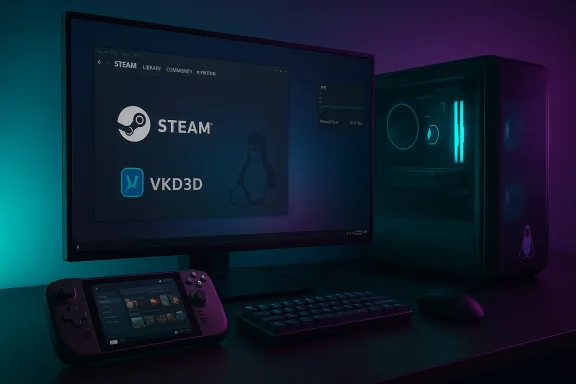
Proton 10 and subsequent stable releases included large compatibility and performance improvements, enabling more complex titles and reducing the need for per-game manual tweaks. The Proton 10 beta/release cycle added support for many tricky games and updated core components like DXVK and VKD3D‑Proton, increasing the number of titles that “just work” on SteamOS and desktop Linux.
If your goals are clearer frame timing, fewer background interruptions, and more control over your OS, switching from Windows 11 to Linux for gaming is a practical experiment that’s increasingly worth trying — and for a growing number of players, the results are convincing enough to keep.
Source: Geeky Gadgets How to Easily Switch from Windows 11 to Linux for Gaming Performance Gains
 Background / Overview
Over the last three years Linux gaming has moved from hobbyist territory into a mainstream alternative for serious players. That shift is powered by three linked developments: Valve’s investment in Proton and SteamOS, significant improvements in Linux drivers from GPU vendors, and a new generation of user-friendly game-focused distributions that reduce the setup friction that once scared off most mainstream gamers. Community testing and hardware surveys show steady growth in Linux on Steam, and independent benchmarking has repeatedly highlighted scenarios where a well-tuned Linux system can produce measurable frame-rate or stutter reductions compared with an unoptimized Windows 11 install. ins why the move makes sense for many gamers, what recent technology changes made it possible, the realistic performance expectations, and — most importantly — a step‑by‑step roadmap to switch safely (dual‑boot or full conversion), tune your system, and preserve access to any Windows‑only titles you need.Why gamers are reconsidering Windows 11
Windows 11: performance trade-offs and added friction
Windows 11 continues to add features — many oriented around integrated services and AI — but those additions have a cost in background processes, telemetry services, and stricter hardware requirements that sometimes force upgrades or create performance surprises on existing machines. For gamers who want predictable, low-latency performance, those background services can translate into inconsistent frame times and higher CPU utilization when the system should be devoted to the game.Microsoft’s formal end of support for Windows 10 on October 14, 2025 tightened the timeline for users to either upgrade to Windows 11 or seek alternatives; that deadline has pushed some players to evaluate Linux as a stable, long‑term platform that doesn’t impose the same mandatory upgrade path.
What Linux offers instead
Linux distributions let you run a much smaller process set by default, giving you better resource allocation for games. On properly configured systems, Linux often shows smoother 1% lows and fewer shader‑hitch stutters — particularly on AMD hardware and on handhelds — because the OS does less “in the background.” Community reports and technical benchmarks back this up: targeted tests show consistent reductions in stutter and modest frame‑rate scenes where Windows’ background activity or driver quirks can otherwise create hitches.The technological inflection: Proton, GE‑Proton, and the compatibility story
Proton: the compatibility layer that changed the calculus
Valve’s Proton — a customized compatibility layer built on Wine and a suite of graphics libraries — is the single biggest reason Linux gaming is usable for a wide audience. Proton translates Windows DirectX calls to Vulkan and wraps Windows-only libraries so many titles run without native ports.Proton 10 and subsequent stable releases included large compatibility and performance improvements, enabling more complex titles and reducing the need for per-game manual tweaks. The Proton 10 beta/release cycle added support for many tricky games and updated core components like DXVK and VKD3D‑Proton, increasing the number of titles that “just work” on SteamOS and desktop Linux.
GE‑Proton: community-powered extras (DLSS, FSR, XSS)
GloriousEggroll’s GE‑Proton builds are the community’s “power user” versions of Proton that bundle experimental fixes and extra features before they land in upstream Proton. Recent GE‑Proton releases (for example, the 10‑26 build) added or polished support for advanced scaling and frame‑generation technologies, exposing environment variables or helper DLL upgrades to enable DLSS, FSR 4.0, and XSS in games that otherwise wouldn’t have access to those upscalers on Linux. That work has been pivotal for parity with Windows in titles that rely on those technologies for high‑resolution performance. Caveat: compatibility metrics like “90% of Steam games run on Linux” are best treated as directional rather than absolute. Community databases (ProtonDB) and Valve’s internal testing show a high percentage of Steam titles can be launched on Linux, but the practical experience depends on anti‑cheat, online features, launcher support, and how much tuning you accept. The community’s compatibility stats are extremely useful, but they mix “launchable with tweaks,” “playable with reduced settings,” and “native/verified” counts; interpret aggregate percentages cautiously.Hardware and driver progress: AMD, NVIDIA, and Intel
AMD: strong open‑source driver support
AMD’s open‑source driver contributions (Mesa RADV for Vulkan and amdgpu kernel modules) have been a major win for Linux gaming, especially on APUs and Radeon GPUs. Community surveys and Valve’s hardware statistics consistently show AMD is favored among Linux gamers, particularly in SteamOS/Deck environments where AMD APUs power handheld platforms. Those drivers are mature, frequently upstreamed, and often deliver competitive performance compared with Windows on the same hardware in specific workloads. However, Steam hardware survey numbers can be quirky and sometimes contain anomalies; treat single‑survey percentages as a snapshot, not gospel.NVIDIA: open kernel modules and improved integration
NVIDIA’s approach changed materially in 2022–2024 when it released open GPU kernel modules and began shipping drivers that default to the open kernel modules on supported GPUs. That shift reduced kernel‑ABI breakage and improved compatibility with modern kernels and Wayland compositors. While user‑space components (CUDA, NVENC, etc. remain binary, the open kernel modules materially improved desktop stability and made it easier for distributions to package and maintain NVIDIA support for gaming. For players who use NVIDIA GPUs, the experience on Linux is far more consistent than it was a few years ago, thanks to the open kernel modules and more frequent integration testing.Intel: iGPU maturity and ongoing improvements
Intel’s open driver stack has continued to improve, and integrated solutions are increasingly viable for lighter gaming or handheld scenarios. Vendor efforts around Mesa and kernel support have made Intel a practical choice for many users running Linux, especially in thin‑client or energy‑constrained devices.The Steam Deck effect and the SteamOS ecosystem
Valve’s Steam Deck proved Linux gaming isn’t just experimental hardware — it’s a legitimate platform that demands developer attention. The Deck’s success has had knock‑on effects:- It forced sustained investment in Proton and the Linux graphics stack.
- It popularized SteamOS and normalized Linux as a console‑like gaming environment.
- It encouraged third‑party manufacturers to offer SteamOS variants or support for SteamOS on their handhelds and PCs, expanding the Linux gaming hardware ecosystem.
Ease of use: distributions built for gamers
A decade ago, Linux gaming meant hours of manual setup. Today several distributions and projects are tuned for gamers and reduce friction significantly:- SteamOS (Holo) — Valve’s console‑style OS, targeted at handhelds and living‑room setups; Steam comes preinstalled and Proton is baked in. Valve has been expanding SteamOS support to third‑party devices and exposing SteamOS compatibility flags in the store.
- Nobara Project — A Fedora‑based gaming spin that includes preconfigured drivers and runtime tweaks for gaming hardware.
- Pop!_OS — The System76 distribution known for ease of driver installation and commercial support, popular with many new converts.
- CachyOS / Bazzite / Basite — Community prtting‑edge kernels, Mesa stacks, and gaming runtimes to make high‑performance Linux gaming simpler. Community reports show users can be up and playing much faster than manual distro tuning used to require.
A pragmatic migration plan: how to switch from Windows 11 to Linux for gaming
Below is a practical, safe path for gamers who want to experiment with or migrate to Linux while keeping their options open.1. Inventory and backup (essential)
- Make a full disk image of your Windows drive (so you can restore quickly if needed).
- Export key application settings, game saves, and license keys (Steam cloud helps, but some gaa locally).
- Create Windows recovery media and ensure you can restore your system if required.
2. Test with a Live USB
- Boot a Live USB of your chosen distro (SteamOS/Nobara/Pop!_OS) and verify GPU detection, networking, and basic peripherals.
- Run the Steam client from the Live session and test a free title to exercise Proton basics. This gives a low‑risk preview of compatibility.
3. Choose installation strategy
- Dual‑boot if you want a safety net and occasional Windows-only access. Use separate disks or Btrfs snapshots to simplify rollbacks.
- Single‑boot Linux if you have alternative devices for Windows‑only dependencies and are comfortable restoring from image backups.
- Consider using a Windows VM for very occasional Windows‑only titles (performance is limited) or a separate Windows drive for anti‑cheat heavy titles.
4. Install drivers, runtime stacks, and Protonrepos for the latest Mesa / kernel (if required).
- Install AMD or NVIDIA packages using your distro’s recommended instructions — for NVIDIA, choose the nvidia‑open kernel modules or proprietary stack depending on your preference and GPU support.
- Install Steam, enable Proton in Steam settings, and optionally add GE‑Proton for tricky titles. Configure VKD3D, DXVK, aons if the game recommends them.
5. Validate and tune
- Test your top 10 played titles — note which ones need tweaks.
- Use ProtonDB and community threads to find game‑specific fixes (launch options, environment variables, Proton versions).
- Tweak compositor, CPU governor, and GPU power profiles to find the best latency vs battery/performance balance on laptops or handhelds.
Anti‑cheat and multiplayer caveats
Anti‑cheat remains the largest practical blocker for a full Linux-only gaming life. Titles using kernel‑mode anti‑cheat (some modern FPS and MM or may require a Windows environment. For competitive players this is a core constraint:- If you play anti‑cheat‑protected competitive games daily, k‑boot or separate machine.
- If your library is primarily single‑player AAA and indie content, the Linux istic.
Realistic performance expectations
- Expect the biggest wins in consistency: fewer stutters, bettredictable frame timing in shader‑heavy scenes.
- Average FPS gains are workload dependent: community tests show anything from parity to modest wins (5–15% typical in many cases), and in some targeted scenes larger gains are possible. Don’t expect a universal 30% uplift — the benefits are most visible when Windows background activity or driver issues are the limiting factor.
Risks and trade‑offs
- Warranty/support and vendor policies: installing third‑party OS images on vendor devices can complicate official support. Keep recovery ion.
- Software gaps: certain professional applications and Windows‑only launchers may not work or have reduced functionality. Plan for fallback options.
- Anti‑cheat: competitive multiplayer may remain Windows‑exclusive; verify your must‑play titles first.
- Learning curve: expect occasional command‑line troubleshooting, but community resources are strong and growing.
Recommended tools and resources for the switch
- Steam (enable Proton in Steam settings) — your primary gateway to testing games.
- ProtonDB and community threads — per‑game compatibility and recommended Proton versions.
- GE‑Proton (GloriousEggroll) — when upstream Proton lacks a specific fix or advanced upscalers.
- Heroic / Lutris — for non‑Steam launchers like Epic Games Store or GOG clients.
- Distribution-specific guides (Nobara, Pop!_OS, SteamOS) — choose the one that minimizes manual driver setup.
Final analysis: who benefits most?
- Single‑player AAA gamers and handheld users stand to gain the most from switching or experimenting — especially if they use AMD hardware or own a Steam Deck / SteamOS device.
- Competitive gamers dependent on kernel‑level anti‑cheat sho their primary environment but can still evaluate dual‑boot for single‑player sessions.
- Tinkerers and privacy‑minded users will enjoy the control and reduced telemetry exposure that Linux provides, and many say the learning cost is outweighed by the reward.
If your goals are clearer frame timing, fewer background interruptions, and more control over your OS, switching from Windows 11 to Linux for gaming is a practical experiment that’s increasingly worth trying — and for a growing number of players, the results are convincing enough to keep.
Source: Geeky Gadgets How to Easily Switch from Windows 11 to Linux for Gaming Performance Gains
