

A Windows Update blocker can sound like the perfect answer when an update notification appears minutes before a client call, a presentation, a flight, or a deadline. But on a personal Windows 11 PC, the most reliable answer is not a permanent “off” switch—it is a set of supported controls that temporarily delay updates, protect working hours, reduce download pressure, and give you a clean rollback path if an update has already caused trouble.
The distinction matters. Windows updates deliver security fixes, reliability improvements, driver updates, servicing components, and feature changes. Disabling the machinery behind Windows Update with a third-party utility, a service hack, or a registry script may seem effective in the short term, but it can also leave a system increasingly exposed and create a more difficult repair job later.
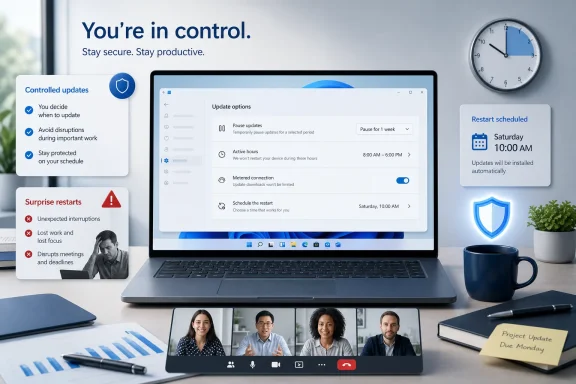
For most people, the best temporary Windows Update blocker is a deliberate combination of Pause updates, metered connections, active hours, and scheduled restarts. These controls are built into Windows 11, survive normal system behavior better than unsupported tweaks, and can be reversed without rebuilding the operating system.
Windows 11 does not provide a supported consumer setting that permanently disables Windows Update. That is intentional. The operating system is designed to receive security and servicing updates over time, and Windows will eventually require updates to resume.
That does not mean users have no control. It means the control is divided into several jobs:
To set it:
However, a pause is not a permanent shield. When the selected end date arrives, Windows Update resumes its normal scan, download, and installation process. If several updates accumulated while the pause was active, Windows may need to download more than one package afterward.
It is also important to pause before a critical period whenever possible. If an update is already downloading or installing, there may be less flexibility. Windows can cancel updates in progress when a pause is applied, but a system that has already reached a restart-required state needs restart management rather than a simple pause.
Its limitation is equally clear: 35 days is a temporary operational buffer, not a long-term update strategy.
When Windows treats a connection as metered, it attempts to reduce background data use. Some Windows updates will not download automatically, although Windows can still obtain priority updates when necessary. That makes metered mode valuable for limited broadband plans, slow connections, and mobile hotspots—but unsuitable as a promise that no update traffic will ever occur.
A metered connection also does not replace patching. It is a sensible bandwidth-management tool, not a security policy. Once the PC returns to an unmetered connection, Windows can resume normal update activity.
A cumulative update can download quietly in the background, complete most of its work, and then require a reboot at the worst possible time. Windows 11 includes two supported ways to reduce that risk: Schedule the restart and Active hours.
For a workstation used for video calls, remote sessions, accounting tasks, development work, or media production, this can be more valuable than aggressively delaying every update. A scheduled restart turns an interruption into planned maintenance.
To configure active hours:
That makes it a complementary setting rather than an alternative to Pause updates. A sensible Windows 11 setup often combines both:
To turn it off:
Turning the setting off may reduce exposure to optional preview-style changes and certain early releases, but it should not be treated as a guarantee that every new Windows component will arrive late. Microsoft’s servicing model includes different types of updates, and critical fixes can be delivered outside routine monthly cycles.
The practical benefit is still meaningful: users who value stability over novelty should leave this option off.
Delivery Optimization helps Windows obtain updates, Microsoft Store apps, and other Microsoft content. Depending on the configuration, a PC can download portions of content from other PCs on the local network or internet, and it may upload portions of content to other devices.
To adjust the sharing behavior:
This is useful for privacy preferences, controlled networks, and connections where upload bandwidth is limited. It is also a reasonable precaution on a laptop that moves between public, hotel, and temporary networks.
For households where online gaming, video conferencing, remote learning, or streaming competes with Windows Update traffic, bandwidth limits may be a better answer than trying to block updates entirely. The PC stays maintainable, while the network remains usable.
On a functioning Windows 11 PC:
That said, do not leave the PC paused longer than necessary. If the removed update addressed a security issue, the device may remain exposed until Microsoft releases a corrected package or the root cause is resolved.
A practical recovery sequence looks like this:
These methods can appear effective because they interfere with one part of the update process. The problem is that modern Windows servicing is not one simple service that can be safely shut down forever.
Windows Update depends on multiple components, including servicing infrastructure, update orchestration, security remediation, driver delivery, recovery components, and system repair mechanisms. Interfering with one component can create unexpected results after a future Windows update, repair install, feature upgrade, or policy refresh.
The safer replacement is not a single magic tool. It is the built-in combination of pause controls, network controls, restart management, rollback options, and ordinary update validation.
On those devices, users should not install a Windows Update blocker or attempt to bypass management controls. Doing so can violate organizational policy, interfere with security compliance, and create support problems.
Feature update policies can also keep eligible devices on a chosen Windows release until the policy is changed or removed. This is materially different from a 35-day consumer pause: it is a structured version-management tool that still allows monthly quality and security updates to continue.
For a business, that is the right model. Control feature change deliberately while preserving security servicing.
For a personal Windows 11 computer, use this baseline:
That changes the meaning of “blocking updates.” On an unsupported Windows 10 installation, avoiding updates is not a strategy for stability—it can deepen an already significant security gap. Organizations using eligible extended servicing arrangements may have a different support position, but that is not the same as ordinary consumer support.
For most home users, the safer long-term answer is to move to a supported Windows release where temporary update controls can be used without giving up the underlying security lifecycle.
The better approach is targeted control. Pause updates when a short delay is genuinely needed. Use a metered connection when bandwidth is the concern. Configure active hours and scheduled restarts to prevent disruptive reboots. Turn off early-access update delivery if the PC needs a more conservative pace. If a specific update causes trouble, use the supported uninstall path and investigate before resuming normal servicing.
That strategy delivers what most people actually need from a Windows Update blocker: not permanent avoidance, but predictable control when timing matters most.
The distinction matters. Windows updates deliver security fixes, reliability improvements, driver updates, servicing components, and feature changes. Disabling the machinery behind Windows Update with a third-party utility, a service hack, or a registry script may seem effective in the short term, but it can also leave a system increasingly exposed and create a more difficult repair job later.
For most people, the best temporary Windows Update blocker is a deliberate combination of Pause updates, metered connections, active hours, and scheduled restarts. These controls are built into Windows 11, survive normal system behavior better than unsupported tweaks, and can be reversed without rebuilding the operating system.
 Overview: What “Blocking” Windows Updates Really Means
Windows 11 does not provide a supported consumer setting that permanently disables Windows Update. That is intentional. The operating system is designed to receive security and servicing updates over time, and Windows will eventually require updates to resume.That does not mean users have no control. It means the control is divided into several jobs:
- Pause updates delays the receipt and installation of new updates for a limited period.
- Metered connection reduces automatic update downloading on a particular network.
- Active hours helps prevent automatic restarts while the PC is normally in use.
- Schedule the restart gives the user control once an update is ready to finish.
- Uninstall updates provides a recovery route after a problematic quality or feature update.
- Delivery Optimization settings reduce peer-to-peer update traffic rather than disabling updates.
- Managed update policies give organizations far more structured control than consumer settings.
Start With Pause Updates
For a regular Windows 11 consumer PC, Pause updates is the closest thing to a supported temporary Windows Update blocker. It postpones updates until a date you select, rather than permanently turning off the service.To set it:
- Open Start.
- Select Settings.
- Open Windows Update.
- Find Pause updates.
- Select Pick a date.
- Choose the date on which updates should resume.
What a pause does—and does not—do
A pause is useful because it changes both download and restart behavior for new applicable updates. Updates that would require a restart generally wait until the pause ends, and Windows should not automatically restart the PC to finish such installations during that period.However, a pause is not a permanent shield. When the selected end date arrives, Windows Update resumes its normal scan, download, and installation process. If several updates accumulated while the pause was active, Windows may need to download more than one package afterward.
It is also important to pause before a critical period whenever possible. If an update is already downloading or installing, there may be less flexibility. Windows can cancel updates in progress when a pause is applied, but a system that has already reached a restart-required state needs restart management rather than a simple pause.
Best uses for Pause updates
Pause updates is particularly practical in these situations:- A laptop must remain stable for travel, training, or field work.
- A desktop is being used for a time-sensitive project.
- A user wants to wait briefly before accepting a newly released non-security update.
- A recent Windows update issue is being investigated.
- A small business needs a short validation window before allowing updates onto a few PCs.
Its limitation is equally clear: 35 days is a temporary operational buffer, not a long-term update strategy.
Use a Metered Connection to Slow Automatic Downloads
A metered connection is not the same as pausing updates. It is best understood as a download brake for a specific network.When Windows treats a connection as metered, it attempts to reduce background data use. Some Windows updates will not download automatically, although Windows can still obtain priority updates when necessary. That makes metered mode valuable for limited broadband plans, slow connections, and mobile hotspots—but unsuitable as a promise that no update traffic will ever occur.
Set Wi-Fi as metered
For a Wi-Fi connection:- Open Start > Settings.
- Select Network & internet.
- Open Wi-Fi.
- Select the connected network.
- Turn on Metered connection.
Set Ethernet as metered
For a wired connection:- Open Start > Settings.
- Select Network & internet.
- Open Ethernet.
- Select the active Ethernet connection.
- Turn on Metered connection.
Check the metered-update override
After setting a connection as metered, review this Windows Update setting:- Open Settings > Windows Update.
- Select Advanced options.
- Find Download updates over metered connections.
- Keep it turned off if the goal is to avoid automatic update downloads on that network.
The trade-offs of metered mode
Metered connections affect more than Windows Update. Some Microsoft Store downloads may pause, sync services may behave differently, and cloud-dependent apps may reduce background activity. This is usually acceptable during travel or when data is expensive, but it can be inconvenient on a normal unlimited home connection.A metered connection also does not replace patching. It is a sensible bandwidth-management tool, not a security policy. Once the PC returns to an unmetered connection, Windows can resume normal update activity.
Control Restarts Instead of Fighting Updates
For many Windows users, the update itself is not the real problem. The problem is the restart.A cumulative update can download quietly in the background, complete most of its work, and then require a reboot at the worst possible time. Windows 11 includes two supported ways to reduce that risk: Schedule the restart and Active hours.
Schedule a Restart at a Time That Works
When Windows Update indicates that a restart is pending, schedule it rather than leaving the system to decide later.- Open Start > Settings.
- Select Windows Update.
- Choose Schedule the restart when the option appears.
- Set a date and time when the PC can safely be offline.
For a workstation used for video calls, remote sessions, accounting tasks, development work, or media production, this can be more valuable than aggressively delaying every update. A scheduled restart turns an interruption into planned maintenance.
Set Active Hours for Daily Protection
Active hours tells Windows when the computer is typically in use. Windows then tries to avoid automatically restarting during that period.To configure active hours:
- Open Start > Settings > Windows Update.
- Select Advanced options.
- Open Active hours.
- Under Adjust active hours, choose either Automatically or Manually.
- If using manual mode, set the start and end time.
Active hours are not an update blocker
This point deserves emphasis: active hours does not stop updates from downloading. It does not permanently postpone installation either. Its job is restart timing.That makes it a complementary setting rather than an alternative to Pause updates. A sensible Windows 11 setup often combines both:
- Use Pause updates for travel, major deadlines, or short-term stability requirements.
- Use Active hours every day to reduce restart surprises.
- Use Schedule the restart when Windows is already waiting for a reboot.
Turn Off Early Access to Optional Releases
Windows 11 includes the setting Get the latest updates as soon as they’re available. When enabled, it can make a PC more likely to receive certain non-security improvements, feature experiences, and out-of-band releases earlier than the regular rollout pace.To turn it off:
- Open Start > Settings.
- Select Windows Update.
- Turn off Get the latest updates as soon as they’re available.
Why this setting matters
Early access is attractive for enthusiasts who want new features as quickly as possible. On a PC that must remain stable for work, however, a more conservative rollout pace can be the better choice.Turning the setting off may reduce exposure to optional preview-style changes and certain early releases, but it should not be treated as a guarantee that every new Windows component will arrive late. Microsoft’s servicing model includes different types of updates, and critical fixes can be delivered outside routine monthly cycles.
The practical benefit is still meaningful: users who value stability over novelty should leave this option off.
Delivery Optimization: Reduce Traffic, Not Updates
Delivery Optimization is often misunderstood as a Windows Update blocker. It is not.Delivery Optimization helps Windows obtain updates, Microsoft Store apps, and other Microsoft content. Depending on the configuration, a PC can download portions of content from other PCs on the local network or internet, and it may upload portions of content to other devices.
To adjust the sharing behavior:
- Open Start > Settings > Windows Update.
- Select Advanced options.
- Open Delivery Optimization.
- Turn off Allow downloads from other devices.
What changes when it is turned off
Turning off Delivery Optimization peer sharing does not turn off Windows Update. Updates still arrive directly from Microsoft’s services. The setting simply prevents the PC from participating in downloading from—or uploading to—other PCs.This is useful for privacy preferences, controlled networks, and connections where upload bandwidth is limited. It is also a reasonable precaution on a laptop that moves between public, hotel, and temporary networks.
Use bandwidth limits where appropriate
Delivery Optimization also includes bandwidth controls. These can limit how much bandwidth is used for background or foreground update activity and can cap upload usage.For households where online gaming, video conferencing, remote learning, or streaming competes with Windows Update traffic, bandwidth limits may be a better answer than trying to block updates entirely. The PC stays maintainable, while the network remains usable.
If an Update Has Already Broken Something, Uninstall It
When a Windows update causes a real problem—such as a failed peripheral, application crash, boot issue, network malfunction, or performance regression—the priority should be recovery.On a functioning Windows 11 PC:
- Open Start > Settings.
- Select Windows Update.
- Open Update history.
- Select Uninstall updates.
- Find the relevant update and choose Uninstall.
Use Windows Recovery Environment when Windows will not start
If Windows cannot boot normally after an update, use the Windows Recovery Environment:- Enter Windows Recovery Environment.
- Select Troubleshoot.
- Select Advanced options.
- Select Uninstall Updates.
- Choose either:
- Uninstall latest quality update, or
- Uninstall latest feature update.
Pause after uninstalling
After removing a problematic update, pause updates while verifying that the system is stable. This prevents Windows from immediately attempting to reinstall an update while troubleshooting is still underway.That said, do not leave the PC paused longer than necessary. If the removed update addressed a security issue, the device may remain exposed until Microsoft releases a corrected package or the root cause is resolved.
A practical recovery sequence looks like this:
- Identify the timing of the problem.
- Uninstall the most likely recent update.
- Restart and test the affected application, driver, or hardware.
- Pause updates temporarily.
- Check for a revised update, driver update, vendor fix, or documented workaround.
- Resume updates once the issue is addressed.
Why Third-Party Windows Update Blocker Tools Are a Bad Bet
Search for a “Windows Update Blocker” and you will find utilities that promise to disable update services with one click. You will also find old scripts that disable the Windows Update service, change scheduled tasks, block Microsoft endpoints, alter system permissions, or modify undocumented registry settings.These methods can appear effective because they interfere with one part of the update process. The problem is that modern Windows servicing is not one simple service that can be safely shut down forever.
Windows Update depends on multiple components, including servicing infrastructure, update orchestration, security remediation, driver delivery, recovery components, and system repair mechanisms. Interfering with one component can create unexpected results after a future Windows update, repair install, feature upgrade, or policy refresh.
Risks of unsupported update blocking
The common risks include:- Missed security patches that leave known vulnerabilities unaddressed.
- Broken Microsoft Store or app update behavior.
- Failed feature updates after months of deferred servicing.
- Corrupted update databases or incomplete installations.
- Hard-to-diagnose restart and servicing errors.
- Conflicts with security software, management tools, or device drivers.
- Unclear trustworthiness of third-party utilities that request elevated system permissions.
Avoid legacy advice that no longer fits
Older Windows guidance often recommends tools or troubleshooting packages that no longer represent the cleanest supported route. The legacy Show or hide updates troubleshooter, for example, is not the primary modern consumer solution for temporarily controlling update behavior.The safer replacement is not a single magic tool. It is the built-in combination of pause controls, network controls, restart management, rollback options, and ordinary update validation.
Managed PCs Need IT Policy, Not Consumer Workarounds
Work and school PCs may show messages such as “Some settings are managed by your organization.” That is a sign that local settings may be controlled through Microsoft Intune, Group Policy, Windows Update client policies, or another enterprise management platform.On those devices, users should not install a Windows Update blocker or attempt to bypass management controls. Doing so can violate organizational policy, interfere with security compliance, and create support problems.
Group Policy options for administrators
Organizations can use supported Windows Update policies to control when devices receive updates and how users are notified. Depending on the Windows edition, management architecture, and policy configuration, administrators can:- Defer feature updates for up to 365 days.
- Defer quality updates for up to 30 days.
- Pause feature or quality updates for up to 35 days from a configured start date.
- Configure update behavior such as Notify for download and auto install.
- Exclude driver updates from Windows Update when driver rollout needs separate management.
- Set deadlines, restart behavior, and user notification rules.
Intune update rings and feature targeting
Microsoft Intune provides update rings that can manage deferrals, restart behavior, deadlines, notifications, and pauses. Administrators can pause feature or quality updates for assigned devices, then resume or extend the pause as operational needs change.Feature update policies can also keep eligible devices on a chosen Windows release until the policy is changed or removed. This is materially different from a 35-day consumer pause: it is a structured version-management tool that still allows monthly quality and security updates to continue.
For a business, that is the right model. Control feature change deliberately while preserving security servicing.
A Practical Windows Update Stability Plan
The strongest approach is not to block every Windows update. It is to establish a repeatable routine that protects uptime without turning the PC into an unpatched liability.For a personal Windows 11 computer, use this baseline:
- Set Active hours to match the real working day.
- Keep Get the latest updates as soon as they’re available turned off if stability is more important than early features.
- Use Schedule the restart whenever a restart notification appears at an inconvenient time.
- Set expensive, slow, or temporary networks as metered.
- Use Pause updates only for short, defined periods such as travel, deadlines, or issue investigation.
- Disable internet peer sharing in Delivery Optimization if bandwidth or privacy is a concern.
- If an update causes a verified issue, uninstall it, test the PC, and pause briefly while waiting for a corrected path.
Windows 10 Requires Extra Caution
Windows 10 reached the end of free support on October 14, 2025. A Windows 10 PC may still function, but ordinary consumer devices no longer receive the same free stream of Windows Update security fixes and technical support that supported Windows 11 devices receive.That changes the meaning of “blocking updates.” On an unsupported Windows 10 installation, avoiding updates is not a strategy for stability—it can deepen an already significant security gap. Organizations using eligible extended servicing arrangements may have a different support position, but that is not the same as ordinary consumer support.
For most home users, the safer long-term answer is to move to a supported Windows release where temporary update controls can be used without giving up the underlying security lifecycle.
The Bottom Line
A true permanent Windows Update blocker is neither the supported nor the sensible answer for most PCs. Windows 11 is built to update, and attempts to permanently disable that process often exchange a short-term convenience for security exposure, servicing failures, and more complicated recovery later.The better approach is targeted control. Pause updates when a short delay is genuinely needed. Use a metered connection when bandwidth is the concern. Configure active hours and scheduled restarts to prevent disruptive reboots. Turn off early-access update delivery if the PC needs a more conservative pace. If a specific update causes trouble, use the supported uninstall path and investigate before resuming normal servicing.
That strategy delivers what most people actually need from a Windows Update blocker: not permanent avoidance, but predictable control when timing matters most.
References
- Primary source: Technobezz
Published: 2026-07-23T19:41:54.422000+00:00
Loading…
www.technobezz.com