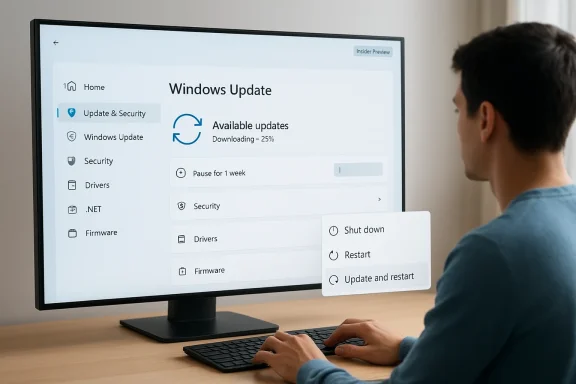
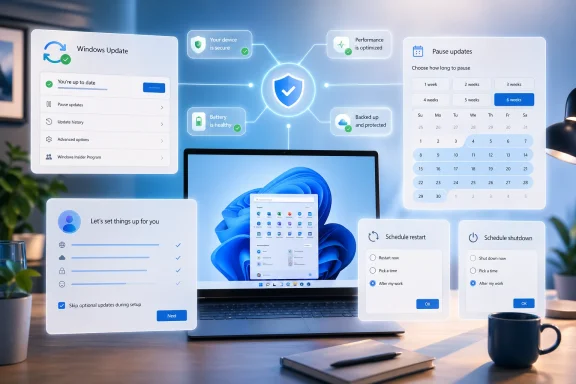
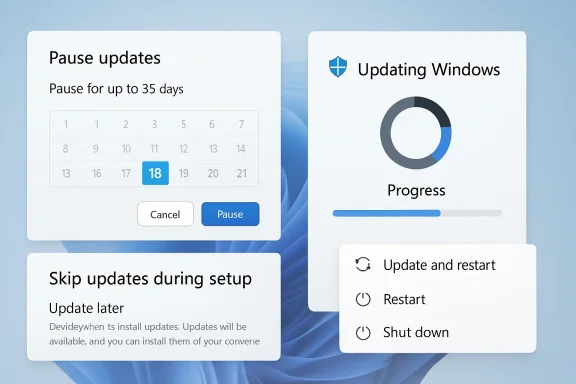
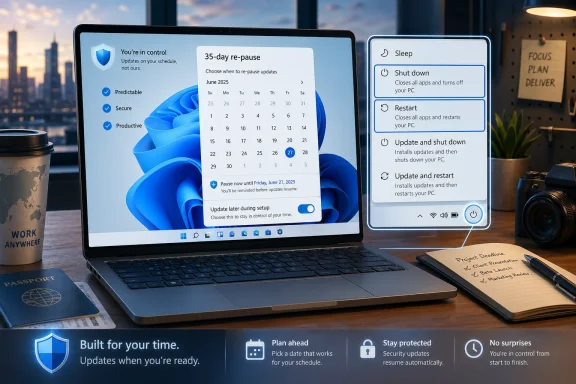
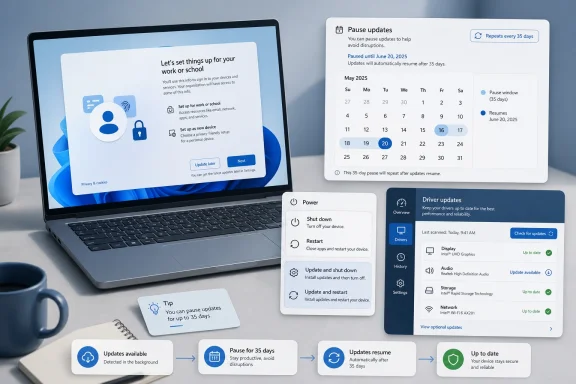
Microsoft is making one of the most consequential changes to Windows Update in years, and it is doing so for a very simple reason: users are tired of feeling ambushed by their PCs. The company is now rolling out a broader set of update controls in Windows 11, including the ability to skip updates during setup, pause updates for longer, restart or shut down without being forced into an install, and see all pending updates in a more unified view. It is a notable shift in philosophy, because Microsoft is no longer treating update friction as an unavoidable nuisance; it is treating it as a product problem that needs fixing. ows Update has been a point of friction for more than a decade because it sits at the intersection of security, convenience, and trust. Microsoft has long argued that frequent patching is essential, especially in a world where threats move quickly and devices stay connected almost constantly. But the lived experience for many users has often been less about security and more about interruption: surprise restarts, long install windows, and shutdowns that are not really shutdowns at all.
That tension becamethe Windows 10 era, when Microsoft leaned hard into the Windows-as-a-service model. The back end improved, with cumulative updates simplifying servicing, but the front end still felt blunt to many people. The OS could be technically correct and still feel disrespectful of the user’s time. That is why update controls like active hours and pause options mattered, even if they did not fully solve the problem.
Microsoft’s March 20, 2026 “commitment to Windows quality” post laid the groundwork for the April changes, promising fewer disruptions, more control, faster and more reliable update experiences, and stronger security by default. The company explicitly said it wanted to reduce the pain points around updates, including the ability to skip updates during setup, restart or shut down without installing, and pause updates for longer when needed. That announcement reframed update management as a usability issue, not just a servicing one.
The timing matters, too. Windows 10 support ended on October 14, 2025, and Microsoft has been pushing users and organizations toward Windows 11 as the long-term path forward. In that environment, update friction becomes more than a nuisance. It becomes part of the case for whether Windows still feels like a platform people want to stay on. If Microsoft can make updates feel calmer and less coercive, that helps its broader trust and retention story.
At the enterprise level, Microsoft has already given IT departments far more sophisticated tools through Intune, Windows Autopatch, update rings, and policy-based servicing. Consumers, by contrast, have often had a far simpler and more rigid experience. The new Windows 11 changes are important because they try to close that gap without turning consumer PCs into unmanaged chaos.
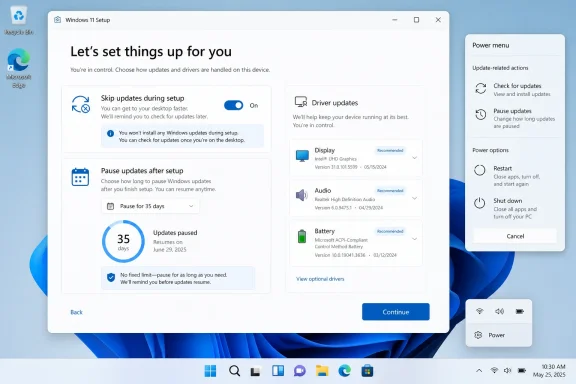
The most visible shift is control. Microsoft is giving users more say over when updates happen, including the ability to skip updates during the out-of-box experience, pause updates in longer stretches, and restart or shut down without automatically being pushed into an install cycle first. That is a meaningful upgrade because it removes some of the most annoying surprises in the Windows 11 experience.
The new shutdown and restart behavior is equally notable. For years, Windows users have complained that clicking “Shut down” did not always mean what it said, especially when updates were waiting in the background. Microsoft is now separating power actions from update actions more cleanly, which restores a basic expectation: if the user says shut down, the PC should shut down.
The user experience angle here is not cosmetic. It cuts directly into one of the most emotionally sticky Windows complaints, because nothing erodes trust faster than a machine that appears to override the user’s explicit intent. That is why even small interface changes can have outsized impact.
The update unification is not only about convenience. It also helps Microsoft reduce the number of moving parts involved in patching, which can lower the odds of collisions between different update types. Driver, firmware, and.NET updates can all affect system stability in different ways, so lining them up with the main patch cadence is a practical servicing decision.
There is also an enterprise logic to this move. IT teams already think in terms of maintenance windows and coordination across multiple update classes. By making the consumer experience look more like a managed workflow, Microsoft may be reducing the gap between home users and workplace administration practices.
That may not sound dramatic, but transparency is often the difference between a system that feels fair and one that feels manipulative. If users can see the whole update picture at once, they are more likely to feel like participants rather than passengers. That matters especially when the update touches multiple components at once.
Automatic recovery is equally important, even if users never see it directly. If Windows can repair update failures without making the user troubleshoot every bad patch, the whole model becomes less stressful. That is especially valuable in consumer environments, where most people do not want to diagnose servicing problems manually.
This is where Microsoft’s security messaging becomes relevant. The company is still insisting that devices stay secure by design and by default, even as it gives people more flexibility. That balance is the core of the change: more user agency without surrendering the safety posture that modern Windows requires.
That is a subtle but important insight. Security is not just a technical problem; it is also a behavioral one. A friendlier update model can produce better real-world protection if it reduces avoidance behavior and makes patching feel less adversarial.
The company is clearly using these channels to measure user reaction, collect telemetry, and watch for side effects. Update behavior touches supportability, compliance, and device health, so Microsoft cannot treat this as a trivial UI tweak. Any change that affects when updates install also affects how the platform stays secure at scale.
This also explains why the rollout is phased. The company wants to validate the experience first, then decide how much of it should be exposed in the shipping consumer build. That is prudent, because user control sounds great until a small minority use it to defer patches indefinitely.
It also indicates that Microsoft believes this is the right moment to change behavior. Windows 11 is now far enough along in its lifecycle that refining the daily experience may matter more than dramatic headline features. In other words, the company is trying to win trust through polish, not just novelty.
Longer pause options also help people who travel, work offline, or simply want to time updates around a life event. A calendar-based or extended pause system is more human than a fixed countdown. It says, in effect, “You decide when this happens,” which is a much better message for an OS that lives at the center of a person’s day.
The better shutdown and restart controls may be the most satisfying part of all. Many users have a near-instinctive irritation when they click shut down and the device tries to negotiate its way into an update. Removing that friction improves the emotional feel of the platform in a way that users notice immediately.
This is why the update changes matter even if the average user cannot explain the policy details. The experience of being respected by the OS can be enough to shift perception, and perception is a huge part of how people judge Windows. A calmer update flow makes the whole system feel more mature.
The driver, firmware, and.NET coordination is also relevant for IT teams because it can reduce fragmentation. Fewer independent update cycles mean fewer variables to track, fewer unusual reboot sequences, and less troubleshooting noise across the month. That is especially valuable in environments where uptime and predictability matter.
Still, enterprises should not expect consumer-style controls to replace policy-driven management. The big organizations will keep using Intune, Autopatch, and update rings because those tools offer the governance needed for compliance, deadlines, and exception handling. Microsoft is improving the default experience, not eliminating administrative control.
The risk, of course, is that consumer flexibility can sometimes bleed into complacency. Microsoft will need to ensure that the stronger controls do not encourage dangerous levels of deferral, particularly on unmanaged devices. That is where warnings, defaults, and recovery systems will matter most.
Chromebooks and mobile-style OS environments have also conditioned users to expect a more seamless background-update experience. Windows cannot copy those models directly because of its desktop complexity and enterprise obligations, but it can borrow their tone: more continuity, less disruption, more predictability.
The competitive value here is not just about being “nicer.” It is about reducing one of the cultural reasons people hesitate to recommend Windows PCs. When a platform feels like it respects your time, it becomes easier to recommend, easier to trust, and easier to keep.
If Microsoft gets this right, it may reduce one of the biggest sources of lingering Windows resentment. If it gets it wrong, the company could revive old complaints about forced maintenance under a friendlier label. That is why the details of the final rollout will matter so much.
The other thing to watch is whether Microsoft expands the idea of user control beyond update timing. The company has already been revisiting other Windows pain points, including startup behavior, shell friction, and recovery reliability, so updates may be just one part of a larger effort to make Windows 11 feel less aggressive and more cooperative. If that pattern continues, the update changes could end up being remembered as the moment Microsoft started taking the “PC should work on my terms” message seriously.
Source: Thurrott.com Microsoft Announces Major Changes to Windows Update in Windows 11
That tension becamethe Windows 10 era, when Microsoft leaned hard into the Windows-as-a-service model. The back end improved, with cumulative updates simplifying servicing, but the front end still felt blunt to many people. The OS could be technically correct and still feel disrespectful of the user’s time. That is why update controls like active hours and pause options mattered, even if they did not fully solve the problem.
Microsoft’s March 20, 2026 “commitment to Windows quality” post laid the groundwork for the April changes, promising fewer disruptions, more control, faster and more reliable update experiences, and stronger security by default. The company explicitly said it wanted to reduce the pain points around updates, including the ability to skip updates during setup, restart or shut down without installing, and pause updates for longer when needed. That announcement reframed update management as a usability issue, not just a servicing one.
The timing matters, too. Windows 10 support ended on October 14, 2025, and Microsoft has been pushing users and organizations toward Windows 11 as the long-term path forward. In that environment, update friction becomes more than a nuisance. It becomes part of the case for whether Windows still feels like a platform people want to stay on. If Microsoft can make updates feel calmer and less coercive, that helps its broader trust and retention story.
At the enterprise level, Microsoft has already given IT departments far more sophisticated tools through Intune, Windows Autopatch, update rings, and policy-based servicing. Consumers, by contrast, have often had a far simpler and more rigid experience. The new Windows 11 changes are important because they try to close that gap without turning consumer PCs into unmanaged chaos.
 What Microsoft Is Changing
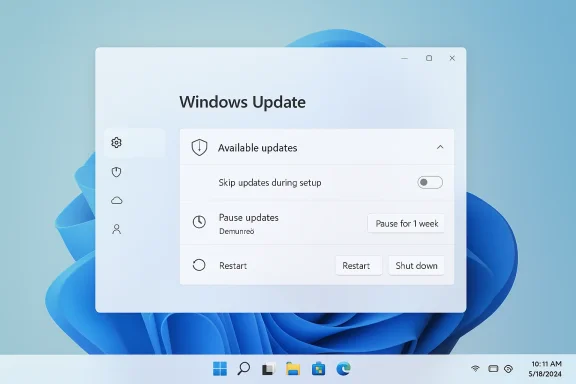
The most visible shift is control. Microsoft is giving users more say over when updates happen, including the ability to skip updates during the out-of-box experience, pause updates in longer stretches, and restart or shut down without automatically being pushed into an install cycle first. That is a meaningful upgrade because it removes some of the most annoying surprises in the Windows 11 experience.More user control at setup and shutdown
Skipping updates during setup is especially important because first impressions matter. A new PC should feel ready for action, not like a maintenance project that has just begun. Microsoft appears to have recognized that buyers do not want their first interaction with a device to be a sequence of downloads, restarts, and waiting screens.The new shutdown and restart behavior is equally notable. For years, Windows users have complained that clicking “Shut down” did not always mean what it said, especially when updates were waiting in the background. Microsoft is now separating power actions from update actions more cleanly, which restores a basic expectation: if the user says shut down, the PC should shut down.
The user experience angle here is not cosmetic. It cuts directly into one of the most emotionally sticky Windows complaints, because nothing erodes trust faster than a machine that appears to override the user’s explicit intent. That is why even small interface changes can have outsized impact.
- Skip updates during initial setup to reach the desktop faster.
- Restart or shut down without triggering an immediate install.
- Pause updates for longer without the current rigid feel.
- See update options more clearly before committing.
- Reduce the sense that Windows is “choosing for you.”
A Unified Update Experience
Microsoft is also trying to simplify the update surface itself. The company says it is “unifying” the Windows 11 update experience by coordinating driver,.NET, and firmware updates so they align more closely with the monthly quality update cycle. The goal is fewer surprises and, ultimately, a single monthly restart for many users.Why fewer restarts matter
This is one of those changes that sounds small until you live with Windows every day. A single monthly restart is easier to plan around than a string of separate update prompts scattered across the month. It also reduces the feeling that the operating system is constantly doing maintenance in the background without asking.The update unification is not only about convenience. It also helps Microsoft reduce the number of moving parts involved in patching, which can lower the odds of collisions between different update types. Driver, firmware, and.NET updates can all affect system stability in different ways, so lining them up with the main patch cadence is a practical servicing decision.
There is also an enterprise logic to this move. IT teams already think in terms of maintenance windows and coordination across multiple update classes. By making the consumer experience look more like a managed workflow, Microsoft may be reducing the gap between home users and workplace administration practices.
The “Available updates” section
Users checking Settings > Windows Update will now see a more consolidated “Available updates” section, where all pending items can be expanded and reviewed together. That gives the UI a more transparent feel, because it becomes easier to understand what is waiting and what the system expects to happen next.That may not sound dramatic, but transparency is often the difference between a system that feels fair and one that feels manipulative. If users can see the whole update picture at once, they are more likely to feel like participants rather than passengers. That matters especially when the update touches multiple components at once.
- Drivers, firmware, and.NET updates are being coordinated more tightly.
- The Settings app is becoming less fragmented and more readable.
- Users can review all pending items before deciding what to install.
- The design supports one monthly restart instead of several.
- The experience feels more deliberate and less random.
Secure by Default, Not Secure by Force
Microsoft is pairing these friendlier controls with a stronger emphasis on reliability and recovery. The company says it is reducing update install time and adding automatic recovery features designed to fix update failures in the background. That is a classic Microsoft move: loosen the visible pressure, but strengthen the safety net underneath.Faster installs, fewer failures
Reducing the time it takes to install updates matters because long installs magnify every other complaint. People are much more patient with a process that is quick and predictable than with one that seems to drag on indefinitely. Faster update completion also lowers the chance that users will postpone maintenance simply because it is inconvenient.Automatic recovery is equally important, even if users never see it directly. If Windows can repair update failures without making the user troubleshoot every bad patch, the whole model becomes less stressful. That is especially valuable in consumer environments, where most people do not want to diagnose servicing problems manually.
This is where Microsoft’s security messaging becomes relevant. The company is still insisting that devices stay secure by design and by default, even as it gives people more flexibility. That balance is the core of the change: more user agency without surrendering the safety posture that modern Windows requires.
The trust equation
Microsoft appears to understand that update compliance improves when users trust the experience. If the PC feels like it respects them, they are less likely to resist patches. If it feels coercive, they are more likely to defer, ignore, or resent every alert that appears.That is a subtle but important insight. Security is not just a technical problem; it is also a behavioral one. A friendlier update model can produce better real-world protection if it reduces avoidance behavior and makes patching feel less adversarial.
- Faster installs reduce frustration and waiting.
- Recovery tools lower the impact of failed updates.
- Security remains the baseline, not the afterthought.
- Better control can improve voluntary compliance.
- Less coercion can lead to more consistent patching.
Why the Insider Program Matters
The rollout is beginning in the Windows Insider Program first, specifically through the new Dev and Experimental channels. That is a strong signal that Microsoft wants to test not just the feature mechanics, but the policy implications of giving consumers more freedom over updates.Dev, Experimental, and phased rollout
Microsoft’s April 24 Insider post explains that Dev is being moved to Experimental, while Beta is being repositioned separately. That restructuring makes the Insider channels easier to interpret, but it also gives Microsoft a cleaner sandbox for testing changes like update control before broader release.The company is clearly using these channels to measure user reaction, collect telemetry, and watch for side effects. Update behavior touches supportability, compliance, and device health, so Microsoft cannot treat this as a trivial UI tweak. Any change that affects when updates install also affects how the platform stays secure at scale.
This also explains why the rollout is phased. The company wants to validate the experience first, then decide how much of it should be exposed in the shipping consumer build. That is prudent, because user control sounds great until a small minority use it to defer patches indefinitely.
What the channels tell us about Microsoft’s strategy
The Insider route suggests Microsoft is trying to normalize these changes as part of a broader Windows quality effort, not as a one-off reaction to criticism. The company has been talking for weeks about “pain points,” and Windows Update is clearly one of the biggest pain points in the product.It also indicates that Microsoft believes this is the right moment to change behavior. Windows 11 is now far enough along in its lifecycle that refining the daily experience may matter more than dramatic headline features. In other words, the company is trying to win trust through polish, not just novelty.
- Dev and Experimental are the first proving grounds.
- Beta is being realigned as the product stabilizes.
- Microsoft can observe how users respond before broad release.
- Phased rollout reduces the risk of a bad surprise.
- Update control is now part of Windows quality, not separate from it.
Consumer Impact
For consumers, this is one of the most practical Windows 11 changes in recent memory. It does not add a flashy new AI feature or a dramatic visual redesign, but it addresses the daily friction that most users actually notice. That is often where the biggest goodwill gains come from.Everyday usability gets better
The ability to skip setup-time updates is especially welcome on new PCs. Many buyers want to unbox a machine, sign in, and get to work immediately. If Windows can make that happen without forcing a multi-step update ritual first, the product feels much more polished.Longer pause options also help people who travel, work offline, or simply want to time updates around a life event. A calendar-based or extended pause system is more human than a fixed countdown. It says, in effect, “You decide when this happens,” which is a much better message for an OS that lives at the center of a person’s day.
The better shutdown and restart controls may be the most satisfying part of all. Many users have a near-instinctive irritation when they click shut down and the device tries to negotiate its way into an update. Removing that friction improves the emotional feel of the platform in a way that users notice immediately.
The psychological effect
The psychological benefit may be larger than the technical one. Users who feel they have real control are less likely to develop defensive habits, such as ignoring update prompts or shutting the lid in frustration. That can quietly improve update compliance over time.This is why the update changes matter even if the average user cannot explain the policy details. The experience of being respected by the OS can be enough to shift perception, and perception is a huge part of how people judge Windows. A calmer update flow makes the whole system feel more mature.
- New PC setup should feel less bureaucratic.
- Daily shutdowns become more predictable.
- Updates feel easier to fit into real life.
- Users are less likely to resent maintenance.
- Trust in the platform can improve gradually.
Enterprise Impact
For enterprise customers, the story is less about radical change and more about alignment. Businesses already have more control over Windows servicing through policy and management tools, but the consumer-facing changes still matter because they can reduce support complaints and confusion. A cleaner baseline experience means fewer “why did my PC do this?” tickets.Better parity with managed environments
Enterprise IT already thinks in terms of maintenance windows, change control, and planned downtime. Microsoft’s move to reduce random restarts and bring more update classes into a monthly cadence makes the broader ecosystem feel more consistent with those managed practices. That consistency can help organizations standardize user expectations across fleets.The driver, firmware, and.NET coordination is also relevant for IT teams because it can reduce fragmentation. Fewer independent update cycles mean fewer variables to track, fewer unusual reboot sequences, and less troubleshooting noise across the month. That is especially valuable in environments where uptime and predictability matter.
Still, enterprises should not expect consumer-style controls to replace policy-driven management. The big organizations will keep using Intune, Autopatch, and update rings because those tools offer the governance needed for compliance, deadlines, and exception handling. Microsoft is improving the default experience, not eliminating administrative control.
Support and compliance implications
There is a subtle upside here for help desks and deployment teams. If users become less frustrated with updates, they are less likely to delay them in disruptive ways or call support in anger after a forced restart. Better UX can have measurable downstream benefits even when IT keeps the same policies.The risk, of course, is that consumer flexibility can sometimes bleed into complacency. Microsoft will need to ensure that the stronger controls do not encourage dangerous levels of deferral, particularly on unmanaged devices. That is where warnings, defaults, and recovery systems will matter most.
- Fewer user complaints about update timing.
- More predictable change windows.
- Better alignment between home and enterprise servicing culture.
- Less support noise from accidental update surprises.
- Continued reliance on policy tools for governance.
Competitive Implications
Microsoft’s update changes also have broader implications for the PC market. Windows has often been criticized for making maintenance feel harsher than it needs to be, and that criticism shapes how users compare it with other platforms. If Windows 11 becomes less disruptive, Microsoft improves one of the most persistent arguments against the platform.Windows versus the rest of the market
Apple has long sold macOS as a smoother, more controlled experience, even when it too imposes updates and restarts. Microsoft’s move narrows one of the emotional gaps that has helped rivals market their products as more user-friendly. It does not erase the difference, but it does make the Windows case easier to defend.Chromebooks and mobile-style OS environments have also conditioned users to expect a more seamless background-update experience. Windows cannot copy those models directly because of its desktop complexity and enterprise obligations, but it can borrow their tone: more continuity, less disruption, more predictability.
The competitive value here is not just about being “nicer.” It is about reducing one of the cultural reasons people hesitate to recommend Windows PCs. When a platform feels like it respects your time, it becomes easier to recommend, easier to trust, and easier to keep.
Why this matters for Windows 11’s image
Windows 11 has already been trying to reposition itself as more polished and more thoughtful than previous versions. Update control is a perfect place to reinforce that message because it affects everyone, from casual users to enthusiasts to IT admins. It is the kind of change that can quietly improve the brand without requiring a marketing campaign to explain it.If Microsoft gets this right, it may reduce one of the biggest sources of lingering Windows resentment. If it gets it wrong, the company could revive old complaints about forced maintenance under a friendlier label. That is why the details of the final rollout will matter so much.
- Reduces one of Windows’ oldest reputation problems.
- Makes Windows 11 feel more modern and respectful.
- Narrows the perceived gap with competing platforms.
- Supports Microsoft’s “quality” messaging.
- Gives the company a better consumer trust story.
Strengths and Opportunities
The biggest strength of this change is that it addresses a real pain point rather than inventing a new one. Microsoft is improving the parts of Windows Update that users actually complain about, and that makes the move feel grounded, practical, and long overdue. It also gives the company a chance to rebuild trust in an area where trust has been fragile for years.- More predictable restarts and shutdowns.
- Better first-run experience on new PCs.
- Reduced update clutter in Settings.
- Stronger alignment with user expectations.
- A more human-feeling update cadence.
- Lower frustration for home users and small businesses.
- Better security compliance through less resistance.
Risks and Concerns
The main concern is obvious: giving users more control can also mean giving them more room to delay critical patches. Microsoft will need to make sure its defaults, reminders, and recovery mechanisms are strong enough to keep the platform safe even when users get comfortable postponing updates. That is the central balancing act behind this entire redesign.- Users may pause updates longer than is safe.
- Greater flexibility could reduce patch urgency.
- Some devices may remain on older builds too long.
- The experience could become more complex if poorly implemented.
- Microsoft must prevent security regressions.
- Enterprises may need to explain the difference between consumer and managed behavior.
- Any glitches in rollout could reinforce old distrust.
Looking Ahead
The next few weeks will tell us how far Microsoft intends to take these changes beyond the Insider channels. If the company carries the new behavior into the stable Windows 11 branch, it would mark one of the more visible shifts in Windows servicing philosophy in years. The real test will not be whether the features exist, but whether they feel consistent, intuitive, and safe enough for normal users.The other thing to watch is whether Microsoft expands the idea of user control beyond update timing. The company has already been revisiting other Windows pain points, including startup behavior, shell friction, and recovery reliability, so updates may be just one part of a larger effort to make Windows 11 feel less aggressive and more cooperative. If that pattern continues, the update changes could end up being remembered as the moment Microsoft started taking the “PC should work on my terms” message seriously.
- Watch for a stable-channel rollout timeline.
- Watch for whether pause controls become truly calendar-based.
- Watch for enterprise communication on policy differences.
- Watch for any new safeguards around deferred patches.
- Watch for changes to the Windows Update UI in Settings.
Source: Thurrott.com Microsoft Announces Major Changes to Windows Update in Windows 11