

Microsoft’s latest Windows 11 update changes are not a cosmetic tweak; they are a direct answer to one of the oldest complaints in modern Windows: updates that arrive on Microsoft’s schedule, not yours. The company is now testing a more flexible update model that lets users repeatedly pause updates in 35-day blocks, skip updates during initial setup, shut down or restart without being forced into installation, and see clearer information about driver updates. If these changes survive Insider testing and roll out broadly, Windows Update could finally become less of a recurring interruption and more of a predictable maintenance system.
Windows Update has always carried a difficult burden. It must deliver urgent security fixes to hundreds of millions of machines, support an enormous hardware ecosystem, and do so for users ranging from casual laptop owners to enterprise administrators managing tightly controlled fleets. That scale explains why Microsoft has historically favored automation, but it does not erase the frustration users feel when a PC decides that right now is the wrong-but-required moment to patch.
The tension became sharper in the Windows 10 era, when Microsoft moved decisively toward cumulative updates and more automatic servicing. That model improved baseline security and reduced fragmentation, but it also hardened the perception that Windows had become less respectful of user intent. Many users came to associate updates with unexpected restarts, vague driver names, long shutdowns, and the dreaded moment when “Update and restart” replaced a simple reboot option.
Windows 11 inherited that legacy and added its own complications. The operating system arrived with stricter hardware requirements, a more opinionated interface, and an update cadence that often mixed security patches, feature refinements, driver updates, Store behavior, and cloud-connected experiences. For enthusiasts, that complexity created a sense that Windows was doing more behind the scenes while explaining less to the person at the keyboard.
Microsoft now appears to be trying to rebalance that relationship. The company says the new controls are rooted in Insider feedback, including thousands of direct comments about untimely updates and insufficient user control. The result is a package of changes that may look small in isolation but together signal a significant shift in Windows 11’s servicing philosophy.
The new approach targets four areas: setup, pause behavior, power menu behavior, and update information. In plain terms, Microsoft is trying to make Windows less likely to surprise users at moments when they are least able to deal with maintenance. That is a practical concession to real-world PC use, where travel, work deadlines, exams, gaming sessions, meetings, and creative projects often matter more than an abstract servicing schedule.
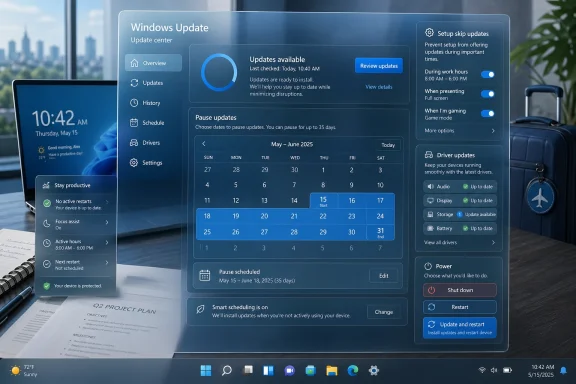
Under the new model, the 35-day limit remains as the unit of control, but the hard wall changes. If a user reaches the end of one pause window, they can set another one. That effectively creates an indefinite pause mechanism, even if Microsoft does not present it as a permanent “never update” switch.
That balance is important. Windows is not a hobbyist-only platform, and many people do not track vulnerability disclosures, out-of-band patches, or driver regressions. Microsoft still wants devices protected by default, but it is conceding that protected by default should not mean interrupted by default.
For enthusiasts and IT-savvy users, this is a major quality-of-life improvement. If a Patch Tuesday release is causing boot issues, display problems, VPN failures, audio regressions, or compatibility trouble with a specific chipset, users can wait for the smoke to clear. They no longer need to rely on workarounds, registry edits, metered connection tricks, or policy settings that were never designed for mainstream consumers.
Microsoft is now separating power actions from update actions. If an update is pending, users should still see normal Restart and Shut down choices alongside Update and restart or Update and shut down. The promise is simple: when users pick Restart, Windows restarts; when they pick Shut down, Windows shuts down.
The old pattern was especially frustrating because it often appeared at moments of urgency. Users did not object to updates existing; they objected to Windows turning a simple power action into a forced waiting period. That created a sense that the PC was no longer fully under the user’s control.
The new power menu also reduces accidental installations. A person who is ready to patch can choose the update-specific option explicitly. A person who only wants to restart a hung app, recover from a driver hiccup, or power down for the night can do so without initiating a servicing process.
Microsoft is now allowing supported users to move past setup faster and install updates later. That does not apply to all scenarios, especially commercial deployments or devices that require updates to function correctly. Still, for many consumer PCs, the change recognizes that first boot should feel like an introduction, not a waiting room.
For enterprises, the calculus is different. Managed devices often need policy enforcement, baseline security, compliance checks, and standardized images before they reach users. Microsoft’s exclusion for managed commercial scenarios makes sense because IT departments usually want fewer uncontrolled decisions during provisioning, not more.
The distinction is healthy. Consumer Windows and enterprise Windows share a codebase, but they are used under different expectations. The best update experience is not identical for every environment.
The idea is to bundle more servicing activity into a single monthly restart for retail users who are not seeking early updates. Insiders and persistent seekers will still see more frequent activity, because preview participation naturally carries a faster cadence. But for mainstream users, fewer interruptions could make Windows feel calmer.
Reducing the number of reboot prompts can therefore have an outsized impact. Users may tolerate one predictable monthly maintenance cycle far better than a scattered series of prompts for drivers, frameworks, firmware, and cumulative updates. This is especially true for people who do not know or care which component triggered which restart.
There is also an update-success angle. Coordinating installation may help avoid overlapping update states, repeated prompts, and confusing Settings pages. If users see one consolidated “Available updates” section rather than several unrelated items, they may be more willing to engage with the process.
Microsoft’s plan to add device class information to driver titles is a modest but useful fix. Labels such as display, audio, battery, extension, or storage-related classes give users a better sense of risk and relevance. In a world where one driver can affect sleep behavior, gaming performance, external monitors, Bluetooth audio, or battery life, that context matters.
A clearer driver title will not solve every compatibility problem. It will not guarantee that a display driver is safe for every laptop panel or that a firmware update will behave perfectly across every configuration. But it gives users and support technicians a better starting point.
For WindowsForum readers, this is especially valuable. Enthusiasts often troubleshoot by correlating symptoms with recent changes. If an update history entry clearly identifies an audio-class driver, the path from “my headset stopped working” to “this may be the culprit” becomes shorter.
The challenge is that security and agency can appear to conflict. Users want control, while Microsoft wants a healthier installed base. The new Windows 11 model tries to make those goals less adversarial by preserving update availability while improving timing control.
Microsoft’s automatic recovery work for update failures is therefore important. If updates fail because of bandwidth, installation errors, or recovery problems, Windows needs to become better at healing the process without trapping users in repeated failure loops. A reliable update system earns more trust than one that merely nags harder.
The company must also communicate risk clearly. A paused update screen should not be alarmist, but it should explain whether the pending update contains security fixes, driver changes, optional improvements, or an emergency out-of-band patch. Users can make better choices when Windows tells them what kind of risk they are accepting.
Businesses already have tools such as Windows Update for Business policies, Intune, Autopatch, deployment rings, deferral policies, deadlines, maintenance windows, reporting, and compliance baselines. The question is not whether enterprises can control updates; it is whether the new user-facing model will align cleanly with admin intent.
The ideal model is policy-aware flexibility. Enterprises should be able to decide which controls users see, how long pauses can last, whether emergency updates override deferrals, and how power-menu choices behave when a deadline is active. Microsoft has the management framework to do this, but the implementation details will matter.
For small businesses without dedicated IT staff, the consumer-like improvements may be especially welcome. These organizations often live between home-user simplicity and enterprise-grade policy needs. They need predictable updates, but they may not have the expertise to tune deployment rings or interpret dense management documentation.
Apple has its own update frustrations, especially around major macOS upgrades and compatibility warnings, but users generally expect a tighter hardware-software relationship. ChromeOS leans heavily on background updates and quick reboots, supported by a simpler device ecosystem. Linux distributions vary widely, but many give technical users more granular control over when and how updates install.
Still, user perception is shaped by outcomes, not supply-chain complexity. If the PC reboots at the wrong time, Windows gets the blame. If a driver update has a vague name and breaks audio, Windows gets the blame. If setup takes too long before the first desktop, Windows gets the blame.
By improving control surfaces, Microsoft can reduce the emotional penalty of that complexity. Users are more forgiving when they feel informed and empowered.
The bigger story is whether Microsoft treats this as a one-time update polish pass or the beginning of a broader Windows Update redesign. The company should extend the same philosophy to clearer release notes inside Settings, better rollback guidance, stronger known-issue warnings, and simpler explanations of security versus optional updates. Control is most useful when paired with understanding.
Microsoft has spent much of the Windows 11 era asking users to accept its vision of a modern, secure, cloud-connected operating system; now it appears to be acknowledging that modernization must include respect for user timing and intent. The new update controls will not eliminate bad patches, driver regressions, or the need for security maintenance, but they could make those realities easier to manage. If this is the direction Windows servicing takes through 2026, it is not just a welcome update to Windows Update — it is a long-overdue restoration of trust.
Source: TechRadar https://www.techradar.com/computing...g-them-indefinitely-and-i-couldnt-be-happier/
 Background
Windows Update has always carried a difficult burden. It must deliver urgent security fixes to hundreds of millions of machines, support an enormous hardware ecosystem, and do so for users ranging from casual laptop owners to enterprise administrators managing tightly controlled fleets. That scale explains why Microsoft has historically favored automation, but it does not erase the frustration users feel when a PC decides that right now is the wrong-but-required moment to patch.The tension became sharper in the Windows 10 era, when Microsoft moved decisively toward cumulative updates and more automatic servicing. That model improved baseline security and reduced fragmentation, but it also hardened the perception that Windows had become less respectful of user intent. Many users came to associate updates with unexpected restarts, vague driver names, long shutdowns, and the dreaded moment when “Update and restart” replaced a simple reboot option.
Windows 11 inherited that legacy and added its own complications. The operating system arrived with stricter hardware requirements, a more opinionated interface, and an update cadence that often mixed security patches, feature refinements, driver updates, Store behavior, and cloud-connected experiences. For enthusiasts, that complexity created a sense that Windows was doing more behind the scenes while explaining less to the person at the keyboard.
Microsoft now appears to be trying to rebalance that relationship. The company says the new controls are rooted in Insider feedback, including thousands of direct comments about untimely updates and insufficient user control. The result is a package of changes that may look small in isolation but together signal a significant shift in Windows 11’s servicing philosophy.
The Four-Part Control Model
The central change is not just one new button. Microsoft is reframing the update experience around choice, timing, clarity, and reduced disruption. That matters because Windows Update problems are rarely about one single annoyance; they are about a chain of small frictions that accumulate over years.The new approach targets four areas: setup, pause behavior, power menu behavior, and update information. In plain terms, Microsoft is trying to make Windows less likely to surprise users at moments when they are least able to deal with maintenance. That is a practical concession to real-world PC use, where travel, work deadlines, exams, gaming sessions, meetings, and creative projects often matter more than an abstract servicing schedule.
What Microsoft Is Testing
The headline changes are straightforward, but their combined effect is larger than the list suggests. Microsoft is moving from a system that strongly nudged users toward immediate installation to one that separates security urgency from moment-to-moment user control.- Skip updates during out-of-box setup when supported by the device and deployment scenario.
- Pause updates using a calendar-style interface for up to 35 days at a time.
- Re-pause updates repeatedly with no stated limit on resetting the pause end date.
- Always show normal Shut down and Restart options even when updates are pending.
- Keep update-specific power options visible when users are ready to install.
- Add device class labels to driver updates so users can better understand what is changing.
Indefinite Pausing Changes the Psychology of Windows Update
The ability to re-pause updates in 35-day increments is the attention-grabber, and for good reason. Until now, pausing updates has often felt like a temporary reprieve rather than genuine control. Users could buy time, but Windows ultimately retained the stronger hand.Under the new model, the 35-day limit remains as the unit of control, but the hard wall changes. If a user reaches the end of one pause window, they can set another one. That effectively creates an indefinite pause mechanism, even if Microsoft does not present it as a permanent “never update” switch.
Why 35 Days Still Matters
Microsoft is keeping the 35-day structure because updates remain central to Windows security. A completely unmanaged indefinite hold would be dangerous for less technical users, especially when active exploits are circulating. The repeating window gives Microsoft a way to preserve reminders and user decision points without forcing installation at an arbitrary deadline.That balance is important. Windows is not a hobbyist-only platform, and many people do not track vulnerability disclosures, out-of-band patches, or driver regressions. Microsoft still wants devices protected by default, but it is conceding that protected by default should not mean interrupted by default.
For enthusiasts and IT-savvy users, this is a major quality-of-life improvement. If a Patch Tuesday release is causing boot issues, display problems, VPN failures, audio regressions, or compatibility trouble with a specific chipset, users can wait for the smoke to clear. They no longer need to rely on workarounds, registry edits, metered connection tricks, or policy settings that were never designed for mainstream consumers.
Practical Use Cases
There are many legitimate reasons to delay an update without rejecting updates entirely. Microsoft’s previous model often treated hesitation as noncompliance, but the new approach better reflects how people actually use PCs.- A student can avoid updates during final exams.
- A freelancer can protect a production machine during a client deadline.
- A gamer can wait before installing a graphics-related driver update.
- A traveler can avoid large downloads on weak hotel Wi-Fi.
- A home user can delay a patch known to affect similar hardware.
- A small business owner can wait until a weekend maintenance window.
The Power Menu Finally Respects Plain English
The change to the power menu may be even more emotionally satisfying than indefinite pausing. For years, Windows users have complained that “Shut down” and “Restart” could become entangled with update behavior. When users wanted a quick reboot or a clean shutdown, the operating system sometimes made the update path feel unavoidable.Microsoft is now separating power actions from update actions. If an update is pending, users should still see normal Restart and Shut down choices alongside Update and restart or Update and shut down. The promise is simple: when users pick Restart, Windows restarts; when they pick Shut down, Windows shuts down.
Why This Is More Than a Menu Tweak
A power command is one of the most basic contracts between a user and an operating system. If the user chooses to shut down before leaving the house, joining a meeting, boarding a flight, or packing a laptop, the machine should not reinterpret that command as a maintenance instruction. Microsoft’s new behavior recognizes that distinction.The old pattern was especially frustrating because it often appeared at moments of urgency. Users did not object to updates existing; they objected to Windows turning a simple power action into a forced waiting period. That created a sense that the PC was no longer fully under the user’s control.
The new power menu also reduces accidental installations. A person who is ready to patch can choose the update-specific option explicitly. A person who only wants to restart a hung app, recover from a driver hiccup, or power down for the night can do so without initiating a servicing process.
A Better Decision Flow
The new model creates a more understandable sequence for ordinary users.- See that updates are available.
- Decide whether the current moment is suitable.
- Choose a normal power action or an update-specific action.
- Let Windows perform the selected command without surprise.
Setup Updates Become a User Choice
The option to skip updates during the out-of-box experience is another meaningful change. New PC setup has become increasingly loaded with account prompts, privacy choices, restore options, network requirements, OneDrive messaging, Microsoft 365 offers, and device configuration steps. Adding updates into that flow can make a brand-new machine feel slow before the user has even reached the desktop.Microsoft is now allowing supported users to move past setup faster and install updates later. That does not apply to all scenarios, especially commercial deployments or devices that require updates to function correctly. Still, for many consumer PCs, the change recognizes that first boot should feel like an introduction, not a waiting room.
Consumer Convenience Versus Deployment Discipline
For consumers, skipping setup updates is about immediacy. Someone unboxing a laptop wants to test the screen, keyboard, trackpad, speakers, performance, and battery. If setup pauses for large downloads or firmware preparation, the first impression suffers.For enterprises, the calculus is different. Managed devices often need policy enforcement, baseline security, compliance checks, and standardized images before they reach users. Microsoft’s exclusion for managed commercial scenarios makes sense because IT departments usually want fewer uncontrolled decisions during provisioning, not more.
The distinction is healthy. Consumer Windows and enterprise Windows share a codebase, but they are used under different expectations. The best update experience is not identical for every environment.
The First-Hour Experience Matters
Windows 11 has faced criticism for feeling more prescriptive than previous versions, particularly during setup. Giving users a faster path to the desktop helps repair that perception. It suggests Microsoft understands that control starts before the first patch, before the first app install, and before the first personalization choice.- Faster setup improves the unboxing experience.
- Deferred updates help users avoid poor network conditions.
- New users can inspect the device before committing time to maintenance.
- Retail support staff may spend less time waiting through setup updates.
- Enthusiasts can choose their own order of drivers, firmware, and system patches.
Fewer Reboots Could Be the Real Productivity Win
Microsoft says it is also coordinating driver, .NET, and firmware updates with the monthly quality update to reduce the number of restarts users see each month. That may sound less dramatic than a new pause system, but it could be the most important operational improvement. Frequent reboots are one of the main reasons users develop update fatigue.The idea is to bundle more servicing activity into a single monthly restart for retail users who are not seeking early updates. Insiders and persistent seekers will still see more frequent activity, because preview participation naturally carries a faster cadence. But for mainstream users, fewer interruptions could make Windows feel calmer.
Why Reboot Consolidation Matters
A reboot is not just a technical event. It breaks working context, closes or restores applications imperfectly, disrupts remote sessions, interrupts downloads, and forces users to rebuild their mental workspace. Even when Windows restores apps after restart, the experience rarely feels seamless.Reducing the number of reboot prompts can therefore have an outsized impact. Users may tolerate one predictable monthly maintenance cycle far better than a scattered series of prompts for drivers, frameworks, firmware, and cumulative updates. This is especially true for people who do not know or care which component triggered which restart.
There is also an update-success angle. Coordinating installation may help avoid overlapping update states, repeated prompts, and confusing Settings pages. If users see one consolidated “Available updates” section rather than several unrelated items, they may be more willing to engage with the process.
The Trade-Off
Bundling updates can make the maintenance event feel longer. A single coordinated restart that includes firmware, drivers, .NET components, and a cumulative update may take more time than a smaller patch. The benefit is that users face the interruption less often.- Fewer restarts reduce context loss.
- Consolidated updates simplify user expectations.
- Background downloads make installation timing more flexible.
- Manual approval remains available for users who want updates sooner.
- Insiders and early seekers still accept a higher-update cadence by choice.
Clearer Driver Titles Address a Quiet but Serious Problem
Driver updates are among the least transparent parts of Windows Update. Many users have seen vague entries with nearly identical names and no obvious explanation of what hardware they affect. That ambiguity is not merely annoying; it can make users hesitant to install updates or unable to diagnose problems after installation.Microsoft’s plan to add device class information to driver titles is a modest but useful fix. Labels such as display, audio, battery, extension, or storage-related classes give users a better sense of risk and relevance. In a world where one driver can affect sleep behavior, gaming performance, external monitors, Bluetooth audio, or battery life, that context matters.
The Hardware Ecosystem Problem
Windows runs on a staggering variety of devices. OEMs, silicon vendors, peripheral makers, and Microsoft all participate in the driver pipeline. That ecosystem is a strength, but it also means update clarity is harder than it is on platforms with fewer hardware combinations.A clearer driver title will not solve every compatibility problem. It will not guarantee that a display driver is safe for every laptop panel or that a firmware update will behave perfectly across every configuration. But it gives users and support technicians a better starting point.
For WindowsForum readers, this is especially valuable. Enthusiasts often troubleshoot by correlating symptoms with recent changes. If an update history entry clearly identifies an audio-class driver, the path from “my headset stopped working” to “this may be the culprit” becomes shorter.
Why Naming Is Part of Reliability
Reliability is not only about preventing bugs. It is also about making systems understandable when bugs happen. A transparent update history helps users recover confidence after something goes wrong.- Clearer labels help identify suspect updates.
- Better names improve community troubleshooting.
- Device class information helps users assess urgency.
- Support teams can ask better first-line questions.
- Rollback decisions become less guesswork-driven.
Security Still Sets the Boundaries
The new controls do not mean Microsoft is abandoning automatic protection. The company continues to frame Windows as secure by design and secure by default, and it still recommends installing updates soon after release. That position is not just corporate boilerplate; it reflects the reality that unpatched consumer PCs can become stepping stones for malware, credential theft, botnets, and ransomware.The challenge is that security and agency can appear to conflict. Users want control, while Microsoft wants a healthier installed base. The new Windows 11 model tries to make those goals less adversarial by preserving update availability while improving timing control.
Flexibility Is Not Immunity
An indefinite pause option is powerful, but it can also be misused. A user who repeatedly delays security patches for months may avoid one buggy update but expose the machine to known vulnerabilities. That risk is especially serious for PCs used for banking, work accounts, school portals, password managers, remote access tools, or stored personal documents.Microsoft’s automatic recovery work for update failures is therefore important. If updates fail because of bandwidth, installation errors, or recovery problems, Windows needs to become better at healing the process without trapping users in repeated failure loops. A reliable update system earns more trust than one that merely nags harder.
The company must also communicate risk clearly. A paused update screen should not be alarmist, but it should explain whether the pending update contains security fixes, driver changes, optional improvements, or an emergency out-of-band patch. Users can make better choices when Windows tells them what kind of risk they are accepting.
The Better Security Bargain
The best security model is one users do not feel compelled to fight. If Windows becomes less disruptive, more people may stop looking for ways to disable updates entirely.- Trustworthy timing can improve patch adoption.
- Clearer update descriptions can reduce suspicion.
- Fewer reboots can reduce update avoidance.
- Recovery improvements can reduce failed-patch frustration.
- Explicit choices can make users feel respected rather than coerced.
Enterprise Impact: Helpful, but Not Yet Fully Defined
For enterprise administrators, the announcement is promising but incomplete. Microsoft says more details are coming on how these features will appear for commercial customers and what controls admins will receive. That caveat matters because enterprise update management is not a simple extension of consumer Windows Settings.Businesses already have tools such as Windows Update for Business policies, Intune, Autopatch, deployment rings, deferral policies, deadlines, maintenance windows, reporting, and compliance baselines. The question is not whether enterprises can control updates; it is whether the new user-facing model will align cleanly with admin intent.
Admins Need Policy Consistency
If Microsoft adds more end-user controls without corresponding policy clarity, administrators may worry about drift. A user repeatedly pausing updates on a regulated device could conflict with compliance requirements. Conversely, suppressing every new user-facing control could make managed PCs feel worse than consumer PCs, increasing employee frustration.The ideal model is policy-aware flexibility. Enterprises should be able to decide which controls users see, how long pauses can last, whether emergency updates override deferrals, and how power-menu choices behave when a deadline is active. Microsoft has the management framework to do this, but the implementation details will matter.
For small businesses without dedicated IT staff, the consumer-like improvements may be especially welcome. These organizations often live between home-user simplicity and enterprise-grade policy needs. They need predictable updates, but they may not have the expertise to tune deployment rings or interpret dense management documentation.
What Enterprises Will Want
Commercial customers will watch for specific administrative answers.- Can admins limit or disable repeated pause extensions?
- Will compliance reporting reflect user-initiated pauses clearly?
- How will restart deadlines interact with normal power options?
- Will update consolidation apply consistently across driver and firmware channels?
- Can organizations customize setup-update behavior during provisioning?
- Will Intune expose simple controls for the new experience?
Competitive Implications for Windows 11
Microsoft’s move also lands in a broader competitive context. Windows is not fighting only macOS, ChromeOS, and Linux on features; it is fighting the perception that it is noisy, pushy, and too willing to interrupt. Update behavior is one of the most visible places where that perception forms.Apple has its own update frustrations, especially around major macOS upgrades and compatibility warnings, but users generally expect a tighter hardware-software relationship. ChromeOS leans heavily on background updates and quick reboots, supported by a simpler device ecosystem. Linux distributions vary widely, but many give technical users more granular control over when and how updates install.
Windows Has a Unique Burden
Windows must serve gamers, creators, schools, hospitals, factories, developers, government agencies, home users, OEMs, and businesses on countless hardware combinations. That diversity makes perfect update smoothness nearly impossible. It also means Microsoft gets blamed when a driver vendor, firmware package, or third-party component misbehaves.Still, user perception is shaped by outcomes, not supply-chain complexity. If the PC reboots at the wrong time, Windows gets the blame. If a driver update has a vague name and breaks audio, Windows gets the blame. If setup takes too long before the first desktop, Windows gets the blame.
By improving control surfaces, Microsoft can reduce the emotional penalty of that complexity. Users are more forgiving when they feel informed and empowered.
Why This Helps Microsoft’s 2026 Windows Reset
The update changes fit into a larger effort to improve Windows 11’s quality, performance, reliability, and craft. Microsoft has faced sustained criticism over AI promotion, interface inconsistency, legacy-modern overlap, and servicing bugs. Fixing Windows Update does not solve all of that, but it addresses one of the platform’s most symbolic pain points.- Better update control can improve user sentiment quickly.
- Predictable restarts help Windows compete with simpler platforms.
- Clearer driver information strengthens enthusiast trust.
- Setup flexibility improves the first-run experience.
- Fewer disruptions support Microsoft’s broader quality message.
Strengths and Opportunities
The strongest part of Microsoft’s new update direction is that it addresses real behavior, not abstract preferences. Users do not want insecure PCs, but they do want Windows to respect meetings, deadlines, travel, fragile drivers, limited bandwidth, and basic power commands. If Microsoft implements these controls cleanly, Windows 11 updates could become less adversarial and more cooperative.- User agency improves because pausing updates becomes renewable rather than artificially final.
- Power commands become predictable because shutdown and restart are separated from update installation.
- Setup gets faster for supported consumer devices that do not need immediate updates to function.
- Driver transparency improves with device class labels that help troubleshooting.
- Reboot fatigue may decline as driver, .NET, firmware, and quality updates align more often.
- Security trust could increase if fewer users feel pressured to disable or avoid updates entirely.
- Windows 11’s reputation benefits because Microsoft is addressing a complaint users have repeated for years.
Risks and Concerns
The risks are equally real. More control can become more confusion if Microsoft fails to explain what users are delaying, why an update matters, and when a pause becomes unsafe. The company must avoid replacing forced updates with vague responsibility shifts that leave ordinary users uncertain about whether postponing a patch is prudent.- Users may overuse indefinite pausing and miss critical security fixes for long periods.
- Longer consolidated update sessions may feel worse if Microsoft does not set expectations clearly.
- Enterprise policy conflicts could emerge if user-facing controls are not well integrated with admin tools.
- Driver labels may still be insufficient without vendor, version, and device-specific context.
- Insider behavior may change before release, so current functionality should not be treated as guaranteed.
- Emergency out-of-band patches may complicate the promise of predictable monthly restarts.
- Trust could erode further if Microsoft markets control broadly but ships it inconsistently across editions and devices.
Looking Ahead
The next question is timing. Microsoft is testing these changes with Windows Insiders, including the Dev Channel and the new Experimental channel, but public rollout details remain uncertain. Because the changes affect core servicing behavior, Microsoft will likely watch telemetry closely before pushing them to mainstream Windows 11 users.The bigger story is whether Microsoft treats this as a one-time update polish pass or the beginning of a broader Windows Update redesign. The company should extend the same philosophy to clearer release notes inside Settings, better rollback guidance, stronger known-issue warnings, and simpler explanations of security versus optional updates. Control is most useful when paired with understanding.
- Watch for broader rollout signals in upcoming Windows 11 preview builds.
- Watch for commercial policy documentation around pause limits and restart behavior.
- Watch whether update consolidation reduces real-world reboot prompts.
- Watch how Microsoft handles emergency security patches under the new model.
- Watch whether driver metadata becomes more detailed over time.
Microsoft has spent much of the Windows 11 era asking users to accept its vision of a modern, secure, cloud-connected operating system; now it appears to be acknowledging that modernization must include respect for user timing and intent. The new update controls will not eliminate bad patches, driver regressions, or the need for security maintenance, but they could make those realities easier to manage. If this is the direction Windows servicing takes through 2026, it is not just a welcome update to Windows Update — it is a long-overdue restoration of trust.
Source: TechRadar https://www.techradar.com/computing...g-them-indefinitely-and-i-couldnt-be-happier/
