

Windows 10’s official lifecycle clock has stopped ticking, and the question for millions of users has shifted from “Should I upgrade?” to “When and how should I move?” The argument that Windows 11 is a straightforward, worth‑it upgrade isn’t just marketing copy — it’s driven by a mix of security policy, new platform capabilities (especially in AI and gaming), and user‑facing productivity features that Windows 10 will no longer receive patches for. This feature unpacks the ten reasons PCMag UK highlights for upgrading, verifies the technical claims behind each point, weighs benefits against real risks, and gives a practical upgrade checklist for individuals and IT teams still running Windows 10. The result is an evidence‑based, step‑by‑step guide to deciding whether — and how — to move to Windows 11 right now.
Microsoft ended mainstream support for Windows 10 on October 14, 2025; after that date Microsoft stopped issuing regular security updates and technical assistance for the OS. That makes running Windows 10 online increasingly risky unless you enroll in the one‑year consumer Extended Security Updates (ESU) program or migrate to Windows 11. Microsoft’s official lifecycle guidance is explicit: upgrade eligible PCs to Windows 11, buy a new Windows 11 PC, or enroll in ESU for short‑term protection. Multiple independent outlets reported Microsoft’s timeline and the associated practical implications for Microsoft 365 and app support, reinforcing that October 14, 2025, was a firm break point for free security updates and full app support expectations.
Source: PCMag UK Still Using Windows 10? Here Are 10 Big Reasons You Should Upgrade Now
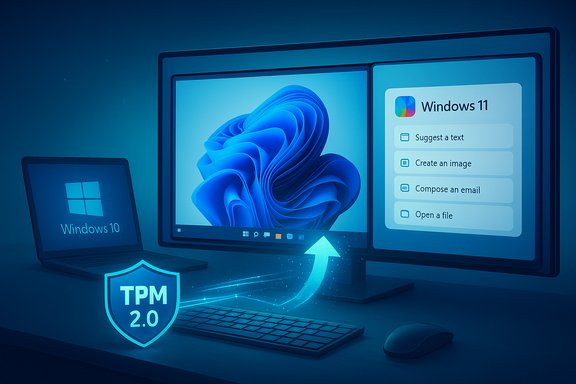 Background / Overview
Microsoft ended mainstream support for Windows 10 on October 14, 2025; after that date Microsoft stopped issuing regular security updates and technical assistance for the OS. That makes running Windows 10 online increasingly risky unless you enroll in the one‑year consumer Extended Security Updates (ESU) program or migrate to Windows 11. Microsoft’s official lifecycle guidance is explicit: upgrade eligible PCs to Windows 11, buy a new Windows 11 PC, or enroll in ESU for short‑term protection. Multiple independent outlets reported Microsoft’s timeline and the associated practical implications for Microsoft 365 and app support, reinforcing that October 14, 2025, was a firm break point for free security updates and full app support expectations. The headline: what PCMag UK said — and why it matters
PCMag UK’s list of “10 big reasons” to upgrade bundles visual polish, productivity tools, security, gaming, and AI into a single upgrade case. Those items are broadly correct; the nuance is in how much value each user will realize, how quickly Microsoft will continue to ship new features on Windows 11, and what constraints (hardware, privacy, enterprise compatibility) could complicate a move. This piece examines each reason, verifies the technical claims against Microsoft and independent reporting, and flags where the messaging is promotional rather than absolutely technical.1. A more consistent, modern interface — what changed and why it’s not just cosmetic
Windows 11’s visual update — centered taskbar, rounded corners, refreshed system sounds, and tighter touch support — is genuine and widely visible. Microsoft intentionally refined design elements to prioritize legibility and touch‑first inputs, and the UI changes are not mere skin deep: a number of system behaviors (window management, context surfaces) were reworked to match the new design language. Microsoft documents these UI improvements and guides for users switching from Windows 10. Why that matters: aesthetics can reduce cognitive friction; in practice, many users report the updated UI improves discoverability and creates fewer accidental clicks during multitasking. That said, preference is personal — some long‑time Windows 10 users will find the Start menu and taskbar changes disorienting at first.2. Improved included apps — Notepad, Paint, Photos, Media Player, Clipchamp
Windows 11 has received a sustained refresh of core inbox apps: Notepad has AI‑assistive and summarization prototypes in preview builds; Paint and Photos have picked up generative‑erase and quick edit tools; the Snipping Tool and Clock app have new productivity capabilities; and Microsoft replaced older shell media players with a modern Media Player and Clipchamp for lightweight video editing. Microsoft’s rollout strategy exposes these apps to Windows 11 first, though Microsoft later shipped some of them through the Store to Windows 10 where feasible. Independent reporting confirms the arrival and iterative expansion of these apps. Practical note: New app innovations sometimes require a Microsoft account or online services (for AI features), and full AI capabilities are often gated to Copilot+ devices or require cloud credits in preview channels.3. A better screenshot and capture tool — Snipping Tool gains
Windows 11’s Snipping Tool has been revamped and continues to receive feature updates: in 2025 Microsoft added a Text Extractor (OCR) to copy text from images and a richer toolbar with capture and markup flows. It also supports basic screen recording and increasingly integrates AI helpers for certain flows in preview channels. Rolling features through Insider channels means availability can vary by device and build. Microsoft has documented the Snipping Tool updates and the developer blog announced Text Extractor’s rollout; community threads indicate some enterprise and OEM variants may lag behind or show behavioral differences. Caveat: recording and AI functionality in Snipping Tool has been delivered progressively, sometimes behind feature flags or store updates; admins should expect phased rollouts and some device heterogeneity.4. Snap Layouts and Snap Groups — better window management
Windows 11’s Snap Layouts (hover the maximize button or use Win+Z) and Snap Groups that remember configurations are functional improvements over Windows 10’s snapping behaviors. They’re more visual and easier to combine into repeatable workflows; Microsoft documents the behavior and how the OS preserves window placements across docking events. For heavy multitaskers, especially those who use external monitors or multiple desktops, Snap Layouts can materially reduce time spent organizing windows. Practical limitation: Some legacy apps (especially those that draw directly to custom frames) might not participate perfectly in Snap Layouts. Test critical productivity apps before a fleet upgrade.5. Widgets — quick access and third‑party widgets now possible
Windows 11 introduced a Widgets board that aggregates weather, calendar, news and app‑specific cards. Initially Microsoft kept the ecosystem narrow; over time Microsoft opened widgets to third‑party developers and added features such as lock‑screen widget support and a fuller customization experience. Documentation and platform guidance for widget developers are published by Microsoft; press coverage tracks the gradual opening to third‑party partners, though adoption remains modest compared with mobile widgets. User takeaway: Widgets are convenient for glanceable info, but they’re not a must‑have for everyone. Users who want tight, always‑on desktop gadgets may still prefer third‑party options.6. Better malware resistance — hardware‑rooted security and the TPM story
Windows 11 raises the hardware security baseline: TPM 2.0, Secure Boot, virtualization‑based security (VBS), and HVCI are central platform requirements or defaults for many certified devices. Microsoft’s security messaging explains that secured‑core PCs — systems built to tighter firmware and hardware attestation standards — show materially fewer certain classes of infections; Microsoft’s security blog states that “secured‑core PCs are twice as resistant to malware infection.” That phrasing originates with Microsoft and is repeated in OEM and industry materials. Independent perspective and caution: independent outlets and security practitioners note these protections do raise the bar, but the “twice as resistant” figure should be read as Microsoft’s measured marketing shorthand tied to specific telemetry and threat models rather than a universal guarantee. Threats evolve, and hardware security only reduces certain classes of attacks — it does not make systems invulnerable. For organizations, the practical win is improved mitigation posture, but the exact numeric improvement depends on threat landscape and deployment.7. Multiple desktops and smarter monitor docking
Windows 11 remembers window placements on external monitors, restoring them when displays are reconnected and minimizing clutter on smaller internal displays. It also supports separate wallpapers per desktop and an improved desktop switcher. These are genuine usability improvements for users who frequently dock and undock laptops. Microsoft documents the docking behavior improvements and how Snap Groups integrate with multi‑monitor workflows. Operational note: Docking behavior depends on drivers and display firmware; test docking sequences for critical peripheral setups before mass deployment.8. Gaming performance and HDR improvements — DirectStorage, Auto HDR, and more
Windows 11 is more aggressively optimized for modern PC gaming: DirectStorage (which reduces load times by enabling faster NVMe→GPU data paths and GPU decompression when supported), Auto HDR for wider color ranges on compatible displays, and improvements to Game Mode and dynamic refresh rate support are real platform capabilities. DirectStorage shows the greatest hardware dependency — to realize its full benefits you generally need an NVMe SSD, a DirectX 12‑capable GPU, game support, and the updated storage stack (best on Windows 11). Independent technical reporting describes DirectStorage’s GPU decompression (DirectStorage 1.1 / GDeflate) and the practical requirements and benefits. Reality check: Not every title or system will see a frame‑rate uplift. DirectStorage shortens load times and reduces CPU decompression overhead for games that implement the API; Auto HDR requires compatible displays and per‑title behavior varies. Gamers should check title support and measure on their hardware to estimate benefits.9. Copilot AI — local and cloud‑assisted assistants, and the Copilot+ PC distinction
Windows Copilot is Microsoft’s built‑in generative assistant integrated into the OS. On Copilot+ PCs — new Windows machines with NPUs and certified hardware — Microsoft exposes advanced local AI features like semantic search, Recall (periodic snapshot memory and search), Click to Do, and on‑device inference for lower latency and privacy. Microsoft’s Copilot+ documentation outlines hardware thresholds (NPU TOPS rating, minimum RAM/SSD, and Windows 11 24H2), the on‑device focus, and features that will be unlocked on Copilot+ devices. Independent reporting has tracked Copilot+ rollouts, the extension of features to Intel and AMD platforms, and the cautious, staged approach Microsoft takes for privacy and performance. Caveat and verification: Many Copilot capabilities first appear in Insider builds and on Copilot+ certified machines; some features require opt‑in and local indexing. Performance claims (for example, “up to X× faster”) are vendor benchmarks in specific workloads and should be tested in real workflows before being accepted as universal. Users concerned about privacy must read opt‑in controls for Recall and local indexing — Microsoft has added controls, encryption, and Windows Hello protection, but the feature’s very nature requires careful configuration.10. Windows 10’s days are numbered — ESU and options if you delay
Running Windows 10 after October 14, 2025, without ESU means no more Microsoft security updates. Microsoft published a consumer ESU program that extends updates through October 13, 2026, with three enrollment options: at no additional cost for users who sync their PC settings to a Microsoft account, redeeming 1,000 Microsoft Rewards points, or a one‑time $30 (USD) purchase (or local currency equivalent) per Microsoft account covering up to 10 devices. Enterprises have a separate ESU path and pricing. Microsoft’s support pages and third‑party reporting confirm the consumer ESU program details. Practical guidance: ESU is a time‑boxed stopgap. It buys breathing room for migrations, hardware refreshes, or alternative OS planning — but it’s not a long‑term security strategy.Critical analysis — Strengths, risks, and where to be cautious
Strengths (why upgrading makes real sense)
- Security by hardware design: Windows 11’s baseline for new PCs includes hardware protections that reduce many modern attack vectors when properly configured. For enterprises and security‑conscious users this is a significant improvement.
- AI in the OS: Copilot and Copilot+ features can genuinely speed repetitive tasks (summaries, semantic search, contextual “click to do”) when the local NPU or cloud model is available. For knowledge workers this can change day‑to‑day productivity.
- Gaming stack improvements: If you game on a modern NVMe/GPU rig, DirectStorage and Auto HDR reduce load times and improve HDR experiences in supported titles.
- Usability polish: Snap layouts, Snap Groups, improved multi‑monitor behavior, and updated inbox apps remove persistent friction points present in Windows 10.
Risks and caveats (what could go wrong)
- Hardware compatibility and cost: TPM 2.0, Secure Boot, and Copilot+ NPUs exclude older hardware. Many older desktops and some laptops will need BIOS tweaks, hardware upgrades, or replacement. Budget for selective refresh or consider alternatives only if migration costs dwarf IT budgets.
- Feature gating and phased rollouts: Several “headline” features (Snipping Tool OCR, Recall, Click to Do, certain Copilot features) roll out via Insider or Copilot+ paths first. Don’t assume every eligible Windows 11 PC will have identical functionality immediately.
- Privacy and data handling: AI features that index local files or capture snapshots (Recall) require explicit opt‑in and careful admin policies. While Microsoft encrypts and ties access to Windows Hello, admins should create policies and user education for sensitive environments.
- Quantitative claims require context: Marketing claims like “twice as resistant to malware” or “X× faster” are based on selected telemetry or benchmarks; treat them as directional rather than absolute. Independent analysis supports the direction, but exact outcomes vary.
Practical migration checklist — for home users and IT admins
Immediate steps (home users)
- Check compatibility with the Windows PC Health Check tool (Windows Update > Check for updates will also surface eligibility).
- Back up everything: use Windows Backup or another full‑image backup to an external drive or cloud service. Microsoft recommends Windows Backup for transferring files to a new device.
- If incompatible and you need time, enroll in the consumer ESU program (follow Settings > Windows Update > Enroll to see options). ESU gives until October 13, 2026, for most consumer enrollments.
- If upgrading, confirm peripheral and app compatibility (printers, scanners, specialty software). Test critical apps first, or create a dual‑boot/test machine if necessary.
IT/Enterprise checklist
- Inventory desktops and laptops for TPM, CPU generation, RAM, and disk type (NVMe vs SATA). Use management tools to automate the assessment.
- Pilot Windows 11 in a small group that represents your power users and legacy app users. Validate virtualization‑based security (VBS) and driver readiness.
- Prepare communication: explain Copilot features, opt‑in requirements for Recall and indexing, and provide privacy controls documentation for staff.
- If you must remain on Windows 10 for business reasons, budget for ESU or isolate legacy systems from external networks and enforce strict compensating controls.
Final verdict — who should upgrade now, and who should wait
- Upgrade now: Users on compatible, relatively recent hardware who want improved security, better window management, new gaming features, or integrated AI productivity helpers. For many consumers and gamers, the upgrade is low friction and high value.
- Consider delay: Users with older hardware that fails the Windows 11 checks, organizations with legacy application dependencies, or privacy‑sensitive environments that need policy review before enabling Recall and indexing. Use ESU as a measured, time‑boxed bridge while planning migration.
Conclusion — a measured call to action
Microsoft’s push and PCMag UK’s “10 reasons” are aligned: Windows 11 delivers real, demonstrable advances across security, productivity, gaming, and AI — but the value you’ll receive depends on hardware compatibility, organizational readiness, and feature rollout timing. The single non‑negotiable fact is the lifecycle clock: Windows 10 no longer receives routine security updates after October 14, 2025, and using it online without ESU increases exposure. For most users with compatible machines, upgrading is the sensible path; for others, ESU buys time while IT teams plan and validate a carefully staged migration. Taken together, Windows 11 is not a cosmetic refresh — it’s a platform update that modernizes security and introduces on‑device AI capabilities that will only grow in importance. The practical next step is to inventory devices, back up data, test critical apps, and pick a migration window — not tomorrow, not next year, but on a timeline that matches your risk tolerance and budget.Source: PCMag UK Still Using Windows 10? Here Are 10 Big Reasons You Should Upgrade Now
