

Windows 11 users can now choose between waiting for a first‑party implementation or using mature third‑party tools to bring moving, video, and interactive wallpapers to life — and each path carries clear trade‑offs for performance, battery, security, and manageability. Recent tests in Windows Insider Preview builds have uncovered a hidden native video‑wallpaper capability, but the practical option for most users remains third‑party apps such as Lively Wallpaper (free, open‑source) and Wallpaper Engine (paid, highly polished).
For Windows veterans this is déjà vu: Microsoft shipped animated desktop backgrounds in the Vista era as DreamScene, then removed the feature for later releases. Third‑party projects filled the gap for years; now Microsoft appears to be testing a built‑in video wallpaper route again in Windows 11 Insider builds, while independent apps continue to innovate with broader features and controls.
Source: How2shout How to Get Moving Wallpapers on Windows 11: Guide to Animated Desktops
 Background
For Windows veterans this is déjà vu: Microsoft shipped animated desktop backgrounds in the Vista era as DreamScene, then removed the feature for later releases. Third‑party projects filled the gap for years; now Microsoft appears to be testing a built‑in video wallpaper route again in Windows 11 Insider builds, while independent apps continue to innovate with broader features and controls. Why animated wallpapers are back on the radar
Hardware and driver support for hardware‑accelerated video decoding is far better today than in 2007, making continuous desktop video playback feasible on most modern systems. At the same time, the personalization market (and Steam Workshop communities) has shown consistent demand: paid and free engines alike have tens or hundreds of thousands of active users and millions of available wallpapers. That mix of demand and technical maturity explains why both Microsoft and third‑party developers are active in this space.Native Windows 11 video wallpaper: current status and what it means
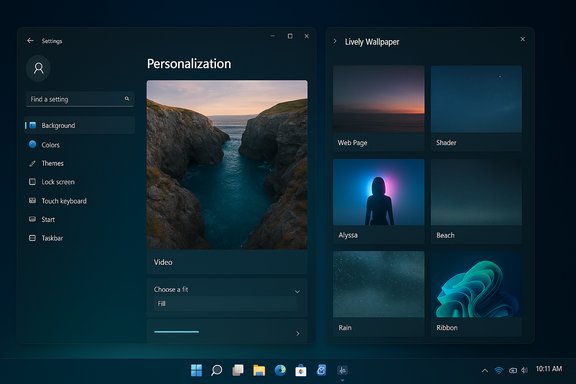
Microsoft has been observed testing a native video wallpaper feature in Windows 11 Insider Preview builds. Hands‑on reports say the behavior exposes video files to Settings > Personalization > Background and allows selecting common containers such as MP4, MKV, MOV, AVI, WMV, M4V and WebM as desktop backgrounds. Testers enabling the experimental flag used community tooling (ViVeTool) to flip an internal feature ID; this is unofficial and intended only for testers on non‑critical machines.- What testers report: video files appear in the same background picker used for images, videos loop while the desktop is visible, and Explorer gains a “Set as wallpaper” flow for supported files.
- How it’s being enabled in the wild: enabling a hidden feature flag via third‑party tooling (ViVeTool) — a community method that requires Insider builds and admin privileges; Microsoft has not published an official enablement path for stable releases.
Native vs Third‑Party: feature‑by‑feature comparison
Below is a compact comparison you can use to decide your route.- Native Windows 11 (Insider preview)
- Pros: Integrated into Settings, minimal third‑party surface, likely lower conflict risk with Explorer in the long term.
- Cons: Limited to basic video playback (so far), requires Insider builds or hidden flags right now, unknown enterprise management and power policies at launch.
- Lively Wallpaper (free, open source)
- Pros: Wide format support (videos, GIFs, webpages, shaders, small Unity/Godot scenes), WinUI 3 native look and ongoing maintenance, built‑in smart pause rules (fullscreen, battery, remote desktop).
- Cons: Web‑rendered content runs in a Chromium host, so there are security considerations for unknown pages or scripts.
- Wallpaper Engine (paid)
- Pros: Massive community Workshop, editor for interactive scenes, editor/exporter workflows, Android companion, RGB/lighting integrations, robust pause/performance controls.
- Cons: Paid app (small one‑time fee), Workshop content is user‑generated (inspect quality/permissions), can consume more resources with complex wallpapers.
Lively Wallpaper — the best free starting point
Lively Wallpaper is the most popular free/open solution for Windows 11 users who want moving desktops without paying. It’s open‑source (GPL‑v3), available on GitHub and the Microsoft Store, and built using WinUI 3 so it fits Windows 11’s visual language.Why choose Lively
- Fully free and auditable source code.
- Supports:
- Local videos (MP4, MKV, AVI, MOV, WebM), GIFs.
- Web pages and YouTube links rendered via a Chromium host.
- Shadertoy GLSL shaders, small Unity/Godot scene playback.
- Smart performance control: pause on fullscreen apps or on battery, per‑wallpaper FPS limits, per‑app rules.
Step‑by‑step: install and set a moving wallpaper with Lively
- Open Microsoft Store and search for “Lively Wallpaper,” or download the installer from the project’s GitHub releases page.
- Install and launch Lively; the app places an icon in your system tray and shows a Library of built‑in wallpapers.
- To add your own:
- Click the “+” (Add wallpaper) button.
- Choose “Browse” to pick a local video/GIF (recommended: MP4 with H.264 for compatibility) or paste a web/YouTube URL for web‑based content.
- Select the wallpaper in the Library — it applies instantly. Configure playback, mute audio, limit FPS, and create pause rules in Settings > Performance.
Practical tips when using Lively
- For laptops enable “Pause on battery” to avoid unexpected battery drain.
- When running games, confirm the Direct3D/fullscreen pause rule is active; spanning wallpapers have known edge cases with pause detection. Test on your multi‑monitor setup.
- Prefer short looped clips (10–60s), H.264 or H.265 codecs, and a resolution that matches your display (1080p for 1080p monitors). If you notice jitter, lower frame rate or resolution.
Wallpaper Engine — the power user’s choice
Wallpaper Engine remains the industry standard for feature depth and Workshop variety. It’s a paid product (low one‑time fee) on Steam that gives access to a huge community of creators and an editor for custom scenes. The Steam store lists very large review counts (hundreds of thousands) and overwhelmingly positive ratings.Key strengths
- Massive Workshop: millions of wallpapers spanning simple video loops to complex interactive WebGL or real‑time 3D scenes.
- Editor & customization: per‑wallpaper quality settings, color adjustments, audio reactivity, and parametric controls.
- Integrations: RGB/lighting control (Razer Chroma, Corsair iCUE) and a mobile companion app for Android.
How to get started with Wallpaper Engine (quick)
- Buy and install Wallpaper Engine from Steam and launch it.
- Browse the Workshop or the app’s built‑in gallery; click Subscribe on any Workshop item to download it.
- Select the downloaded wallpaper and click Apply. Configure Performance settings: choose to Pause/Stop on fullscreen apps or when on battery to reduce impact.
Considerations
- Workshop content is user generated — inspect ratings and comments before installing. Some wallpapers may be large and carry unexpected resource or storage cost.
- On low‑spec systems, prefer simpler video or 2D wallpapers and enable pause rules.
Quick alternative approaches
- VLC Media Player: can set a playing video as the desktop background via Video > Set as Wallpaper while VLC runs. This is a quick hack for temporary use, but it requires VLC to remain open, may hide desktop icons, and lacks smart pause rules. Use for short demonstrations or temporary aesthetic effects only.
- DeskScapes, RainWallpaper, Push Video Wallpapers: commercial and free alternatives with varying balances of ease and features; evaluate trials before buying.
Performance, battery, and practical tuning
Animated wallpapers use resources — how much depends on the wallpaper type (simple video vs interactive WebGL vs real‑time 3D) and your hardware.- Typical observed impacts (broad guidance, will vary by system): light 1080p MP4 loops often use only a few percent GPU in modern systems; complex HTML or interactive scenes can spike GPU usage into double‑digit percentages on lower‑end GPUs. These are empirical ranges reported by testers and community analyses, not formal lab numbers. Test on your hardware before committing.
- Battery impact: laptops can see meaningful battery drain from continuous wallpapers — many community reports estimate a 15–30% relative reduction in runtime depending on wallpaper complexity and system power management. Use pause‑on‑battery or switch to static wallpapers when unplugged.
- Practical tuning checklist:
- Lower resolution (use 1080p instead of 4K on integrated graphics).
- Cap frame rate (30 fps is often visually indistinguishable from 60 fps for loops).
- Use modern codecs with hardware decode (H.264/H.265/AV1 where supported).
- Enable pause rules for fullscreen apps, presentations, remote sessions, and battery mode.
Multi‑monitor, enterprise, and security considerations
Multi‑monitor setups
- Options usually include spanning a single wallpaper across displays or setting per‑monitor wallpapers. Interactive behaviors and pause detection can be more complex when spanning; test the pause‑on‑fullscreen behavior in your multi‑monitor configuration. Some old Lively issues show spanning can interfere with pause logic.
Enterprise management
- If you administer corporate machines, animated wallpapers raise policy questions: Group Policy, Intune controls, and enterprise imaging tools must be prepared to permit/deny wallpaper changes and to enforce battery/power rules. Avoid deploying third‑party wallpaper software on managed endpoints unless vetted by IT security.
Security and privacy
- Prefer apps distributed via the Microsoft Store or Steam and projects with visible source code (e.g., Lively’s GitHub repo) to reduce supply‑chain risks. Web‑based wallpapers execute JavaScript inside a renderer — treat unknown web wallpapers with the same caution you’d use for any website and prefer local files for security‑sensitive environments.
Troubleshooting & practical FAQ
Wallpaper disappears after reboot
- Confirm the wallpaper app is set to start with Windows (check Task Manager > Startup) and that any required background services are allowed by startup policies. If the app was installed with elevated privileges, check whether it requires admin to restore settings. Lively and Wallpaper Engine both provide startup options.
Fullscreen apps don’t pause the wallpaper
- Ensure the app’s Performance > Pause rules are enabled and that the wallpaper is not set to span across monitors (spanning has known pause detection edge cases in some tools). Test with a single‑monitor fullscreen app to isolate the cause.
Audio keeps playing from wallpaper videos
- Mute the wallpaper inside the app or in the wallpaper’s settings. Both Lively and Wallpaper Engine allow muting or audio controls for video wallpapers.
Storage or Workshop bloat (Wallpaper Engine)
- Workshop subscriptions can accumulate; inspect the Wallpaper Engine cache folder and use the app’s built‑in cleanup/management tools. Some users have reported large workshop storage footprints that require resets. Back up important custom wallpapers before mass‑cleanup.
Final verdict — which route to pick
- If you want a free, well‑integrated, and safe for most users solution today: start with Lively Wallpaper. It’s open‑source, actively maintained, and includes the key performance and pause controls that make animated wallpapers practical.
- If you want the largest selection, deep customization, and interactive scenes: Wallpaper Engine on Steam remains the best paid option, especially for enthusiasts and creators who’ll benefit from the Workshop and editor.
- If you prefer to minimize third‑party software and experiment with Microsoft’s native path: track Windows Insider channels — the video wallpaper capability is visible in Dev/Beta preview builds but requires enabling an experimental flag now and will not be practical for everyone until (and unless) Microsoft ships it to stable channels. Use Insider builds only on test machines and expect behavior to change.
Closing thoughts
Animated wallpapers are no longer a gimmick reserved for niche rigs — today’s tools let you balance visual flair with practical controls that respect battery life, gaming performance, and enterprise policies. The most pragmatic approach for most Windows 11 users is to adopt a proven third‑party app (Lively for free, Wallpaper Engine for paid/super‑customization), configure pause and battery rules, and test wallpaper complexity against your hardware. If you prefer first‑party integration, keep an eye on Windows Insider channels for Microsoft’s native video wallpaper experiments, but treat those builds as previews, not production features. With sensible settings and a measured choice of content, you can enjoy moving wallpapers that enhance your desktop without turning your machine into an energy‑hungry demo — and for many users, the ability to fine‑tune pause rules and codec choices makes animated desktops a practical and delightful part of the Windows 11 experience.Source: How2shout How to Get Moving Wallpapers on Windows 11: Guide to Animated Desktops
