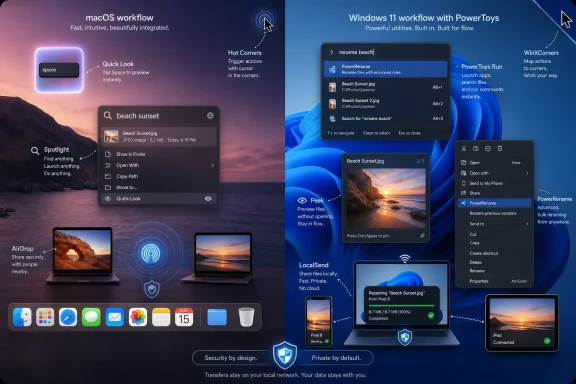
Windows 11 users can add several macOS-style workflow features today by combining Microsoft PowerToys with built-in tools like Nearby Sharing and selective third-party utilities for file transfer, hot corners, previewing, search, and bulk renaming. The more interesting story is not that Windows lacks exact Apple equivalents, but that Microsoft has left too many daily-productivity niceties scattered across optional downloads, legacy dialogs, and uneven system surfaces. macOS wins here less by inventing magic than by making small accelerators feel native, predictable, and close at hand.
The familiar Windows-versus-macOS debate usually collapses into market share, gaming support, hardware choice, or ecosystem lock-in. Windows dominates the PC world by breadth; macOS wins loyalty by restraint. But the five features called out in BGR’s comparison — AirDrop, Spotlight, Quick Look, Hot Corners, and richer batch renaming — expose a narrower and more useful truth: Apple has historically been better at turning repetitive desktop motions into low-friction habits.
None of these ideas is conceptually difficult. Send a file to a nearby device. Press a key combo and find an app or document. Preview a file without launching a full application. Throw the pointer into a corner to trigger an action. Rename a pile of files according to a pattern. These are not grand platform shifts; they are seconds shaved from operations people perform dozens of times a week.
Windows 11 can do versions of nearly all of this. In some cases, it can do more. The problem is that the best answers often live outside the clean, default path. You install PowerToys. You enable a module. You remember a non-obvious shortcut. You learn that one sharing option works for Windows PCs, another works for Android phones, and another depends on OneDrive or Phone Link. Microsoft’s ecosystem has the ingredients, but Apple’s pitch is simpler: the good workflow is already waiting for you.
That distinction matters because modern desktop operating systems are no longer judged only by whether they can run the right applications. For power users and administrators, the operating system is also judged by how much fiddling it demands before it gets out of the way.
Windows 11 has Nearby Sharing, and it is better than many users remember. It can share documents, photos, links, and other content with nearby Windows devices using Bluetooth and Wi-Fi, and recent Windows 11 builds have improved the Wi-Fi side of the experience when machines are on the same private network. For households and small offices where the target device is another Windows PC, it is worth turning on before installing anything else.
The catch is that Nearby Sharing is not AirDrop for the mixed-device world most people actually inhabit. AirDrop moves between Macs, iPhones, and iPads because those devices participate in a tightly controlled identity and hardware ecosystem. Windows, by design and by market reality, has to coexist with Android, iOS, corporate policy, OEM utilities, Microsoft accounts, local accounts, domain accounts, and machines built across a decade of wireless chipsets.
That is why the Windows answer quickly becomes plural. Nearby Sharing is the Windows-to-Windows answer. Phone Link helps in the Windows-and-Android lane, especially for Samsung and other supported devices. Google’s Quick Share for Windows is the more AirDrop-like answer for Android phones and Windows PCs. OneDrive is the cloud-mediated answer when proximity does not matter. SMB shares are the old-school answer when an admin wants deterministic behavior on a LAN.
That menu is powerful, but it is not elegant. The average user does not want to choose between four mental models for “send this file over there.” The admin does, perhaps, but even the admin wants fewer support tickets.
Microsoft’s best move would be to make the Share sheet in Windows 11 more honest and more ambitious. Rather than pretending Nearby Sharing alone solves the problem, Windows should surface local Windows PCs, paired Android devices, OneDrive targets, and organization-approved destinations in a single predictable hierarchy. AirDrop is a feature; what Windows needs is a coherent sharing fabric.
Windows Search has had years to become that interface, and parts of it are genuinely useful. Press the Windows key, type an app name, and launch. Search settings. Find files. Pull web results if you want them. Yet the experience still feels split between a productivity tool and a traffic director for Microsoft services. Depending on configuration, indexing state, account status, and network conditions, Windows Search can feel either immediate or strangely heavy.
This is where PowerToys changes the conversation. PowerToys Run, and more recently Command Palette, represent Microsoft’s clearest acknowledgment that power users want a keyboard-first command surface that behaves more like Spotlight or the command palettes found in modern developer tools. Command Palette can launch apps, invoke commands, and extend into additional workflows. It is the sort of feature that makes Windows feel less like a pile of entry points and more like an instrument.
But the word “PowerToys” is doing too much work. A feature this central should not feel like an enthusiast add-on. Microsoft has spent years refining the Windows 11 Start menu, taskbar, widgets surface, Copilot integration, and search box placement. Yet the fastest and cleanest answer for many users is still to install an optional utility maintained under the PowerToys banner.
That says something uncomfortable about Windows 11’s priorities. Microsoft knows how to build the tool power users want; it has, in fact, built it. The missing step is treating that tool as a first-class part of the desktop rather than a side project for people who already know where to look.
For WindowsForum readers, the practical answer is simple: install PowerToys, enable Command Palette, and spend time with its shortcuts before judging it. The strategic answer is more pointed: Windows Search should learn from Command Palette, not compete with it.
Windows 11 has preview panes, thumbnails, and app-specific handlers, but the experience is inconsistent. File Explorer can show useful previews for some formats, and the Details pane has improved, but it still does not deliver the same quick, modal, keyboard-driven inspection habit that macOS users expect. Opening a file to see whether it is the right file remains more common than it should be.
PowerToys Peek is Microsoft’s strongest answer. It brings a Quick Look-style preview experience to Windows, letting users inspect selected files without fully opening them in their associated applications. For users who sort through screenshots, PDFs, logs, media files, or design assets, Peek is one of those utilities that becomes obvious in hindsight. Once it is part of the workflow, the old way feels wasteful.
The enterprise angle is also worth noticing. Preview behavior is not merely convenience; it affects risk. Users opening unknown attachments or unfamiliar files in full applications create more opportunities for accidental execution, macro prompts, or app-level exposure. A controlled preview surface does not eliminate that risk, but it can reduce the number of unnecessary application launches in day-to-day triage.
Again, the critique is not that Windows cannot do it. The critique is that users have to know the better behavior exists. PowerToys Peek should be the prototype for a native File Explorer preview command with clear security boundaries, consistent file-type support, and a default shortcut users can discover without reading a blog post.
Windows has flirted with edge-based interaction for decades, from the Start button’s bottom-left gravity to Windows 8’s charms and hot corners. The Windows 8 era also explains why Microsoft may be cautious. Edge gestures became associated with confusion, especially for mouse-and-keyboard users who did not want tablet metaphors invading the desktop. Windows 11, by contrast, is conservative around corners.
That conservatism leaves a gap for users who like spatial triggers. Third-party utilities such as WinXCorners and similar tools can reproduce some macOS-style Hot Corner behavior on Windows, while other automation tools can approximate it with mouse position triggers and scripts. PowerToys does not currently provide a direct Hot Corners module in the same way it provides Peek or PowerRename, although its broader set of mouse and window-management utilities often solves adjacent problems.
This is one area where Windows users should be selective rather than nostalgic. Hot Corners are useful when the action is low-risk and reversible: show desktop, reveal windows, lock screen, launch a search overlay. They are much less appealing when they trigger disruptive actions on multi-monitor workstations, remote sessions, shared kiosks, or gaming rigs.
The absence of native Hot Corners in Windows 11 may be less a failure than a design choice. But it would still be useful for Microsoft to offer an optional, policy-controllable implementation. The feature belongs in Accessibility or Personalization, not in the mandatory desktop path. Give enthusiasts the spatial shortcuts; give admins the Group Policy switch to disable them.
Windows 11 can rename multiple files natively, but the built-in behavior is crude. Select a group, rename one file, and Windows will apply a numbered pattern. That is fine for “Vacation (1), Vacation (2), Vacation (3)” and poor for almost everything else. Anyone who has had to normalize hundreds of filenames knows the difference between a convenience and a tool.
PowerToys PowerRename is the real Windows answer. It supports search-and-replace operations, regular expressions, previews, case transformations, and more careful control over filenames and extensions. In the hands of an IT pro, developer, photographer, or data wrangler, it is not merely a macOS catch-up feature. It can be the more powerful instrument.
The irony is that PowerRename demonstrates both the strength and weakness of Microsoft’s current approach. Windows has a first-party, free, open-source utility that solves the problem well. It integrates into the shell. It is mature enough to recommend broadly. But because it is packaged as part of PowerToys, many ordinary users never encounter it, and many managed environments treat it as another optional installation requiring approval.
There is a reasonable argument for keeping advanced rename features out of the default File Explorer UI. Regular expressions and bulk extension changes can frighten casual users and create support problems. But there is no good argument for the current gulf between the primitive built-in multi-rename behavior and the much better Microsoft-made tool sitting one install away.
A smarter File Explorer would offer a basic batch rename dialog by default and expose PowerRename-grade controls behind an “advanced” expansion. That would preserve approachability while admitting that modern file work often involves patterns, metadata, and cleanup at scale.
That is healthy in one sense. PowerToys gives Microsoft a faster channel for enthusiast utilities without forcing every experiment into Windows proper. It lets features evolve in public, with feedback from users who actually care about workflow. For administrators, it also creates a useful distinction between the supported operating system baseline and optional power-user tooling.
But the arrangement is also a confession. If enough users install the same utility immediately after setting up Windows, the utility is no longer merely optional. It is compensating for the platform. At that point, Microsoft has to decide whether PowerToys is a toolbox, an incubator, or a permanent holding pen for features the Windows team does not want to own.
The answer may vary by module. Some PowerToys features should remain enthusiast-grade. Others deserve promotion. Command Palette, Peek, and a simplified PowerRename are the obvious candidates for deeper integration because they improve fundamental OS tasks: finding, inspecting, and organizing.
This is where Apple’s vertically integrated model gives macOS an editorial advantage. Apple can decide that a behavior belongs in the operating system and make it feel inevitable. Microsoft often has to support more hardware, more workflows, and more institutional caution. Still, complexity is not an excuse for burying good ideas.
For file sharing, start with the ecosystem you actually use. If your world is mostly Windows PCs, enable Nearby Sharing and test it on your network before assuming it is useless. If Android phones are involved, install and configure Quick Share for Windows where policy allows. If you are already paying for Microsoft 365, OneDrive may be the least exciting but most reliable answer, especially across distance and device types.
For Spotlight-style launching, PowerToys Command Palette is the obvious first stop. It is not merely an app launcher; it is a sign of where Windows productivity should go. Users who live at the keyboard will get more from it than from yet another Start menu tweak.
For Quick Look-style previews, PowerToys Peek is the feature to enable and teach. The behavior is easy to understand, immediately useful, and low drama. It is also the sort of thing that changes how people move through folders, because previewing no longer feels like a context switch.
For Hot Corners, be more careful. If you miss the macOS behavior, a lightweight third-party tool can fill the gap, but this is not a feature to deploy casually across managed fleets. Test it on multi-monitor setups, remote-desktop workflows, and systems used for presentations before calling it a win.
For batch renaming, PowerRename is the clear recommendation. It is one of the best examples of Windows having a stronger power-user answer than macOS, provided the user knows it exists.
Windows users are accustomed to that sprawl. Many even like it, because sprawl creates choice. A sysadmin can standardize one tool, a developer can script another, and an enthusiast can replace half the shell if they want to. That flexibility is a competitive advantage.
But flexibility becomes tax when common tasks require folklore. “Install this Microsoft utility that is not really part of Windows, enable this module, change this shortcut, and ignore the built-in version” is not a great answer for a platform used by hundreds of millions of people. It is acceptable for power users; it is poor product design for everyone else.
The healthiest future for Windows is not macOS imitation. It is curation. Microsoft should look at the PowerToys modules with broad, repeated appeal and graduate the least controversial ones into Windows proper, while leaving the more specialized tools in the enthusiast kit. That would preserve PowerToys as an innovation channel without forcing ordinary users to discover basic productivity features by accident.
The opportunity is especially important now because Windows 11 is competing for attention with its own AI ambitions. Copilot and cloud intelligence may become useful parts of the desktop, but they do not replace the small rituals that make an operating system feel fast. A user who cannot quickly preview a PDF, rename 200 files intelligently, or send a photo to a nearby device will not be comforted by another AI button.
 Apple’s Advantage Is Not the Feature List, It Is the Default
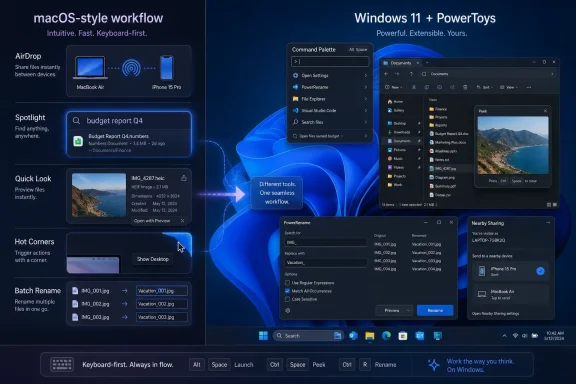
The familiar Windows-versus-macOS debate usually collapses into market share, gaming support, hardware choice, or ecosystem lock-in. Windows dominates the PC world by breadth; macOS wins loyalty by restraint. But the five features called out in BGR’s comparison — AirDrop, Spotlight, Quick Look, Hot Corners, and richer batch renaming — expose a narrower and more useful truth: Apple has historically been better at turning repetitive desktop motions into low-friction habits.None of these ideas is conceptually difficult. Send a file to a nearby device. Press a key combo and find an app or document. Preview a file without launching a full application. Throw the pointer into a corner to trigger an action. Rename a pile of files according to a pattern. These are not grand platform shifts; they are seconds shaved from operations people perform dozens of times a week.
Windows 11 can do versions of nearly all of this. In some cases, it can do more. The problem is that the best answers often live outside the clean, default path. You install PowerToys. You enable a module. You remember a non-obvious shortcut. You learn that one sharing option works for Windows PCs, another works for Android phones, and another depends on OneDrive or Phone Link. Microsoft’s ecosystem has the ingredients, but Apple’s pitch is simpler: the good workflow is already waiting for you.
That distinction matters because modern desktop operating systems are no longer judged only by whether they can run the right applications. For power users and administrators, the operating system is also judged by how much fiddling it demands before it gets out of the way.
AirDrop’s Real Trick Is Trust, Not Radio Magic
AirDrop’s appeal is often described as if Apple discovered some exotic wireless technique that Microsoft never learned. That misses the point. The brilliance of AirDrop is not merely that it transfers files over local wireless connections; it is that discovery, identity, consent, and transfer are wrapped into a flow that ordinary users can understand without learning network sharing.Windows 11 has Nearby Sharing, and it is better than many users remember. It can share documents, photos, links, and other content with nearby Windows devices using Bluetooth and Wi-Fi, and recent Windows 11 builds have improved the Wi-Fi side of the experience when machines are on the same private network. For households and small offices where the target device is another Windows PC, it is worth turning on before installing anything else.
The catch is that Nearby Sharing is not AirDrop for the mixed-device world most people actually inhabit. AirDrop moves between Macs, iPhones, and iPads because those devices participate in a tightly controlled identity and hardware ecosystem. Windows, by design and by market reality, has to coexist with Android, iOS, corporate policy, OEM utilities, Microsoft accounts, local accounts, domain accounts, and machines built across a decade of wireless chipsets.
That is why the Windows answer quickly becomes plural. Nearby Sharing is the Windows-to-Windows answer. Phone Link helps in the Windows-and-Android lane, especially for Samsung and other supported devices. Google’s Quick Share for Windows is the more AirDrop-like answer for Android phones and Windows PCs. OneDrive is the cloud-mediated answer when proximity does not matter. SMB shares are the old-school answer when an admin wants deterministic behavior on a LAN.
That menu is powerful, but it is not elegant. The average user does not want to choose between four mental models for “send this file over there.” The admin does, perhaps, but even the admin wants fewer support tickets.
Microsoft’s best move would be to make the Share sheet in Windows 11 more honest and more ambitious. Rather than pretending Nearby Sharing alone solves the problem, Windows should surface local Windows PCs, paired Android devices, OneDrive targets, and organization-approved destinations in a single predictable hierarchy. AirDrop is a feature; what Windows needs is a coherent sharing fabric.
Spotlight Shows How Much Damage a Bad Search Habit Can Do
Spotlight remains one of macOS’s most durable advantages because it understands that search is not only about documents. It is a launcher, calculator, dictionary, file finder, settings shortcut, and web starting point. More importantly, it is fast enough that users build muscle memory around it.Windows Search has had years to become that interface, and parts of it are genuinely useful. Press the Windows key, type an app name, and launch. Search settings. Find files. Pull web results if you want them. Yet the experience still feels split between a productivity tool and a traffic director for Microsoft services. Depending on configuration, indexing state, account status, and network conditions, Windows Search can feel either immediate or strangely heavy.
This is where PowerToys changes the conversation. PowerToys Run, and more recently Command Palette, represent Microsoft’s clearest acknowledgment that power users want a keyboard-first command surface that behaves more like Spotlight or the command palettes found in modern developer tools. Command Palette can launch apps, invoke commands, and extend into additional workflows. It is the sort of feature that makes Windows feel less like a pile of entry points and more like an instrument.
But the word “PowerToys” is doing too much work. A feature this central should not feel like an enthusiast add-on. Microsoft has spent years refining the Windows 11 Start menu, taskbar, widgets surface, Copilot integration, and search box placement. Yet the fastest and cleanest answer for many users is still to install an optional utility maintained under the PowerToys banner.
That says something uncomfortable about Windows 11’s priorities. Microsoft knows how to build the tool power users want; it has, in fact, built it. The missing step is treating that tool as a first-class part of the desktop rather than a side project for people who already know where to look.
For WindowsForum readers, the practical answer is simple: install PowerToys, enable Command Palette, and spend time with its shortcuts before judging it. The strategic answer is more pointed: Windows Search should learn from Command Palette, not compete with it.
Quick Look Wins Because It Respects the User’s Attention
Quick Look is one of those macOS features that sounds minor until you use a machine without it. Select a file, press the spacebar, and preview it. Images, PDFs, documents, videos, and many other file types become inspectable without committing to an application launch or breaking the flow of browsing through a folder.Windows 11 has preview panes, thumbnails, and app-specific handlers, but the experience is inconsistent. File Explorer can show useful previews for some formats, and the Details pane has improved, but it still does not deliver the same quick, modal, keyboard-driven inspection habit that macOS users expect. Opening a file to see whether it is the right file remains more common than it should be.
PowerToys Peek is Microsoft’s strongest answer. It brings a Quick Look-style preview experience to Windows, letting users inspect selected files without fully opening them in their associated applications. For users who sort through screenshots, PDFs, logs, media files, or design assets, Peek is one of those utilities that becomes obvious in hindsight. Once it is part of the workflow, the old way feels wasteful.
The enterprise angle is also worth noticing. Preview behavior is not merely convenience; it affects risk. Users opening unknown attachments or unfamiliar files in full applications create more opportunities for accidental execution, macro prompts, or app-level exposure. A controlled preview surface does not eliminate that risk, but it can reduce the number of unnecessary application launches in day-to-day triage.
Again, the critique is not that Windows cannot do it. The critique is that users have to know the better behavior exists. PowerToys Peek should be the prototype for a native File Explorer preview command with clear security boundaries, consistent file-type support, and a default shortcut users can discover without reading a blog post.
Hot Corners Reveal the Philosophical Split Between Windows and macOS
Hot Corners are divisive. Some users love the ability to shove the pointer into a corner and trigger Mission Control, show the desktop, start the screen saver, or open Launchpad. Others disable them immediately after one accidental activation too many. But their presence in macOS reflects a broader Apple instinct: screen edges and corners are not dead space; they are targets.Windows has flirted with edge-based interaction for decades, from the Start button’s bottom-left gravity to Windows 8’s charms and hot corners. The Windows 8 era also explains why Microsoft may be cautious. Edge gestures became associated with confusion, especially for mouse-and-keyboard users who did not want tablet metaphors invading the desktop. Windows 11, by contrast, is conservative around corners.
That conservatism leaves a gap for users who like spatial triggers. Third-party utilities such as WinXCorners and similar tools can reproduce some macOS-style Hot Corner behavior on Windows, while other automation tools can approximate it with mouse position triggers and scripts. PowerToys does not currently provide a direct Hot Corners module in the same way it provides Peek or PowerRename, although its broader set of mouse and window-management utilities often solves adjacent problems.
This is one area where Windows users should be selective rather than nostalgic. Hot Corners are useful when the action is low-risk and reversible: show desktop, reveal windows, lock screen, launch a search overlay. They are much less appealing when they trigger disruptive actions on multi-monitor workstations, remote sessions, shared kiosks, or gaming rigs.
The absence of native Hot Corners in Windows 11 may be less a failure than a design choice. But it would still be useful for Microsoft to offer an optional, policy-controllable implementation. The feature belongs in Accessibility or Personalization, not in the mandatory desktop path. Give enthusiasts the spatial shortcuts; give admins the Group Policy switch to disable them.
PowerRename Is the Windows Feature That Already Beats the Mac for Some Jobs
Batch renaming is the least glamorous feature in the BGR list, but it may be the most revealing. macOS Finder has a clean built-in rename tool that lets users replace text, add text, or apply a format to multiple selected files. It is approachable, obvious, and good enough for many photo sets, project folders, and document batches.Windows 11 can rename multiple files natively, but the built-in behavior is crude. Select a group, rename one file, and Windows will apply a numbered pattern. That is fine for “Vacation (1), Vacation (2), Vacation (3)” and poor for almost everything else. Anyone who has had to normalize hundreds of filenames knows the difference between a convenience and a tool.
PowerToys PowerRename is the real Windows answer. It supports search-and-replace operations, regular expressions, previews, case transformations, and more careful control over filenames and extensions. In the hands of an IT pro, developer, photographer, or data wrangler, it is not merely a macOS catch-up feature. It can be the more powerful instrument.
The irony is that PowerRename demonstrates both the strength and weakness of Microsoft’s current approach. Windows has a first-party, free, open-source utility that solves the problem well. It integrates into the shell. It is mature enough to recommend broadly. But because it is packaged as part of PowerToys, many ordinary users never encounter it, and many managed environments treat it as another optional installation requiring approval.
There is a reasonable argument for keeping advanced rename features out of the default File Explorer UI. Regular expressions and bulk extension changes can frighten casual users and create support problems. But there is no good argument for the current gulf between the primitive built-in multi-rename behavior and the much better Microsoft-made tool sitting one install away.
A smarter File Explorer would offer a basic batch rename dialog by default and expose PowerRename-grade controls behind an “advanced” expansion. That would preserve approachability while admitting that modern file work often involves patterns, metadata, and cleanup at scale.
PowerToys Has Become the Shadow Roadmap for Windows
The deeper lesson in all five comparisons is that PowerToys has become more than a nostalgia brand. It is now a parallel product laboratory for the Windows desktop. FancyZones addresses window layouts more aggressively than the stock Snap experience. Text Extractor fills gaps in everyday OCR. Keyboard Manager solves remapping needs. Peek, PowerRename, Mouse Without Borders, and Command Palette all answer real workflow demands that Windows itself only partially addresses.That is healthy in one sense. PowerToys gives Microsoft a faster channel for enthusiast utilities without forcing every experiment into Windows proper. It lets features evolve in public, with feedback from users who actually care about workflow. For administrators, it also creates a useful distinction between the supported operating system baseline and optional power-user tooling.
But the arrangement is also a confession. If enough users install the same utility immediately after setting up Windows, the utility is no longer merely optional. It is compensating for the platform. At that point, Microsoft has to decide whether PowerToys is a toolbox, an incubator, or a permanent holding pen for features the Windows team does not want to own.
The answer may vary by module. Some PowerToys features should remain enthusiast-grade. Others deserve promotion. Command Palette, Peek, and a simplified PowerRename are the obvious candidates for deeper integration because they improve fundamental OS tasks: finding, inspecting, and organizing.
This is where Apple’s vertically integrated model gives macOS an editorial advantage. Apple can decide that a behavior belongs in the operating system and make it feel inevitable. Microsoft often has to support more hardware, more workflows, and more institutional caution. Still, complexity is not an excuse for burying good ideas.
Windows 11 Users Can Steal the Best Parts Without Pretending to Own a Mac
The practical path for Windows 11 users is not to turn the desktop into a macOS clone. That usually ends badly. The goal is to identify which Apple-style workflows are actually useful and implement them in ways that respect Windows’ strengths: openness, configurability, hardware variety, and enterprise manageability.For file sharing, start with the ecosystem you actually use. If your world is mostly Windows PCs, enable Nearby Sharing and test it on your network before assuming it is useless. If Android phones are involved, install and configure Quick Share for Windows where policy allows. If you are already paying for Microsoft 365, OneDrive may be the least exciting but most reliable answer, especially across distance and device types.
For Spotlight-style launching, PowerToys Command Palette is the obvious first stop. It is not merely an app launcher; it is a sign of where Windows productivity should go. Users who live at the keyboard will get more from it than from yet another Start menu tweak.
For Quick Look-style previews, PowerToys Peek is the feature to enable and teach. The behavior is easy to understand, immediately useful, and low drama. It is also the sort of thing that changes how people move through folders, because previewing no longer feels like a context switch.
For Hot Corners, be more careful. If you miss the macOS behavior, a lightweight third-party tool can fill the gap, but this is not a feature to deploy casually across managed fleets. Test it on multi-monitor setups, remote-desktop workflows, and systems used for presentations before calling it a win.
For batch renaming, PowerRename is the clear recommendation. It is one of the best examples of Windows having a stronger power-user answer than macOS, provided the user knows it exists.
The Five Fixes Say More About Microsoft Than About Apple
The BGR list works because it names features people can immediately picture. But the larger Windows 11 critique is not that Microsoft forgot to copy Apple. It is that Microsoft too often ships workflow improvements as fragments: a shell feature here, a PowerToy there, a Store app somewhere else, a cloud service in the Share menu, and a redesigned surface that may or may not connect the pieces.Windows users are accustomed to that sprawl. Many even like it, because sprawl creates choice. A sysadmin can standardize one tool, a developer can script another, and an enthusiast can replace half the shell if they want to. That flexibility is a competitive advantage.
But flexibility becomes tax when common tasks require folklore. “Install this Microsoft utility that is not really part of Windows, enable this module, change this shortcut, and ignore the built-in version” is not a great answer for a platform used by hundreds of millions of people. It is acceptable for power users; it is poor product design for everyone else.
The healthiest future for Windows is not macOS imitation. It is curation. Microsoft should look at the PowerToys modules with broad, repeated appeal and graduate the least controversial ones into Windows proper, while leaving the more specialized tools in the enthusiast kit. That would preserve PowerToys as an innovation channel without forcing ordinary users to discover basic productivity features by accident.
The opportunity is especially important now because Windows 11 is competing for attention with its own AI ambitions. Copilot and cloud intelligence may become useful parts of the desktop, but they do not replace the small rituals that make an operating system feel fast. A user who cannot quickly preview a PDF, rename 200 files intelligently, or send a photo to a nearby device will not be comforted by another AI button.
The Mac Envy Checklist for a Better Windows 11 Setup
For all the philosophical noise, the immediate prescription is refreshingly concrete. Windows 11 users can close most of the gap in an afternoon, and IT teams can decide which of these improvements are safe enough to standardize.- Install Microsoft PowerToys if your device policy allows it, because Command Palette, Peek, and PowerRename address three of the five macOS-style gaps directly.
- Use Nearby Sharing for Windows-to-Windows transfers, but do not expect it to replace AirDrop across iPhones, iPads, Android phones, and PCs.
- Add Google Quick Share for Windows when Android-to-PC transfers are the real problem, especially in households or teams where phones are part of the daily workflow.
- Enable PowerToys Peek for fast file previews, because it changes File Explorer from an open-and-close workflow into a scan-and-act workflow.
- Use PowerRename for serious batch renaming, because Windows’ built-in multi-file rename remains too limited for structured work.
- Treat Hot Corners as a personal customization rather than a fleet default, since accidental triggers and multi-monitor behavior can outweigh the convenience.
References
- Primary source: bgr.com
Published: Sat, 06 Jun 2026 09:17:00 GMT
5 macOS Features Missing On Windows 11 (And How To Add Them)
Windows 11 misses out on various important features from macOS, such as Spotlight search, Hot Corners, and more. Here's how to add them Windows.www.bgr.com - Official source: learn.microsoft.com
Microsoft PowerToys - Windows Utilities for Power Users | Microsoft Learn
Microsoft PowerToys includes 25+ free Windows utilities including FancyZones, PowerToys Run, Color Picker, PowerRename, and more. Boost productivity for power users on Windows 10/11.learn.microsoft.com - Official source: support.microsoft.com
Share things with nearby devices in Windows | Microsoft Support
Learn how to share documents, links, and pictures with nearby devices using Bluetooth or Wi-Fi in Windows.support.microsoft.com - Related coverage: windowscentral.com
How to use PowerToys Command Palette on Windows 11 | Windows Central
Is Windows 11 Search not good enough for you? Try PowerToys Command Palette, and here's how to get started.www.windowscentral.com - Related coverage: makeuseof.com
How to Add the Hot Corners Feature From macOS to Windows 11
macOS contains some handy features that Windows doesn't have by default. Add the hot corners feature to Windows 11 with these apps. www.makeuseof.com
- Related coverage: howtogeek.com
"AirDrop" for Windows: How to Use Nearby Sharing in Windows 11
Wireless transfers between Windows PC can be a breeze, but few people know about it. www.howtogeek.com
- Related coverage: techradar.com
I'm transforming Windows 11 in 2026 using PowerToys – here's how you can too | TechRadar
PowerToys isn't just for power-userswww.techradar.com - Related coverage: pcgamer.com
It's only a little thing but with the latest Windows update, Microsoft has dragged its OS into the modern world of sharing audio streams | PC Gamer
The checklist for it all to work is a tad convoluted, though.www.pcgamer.com