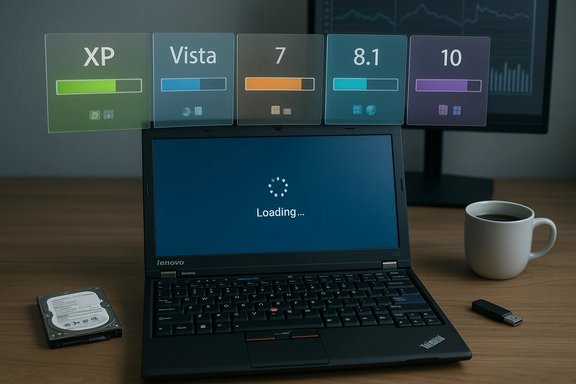
A recent community speed comparison that installed Windows XP through Windows 11 on identical Lenovo ThinkPad X220 laptops landed an attention-grabbing verdict: Windows 11 finished near the bottom in nearly every responsiveness and resource-efficiency test, while Windows 8.1 surprisingly emerged as the snappiest overall on that vintage hardware. The results were widely shared and debated across the tech press and forums after the original tester published a long-form video of the experiment.
The experiment used a bank of Lenovo ThinkPad X220 notebooks, each configured with an Intel Core i5‑2520M processor, 8 GB of RAM, Intel HD Graphics 3000 and a 256 GB mechanical hard disk drive. The tester performed clean installations of Windows XP (64‑bit where applicable), Vista, 7, 8.1, 10, and 11 and ran a broad battery of real‑world and synthetic tasks: cold boot timings, idle memory measurements, app launch times (Paint, File Explorer, Calculator), a browser tab‑stress test, file copy operations, battery‑drain loops, and short content‑creation tasks like audio/video exports. These consistent, per‑machine comparisons are provocative because they isolate OS‑level differences while keeping hardware constant.
Why this matters: the X220 is intentionally constrained by modern standards — a Sandy Bridge mobile CPU and an HDD — so the experiment amplifies the cost of background services, preloads, compositors and modern security features that assume faster storage and larger RAM pools. On such hardware, design trade‑offs that are invisible on new machines become painfully apparent.
At the same time, the test is not a universal condemnation of Windows 11. On modern hardware — NVMe SSDs, 16+ GB RAM, and CPUs with execution features that blunt VBS overhead — Windows 11 generally performs acceptably and delivers security features and functionality older releases cannot match. The practical takeaway for users who want a responsive Windows 11 experience is simple: invest in storage and memory first, understand the security tradeoffs of disabling protections, and prefer supported, updated builds rather than nostalgia for unsupported operating systems.
For enthusiasts and IT professionals, the lesson is practical and actionable: hardware upgrades matter more than a change of OS when perceived sluggishness strikes. For Microsoft, the experiment is a reminder that perceived performance — Explorer snappiness, taskbar readiness, basic app launches — still matters deeply to users, and that transparent defaults and targeted lightweight profiles would reduce friction for the broad installed base that still runs midrange or older hardware. The conversation this test has started is healthy: it forces vendors and platform maintainers to reconcile modern feature sets with older realities, and it gives users a factual basis to weigh security, capability and raw responsiveness when they choose hardware or decide whether to upgrade.
Source: OC3D Windows 11 gets destroyed in Windows XP-to-11 OS speed test - OC3D
 Background / Overview
The experiment used a bank of Lenovo ThinkPad X220 notebooks, each configured with an Intel Core i5‑2520M processor, 8 GB of RAM, Intel HD Graphics 3000 and a 256 GB mechanical hard disk drive. The tester performed clean installations of Windows XP (64‑bit where applicable), Vista, 7, 8.1, 10, and 11 and ran a broad battery of real‑world and synthetic tasks: cold boot timings, idle memory measurements, app launch times (Paint, File Explorer, Calculator), a browser tab‑stress test, file copy operations, battery‑drain loops, and short content‑creation tasks like audio/video exports. These consistent, per‑machine comparisons are provocative because they isolate OS‑level differences while keeping hardware constant.Why this matters: the X220 is intentionally constrained by modern standards — a Sandy Bridge mobile CPU and an HDD — so the experiment amplifies the cost of background services, preloads, compositors and modern security features that assume faster storage and larger RAM pools. On such hardware, design trade‑offs that are invisible on new machines become painfully apparent.
What the test measured and the headline findings
Key measurements
- Cold boot and resume times, including hybrid Fast Startup behavior.
- Idle RAM footprint immediately after sign-in.
- Installed disk footprint (OS + default inbox apps).
- Application launch and shell responsiveness (Explorer, Paint, Calculator).
- Browser tab density under a capped memory threshold.
- Battery life under a synthetic workload.
- Simple content tasks (audio export, short video render) and a handful of synthetic benchmarks.
Headline outcomes
- Windows 8.1 recorded the fastest perceived boot and the best overall responsiveness on the ThinkPad X220 testbed.
- Windows XP used the smallest disk and memory footprint at idle, but is functionally incompatible with modern web and security realities.
- Windows 11 used the most idle RAM (roughly 3.3–3.7 GB on that rig), required longer to reach a fully ready shell (desktop visible but taskbar/menus lagging), and finished near the bottom in most app‑launch, tab‑density and simple content‑creation tasks.
Technical verification: the hardware and Windows requirements
The ThinkPad X220 hardware
The ThinkPad X220 is a well‑known enthusiast platform. The CPU used in the test, the Intel Core i5‑2520M, is a dual‑core Sandy Bridge mobile processor with Hyper‑Threading (2 cores / 4 threads), launched in 2011. Official specifications and independent hardware databases confirm the CPU’s characteristics and that stock X220 machines commonly shipped with 4 GB of RAM and support up to 8 GB (and in practice many boards accept 16 GB with unofficial upgrades). The machine’s default integrated GPU is Intel HD Graphics 3000 and many X220 units used mechanical SATA HDDs unless upgraded.Windows 11 hardware baseline vs. the testbed
Microsoft’s published minimum requirements for Windows 11 list 4 GB RAM, 64 GB storage, TPM 2.0 and UEFI/Secure Boot, along with a compatible 64‑bit processor. Windows 11’s design assumes modern firmware and storage subsystems; while the OS will install on a broader set of hardware with workarounds, running it on unsupported legacy devices puts it into a configuration it was not tuned for. This mismatch is the central caveat of the speed test.Why Windows 11 trailed on this specific testbed — the technical anatomy
The experiment’s conclusion — that Windows 11 is slower than many older versions on the X220 platform — is factually consistent with how modern OS design interacts with old hardware. The important technical mechanisms include:1. Baseline resident services and feature creep
Modern Windows editions ship with a larger set of resident agents and services by default: telemetry/cloud connectors, OneDrive and sync agents, modern inbox apps, widget/Copilot plumbing, indexing/search agents, and stronger security subsystems. Each resident agent raises the idle memory floor and can trigger periodic I/O and CPU activity. On systems with limited RAM and a slow HDD, these background costs reduce the headroom available for interactive tasks, increasing paging and I/O contention. The test’s measured idle RAM levels reflect this trend.2. Storage speed is the multiplier
Modern Windows makes heavy use of storage for prefetching, compressed system files, and fast resume techniques that assume SSD‑class throughput. Running a contemporary OS designed for NVMe/SATA SSDs on a spinning disk magnifies perceived latency: preloads and concurrent background I/O create queueing and latency spikes that slow app launches and shell responsiveness. Windows 8.1’s Fast Startup (hybrid hibernation) can be surprisingly effective on HDD machines — it was optimized in a different era and performed well on the X220 in this test. Microsoft documentation describes how Fast Startup saves key kernel state to disk and restores it faster than a full cold boot in many scenarios.3. Security features and virtualization overhead
Windows 11 has pushed hardware‑backed security features such as Virtualization‑Based Security (VBS) and Hypervisor‑Protected Code Integrity (HVCI / Memory Integrity) more aggressively than previous releases. When these features are enabled they create an extra memory and execution layer that protects kernel integrity but imposes measurable overhead. Published benchmarks and security writeups show a nontrivial performance impact from VBS/HVCI — the hit is larger on older microarchitectures and when supporting hardware features that mitigate overhead (for example, Mode Based Execution Control) are absent. Disabling VBS/HVCI can reduce overhead, but that tradeoff sacrifices a meaningful security boundary.4. Driver maturity and GPU/compositor interaction
Modern shell compositors and UI animations delegate more to the GPU and rely on newer driver stacks. The Intel HD 3000 drivers available for a Sandy Bridge GPU are decades old and were not written for modern Win‑UI shells; driver inefficiencies and compositor fallbacks can increase CPU and memory usage on these machines, harming perceived shell responsiveness.Strengths and limitations of the test
Strengths
- Controlled hardware baseline: Using identical physical hardware for each Windows generation isolates OS‑level differences cleanly and reproducibly.
- Everyday workloads: The tester focused on interactive, user‑visible tasks (boot, Explorer, app launches, browser tab scenarios), which are precisely where users perceive slowness.
- Transparency: The video and notes reveal methodology, which lets others inspect or reproduce the experiment.
Limitations and methodological caveats
- Unsupported hardware for Windows 11: The ThinkPad X220 does not meet Microsoft’s intended baseline for Windows 11. Running an OS on unsupported gear is a stress case not a general performance verdict for contemporary devices.
- Storage choice (HDD vs SSD): A mechanical drive punishes modern prefetching and background loads; results would differ dramatically on NVMe/SATA SSDs.
- App and feature version skew: Built‑in apps like Paint and Calculator have evolved; newer versions are more capable but heavier. Comparing app launch times across generations sometimes measures app complexity in addition to OS overhead.
- Driver and update parity: Some older OSes use legacy drivers that are optimized for their era; modern OSes may lack equally optimized drivers for the decade‑old GPU, biasing results.
- Single testbed generalizability: Results are valid for the specific hardware and software configuration tested — they are not a universal statement that Windows 11 is slower on all PCs.
What the test proves — and what it doesn’t
What it proves:- On constrained, HDD‑based, decade‑old hardware, Windows 11’s modern feature set and baseline services produce a larger idle memory footprint and more frequent I/O, which translate into slower app launches and shell responsiveness compared to lighter historic releases like Windows 8.1 or Windows 7.
- It does not prove that Windows 11 is objectively worse on modern hardware equipped with NVMe SSDs, more RAM, and current CPU microarchitectures. In many contemporary systems, Windows 11’s performance and security curve‑fitting deliver acceptable or even superior outcomes versus older releases.
Practical, evidence‑based takeaways for users and IT admins
- Prioritize hardware upgrades before changing an OS: On any system feeling sluggish, upgrade storage to an SSD and add RAM. On the testbed, those two changes would likely flip the verdict for Windows 11. The ThinkPad X220 supports mSATA or internal SATA upgrades and benefits dramatically from an SSD upgrade.
- Understand security trade‑offs: Disabling VBS/HVCI can reclaim some performance but removes kernel‑level protections that mitigate severe threats. For single‑user home machines where risk tolerance is higher, toggling memory integrity may help; for business or security‑sensitive environments, keep protections enabled and instead invest in hardware that amortizes their cost.
- If you must run modern Windows on legacy hardware: accept that compromises are necessary. Use lightweight desktop environments, disable unnecessary background agents where feasible, and focus on storage and RAM as multiplier upgrades.
- Resist nostalgia for unsupported older Windows on production machines: Windows XP/7 and other legacy releases may feel snappier, but they are unsupported and carry unpatched security risks that make them poor choices for networked, everyday use.
Opportunities and responsibilities for Microsoft
The test and its reception identify concrete engineering and product priorities Microsoft should continue to address:- Shell and Explorer optimizations: Users repeatedly call out Explorer and basic shell responsiveness as pain points; incremental work to reduce idle costs and lower the shell’s memory floor would be high‑return. The company has communicated plans for explorer and search improvements in Insider channels, but wider delivery and telemetry transparency would rebuild trust.
- Better fallbacks for HDD and constrained devices: While Microsoft reasonably targets modern hardware, a sizeable installed base still uses midrange or older machines. Offering explicit "light" installation profiles (reduced background agents, limited animations, minimal cloud hooks) could preserve security updates while offering better performance on constrained devices.
- Clearer defaults on VBS/HVCI: The security trade‑off is real; Microsoft and OEMs should make the trade clearer at setup and provide safe, supported ways to tune defaults for performance‑sensitive scenarios without leaving users in an unsupported security posture. Tom’s Hardware and other independent testing confirm VBS/HVCI can be a measurable drag on performance — not a reason to remove the feature, but a reason to make enabling choices explicit and explain hardware requirements to OEMs and buyers.
A closer look at some concrete numbers (as reported in the test)
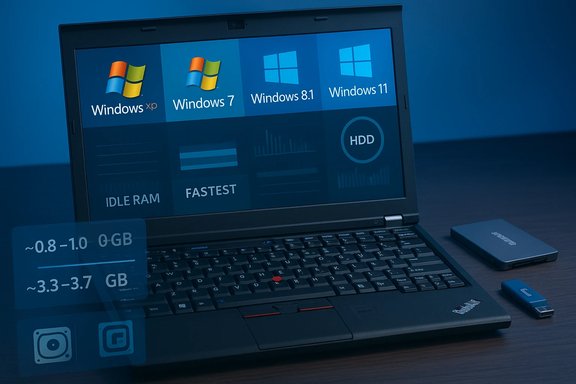
- Idle RAM: the test reports roughly 0.8–1.0 GB idle for Windows XP, ~3.3–3.7 GB idle for Windows 11 on the X220 hardware. These are lab measurements specific to the tester’s configuration and number of inbox apps enabled. They’re useful for relative comparison but are not universal constants — idle memory depends on image composition, enabled features, device drivers, and telemetry settings.
- Browser tab stress: in a capped memory test the tester reported ~252 tabs sustained on Windows 8.1, while Windows 11 stalled under 50 tabs. This dramatic difference illustrates how a higher idle floor plus less effective caching on a slow HDD yields worse scaling under memory pressure. Absolute tab counts will vary with browser build, extensions and tab content, but the pattern is consistent: older, lighter shells leave more headroom.
- Boot and shell readiness: Windows 8.1’s hybrid fast‑startup delivered the fastest perceived boot on the mechanical drive used; Windows 11 frequently reached a visible desktop sooner but then took additional seconds to make the taskbar, system tray and context menus fully responsive — a poor user experience that feels like a slower boot. Windows documentation and contemporaneous coverage explain why hybrid resume affects perceived readiness on HDDs.
Verdict: context is everything
The ThinkPad X220 speed test is a valuable, repeatable thought experiment that surfaces the design trade‑offs Windows has made over the last decade: favoring security, cloud integration and richer UX on the expectation of faster storage and larger memory. On a platform that violates those expectations, modern Windows does indeed look heavier and slower. That outcome is neither surprising nor meaningless — it’s an important signal for enthusiasts, buyers and Microsoft alike.At the same time, the test is not a universal condemnation of Windows 11. On modern hardware — NVMe SSDs, 16+ GB RAM, and CPUs with execution features that blunt VBS overhead — Windows 11 generally performs acceptably and delivers security features and functionality older releases cannot match. The practical takeaway for users who want a responsive Windows 11 experience is simple: invest in storage and memory first, understand the security tradeoffs of disabling protections, and prefer supported, updated builds rather than nostalgia for unsupported operating systems.
Conclusion
The X220 multi‑OS speed comparison is a clear, well‑executed demonstration of a fundamental truth: software performance is inseparable from hardware expectations. Windows 11’s heavier baseline and modern security posture cost perceptible responsiveness on HDD‑based, low‑RAM laptops; Windows 8.1 and even Windows 7 can feel faster there, but at a severe cost in security and compatibility.For enthusiasts and IT professionals, the lesson is practical and actionable: hardware upgrades matter more than a change of OS when perceived sluggishness strikes. For Microsoft, the experiment is a reminder that perceived performance — Explorer snappiness, taskbar readiness, basic app launches — still matters deeply to users, and that transparent defaults and targeted lightweight profiles would reduce friction for the broad installed base that still runs midrange or older hardware. The conversation this test has started is healthy: it forces vendors and platform maintainers to reconcile modern feature sets with older realities, and it gives users a factual basis to weigh security, capability and raw responsiveness when they choose hardware or decide whether to upgrade.
Source: OC3D Windows 11 gets destroyed in Windows XP-to-11 OS speed test - OC3D