

Microsoft’s plain-language support page on Windows activity history makes a clear, simple claim: the activity history that helps Windows “remember” what you were doing is kept on your device — and you control whether Windows stores it or not.
Activity history is the Windows feature that records the apps you use, the files you open, and the webpages you visit so the system can offer continuity features like Timeline and (in newer builds) on‑device search tools. Microsoft’s support documentation explicitly states this data is stored locally on the device by default and that you can manage — or clear — that history from Settings > Privacy & security > Activity history.
That statement reflects a broader, evolving approach Microsoft has taken over the last several years: proviductivity features while giving users toggles to limit collection, and a separate web privacy dashboard for cloud‑synced activity. Windows’ Timeline feature (Windows 10) and the privacy controls introduced in subsequent releases are good examples of that trade‑off in practice.
This article unpacks how activity history works, what exactly is recorded and where it is stored, how Microsoft’s cloud and device distinctions affect privacy, the new Recall snapshots debate, practical steps to audit and delete history, and the realistic privacy risks users should weigh when enabling continuity features.
Microsoft’s own OOBE and privacy statements reiterate that activity history is created on the device by various apps and services including legacy Edge, some Microsoft Store apps, and Microsoft 365 apps. That aligns with the forensic findings above.
Third‑party browser developers and privacy advocates have pushed back: some apps (Signal, Brave, AdGuard) implemented protections to block Recall from capturing their UI, citing risk that snapshots might expose sensitive conversations and data if misused or if a device is compromised. Those real‑world reactions show why activity capture that includes imagery is qualitatively different from logging “app X used at time Y.”
If you care about privacy, the sensible path is to treat activity features as configurable conveniences: enable the parts you need, harden the device (encryption, secure sign‑in), and periodically clear both local and cloud activity. For organizations, the imperative is stronger: manage these features centrally, apply encryption and access controls, and educate users about the trade‑offs of richer activity capture. The trust Microsoft asks for — to let Windows remember your work for you — is conditional on users being informed and administrators setting appropriate protections.
Source: Microsoft Support Windows activity history and your privacy - Microsoft Support
 Background / Overview
Activity history is the Windows feature that records the apps you use, the files you open, and the webpages you visit so the system can offer continuity features like Timeline and (in newer builds) on‑device search tools. Microsoft’s support documentation explicitly states this data is stored locally on the device by default and that you can manage — or clear — that history from Settings > Privacy & security > Activity history.That statement reflects a broader, evolving approach Microsoft has taken over the last several years: proviductivity features while giving users toggles to limit collection, and a separate web privacy dashboard for cloud‑synced activity. Windows’ Timeline feature (Windows 10) and the privacy controls introduced in subsequent releases are good examples of that trade‑off in practice.
This article unpacks how activity history works, what exactly is recorded and where it is stored, how Microsoft’s cloud and device distinctions affect privacy, the new Recall snapshots debate, practical steps to audit and delete history, and the realistic privacy risks users should weigh when enabling continuity features.
What Windows means by “activity history”
The basics — what gets recorded
Activity history collects metadata about your use of the device:- Which apps were used and when.
- Which files you opened (document names, not full file contents in most cases).
- Which websites or browser sessions appear in the activity stream when browser integration is enabled.
- System events that feed features like Timeline and other “resume” experiences.
Local vs. cloud: the key distinction
A crucial distinction that often gets lost in discussion is where the data lives:- Local storage: By default, activity history is stored on the device and can be cleared there. Microsoft’s documentation stresses that activity history is created and stored locally to enable features like Timeline and on‑device search.
- Cloud sync: Historically, Windows offered an option to “Send my activity history to Microsoft” to enable cross‑device resume. Microsoft has been shifting away from cloud sync for some of these activity types; recent updates and KB notes have deprecated or limited cross‑device syncing for some accounts and Windows versions. If activity history was previously synced to the cloud, Microsoft provides controls on the privacy dashboard to clear that data.
Where activity history is physically stored and how long it persists
Files and databases on disk
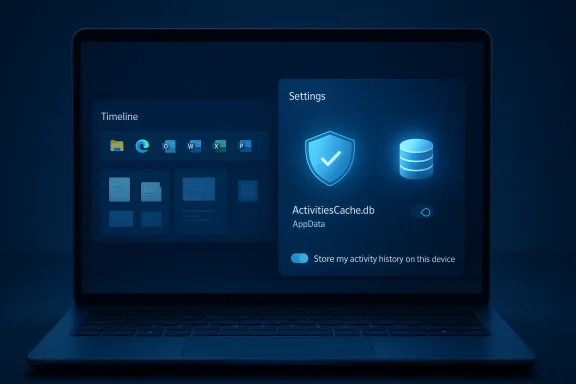
Windows stores local activity data in system folders used by the Connected Devices Platform and Timeline services. Forensic and tooling research shows Timeline data is kept in a local SQLite database (commonly named ActivitiesCache.db) and related files under the user’s AppData path. These implementation details explain why records survive simple reboots and why tools can sometimes extract historic activity.Microsoft’s own OOBE and privacy statements reiterate that activity history is created on the device by various apps and services including legacy Edge, some Microsoft Store apps, and Microsoft 365 apps. That aligns with the forensic findings above.
Retention: the 30‑day window and cloud rules
Microscally cached timeline data often persists for a time window (historically around 30 days by default) unless users clear it. When cloud sync exists, Microsoft’s dashboard and support pages explain how to clear previously synced cloud entries; when cloud sync is deprecated for a given build or account, any previously synced cloud data can be removed from the privacy dashboard. In short: local retention and cloud retention are governed by different controls and timelines.Features that use activity history — Timeline, Edge, and beyond
Timeline (Windows 10)
Timeline is the visible UI that surfaced activities and allowed users to “jump back” into work. It relied on the local activity store and (optionally) cloud sync for cross‑device continuity. Microsoft has gradually retired or reduced Timeline functionality in newer Windows 11 releases, but Timeline concepts and the underlying activity logs remain relevant for Windows 10 users and for forensic tools that read the local database.Microsoft Edge (legacy) and InPrivate
When you used Microsoft Edge Legacy, browsing activity could surface in Windows’ activity history if you were signed into Windows with a Microsoft account and had the relevant settings enabled. Microsoft’s support pages make a clear exception: InPrivate browsing windows do not save activity history. That protects online browsing sessions from being added to the Windows activity stream.Newer on‑device features: Recall and snapshots
Windows has evolved from simple metadata logging to richer on‑device indexing. Recall, Microsoft’s on‑device “photographic memory” for Copilot+ PCs, periodically saves snapshots (screen images) to help users search for things they’ve seen. Microsoft’s documentation emphasizes Recall is opt‑in, that snapshots are stored and processed locally, and that Windows Hello is used to gate access to the Recall view. Recall has prompted a vigorous debate because screenshots can include sensitive text or credentials if left unfiltered.Third‑party browser developers and privacy advocates have pushed back: some apps (Signal, Brave, AdGuard) implemented protections to block Recall from capturing their UI, citing risk that snapshots might expose sensitive conversations and data if misused or if a device is compromised. Those real‑world reactions show why activity capture that includes imagery is qualitatively different from logging “app X used at time Y.”
Practical user controls — what you can do right now
Microsoft provides a clear Settings path and a separate web privacy dashboard for users to view and clear activity history. The most important user controls are:- In Windows Settings: Privacy & security > Activity history
- Toggle Store my activity history on this device On/Off.
- If present on your build, toggle the Send my activity history to Microsoft option (note: some versions have deprecated this option).
- Use Clear activity history to delete the local store for the signed‑in account.
- On the Microsoft privacy dashboard: Sign in with your Microsoft account to inspect and clear cloud activity types (apps & services, browsing, location). Clearing here removes data Microsoft previously associated with your account.
- For Recall snapshots: Use Settings > Privacy & security > Recall & snapshots to opt‑in, pause, filter apps/websites, and delete snapshots. Recall requires Windows Hello confirmation before access, and admins can manage or disable Recall on managed devices.
- Turn off “Store my activity history on this device”.
- Clear activity history on the device.
- Sign into your Microsoft privacy dashboard and clear any cloud‑synced activity.
- Use browsers’ private modes (InPrivate) and confirm Edge/other browsers aren’t syncing history to your Microsoft account.
- If you have Recall enabled, pause or remove it and delete saved snapshots; ensure Windows Hello is configured if you do use it.
Strengths of Microsoft’s approach — and where it falls short
Notable strengths
- Clear user toggles: Microsoft places the primary control in the Settings UI and provides a separate privacy dashboard for cloud data — a familiar two‑layer model: device controls + account controls. That separation can help users who want local continuity without cloud syncing.
- Local‑first model for newer features: Features like Recall are designed to process data on device, not in the cloud, addressing a major privacy concern about remote storage and external access. Microsoft documents this design and requires Windows Hello gating for access.
- Explicit exceptions: Microsoft explicitly documents that InPrivate windows don’t add activity to activity history, and that some browsing and app behaviors are excluded by design. Those clear exceptions make it easier for users to shape what gets recorded.
Shortcomings and practical risks
- Local storage can still be extracted: Storing metadata or screenshots locally means an attacker or a forensic tool with disk access can read cached activity if the device is compromised or if backups are not encrypted. Independent analysis and third‑party tools have shown Timeline/Recall artifacts are accessible in local databases and folders if an adversary can read the filesystem. Users who rely on device‑level security (BitLocker, strong Windows Hello, full‑disk encryption) are protected, but those who don’t are exposed. This is an important technical caveat.
- Feature complexity and user misunderstanding: Multiple settings across Settings app and the privacy dashboard — plus the fact that older Windows versions may still have cloud sync enabled — create configuration traps. A user who toggles “Store my activity history” off may still have previously synced data in the cloud unless they also clear the privacy dashboard. Microsoft’s deprecation of certain cloud sync options complicates the user story further.
- Screenshots are a different class of risk: Screenshots (Recall) are inherently more sensitive than app‑usage timestamps. Even though Microsoft emphasizes local processing and Windows Hello protections, critics point out that snapshots can capture secrets: one misplaced password prompt or sensitive message in a snapshot can expose data if a device is compromised or if backups are mishandled. Some vendors and privacy‑minded developers have blocked Recall from capturing their app windows because manual filtering isn’t a sufficient or reliable safeguard for all secure apps. Users should treat screenshot‑based indexing as a higher‑risk option.
Forensics, enterprise policy, and managed devices
- Enterprise controls: On managed devices, administrators can disable features like Recall or set policies for snapshot retention and disk quota. This central control reduces the risk surface in corporate environments but also requires admins to understand feature specifics and configure policies proactively.
- Evidence and recovery: Because activity data is stored in standard SQLite and filesystem formats, it can be recovered by forensic tools if the device is seized or compromised. That is useful for legitimate enterprise auditing and forensics — but it’s also why standard endpoint protections and full‑disk encryption are essential safeguards for sensitive users.
Recommendations for users and administrators
For privacy‑conscious consumers
- Treat activity features as convenience trade‑offs. If you value absolute privacy on a device, disable “Store my activity history on this device” and avoid cloud sync.
- If you keep activity history enabled for productivity, enforce full‑disk encryption (BitLocker or Device Encryption) and use strong login protection (Windows Hello or a secure PIN). That reduces risk if the device is lost or physically compromised.
- For Recall specifically: Only enable snapshots if you understand the filtering options, and set the filters before using the feature in environments where sensitive data appe Recall off on shared or lightly secured devices.
For IT and security teams
- Audit which devices have activity features enabled (Timeline, Recall) and map them to data classification policies.
- Use group policies or management tools to disable Recall on managed devices where screenshots are unacceptable.
- Enforce disk encryption and Windows Hello biometric/pin enrollment for any endpoint that will store sensitive activity history.
- Train users to clear cloud activity via the Microsoft privacy dashboard if they previously enabled syncing.
What remains uncertain and what to watch
- Microsoft’s approach to cloud sync and which activity types are allowed to be uploaded has shifted over time; some sync options have been deprecated in recent updates. If you rely on historical cloud sync for cross‑device continuity, verify your Windows build and account type because behavior varies across Windows 10, older Windows 11 builds, and the newest releases.
- The debate around Recall and screenshot‑based indexing is ongoing. Microsoft documents its security design, but real‑world pushes from app developers and privacy advocates may shape future changes (API changes, default settings, or OS‑level opt‑out mechanisms). Keep an eye on vendor responses and Microsoft’s management guidance for Recall.
- Many third‑party how‑to guides and tools describe techniques to extract activity history from local databases. Those guides can be valuable for incident response but also highlight why local storage needs to be treated seriously as a potential exposure point. If you are concerned, don’t assume “local only” equals “safe.” Use encryption and strong endpoint controls.
Conclusion
Windows’ activity history is a feature built for convenience: it lets you jump back into work, find a webpage you saw earlier, and resume workflows across time. Microsoft’s documentation is explicit that activity history is created and stored locally, and that users have controls both in Settings and on the Microsoft privacy dashboard to manage that data. At the same time, recent features like Recall have broadened the scope of activity capture from metadata to actual screen snapshots — a qualitative change that requires stronger safeguards and clearer defaults.If you care about privacy, the sensible path is to treat activity features as configurable conveniences: enable the parts you need, harden the device (encryption, secure sign‑in), and periodically clear both local and cloud activity. For organizations, the imperative is stronger: manage these features centrally, apply encryption and access controls, and educate users about the trade‑offs of richer activity capture. The trust Microsoft asks for — to let Windows remember your work for you — is conditional on users being informed and administrators setting appropriate protections.
Source: Microsoft Support Windows activity history and your privacy - Microsoft Support
