

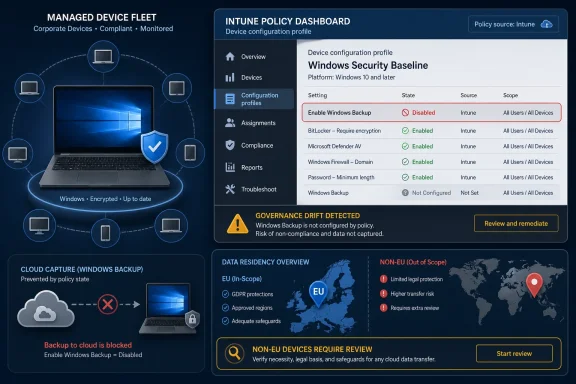
Microsoft’s reported Windows Backup change would make Windows settings and Microsoft Store app lists save by default on eligible organization-managed Windows PCs outside the EU when admins leave the relevant policy unconfigured. The affected audience is Windows administrators managing non-EU fleets where Windows Backup for Organizations — also described in coverage as Windows settings backup and restore — has not been explicitly enabled or disabled. The immediate action is simple: do not leave this setting at Not Configured until you have reviewed the feature, chosen an organization position, and enforced that choice through a verified management control.
What to do today
Windows Backup for Organizations has been presented as a migration and continuity tool: preserve a user’s Windows settings and Microsoft Store app list, then make a new, reset, or reimaged device feel familiar more quickly when the user signs in again. That pitch is not inherently suspicious. Anyone who has lived through a fleet refresh knows the pain of rebuilding user environments one setting at a time. Wallpaper, accessibility preferences, notification behavior, language settings, Start menu choices, and Store app lists are not the same as documents or source code, but they are part of a worker’s operating rhythm. In a large migration or hardware replacement program, even small reductions in post-reimage friction can matter.
The concern, as raised by PC Perspective and echoed in follow-up coverage, is that the administrative posture changes when the feature is left unconfigured. According to that coverage, Windows Backup will start saving users’ settings and Microsoft Store app lists “out of the box” on eligible non-EU organization-managed devices unless the organization disables the behavior through a supported management mechanism. In other words, Not Configured may stop meaning “nothing happens” and start meaning “Microsoft’s preferred default happens,” at least for the affected device population described in the reports.
That is the part administrators need to focus on. Windows management has always depended on the difference between Enabled, Disabled, and Not Configured. Not Configured is commonly treated as a neutral administrative state: the organization has not expressed intent, so the product should not assume one. The reported change treats that silence as permission for a cloud-backed user-state feature outside the EU.
Microsoft’s product rationale is easy to understand. A backup system only produces value if it already has data available when a user needs it. Waiting for every administrator to discover and enable the policy makes the feature less effective as a migration aid. But that convenience logic collides with enterprise governance. For many organizations, anything that preserves user state outside the local device must be reviewed, approved, assigned, monitored, and documented.
The practical nut graf is this: if your policy is unconfigured, you have not made a defensible decision yet.
That narrower framing is important. The safe conclusion is not “a specific European law forced every technical detail of this implementation.” The safe conclusion is that automatic enablement is reported to apply outside the EU, while EU users are treated differently.
For global IT, the consequence is straightforward: a fleet may behave differently depending on region. A device in France may not follow the same default path as a device in the United States. A multinational organization may therefore have one internal endpoint standard but multiple Windows behaviors in the field. That makes documentation harder, audits messier, and configuration drift more likely.
Admins also should not treat the EU exclusion as protection for the rest of the organization. A U.S.-based office, a non-EU subsidiary, or another non-EU managed environment may still be in scope for the reported default behavior. If company policy says user settings and app inventory cannot be backed up to Microsoft-connected services without approval, that policy needs to be encoded directly.
Geography is not a substitute for configuration.
That distinction should lower the temperature, but it should not end the discussion. Settings can still be meaningful. They can reveal how a user works, what accessibility choices they rely on, what languages or input methods they use, how they personalize the device, and which experiences they expect to follow them. A Microsoft Store app list is not the same as a complete installed software inventory, but it can still reveal workflow, department, role, or personal preference.
A Store app list also matters operationally because it belongs to the endpoint experience. If an organization has a strict standard device image or carefully controlled app posture, administrators need to know whether Store app-list preservation fits that model. That does not make the feature dangerous by itself. It makes it testable, governable, and inappropriate to ignore.
Admins should resist both extremes. This is not a catastrophic leak of all corporate files. It is also not “just settings” in a way that exempts it from policy review. In mature environments, device state, user state, app inventory, and recovery paths are all part of endpoint governance. The concern is not only what is saved; it is who decided it should be saved, where that decision is recorded, and whether the organization can prove the resulting state.
That table is why this story matters. The same policy posture — doing nothing — can produce different outcomes depending on eligibility and region. In a small shop, that might be a nuisance. In an enterprise, it is a recipe for configuration drift.
The Not Configured state is especially risky because it is common. Many organizations do not explicitly set every Windows policy. They build baselines around known risks, leave unused features alone, and trust that an absent policy will not suddenly become a cloud-service enrollment. A default flip punishes that model. If the default changes, omission becomes a decision.
The healthiest interpretation is this: Microsoft is not necessarily trying to override explicit enterprise policy. It is trying to make its preferred backup model happen where enterprise policy is absent. That is still a major governance shift. The customer can still say no, but only if the customer knows the question has been asked.
That matters operationally. A configuration profile can be assigned, monitored, scoped, and audited. It can be targeted to all users, all devices, a pilot group, or specific cohorts. It also gives IT a reportable object when security, compliance, legal, or help desk leadership asks what was done.
But Intune does not remove the need for design. Admins still need to decide whether Windows settings backup is:
Hybrid management deserves extra caution. Many enterprises still apply older Group Policy baselines to hybrid-joined machines while Intune configuration profiles increasingly take over. Windows Backup is exactly the kind of setting that can expose a half-migrated management strategy. If Group Policy and Intune both attempt to control related settings, admins should test precedence, reporting, and user experience before assuming the intended setting wins.
The right answer is not simply “turn it off.” The right answer is “make the decision explicit.” If the company wants Windows settings backup, enable or allow it deliberately, document what is being preserved, train support staff, and test the device lifecycle. If the company does not want it, disable it deliberately and monitor compliance before the affected behavior reaches broad deployment.
It should be handled carefully. The safest operational use of that value is as a specific reported control that must be validated on your managed Windows builds. Administrators should not expand it into unsupported claims about every possible backup, restore, prompt, scheduled task, service-side state, or future Windows behavior.
Policy should be preferred where available. If you manage devices through Intune, configure Administrative Templates > Windows Components > Sync your settings > Enable Windows Backup. If your documented control path is registry-based, use
That validation should be practical, not theoretical. Test on representative devices. Confirm whether the Windows Backup app presents the expected state. Confirm whether users can initiate the feature. Confirm what policy reporting says. Confirm what happens after reboot, sign-out, sign-in, reset, and enrollment changes. If devices were already in a backed-up state before a disablement policy arrived, determine whether any data-management or support process is required.
This is not pedantry. Windows settings can have multiple layers: user-facing toggles, ADMX-backed policy, CSP-backed policy, app behavior, and service-side state. A registry value that changes one behavior is not proof of every downstream outcome unless your testing confirms it. When an organization’s compliance position depends on the result, “we set a DWORD” is not enough evidence. The evidence is the resulting device state and the management reporting that proves it.
The actionable point does not require a broad restore claim. Administrators need to answer a simpler question first: is Windows saving user settings and Microsoft Store app lists when the policy is unconfigured? If yes, the feature belongs in the organization’s endpoint data inventory, support documentation, and governance review. If no, document the tested result and keep monitoring as Windows versions and policies change.
A restore prompt is visible. A background backup state can be easier to miss. A help desk team may never invoke a recovery experience, and users may never see a restore workflow, but the organization still has to know whether backup data was created, what categories of information were preserved, and how that fits into retention, deletion, legal hold, and incident-response expectations.
The key administrative question is not only “Can users restore?” It is also “Was anything backed up?” If the organization does not want that burden, disablement should happen before eligible devices receive the behavior. If the organization approves the feature, document the approval and test the full lifecycle before depending on it in production.
That view is too narrow. The Store is part of the modern Windows application ecosystem, including inbox apps, packaged applications, and user-facing Windows experiences. A cloud-preserved Store app list therefore sits at the intersection of user preference, software governance, and device provisioning.
If the Store app list follows a user across device transitions, it can make replacement smoother. It can also create surprises if IT expected a cleaned or standardized device to stay clean after the user signs in. Whether that is a problem depends on policy boundaries, app-management controls, and observed behavior in the environment. That is exactly why administrators need to test the full lifecycle: old device, backup state, wipe or replacement, new sign-in, app availability, Start experience, Store policy, and compliance scan.
There is also a security-adjacent point. App inventory can reveal role and behavior. A developer utility, communications client, accessibility app, finance tool, or niche business app may say something about a user or department. That does not make the Store app list equivalent to corporate documents. It does make it part of the metadata picture that modern privacy and security programs increasingly track.
Microsoft’s feature is designed for convenience at scale. Convenience at scale is powerful precisely because it acts broadly. If the app list is supposed to be preserved, enable or allow that deliberately and support it. If it is not supposed to be preserved, disable the feature or scope it tightly enough that the result matches policy.
Both readings contain a piece of the truth. The movement is not hostile in the malware sense, and the payload described in the source material is not a full corporate file cache. But from the viewpoint of an organization that did not explicitly enable it, the effect can still feel like unauthorized data movement. If a default changes and user state begins being preserved because policy was left unconfigured, the administrator responsible for governance is not going to be reassured by the fact that the feature has a friendly name.
The more precise phrase is default cloud capture of user state. That is less dramatic than exfiltration, but it is more useful. It identifies the risk without overstating the payload. It also points directly to the remedy: decide whether cloud capture of Windows settings and Store app lists is allowed, then configure policy accordingly.
This is where the story matters beyond one feature. Enterprise Windows is built on explicit management. Administrators expect cloud-connected behavior to be controlled through policy, not inferred from silence. When Microsoft makes a cloud-backed behavior the result of Not Configured, it shifts work from product design to customer governance. The customer can still say no, but only if the customer notices the new default in time.
That is the durable lesson. The issue is not that Windows settings backup exists. It is that administrators now need to treat it like any other cloud-connected endpoint feature: approved or blocked, scoped or global, monitored or remediated, documented or removed from the baseline.
The real issue is administrative intent. If Windows settings and Microsoft Store app lists are worth preserving, say so through policy and support the experience. If they are not approved, block the behavior through the verified controls: Intune Administrative Templates > Windows Components > Sync your settings > Enable Windows Backup set to Disabled, or the reported registry value
The worst position is the middle one: leaving the setting at Not Configured, assuming that silence still means neutrality, and discovering later that the platform made the decision for you.
For Windows administrators, the forward-looking lesson is clear. Cloud-connected endpoint features will keep expanding because they solve real migration, recovery, and continuity problems. But every one of those features needs an explicit administrative posture. The practical response is not panic. It is baseline hygiene: review the setting, make a decision, enforce it, test it, and document it before the default becomes your policy by accident.
What to do today
- Check your current policy state. In Intune, review Administrative Templates > Windows Components > Sync your settings and look for Enable Windows Backup. If it is Not Configured, treat that as an open decision, not a safe baseline.
- If your organization does not approve Windows settings backup, disable it. Set Enable Windows Backup to Disabled in Intune Administrative Templates.
- If you are using registry-based enforcement, use the reported control exactly and validate the result. Set
HKLM\SOFTWARE\Microsoft\Windows\CurrentVersion\WindowsBackup\DisableMonitoringto DWORD1, then confirm the device behavior on representative systems. - If your organization approves the feature, enable or allow it deliberately. Document that Windows settings and Microsoft Store app lists are in scope, who owns support, and which users or devices are included.
- Do not rely on geography alone. The reported default behavior excludes the EU, but non-EU managed devices should be reviewed and explicitly configured.
 Microsoft Turns a Migration Feature Into a Default Cloud Behavior
Windows Backup for Organizations has been presented as a migration and continuity tool: preserve a user’s Windows settings and Microsoft Store app list, then make a new, reset, or reimaged device feel familiar more quickly when the user signs in again. That pitch is not inherently suspicious. Anyone who has lived through a fleet refresh knows the pain of rebuilding user environments one setting at a time. Wallpaper, accessibility preferences, notification behavior, language settings, Start menu choices, and Store app lists are not the same as documents or source code, but they are part of a worker’s operating rhythm. In a large migration or hardware replacement program, even small reductions in post-reimage friction can matter.The concern, as raised by PC Perspective and echoed in follow-up coverage, is that the administrative posture changes when the feature is left unconfigured. According to that coverage, Windows Backup will start saving users’ settings and Microsoft Store app lists “out of the box” on eligible non-EU organization-managed devices unless the organization disables the behavior through a supported management mechanism. In other words, Not Configured may stop meaning “nothing happens” and start meaning “Microsoft’s preferred default happens,” at least for the affected device population described in the reports.
That is the part administrators need to focus on. Windows management has always depended on the difference between Enabled, Disabled, and Not Configured. Not Configured is commonly treated as a neutral administrative state: the organization has not expressed intent, so the product should not assume one. The reported change treats that silence as permission for a cloud-backed user-state feature outside the EU.
Microsoft’s product rationale is easy to understand. A backup system only produces value if it already has data available when a user needs it. Waiting for every administrator to discover and enable the policy makes the feature less effective as a migration aid. But that convenience logic collides with enterprise governance. For many organizations, anything that preserves user state outside the local device must be reviewed, approved, assigned, monitored, and documented.
The practical nut graf is this: if your policy is unconfigured, you have not made a defensible decision yet.
The EU Exception Should Be Treated as a Product Boundary, Not a Global Privacy Shield
The verified fact pattern supports a narrower conclusion than some commentary around this change suggests: the reported default enablement excludes the EU. That is enough to matter, but it is not enough to claim a complete legal explanation. Some coverage frames the distinction in relation to European regulatory pressure, including broader privacy and competition-law expectations, but the safer conclusion is simply this: Microsoft is drawing a regional line around automatic enablement.That narrower framing is important. The safe conclusion is not “a specific European law forced every technical detail of this implementation.” The safe conclusion is that automatic enablement is reported to apply outside the EU, while EU users are treated differently.
For global IT, the consequence is straightforward: a fleet may behave differently depending on region. A device in France may not follow the same default path as a device in the United States. A multinational organization may therefore have one internal endpoint standard but multiple Windows behaviors in the field. That makes documentation harder, audits messier, and configuration drift more likely.
Admins also should not treat the EU exclusion as protection for the rest of the organization. A U.S.-based office, a non-EU subsidiary, or another non-EU managed environment may still be in scope for the reported default behavior. If company policy says user settings and app inventory cannot be backed up to Microsoft-connected services without approval, that policy needs to be encoded directly.
Geography is not a substitute for configuration.
What Windows Is Actually Saving Is Narrower Than the Outrage Suggests
PC Perspective’s headline language is intentionally sharp, and it captures the visceral reaction many administrators have when a cloud-connected behavior becomes the default. But the technical scope matters. Based on the source material, this is not a full-disk backup, not a silent copy of every file in Documents or Desktop, and not the same thing as OneDrive Known Folder Move. The reported behavior centers on users’ Windows settings and Microsoft Store app lists.That distinction should lower the temperature, but it should not end the discussion. Settings can still be meaningful. They can reveal how a user works, what accessibility choices they rely on, what languages or input methods they use, how they personalize the device, and which experiences they expect to follow them. A Microsoft Store app list is not the same as a complete installed software inventory, but it can still reveal workflow, department, role, or personal preference.
A Store app list also matters operationally because it belongs to the endpoint experience. If an organization has a strict standard device image or carefully controlled app posture, administrators need to know whether Store app-list preservation fits that model. That does not make the feature dangerous by itself. It makes it testable, governable, and inappropriate to ignore.
Admins should resist both extremes. This is not a catastrophic leak of all corporate files. It is also not “just settings” in a way that exempts it from policy review. In mature environments, device state, user state, app inventory, and recovery paths are all part of endpoint governance. The concern is not only what is saved; it is who decided it should be saved, where that decision is recorded, and whether the organization can prove the resulting state.
The Policy Difference Is the Whole Story
The simplest way to understand the change is to compare administrative states. The reported issue is not that Microsoft removed control. It is that an unconfigured state may now produce active backup behavior for eligible non-EU devices.| Scenario | Region | Policy state | Reported backup behavior | Admin implication |
|---|---|---|---|---|
| Explicitly enabled | Non-EU or EU | Enabled | Windows Backup runs as configured | Intended deployment |
| Explicitly disabled | Non-EU or EU | Disabled | Windows Backup should not run | Preferred block for restricted fleets |
| Left unconfigured on affected devices | Non-EU | Not Configured | Settings and Microsoft Store app list are reported to be saved out of the box | Silent drift from neutral to active |
| Left unconfigured on affected devices | EU | Not Configured | Automatic enablement is reported to be excluded | Region-specific behavior to verify in your tenant |
The Not Configured state is especially risky because it is common. Many organizations do not explicitly set every Windows policy. They build baselines around known risks, leave unused features alone, and trust that an absent policy will not suddenly become a cloud-service enrollment. A default flip punishes that model. If the default changes, omission becomes a decision.
The healthiest interpretation is this: Microsoft is not necessarily trying to override explicit enterprise policy. It is trying to make its preferred backup model happen where enterprise policy is absent. That is still a major governance shift. The customer can still say no, but only if the customer knows the question has been asked.
Intune Shops Get the Cleanest Escape Hatch
For organizations managed through Intune, the verified administrative path is under Administrative Templates > Windows Components > Sync your settings, with the relevant setting described as Enable Windows Backup. If the organization does not approve the feature, setting that policy to Disabled is the cleanest path because it expresses intent in the same management plane already used for modern Windows devices.That matters operationally. A configuration profile can be assigned, monitored, scoped, and audited. It can be targeted to all users, all devices, a pilot group, or specific cohorts. It also gives IT a reportable object when security, compliance, legal, or help desk leadership asks what was done.
But Intune does not remove the need for design. Admins still need to decide whether Windows settings backup is:
- Allowed globally.
- Blocked globally.
- Allowed only for migration or refresh cohorts.
- Allowed only for lower-risk user groups.
- Blocked for regulated, shared, kiosk, lab, privileged, or highly standardized devices.
Hybrid management deserves extra caution. Many enterprises still apply older Group Policy baselines to hybrid-joined machines while Intune configuration profiles increasingly take over. Windows Backup is exactly the kind of setting that can expose a half-migrated management strategy. If Group Policy and Intune both attempt to control related settings, admins should test precedence, reporting, and user experience before assuming the intended setting wins.
The right answer is not simply “turn it off.” The right answer is “make the decision explicit.” If the company wants Windows settings backup, enable or allow it deliberately, document what is being preserved, train support staff, and test the device lifecycle. If the company does not want it, disable it deliberately and monitor compliance before the affected behavior reaches broad deployment.
Registry Control Exists, But It Should Not Become a Mystery Baseline
PC Perspective highlights a registry value underHKLM\SOFTWARE\Microsoft\Windows\CurrentVersion\WindowsBackup using a DWORD named DisableMonitoring set to 1. That detail is concrete, scriptable, and likely to spread quickly because it looks like a straightforward remediation.It should be handled carefully. The safest operational use of that value is as a specific reported control that must be validated on your managed Windows builds. Administrators should not expand it into unsupported claims about every possible backup, restore, prompt, scheduled task, service-side state, or future Windows behavior.
Policy should be preferred where available. If you manage devices through Intune, configure Administrative Templates > Windows Components > Sync your settings > Enable Windows Backup. If your documented control path is registry-based, use
HKLM\SOFTWARE\Microsoft\Windows\CurrentVersion\WindowsBackup\DisableMonitoring=1 and verify the result.That validation should be practical, not theoretical. Test on representative devices. Confirm whether the Windows Backup app presents the expected state. Confirm whether users can initiate the feature. Confirm what policy reporting says. Confirm what happens after reboot, sign-out, sign-in, reset, and enrollment changes. If devices were already in a backed-up state before a disablement policy arrived, determine whether any data-management or support process is required.
This is not pedantry. Windows settings can have multiple layers: user-facing toggles, ADMX-backed policy, CSP-backed policy, app behavior, and service-side state. A registry value that changes one behavior is not proof of every downstream outcome unless your testing confirms it. When an organization’s compliance position depends on the result, “we set a DWORD” is not enough evidence. The evidence is the resulting device state and the management reporting that proves it.
Do Not Base Governance on Unverified Restore Assumptions
Some outside discussion has separated backup from restore and suggested that restoration behavior is governed independently. That may be true in specific builds or management scenarios, but the safe administrative article should not lean on it unless your team has verified it in your own environment.The actionable point does not require a broad restore claim. Administrators need to answer a simpler question first: is Windows saving user settings and Microsoft Store app lists when the policy is unconfigured? If yes, the feature belongs in the organization’s endpoint data inventory, support documentation, and governance review. If no, document the tested result and keep monitoring as Windows versions and policies change.
A restore prompt is visible. A background backup state can be easier to miss. A help desk team may never invoke a recovery experience, and users may never see a restore workflow, but the organization still has to know whether backup data was created, what categories of information were preserved, and how that fits into retention, deletion, legal hold, and incident-response expectations.
The key administrative question is not only “Can users restore?” It is also “Was anything backed up?” If the organization does not want that burden, disablement should happen before eligible devices receive the behavior. If the organization approves the feature, document the approval and test the full lifecycle before depending on it in production.
The Store App List Is a Bigger Clue Than It Looks
The Microsoft Store app list sounds like a minor convenience. In many enterprises, Store apps are not the central software estate. Critical applications may arrive through Intune, Configuration Manager, winget, vendor installers, virtual apps, browser apps, or line-of-business deployment systems. A list of Store apps can feel like consumer residue.That view is too narrow. The Store is part of the modern Windows application ecosystem, including inbox apps, packaged applications, and user-facing Windows experiences. A cloud-preserved Store app list therefore sits at the intersection of user preference, software governance, and device provisioning.
If the Store app list follows a user across device transitions, it can make replacement smoother. It can also create surprises if IT expected a cleaned or standardized device to stay clean after the user signs in. Whether that is a problem depends on policy boundaries, app-management controls, and observed behavior in the environment. That is exactly why administrators need to test the full lifecycle: old device, backup state, wipe or replacement, new sign-in, app availability, Start experience, Store policy, and compliance scan.
There is also a security-adjacent point. App inventory can reveal role and behavior. A developer utility, communications client, accessibility app, finance tool, or niche business app may say something about a user or department. That does not make the Store app list equivalent to corporate documents. It does make it part of the metadata picture that modern privacy and security programs increasingly track.
Microsoft’s feature is designed for convenience at scale. Convenience at scale is powerful precisely because it acts broadly. If the app list is supposed to be preserved, enable or allow that deliberately and support it. If it is not supposed to be preserved, disable the feature or scope it tightly enough that the result matches policy.
Where PCPer Is Right, and Where the Alarm Needs Precision
PC Perspective’s framing is deliberately provocative. That will irritate Microsoft defenders because the word “exfiltration” suggests hostile movement of data out of an environment. Microsoft would likely characterize this as policy-controllable backup functionality designed to reduce migration friction and improve continuity for managed users.Both readings contain a piece of the truth. The movement is not hostile in the malware sense, and the payload described in the source material is not a full corporate file cache. But from the viewpoint of an organization that did not explicitly enable it, the effect can still feel like unauthorized data movement. If a default changes and user state begins being preserved because policy was left unconfigured, the administrator responsible for governance is not going to be reassured by the fact that the feature has a friendly name.
The more precise phrase is default cloud capture of user state. That is less dramatic than exfiltration, but it is more useful. It identifies the risk without overstating the payload. It also points directly to the remedy: decide whether cloud capture of Windows settings and Store app lists is allowed, then configure policy accordingly.
This is where the story matters beyond one feature. Enterprise Windows is built on explicit management. Administrators expect cloud-connected behavior to be controlled through policy, not inferred from silence. When Microsoft makes a cloud-backed behavior the result of Not Configured, it shifts work from product design to customer governance. The customer can still say no, but only if the customer notices the new default in time.
That is the durable lesson. The issue is not that Windows settings backup exists. It is that administrators now need to treat it like any other cloud-connected endpoint feature: approved or blocked, scoped or global, monitored or remediated, documented or removed from the baseline.
Admin Checklist
- Identify exposure. Determine which devices are organization-managed, which are outside the EU, and which Windows release rings they are in. Treat non-EU managed devices with Not Configured policy state as the priority review group.
- Inventory current policy state. Check Intune Administrative Templates and any registry-based remediation already in use. Do not assume absence of a setting is harmless.
- Choose one of three paths.
- Allow the feature if Windows settings backup and Microsoft Store app-list preservation are approved, useful, and compatible with your data-handling requirements.
- Disable the feature globally if the organization does not allow this category of user-state backup, does not need the continuity benefit, or cannot yet account for the data.
- Target specific cohorts if the feature is useful for device refresh, migration, or accessibility continuity, but inappropriate for privileged, regulated, shared, kiosk, lab, or tightly standardized devices.
- If allowing the feature, document the decision. Record what is being preserved, which users or devices are in scope, how support will handle device transitions, and who owns the policy.
- If disabling through Intune, enforce the verified policy. Create or update a configuration profile at Administrative Templates > Windows Components > Sync your settings and set Enable Windows Backup to Disabled. Assign it to the intended device or user groups and monitor deployment status.
- If using registry enforcement, use the reported value exactly. Configure
HKLM\SOFTWARE\Microsoft\Windows\CurrentVersion\WindowsBackup\DisableMonitoringas DWORD1. Validate the result before treating it as a compliance control. - Avoid conflicting controls. Do not mix Intune Administrative Templates and registry remediation for the same Windows Backup decision unless you have tested precedence, reporting, and remediation behavior.
- Pilot the full lifecycle. Test policy application, user sign-in, Windows Backup visibility, restart behavior, enrollment changes, device reset or replacement, and compliance reporting.
- Review help desk scripts. Support staff should know whether the organization allows Windows settings backup, blocks it, or permits it only for specific migration groups.
- Update endpoint standards. Add the Windows Backup decision to your Windows baseline so future builds, new rings, and new device cohorts do not drift back to Not Configured.
- Monitor after rollout. Check policy deployment reports, sample devices, and user reports after the configuration is assigned. A policy decision is not complete until the fleet reflects it.
- Revisit during Windows feature updates. When new Windows releases or enablement packages enter pilot rings, retest the setting and confirm that Enabled, Disabled, and Not Configured still produce the expected outcomes.
The Practical Bottom Line
This story is easy to overstate and dangerous to ignore. It is not a full-device backup scandal. It is not evidence that every corporate file is being copied. It is also not a harmless consumer convenience when applied to managed organizational devices by default.The real issue is administrative intent. If Windows settings and Microsoft Store app lists are worth preserving, say so through policy and support the experience. If they are not approved, block the behavior through the verified controls: Intune Administrative Templates > Windows Components > Sync your settings > Enable Windows Backup set to Disabled, or the reported registry value
HKLM\SOFTWARE\Microsoft\Windows\CurrentVersion\WindowsBackup\DisableMonitoring=1 after validation.The worst position is the middle one: leaving the setting at Not Configured, assuming that silence still means neutrality, and discovering later that the platform made the decision for you.
For Windows administrators, the forward-looking lesson is clear. Cloud-connected endpoint features will keep expanding because they solve real migration, recovery, and continuity problems. But every one of those features needs an explicit administrative posture. The practical response is not panic. It is baseline hygiene: review the setting, make a decision, enforce it, test it, and document it before the default becomes your policy by accident.
References
- Primary source: PC Perspective
Published: 2026-07-08T19:10:18.053907
Surprise! Windows Backup Will Soon Exfiltrate Your Corporate Data - PC Perspective
Surprise! Windows Backup Will Soon Exfiltrate Your Corporate Data Along with the arrival of Windows 11 26H2, unless you are in the EU, comes yet another waypcper.com - Official source: learn.microsoft.com
Windows Backup for Organizations Overview | Microsoft Learn
Learn how to configure devices to use Windows Backup for Organizations.learn.microsoft.com - Official source: microsoft.com
Windows Backup for Security | Microsoft Windows
Explore Windows 11 security with Windows Backup. Use Windows Backup to transition most files, apps, and settings from one PC to another seamlessly.www.microsoft.com
- Related coverage: pureinfotech.com
Microsoft won't let you uninstall new Backup app on Windows 11. Here's why - Pureinfotech
Windows 11 users won't be able to uninstall the Windows Backup app, because it's a system component. However, Microsoft plans to hide it. pureinfotech.com
- Related coverage: it-connect.fr
Windows 11 26H2 : la sauvegarde des paramètres activée par défaut sur les PC
Avec Windows 11 26H2, Microsoft activera par défaut la sauvegarde des paramètres sur les PC d'entreprise. Les appareils situés dans l'UE ne sont pas concernés.www.it-connect.fr - Related coverage: techspot.com
Windows users keep losing files to OneDrive, and many don't know why | TechSpot
OneDrive, Microsoft's built-in cloud storage platform, is deeply embedded in Windows and positioned as a central part of the company's cloud ecosystem. When Windows updates or fresh...www.techspot.com
- Related coverage: windowscentral.com
How to use the new Windows 11 Backup app | Windows Central
The Windows 11 2023 Update includes a new Windows Backup, and in this guide, you will learn the steps to configure it to back up your files, settings, apps, and credentials and the recovery process.www.windowscentral.com - Related coverage: clubic.com
Avec Windows 11 26H2, Microsoft veut sauvegarder les réglages des PC d’entreprise par défaut, mais l'UE fait exception
Avec Windows 11 26H2, Microsoft veut activer par défaut la sauvegarde des réglages et des applications Microsoft Store sur certains PC d’entreprise. En France, le Digital Markets Act devrait toutefois limiter cette automatisation. www.clubic.com
- Official source: download.microsoft.com
- Official source: techcommunity.microsoft.com