• Thread Author
Microsoft has quietly expanded the enterprise-focused Windows Backup for Organizations to include a first sign-in restore experience, giving IT teams a second opportunity to restore a user's Windows settings and Microsoft Store app list at the very first interactive sign-in — not only during OOBE but also after a missed restore opportunity — with early testing offered via a private preview for eligible organizations.

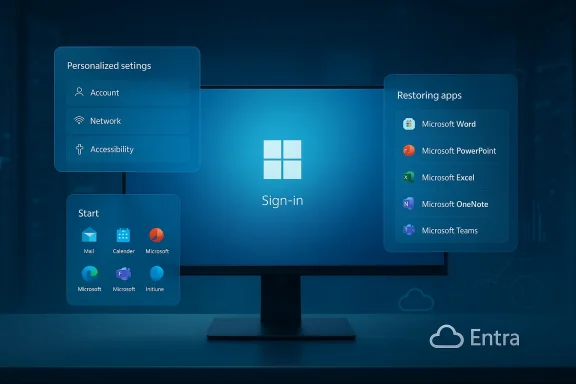
Blue-tinted Windows sign-in screen surrounded by floating settings and apps panels.Background / Overview​

Windows Backup for Organizations launched as a targeted enterprise capability to preserve and restore Windows personalization, preferences, Start menu pins, and the list of Microsoft Store apps — not a full disk or file‑level disaster recovery product. The goal is to reduce friction during device refreshes, OS migrations, and reimages by returning users to a familiar work environment quickly. Microsoft has exposed the feature through tenant‑wide controls in Microsoft Intune and tied the restore UX into enrollment flows, historically appearing during the Out‑Of‑Box Experience (OOBE). The recent expansion adds a first sign‑in restore pathway (announced as a private preview), which aims to cover scenarios where users either dismiss the OOBE restore prompt, encounter an error during OOBE, or sign in to an account that should be eligible for restore after provisioning completes. The new flow is positioned as a user‑centric resilience enhancement: it preserves the “restore at first chance” concept while broadening coverage to hybrid and cloud PC configurations. This article examines what the first sign‑in restore adds, clarifies technical prerequisites and limits, evaluates operational tradeoffs and security considerations, and gives an actionable rollout checklist for IT teams planning to pilot or adopt the capability.

What’s new: first sign‑in restore explained​

The user experience, distilled​

  • During OOBE today, enrolled devices show a restore page when the tenant‑level restore setting is enabled; users can pick a previous backup profile to restore preferences and Microsoft Store apps.
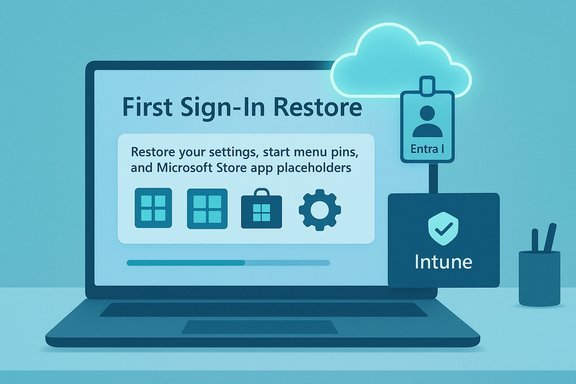
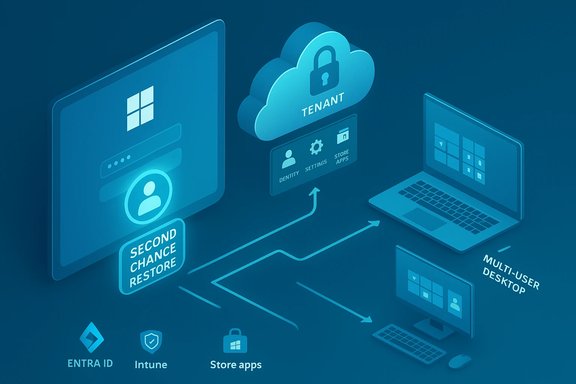
  • With the first sign‑in restore expansion, eligible devices that skip or miss the OOBE restore prompt will be offered the same restore opportunity at the first interactive sign‑in (the first time a user signs into the desktop session). This gives users a “second chance” without forcing a full reimage or manual IT intervention.
  • The experience respects an explicit user choice to skip restore during OOBE: if a user deliberately declines, their preference should be preserved. The new pathway is intended for accidental skips or technical failures during OOBE.

Broader coverage targets​

  • Microsoft describes this expansion as covering additional device states and deployment models, specifically:
  • Microsoft Entra hybrid‑joined devices,
  • Multi‑user setups, and
  • Windows 365 Cloud PCs (where applicable).
  • The objective is to make the restore path available in scenarios where OOBE timing or image update ordering previously prevented a seamless restore during enrollment.
These behavioral details and the general intent are described in Microsoft’s product announcements and Intune documentation; independent coverage from third‑party outlets has emphasized that this feature targets settings & app lists rather than full data backups.

Technical requirements and limitations​

What Windows Backup for Organizations actually preserves​

  • Backed up items (typical):
  • Windows preferences and settings (e.g., personalization, regional settings, some accessibility preferences).
  • Start menu pins and the list of Microsoft Store apps (the system can place placeholders and reinstall Store apps).
  • Certain syncable items per tenant policy.
  • Not backed up:
  • Win32 applications, MSI installers, and line‑of‑business apps (these remain the responsibility of IT deployment tooling such as Intune, Configuration Manager, or other software distribution mechanisms).
  • Full file‑level backups or disk images; this is not a replacement for traditional backup/DR solutions.

OS and build prerequisites​

Microsoft’s documentation lists a mix of requirements for backup vs restore:
  • Backup (what creates the backup profile):
  • Devices must be Microsoft Entra joined or Microsoft Entra hybrid joined.
  • Supported baseline builds include Windows 10 22H2 (build thresholds apply) and Windows 11 22H2 or later (specific minimum build numbers are published for supported behavior). Backups are enabled by policy and the Windows Backup app is delivered via recent cumulative updates.
  • Restore (what allows restore to a device):
  • The device must be Microsoft Entra joined for restore to the Start menu and full restore experience.
  • Windows 11 is required for full restore of Start menu pins and reinstallation of Store apps; Windows 10 may support backup only.
  • Minimum build thresholds for seamless restore are granular and vary by Windows 11 servicing channel and cumulative update level. Microsoft recommends updating images or configuring Enrollment Status Page (ESP) quality updates to ensure the device receives required updates during OOBE/first sign‑in.

Operational limits and tenant controls​

  • Tenant‑wide toggle: The restore page appearance is controlled by a tenant‑wide setting in Intune. When turned on, the restore UX is presented to eligible users during enrollment or first sign‑in (depending on rollout). Only Intune Service Administrators / Global Administrators can flip this setting.
  • Autopilot caveats: If Autopilot is used, restore typically requires user‑driven Autopilot profiles and is not supported in self‑deploying mode or certain technician/pre‑provisioning flows.
  • Non‑supported provisioning methods: Some enrollment paths (Group Policy, ConfigMgr co‑management, certain preprovisioning flows and shared/userless devices) may not support the restore experience as implemented today.

How the backup pipeline works (what IT teams should know)​

  • Policy enablement: IT enables the backup policy via Intune (Settings Catalog) or Group Policy for on‑premise scenarios. Backups are off by default and must be turned on per tenant.
  • Scheduled backups: Once enabled, a scheduled backup task runs — Microsoft documents an automatic backup cadence (every eight days) and also exposes a manual backup trigger in the Windows Backup app for end users (if IT allows it).
  • Storage and security: Backups are stored in the organization’s tenant store in Microsoft cloud services; data at rest uses Microsoft cloud protections and is subject to tenant access controls and governance.
  • Restore trigger: Traditionally presented at OOBE, the restored settings are applied after credentials validate and enrollment completes. With the first sign‑in expansion, that same restore sequence can be invoked at the first interactive sign‑in when the device meets eligibility requirements.

Security, compliance, and privacy considerations​

Data protection model​

  • Encrypted storage: Backups containing user preferences and app lists are stored in Microsoft’s tenant‑bound cloud store. Microsoft’s cloud controls apply, and tenant administrators control policy and access. Organizations should review tenant data residency and compliance posture as part of adoption.

Sensitive data and credential handling​

  • What is not included by default: Password vaults, certain credential types, and non‑syncable secrets may not be part of the backup payload by default. Where credential sync is supported, admin opt‑in is required and additional safeguards may apply.
  • Authenticator and MFA considerations: Restoring authentication state for MFA or authenticator apps typically requires re‑registration or re‑sign‑in flows; those controls are intentionally conservative for security reasons. Consider pairing Windows Backup with corporate guidance on MFA re‑enrollment.

Attack surface and risk vectors​

  • Misapplied tenant controls: Because the restore setting is tenant‑wide, enabling it without careful scope and pilot testing could surface unexpected restore behavior for certain device classes (shared devices, kiosks, or restricted images). IT must plan exclusions and validate images first.
  • Social engineering risk: Any automated restore mechanism that re‑applies personalization must be coupled with account verification and enrollment policies to reduce the risk of an attacker invoking a restore flow for account impersonation. Conditional Access and device compliance checks remain important gatekeepers.
  • Not a replacement for backups: Relying on Windows Backup for Organizations as a single‑source recovery plan exposes organizations to data loss for files and critical Win32 app configurations — it should complement, not replace, existing backup and endpoint protection workflows.

Benefits and measurable operational gains​

Adopting Windows Backup for Organizations — and specifically the first sign‑in restore expansion — promises several measurable benefits for enterprise device lifecycle management:
  • Reduced help‑desk tickets: By restoring settings and Store app lists automatically, users spend less time rebuilding their desktop environment after a reset, cutting support effort.
  • Faster time‑to‑productivity: Restored settings and app placeholders shorten time lost after device replacements or reimages.
  • Simplified upgrade paths: The capability is particularly valuable for migrations away from Windows 10 to Windows 11, allowing organizations to preserve user context across platform upgrades. Microsoft published this as a key motivation for the feature.
  • Administrative control: The tenant‑wide Intune toggle gives a simple operational control point for IT to coordinate rollout and to ensure consistency in large fleets.
Independent analysis and field guides emphasize these gains, while also warning that the solution addresses settings and app lists — not full application or file recovery — meaning the real ROI depends on how much time IT currently spends rebuilding user configs vs deploying apps.

Risks, failure modes, and mitigation strategies​

Common failure scenarios​

  • Image/build mismatch: Devices that do not meet the minimum build or servicing requirements can fail to present the restore page, or downloads required during OOBE may not complete. Mitigation: rebuild golden images with the required cumulative update or enable ESP quality update policies to deliver updates during OOBE.
  • Enrollment path incompatibility: Some provisioning methods (self‑deploying Autopilot, manual enrollment, shared device flows) are not supported for restore. Mitigation: use user‑driven Autopilot profiles for pilot groups and test alternative provisioning for unsupported device classes.
  • User decline during OOBE: Users who intentionally skip restore may be confused if an IT admin later forces a restore. The system is designed to respect explicit user decline; treat forced restores only with clear communications and support workflows.

Operational controls to reduce impact​

  • Pilot ring deployment: Start with a small pilot of representative users (knowledge workers and typical images) before tenant‑wide enablement.
  • Image validation: Ensure golden images include the August 2025 security update (or later) and meet documented build numbers for restore compatibility. Where images cannot be updated, configure ESP to install quality updates during OOBE.
  • Monitoring and telemetry: Use Intune reporting and event logs (CloudRestore scheduled tasks and MDM policy events) to detect policy application failures and to tune rollout. Community tooling and vendor guidance outline where to find relevant event IDs and diagnostic evidence.

Implementation checklist: how to pilot first sign‑in restore​

  • Inventory and prerequisites
  • Identify pilot device groups that are Microsoft Entra joined (or hybrid joined for backup).
  • Confirm OS build and cumulative update levels meet restore prerequisites.
  • Intune policy configuration
  • Create a Windows 10 and later Settings Catalog profile to enable EnableWindowsBackup or equivalent MDM policy.
  • Under Intune > Devices > Enrollment > Windows > Enrollment options, set Show restore page to On for pilot tenants or rings. Note: this is tenant‑wide and requires Intune Service Admin/Global Admin privileges.
  • Image and ESP validation
  • Rebuild golden images with the latest cumulative updates (or configure ESP quality update installation to run at OOBE) to ensure the restore UX can complete and that Store app placeholders reinstall correctly.
  • Pilot and observe
  • Run pilot enrollments using user‑driven Autopilot flows; record failures, restore success rates, and post‑restore help‑desk calls.
  • Capture logs from Task Scheduler (CloudRestore tasks) and MDM Event Viewer channels for diagnostics.
  • Expand and operationalize
  • Based on pilot metrics, widen deployment rings, update support documentation, and communicate to end users what the feature restores and what it does not.

Notes on availability, preview sign‑ups, and verification​

Microsoft has announced both limited public previews and general availability milestones for Windows Backup for Organizations over 2025, and documentation is maintained on Microsoft Learn and the Windows IT Pro blog. The first sign‑in restore experience has been described as being made available in a private preview with sign‑up opportunities mentioned in Microsoft communications. Readers should verify specific private preview windows, deadlines, and eligibility requirements directly via Microsoft’s Windows IT Pro blog or the private preview interest form because preview timelines and sign‑up windows are subject to change. Official Intune documentation and the Windows Backup for Organizations documentation are the authoritative sources for build requirements and tenant configuration steps. Caveat: specific dates for preview sign‑up windows (for example a stated deadline of Friday, February 13, 2026) should be confirmed on the Microsoft Tech Community post or the interest form itself; such dates can be time‑limited and vary by region or by program eligibility (for example participation in the Microsoft Management Customer Connection Program and an NDA). If you plan to apply for private preview, document eligibility (program membership and signed NDA) and double‑check the current preview enrollment page before assuming a hard deadline.

Realistic expectations for adoption​

  • The feature is most valuable for organizations that:
  • Have high volumes of user resets or device refresh cycles,
  • Rely on Microsoft Store apps as an important part of user productivity, and
  • Use Intune and Microsoft Entra as their primary identity and device management backbone.
  • It is not a universal cure for migrations where Win32/line‑of‑business applications are critical; those still require App‑deployment strategies and, in many cases, re‑installation or modern packaging. Combine Windows Backup for Organizations with OneDrive KFM and managed application delivery for a full user restoration strategy.

Final analysis: strengths, tradeoffs, and recommended next steps​

Notable strengths​

  • User‑centred recovery: The first sign‑in restore is a pragmatic, low‑friction way to return users to a productive state without forcing reimaging.
  • Operational simplicity: Tenant‑level switches and Intune integration let administrators coordinate rollout at scale.
  • Migration assistance: The capability reduces the friction of OS upgrades and large‑scale Windows 11 adoption by preserving user context.

Potential risks and gaps​

  • Scope limitations: Because it targets settings and Store app lists only, organizations cannot rely on it for full application state or file recovery; this partial scope must be handled by complementary enterprise tools.
  • Provisioning complexity: Restore can fail if images are not updated or if enrollment flows are incompatible; testing and image patching are non‑optional.
  • Tenant‑wide control caution: A global restore toggle is powerful but blunt; poorly staged enablement could cause confusion on unsupported device classes.

Recommended next steps for IT teams​

  • Read the official Intune and Windows Backup documentation and verify your tenant’s eligibility.
  • Plan a small pilot with user‑driven Autopilot profiles and verified golden images (or ESP‑enabled quality updates).
  • Pair Windows Backup with OneDrive KFM and application deployment automation to create an end‑to‑end restore playbook.
  • If interested in the private preview for first sign‑in restore, confirm eligibility requirements (program membership and NDA) and verify the current preview sign‑up window on Microsoft’s Tech Community or the preview interest form.

Windows Backup for Organizations’ extension to first sign‑in restore is a targeted evolution: it closes an important usability gap in device provisioning and helps preserve productivity in real‑world migration and reset scenarios. For IT teams, the win will come not from one feature but from combining this capability with robust image management, managed application delivery, and cloud file protection to deliver a seamless, secure, and measurable device lifecycle experience.
Source: Microsoft - Message Center Windows Backup for Organizations expands to first sign-in restore -Windows IT Pro Blog
 

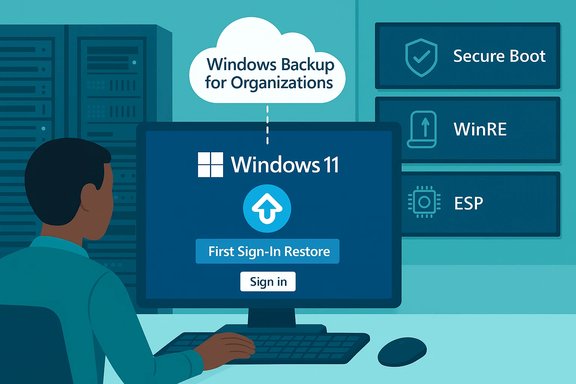
Microsoft’s enterprise backup story quietly shifted from a helpful convenience into a coordinated device‑lifecycle playbook this month, as the company expanded Windows Backup for Organizations with a new “first sign‑in restore” pathway and rolled a set of platform maintenance updates that touch Secure Boot, WinRE, and other recovery surfaces — at the same time that high‑profile criticism of Windows’ quality and growing tooling for AI and diagnostics are reshaping how IT shops think about migration, recovery, and user experience.

Windows 11 cloud backup for organizations with first sign-in restore and security features.Background / Overview​

Microsoft introduced Windows Backup for Organizations to give IT teams a way to preserve user personalization, Start menu layout, and Microsoft Store app lists in an identity‑anchored backup that follows a user rather than a device. The recent expansion adds a first‑sign‑in restore experience so that users who missed or dismissed the Out‑Of‑Box Experience (OOBE) restore prompt get a second chance to restore settings during their first interactive desktop sign‑in. This aligns restore timing with user productivity rather than being strictly gated to OOBE.
At the same time, Microsoft has been pushing cumulative updates and servicing work that address Secure Boot certification lifecycles and WinRE/BitLocker interactions, because the recovery pathways depend on underlying platform health. Those maintenance efforts are essential to prevent restore failures and to preserve the integrity of identity‑anchored restores.
This article explains what the first sign‑in restore actually does, the technical prerequisites and limits, the operational tradeoffs for IT, the security surface to watch, and a practical checklist for piloting the feature — plus a short situational review of the surrounding platform news that matters to Windows admins: Secure Boot certificate renewals, community frustration with Windows 11 quality, and why these changes matter to migration planning.

What the first sign‑in restore adds (and what it does not)​

The user experience, distilled​

  • During OOBE, tenants that enable the feature will historically see a restore page allowing users to pick a backup profile to restore personalization and Microsoft Store app placeholders.
  • The new first‑sign‑in restore triggers the same restore sequence at the first interactive desktop sign‑in for eligible devices that skipped, failed, or didn’t receive the OOBE prompt. This gives users a “second chance” to recover their environment without IT intervention.

What Windows Backup for Organizations preserves​

  • Backed up: personalization and Windows preferences (regional settings, some accessibility preferences), Start menu pins/layout, and the list of Microsoft Store apps (placeholders that the system can reinstall).
  • Not backed up: installed Win32 applications, MSI installers, line‑of‑business apps, device drivers, or full file‑level/disk‑image recovery. This is a settings/app list service — not a disaster‑recovery or image tool. Treat it as a complement to existing backup and application deployment tooling.

Where the restore happens and why it matters​

  • OOBE remains the primary point during provisioning, but first‑sign‑in restore broadens the coverage to real‑world scenarios where OOBE is skipped (quick device handoffs, automated provisioning errors, or technician pre‑provisioning steps).
  • The experience is identity‑anchored: backup payloads are tied to the user’s Microsoft Entra/Azure AD identity so the environment follows the person — a useful model for hot seats, multiple devices, and Cloud PC scenarios.

Technical prerequisites and platform gating​

Identity and OS requirements​

  • Devices must be Microsoft Entra joined (Azure AD) or hybrid‑joined to create backups and to use the enterprise restore path.
  • Full restore semantics (Start menu pins and automatic reinstallation of Store apps) are gated to Windows 11 builds that meet Microsoft’s minimum build numbers; backups may be created on Windows 10 22H2 but full restore experiences on Windows 10 are limited or unsupported. This encourages migration to Windows 11 for the richest experience.

Servicing and image health​

  • The restore flow expects device images to contain recent cumulative updates and platform fixes. Microsoft recommends either updating golden images to the latest required KBs or enabling Enrollment Status Page (ESP) quality update installation during OOBE so the device receives necessary servicing before the restore runs. If images are out of date, downloads invoked during OOBE or first sign‑in may fail, blocking restore.

Autopilot and provisioning caveats​

  • Supported provisioning flows tend to be user‑driven Autopilot profiles. Self‑deploying Autopilot, certain pre‑provisioning flows, shared devices, and some Group Policy/ConfigMgr enrollment paths may not present the restore experience reliably. Plan pilot rings accordingly.

Security, compliance, and privacy considerations​

Data protection model and tenant control​

  • Backups are stored in a tenant‑bound cloud store with Microsoft cloud protections; Intune and tenant admin controls govern whether the feature is enabled. The setting to show the restore page is tenant‑wide and requires Intune Service Administrator or Global Administrator privileges. That makes the feature operationally simple to flip — but blunt. Enable with care and scope via pilot rings.

Sensitive data and credential handling​

  • Password vaults and many credential types are deliberately excluded by default. MFA and authenticator app states generally require re‑registration and re‑sign‑in flows after a restore. Don’t rely on this as a credential recovery mechanism. Pair the feature with corporate guidance on MFA re‑enrollment and ensure login flows remain secure.

Attack surface and social engineering​

  • Any automated restore mechanism raises the risk that a malicious actor could attempt social‑engineering or exploit gaps in enrollment policy to apply a restore to an account they control. Conditional Access, device compliance checks, and enrollment verification are essential gates. Treat the tenant‑wide toggle as an administrative control that must be staged, monitored, and limited in scope.

Operational benefits and measurable gains​

  • Reduced helpdesk tickets: Restoring UI settings and Store app placeholders reduces repetitive tickets about “my Start menu lost everything” after a reset.
  • Faster time‑to‑productivity: Users regain a familiar working environment quicker, shortening downtime during refreshes or reimages.
  • Simplified Windows 10→11 migration paths: Preserves user context across platform migration, improving the change experience for non‑technical users.
These benefits are clear, but the realized ROI depends on how much of IT’s workload today is occupied with re‑creating personalization vs. reinstalling Win32 applications — since the latter remains outside the backup’s scope.

Failure modes, risks, and mitigation strategies​

Common failure scenarios​

  • Image/build mismatch: Devices that don’t meet minimum build or cumulative update thresholds can fail to present the restore page or fail when restoring app placeholders. Mitigation: update golden images or enable ESP quality updates during OOBE.
  • Enrollment path incompatibility: Self‑deploying Autopilot, shared‑device flows, and certain pre‑provisioning setups are not supported. Mitigation: use user‑driven Autopilot for pilots and create exception lists.
  • User decline during OOBE: The system is designed to respect an explicit user’s choice to skip restore; IT forcing a restore later can create confusion and support tickets. Communicate clearly before changing tenant settings.

Platform surprises to plan for​

  • WinRE / BitLocker / recovery partition issues: Past servicing patches have failed when recovery partitions lacked free space or WinRE was misconfigured. Before mass migration, include disk layout and WinRE health checks in your validation steps. If a servicing update (for example, older WinRE servicing KBs) previously required manual partition resize, that pattern could reappear for similar updates; don’t attempt partition edits without full images and escrowed BitLocker keys.

Tactical mitigations​

  • Pilot with a narrow ring of representative knowledge‑worker devices using user‑driven Autopilot.
  • Rebuild golden images with the required cumulative updates or configure ESP to install them at OOBE time.
  • Escrow BitLocker recovery keys to Entra/AD and verify WinRE is present and sized correctly before large‑scale rollouts.
  • Maintain full system images and an MSIX/Intune application deployment pipeline for Win32 apps; treat Windows Backup for Organizations as complementary.

Implementation checklist: rolling out first‑sign‑in restore​

  • Inventory and eligibility: identify devices that are Entra/hybrid joined and confirm Windows build thresholds.
  • Intune policy: create a “Windows 10 and later” Settings Catalog profile to enable Windows Backup (EnableWindowsBackup or the documented MDM policy) and toggle “Show restore page” under Enrollment options for pilot tenants. Note: this is tenant‑wide and requires admin privileges.
  • Image validation: rebuild golden images with required KBs or set ESP for quality update installation during OOBE.
  • Pilot validation: create a backup, reprovision a device, and confirm the restore during OOBE or first sign‑in works end‑to‑end. Collect telemetry (CloudRestore scheduled tasks, MDM Event Viewer channels).
  • Expand and communicate: widen rings based on pilot metrics and update end‑user documentation — clearly state what will restore and what will not.

Where this fits into a broader recovery and migration strategy​

Windows Backup for Organizations is a user‑centric continuity mechanism that reduces friction for personalization and Store app reinstalls. However, organizations should combine it with:
  • Full‑image backup and disaster‑recovery solutions for file‑level and system‑state protection.
  • An app packaging and deployment strategy (MSIX/Intune/SCCM) for deterministic Win32 application reinstallation.
  • Automated WinRE and BitLocker checks in update readiness pipelines to prevent platform maintenance surprises.

Broader platform context that matters to admins​

Secure Boot certificate renewal and KBs that matter​

Recent cumulative servicing has included Secure Boot certificate renewals to avoid certificate expirations that could break boot or driver validation. January 2026 cumulative updates (for example, the KB5074109 family) explicitly included Secure Boot maintenance alongside other quality fixes — these platform updates are not optional housekeeping for federated fleets. Administrators should verify Secure Boot status and certificate chain readiness as part of their update pipelines to avoid enrollment or restore failures tied to boot policy enforcement.

Community and vendor criticism of Windows quality​

The desktop ecosystem is hearing blunt public critiques from industry figures and platform owners. A recent high‑profile comment from GOG’s new owner criticized Windows as “such poor‑quality software” in a public interview; his remarks reflect real user and developer frustration in areas such as reliability, discoverability, and device management pain points. This sort of public sentiment matters because it accelerates enterprise attention to migration risk, user training, and backup/restore safety nets. Where criticism is grounded in specifics, vendors and admins should treat it as a cue to tighten test matrices and to invest in deterministic provisioning.

Why these conversations matter for migration timing​

  • Windows 10 reached end of mainstream support in October 2025, creating an urgency for many organizations to either migrate, enroll in ESU, or modernize device fleets. Identity‑anchored restores and Cloud Rebuild‑style recovery tooling lower the cost of migration, but they do not remove the need for robust imaging and app distribution plans. Treat the new features as reduces‑friction tools, not substitutes for due diligence.

Cross‑checking and verification notes​

  • The technical claims underlying the first‑sign‑in restore and the backup/restore scope have been verified across multiple published summaries and the vendor’s management documentation included in the provided material; specifically, documentation and vendor commentary confirm the Entra join requirement, the Windows 11 gating for full restore semantics, and the tenant‑level Intune control.
  • Platform maintenance claims (Secure Boot certificate renewal and servicing) appear in recent cumulative update summaries and admin briefings in the material provided; administrators should confirm the exact KB numbers and the sequence for their environment before applying mass updates.
Caveat: several of the other items in the original news list (for example, specific product integrations such as ChatGPT inside PowerToys, or the full release notes for third‑party apps like WhoCrashed 7) were listed by the submitter but were not present in the same documentary detail inside the searched files. Those items should be validated against the original publisher posts or the official project repositories before operational action. Where features are labelled as “preview” or are behind sign‑up forms (private preview), confirm program eligibility, NDA requirements, and deadlines on the offering page before assuming availability.

Final analysis: strengths, tradeoffs, and recommended next steps​

Notable strengths​

  • User‑centred recovery reduces helpdesk load: Restoring UI and app placeholders at first sign‑in addresses a high‑frequency annoyance — users get a familiar desktop back faster, which visibly lowers support friction.
  • Operational simplicity for admins: Tenant‑level Intune controls and automated restore flows allow consistent policy enforcement at scale, making staged rollouts practical.
  • Migration acceleration: For organizations migrating to Windows 11, identity‑backed restores make transitions smoother for non‑technical users, improving adoption rates.

Key tradeoffs and risks​

  • Scope gap vs. expectations: The service intentionally excludes Win32 applications and file‑level disaster recovery. Miscommunication here will lead to user disappointment and unnecessary tickets. Always pair the feature with an app deployment pipeline and a clear user guidance sheet.
  • Platform and provisioning fragility: Image freshness, WinRE/BitLocker health, and Autopilot provisioning path compatibility are non‑optional checks. Failing to validate these will produce silent restore failures at scale.
  • Administrative bluntness: Tenant‑wide toggles are powerful but blunt instruments; use pilot rings and feature gating to minimize accidental exposure to unsupported device classes.

Recommended next steps (practical)​

  • Inventory: identify Entra‑joined devices and prioritize candidate pilot pools.
  • Image health: rebuild or validate golden images with current cumulative updates and confirm WinRE/BitLocker readiness.
  • Pilot: enable the Intune restore toggle for a small ring (user‑driven Autopilot), run end‑to‑end restores, and collect logs.
  • Communication: publish a plain‑language user sheet that lists what will restore and what won’t, and include MFA re‑enrollment steps.
  • Backup strategy: maintain full‑image backup and MSIX/App deployment pipelines as canonical app/data recovery processes.

Windows’ recovery story is evolving away from device‑centric imaging alone and toward an identity‑anchored resilience posture that recognizes users move between endpoints. Microsoft’s first‑sign‑in restore is a pragmatic, low‑friction addition to that model, but it sits alongside a thicket of platform dependencies (servicing, WinRE, BitLocker, and certificate lifecycles) that IT teams must manage actively. Treat the new restore experience as part of a broader migration and recovery playbook — a definite gain for productivity and helpdesk efficiency, but one that requires disciplined piloting, clear communication, and intact image/patch hygiene to realize its promise.

Source: Petri IT Knowledgebase https://petri.com/windows-backup-fo...update-is-causing-yet-more-printer-problems/]
 

A glowing cloud hovers above a monitor displaying Entra ID for Microsoft.
Microsoft has quietly expanded Windows Backup for Organizations with a new first sign‑in restore experience that gives commercial customers a second chance to rehydrate user settings and Microsoft Store apps after a reset or reprovision — not just during OOBE but also at the first interactive sign‑in on Windows 11 devices.

Background / Overview​

Windows Backup for Organizations launched as an identity‑anchored, enterprise‑scoped capability designed to preserve selected user state (Windows settings, Start menu pins and the Microsoft Store app list) and restore that state into a newly provisioned or reimaged device so employees regain a familiar workspace quickly. The feature is opt‑in, tenant‑controlled through Microsoft Intune, and purposefully narrow in scope — it is not a replacement for full disk images, file‑level backups, or enterprise disaster‑recovery tooling. The new expansion — first sign‑in restore — was announced by Microsoft on January 14, 2026 as a private preview for commercial customers. The intent is to present the same restore opportunity users currently see during the Out‑Of‑Box Experience (OOBE) at the first interactive sign‑in instead, covering scenarios where the OOBE prompt was accidentally skipped or failed to appear. Microsoft frames this as a resilience and productivity enhancement for modern device lifecycles, including hybrid‑joined and cloud PC scenarios.

What the first sign‑in restore does — the experience, distilled​

The user journey​

  • During enrollment/OOBE today, users on eligible devices who sign in with a Microsoft Entra ID and who have a previous backup will see a restore page and can select a backup profile to restore settings and their Microsoft Store app list.
  • With the new first sign‑in restore, if a user skipped or could not complete the OOBE restore step, the same restore flow can be offered when the user first signs in to the desktop session — the first interactive sign‑in — giving them a “second chance” to recover their environment.
Microsoft explicitly states the flow respects deliberate user choices: if someone intentionally declined restore during OOBE, that preference will be preserved and the system will not prompt them again. The feature targets accidental skips or technical failures during setup rather than overriding deliberate user decisions.

Where it applies​

  • Windows 11 devices meeting published build thresholds (restores require Windows 11 for the full Start menu and Store‑app rehydration experience). Backups may be taken on supported Windows 10 builds, but restore semantics are gated on Windows 11.
  • Microsoft Entra joined and Microsoft Entra hybrid joined device states.
  • Multi‑user configurations and Windows 365 Cloud PCs where applicable, extending coverage beyond the traditional single‑user, newly provisioned PC scenario.

Technical prerequisites and hard limits​

What is backed up (and what is not)​

Windows Backup for Organizations preserves identity‑tied UI and personalization items — notably:
  • Windows preferences and syncable settings (personalization, regional settings, some accessibility choices)
  • Start menu pins and layout cues
  • The list of Microsoft Store apps the user had installed (the system can place placeholders and initiate Store reinstall where possible)
Crucially, it does not back up:
  • Win32 applications, MSI packages, or bespoke LOB installers — these remain the responsibility of deployment tooling such as Intune, Configuration Manager, or MSIX packaging solutions.
  • Full file‑level backups or system images; local files that aren’t synchronized to OneDrive or another backup target will not be covered by this feature. Treat this as settings/app list rehydration, not a DR product.

Platform gating and policy controls​

  • Entra join requirement: restore actions rely on the user’s Microsoft Entra ID and require the device to be Entra joined for the full experience. Hybrid scenarios are supported for backups, but restore behaviors vary by target.
  • Windows 11 restore: Microsoft’s documentation states the full restore experience is gated to Windows 11 baseline builds (22H2 and later with specific cumulative build thresholds). Admins must validate build levels in their golden images.
  • Tenant‑wide toggle: the restore prompt is controlled via an Intune tenant setting (Devices > Enrollment > Windows Backup and Restore > Show restore page). Enabling this is an admin action and is applied at enrollment; changes don’t retroactively alter already enrolled devices. Intune Service Administrator or Global Administrator privileges are required to flip the setting.

Operational caveats​

  • The restore flow is intended for user‑driven identity recovery during enrollment or first sign‑in; some provisioning paths (self‑deploying Autopilot, certain preprovisioning technician flows, shared device modes) may not be supported. Use user‑driven Autopilot profiles for pilot rings.
  • Backups run on a scheduled cadence (Microsoft documents an automatic backup cadence every eight days) and a manual trigger can be exposed in the Windows Backup app if IT allows it. Administrators must enable backup policy before restore options appear for users.

Security, compliance and governance considerations​

Data residency and tenant protections​

Backups are tenant‑bound and stored in the organization's cloud tenancy under Microsoft’s managed protections. That said, the introduction of identity‑anchored backups creates new data flows and metadata concerns for regulated environments, and organizations must validate retention, residency, and access control settings against compliance requirements. Treat this as a change to your tenant data surface and document approvals accordingly.

Credential and secret handling​

By design, certain credential artifacts (password vaults, non‑syncable secrets, or some authenticator state) are not restored automatically. Where credential sync is supported, administrative opt‑in and additional safeguards may apply. Administrators should pair this technology with clear guidance on MFA re‑enrollment and conditional access gating to avoid user confusion post‑restore.

Attack surface and social engineering risks​

Automated identity‑anchored restores introduce the possibility of social engineering or misuse if restore flows are invoked without proper policy gating. Tenant‑wide enablement means a misapplied toggle could lead to unexpected restore behavior for shared, kiosk, or sensitive devices. Best practice is to pilot on representative groups and use exclusions for restricted profiles. Conditional Access and device compliance policies remain key gatekeepers.

Early availability and timelines​

Microsoft published the announcement on January 14, 2026 and opened a private preview for commercial customers; eligibility requires enrollment in Microsoft’s Management Customer Connection Program and a signed NDA. The announcement indicated a broad commercial rollout (general availability) is planned for early 2026, and the private preview signup window was noted to remain open through February 13, 2026 for interested organisations. Administrators should treat GA timing as tentative and follow Microsoft’s deployment channels for firm dates.

Why this matters to IT operations — measurable gains and realistic limits​

Real, measurable benefits​

  • Faster time‑to‑productivity: Restoring settings and app lists at sign‑in reduces the time users need to rebuild their workspace after a reset or a new device, particularly for non‑technical staff.
  • Reduced help‑desk workload: Many desktop support tickets are about personalization, missing shortcuts and app lists; identity‑anchored rehydration can cut those recurring tickets substantially.
  • Simplified OS migration: For organizations moving from Windows 10 to Windows 11, preserving Start menu layout and Store app lists helps preserve user context during platform migrations.

The limits to keep in mind​

  • Not a full backup — Win32 apps, license entitlements, drivers and local‑only files remain outside the scope of this feature; continue to maintain imaging and backup workflows for those needs. Relying solely on Windows Backup for Organizations for DR would be a dangerous misclassification.
  • Platform gating — mixed estates with a large Windows 10 footprint will not get uniform restore behavior; restores are designed for Windows 11 and Entra‑joined profiles.
  • Dependency on cloud sync for files — if critical files are not synced to OneDrive or other enterprise stores, they will not be restored by Cloud Rebuild or this rehydration path. Plan OneDrive/known‑folder‑move hygiene alongside this feature.

Practical rollout checklist — pilot to production​

The following checklist synthesizes Microsoft’s documented requirements and community best practice into an actionable rollout plan.
  1. Inventory and eligibility
    • Identify pilot groups where users are Entra‑joined and primarily use Microsoft Store apps or rely on Start menu personalization.
    • Confirm target devices meet Windows 11 build and servicing minimums for full restore experience.
  2. Enable backup and test backups
    • Configure the Windows Backup policy in Intune’s Settings Catalog (Enable Windows Backup) so backups are created. Ensure at least one backup exists for the test user before attempting restore.
  3. Configure restore controls
    • In Intune, navigate to Devices > Enrollment > Windows Backup and Restore and set Show restore page to On for pilot tenants or rings. Remember this setting is tenant applied at enrollment time.
  4. Validate provisioning paths
    • Use user‑driven Autopilot flows for pilots. Document unsupported paths (self‑deploying Autopilot, certain preprovisioning modes) and ensure pilot devices use supported enrollment flows.
  5. BitLocker and WinRE checks
    • Ensure BitLocker recovery keys are escrowed to Entra/Azure AD so pre‑boot and WinRE repair flows are not blocked. Validate WinRE partition health (free space) where applicable.
  6. Communication and training
    • Tell users exactly what the restore will and won’t do (settings & Store app list vs. Win32 apps and file backup). Provide instructions for MFA re‑enrollment and common post‑restore checks.
  7. Monitor and iterate
    • Track Intune enrollment telemetry and restore events. Use small pilot rings and expand only after verifying success rates on representative OEM/models. Document failure modes and fallback steps (manual app deployments or Cloud Rebuild options).

Integration with broader Windows resiliency tooling​

Microsoft’s push to improve endpoint recoverability extends beyond the restore UX to a family of recovery features — Quick Machine Recovery (QMR), Point‑in‑Time Restore (PITR), and Cloud Rebuild — that together aim to reduce reimaging cycles and shorten MTTR for managed fleets. Windows Backup for Organizations forms one piece of that puzzle by preserving identity‑anchored settings for rehydration after a rebuild or Cloud Rebuild sequence. Deploying these features together — with proper pilot discipline — can dramatically speed returns to service for remote and distributed workforces.

Risks and where to apply caution​

  • If you enable tenant‑wide restore without a phased pilot, shared devices or specialized images might inadvertently present restore prompts that are confusing or inappropriate; use exclusions and carefully scope the policy.
  • Restoring an identity’s settings to a different hardware profile or a Cloud PC can surface driver or app compatibility issues that require separate remediation via Intune or app packaging. Test representative device classes before broad rollout.
  • Do not conflate convenience with completeness — maintain separate, auditable DR and backup strategies for business‑critical data and application state. This feature complements existing processes; it does not replace them.

Verdict: who should pilot first sign‑in restore — and how to measure success​

Pilot this capability if your environment checks these boxes:
  • You manage a modern, Entra‑joined estate with a strong Windows 11 adoption rate.
  • A measurable portion of helpdesk tickets relate to personalization and missing app lists after reprovision or device replacement.
  • You already enforce OneDrive for Business or a managed file sync policy so important user files are not local‑only.
Measure success by tracking:
  • Reduction in helpdesk tickets for desktop personalization and missing apps (baseline vs. pilot).
  • Time to productivity for new/reimaged devices (time from sign‑in to first completed day of work).
  • Restore success rate across OEM models and Autopilot/Cloud PC types.
If these KPIs trend positive, scale from pilot rings to broader cohorts — but maintain exclusions for kiosks, clinical devices, and other specialized machines.

Final thoughts​

The new first sign‑in restore for Windows Backup for Organizations is a pragmatic, identity‑first expansion that reduces friction for onboarding, migrations, and recovery in modern fleets. It addresses a common operational gap — accidental skips during OOBE — in a way that keeps the control plane firmly in IT’s hands via Intune. Microsoft’s official documentation and the Windows IT Pro announcement both make clear the feature’s intent and constraints: it preserves settings and a Store app list, not entire application ecosystems or local file stores. Administrators gain a powerful productivity lever, but one that must be deployed with commodity‑grade operational discipline: pilot rings, BitLocker key escrow, build validation and clear user guidance.
Adopt the feature as a complementary element of a holistic endpoint resilience strategy — one that includes robust imaging, application deployment, OneDrive sync hygiene, and tested fallback options (Cloud Rebuild, remote remediation) — and the result will be a measurable reduction in downtime and helpdesk toil for identity‑centric workforces.
Source: Petri IT Knowledgebase Windows Backup for Organizations Gets First Sign-In Restore
 

Microsoft's quietly expanded Windows Backup for Organizations shifts the device-recovery conversation away from one-time OOBE prompts and toward an identity‑anchored, user‑centric restore model that gives commercial IT teams a second chance to rehydrate Windows settings, Start menu pins and Microsoft Store app lists at the user's first interactive sign‑in — not only during the Out‑Of‑Box Experience.

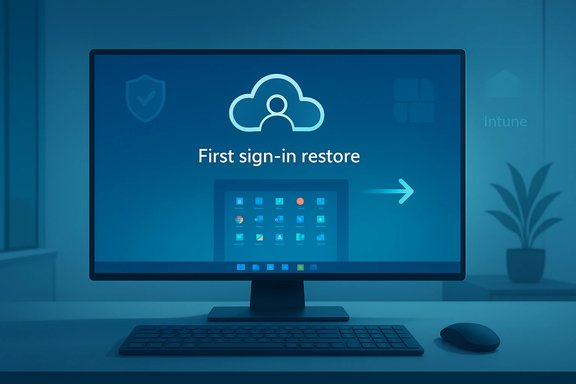
Monitor shows “First sign-in restore” with a cloud icon and a rightward arrow.Background / Overview​

Windows Backup for Organizations debuted as a narrowly focused enterprise capability intended to preserve a small but high-value slice of user state: personalization and UI settings, Start menu layout, and a registry of Microsoft Store apps so devices can be rehydrated with minimal user friction after a reset or reimage. The feature is identity‑anchored — backups are tied to a user's Microsoft Entra (Azure AD) identity — and it is deliberately not a replacement for file‑level or image‑based disaster recovery solutions. On January 14, 2026 Microsoft announced a private preview of an expanded restore path called first‑sign‑in restore, which delivers the same restore experience users normally encounter during OOBE at the first interactive desktop sign‑in if the OOBE prompt was missed, dismissed, or failed to appear. The private preview sign‑up window is open through February 13, 2026, and Microsoft expects broader availability in early 2026. This expansion matters because real‑world device lifecycles rarely follow the textbook OOBE flow. Devices are handed off, pre‑provisioned, or imaged by technicians; users skip prompts; OOBE can fail for timing or network reasons. First‑sign‑in restore fills a practical gap by aligning the restore opportunity with user productivity rather than a single, brittle provisioning moment.

What first‑sign‑in restore actually does (and what it does not)​

The user experience — distilled​

  • During OOBE, enrolled devices with the tenant restore toggle enabled show a restore page that allows users to pick a backup profile and reapply settings and the Microsoft Store app list.
  • With first‑sign‑in restore, eligible devices that skipped, failed, or never saw the OOBE prompt are offered the same restore flow at the user's first interactive desktop sign‑in — a “second chance” to recover environment state without helpdesk intervention. Microsoft says the experience respects intentional declines; a user who deliberately opted out during OOBE will not be re‑prompted.

Exactly what is preserved​

Windows Backup for Organizations targets UI and personalization artifacts rather than application binaries or user documents. Specifically, the service is designed to back up and restore:
  • Windows personalization and syncable OS settings (theme, regional settings, some accessibility choices)
  • Start menu pins and layout cues
  • The list (catalog) of Microsoft Store apps the user had installed; the system places placeholders and initiates Store reinstall where possible
It does not back up:
  • Win32 applications, MSI installers, or bespoke line‑of‑business installers
  • Full file‑level backups, disk images, or low‑level device drivers
  • Non‑sync’d local files unless those files have been pushed to OneDrive or another enterprise backup target
Put bluntly: this is a settings and app‑list rehydration service, not a disaster‑recovery or image‑replacement product. Treat it as a complement to your existing backup, configuration management, and application deployment pipelines.

Platform and identity gating​

  • Backups are tenant‑controlled and require Microsoft Entra (Azure AD) device join status — Entra‑joined or hybrid‑joined devices are the target for this enterprise flow.
  • While backups may be created from supported Windows 10 builds, the full restore UX (Start menu rehydration and Store app reinstallation) is gated to Windows 11 builds that meet Microsoft’s published build thresholds. This effectively nudges organizations toward Windows 11 for the most complete experience.
  • The restore prompt is controlled by an Intune tenant setting (Devices > Enrollment > Windows Backup and Restore > Show restore page) and is opt‑in; enabling it applies to new enrollments and does not retroactively alter devices already enrolled.

Why this change is significant for IT operations​

Measurable operational gains​

  • Faster time‑to‑productivity: Restoring personalization and app placeholders saves end users from manual reconfiguration and reduces the cognitive overhead of a fresh desktop.
  • Fewer helpdesk tickets: Many support calls are about missing shortcuts, layout differences, and absent Store‑installed apps. Rehydration cuts those repeat tickets.
  • Simpler migration paths: For organizations migrating from Windows 10 to Windows 11, preserving Start menu layouts and app lists helps maintain user context across platform upgrades.

Real constraints to factor into ROI calculations​

  • Not a full backup: Win32 apps, license entitlements and local files remain outside scope. If your current helpdesk effort is dominated by reinstalling LOB Win32 apps, this feature only addresses part of the problem.
  • Platform heterogeneity: Mixed estates with large Windows 10 footprints will not behave uniformly — restores are designed for Windows 11.
  • Dependency on cloud services: The rehydration flow requires connectivity to Microsoft cloud services; offline or air‑gapped recovery still needs your traditional imaging/DR playbook.

Security, compliance and governance implications​

Data residency, encryption and tenant boundaries​

Backups are stored within the organization's Microsoft tenant and Microsoft cloud protections apply. Administrators must treat this as an expansion of tenant data surface: confirm retention controls, access delegation, and regional residency settings to meet compliance obligations. For regulated industries, the change may trigger policy reviews and approvals.

Credential handling & MFA re‑enrollment​

By design, certain credential artifacts and non‑syncable secrets are not restored automatically. MFA and authenticator state typically require re‑registration or explicit re‑enrollment flows after restore, which reduces risk but increases post‑restore steps for users. Admins should document and communicate these steps to minimize confusion.

Attack surface and social engineering​

Identity‑anchored restores introduce a potential social‑engineering surface: if a malicious actor can control an account or manipulate enrollment flows, they might attempt to trigger or abuse restore pathways. Tenant‑wide toggles are powerful but blunt; pilot rings, exclusions for shared/kiosk devices, and Conditional Access policy checks are necessary defenses. Microsoft expressly recommends pairing feature enablement with Conditional Access and device compliance gating.

Practical deployment checklist for IT teams​

The following checklist synthesizes published Microsoft guidance and community best practice into a stepwise pilot-to-production plan.
  • Inventory and eligibility
  • Identify Entra‑joined and hybrid‑joined devices owned by target pilot users.
  • Confirm which devices are Windows 11 (recommended) vs Windows 10 and document expected behavior differences.
  • Image and servicing hygiene
  • Validate golden images have the required Windows 11 baseline and cumulative updates.
  • Ensure WinRE and BitLocker health checks pass; unresolved WinRE or BitLocker issues can block recovery paths.
  • Enable backups
  • Turn on Windows Backup for Organizations via Intune Settings Catalog (Enable Windows Backup). Ensure backups exist for pilot users before validating restores.
  • Configure restore controls
  • Use Intune to set Devices > Enrollment > Windows Backup and Restore > Show restore page = On for your pilot tenant/ring.
  • Remember the tenant toggle applies at enrollment time; it won't retroactively alter already provisioned devices.
  • Pilot and validate end‑to‑end flows
  • Use user‑driven Autopilot where possible; avoid unsupported provisioning flows (self‑deploying Autopilot, certain preprovisioning modes) during the pilot.
  • Test both OOBE and first‑sign‑in restore triggers, and measure success/failure modes and telemetry.
  • User communication and training
  • Publish a short plain‑language guidance sheet that lists what will restore and what will not.
  • Include explicit MFA re‑enrollment steps and a post‑restore checklist for users.
  • App and data recovery alignment
  • Keep your application deployment (Intune, ConfigMgr, MSIX) and file backup (OneDrive, centralized backups) pipelines as canonical recovery paths for Win32 apps and user data. The new feature is complementary, not a replacement.

Technical caveats and open questions IT should verify​

  • Backup cadence and retention: Microsoft has documented an automatic backup cadence (examples in community writeups show an eight‑day cadence) and exposed a manual backup trigger in the Windows Backup app, but exact cadence, retention windows and quotas may vary between preview and GA. Validate the final values in your tenant and confirm storage costs if retention is configurable. Treat preview figures as provisional.
  • Restore fidelity across Windows versions: Backups can be created on supported Windows 10 and Windows 11 builds, but the full rehydration UX is gated to Windows 11. If you have multi‑OS users, test both directions and document where fallback manual remediation is necessary.
  • Device classes and provisioning paths: Some enrollment scenarios remain unsupported (Group Policy only enrollments, certain preprovisioning modes, shared device profiles). Test your exact Autopilot and provisioning flows before broad enablement.
If any of these specifics are critical to your deployment, validate them against Microsoft’s product documentation and your tenant settings in Intune; preview documentation is a good starting point, but GA documentation may change these details.

Operational risks and mitigations​

Risk: Misplaced expectations (users think it’s a full backup)​

Mitigation: Communicate clearly — use plain language that explains the feature restores settings and Store app lists but does not reinstall Win32 apps or recover local files. Pair messaging with automated app deployment and OneDrive known‑folder movement policies.

Risk: Silent restore failures caused by image or WinRE issues​

Mitigation: Add WinRE/BitLocker/firmware checks to your golden image validation gates. Include a test matrix that triggers common post‑restore scenarios and validates the environment end‑to‑end.

Risk: Over‑broad tenant enablement impacts shared or kiosk devices​

Mitigation: Use pilot rings and device/exclusion lists in Intune. Do not flip the tenant toggle into production until you have representative pilot results.

Risk: Compliance or data residency concerns​

Mitigation: Map the backup storage location and retention policy to your compliance requirements. If needed, obtain formal approvals from security, legal and data‑protection teams prior to rolling out beyond pilot groups.

How this fits into Microsoft’s broader resiliency story​

Windows Backup for Organizations sits alongside a set of recent platform investments that collectively reimagine recovery as part of the OS lifecycle: Quick Machine Recovery, WinRE networking plug‑ins, and larger initiatives such as Point‑in‑Time Restore and Cloud Rebuild. These tools collectively move Microsoft’s posture from device‑centric imaging to surgical recovery — targeted rehydration or rollback instead of full reimaging where possible. First‑sign‑in restore is a pragmatic, low‑friction addition to that toolbox that specifically addresses the user experience gap in provisioning.

Recommended pilot parameters (practical)​

  • Pilot size: 50–200 seats depending on fleet size; choose a mix of new hires, refresh candidates, and users who typically require frequent helpdesk assistance.
  • Device mix: Prioritize Windows 11 devices for full UX coverage, but include a subset of Windows 10 devices to validate backup creation and identify cross‑OS behavior.
  • Duration: 4–6 weeks to capture scheduled backup cadence effects and real‑world provisioning permutations.
  • Success metrics:
  • Reduction in personalization / missing‑apps helpdesk tickets (% decrease)
  • Time to first productive session (mean hours saved)
  • Restore success rate (completed restores without manual intervention)
  • Data collection: Collect logs from Intune, Windows event logs for backup/restore operations, and basic user satisfaction survey results post‑restore.

Final assessment — strengths, risks, and when to adopt​

Windows Backup for Organizations’ first‑sign‑in restore brings a meaningful, user‑centric improvement to the provisioning and recovery lifecycle. Its strengths are very practical:
  • Low friction for end users, restoring the small things that nonetheless cost hours in cumulative lost productivity.
  • Identity‑anchored continuity, which matches modern work patterns where users roam between devices.
  • Operational efficiency, as rehydration targets common helpdesk tickets without forcing administrators into heavy image‑management cycles.
However, the feature also carries real caveats:
  • It is not a replacement for your backup, imaging or application deployment strategy. Relying on it alone risks data loss for local files and Win32 app configurations.
  • Successful rollouts demand image health, WinRE/BitLocker readiness, and careful tenant scoping; ignoring those prerequisites invites silent failures at scale.
  • Policy, compliance and social‑engineering risks must be managed with Conditional Access, exclusions, and clear user communications.
For organizations that already embrace Microsoft Entra join, Intune device management, and OneDrive‑backed file sync, first‑sign‑in restore is a straightforward, low‑risk improvement to pilot now. For mixed or highly regulated estates, treat it as a complementary step in a broader modernization and resiliency program, not a silver bullet.

Next steps for teams ready to move​

  • Review the Microsoft Tech Community announcement and sign up for preview if your organization wants early access.
  • Map your device inventory to find ideal pilot candidates — Entra‑joined Windows 11 devices with user‑driven Autopilot are best.
  • Validate golden images for WinRE and BitLocker health; patch images to the recommended baseline.
  • Draft user communications that explain exactly what will and will not be restored.
  • Instrument telemetry and ticket tracking before pilot launch so you can measure helpdesk impact objectively.
Windows Backup for Organizations’ first‑sign‑in restore is a pragmatic, targeted solution to a common provisioning pain. It won’t replace DR or image‑based recovery, but when deployed with discipline and realistic expectations it can cut friction, reduce repetitive support work, and make device refreshes far less painful for users and admins alike.
Source: Neowin https://www.neowin.net/news/microsoft-is-making-windows-backup-for-organizations-a-lot-better/
 

Microsoft has quietly extended Windows Backup for Organizations with a first‑sign‑in restore pathway that gives IT teams and end users a second chance to rehydrate Windows settings, Start menu pins and Microsoft Store app lists at the user’s first interactive desktop sign‑in — not only during the Out‑Of‑Box Experience (OOBE). This pragmatic expansion, announced by Microsoft on January 14, 2026, moves restore timing from a single provisioning moment to one aligned with actual user productivity and modern device lifecycles.

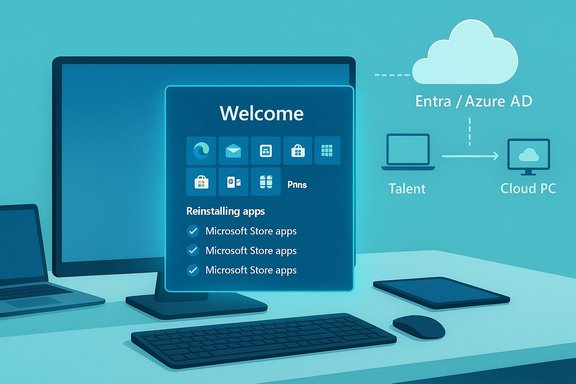
Blue-toned desk setup showing a Welcome screen for a Cloud PC managed by Entra/Azure AD.Background / Overview​

Windows Backup for Organizations was introduced as a narrowly scoped, identity‑anchored feature to preserve high‑value user state — notably personalization, OS syncable settings, Start menu configuration, and a registry of Microsoft Store apps — so that a newly provisioned or reimaged device can present a familiar workspace without heavy imaging or manual intervention. The service deliberately does not replace full disk images, file‑level backups, or enterprise disaster‑recovery tooling. The new first‑sign‑in restore expands the restore pathway so that if a user skips, dismisses, or never sees the OOBE restore prompt, the system will offer the same restore flow during the first interactive sign‑in to the desktop session. Microsoft positioned this as a resilience and productivity enhancement for hybrid device lifecycles — including Microsoft Entra hybrid joined devices, multi‑user setups, and Windows 365 Cloud PCs — and opened a private preview with a sign‑up window running through February 13, 2026. Microsoft expects broader availability in early 2026.

What first‑sign‑in restore actually does (and what it does not)​

The user experience — distilled​

  • When a tenant enables the restore option, eligible users who sign into an Entra‑joined device traditionally see a restore page during OOBE that lets them select a backup profile to reapply settings and the Microsoft Store app list.
  • With first‑sign‑in restore, eligible devices that missed or failed OOBE will offer the same restore page at the first interactive desktop sign‑in — providing a second chance to recover environment state without helpdesk intervention. Microsoft says the experience honors explicit declines made during OOBE.

Exactly what is preserved​

Windows Backup for Organizations targets UI and personalization artifacts rather than binaries or user document content. Typical backed‑up items include:
  • Windows personalization and syncable OS settings (theme, language/region, select accessibility options).
  • Start menu pins and layout cues, restoring the end‑user’s visible workspace.
  • The list (catalog) of Microsoft Store apps the user had installed (the system places placeholders and initiates Store reinstall where possible).
Crucially, the service does not back up:
  • Win32 applications, MSI installers, or bespoke LOB installers (these remain the remit of Intune, Configuration Manager, MSIX or other deployment tooling).
  • Full file‑level backups, disk images, or low‑level device drivers.
  • Local files that are not synchronized to OneDrive or other enterprise backup targets.
Put bluntly: this is settings and app‑list rehydration, not a disaster‑recovery solution. Treat it as a complement to your imaging and file backup strategy.

Verified technical prerequisites and gating​

Because this feature is implemented across enrollment and restore surfaces, several prerequisites and hard limits apply. These claims were verified against Microsoft’s documentation and the Windows IT Pro announcement.
  • Identity join: Backups and the enterprise restore path require Microsoft Entra (Azure AD) join or Microsoft Entra hybrid join; restore semantics are only available to Entra‑joined devices.
  • OS build requirements:
  • Backups may be created from supported Windows 10 and Windows 11 builds (Windows 10 22H2 and Windows 11 22H2/23H2/24H2 baselines are referenced).
  • The restore feature (including Start menu rehydration and Store app reinstallation) is gated to specific Windows 11 builds — for example, Windows 11 22H2 and later with explicit build thresholds defined in Microsoft Learn. Administrators should consult the published minimum build numbers before enabling restore at scale.
  • Tenant control via Intune: The restore page is controlled by a tenant‑wide Intune setting (Devices > Enrollment > Windows Backup and Restore > Show restore page). The toggle is applied at enrollment time and does not retroactively change devices already enrolled. Only Intune Service Administrator or Global Administrator roles can flip the setting.
  • Provisioning caveats: Not all provisioning paths are supported — self‑deploying Autopilot, certain technician pre‑provision workflows, shared or userless devices, and some manual enrollment methods may not present the restore experience. Use user‑driven Autopilot for pilot rings.
  • Update/servicing health: Microsoft recommends ensuring golden images include recent cumulative updates (or enabling the Install Windows quality updates policy) so required patches are present before restore runs; older images can cause the restore flow to fail during OOBE or first sign‑in.
These details were cross‑checked with the Windows IT Pro blog post announcing the expansion and the Microsoft Learn articles that define builds, policy controls and known issues. Where documentation lists exact build numbers or KB references, use those values in your image validation tests to avoid silent failures.

Why this matters to IT operations​

Modern provisioning rarely follows the textbook flow. Devices are handed off, imaged, pre‑provisioned, or deployed via Autopilot; users sometimes skip prompts; network and timing issues can prevent OOBE flows from completing. Moving the restore opportunity to the first sign‑in addresses three operational realities:
  • Time‑to‑productivity gains: Restored personalization and app placeholders reduce user cognitive friction and help them get productive quicker after a reset or new device.
  • Helpdesk reduction: Many frontline tickets are about missing shortcuts, absent Microsoft Store apps and layout differences — restoring these elements automatically cuts repeat work.
  • Better alignment with identity: Because backups are tied to an Entra identity, the environment follows the person across devices, a model that fits hybrid workplaces and Cloud PC scenarios.
Those operational gains are measurable: reduced personalization tickets, faster mean time to first productive session, and fewer manual reimages prompted by users who missed OOBE. Independent coverage and IT‑ops field guides emphasize these wins while also warning that the feature only addresses a slice of the recovery surface.

Strengths — what to like​

  • Low friction for end users: The experience is simple and user‑driven; restoring a Start menu and settings is much less disruptive than a manual rebuild.
  • Identity‑anchored continuity: Backups follow the Microsoft Entra identity, so users moving between devices or returning to a Cloud PC get a familiar workspace.
  • Admin‑controlled opt‑in: Tenant control via Intune means the feature can be piloted in rings and enabled progressively.
  • Supports modern scenarios: Hybrid join, multi‑user setups and Windows 365 Cloud PCs are explicitly considered, broadening applicability beyond single‑user, freshly provisioned machines.

Risks, failure modes and governance concerns​

  • Not a replacement for DR or imaging: Misclassifying it as a full backup will cause data‑loss incidents for unsynced local files and Win32 app states. Maintain image and file backup discipline.
  • Platform fragility: Image freshness, WinRE and BitLocker health, and enrollment path compatibility are non‑optional checks. An out‑of‑date golden image can block restore during OOBE or first sign‑in.
  • Tenant wide toggle can be blunt: The Intune restore setting is tenant‑level and applied at enrollment. Enabling broadly without exclusions risks unexpected behavior for shared or kiosk devices. Use pilot rings and exclusion policies.
  • Social engineering and policy misuse: Any automated restore flow introduces attack vectors where a malicious actor could attempt to trigger or abuse a restore. Use Conditional Access, device compliance gates and robust enrollment policies to reduce this risk.
  • Compliance and residency considerations: Backups are stored in a tenant‑bound cloud store. Regulated organizations must validate retention, residency and access control settings as part of adoption. Do not assume default configurations meet your compliance posture.

Practical rollout checklist — pilot to production​

The most common reason enterprise rollouts stumble is skip‑testing and insufficient telemetry. Use this checklist to pilot responsibly.
  • Inventory and eligibility
  • Identify Entra‑joined or hybrid‑joined devices as pilot candidates.
  • Prioritize Windows 11 devices for full UX coverage; include a subset of Windows 10 machines to validate backup creation only.
  • Image health and servicing
  • Update golden images to the required cumulative updates and minimum Windows 11 build numbers defined by Microsoft Learn.
  • Enable “Install Windows quality updates” in ESP when older images must be used to ensure updates apply during OOBE.
  • Intune configuration
  • Configure Windows Backup policies in the Settings Catalog to allow backups and enable the tenant restore toggle (Devices > Enrollment > Windows Backup and Restore > Show restore page).
  • Apply the restore toggle only to the pilot tenant or ring; remember the setting applies at enrollment time and is not retroactive.
  • Provisioning path validation
  • Use user‑driven Autopilot profiles for pilot devices. Document unsupported flows (self‑deploying Autopilot, technician pre‑provisioning, Group Policy enrollment).
  • Record edge cases such as shared devices or VMs with phishing‑resistant MFA constraints.
  • Backups and test restores
  • Ensure pilot users have at least one backup profile before attempting a restore.
  • Perform end‑to‑end tests: create backup, reset a VM or device, then confirm restore during OOBE and/or first sign‑in. Capture logs.
  • Telemetry and success metrics
  • Track restore success rate, mean time to first productive session, and reduction in personalization/app‑related helpdesk tickets.
  • Capture Intune reporting, Task Scheduler CloudRestore events, and MDM event logs for diagnostics.
  • Communications and operational playbooks
  • Publish a plain‑language guidance sheet that specifies what will and will not be restored (settings & Store app list vs Win32 apps and file backup).
  • Include MFA re‑enrollment steps and verification checks for users post‑restore.
  • Expand carefully
  • After a 4–6 week pilot and measured success, widen rings and adjust image or policy controls as required.

Security, compliance and privacy: a more detailed look​

The move to identity‑anchored backups alters the tenant data surface. While Microsoft stores backups in the organization’s tenant cloud store and applies its cloud protections, organizations must:
  • Document retention and residency expectations and align them with regulatory obligations.
  • Ensure Conditional Access and device compliance gating remain in place to prevent unauthorized restore initiation.
  • Treat credential material conservatively: password vaults, certain secrets, and authenticator states are excluded or require admin opt‑in and additional safeguards; MFA typically requires re‑enrollment after restore.
Operationally, the safest model is to require compliance‑checked devices and to gate restore with device signals that make social‑engineering attacks significantly harder.

Verification and cross‑reference: where the facts came from​

Key technical claims were verified against Microsoft’s official guidance and independent coverage:
  • Microsoft Learn’s Windows Backup for Organizations pages list the build thresholds, Entra join requirements, and the Intune tenant control steps for the restore page. Administrators must follow the exact build numbers in the Learn docs to avoid restore incompatibilities.
  • The Microsoft Intune documentation details enabling Windows Backup for Organizations in the Settings Catalog and enumerates supported/unsupported provisioning methods and known issues.
  • The Windows IT Pro blog post announcing the first‑sign‑in restore expansion (dated January 14, 2026) and Microsoft Message Center posts describe the private preview, sign‑up window (open through February 13, 2026) and eligibility requirements (Management Customer Connection Program + NDA). These announcements are the authoritative timeline for preview participation.
  • Independent outlets explained the product’s scope and limitations — notably that this is not a full backup service and that restore is gated to Windows 11 for the full UX — giving a second, independent confirmation of Microsoft’s intent and operational boundaries.
Where documentation lists precise build numbers, administrators should prefer Microsoft Learn’s authoritative numbers when validating images. Any third‑party restatement of dates or thresholds should be double‑checked against Microsoft’s pages because preview windows and rollout dates can change.

Operational case studies: when first‑sign‑in restore helps most​

  • Organizations moving a large volume of standard knowledge‑worker endpoints to Windows 11 will find the feature reduces friction: Start menu personalization and Store app placeholders restore quickly, easing user complaints and cutting helpdesk churn.
  • Teams that use Windows 365 Cloud PCs or multi‑user environments gain continuity because the backup follows the user’s Entra identity.
  • Service teams that run frequent refresh cycles or reimages benefit because the small items that cause repeated support contacts are handled automatically.
These are high‑leverage wins when your estate already uses Entra/Intune and OneDrive for file sync. If you lack a disciplined application deployment pipeline (Intune apps/MSIX), the value declines because Win32 apps still require curated reinstallation paths.

Final assessment — who should adopt and when​

  • Adopt now if: your organization is primarily Microsoft Entra‑joined, uses Intune for endpoint management, has a sizable Windows 11 fleet and wants to reduce helpdesk tickets tied to personalization and Store app lists. The feature is low risk and high return when deployed in pilot rings with image hygiene.
  • Pilot cautiously if: you manage a mixed estate with many Windows 10 devices, rely heavily on packaged Win32 apps and vendor drivers, or operate under strict data residency/regulatory constraints. Use exclusions and limit tenant scope.
  • Avoid treating it as a primary backup mechanism: maintain full image and file backup strategies and ensure your app packaging/deployment pipelines remain the canonical method for restoring business‑critical Win32 applications and license entitlements.

Closing — practical next steps for IT teams​

  • Read the Windows IT Pro blog post announcing first‑sign‑in restore and review Microsoft Learn’s Windows Backup for Organizations pages to confirm build numbers and policy steps.
  • Map your device inventory for pilot candidates: Entra‑joined, Windows 11 devices with user‑driven Autopilot profiles are ideal.
  • Update golden images, confirm WinRE and BitLocker readiness, and enable ESP quality updates if you must support older images.
  • Enable backup in the Settings Catalog for a controlled pilot, perform end‑to‑end restores, gather telemetry, and publish clear user guidance on what the feature restores and what it does not.
  • If interested in early access, verify your eligibility and sign up for the private preview interest form before the Microsoft‑announced window closes (sign‑up was open through February 13, 2026 per Microsoft communications; confirm the current status before relying on that date).
First‑sign‑in restore is a targeted, pragmatic extension of Windows Backup for Organizations that recognizes the messy realities of provisioning and the productivity cost of “the little things” that break when users switch devices. It won’t replace your backup or deployment tooling, but when enacted with discipline it will shave hours of repetitive work from users and helpdesks alike — a practical piece of the broader identity‑anchored resilience playbook that enterprises are building for modern Windows lifecycles.

Source: Techzine Global https://www.techzine.eu/news/applic...s-windows-backup-with-first-sign-in-restore/]
 

Microsoft has quietly added a first sign‑in restore to Windows Backup for Organizations, giving users and admins a built‑in “second chance” to recover personalization, Start menu pins and the Microsoft Store app list at the first interactive desktop sign‑in rather than only during the Out‑Of‑Box Experience (OOBE).

Illustration of first sign-in restore on a laptop with cloud and Intune icons.Background​

Windows Backup for Organizations arrived as a narrowly scoped, identity‑anchored capability to ease device refresh and migration workflows by preserving a handful of high‑value user artifacts. It is intentionally not a full disaster‑recovery product: the service captures syncable Windows settings, Start menu layout/pins, and a catalog of Microsoft Store apps (placeholders for re‑installation) — not Win32 program binaries, disk images, or arbitrary local documents.
The recent change — announced as a private preview in mid‑January 2026 — extends the restore pathway so that eligible users who skipped, dismissed or missed the OOBE restore prompt will be offered the same restore flow the first time they sign into the desktop. Microsoft frames this as a resilience and productivity enhancement meant to reduce needless helpdesk calls when OOBE provisioning flows are interrupted or when users later change their mind about restoring a saved environment.
This update also expands platform coverage: Windows 365 Cloud PCs, Microsoft Entra hybrid‑joined devices and some multi‑user scenarios are included in scope for the preview, and the tenant‑controlled toggle in Intune remains the administrative on/off for the UX.

What the first‑sign‑in restore actually does​

The user experience — concise​

During OOBE, tenants that enable the restore toggle see a restore page that lets users select a backup profile to reapply settings and the Microsoft Store app placeholders. With the first‑sign‑in restore, the same flow can be invoked at the first interactive desktop sign‑in if the OOBE opportunity was missed or skipped. Microsoft says the system will respect deliberate declines made during OOBE and will not re‑prompt users who intentionally opted out.
This repositioning from a single provisioning moment toward a user‑productivity aligned prompt is a practical fix for real‑world scenarios: devices pre‑staged by technicians, short hand‑offs between users, network issues during OOBE, or users who complete setup quickly and decline prompts they later regret.

Exactly what is restored — the scope​

  • Backed up and restorable:
  • Syncable Windows settings (theme, regional settings, select accessibility choices).
  • Start menu pins and layout cues.
  • A catalog/list of Microsoft Store apps that the system can place as placeholders and attempt to reinstall.
  • Not backed up and not restorable:
  • Win32 applications, MSI installers, line‑of‑business installers and other traditional enterprise application binaries.
  • Full file‑level backups or disk images; local documents that are not synchronized to OneDrive or another cloud backup are not part of this service.
  • Device drivers and low‑level system state beyond the UI/configuration artifacts described above.
Administrators must therefore treat this as a settings and app‑list rehydration service that complements — rather than replaces — Intune application deployment, MSIX/ConfigMgr packaging, and conventional backup/DR strategies.

Cadence and activation​

Backups are performed on a scheduled cadence (the existing scheduled task runs roughly once every eight days) and can also be initiated manually when allowed by policy. The tenant toggle to show the restore page lives in Intune (Devices > Enrollment > Windows Backup and Restore > Show restore page) and is applied to new enrollments — flipping it does not retroactively change enrolled devices.

Technical prerequisites and platform gating​

Identity and device state​

The service is identity‑anchored: backups and restores are tied to the user’s Microsoft Entra (Azure AD) identity. Devices must be Microsoft Entra joined or hybrid‑joined to participate in the enterprise backup and restore flows. Restore semantics for the full Start menu and Store‑app rehydration are gated to Windows 11 baseline builds that meet Microsoft’s minimum build thresholds. While backups may be taken on some Windows 10 builds, the richest restore UX is effectively a Windows 11 experience.

Provisioning paths and Autopilot caveats​

Supported provisioning flows tend to be user‑driven Autopilot profiles. Certain provisioning modes — notably self‑deploying Autopilot, some pre‑provisioning technician flows, or shared device modes — may not reliably present the restore experience. For these scenarios, administrators should pilot carefully and set expectations for when restores will appear.

Image health, servicing and WinRE interactions​

The restore flow expects device images to contain recent cumulative updates and platform fixes. Microsoft recommends updating golden images to required KBs or enabling Enrollment Status Page (ESP) quality update installation during OOBE so the device receives necessary servicing before the restore runs. If images are out of date, downloads invoked during OOBE or first sign‑in may fail and block the restore. Administrators must validate WinRE, BitLocker, and driver interactions because these platform pieces are dependencies for reliable rehydration at scale.

Why this matters for IT operations​

Tangible operational benefits​

  • Faster time‑to‑productivity. Restoring personalization and app placeholders shortens the time users spend reconfiguring a new or reset device.
  • Fewer helpdesk tickets. Many end‑user support calls are about missing shortcuts and configurations — rehydration reduces those repetitive calls.
  • Reduced friction for migrations. When moving users between devices or from Windows 10 to Windows 11, identity‑anchored restores help preserve familiarity without heavy imaging overhead.

Administrative trade‑offs​

  • The tenant‑wide toggle in Intune is a blunt instrument, capable of quickly changing behavior across an organization. Pilot rings and phased rollouts are recommended before broad deployment.
  • The feature’s limited scope means IT still needs robust application distribution pipelines and full backup solutions for critical data.
  • Platform dependencies (image freshness, servicing, WinRE/BitLocker health) make the restore delicate: restoring into a stale image or a device with driver incompatibilities can produce failures that complicate helpdesk workflows rather than simplify them.

Security, compliance, and privacy considerations​

Tenant data control and residency concerns​

Backups are tenant‑bound and reside under Microsoft’s managed cloud protections, but the introduction of identity‑anchored backup artifacts changes the tenant data surface. Organizations in regulated industries must document and approve this data flow, validate retention and residency settings against policy, and ensure appropriate access controls are enforced for admin roles.

Credential handling and MFA​

Certain credential artifacts — password vaults, non‑syncable secrets, and authenticator states — are excluded by default. Multi‑factor authentication and authenticator app re‑registration typically require user action after a restore. Organizations should include MFA re‑enrollment guidance in any user communication to avoid secure‑access confusion after a rehydration event.

Social engineering and misuse risk​

Any automated restore mechanism that operates on an account raises the risk that social‑engineering or misconfigured enrollment policies could allow an attacker to apply a restore to an account under their control. Tenant admins must ensure enrollment and identity processes include appropriate verification and guardrails to reduce this attack surface.

Practical rollout checklist for IT teams​

  • Inventory: Identify and prioritize Microsoft Entra‑joined and hybrid‑joined devices that will be candidates for a pilot. Focus on user‑driven Autopilot enrollments first.
  • Image hygiene: Rebuild or validate golden images to include recent cumulative updates and confirm WinRE and BitLocker readiness. Ensure images meet Microsoft’s documented build thresholds for full restore semantics.
  • Pilot ring: Enable the Intune restore toggle for a small ring of devices (user‑driven Autopilot), run end‑to‑end restores, and gather logs and user feedback.
  • App pipeline: Pair this feature with a robust Intune/MSIX/ConfigMgr pipeline for Win32 and LOB applications because these are not part of the backup scope. Create a canonical app reinstallation runbook.
  • Communication: Publish concise user guidance explaining what will restore and what will not, plus steps for MFA/credential re‑enrollment and expectations about local documents and one‑time downloads.
  • Monitoring and rollback: Monitor restore attempts, errors tied to image or driver failures, and be prepared to roll the tenant toggle back if widespread issues appear. Use staged rollouts to limit blast radius.

Known limitations and edge cases to watch​

  • Restores do not include Win32 or MSI installers; expect manual app reinstallation or automated deployment to handle these.
  • Local files not synced to OneDrive are not recovered; users will lose unsynchronized documents if they relied on this feature as a backup. This remains one of the most common support pitfalls.
  • Some provisioning paths will not reliably surface the restore prompt; technician pre‑provisioning and self‑deploying Autopilot modes are frequently excluded. Plan device flows accordingly.
  • Tenant‑wide toggles do not retroactively apply to already‑enrolled devices. Expect changes to affect new enrollments only.
When these edge cases are not accounted for, organizations can end up with mismatched expectations — a classic recipe for avoidable helpdesk load.

Cross‑checks and verification notes​

Public and community reporting about this change consistently describes the feature as a narrow, identity‑anchored configuration rehydration tool rather than a full backup or DR product. Independent write‑ups and IT community summaries all emphasize the same three‑point scope (settings, Start menu, Store app catalog), the Entra join requirement, Windows 11 gating for the full experience, and the tenant toggle in Intune. These are corroborated across multiple recent community summaries and threads describing the private preview announcement and operational guidance.
A handful of community analyses also point to ancillary servicing and platform maintenance work (WinRE, BitLocker and Secure Boot certificate rotations) that Microsoft has been coordinating to reduce the chance of restore failures; administrators should treat these platform updates as prerequisites for reliable large‑scale deployment. This recommendation is consistent across the reporting and admin guidance captured in recent threads.
If any specific numeric claims — for example, the exact minimum Windows 11 build number required for a particular restore artifact — are material to a rollout decision, teams should consult Microsoft's official documentation or the Intune product message in the tenant admin center for authoritative build thresholds, as those precise values can vary by cumulative update and servicing channel. The preview’s sign‑up windows and GA timing were announced as a private preview in mid‑January 2026 with an early‑2026 availability expectation; organizations that need guaranteed timelines should track Microsoft’s release notes and the Intune admin center notices for the final availability date.

Risk assessment — strengths and potential pitfalls​

Strengths​

  • Low friction restore for common pain points. The addition of a first‑sign‑in restore reduces friction when OOBE fails or is skipped, saving time for end users and IT.
  • Identity‑anchored model suits modern, mobile workforces. Because backups are tied to the user identity, the environment can follow the person across devices and Cloud PC sessions.
  • Complementary to cloud rebuild and Intune recovery. The feature pairs well with Intune’s rebuild orchestration, Enrollment Status Page quality updates, and OneDrive sync as part of a broader resilience playbook.

Potential pitfalls​

  • Scope mismatch risk. Users and managers may expect a full backup; if they rely on this feature for files or line‑of‑business apps they will be disappointed and may flood the helpdesk. Clear communication is essential.
  • Platform fragility. Outdated images, missing WinRE capabilities or BitLocker misconfiguration will cause restore failures that are operationally painful at scale. A disciplined image‑update cadence is non‑optional.
  • Administrative bluntness. A tenant‑wide toggle can create a sudden change for new enrollments; staged rollouts are required to avoid surprise behavior.

Final verdict and recommended next steps​

Microsoft’s first‑sign‑in restore is a pragmatic and welcome extension to Windows Backup for Organizations. It directly addresses a frequent provisioning annoyance — missed OOBE restores — and does so without expanding the product’s scope into full backup/DR territory. For organizations that are already investing in Intune, Autopilot and OneDrive for Business, the feature can meaningfully reduce friction during device refresh and migration scenarios.
Recommended next steps for enterprise teams:
  • Prepare a small pilot for user‑driven Autopilot enrollments to validate restore flows end‑to‑end.
  • Harden golden images with the latest servicing and validate WinRE/BitLocker behavior before scaling.
  • Update user-facing communications and runbooks so employees know what is and is not restored.
  • Maintain a separate, authoritative backup and application deployment pipeline for files and Win32 applications; do not treat this feature as a substitute.
When deployed thoughtfully, the first‑sign‑in restore reduces support friction and improves employee experience during device transitions. It is a focused, identity‑centric enhancement: useful, limited, and best treated as one tool among many in an organization’s broader device lifecycle and data protection strategy.

Source: The Register Windows Backup adds second-chance restore at sign-in
 

Microsoft is giving administrators and end users a second chance: if the opportunity to restore a preserved Windows environment was missed during the out‑of‑box experience (OOBE), Windows Backup for Organizations can now offer a first sign‑in restore that runs when the user signs in for the first time — extending restore coverage to Microsoft Entra hybrid‑joined devices, multi‑user setups, and Windows 365 Cloud PCs and promising faster, less painful device refreshes for enterprises.

Cloud-based tenant identity and device management across multi-user desktops.Background​

Windows Backup — and specifically Windows Backup for Organizations — arrived as a focused, cloud‑centric attempt to solve a narrow but persistent enterprise problem: how to preserve and reapply user settings, personalization, and a record of installed Microsoft Store apps during device refreshes, migrations, and reimaging workflows. It is not a traditional disaster‑recovery or image‑level backup product; rather, it’s a configuration and rehydration service designed to get users back to a familiar desktop quickly.
Until now, the most convenient restore moment for these backups was during the Out‑of‑Box Experience (OOBE) that runs when Windows is first set up after an install, reset, or provisioning operation. If a user missed that OOBE restore step — either because they accidentally skipped it, were interrupted, or a technical glitch occurred — there was no built‑in way to automatically re‑trigger the same restore flow later. The new first sign‑in restore changes that behavior by offering a second‑chance restore when the user’s account signs in for the first time after provisioning.
This isn’t an incremental consumer feature; the change is aimed primarily at organizational scenarios where administrators need predictable, repeatable outcomes during large fleet refreshes, and it explicitly targets modern identity models such as Microsoft Entra ID.

What’s new: the first sign‑in (second‑chance) restore​

The idea in plain terms​

  • If a device is reimaged, reset, or provisioned and a user signs in with their organizational identity, Windows will detect whether a suitable Windows Backup exists.
  • If a user missed the restore option during OOBE, Windows will offer the restore again at first sign‑in, giving users a second chance to reapply their backed‑up settings and Microsoft Store app list.
  • The experience mirrors the OOBE restore flow: settings, Start menu pins and layout cues, and the list of Microsoft Store apps are rehydrated so the user’s environment looks familiar more quickly.

Expanded device coverage​

The first sign‑in restore expands the supported scenarios beyond the original OOBE case to include:
  • Microsoft Entra hybrid‑joined devices
  • Multi‑user setups where devices host multiple user profiles
  • Windows 365 Cloud PCs
These additions matter because many enterprise fleets are a mix of cloud‑only devices, hybrid devices joined to organizational directories, and virtual Cloud PC endpoints. Bringing first sign‑in restore to all of those environments aims to reduce manual remediation and post‑provisioning helpdesk calls.

Preview and rollout (what admins need to know)​

  • The first sign‑in restore was announced as being available for private preview with a sign‑up window open through a specific date during the preview period.
  • Microsoft indicated the feature will reach general availability in early 2026. No single, exact GA date has been published publicly; organizations should treat the timeline as approximate until Microsoft publishes a fixed release date.
  • The preview route requires administrative enrollment and — in the preview phase — program participation consistent with enterprise feature rollouts (preview eligibility and enrollment conditions apply).

Technical scope and hard limits​

Exactly what is backed up and restored​

This feature is deliberately focused: Windows Backup for Organizations preserves identity‑tied settings and a Microsoft Store application list rather than full user data or installed Win32 applications. Specifically it covers:
  • Windows user preferences and syncable settings such as personalization, language and regional settings, and several accessibility options.
  • Start menu pins and layout cues, helping restore the visual structure of the desktop.
  • The list of Microsoft Store apps that were installed; where possible, Windows can recreate placeholders and attempt reinstall from the Store.
Crucially, it does not restore:
  • Win32 applications (MSI, EXE installers, bespoke line‑of‑business apps). Deployment of those apps remains the job of device management tools such as Intune, Configuration Manager, MSIX packaging or other application delivery systems.
  • File‑level backups or system images. Local files that are not synchronized to a cloud storage target such as OneDrive are not included. This feature is configuration rehydration, not disaster recovery.

Platform, build, and enrollment requirements​

Supported devices and requirements differ between backup creation and restore target. Administrators should pay attention to these practical constraints:
  • Devices must be signed in with the appropriate identity type (enterprise scenarios use Microsoft Entra ID).
  • Backups can be created by devices with certain OS builds (including Windows 10 22H2 in some contexts), but restore is supported on Windows 11 builds beyond a specific minimum; operators must verify exact build numbers for their fleet.
  • Some Intune and policy prerequisites exist: certain update policies or “Install Windows quality updates” settings must be enabled for the feature to work consistently.
  • The feature is not supported in certain cloud environments (for example, some government clouds or sovereign regions may be excluded), and shared/userless devices may be unsupported in the restore flow.
Administrators should consult their internal inventory and update baseline to ensure device builds and enrollment paths match the documented support matrix before depending on first sign‑in restore at scale.

Where the backups live, and the security model​

Windows Backup for Organizations stores backups in the organization’s cloud tenancy, not in a consumer OneDrive account. The design choices here emphasize enterprise governance:
  • Backups are persisted within the organization’s managed cloud storage tied to tenant geography, so data residency aligns with tenant configuration.
  • Microsoft’s cloud protections — encryption in transit and at rest, role‑based access controls, and audited employee access procedures — apply to the backups. The platform leverages existing encryption and key‑management mechanisms provided across Microsoft 365 and Azure services.
  • Administrative controls and policies determine which devices are permitted to back up and restore settings; the restore action respects user decisions (if a user intentionally bypassed restore during OOBE, the system will honor that choice).
While the service layers enterprise security controls, admins should treat the backup blobs as sensitive — they contain personalization data and application lists that are user‑identifiable — and apply the same governance, least‑privilege, and logging practices used for other tenant data.

Practical enterprise implications​

Benefits for IT operations and end users​

  • Faster time to productivity. Rehydrating settings and the Microsoft Store app list reduces manual steps and lowers the time users spend reinstalling or reconfiguring their environments after a reset or migration.
  • Reduced helpdesk volume for common “my desktop isn’t the same” tickets after mass provisioning or device replacement events.
  • Broader device support means organizations that run hybrid join, Cloud PC, and multi‑user scenarios can adopt the same restore pattern, simplifying policies and runbooks.
  • Better migration ergonomics. When migrating users from Windows 10 to Windows 11, or when reimaging machines at scale, administrators can rely on a consistent restore experience as part of the onboarding flow.

Limitations and where additional tooling is still required​

  • This is not a substitute for full backups. Organizations that need point‑in‑time file recovery, bare‑metal restore, or recovery of Win32 application state will still require traditional backup and configuration management tooling.
  • Application reinstallation for non‑Store apps requires separate deployment automation (Intune, Configuration Manager, or third‑party management).
  • Local files not synchronized to cloud storage remain at risk if device hardware fails; OneDrive or other file‑level backup solutions are required.

Security and data‑protection analysis — risks and mitigations​

Attack surface considerations​

  • Credential compromise at first sign‑in. If an attacker gains access to a user’s credentials during first sign‑in, they could potentially trigger a restore and gain a faster route to a familiar environment. MFA and strong conditional access policies should be mandatory.
  • Tenant access and insider risk. Backups stored inside the tenant are protected by standard enterprise controls, but administrative oversights or overly broad access to mailbox or Exchange Online storage could expose backup blobs. Enforce strict RBAC and least privilege.
  • Data residency and sovereignty. While backups follow tenant geography, global organizations should verify retention, legal hold, and cross‑region replication policies to meet regulatory obligations.

Recommended mitigations​

  • Enable multi‑factor authentication (MFA) and conditional access rules that require device compliance for sign‑in and restore paths.
  • Limit restore capability to devices that meet compliance policies; integrate device health attestation and Intune compliance checks into the restore preconditions.
  • Audit and monitor restore operations using existing telemetry; include these events in SIEM rules and incident response runbooks.
  • Treat backup artifacts as sensitive tenant data: apply retention policies and manage access through strict RBAC.
  • Use complementary backup solutions for file‑level protection and full‑image recovery to cover gaps in the Windows Backup model.

Deployment checklist for IT teams​

  • Inventory: confirm which devices and Windows builds are in scope for backup and first sign‑in restore.
  • Policy: enable and enforce Intune/MDM policies required for the backup/restore path (including update policies).
  • Identity: ensure users sign in with Microsoft Entra ID where expected and validate conditional access settings.
  • Cloud configuration: confirm tenant geography and Exchange Online storage mapping for data residency.
  • Application strategy: plan for Win32 app reinstallation via Intune, MSIX, or other deployment mechanisms; do not assume this feature will reinstall non‑Store apps.
  • User education: update onboarding materials to explain the first sign‑in restore and how to opt out or re‑trigger a restore if necessary during supported windows.
  • Monitoring: add restore events to SIEM dashboards and create alerts for unexpected restore activity.

UX and policy nuances: honoring user intent​

Microsoft has explicitly noted the feature respects the user’s original choice at OOBE: if a user deliberately chose to skip the restore opportunity, that preference is not overridden. That design choice reduces the risk of unwanted rehydration and aligns with privacy expectations.
However, this also introduces a potential support ambiguity: if a user accidentally skips OOBE they may not realize a second‑chance restore is available at first sign‑in or may assume the opportunity has passed. Clear comms and helpdesk scripts will be essential to ensure users know how the flow works and what to do if they made the wrong choice.
There is also a broader UX context to consider. Microsoft’s post‑setup prompts and “suggestions” have in the past caused confusion for users who think the screens are mandatory or are unsure whether to accept offers (a phenomenon sometimes referred to in coverage as a “second chance” OOBE or repeated prompts). Administrators should test the first sign‑in restore in their own environment, document the user experience, and incorporate the flow into pilot deployments before wide rollout.

How this fits into an overall enterprise backup and migration strategy​

Windows Backup for Organizations is best viewed as one tile in a broader retention and recovery mosaic. It is ideal for:
  • Preserving personalization and Store app lists during OS migrations and device refreshes.
  • Accelerating user onboarding after hardware replacement.
  • Acting as a lightweight “rehydration” layer in cloud‑first provisioning pipelines.
It should be paired with complementary capabilities:
  • OneDrive for file sync, ensuring user files are stored in a recoverable location.
  • Intune or other device management for consistent application delivery of Win32 apps and enterprise policy enforcement.
  • Full backup and disaster recovery solutions for image‑level protection and legal/archival retention requirements.
In short, treat the first sign‑in restore as an operational productivity tool rather than a primary disaster recovery tool.

Critical evaluation: strengths, trade‑offs, and remaining questions​

Strengths​

  • Targeted problem solving. This addresses a very specific and common enterprise headache — missed restore during OOBE — in a way that maps to existing provisioning flows.
  • Broader device coverage. Extending support to hybrid joined devices, multi‑user setups, and Cloud PCs acknowledges the real diversity in modern fleets.
  • Tenant‑aligned storage and encryption. Backups stored within tenant geography and protected by Microsoft cloud encryption models reduce regulatory friction for many organizations.

Trade‑offs and limits​

  • Not a full backup. The product name can mislead: this is configuration backup, not file or image backup.
  • Dependency on Microsoft ecosystem. Organizations that rely on third‑party app deployments or maintain strict air‑gapped policies may get limited value.
  • Ambiguous GA timing. “Early 2026” is the public target; administrators should plan pilots but be ready for schedule adjustments.

Unverifiable or open items to watch​

  • Microsoft’s public announcements give high‑level timelines and requirements, but some operational details remain unspecified until GA:
  • The exact GA calendar date and phased‑rollout cadence across tenants.
  • Any subtle differences in restore behavior for complex multi‑user devices or managed kiosks beyond the general exclusions.
  • Potential cost or license caveats for specific tenant types or premium add‑ons.
Until Microsoft publishes precise GA notes and support matrices for every variant, administrators should consider the above as the working model and verify in a controlled pilot.

Recommended actions for IT leaders​

  • Add first sign‑in restore to the next device refresh pilot, including hybrid and Cloud PC scenarios.
  • Ensure device build levels and update policies meet the documented prerequisites; update baseline images if necessary.
  • Validate conditional access and MFA enforcement to reduce credential‑based risk during first sign‑in.
  • Coordinate app deployment strategies so non‑Store apps are available via Intune or other mechanisms after rehydration.
  • Update helpdesk documentation and user communications to explain how the second‑chance restore appears and what users should do.
  • Monitor Microsoft’s public release channels for the GA announcement and any late breaking support caveats (tenant geography, sovereign clouds, or government clouds may differ).

Conclusion​

The addition of a first sign‑in restore to Windows Backup for Organizations is a pragmatic, low‑risk feature that fills an operational hole in enterprise provisioning: users who miss the OOBE restore now get a built‑in second chance to recover a familiar workspace. For administrators managing large fleets, the capability reduces friction, shortens time to productivity, and complements existing Intune and OneDrive strategies.
Yet it is important to keep expectations aligned: this feature is about rehydrating settings and Store app lists, not recovering files or reinstalling Win32 apps. Enterprises will still need comprehensive backup and application deployment tooling to cover full recovery scenarios. With appropriate policy controls, MFA, tenant governance, and well‑orchestrated deployment pipelines, first sign‑in restore can be a useful tool in the broader enterprise provisioning and migration toolkit — but it should be treated as one part of a layered, defense‑in‑depth strategy for resilience and data protection.

Source: theregister.com https://www.theregister.com/2026/01/16/microsoft_windows_backup/]
 

Back
Top