

Windows 10 and 11 both hide powerful, no‑install screen recording tools that let you capture, narrate, and save video clips in just a few clicks — whether you want a quick how‑to, a classroom demo, or a gameplay highlight. Built into the OS, the Xbox Game Bar and (in modern Windows 11 builds) the Snipping Tool handle the vast majority of everyday recording needs, leaving heavier workflows to third‑party apps like OBS or ShareX.
Windows historically shipped with simple screenshot utilities; over recent releases Microsoft expanded those tools into real screen recorders. Two native options are most relevant:
Strengths:
Important build note: some reporting indicates that Snipping Tool video snips require a recent Windows 11 build to appear (users are advised to check Settings → System → About for their build and update via Windows Update and the Microsoft Store). This requirement has been called out in several how‑to writeups; if you don’t see the camera icon in Snipping Tool, update Windows and the Store apps. Because build availability varies by update channel and rollout, verify your build before assuming the feature is present. (Treat specific build numbers reported in single articles with caution unless confirmed in your system.
However, if you need advanced features — multi‑source capture, professional streaming, multi‑track audio, or advanced codecs — switch to OBS, ShareX, or commercial editors. Those tools add complexity but unlock professional workflows.
Windows already gives you the essentials to capture polished screen recordings in just a few clicks. Use Game Bar for quick app and gameplay captures; use Snipping Tool for tightly framed clips and basic trimming in Windows 11. Reserve OBS and other third‑party solutions for advanced production needs. Update Windows and the Store apps to keep the Snipping Tool’s video features current, mind your privacy settings (OneDrive sync), and pick sensible frame rates and audio options to balance quality with performance. With these built‑in tools and a few practical habits, screen recording becomes an everyday skill rather than a production headache.
Source: ZDNET How to record your screen in Windows 10 or 11 - in just a few clicks
 Background / Overview
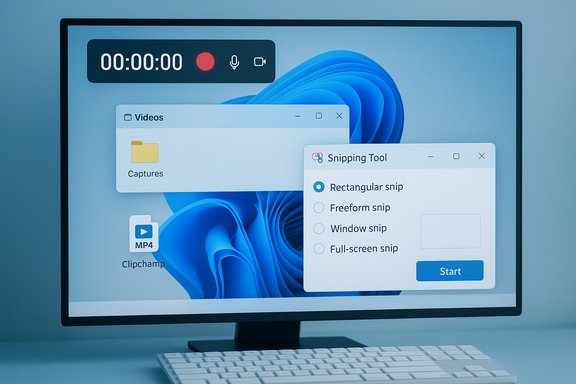
Windows historically shipped with simple screenshot utilities; over recent releases Microsoft expanded those tools into real screen recorders. Two native options are most relevant:- Xbox Game Bar — an overlay originally designed for gamers that records app‑level video, offers background capture, and saves MP4 clips to your user Videos\Captures folder by default. It’s available in Windows 10 and 11 and exposes quick hotkeys for capture.
- Snipping Tool (Windows 11 only, modern builds) — long the screenshot app, the Snipping Tool now includes video snips (screencasts) with basic pause/trim tools and Clipchamp integration for editing. Some Windows 11 releases are required to see this capability; check your Windows build and app updates.
Xbox Game Bar: The quick, reliable recorder
What it is and when to use it
The Xbox Game Bar is an on‑screen overlay (Win + G) that exposes widgets for Capture, Audio, Performance and more. It’s best when you want to record a single window or app — including games — quickly and without fuss. For many people this is the fastest path to an MP4 clip.Strengths:
- Built into Windows 10 and 11.
- Fast hotkeys to start/stop recording.
- Background recording mode to “save the last X seconds” of activity.
- Microphone toggle during capture.
- Saves MP4 to Videos\Captures for easy editing.
- May not capture the whole desktop or File Explorer in some configurations.
- DRM‑protected content (some video players, streaming apps) can’t be recorded.
- Limited editing tools — you’ll need a video editor for trimming, overlays, or multi‑track audio.
Prep: enable Game Bar and configure captures
- Open Settings → Gaming → Xbox Game Bar and toggle Enable Xbox Game Bar on (if it’s off).
- Open Settings → Gaming → Captures to control defaults: capture folder, background recording length, max recording length, frame rate, audio capture, and quality. By default clips save to C:\Users[you]\Videos\Captures.
- Background recording: Turn on to allow saving the last 15 seconds to 10 minutes (set the duration under “Record the last…”). Use this if you want to retroactively save a highlight.
- Max recording length: Choose 30 minutes up to multi‑hour limits depending on your needs. Longer recordings use more disk and may impact performance.
- Frame rate / Quality: 30 fps is usually adequate; bump to 60 fps for full‑motion gaming or very smooth UI capture. Higher settings increase file size and CPU/GPU load.
- Audio: Toggle capture of system and microphone audio; set microphone volume and recording quality in the Captures settings.
- Capture mouse cursor: Turn off if you don’t want the cursor visible in your recording.
Hotkeys and quick workflow
- Press Windows key + G to open the Game Bar overlay.
- Start/stop recording immediately with Windows + Alt + R.
- Save the last few seconds (when background recording is enabled) with Windows + Alt + G.
- Take a screenshot with Windows + Alt + PrtScn.
- Open or focus the app/window you want to capture.
- Press Win + G; choose the Capture widget (if not visible, add it via Widgets).
- Click the round Record button or hit Win + Alt + R. A small floating timer shows recording is active.
- Stop with the floating panel or Win + Alt + R. Clips appear in the Game Bar Gallery or in your Videos\Captures folder.
Working with the recorded files
Files are saved as MP4 with a filename that includes the app/game name and timestamp. Open C:\Users[username]\Videos\Captures to find them or use the Game Bar Gallery to review immediately. Open the MP4 in Clipchamp, the Photos app, or any video editor to trim and export.Snipping Tool (Windows 11): precise region recordings and quick edits
What the Snipping Tool now does
On modern Windows 11 builds the Snipping Tool no longer does just screenshots — it supports video snips (screencasts). You can select a region, start recording, pause, stop, preview, trim basic content, and send the clip to Clipchamp for more editing. This is ideal for short, tightly framed tutorials and demos.Important build note: some reporting indicates that Snipping Tool video snips require a recent Windows 11 build to appear (users are advised to check Settings → System → About for their build and update via Windows Update and the Microsoft Store). This requirement has been called out in several how‑to writeups; if you don’t see the camera icon in Snipping Tool, update Windows and the Store apps. Because build availability varies by update channel and rollout, verify your build before assuming the feature is present. (Treat specific build numbers reported in single articles with caution unless confirmed in your system.
How to record with Snipping Tool
- Launch Snipping Tool from the Start menu. Select the camera / video mode.
- Click New, then drag to select the rectangular region you want to record (you can choose full screen or a portion).
- Click Start to begin recording. Use Pause to take breaks, Record to resume, and Stop when finished. A preview opens when complete.
- Use Edit in Clipchamp if you want to trim, add titles or music, or Save to export an MP4. You can also share the clip directly from the Snipping Tool.
Good use cases for Snipping Tool vs Game Bar
- Use Snipping Tool when you need to record a specific region and want a fast, clip‑focused workflow with basic trimming. It’s great for quick tutorials, demos that don’t require full screen, and short explainer videos.
- Use Game Bar when you need a full app recording, background capture, or integration with performance widgets and quick hotkeys. Game Bar is better for longer sessions or gameplay.
When built‑in tools aren’t enough: alternatives and when to pick them
Built‑ins are convenient, but power users and creators often need more control:- OBS Studio — best for professional workflows: multi‑source capture, scene switching, multiple audio tracks, streaming to platforms, and higher bitrates. It’s free and open source but has a learning curve. Use OBS for long recordings, streaming, or when you need overlays and webcam integration.
- ShareX — excellent for automated capture workflows, GIF creation, and advanced post‑capture actions. Good for screenshots and scripted capture tasks.
- PowerPoint — surprisingly handy for educators who want an embedded recording inside a presentation; it also exports an MP4. Use when the recording is intended primarily for slides.
- Commercial editors / recorders (Camtasia, Snagit) — pick these when you need robust editing, callouts, or dedicated tutorial features at scale.
Privacy, security and practical caveats
- OneDrive and automatic uploads: OneDrive may intercept screenshots or auto‑upload captures if configured. Check OneDrive settings to avoid accidental cloud sync of sensitive images.
- DRM & app restrictions: Some apps (video streaming, DRM content) will block overlays and prevent recording. If you need to capture protected content for legitimate reasons, you’ll often be blocked by the platform.
- Local OCR and privacy: Newer screenshot tools perform OCR locally; however, sharing or auto‑uploading still risks sending sensitive content to the cloud. Disable automatic uploads or verify sharing destinations if privacy matters.
- Performance impact: Recording — especially at 60 fps or high quality — increases CPU/GPU and disk usage. On older or thermally constrained laptops, monitor performance and prefer 30 fps/standard quality to reduce dropouts.
- Enterprise policies: In managed environments, snipping and recording features can be disabled by IT policies. If a shortcut or UI doesn’t appear, check with your administrator.
Practical tips and best practices for clean recordings
- Plan and rehearse: Even a short script reduces retakes. Plan your steps and close unnecessary apps to avoid notifications.
- Audio checks: Do a brief test recording to set microphone volume and reduce background noise. Use headphones to avoid system audio feedback when recording mic + system audio.
- Frame rate & quality: Default 30 fps is fine for most tutorials. Choose 60 fps only if you need very smooth motion (gameplay, high‑motion UI). Higher quality increases file size and CPU/GPU utilization.
- Cursor visibility: Turn off cursor capture if mouse movements distract viewers. Turn on pointer highlight if you want to draw attention to clicks.
- Storage management: Keep an eye on disk space; long clips can consume many gigabytes. Move the Captures folder to a secondary drive if you have one (File Explorer move of the Captures folder is the common approach).
- Edit and trim: Use Clipchamp (integrated with Snipping Tool) or any editor to trim the start/end and remove mistakes. Built‑in tools are not full editors — plan to use an editor for final exports.
Quick start cheat sheet (step‑by‑step)
Game Bar — fastest way to record an app
- Focus the app/window you want to record.
- Press Win + G to open Xbox Game Bar.
- In the Capture widget click Record (or press Win + Alt + R).
- Stop with the floating widget or Win + Alt + R. Recording saved to Videos\Captures.
Game Bar — save the last few seconds
- Enable background recording in Settings → Gaming → Captures.
- When something great happens press Win + Alt + G to save the last configured seconds.
Snipping Tool (Windows 11) — record a region fast
- Open Snipping Tool and choose the video/camera icon.
- Click New, drag to select area, click Start.
- Pause/Resume as needed, then Stop. Save or Edit in Clipchamp.
Troubleshooting common issues
- No overlay when pressing Win + G: Ensure Xbox Game Bar is enabled in Settings → Gaming → Xbox Game Bar. Also check you’re not in tablet mode and that the target app allows overlays.
- Snipping Tool video option missing: Confirm your Windows 11 build and that Snipping Tool is updated via Microsoft Store; some rollouts hit different channels at different times. If the camera icon isn’t present, check Windows Update and the Store app updates. (Specific build numbers reported by articles should be checked against your system — verify in Settings → System → About.
- No audio in recording: In Game Bar or Snipping Tool settings enable microphone and system audio capture, and confirm the correct default recording device in Sound settings. Test a short clip before a full session.
- Large file sizes / dropped frames: Lower frame rate and quality, record to a faster drive, close background apps, or use hardware encoding in OBS for heavier recordings.
Verdict: when to use built‑in tools — and when to graduate
For most users creating tutorials, quick walkthroughs, or lightweight gameplay clips, Windows’ built‑in recorders are fast, free, and surprisingly capable. The Xbox Game Bar handles app‑level and gameplay captures with background recording and hotkeys, while the Snipping Tool in Windows 11 makes short, focused region recordings and basic trims frictionless. Both save as MP4 and integrate with Windows editing tools, making sharing and post‑production straightforward.However, if you need advanced features — multi‑source capture, professional streaming, multi‑track audio, or advanced codecs — switch to OBS, ShareX, or commercial editors. Those tools add complexity but unlock professional workflows.
Windows already gives you the essentials to capture polished screen recordings in just a few clicks. Use Game Bar for quick app and gameplay captures; use Snipping Tool for tightly framed clips and basic trimming in Windows 11. Reserve OBS and other third‑party solutions for advanced production needs. Update Windows and the Store apps to keep the Snipping Tool’s video features current, mind your privacy settings (OneDrive sync), and pick sensible frame rates and audio options to balance quality with performance. With these built‑in tools and a few practical habits, screen recording becomes an everyday skill rather than a production headache.
Source: ZDNET How to record your screen in Windows 10 or 11 - in just a few clicks
