
Microsoft pushed out another out-of-band emergency update late this month to undo a painful regression that broke file I/O for cloud-backed locations — a bug that left Outlook hung, emails duplicated or missing, and administrators scrambling for fixes.
The sequence began with Microsoft’s January 13, 2026 security release (KB5074109), which was intended to deliver the usual mix of security hardening and quality fixes. Within days administrators and end users reported a range of serious side effects: Remote Desktop credential failures, hibernation and shutdown problems on some devices, and — most critically for knowledge workers — applications becoming unresponsive when opening or saving files in cloud‑backed folders such as OneDrive or Dropbox.
Microsoft issued an initial out‑of‑band (OOB) emergency package on January 17 (KB5077744) to address the Remote Desktop sign‑in and hibernation issues, but the cloud file problem persisted. On January 24 the company released a second, cumulative out‑of‑band update (KB5078127) that bundles the January 13 security update, the January 17 emergency fixes, and a new correction specifically targeting the cloud I/O regression and the Outlook PST symptom set. Administrators were urged to install the Jan 24 rollup to restore application behavior.
Operationally, the patch cycle underlines three enduring truths for IT teams: (1) test with real‑world user profiles — including cloud‑backed Documents and legacy apps; (2) keep rollback and recovery procedures current and rehearsed; and (3) push for migration away from unsupported file layouts (active PSTs in cloud sync folders) to modern, supported storage architectures. Microsoft’s OOB KB5078127 resolves the immediate pain, but the episode raises legitimate questions about how quality, speed of fixes, and complex distribution models interact in an environment where security and availability both matter.
If you’re responsible for endpoints: validate the January 24 cumulative update in a controlled pilot, prioritize users who rely on classic Outlook profiles for remediation, and ensure your rollback drills and KIR policies are ready. This incident will be a useful case study for 2026’s patch management playbook — provided we all take the lessons seriously.
Source: theregister.com Microsoft rushes out cloud storage fix after January update
 Overview
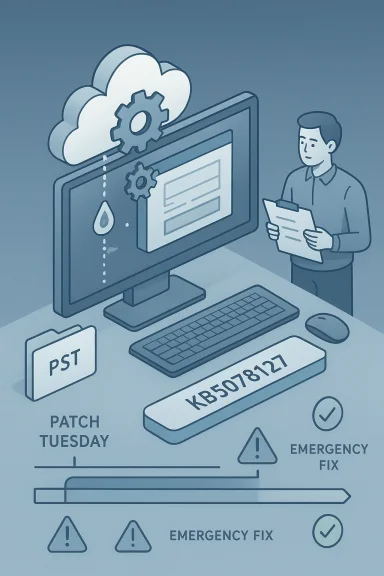
The sequence began with Microsoft’s January 13, 2026 security release (KB5074109), which was intended to deliver the usual mix of security hardening and quality fixes. Within days administrators and end users reported a range of serious side effects: Remote Desktop credential failures, hibernation and shutdown problems on some devices, and — most critically for knowledge workers — applications becoming unresponsive when opening or saving files in cloud‑backed folders such as OneDrive or Dropbox. Microsoft issued an initial out‑of‑band (OOB) emergency package on January 17 (KB5077744) to address the Remote Desktop sign‑in and hibernation issues, but the cloud file problem persisted. On January 24 the company released a second, cumulative out‑of‑band update (KB5078127) that bundles the January 13 security update, the January 17 emergency fixes, and a new correction specifically targeting the cloud I/O regression and the Outlook PST symptom set. Administrators were urged to install the Jan 24 rollup to restore application behavior.
Background: why PSTs, OneDrive and Windows updates are a dangerous mix
Outlook, PSTs and cloud‑backed folders
A large class of affected users run classic Outlook profiles that rely on local PST files for mail storage — common in small businesses, long‑running corporate deployments, and personal setups that predate Exchange Online. Those PST files, when placed inside folders synced to cloud services (OneDrive’s Known Folder Move, user Documents/Desktop redirection, or third‑party sync clients), are exposed to an extra layer of file‑system indirection: placeholders, hydration, sync locks and background scan/upload operations. Outlook expects very deterministic local file semantics for PST reads and writes; when the underlying file provider inserts transient locks, hydration delays, or reparse behavior, Outlook can block or deadlock while waiting for I/O to complete. Microsoft’s advisory and its community support threads explicitly tie the symptoms to PSTs that live in cloud‑synced folders and to files being opened/saved from cloud‑backed storage.Files On‑Demand, placeholders and reparse semantics
Modern cloud sync clients, including OneDrive, use Files On‑Demand and placeholder models to present a full directory tree without keeping all content local. That improves storage density, but it adds complexity: files can be in an offline “placeholder” state and only fetched (hydrated) when accessed. The hydration process and the sync client’s background scanning can momentarily alter file locking and attributes, which is normally handled by applications gracefully — but a regression in how Windows coordinates those file system semantics with the sync provider can create unexpected blocking or error returns for legacy code paths like PST access. Several Microsoft pages and community posts describe precisely this interaction as the likely technical surface area for the regression.Timeline: Patch Tuesday → emergency patch → emergency patch
- January 13, 2026 — Microsoft publishes the January security update (KB5074109), applied via Windows Update to supported branches. The package contains security fixes and quality improvements; the initial rollout escalates into reports of multiple regressions.
- January 17, 2026 — Microsoft issues an out‑of‑band update (KB5077744) to address immediate, high‑impact issues (Remote Desktop sign‑in failures and power state problems). The cloud file I/O problem is identified later and added to the known issues list.
- January 24, 2026 — Microsoft publishes a second out‑of‑band cumulative update (KB5078127) that consolidates previous January fixes and explicitly fixes the regression that made applications unresponsive when opening or saving files in cloud‑backed locations, including the Outlook PST scenarios. The update is offered via Windows Update and the Microsoft Update Catalog for applicable Windows 11 and Windows 10 servicing branches.
What Microsoft says the updates fix (and what remains true)
Microsoft’s formal descriptions make two important points:- The January 24 cumulative OOB update (KB5078127) specifically fixes the regression where applications became unresponsive when opening or saving files in cloud‑backed storage. Microsoft calls out Outlook when PST files are stored in OneDrive as a prominent example of the failure mode.
- Microsoft recommends mitigations while the fix was pending: use Outlook Web Access (webmail), move PST files out of OneDrive, pause or unlink OneDrive sync, or — if necessary — uninstall the problematic update. However, uninstalling a security update carries trade‑offs: as a security update the January release’s removal re‑exposes systems to the vulnerabilities it was intended to mitigate, and combined SSU+LCU packages complicate straightforward rollback. Microsoft’s KBs document Group Policy and Known Issue Rollback (KIR) options for enterprise deployments.
The administrator’s playbook: what to do now
If you manage Windows endpoints, you should treat this event as a high‑priority operational incident. The following is a pragmatic checklist — ordered by risk and ease — you can use to triage and remediate affected systems.- Install the January 24, 2026 cumulative out‑of‑band update (KB5078127) on a pilot cohort and verify Outlook / file‑I/O behavior before mass deployment. This cumulative package contains the cloud file fix and earlier January security fixes.
- If users report immediate outages and you cannot install the OOB package fast enough, direct impacted users to Outlook on the web (webmail) as the fastest, lowest‑risk workaround to preserve access to mail. Microsoft lists webmail as the recommended temporary mitigation.
- For impacted Outlook desktop users who store PSTs in cloud folders: move PST files to a local folder that is not synced with OneDrive or any cloud client, then re‑attach the PST in Outlook. This is a supported workaround and often resolves hangs.
- Pause or unlink OneDrive sync for users experiencing PST or unexplained file‑I/O locks if moving files is not immediately possible. This reduces background contention while you test the update.
- If rollback is required, follow Microsoft’s documented method for removing the Latest Cumulative Update (LCU) using DISM: enumerate packages with DISM /Online /Get‑Packages and remove the LCU by package name with DISM /Online /Remove‑Package /PackageName:<name>. Do not rely on wusa.exe /uninstall for combined SSU+LCU packages — Microsoft now combines the SSU with the LCU and wusa cannot remove the SSU portion. Treat rollbacks as high risk and plan tests accordingly.
- In managed environments, consider deploying Microsoft’s Known Issue Rollback (KIR) Group Policy artifacts where available; KIR can disable the problematic change without removing the security update entirely. Microsoft published KIR and Group Policy guidance alongside the OOB fixes.
Why this matters: security, reliability and the cost of rapid change
There are several interlocking reasons this incident matters more than an ordinary “bugfix” story:- Security vs. availability trade‑offs are real. Uninstalling a security update is not a neutral action; it re‑introduces the CVEs the update closed. For many organizations the risk calculus favors applying the update and suffering a temporary productivity hit only where necessary, rather than exposing systems to remote exploitation. Microsoft’s own delivery model (combined SSU+LCU) increases the operational friction of rollback, forcing administrators to weigh the risks carefully.
- Cloud‑backed user profiles are ubiquitous. Increasing numbers of organizations redirect Documents and Desktop into OneDrive and use Files On‑Demand. That convenience raises the probability that a single regression anywhere in the file‑I/O stack will have broad, cross‑application consequences. The window for exposure is larger: it’s not just Outlook or PSTs — any application that performs frequent or synchronous file I/O on cloud‑backed locations can be impacted.
- Emergency patches erode trust and increase overhead. Two out‑of‑band updates in two weeks is a heavy lift for patch management. Outages, extended help‑desk calls, and the need to test and redeploy emergency fixes increase costs and staff load. Independent reporting and community discussion have already framed the January cycle as a rough patch for Windows reliability.
Root cause discussion — what likely went wrong
Microsoft hasn’t published a full root‑cause postmortem at the time of writing; the company’s KB entries focus on symptoms, mitigations and fixes. From the publicly observable details, a plausible technical explanation is this:- The January security update included a change in the OS file‑I/O behavior that altered how placeholder files, hydration, or opportunistic locks (oplocks) are coordinated between the kernel, storage filter drivers and user‑mode sync providers. That change produced a regression where legacy, synchronous file access patterns (Outlook PST writes, for example) could block indefinitely or receive unexpected error codes when the cloud provider inserted transient state changes.
- Because Outlook and many other apps assume a stable local file system, even brief deviations can appear as freezes or data corruption from the application’s perspective. The specific interplay between the Windows update and particular versions of OneDrive or third‑party sync clients created a large attack surface of user scenarios that surfaced in real world testing only after broad deployment.
Risk analysis: what to worry about next
- Data corruption and user errors. Storing stateful, frequently written files like PSTs in cloud folders is a long‑standing risk; intermittent file locks or partial writes can cause silent corruption. The January regressions increased this risk. Administrators should check Outlook data integrity after remediation and educate users to avoid active PSTs in synced folders.
- Rollbacks are operationally costly. Because Microsoft combines SSU and LCU now, rollbacks require DISM knowledge and image‑level operations. Unskilled rollbacks can lead to partial removals and harder recovery scenarios. Test rollback procedures in a lab before performing them in production.
- Third‑party sync clients and drivers. While OneDrive gets most of the attention, enterprise endpoints may use third‑party sync tools or security agents that also interact with file I/O. These agents can amplify race conditions or locking behavior; ensure those vendors are on your test matrix.
- Patch fatigue and delayed updates. Some organizations may be tempted to delay updates after a noisy Patch Tuesday. That creates a backlog and increases exposure to genuine vulnerabilities. The right balance is staged, tested deployment plus emergency OOB installations where required.
Recommendations and longer‑term controls
- Adopt a patch gating policy that uses small, diverse pilot groups before broad deployment; include users who exercise cloud‑backed profiles and legacy applications like Outlook with PSTs. This increases the chance of catching regressions early without halting security coverage.
- Maintain playbooks for emergency OOB events: include step‑by‑step DISM rollback instructions, OneDrive pause/unlink guidance, and a tested KIR Group Policy deployment template. Run tabletop drills so your team can execute rapidly and safely.
- Proactively reduce PST exposure: migrate legacy PST archives to supported server‑side archives (Exchange Online Archive, backup solutions, or immutable archives) and update policies to prevent storing active PSTs in OneDrive or other cloud sync folders. This is a medium‑term remediation that eliminates a common single point of failure.
- Expand telemetry and logging for file‑I/O operations in critical endpoints where feasible; faster detection reduces mean time to mitigation when a future regression slips through. Use endpoint management tooling to collect trends on sync client errors and app hangs.
Final verdict: what this episode teaches us
Microsoft acted quickly to roll out fixes, but the chain of events is a cautionary tale about the complexity of modern endpoints. Cloud sync semantics, legacy application assumptions, and combined servicing packages create a fragile matrix where a seemingly small change in the file‑I/O stack can cascade into productivity and security headaches across large user populations.Operationally, the patch cycle underlines three enduring truths for IT teams: (1) test with real‑world user profiles — including cloud‑backed Documents and legacy apps; (2) keep rollback and recovery procedures current and rehearsed; and (3) push for migration away from unsupported file layouts (active PSTs in cloud sync folders) to modern, supported storage architectures. Microsoft’s OOB KB5078127 resolves the immediate pain, but the episode raises legitimate questions about how quality, speed of fixes, and complex distribution models interact in an environment where security and availability both matter.
If you’re responsible for endpoints: validate the January 24 cumulative update in a controlled pilot, prioritize users who rely on classic Outlook profiles for remediation, and ensure your rollback drills and KIR policies are ready. This incident will be a useful case study for 2026’s patch management playbook — provided we all take the lessons seriously.
Source: theregister.com Microsoft rushes out cloud storage fix after January update
