

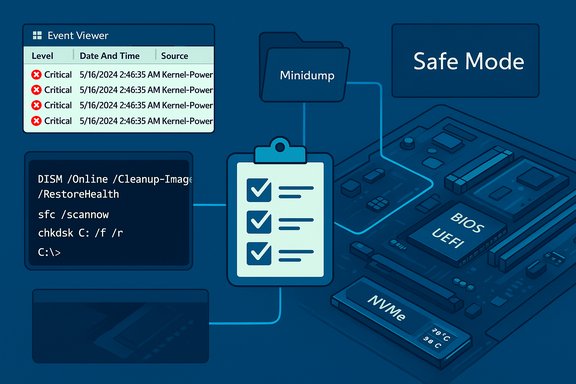
When Windows crashes the first thing to do is stop panicking and start collecting clues — Event Viewer entries, minidump files, and the simple pattern of when the failure happened usually points you to a software or hardware family to investigate. The MakeUseOf checklist — check logs and minidumps, run DISM/SFC and CHKDSK, boot Safe Mode, verify BIOS and critical drivers, and test memory and storage — is a compact, practical starting kit that gets most PCs back on their feet without a full reinstall. The approach works because it moves from low-risk, information-gathering steps into progressively more intrusive repairs, letting you stop as soon as you’ve fixed the root cause. The guidance in that short walkthrough is sound and mirrors Microsoft’s recovery guidance and community-proven troubleshooting sequences, but it’s also worth expanding the how, why, and the risks so that you can act confidently and safely.
Windows crashes now usually leave more breadcrumbs than they did a decade ago. Two diagnostic artifacts matter most:
Short checklist to copy and keep: note stop code; unplug peripherals; boot Safe Mode; run DISM → SFC → CHKDSK; test RAM (MemTest86) and drive SMART; update BIOS/firmware only with vendor guidance; keep backups and BitLocker keys handy.
If a single quick fix is the headline lesson: start by reading what Windows left behind — the logs and minidumps will often tell you more than an hour of uninstalling random software ever will.
Source: MakeUseOf The 5 quick fixes I always try after a Windows crash
 Background / Overview
Windows crashes now usually leave more breadcrumbs than they did a decade ago. Two diagnostic artifacts matter most:- Event Viewer logs (Windows Logs → System/Application) record errors and warnings leading up to a failure and often show time-correlated events you can use as starting points.
- Minidump / crash dump files (C:\Windows\Minidump and C:\Windows\MEMORY.DMP) contain a snapshot of what the kernel and loaded drivers were doing when the system failed; readable summaries are available from friendly utilities.
Check Event Viewer and Minidump Files
What to look for first
Event Viewer is your first port of call. Open System Information (msinfo32) or Event Viewer and look for red “Critical” entries or repeating warnings that line up with the crash timestamps. A bad driver, storage fault, or an update that misbehaves will usually leave an identifiable trace in the minutes before the failure.Making minidumps readable
Windows writes minidumps to C:\Windows\Minidump by default when configured to do so. Raw .dmp files are useful but hard to read without tooling. Two practical tools to turn dumps into actionable clues are:- BlueScreenView (NirSoft) — fast, portable, and shows the likely faulty module listed in the dump, which in many consumer cases is the first clue you need.
- WhoCrashed / WinDbg — WhoCrashed gives friendly analysis for non-experts; WinDbg (the Microsoft debugger) is the professional tool and will give the authoritative stack trace when you’re ready to dig deeper. WinDbg’s !analyze -v output is the canonical way to see the bugcheck code, suspect module, and stack.
Let Windows Fix Itself: DISM, SFC and CHKDSK (in the right order)
Why order matters
DISM (Deployment Image Servicing and Management) repairs the component store that SFC relies on to replace corrupted system files. Microsoft’s recommended sequence is to run DISM first to restore the image, then run SFC to repair protected files. If disk issues are suspected, run CHKDSK last (it may require a reboot) to repair filesystem and sector problems.Commands to remember
- DISM /Online /Cleanup-Image /RestoreHealth
- Repairs the Windows component store and downloads replacements from Windows Update when needed. This can take 10–20 minutes or longer on slower connections or heavily corrupted systems.
- sfc /scannow
- Scans protected system files and replaces corrupted copies with cached versions from the component store.
- chkdsk C: /f /r
- Checks the filesystem and attempts to recover data from bad sectors; schedule at next boot for the running system.
Boot into Safe Mode and Isolate Third-Party Causes
Safe Mode basics
Safe Mode starts Windows with the minimal set of drivers and services. If a crash disappears in Safe Mode the culprit is almost always a third-party driver, startup item, or service that does not run in Safe Mode. You can reach Safe Mode from the recovery environment (Advanced options → Troubleshoot → Advanced options → Startup Settings → Restart → press 4 or 5).Practical steps in Safe Mode
- Uninstall or roll back recently installed drivers via Device Manager.
- Remove recently installed apps or utilities that modify low-level system behavior (antivirus kernel filters, shell extensions, backup drivers, virtualization drivers).
- Run DISM and SFC again — they can be more reliable in Safe Mode because fewer processes hold handles or block repairs.
Check BIOS/UEFI and Critical Drivers
Why firmware and chipset drivers matter
The operating system depends on motherboard chipset, storage controller, and platform firmware behaviors. An outdated or corrupted UEFI/BIOS can cause intermittent kernel panics, storage errors, or compatibility faults — especially after major Windows feature updates. The standard check is msinfo32 → look for “BIOS Version/Date” and compare that to your OEM/motherboard support page. But flashing firmware is high risk — follow vendor instructions and keep AC power connected.Focus on these drivers first
- Chipset drivers (Intel, AMD or vendor-specific)
- Storage controller and NVMe drivers
- GPU drivers (NVIDIA/AMD/Intel)
- Network drivers (including Wi‑Fi)
Check Memory and Storage for Hardware Issues
Memory (RAM)
Signs of failing RAM include random BSODs under load, file corruption, and crashes during memory-heavy operations. Use the built-in Windows Memory Diagnostic (mdsched.exe) for a quick check, but for a thorough test use MemTest86 bootable media (PassMark). MemTest86 runs outside the OS and can uncover subtle errors that the Windows tool may miss; run multiple passes and test DIMMs one-by-one to isolate a bad stick. MemTest86 tips:- Create a bootable USB with the official imageUSB tool.
- Run at least 4 passes for confidence; overnight multi‑pass runs are ideal for intermittent errors.
- If errors appear, test each DIMM in every slot to separate faulty modules from bad slots.
Storage (HDD/SSD)
Failing drives produce corrupted files, long pauses during file operations, and BSODs tied to disk IO. Quick checks:- wmic diskdrive get model,status (can show Pred Fail) — useful quick check but limited.
- Use vendor disk utilities (Samsung Magician, WD Dashboard, Crucial Storage Executive) or CrystalDiskInfo to read SMART attributes and firmware versions. If SMART flags failing sectors, image the drive and replace it immediately.
What’s New: Quick Machine Recovery (QMR)
Microsoft has added Quick Machine Recovery (QMR) to modern Windows 11 releases (starting with 24H2 updates and specific KBs). QMR runs in Windows Recovery Environment (WinRE), can connect to Windows Update, and will attempt to download and apply a targeted remediation for widespread boot failures automatically. It’s a best‑effort cloud remediation layer built on top of Startup Repair — useful when a known update causes many machines to fail. QMR has configuration options and can be enabled or disabled by administrators; Home editions have cloud remediation enabled by default while Pro/Enterprise typically do not. QMR can save hours during large-scale regressions — but it’s not a substitute for local diagnosis when unique hardware or local configuration is the cause. Use it as another arrow in the quiver, not as the only plan.Critical Analysis — Strengths, Gaps, and Risks
What the MakeUseOf checklist does well
- Prioritizes low-risk actions first. Gathering logs, running read-only analyses, and booting Safe Mode are non-destructive and preserve evidence.
- Follows Microsoft-recommended tools. The DISM → SFC → CHKDSK sequence is the right order and matches Microsoft guidance.
- Recognizes hardware as a common cause. Memory and storage failures remain among the most frequent causes of persistent BSODs; recommending MemTest86 and SMART checks is correct.
What to watch out for — real risks and caveats
- Driver Verifier is powerful but dangerous. Driver Verifier can intentionally crash a system to expose bad drivers; enable it only when you have a recovery USB or image ready. If misused it can leave a device unbootable.
- Registry and firmware workarounds can be temporary and damaging. Community registry tweaks (for example, the HmbAllocationPolicy registry workaround for certain DRAM‑less NVMe SSDs after Windows 24H2) can stop crashes temporarily but may reduce performance and should be replaced by a vendor firmware update as soon as available. Treat such changes as emergency mitigations and back up before you edit the registry.
- BIOS/UEFI and firmware flashes are high risk. A failed BIOS flash can brick a system; always follow vendor instructions and ensure AC power. Only update firmware if the release notes match your observed symptoms.
- BitLocker complicates recovery. If your drive is BitLocker-encrypted, certain recovery steps may require the recovery key. Keep it stored where you can access it before undertaking deep recovery operations.
Unverifiable or weakly supported claims
Some writeups mention that Windows will automatically run a memory diagnostic after a crash; that behaviour is plausible in targeted recovery workflows, but at the time of verification there isn’t a clearly documented, general-purpose Microsoft feature that always triggers an automatic memory scan on next boot for every BSOD. That particular claim should be treated cautiously until confirmed in Microsoft documentation or release notes for your specific build. If you rely on that behaviour, verify it on a test machine first or explicitly run memory diagnostics yourself. (I attempted to confirm that specific automatic memory-scan behavior and could not find authoritative documentation that it’s universally applied.Practical, Prioritized Troubleshooting Playbook (Step-by-step)
- Photograph the BSOD (code and QR) and note the time.
- Disconnect non-essential USB/peripherals; reboot.
- If Windows boots normally: check Event Viewer (System/Application) for correlated errors and collect minidumps (C:\Windows\Minidump). Use BlueScreenView / WhoCrashed for triage.
- Run an elevated Command Prompt and perform:
a. DISM /Online /Cleanup-Image /RestoreHealth. b. sfc /scannow. c. chkdsk C: /f /r (schedule on reboot). - If Windows won’t boot or crashes during boot: force WinRE by powering off during boot 2–3 times and choose Troubleshoot → Advanced options → Startup Settings → Safe Mode. Uninstall recent drivers / updates there.
- Test hardware: run Windows Memory Diagnostic (mdsched.exe) and, if needed, MemTest86 from USB overnight. Check SMART and firmware with vendor tools for SSD/HDDs.
- If a specific driver is flagged by dump analysis, update or rollback that driver from the vendor site. Prefer vendor-signed installers over random “driver updater” tools.
- If crashes persist and minidumps point to core components or ntoskrnl, collect full memory dump and analyze with WinDbg (!analyze -v), or escalate to professional support.
- Last-resort software fixes: in-place repair (run Setup from a matching Windows ISO and choose “Keep personal files and apps”) or Reset this PC (Keep my files). Back up data first.
Prevention and Maintenance to Avoid Future Crashes
- Keep a verified backup and a full image of critical systems so you can recover quickly if a drive or update causes corruption.
- Stagger feature updates on critical machines for 2–4 weeks and monitor vendor support notes for compatibility problems.
- Maintain a small recovery toolkit: a Windows recovery USB (Media Creation Tool), MemTest86 USB, and vendor SSD utilities.
- Save BitLocker recovery keys to your Microsoft account or secure vault before major changes.
Conclusion
The MakeUseOf “five quick fixes” are concise because they capture the most effective first actions: gather logs and dumps, repair the Windows image and files (DISM → SFC → CHKDSK), use Safe Mode to isolate third-party causes, verify firmware and drivers, and run robust hardware tests. Those steps map directly to what Microsoft documents as best practice and to the troubleshooting flow used by IT pros and communities. The crucial additions are discipline and safety: collect evidence before changing system state, back up before firmware or registry edits, and treat emergency registry tweaks or Driver Verifier runs as temporary or advanced maneuvers only. When you combine a structured escalation plan with a small set of reliable tools — Event Viewer + minidump analysis, DISM/SFC, Safe Mode, MemTest86, and vendor firmware checks — you’ll resolve most crashes without a clean install. If those steps don’t bring stability, the problem is more likely hardware or a complex driver/firmware interaction that benefits from imaging the disk and engaging vendor or professional assistance.Short checklist to copy and keep: note stop code; unplug peripherals; boot Safe Mode; run DISM → SFC → CHKDSK; test RAM (MemTest86) and drive SMART; update BIOS/firmware only with vendor guidance; keep backups and BitLocker keys handy.
If a single quick fix is the headline lesson: start by reading what Windows left behind — the logs and minidumps will often tell you more than an hour of uninstalling random software ever will.
Source: MakeUseOf The 5 quick fixes I always try after a Windows crash
