

Runtime errors are the class of software failures that show up after an app has launched — the program compiles correctly but trips over an unexpected condition while running, causing crashes, freezes, or odd behavior; this practical guide explains what runtime errors are, why they happen on Windows, and gives a prioritized, step‑by‑step toolkit to fix them fast and reliably for both end users and IT pros.
Runtime errors sit between two familiar problem buckets: compile‑time (syntax) errors and hardware failures. They are software faults that only surface during execution — when real data, file paths, permissions, libraries, or hardware limits interact with code in ways the developer didn’t anticipate. The symptom set ranges from a single app crash and an error dialog to repeated exceptions logged in Event Viewer or continuous high CPU by a misbehaving process. Practical troubleshooting focuses on three goals: quickly restoring the user’s workflow, preserving data, and isolating the root cause so the fix is permanent.
Common runtime failure types:
Source: Windows Report What Are Runtime Errors and How to Fix Them Fast
 Background
Runtime errors sit between two familiar problem buckets: compile‑time (syntax) errors and hardware failures. They are software faults that only surface during execution — when real data, file paths, permissions, libraries, or hardware limits interact with code in ways the developer didn’t anticipate. The symptom set ranges from a single app crash and an error dialog to repeated exceptions logged in Event Viewer or continuous high CPU by a misbehaving process. Practical troubleshooting focuses on three goals: quickly restoring the user’s workflow, preserving data, and isolating the root cause so the fix is permanent.What exactly is a runtime error?
A runtime error occurs when an application encounters an unexpected condition while executing code. Unlike syntax errors (which prevent code from compiling), runtime problems only appear once the program is running and interacting with the system or user input.Common runtime failure types:
- Null reference / uninitialized variable — code dereferences a missing object.
- Division by zero — arithmetic operation invalid at runtime.
- Missing library or DLL — the app’s dependency can’t be loaded.
- Out of memory — process requests more RAM than available.
- Access violation / permission denied — trying to read/write protected memory or files.
- External failure — network timeouts, disk errors, or hardware faults interrupt execution.
Quick triage: diagnose before you repair
Before applying fixes, gather the minimal diagnostic data that will avoid wasted effort.- Check the exact error message and the process name. The dialog or Windows Error Reporting often names the process or module.
- Look in Event Viewer → Windows Logs → Application and System around the crash time for error or faulting module entries.
- If the crash reproduces, run the app under a new user or in Safe Mode / Clean Boot to test whether third‑party software is interfering.
- For persistent crashes, collect a crash dump (minidump in C:\Windows\Minidump) and review it with WinDbg or BlueScreenView to identify a faulty driver or DLL.
- Confirm whether the failure is system‑wide or specific to one app — isolated app issues usually mean a broken install or missing runtime; system‑wide instability suggests drivers, hardware, or system file corruption.
The fast checklist: fixes to try in order (for the quickest recovery)
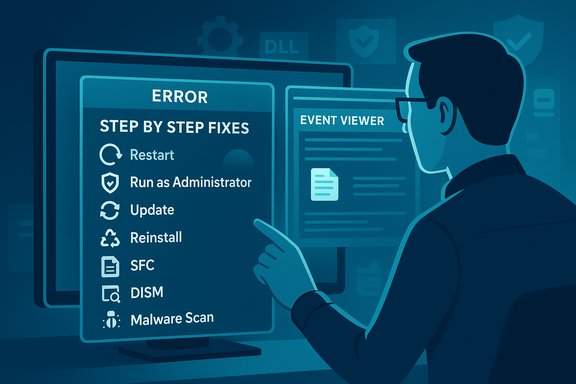
Follow this prioritized list to fix most runtime errors quickly. These are low‑risk, immediate steps that often restore functionality.- Restart the PC — clears transient memory conflicts and stuck processes.
- Run the app as Administrator (right‑click → Properties → Compatibility → Run this program as an administrator) — some operations require elevated rights.
- Update the app to the latest version — many runtime crashes are fixed by vendor patches.
- Reinstall or repair the problematic app via Settings → Apps → Installed apps; choose Repair or Uninstall + reinstall.
- Apply quick system fixes: run SFC and DISM (details below). These repair corrupted Windows files used by many apps.
- Reinstall Microsoft Visual C++ Redistributables (both x86 and x64) — missing/corrupt runtime libraries are a very common cause. Obtain official installers from Microsoft rather than third‑party sites.
- Malware scan — run Windows Security (full scan) and consider a second‑opinion scanner like Malwarebytes; malicious processes can mimic system components and provoke runtime crashes.
Repairing Windows runtime components (SFC, DISM, and when to use them)
Two built‑in tools repair the system components apps rely on: System File Checker (SFC) and DISM (Deployment Image Servicing and Management).- SFC (sfc /scannow) scans protected system files and replaces corrupt versions from the local WinSxS cache or recovery sources. It’s the first‑line tool for damaged system DLLs. Use an elevated Command Prompt: sfc /scannow.
- DISM (/Online /Cleanup-Image /RestoreHealth) repairs the Windows component store (the source SFC uses) and can fetch clean copies from Windows Update or an ISO if local copies are missing. If DISM reports missing source files, you may need to specify a /Source pointing to a matching install.wim or use Windows Update as the source.
- Run DISM /Online /Cleanup-Image /CheckHealth and /ScanHealth to test the image.
- If repair is needed, run DISM /Online /Cleanup-Image /RestoreHealth.
- After DISM completes, run sfc /scannow to repair protected files that SFC flagged.
If DISM can’t find a source, point it at a matching Windows ISO (same edition and build). If you’re unsure, don’t guess — mismatched sources fail to repair.
Fixing missing or corrupted runtime libraries (Visual C++ Redistributables)
Many Windows applications (especially older or native C/C++ apps) depend on Microsoft Visual C++ Redistributable packages. If an app complains about missing runtime DLLs (MSVCR.DLL, MSVCP.DLL), reinstall the redistributables.- Download the official x86 and x64 installers from Microsoft and install both versions if the app is 32‑bit on 64‑bit Windows. Use Microsoft’s download pages — do not fetch single DLLs from random websites.
When reinstalling the application is the right call
If a specific program fails repeatedly while others are fine, a clean reinstall is often the fastest permanent fix:- Use Settings → Apps → Installed apps to uninstall.
- Reboot to clear file locks.
- Download the latest installer from the official vendor site.
- Install and test.
Clean boot and startup isolation
Third‑party services and shell extensions often create runtime conflicts. A clean boot disables non‑Microsoft services and startup items so you can reproduce the issue in a minimal environment:- msconfig → Services → Hide all Microsoft services → Disable all.
- Startup → Open Task Manager → Disable nonessential startup apps.
- Reboot and test the application.
Malware cautions and why you should avoid third‑party "DLL fixer" sites
A recurring theme in community troubleshooting is the temptation to download a single DLL from a random site to “replace the missing file.” That’s risky: these files can be outdated, incompatible, or malicious. Trusted guidance says to use SFC/DISM and vendor installers — and to verify file signatures when investigating suspicious processes. If a system process resides outside its expected folder or lacks a valid digital signature, treat it as suspicious and scan with multiple reputable AV tools.Advanced troubleshooting — when the quick fixes don’t work
If the runtime error resists the quick checklist, escalate methodically:1. Reproduce under instrumentation
- Run the app under a debugger (WinDbg) or use Process Monitor (Procmon) to watch file/registry access and detect “file not found” or permission denied operations.
- Capture a crash dump and analyze the callstack to identify the offending module.
2. Check Event Viewer and application logs
Event Viewer often records the faulting module name and exception code. Cross‑reference timestamped entries in Application and System logs to correlate driver or service failures.3. Driver and firmware checks
- Update GPU, chipset, storage, and network drivers from vendor sites if a driver appears in dumps or if crashes began after a driver update.
- For persistent kernel faults, test RAM with Windows Memory Diagnostic or MemTest86 and run chkdsk /f /r to rule out disk issues.
4. Use dependency analysis tools
- Dependency Walker or modern replacements (e.g., Dependencies) can show unresolved DLL imports; missing imports cause immediate runtime failure.
- For UWP/appx apps, verify the Windows App Runtime and Dynamic Dependency components; reinstall them if needed. Community threads often show that reinstalling the Windows App Runtime (via winget or vendor package) fixes odd app runtime failures.
5. Consider an in‑place Windows repair or reset
If system component corruption is deep (SFC/DISM can’t fix), perform an in‑place upgrade/repair using an official Windows ISO — this reinstalls the OS while preserving apps and files. It’s usually faster and less destructive than a clean install. Use this only after collecting backups.How developers prevent and handle runtime errors (short primer)
Understanding prevention helps avoid repeat incidents:- Validate inputs and assume hostile or malformed data. Use defensive programming to avoid null dereferences and boundary errors.
- Apply structured exception handling (try/catch) to fail gracefully and log rich diagnostic data.
- Use unit tests, integration tests, and fuzzing to expose edge cases that cause runtime failures in production.
- Log at key boundary points (I/O, deserialization, network calls) so support teams have actionable traces when users report crashes.
A realistic decision tree for Windows runtime errors
- Restart → still failing?
- Try the app as administrator / update the app.
- Repair app or reinstall Visual C++ redistributables (x86/x64).
- Run full malware scan.
- Run SFC and DISM in the order prescribed above.
- If still failing, clean boot and test.
- If systemic: collect minidumps, check Event Viewer, update drivers, or perform an in‑place upgrade.
Common FAQ answers (short and actionable)
- What’s the difference between syntax and runtime errors?
Syntax errors stop compilation; runtime errors happen while the program is running and usually reference failing external conditions or logic errors. - Can runtime errors damage my PC?
Typically they crash only the offending app. However, runtime failures caused by malware or faulty drivers can escalate and affect system stability, so scan and investigate accordingly. - Which are common Windows runtime error codes?
Examples seen in the wild: Runtime Error 7 (Out of Memory), Runtime Error 91 (Object Variable Not Set), and 429 (ActiveX Component Cannot Create Object). The numeric code helps narrow the cause but always check Event Viewer and app logs for context.
Red flags and when to call in advanced help
- Multiple apps failing simultaneously with different error codes — suspect systemic corruption or a failing storage device. Run CHKDSK and verify disk health.
- DISM repeatedly fails with source errors — you may need a matching Windows ISO or to escalate to Microsoft support for deeper image repairs.
- If malware impersonates system files (process name is correct but file path or signature is incorrect), isolate the machine and perform offline scans or professional incident response.
Practical examples (real‑world fixes that work)
- App complains about MSVCR120.dll: install the Visual C++ 2013 redistributable (x86 or x64) from Microsoft, then reboot. This resolves most native runtime DLL errors.
- Intermittent runtime crash after a Windows update: uninstall the recent update or run System Restore to a point before the change, then reinstall updates selectively after testing. Community troubleshooting frequently resolves such regressions by rolling back the offending update.
- Repeated SFC failures with DISM errors about missing source files: mount a matching ISO and run DISM with /Source pointing to the install.wim index for your edition, then rerun SFC. If unsure about matching editions/builds, get expert help to avoid mismatched repairs.
Best practices to avoid runtime interruptions
- Keep Windows and applications patched, but delay non‑security updates until you can test them in critical environments.
- Maintain a current set of official installers for major dependencies (Visual C++ runtimes, .NET runtime, Windows App Runtime).
- Use monitoring and crash reporting to capture stack traces and telemetry when runtime faults occur — data makes diagnosis far faster.
- Back up user data frequently; if a repair requires a reset or in‑place upgrade, you won’t lose important files.
Conclusion
Runtime errors are a normal part of software life on Windows — they reveal gaps between an application’s assumptions and the real environment. Most runtime failures can be resolved quickly with a short, ordered checklist: restart, run as admin, update or reinstall the app, verify and reinstall runtime libraries (Visual C++), scan for malware, and use SFC/DISM to repair Windows components. When those steps don’t fix the problem, clean boot, driver checks, minidump analysis, and, if necessary, an in‑place repair provide a measured escalation path. Use official installers and Windows’ own repair tools rather than untrusted DLL downloads, collect diagnostic data before changing the system, and rely on the decision tree above to minimize downtime and avoid unnecessary reinstallation. Community and vendor documentation reinforce this approach and provide the hands‑on commands and options needed to complete repairs safely.Source: Windows Report What Are Runtime Errors and How to Fix Them Fast
