

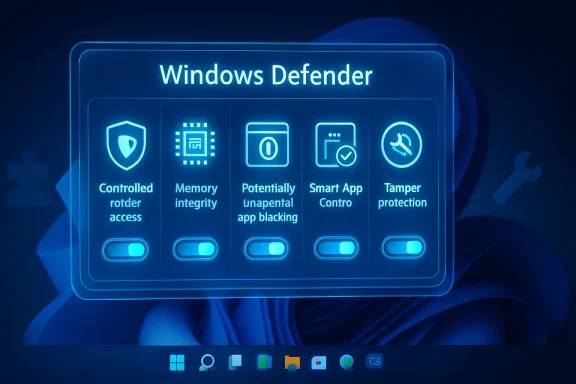
ZDNET’s latest Windows Defender guidance argues that five optional protections in Windows Security—Controlled folder access, Memory integrity, Potentially unwanted app blocking, Smart App Control, and Tamper protection—deserve a second look because several are still disabled or conditional by default on many Windows PCs. The larger story is not that Microsoft forgot to secure Windows. It is that modern Windows security is increasingly a negotiation between protection, compatibility, performance, and user tolerance.
Microsoft Defender has become good enough that the old reflex—install a third-party antivirus before doing anything else—feels increasingly dated for ordinary Windows users. But “good enough” is not the same as “fully hardened,” and Windows 11 in particular now contains a second layer of security controls that behave less like antivirus and more like policy. They do not simply detect malware after the fact; they try to constrain what software can do in the first place.
That is where the tension begins. The very settings most likely to stop ransomware, malicious drivers, unsigned code, and security tampering are also the settings most likely to break some legitimate workflow. Microsoft has built a safer operating system than the Windows of a decade ago, but it has not built one that can enable every defensive switch for every user without consequences.
For years, Windows Defender carried the faint smell of a bundled compromise: better than nothing, less impressive than the commercial security suites that came in oversized retail boxes and later in yearly subscription pop-ups. That reputation has lagged behind reality. Microsoft Defender Antivirus, Windows Security, SmartScreen, exploit protection, virtualization-based security, vulnerable driver blocking, and cloud reputation services now form a sprawling defensive stack inside Windows.
That stack is easy to underestimate because Microsoft has hidden much of it in plain sight. Most users see a green check mark in Windows Security and move on. Sysadmins see something more complicated: a platform where consumer-friendly defaults, enterprise-grade controls, and OEM compatibility decisions all collide.
The ZDNET list is useful because it surfaces the uncomfortable middle layer—the features Microsoft offers but does not always force on. Controlled folder access is available to blunt ransomware. Memory integrity can raise the bar against kernel-level compromise. Potentially unwanted app blocking can stop the grayware that rides along with sketchy installers. Smart App Control can refuse untrusted code before it runs. Tamper protection can make it harder for malware to switch off the very defenses meant to catch it.
None of these ideas is exotic. In enterprise security, they map neatly to long-standing principles: reduce write access, protect the kernel, block low-reputation software, enforce application trust, and prevent policy rollback. What is new is that Windows now exposes versions of those ideas to ordinary users through the same Settings app they use to change dark mode.
That democratization is powerful. It is also messy.
Windows is not a sealed appliance. It runs old games, printer utilities, VPN clients, line-of-business relics, motherboard tuning tools, unsigned hobby projects, accessibility software, niche audio drivers, tax programs, CAD packages, and the occasional installer that looks like it escaped from 2009. Every one of those edge cases becomes Microsoft’s problem when a stronger default breaks it.
That is why Defender’s optional settings are best understood as a compatibility map. Microsoft is telling users, in effect: here are the protections we believe in, but here is where the real world still has sharp edges. Flip them on if your machine and habits can tolerate them.
This is not cowardice. It is the core bargain of Windows. The platform’s greatest commercial strength—running almost everything for almost everyone—is also its greatest security liability. Apple can make more aggressive assumptions on macOS because it controls more of the hardware and software culture. ChromeOS can be stricter because its model is narrower. Windows has to secure the bazaar.
That makes “turn these on ASAP” both right and incomplete. The better advice is: turn them on deliberately, understand what each one changes, and be prepared to undo or tune the one that breaks your workflow.
The brilliance of the feature is that it changes the ransomware equation. Traditional antivirus has to recognize the malicious program or its behavior quickly enough to stop damage. Controlled folder access instead makes sensitive locations harder to alter unless the app is trusted. It is not a complete backup strategy, and it is not a magic shield, but it puts a locked door in front of the files attackers most want to ruin.
The problem is that Windows users do not live in a tidy world of perfectly signed, perfectly reputable software. Creative tools, scripting environments, backup utilities, game mod managers, sync clients, and older productivity software may need to write into protected locations. When they are blocked, the user experiences the security feature not as protection but as breakage.
That is why Controlled folder access is one of the best examples of a feature that is valuable but not fire-and-forget. Enabling it and then ignoring the notifications is a recipe for irritation. Enabling it, watching what gets blocked, and adding carefully chosen allowed apps is a more realistic hardening path.
There is a philosophical lesson here. Ransomware defense cannot be reduced to one toggle. Controlled folder access is strongest when paired with offline or versioned backups, least-privilege habits, patched software, and a healthy suspicion of unexpected attachments and installers. It narrows the blast radius; it does not repeal human error.
The kernel is where Windows cannot afford chaos. A buggy or malicious driver does not merely crash an app; it can crash the machine, hide from security tools, or undermine the operating system’s assumptions. The industry received a brutal reminder of kernel fragility during the CrowdStrike outage in July 2024, when a faulty security update caused widespread Windows crashes around the world. That event was not a malware incident, but it made the same point defenders have been making for years: code running at the deepest levels of Windows has enormous power.
Memory integrity is Microsoft’s attempt to make that power harder to abuse. It also explains why the setting can be controversial among gamers, hardware enthusiasts, and users with older peripherals. Drivers are the sedimentary rock of a Windows installation. Old audio interfaces, RGB controllers, undervolting tools, capture cards, anti-cheat systems, and vendor utilities may rely on drivers that do not meet modern expectations.
When Memory integrity refuses to load a driver, the computer may technically be safer while a device or utility stops working. That is a hard sell to someone whose expensive peripheral suddenly becomes temperamental. It is an even harder sell in small businesses where a legacy scanner or industrial device is not easily replaced.
Still, the direction of travel is obvious. Microsoft wants fewer risky drivers, more isolation, and less third-party code living recklessly in kernel mode. Users who can enable Memory integrity without breaking anything probably should. Users who cannot should treat the incompatible driver as technical debt, not as proof that the security feature is unreasonable.
This is the swamp where reputation-based protection matters. It is not only asking whether a file is known malware. It is asking whether the app belongs to the broad category of software most users would not knowingly invite onto their machine. That distinction matters because a great deal of Windows misery exists below the threshold of obvious criminality.
The economics are familiar. Developers, download sites, and affiliate networks have incentives to push extras. Users are trained to click “Next.” Antivirus vendors are cautious because labeling borderline software can provoke disputes. The result is a gray market of annoyance and risk.
Potentially unwanted app blocking is Microsoft’s attempt to make Windows less gullible. It is also one of the easier recommendations to make because the downside is usually manageable. If a download is flagged, the user can stop and reconsider. If the software is truly wanted, there are ways forward. That moment of friction is the point.
The setting also reflects a broader shift in security thinking. The old model treated malware as something foreign that invaded the system. The newer model recognizes that users often install the problem themselves, helped along by deceptive design and reputation laundering. Blocking unwanted apps is not paternalism; it is a correction for a software ecosystem that has spent decades exploiting consent fatigue.
That is a major conceptual shift. Traditional antivirus is always racing the attacker’s next variation. Smart App Control tries to reduce the race by refusing code that lacks sufficient trust signals. For mainstream users who install a small number of well-known applications, that can be a meaningful safety net.
For power users, developers, tinkerers, and admins, it can feel like a locked gate across the workshop door. Not every legitimate tool has the reputation, signature, or distribution pattern Smart App Control wants. Internal utilities, freshly compiled binaries, niche open-source projects, unsigned scripts, and specialized troubleshooting tools may all look suspicious in the narrow sense that they are not broadly known and trusted.
The other complication is activation. Smart App Control is not just another toggle that behaves like a lamp switch. On Windows 11, it is tied to the state of the installation and can operate in an evaluation mode that decides whether the device is a good fit. If it is turned off, getting it back is not always a casual click; in many scenarios, a clean Windows installation is the practical route.
That design makes sense from a trust perspective. If a system has already allowed arbitrary untrusted software, simply turning on a trust gate later cannot guarantee the barn door was not left open. But from a user-experience perspective, it is maddening. Windows offers a powerful protection and then attaches it to a lifecycle decision many users do not understand until too late.
Smart App Control is therefore not merely a setting; it is a statement about the kind of PC you want. If the machine is a family laptop, a student device, or a lightly managed work system that mostly runs mainstream software, the case for leaving it on or letting evaluation mode do its work is strong. If the machine is a lab box, dev workstation, malware analysis VM, modding rig, or sysadmin toolkit, Smart App Control may produce more heat than light.
A security setting that malware can silently turn off is not a security setting; it is a suggestion. Tamper protection hardens the management path so that core Defender protections cannot be casually modified by unauthorized processes. In enterprise contexts, this aligns with a basic operational truth: policy integrity matters almost as much as the policy itself.
For consumers, the main instruction is simple: check that it is on. It often is, especially on modern Windows configurations, but it is worth verifying. Unlike Smart App Control or Controlled folder access, Tamper protection is less likely to interfere with normal app usage.
There are edge cases, particularly for administrators, managed environments, and third-party security tools. But for the ordinary standalone PC, turning on Tamper protection is not a daring hardening experiment. It is closing the latch on the security controls you already rely on.
This is the part of the ZDNET advice that should generate the least debate. If Defender is your active antivirus, letting malware alter Defender’s settings is indefensible. The only reason not to enable Tamper protection is if you have a specific management architecture that requires something else—and if you do, you already know it.
Security prompts are notoriously bad teachers. A notification that an app was blocked from a protected folder may be accurate, but it rarely explains the long-term tradeoff. A warning about an incompatible driver may identify the immediate offender, but it does not necessarily help a user understand whether to update, uninstall, replace hardware, or accept the risk. Smart App Control’s one-way behavior can surprise people who expect every Settings toggle to be reversible.
This is where Microsoft’s consumer security story remains weaker than its engineering. The company has built a sophisticated layered defense, but the interface often compresses complex policy decisions into switches with reassuring labels. The result is a strange asymmetry: Windows is powerful enough to enforce serious security boundaries, but not always articulate enough to help users live with them.
ZDNET’s recommendation to enable settings one at a time is therefore more than a troubleshooting tip. It is an admission that Windows hardening still requires observation. Turn on a protection, use the machine normally, watch what breaks, and decide whether the breakage is a false alarm, a necessary warning, or a sign that the machine has accumulated too much old software baggage.
That process will be familiar to IT pros. It is basically change management for a single PC. What has changed is that Microsoft has pushed small-scale change management into the home, where the administrator is also the person trying to finish a school assignment, edit a video, or print a shipping label.
That matters because some of the strongest Windows defenses are not purely software features. They depend on virtualization support, modern CPUs, firmware settings, TPMs, secure boot, driver compatibility, and clean installation states. The security gap between an old Windows 10 box dragged through years of upgrades and a clean Windows 11 install on recent hardware is not just cosmetic.
For enthusiasts, this creates an uncomfortable split. The machines that most need hardening—older PCs with long software histories—may be the very machines most likely to complain about Memory integrity or compatibility. The machines that can absorb the strongest defaults are newer systems that may already have better baseline protection.
For businesses, the lesson is sharper. Optional consumer toggles become policy decisions at fleet scale. Controlled folder access can be piloted in audit mode. Driver incompatibilities can be inventoried. Application control can be tested against known software catalogs. Tamper protection can be enforced through management tooling. The consumer advice to “try one setting at a time” becomes a formal rollout plan.
The mistake would be treating these features as mere checkboxes for security theater. Each one encodes an assumption about how the PC is used. A call center kiosk, a developer laptop, a home gaming rig, and a domain-joined finance workstation should not necessarily have identical controls. Good security is not maximum friction everywhere; it is the right friction in the right place.
Controlled folder access says apps should not be able to rewrite important user data just because they launched. Memory integrity says drivers should not be trusted merely because they exist. Potentially unwanted app blocking says user consent is not meaningful when installers are manipulative. Smart App Control says unknown code should have to earn execution. Tamper protection says security settings should not be alterable by the threats they are meant to stop.
This is a more opinionated Windows than the one many users grew up with. It is also a necessary one. The old dream of a totally open PC where any executable can run and every user can judge every prompt has not survived contact with ransomware crews, supply-chain attacks, malicious ads, fake installers, and kernel-level anti-cheat and security software running with frightening privileges.
The challenge for Microsoft is to become opinionated without becoming opaque. Users will tolerate stronger security when the operating system explains itself, provides sane recovery paths, and distinguishes between “this is dangerous” and “this is unusual.” They will rebel when protections feel arbitrary, irreversible, or hostile to legitimate work.
That is why Smart App Control is the most important setting culturally, even if Tamper protection is the easiest to recommend. It tests whether Windows users are ready for a world where the OS sometimes says no not because it found malware, but because trust could not be established. That is the future of endpoint security. It is also a future that will make parts of the Windows community deeply uncomfortable.
The order matters less than the discipline. Tamper protection and potentially unwanted app blocking are the low-drama wins. Controlled folder access is valuable but needs tuning. Memory integrity is worth enabling if your drivers cooperate. Smart App Control is powerful, but its lifecycle quirks mean you should understand what state it is in before casually switching it off.
Windows Defender’s optional protections are not a hidden panic button, and they are not proof that Windows ships insecure by design. They are the visible seams of a platform being pulled toward a stricter future while still carrying decades of compatibility behind it. The users who benefit most will be the ones who stop treating Windows Security as a green check mark and start treating it as a control panel for trust.
Source: ZDNET These 5 critical Windows Defender settings are off by default - turn them on ASAP
Microsoft Defender has become good enough that the old reflex—install a third-party antivirus before doing anything else—feels increasingly dated for ordinary Windows users. But “good enough” is not the same as “fully hardened,” and Windows 11 in particular now contains a second layer of security controls that behave less like antivirus and more like policy. They do not simply detect malware after the fact; they try to constrain what software can do in the first place.
That is where the tension begins. The very settings most likely to stop ransomware, malicious drivers, unsigned code, and security tampering are also the settings most likely to break some legitimate workflow. Microsoft has built a safer operating system than the Windows of a decade ago, but it has not built one that can enable every defensive switch for every user without consequences.
 Defender Is No Longer Just the Free Antivirus in the Corner
For years, Windows Defender carried the faint smell of a bundled compromise: better than nothing, less impressive than the commercial security suites that came in oversized retail boxes and later in yearly subscription pop-ups. That reputation has lagged behind reality. Microsoft Defender Antivirus, Windows Security, SmartScreen, exploit protection, virtualization-based security, vulnerable driver blocking, and cloud reputation services now form a sprawling defensive stack inside Windows.That stack is easy to underestimate because Microsoft has hidden much of it in plain sight. Most users see a green check mark in Windows Security and move on. Sysadmins see something more complicated: a platform where consumer-friendly defaults, enterprise-grade controls, and OEM compatibility decisions all collide.
The ZDNET list is useful because it surfaces the uncomfortable middle layer—the features Microsoft offers but does not always force on. Controlled folder access is available to blunt ransomware. Memory integrity can raise the bar against kernel-level compromise. Potentially unwanted app blocking can stop the grayware that rides along with sketchy installers. Smart App Control can refuse untrusted code before it runs. Tamper protection can make it harder for malware to switch off the very defenses meant to catch it.
None of these ideas is exotic. In enterprise security, they map neatly to long-standing principles: reduce write access, protect the kernel, block low-reputation software, enforce application trust, and prevent policy rollback. What is new is that Windows now exposes versions of those ideas to ordinary users through the same Settings app they use to change dark mode.
That democratization is powerful. It is also messy.
The Default Is a Political Decision Disguised as a Technical One
When a security feature is off by default, the lazy conclusion is that it must be experimental, unreliable, or unimportant. Sometimes that is true. More often, it means the vendor has decided that the support burden of enabling it for everyone would be worse than the security risk of leaving it optional.Windows is not a sealed appliance. It runs old games, printer utilities, VPN clients, line-of-business relics, motherboard tuning tools, unsigned hobby projects, accessibility software, niche audio drivers, tax programs, CAD packages, and the occasional installer that looks like it escaped from 2009. Every one of those edge cases becomes Microsoft’s problem when a stronger default breaks it.
That is why Defender’s optional settings are best understood as a compatibility map. Microsoft is telling users, in effect: here are the protections we believe in, but here is where the real world still has sharp edges. Flip them on if your machine and habits can tolerate them.
This is not cowardice. It is the core bargain of Windows. The platform’s greatest commercial strength—running almost everything for almost everyone—is also its greatest security liability. Apple can make more aggressive assumptions on macOS because it controls more of the hardware and software culture. ChromeOS can be stricter because its model is narrower. Windows has to secure the bazaar.
That makes “turn these on ASAP” both right and incomplete. The better advice is: turn them on deliberately, understand what each one changes, and be prepared to undo or tune the one that breaks your workflow.
Ransomware Protection Is a Seatbelt That Still Needs Fitting
Controlled folder access is the most emotionally compelling setting in the group because ransomware is the attack users can picture. The family photos, the tax documents, the school files, the small-business spreadsheets—these are the things people imagine being encrypted behind a payment demand. Microsoft’s answer is straightforward: protect common folders so untrusted or suspicious apps cannot modify files there.The brilliance of the feature is that it changes the ransomware equation. Traditional antivirus has to recognize the malicious program or its behavior quickly enough to stop damage. Controlled folder access instead makes sensitive locations harder to alter unless the app is trusted. It is not a complete backup strategy, and it is not a magic shield, but it puts a locked door in front of the files attackers most want to ruin.
The problem is that Windows users do not live in a tidy world of perfectly signed, perfectly reputable software. Creative tools, scripting environments, backup utilities, game mod managers, sync clients, and older productivity software may need to write into protected locations. When they are blocked, the user experiences the security feature not as protection but as breakage.
That is why Controlled folder access is one of the best examples of a feature that is valuable but not fire-and-forget. Enabling it and then ignoring the notifications is a recipe for irritation. Enabling it, watching what gets blocked, and adding carefully chosen allowed apps is a more realistic hardening path.
There is a philosophical lesson here. Ransomware defense cannot be reduced to one toggle. Controlled folder access is strongest when paired with offline or versioned backups, least-privilege habits, patched software, and a healthy suspicion of unexpected attachments and installers. It narrows the blast radius; it does not repeal human error.
Memory Integrity Turns Driver Compatibility Into a Security Test
Memory integrity, part of Core isolation, is less visible than ransomware protection but arguably more important to the future of Windows. It uses virtualization-based security to help protect sensitive kernel processes from malicious or vulnerable drivers. In plain English, it makes it harder for bad code to get comfortable in the most privileged neighborhood of the operating system.The kernel is where Windows cannot afford chaos. A buggy or malicious driver does not merely crash an app; it can crash the machine, hide from security tools, or undermine the operating system’s assumptions. The industry received a brutal reminder of kernel fragility during the CrowdStrike outage in July 2024, when a faulty security update caused widespread Windows crashes around the world. That event was not a malware incident, but it made the same point defenders have been making for years: code running at the deepest levels of Windows has enormous power.
Memory integrity is Microsoft’s attempt to make that power harder to abuse. It also explains why the setting can be controversial among gamers, hardware enthusiasts, and users with older peripherals. Drivers are the sedimentary rock of a Windows installation. Old audio interfaces, RGB controllers, undervolting tools, capture cards, anti-cheat systems, and vendor utilities may rely on drivers that do not meet modern expectations.
When Memory integrity refuses to load a driver, the computer may technically be safer while a device or utility stops working. That is a hard sell to someone whose expensive peripheral suddenly becomes temperamental. It is an even harder sell in small businesses where a legacy scanner or industrial device is not easily replaced.
Still, the direction of travel is obvious. Microsoft wants fewer risky drivers, more isolation, and less third-party code living recklessly in kernel mode. Users who can enable Memory integrity without breaking anything probably should. Users who cannot should treat the incompatible driver as technical debt, not as proof that the security feature is unreasonable.
Grayware Is the Supply Chain Attack for Ordinary People
Potentially unwanted app blocking lacks the drama of ransomware and the engineering heft of kernel protection, but it may be the setting that most improves daily life for normal users. The modern Windows threat landscape is not just cinematic malware. It is also installers that bundle unwanted browser extensions, “PC optimizers” that exaggerate problems, crypto miners hiding in shady packages, download portals that wrap legitimate software in junk, and adware that survives because users technically clicked through the prompt.This is the swamp where reputation-based protection matters. It is not only asking whether a file is known malware. It is asking whether the app belongs to the broad category of software most users would not knowingly invite onto their machine. That distinction matters because a great deal of Windows misery exists below the threshold of obvious criminality.
The economics are familiar. Developers, download sites, and affiliate networks have incentives to push extras. Users are trained to click “Next.” Antivirus vendors are cautious because labeling borderline software can provoke disputes. The result is a gray market of annoyance and risk.
Potentially unwanted app blocking is Microsoft’s attempt to make Windows less gullible. It is also one of the easier recommendations to make because the downside is usually manageable. If a download is flagged, the user can stop and reconsider. If the software is truly wanted, there are ways forward. That moment of friction is the point.
The setting also reflects a broader shift in security thinking. The old model treated malware as something foreign that invaded the system. The newer model recognizes that users often install the problem themselves, helped along by deceptive design and reputation laundering. Blocking unwanted apps is not paternalism; it is a correction for a software ecosystem that has spent decades exploiting consent fatigue.
Smart App Control Is the Most Ambitious and the Least Forgiving
Smart App Control is the setting most likely to divide WindowsForum readers. On paper, it is exactly the sort of protection Windows needs: a mechanism that uses Microsoft’s cloud intelligence and code integrity checks to block untrusted, malicious, or unsigned apps before they run. It is proactive rather than reactive, closer to “prove you are trustworthy” than “run until caught.”That is a major conceptual shift. Traditional antivirus is always racing the attacker’s next variation. Smart App Control tries to reduce the race by refusing code that lacks sufficient trust signals. For mainstream users who install a small number of well-known applications, that can be a meaningful safety net.
For power users, developers, tinkerers, and admins, it can feel like a locked gate across the workshop door. Not every legitimate tool has the reputation, signature, or distribution pattern Smart App Control wants. Internal utilities, freshly compiled binaries, niche open-source projects, unsigned scripts, and specialized troubleshooting tools may all look suspicious in the narrow sense that they are not broadly known and trusted.
The other complication is activation. Smart App Control is not just another toggle that behaves like a lamp switch. On Windows 11, it is tied to the state of the installation and can operate in an evaluation mode that decides whether the device is a good fit. If it is turned off, getting it back is not always a casual click; in many scenarios, a clean Windows installation is the practical route.
That design makes sense from a trust perspective. If a system has already allowed arbitrary untrusted software, simply turning on a trust gate later cannot guarantee the barn door was not left open. But from a user-experience perspective, it is maddening. Windows offers a powerful protection and then attaches it to a lifecycle decision many users do not understand until too late.
Smart App Control is therefore not merely a setting; it is a statement about the kind of PC you want. If the machine is a family laptop, a student device, or a lightly managed work system that mostly runs mainstream software, the case for leaving it on or letting evaluation mode do its work is strong. If the machine is a lab box, dev workstation, malware analysis VM, modding rig, or sysadmin toolkit, Smart App Control may produce more heat than light.
Tamper Protection Should Be the Least Controversial Switch
Tamper protection is the least glamorous of the five settings and probably the easiest to defend. Its job is to prevent malicious apps from changing important Microsoft Defender Antivirus settings. That matters because one of the oldest tricks in malware is to disable the guard before robbing the house.A security setting that malware can silently turn off is not a security setting; it is a suggestion. Tamper protection hardens the management path so that core Defender protections cannot be casually modified by unauthorized processes. In enterprise contexts, this aligns with a basic operational truth: policy integrity matters almost as much as the policy itself.
For consumers, the main instruction is simple: check that it is on. It often is, especially on modern Windows configurations, but it is worth verifying. Unlike Smart App Control or Controlled folder access, Tamper protection is less likely to interfere with normal app usage.
There are edge cases, particularly for administrators, managed environments, and third-party security tools. But for the ordinary standalone PC, turning on Tamper protection is not a daring hardening experiment. It is closing the latch on the security controls you already rely on.
This is the part of the ZDNET advice that should generate the least debate. If Defender is your active antivirus, letting malware alter Defender’s settings is indefensible. The only reason not to enable Tamper protection is if you have a specific management architecture that requires something else—and if you do, you already know it.
Microsoft’s Security Problem Is Now User Experience
The deeper issue is not whether these five settings are good. Most of them are good in the way seatbelts, door locks, and circuit breakers are good. The issue is that Windows still struggles to explain the cost of protection at the moment users need to understand it.Security prompts are notoriously bad teachers. A notification that an app was blocked from a protected folder may be accurate, but it rarely explains the long-term tradeoff. A warning about an incompatible driver may identify the immediate offender, but it does not necessarily help a user understand whether to update, uninstall, replace hardware, or accept the risk. Smart App Control’s one-way behavior can surprise people who expect every Settings toggle to be reversible.
This is where Microsoft’s consumer security story remains weaker than its engineering. The company has built a sophisticated layered defense, but the interface often compresses complex policy decisions into switches with reassuring labels. The result is a strange asymmetry: Windows is powerful enough to enforce serious security boundaries, but not always articulate enough to help users live with them.
ZDNET’s recommendation to enable settings one at a time is therefore more than a troubleshooting tip. It is an admission that Windows hardening still requires observation. Turn on a protection, use the machine normally, watch what breaks, and decide whether the breakage is a false alarm, a necessary warning, or a sign that the machine has accumulated too much old software baggage.
That process will be familiar to IT pros. It is basically change management for a single PC. What has changed is that Microsoft has pushed small-scale change management into the home, where the administrator is also the person trying to finish a school assignment, edit a video, or print a shipping label.
The Windows 10 Deadline Makes This More Urgent
The Defender settings debate lands at an awkward moment for the Windows ecosystem. Windows 10 is in its final support stretch for most users, with the mainstream end-of-support date set for October 14, 2025. Extended Security Updates and special cases complicate the story, but the broad direction is clear: Microsoft wants consumers and businesses on Windows 11, where hardware-backed protections and newer security defaults are more central to the pitch.That matters because some of the strongest Windows defenses are not purely software features. They depend on virtualization support, modern CPUs, firmware settings, TPMs, secure boot, driver compatibility, and clean installation states. The security gap between an old Windows 10 box dragged through years of upgrades and a clean Windows 11 install on recent hardware is not just cosmetic.
For enthusiasts, this creates an uncomfortable split. The machines that most need hardening—older PCs with long software histories—may be the very machines most likely to complain about Memory integrity or compatibility. The machines that can absorb the strongest defaults are newer systems that may already have better baseline protection.
For businesses, the lesson is sharper. Optional consumer toggles become policy decisions at fleet scale. Controlled folder access can be piloted in audit mode. Driver incompatibilities can be inventoried. Application control can be tested against known software catalogs. Tamper protection can be enforced through management tooling. The consumer advice to “try one setting at a time” becomes a formal rollout plan.
The mistake would be treating these features as mere checkboxes for security theater. Each one encodes an assumption about how the PC is used. A call center kiosk, a developer laptop, a home gaming rig, and a domain-joined finance workstation should not necessarily have identical controls. Good security is not maximum friction everywhere; it is the right friction in the right place.
The Five Switches Reveal the Future Microsoft Wants
Taken together, these Defender settings show where Windows is going. Microsoft is trying to move the platform from a permissive execution model toward a trust-based one, without detonating the compatibility promise that made Windows dominant. That is a delicate migration, and it explains why the user sees so many half-steps: optional protections, evaluation modes, warnings, compatibility blocks, and policies that enterprises can enforce before consumers are forced to accept them.Controlled folder access says apps should not be able to rewrite important user data just because they launched. Memory integrity says drivers should not be trusted merely because they exist. Potentially unwanted app blocking says user consent is not meaningful when installers are manipulative. Smart App Control says unknown code should have to earn execution. Tamper protection says security settings should not be alterable by the threats they are meant to stop.
This is a more opinionated Windows than the one many users grew up with. It is also a necessary one. The old dream of a totally open PC where any executable can run and every user can judge every prompt has not survived contact with ransomware crews, supply-chain attacks, malicious ads, fake installers, and kernel-level anti-cheat and security software running with frightening privileges.
The challenge for Microsoft is to become opinionated without becoming opaque. Users will tolerate stronger security when the operating system explains itself, provides sane recovery paths, and distinguishes between “this is dangerous” and “this is unusual.” They will rebel when protections feel arbitrary, irreversible, or hostile to legitimate work.
That is why Smart App Control is the most important setting culturally, even if Tamper protection is the easiest to recommend. It tests whether Windows users are ready for a world where the OS sometimes says no not because it found malware, but because trust could not be established. That is the future of endpoint security. It is also a future that will make parts of the Windows community deeply uncomfortable.
A Practical Hardening Path for Real Windows PCs
The sensible response is neither panic nor complacency. If you run Windows 11 on reasonably modern hardware and rely on Microsoft Defender as your primary antivirus, these settings deserve a scheduled review, not a vague promise to check them someday. The goal is not to turn your PC into a locked-down corporate appliance overnight; it is to raise the cost of common attacks without sabotaging your own work.The order matters less than the discipline. Tamper protection and potentially unwanted app blocking are the low-drama wins. Controlled folder access is valuable but needs tuning. Memory integrity is worth enabling if your drivers cooperate. Smart App Control is powerful, but its lifecycle quirks mean you should understand what state it is in before casually switching it off.
- Turn on Tamper protection if it is disabled, because Defender cannot protect you reliably if malware can rewrite its rules.
- Enable Potentially unwanted app blocking for both apps and downloads, because much of today’s Windows risk arrives as bundled junk rather than obvious malware.
- Try Controlled folder access on a normal work week before declaring victory, because the feature is only useful if legitimate apps are allowed carefully rather than reflexively.
- Enable Memory integrity on newer systems and treat incompatible drivers as a reason to update or replace old components where practical.
- Approach Smart App Control as a device-lifecycle choice, especially on developer, enthusiast, or troubleshooting machines where unsigned and low-reputation tools are part of the job.
Windows Defender’s optional protections are not a hidden panic button, and they are not proof that Windows ships insecure by design. They are the visible seams of a platform being pulled toward a stricter future while still carrying decades of compatibility behind it. The users who benefit most will be the ones who stop treating Windows Security as a green check mark and start treating it as a control panel for trust.
Source: ZDNET These 5 critical Windows Defender settings are off by default - turn them on ASAP
