

Forty years after Windows 1.0 first appeared on a handful of floppy disks, the visual DNA of Microsoft’s operating system has been rewritten, tuned, and occasionally rebooted—shifting from a modest GUI shell that ran atop MS‑DOS to a modern, AI‑augmented platform that ties visuals to silicon and services. The arc from 1985 to 2025 is a study in how constraints shape design, how success breeds conservatism, and how an OS that began as an interface experiment now serves as the stage for Microsoft’s most ambitious ambitions: ubiquitous productivity, ambient AI, and hardware-gated experiences.
Windows’ origin story is simple and technical: what shipped as Windows 1.0 on November 20, 1985, was not a standalone operating system in the modern sense but a graphical shell layered on top of MS‑DOS. It introduced a mouse-driven, tiled-window environment, bundled utilities such as Paint and Notepad, and a first taste of the visual metaphors—windows, menus, dialogs—that would persist and evolve for decades. This release was small, demanding for its time (256 KB of RAM minimum), and clearly experimental by design. Microsoft in 1985 was not the diversified cloud-and-device juggernaut it later became. The company’s main strength was developer tools and operating system components; Windows represented both an offensive bet to move beyond command‑line computing and a defensive step to maintain relevance as GUIs proliferated across the industry. Those early constraints—CPU speed, memory, display limitations—forced radical compromises in visual design that later became formalized affordances: discrete windows, compact iconography, and menus optimized for keyboard/mouse workflows.
The strengths are undeniable: a coherent brand language, careful backwards compatibility, and an ecosystem capable of delivering hardware‑accelerated AI features. But the risks are equally real: fragmentation, perceived bloat, and the difficult task of making agentic behaviors transparent and reversible.
Designers, product managers, and IT leaders must treat these decades as a continuum: keep the lessons of 1985 close—design for constraints, avoid breaking mental models—and adopt 2025’s silicon‑awareness and privacy-first instincts to craft an OS that not only looks modern, but also behaves responsibly and predictably for every user.
Conclusion
Windows’ forty‑year journey from a modest GUI shell to an AI‑aware platform illustrates a key truth about product design: the interface you ship is always a reflection of the technical realities and business priorities of its time. The earliest Windows taught the value of clarity under constraint; the latest Windows teaches the imperative of clarity under agency. The challenge ahead is to make advances—visual, performance, and agentic—feel like natural progression, not abrupt overhaul, ensuring that the next wave of innovation benefits everyone regardless of which hardware they bring to the desktop.
Source: YouTube
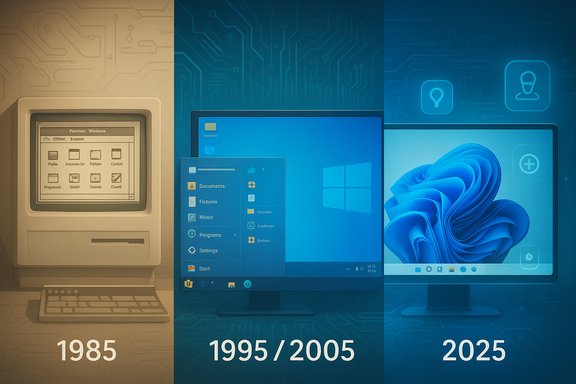 Background: the moment Windows was born
Windows’ origin story is simple and technical: what shipped as Windows 1.0 on November 20, 1985, was not a standalone operating system in the modern sense but a graphical shell layered on top of MS‑DOS. It introduced a mouse-driven, tiled-window environment, bundled utilities such as Paint and Notepad, and a first taste of the visual metaphors—windows, menus, dialogs—that would persist and evolve for decades. This release was small, demanding for its time (256 KB of RAM minimum), and clearly experimental by design. Microsoft in 1985 was not the diversified cloud-and-device juggernaut it later became. The company’s main strength was developer tools and operating system components; Windows represented both an offensive bet to move beyond command‑line computing and a defensive step to maintain relevance as GUIs proliferated across the industry. Those early constraints—CPU speed, memory, display limitations—forced radical compromises in visual design that later became formalized affordances: discrete windows, compact iconography, and menus optimized for keyboard/mouse workflows.Overview: what “design” meant in 1985 vs 2025
1985 — Design driven by scarcity and compatibility
In the mid‑1980s, design priorities were pragmatic: fit within limited memory, interoperate with a wide variety of DOS software, and offer a recognizably “desktop” metaphor that users could learn quickly. Visual flourishes were expensive: bitmapped icons, fonts, and any compositing ate CPU cycles and RAM. The UI was conservative—tiled windows rather than free overlapping windows at first—and emphasized deterministic behavior over expressiveness. This discipline seeded Windows’ future stability and backwards compatibility promises.2025 — Design driven by silicon, ecosystems, and agency
By 2025, the conversation around design has broadened to include perceptual clarity on high‑DPI displays, fluid motion, accessibility, and—critically—how the OS signals and enables AI features. Visual choices now communicate system capabilities (for example, whether a device supports local, low‑latency AI features), and interfaces are co‑designed with hardware—NPUs, camera arrays, and sensors. The Windows shell is not just a vector for icons and windows; it is a staging ground for agentic experiences (Copilot), cross‑device continuity, and privacy controls that must be readable and trustworthy to users.The visual milestones: a design lineage
Windows 1.0 → Windows 3.x: establishing the metaphors
The first decade was about inventing and stabilizing metaphors. The early Windows releases added features that designers now treat as fundamental: overlapping windows, icons as application signifiers, and consistent dialog patterns. This era delivered the cognitive scaffolding—Start-like affordances, hierarchical menus, and modal/persistent dialogs—that users internalized and that later designers could assume.Windows 95 → XP: the Start menu and consumer mainstreaming
Windows 95 reorganized the desktop around discoverability and comfort, introducing the Start menu and taskbar as primary navigation anchors. The design trade-off was to prioritize discoverability over minimalism: the Start menu became the single most visible expression of how Windows thought about information and tasks. Windows XP later polished visual cues (color, contrast, task flows) while maintaining backwards compatibility that enterprises relied upon. These changes cemented the notion that UI elements must be immediately familiar to non‑technical users.Vista → Windows 7: visual richness vs. performance
Windows Vista pushed aesthetics—translucency (Aero), animated transitions, and richer typography—but incurred performance costs on existing hardware, provoking a user backlash that taught an enduring lesson: visual ambition must be balanced with real‑world performance and user expectations. Windows 7 restored sensible defaults and performance while keeping the more tasteful advances.Windows 8 → Windows 10: touch-first experiments and reconciliation
Windows 8 marked a radical tilt toward touch, introducing the Metro design language and full‑screen, tile‑focused start experiences designed for tablets. The net effect was fragmentation: desktop users felt alienated, touch users felt underserved in the desktop shell, and Microsoft had to reconcile these tensions with Windows 10. That reconciliation introduced a bigger challenge—design inconsistency across legacy and modern “UWP/Win32” boundaries—which persisted until later visual system unifications.Windows 11 and Sun Valley: Fluent Design matured
Windows 11, introduced with the Sun Valley visual refresh, marked a deliberate, cross‑platform visual language: Fluent Design. The design language emphasized rounded corners, soft shadows, depth, motion, and clarity on high‑resolution displays. Sun Valley centralized taskbar icons and rethought spacing for modern monitors, while the Fluent system aimed for a coherent identity across web, desktop, and mobile surfaces. This iteration is not just cosmetic—it’s an accessibility and legibility rewrite intended for HDR monitors and touch experiences alike.2025: the new drivers of Windows UI decisions
1) High‑DPI and HDR displays
Pixels are cheaper but fidelity expectations are higher. Icons, glyphs, and typography must scale gracefully; micro‑contrast and color ramps are chosen to preserve legibility across scaling factors. Fluid motion and layered depth are also optimized for refresh rates and GPU power rather than CPU heuristics that dominated earlier eras. This is why modern iconography simplifies internal glyphs and emphasizes color gradients that read well at small sizes.2) Hardware‑gated experiences (NPUs and Copilot+ PCs)
A seismic shift for 2024–2025 is Microsoft’s Copilot+ initiative: a class of AI‑ready, NPU‑equipped devices that offload inference to on‑device silicon. Microsoft published explicit hardware guidance: many Copilot features require an NPU that can deliver 40+ TOPS (trillions of operations per second). That requirement fundamentally changes the UX calculus: designers must indicate feature availability, gracefully degrade where NPUs are absent, and ensure consistent affordances across heterogeneous hardware. Microsoft’s Copilot+ documentation, device pages, and product announcements make the 40+ TOPS floor explicit, and independent coverage confirms both the technical and strategic implications.3) Agentic design and UI as trust signal
The more the OS does for users (recall their context, suggest tasks, act on their behalf), the more design must signal intent, provenance, and privacy controls. Microsoft’s “agentic OS” thesis reframes UI as a consent and governance surface: status indicators, privacy toggles, and audit trails are as much part of design as iconography. The UX must answer: who acted, what was accessed, and can the interaction be undone? These are design constraints that did not exist in 1985.Design strengths across four decades
- Familiar affordances that scale: Despite radical changes, Windows retained key mental models—windows, menus, and a centralized launcher—letting users migrate without relearning the world.
- Pragmatic compatibility: Microsoft’s conservatism around backwards compatibility reduced churn in enterprise environments, enabling gradual adoption of new visuals and behavior.
- Platform coherence: The Fluent Design system and Sun Valley work aimed to unify web, desktop, and mobile gradients of the same language—improving brand coherence across form factors.
- Hardware‑aware design: By aligning UI with silicon capabilities (e.g., NPU availability), the platform can offer stronger, lower‑latency experiences such as real‑time image generation or local translation. This co‑design between hardware and UI enables new classes of interactions.
The risks and tensions designers must manage
1) Fragmentation by hardware capability
Designing for a tiered ecosystem—legacy devices, mainstream laptops, and Copilot+ NPUs—creates a UX hazard. Features gated to high‑end NPUs risk creating a two‑tier experience where basic affordances differ across machines, eroding platform consistency. That’s a deliberate product choice with tradeoffs: it accelerates AI experiences but heightens device inequality. Microsoft’s documentation and reporting show the 40+ TOPS gate is intentional, and media coverage has noted the potential for fragmentation.2) Perception of bloat and “design churn”
Decades of incremental change—visual refreshes, new default layouts, central taskbar, Copilot integration—can create friction. Long‑time users often interpret changes as unnecessary churn or feature creep rather than improvement. The historical lesson (Vista → 7) warns that cosmetic innovation without clear performance or productivity gains can provoke backlash. Designers must earn behavioral change through clear value, not merely fresh aesthetics.3) Privacy, transparency, and the agentic OS
Agentic interfaces that act on users’ behalf can accelerate workflows, but they also blur lines between helpful automation and unwanted autonomy. UI must clearly display what agents can access, how long data is retained (Recall, for example), and how to revoke permissions. Failure to design visible, reversible interactions will risk user distrust and regulatory scrutiny. Microsoft’s emphasis on privacy controls and opt‑in toggles is a direct response to this risk, but designers must make those safeguards discoverable and usable.4) Accessibility vs. eye‑candy
Rich gradients, micro‑motion, and color depth must remain accessible. Designers must test at common scaling factors, for screen readers, and for high‑contrast modes. History shows that visual innovation can inadvertently hurt users with special needs unless accessibility is baked in from the first sketches. The Fluent Design system places accessibility front and center, but engineers and designers must resist the urge to let style trump legibility.Case study: the Start menu and organizational metaphors
The Start menu is an excellent microcosm of Windows’ design evolution. From a compact program list to a tile grid, then to a hybrid Start menu and now to category/name grid experiments, Microsoft has continually remodeled this single point of discovery to match changing device contexts and user behaviors.- Why it matters: The Start menu is the first place users look for apps and tasks; changes ripple through discoverability and muscle memory.
- What changed: Modern updates add category views, grid layouts, and prioritized content-first iconography—mirroring mobile app drawers and app libraries. Microsoft’s phased rollout approach lets users choose and cache old shortcuts to avoid sudden disruption.
What designers can learn from 1985 when designing for 2025
- Design against constraints, not abstractions. In 1985, constraints forced clear, stable affordances. Modern designers should create graceful degradation strategies where hardware or connectivity varies.
- Preserve mental models. Radical shifts must be scaffolded with transitional affordances—tooltips, onboarding, fallback behaviors—that respect users’ expectations.
- Signal capability and consent. When the OS takes action (local AI inference, background recall), the UI should make provenance and control obvious and reversible.
- Test across extremes. Validate motion, contrast, and scaling from 96 DPI laptop screens to 4K HDR displays and ensure parity in accessibility experiences.
- Keep performance non‑negotiable. Aesthetic wins are hollow if updates slow common tasks or reduce battery life; optimization is a design responsibility.
Verification of critical technical claims
- Windows 1.0 release: Windows 1.0 was first released to manufacturing on November 20, 1985, and was a GUI shell for MS‑DOS. This date and characterization are corroborated by multiple historical sources.
- Copilot+ NPU requirement: Microsoft’s developer guidance and Copilot+ product pages state many Copilot experiences require an NPU capable of 40+ TOPS; the Copilot+ product pages and developer documentation explicitly call this out, and independent reporting confirms the hardware floor and its implications. Designers and admins should plan for capability gating where NPUs are absent.
Practical guidance for Windows designers, admins, and product leaders
For designers
- Prototype with capability layers: create visual and interaction patterns for low, medium, and high capability devices so interfaces degrade gracefully.
- Build discoverability into migration: when changing primary navigation (Start menu, taskbar), provide guided onboarding and an option to revert.
- Center consent and reversal: make agent actions undoable and log them in an activity center to maintain trust.
For IT and product leaders
- Inventory hardware: identify which devices meet Copilot+ requirements (NPU 40+ TOPS) and segment pilot groups accordingly.
- Pilot agentic features with defined policies: test features such as Recall and Cocreator in a limited environment with privacy reviews and DLP/EDR policies in place.
- Communicate clearly to end users: if features will appear differently across machines, provide clear documentation and training to avoid surprise.
Final analysis: design as strategic leverage
Design is no longer merely about pixels and motion; in 2025 it’s a strategic lever for privacy, hardware differentiation, and user trust. Where 1985 required humility and compatibility because of technical scarcity, 2025 requires discipline around capability signaling, equity across devices, and trustworthy automation. Microsoft’s path—preserving core metaphors while introducing Fluent Design and agentic UI concepts—reflects a long institutional lesson: incremental change works best when it respects user expectations.The strengths are undeniable: a coherent brand language, careful backwards compatibility, and an ecosystem capable of delivering hardware‑accelerated AI features. But the risks are equally real: fragmentation, perceived bloat, and the difficult task of making agentic behaviors transparent and reversible.
Designers, product managers, and IT leaders must treat these decades as a continuum: keep the lessons of 1985 close—design for constraints, avoid breaking mental models—and adopt 2025’s silicon‑awareness and privacy-first instincts to craft an OS that not only looks modern, but also behaves responsibly and predictably for every user.
Conclusion
Windows’ forty‑year journey from a modest GUI shell to an AI‑aware platform illustrates a key truth about product design: the interface you ship is always a reflection of the technical realities and business priorities of its time. The earliest Windows taught the value of clarity under constraint; the latest Windows teaches the imperative of clarity under agency. The challenge ahead is to make advances—visual, performance, and agentic—feel like natural progression, not abrupt overhaul, ensuring that the next wave of innovation benefits everyone regardless of which hardware they bring to the desktop.
Source: YouTube
