

Administrators often think about disk space only when a Windows PC starts warning that it is low on storage, but the real story is broader than a single alert. On modern systems, free space still matters because Windows uses it for updates, rollback, caching, paging, and routine housekeeping, even if today’s SSDs are far larger and cheaper than the drives of the past. The practical challenge is not just deleting files, but understanding which files are safe to remove, which should be moved elsewhere, and which are protecting reliability. That balance is what makes Windows storage management a recurring IT discipline rather than a one-time cleanup task.
Windows storage cleanup has evolved from a desperate response to small hard drives into a more nuanced operational practice. In earlier eras, every megabyte counted, and administrators spent real time trimming logs, compressing data, and making trade-offs just to keep systems usable. Today, the problem is less about absolute scarcity and more about the clash between user expectations, update requirements, and the hidden cost of convenience features. Windows still keeps a surprising amount of data around for good reasons, and the best cleanup methods respect that design instead of fighting it blindly.
The article you shared gets this exactly right by framing disk cleanup as an assessment problem first and a deletion problem second. That is a better mindset than the old “delete everything that looks big” habit. A few kilobytes of minidump data may be diagnostically important but barely move the storage needle, while a larger artifact such as Windows.old, a hibernation file, or a cache directory may reclaim significant space. The key is to distinguish between space that is merely visible and space that is actually useful.
Windows itself now offers multiple built-in paths for answering that question. Storage settings, Storage Sense, Cleanup Recommendations, Disk Cleanup, File Explorer, and Event Viewer each expose different layers of the same storage picture. Managed environments add Microsoft Intune, MECM, Windows Admin Center, and monitoring tools that can identify low-space devices before users notice performance issues or update failures. In other words, disk cleanup is no longer just a local troubleshooting exercise; it is a fleet-management issue.
Another important shift is the move from manual intervention to policy-driven hygiene. When cleanup routines are baked into a standard image or endpoint policy, organizations can reduce the chance that users will hit low-disk warnings in the first place. That matters because the impact of storage pressure is not limited to inconvenience. It can delay upgrades, break installs, complicate troubleshooting, and in some cases trigger instability that looks like a software problem when it is really just a full drive.
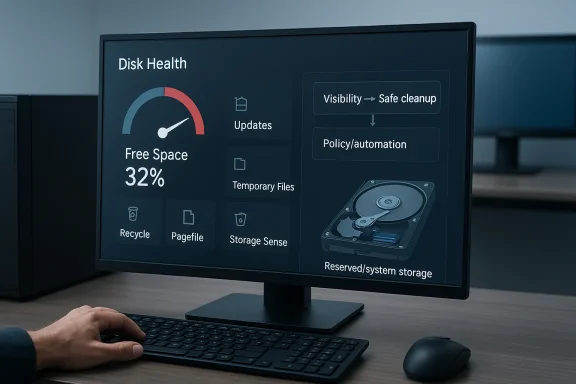
The most useful storage strategies today are layered. They start with visibility, then focus on the safest, highest-return wins, and only afterward consider more aggressive changes. That layered approach is also the difference between a quick fix and a sustainable Windows maintenance posture.
There is also a performance angle, especially on systems with smaller SSDs. Modern Windows is much better at resource management than older releases, but it still depends on breathing room. A drive that is nearly full leaves less flexibility for paging, caching, indexing, and background servicing, which can make everyday tasks feel sluggish even when the machine is otherwise healthy.
Some of the usual suspects are well known:
The point of the first pass is not to be exhaustive. It is to determine whether the system is truly under stress, which category is consuming the most space, and whether the issue is local to one endpoint or part of a wider trend. In managed environments, that distinction drives the response.
A quick audit can reveal when a machine is low on storage for reasons that are completely normal, and when a deeper problem exists. For example, a buildup of temporary files may suggest a housekeeping issue, while an unexpectedly bloated event log may point to a failing device or recurring error condition. Good diagnostics always precede cleanup.
Microsoft Intune, MECM, System Center Operations Manager, and Windows Admin Center can all help provide visibility across systems. Third-party platforms such as Ivanti, IBM MaaS360, ManageEngine OpManager, Nagios Core, SolarWinds, and Zabbix can do the same job with different strengths. Custom PowerShell scripts remain a strong option for organizations that want tailored thresholds and remediation logic.
A good monitoring strategy should include:
Another benefit of monitoring is consistency. One machine with 40 GB free may not need attention, while another with 12 GB free on a 128 GB SSD could already be in the danger zone. Thresholds should be tuned to device class, workload, and update requirements, not treated as a universal constant.
Storage Sense is the other major player. It automates cleanup of temporary files and can empty the Recycle Bin on a schedule, reducing the chances that needless clutter will accumulate silently. For many users, that automation is more valuable than a one-time cleanup because it keeps the system from drifting back into trouble.
A practical workflow often looks like this:
Disk Cleanup is especially important for systems that have recently been upgraded. Windows.old can be a sizeable burden, but it also serves as a rollback safety net after an upgrade. Removing it can free substantial space, but that trade-off should be explicit and deliberate.
The other easy win is to move large personal files to alternate storage. Photos, videos, downloads, and archives are ideal candidates for an external SSD, USB drive, or cloud storage service such as Microsoft OneDrive or Google Drive. This is particularly useful for people who create large amounts of content but do not need it resident on the local drive at all times.
The most sensible candidates for offloading include:
Still, for many users, a local drive is simply being used as a catch-all holding area. The fastest way to recover space is often to clean up that behavior rather than to hunt for exotic system files. If the largest files are the user’s own downloads, the answer is usually organizational, not technical.
Windows event logs deserve special mention because they occupy a tricky middle ground between necessary and excessive. Logs are essential for troubleshooting, but if they are misconfigured they can become bloated. The default “overwrite events as needed” behavior is usually the right balance because it keeps logs rolling without allowing unlimited growth.
A balanced log strategy usually includes:
That is why administrators should avoid blanket “cleanup” scripts that delete anything large and hidden. Some hidden items are recoverable caches; others are functional system components. Treating them the same can create more trouble than it solves.
Reserved space exists to make servicing more predictable. It gives Windows room to stage updates and reduce the chance of failed installs when the machine is already tight on storage. The trade-off is that it reduces the space a user sees as “available,” which can feel frustrating if no one has explained why the reserve is there.
In practice, that creates a straightforward policy question:
The broader lesson is that hidden system storage should be judged in context. A few gigabytes that protect servicing may be worth more than a slightly larger free-space number. Conversely, on a 128 GB device, even a moderate reserve can feel disproportionate and may require more transparent management.
The article’s emphasis on monitoring and standardization is the important part here. When storage hygiene is policy-driven, the cleanup process becomes more predictable and less dependent on the habits of individual users. That is especially useful in environments where update success is tied to minimum free-space thresholds.
This is why advanced cleanup should be used after the basic, visible tools have done their work. If Storage Sense, Disk Cleanup, and a sensible file review solve the issue, there is no reason to escalate into more fragile territory. If they do not, then more advanced methods become justified.
The best enterprise answer is usually a layered one: visibility first, automation second, exceptions last. That is a boring recipe, but in storage management boring is good. It means fewer surprises and fewer support incidents.
For enterprises, the stakes are broader. Low disk space can break updates, disrupt applications, and cause support tickets that consume far more time than the storage problem itself. Because of that, organizations need policy-driven cleanup, remote monitoring, and thresholds that are tailored to device models and workloads.
In practical terms, consumers can often rely on:
There is also a cultural difference. Consumers often think of storage as personal clutter, while enterprises think of it as operational capacity. That is why managed cleanup works best when it is invisible to the user but transparent to the administrator.
Another concern is that quick wins can become permanent habits. Clearing a cache is fine; assuming the cache should stay gone forever is not. Windows storage should be managed as a living system, not as a one-time decluttering project.
Microsoft is also likely to keep refining the mix of automation and visibility. Better cleanup recommendations, smarter Storage Sense behavior, and more transparent usage reporting would all reduce friction. On the enterprise side, stronger policy controls and better telemetry would help admins prevent space problems before they cascade into update problems.
Windows has always been a system of trade-offs, and storage management is one of its clearest examples. The best admins do not just chase free space; they preserve stability, protect recoverability, and reclaim only what can be safely spared. That is the difference between a temporary cleanup and a durable Windows storage strategy.
Source: TechTarget 10 ways to free up disk space in Windows | TechTarget
 Overview
Windows storage cleanup has evolved from a desperate response to small hard drives into a more nuanced operational practice. In earlier eras, every megabyte counted, and administrators spent real time trimming logs, compressing data, and making trade-offs just to keep systems usable. Today, the problem is less about absolute scarcity and more about the clash between user expectations, update requirements, and the hidden cost of convenience features. Windows still keeps a surprising amount of data around for good reasons, and the best cleanup methods respect that design instead of fighting it blindly.The article you shared gets this exactly right by framing disk cleanup as an assessment problem first and a deletion problem second. That is a better mindset than the old “delete everything that looks big” habit. A few kilobytes of minidump data may be diagnostically important but barely move the storage needle, while a larger artifact such as Windows.old, a hibernation file, or a cache directory may reclaim significant space. The key is to distinguish between space that is merely visible and space that is actually useful.
Windows itself now offers multiple built-in paths for answering that question. Storage settings, Storage Sense, Cleanup Recommendations, Disk Cleanup, File Explorer, and Event Viewer each expose different layers of the same storage picture. Managed environments add Microsoft Intune, MECM, Windows Admin Center, and monitoring tools that can identify low-space devices before users notice performance issues or update failures. In other words, disk cleanup is no longer just a local troubleshooting exercise; it is a fleet-management issue.
Another important shift is the move from manual intervention to policy-driven hygiene. When cleanup routines are baked into a standard image or endpoint policy, organizations can reduce the chance that users will hit low-disk warnings in the first place. That matters because the impact of storage pressure is not limited to inconvenience. It can delay upgrades, break installs, complicate troubleshooting, and in some cases trigger instability that looks like a software problem when it is really just a full drive.
The most useful storage strategies today are layered. They start with visibility, then focus on the safest, highest-return wins, and only afterward consider more aggressive changes. That layered approach is also the difference between a quick fix and a sustainable Windows maintenance posture.
Why Disk Space Still Matters
Disk space is one of those resources that can feel abstract until it starts causing trouble. Once a drive gets tight, Windows loses room to stage updates, write temporary files, expand logs, and store recovery data. That is why a system can appear to be “working” while quietly degrading in ways users do not connect to storage pressure right away.There is also a performance angle, especially on systems with smaller SSDs. Modern Windows is much better at resource management than older releases, but it still depends on breathing room. A drive that is nearly full leaves less flexibility for paging, caching, indexing, and background servicing, which can make everyday tasks feel sluggish even when the machine is otherwise healthy.
Storage pressure is rarely one thing
The most common mistake is assuming the missing space must be tied to one obvious folder. In reality, Windows storage is fragmented across system files, update caches, recovery data, app data, user downloads, and log files. That is why an administrator can reclaim a few gigabytes and still not find the full “missing” amount.Some of the usual suspects are well known:
- Temporary files
- Delivery Optimization cache
- System Restore points
- Hibernation files
- Windows.old
- Pagefile growth
- Large user downloads
- Virtual machine disks
First Steps: See What Windows Is Using
Before deleting anything, administrators should establish a baseline. Windows 11’s Settings > System > Storage page provides a useful overview of used space, temporary files, and app categories, while File Explorer can show a quick view of free and used capacity on the C: drive. That sounds obvious, but it is easy to skip this step when the urge to clean up kicks in.The point of the first pass is not to be exhaustive. It is to determine whether the system is truly under stress, which category is consuming the most space, and whether the issue is local to one endpoint or part of a wider trend. In managed environments, that distinction drives the response.
Useful built-in views
Windows gives you several quick windows into storage usage:- Storage settings for a category-level breakdown
- Storage Sense for automatic cleanup of temporary data
- Cleanup recommendations for suggested removals
- Advanced storage settings for more detailed drive management
- File Explorer properties for a direct used/free-space check
A quick audit can reveal when a machine is low on storage for reasons that are completely normal, and when a deeper problem exists. For example, a buildup of temporary files may suggest a housekeeping issue, while an unexpectedly bloated event log may point to a failing device or recurring error condition. Good diagnostics always precede cleanup.
Monitoring at Scale
On a single PC, checking storage manually is manageable. On dozens or hundreds of endpoints, it quickly becomes impractical. That is why the article’s emphasis on periodic audits is so important: the real goal is not merely reclaiming space after the fact, but catching pressure before it becomes a user-visible outage.Microsoft Intune, MECM, System Center Operations Manager, and Windows Admin Center can all help provide visibility across systems. Third-party platforms such as Ivanti, IBM MaaS360, ManageEngine OpManager, Nagios Core, SolarWinds, and Zabbix can do the same job with different strengths. Custom PowerShell scripts remain a strong option for organizations that want tailored thresholds and remediation logic.
Why proactive monitoring wins
The operational benefit is obvious: alerts arrive before updates fail or applications misbehave. The strategic benefit is more subtle. By watching how storage changes over time, admins can distinguish a one-off spike from a recurring pattern and target the right root cause.A good monitoring strategy should include:
- Threshold-based alerting
- Trend analysis over time
- Severity levels tied to free-space percentages
- Automated cleanup where safe
- Escalation for systems approaching update failure
- Remediation workflows for stubborn offenders
Another benefit of monitoring is consistency. One machine with 40 GB free may not need attention, while another with 12 GB free on a 128 GB SSD could already be in the danger zone. Thresholds should be tuned to device class, workload, and update requirements, not treated as a universal constant.
Built-In Cleanup Tools
Windows still includes a robust set of native cleanup tools, and they are usually the safest place to start. Disk Cleanup remains especially useful because it enumerates Windows-specific file categories and, when run with administrative privileges, exposes deeper items such as system minidumps, Windows Update logs, and Windows.old. Those items are often the right first target when space is tight.Storage Sense is the other major player. It automates cleanup of temporary files and can empty the Recycle Bin on a schedule, reducing the chances that needless clutter will accumulate silently. For many users, that automation is more valuable than a one-time cleanup because it keeps the system from drifting back into trouble.
Disk Cleanup vs. Storage Sense
Disk Cleanup is more manual and more deliberate. Storage Sense is more continuous and more preventative. Used together, they create a stronger posture than either one alone, especially on endpoints that see frequent downloads, updates, and temporary-file churn.A practical workflow often looks like this:
- Check Settings > System > Storage.
- Review cleanup recommendations and obvious temporary-file categories.
- Run Disk Cleanup as administrator.
- Remove only clearly safe categories.
- Empty the Recycle Bin.
- Recheck free space before moving to more aggressive actions.
Disk Cleanup is especially important for systems that have recently been upgraded. Windows.old can be a sizeable burden, but it also serves as a rollback safety net after an upgrade. Removing it can free substantial space, but that trade-off should be explicit and deliberate.
Recycle Bin, Downloads, and Large Personal Files
The simplest cleanup step is still one of the most overlooked: empty the Recycle Bin. Deleting a file in Windows does not immediately erase it; it moves to a holding area where it continues to consume space until the bin is cleared. That means a user who “deleted” a large video or folder may still be carrying most of the storage burden.The other easy win is to move large personal files to alternate storage. Photos, videos, downloads, and archives are ideal candidates for an external SSD, USB drive, or cloud storage service such as Microsoft OneDrive or Google Drive. This is particularly useful for people who create large amounts of content but do not need it resident on the local drive at all times.
Move, don’t just delete
Moving content has a major advantage over deletion: it preserves access while restoring local space. That matters when the files are important but not performance-critical. It is also the right answer for data that is too valuable to trust to a spur-of-the-moment cleanup decision.The most sensible candidates for offloading include:
- Photos and videos
- Downloads folders
- Work archives
- Log files that are no longer active
- Large installers
- User-created media projects
Still, for many users, a local drive is simply being used as a catch-all holding area. The fastest way to recover space is often to clean up that behavior rather than to hunt for exotic system files. If the largest files are the user’s own downloads, the answer is usually organizational, not technical.
Apps, Logs, and Hidden Storage
Unused applications are a classic source of avoidable storage consumption. Some are obviously large, but others remain installed long after the user has stopped opening them. Removing them through Control Panel or managed deployment tools can free space and reduce clutter at the same time.Windows event logs deserve special mention because they occupy a tricky middle ground between necessary and excessive. Logs are essential for troubleshooting, but if they are misconfigured they can become bloated. The default “overwrite events as needed” behavior is usually the right balance because it keeps logs rolling without allowing unlimited growth.
Event logs are useful until they are not
Administrators should resist the temptation to over-tighten log settings. Making logs too small or deleting them too aggressively can destroy the very data needed to diagnose a future problem. In other words, log management is about sizing and retention, not just purging.A balanced log strategy usually includes:
- Reasonable maximum log sizes
- Overwrite behavior for routine operation
- Temporary enlargement during active troubleshooting
- Central policy for managed fleets
- Periodic review of abnormal growth
That is why administrators should avoid blanket “cleanup” scripts that delete anything large and hidden. Some hidden items are recoverable caches; others are functional system components. Treating them the same can create more trouble than it solves.
The Role of Reserved and System Storage
One of the more misunderstood storage topics in Windows is reserved space. Windows increasingly uses allocated space behind the scenes to support updates and system reliability, and users often react badly when they see gigabytes disappear without an obvious owner. That reaction is understandable, especially on small SSDs, but it does not mean the feature is pointless.Reserved space exists to make servicing more predictable. It gives Windows room to stage updates and reduce the chance of failed installs when the machine is already tight on storage. The trade-off is that it reduces the space a user sees as “available,” which can feel frustrating if no one has explained why the reserve is there.
Why the reserve exists
The strongest argument in favor of reserved storage is reliability. Updates are safer when the OS can guarantee staging space, and failures are less likely to strand the device in an awkward half-updated state. The downside is that the user may feel penalized for owning a small drive.In practice, that creates a straightforward policy question:
- Is update reliability more valuable than the extra few gigabytes?
- Is the machine a constrained laptop or a spacious desktop?
- Is the device managed centrally or used ad hoc?
- Does the user routinely hit low-space problems during patch cycles?
The broader lesson is that hidden system storage should be judged in context. A few gigabytes that protect servicing may be worth more than a slightly larger free-space number. Conversely, on a 128 GB device, even a moderate reserve can feel disproportionate and may require more transparent management.
Command-Line and Advanced Admin Options
For experienced administrators, Windows cleanup does not stop at the GUI. PowerShell, DISM, group policy, and registry settings all have a role in storage management, especially when the goal is repeatability. These tools are less about one-off tidying and more about shaping behavior across a fleet.The article’s emphasis on monitoring and standardization is the important part here. When storage hygiene is policy-driven, the cleanup process becomes more predictable and less dependent on the habits of individual users. That is especially useful in environments where update success is tied to minimum free-space thresholds.
What advanced management adds
Advanced tools give admins better control over:- Cleanup schedules
- Threshold-based alerts
- Log retention and size
- Automatic temporary-file removal
- Policy-based enforcement
- Fleet-wide consistency
This is why advanced cleanup should be used after the basic, visible tools have done their work. If Storage Sense, Disk Cleanup, and a sensible file review solve the issue, there is no reason to escalate into more fragile territory. If they do not, then more advanced methods become justified.
The best enterprise answer is usually a layered one: visibility first, automation second, exceptions last. That is a boring recipe, but in storage management boring is good. It means fewer surprises and fewer support incidents.
Consumer Impact vs. Enterprise Impact
For consumers, the primary goal is usually simple: get back enough space to keep Windows running smoothly without losing important files. That often means cleaning personal data, clearing temporary files, and leaning on automatic tools like Storage Sense. The average user wants the process to be safe, quick, and understandable.For enterprises, the stakes are broader. Low disk space can break updates, disrupt applications, and cause support tickets that consume far more time than the storage problem itself. Because of that, organizations need policy-driven cleanup, remote monitoring, and thresholds that are tailored to device models and workloads.
Different goals, same bottleneck
The consumer view of disk space is mostly about convenience. The enterprise view is about continuity, standardization, and operational risk. That difference changes which cleanup strategies are acceptable and how much automation is appropriate.In practical terms, consumers can often rely on:
- Storage Sense
- Disk Cleanup
- Recycle Bin cleanup
- Cloud offload
- App uninstalling
- Simple file moves
- Intune or MECM-based monitoring
- Policy-enforced storage thresholds
- Centralized log configuration
- Scripted remediation
- Change control around update readiness
- Documentation for rollback-sensitive deletions
There is also a cultural difference. Consumers often think of storage as personal clutter, while enterprises think of it as operational capacity. That is why managed cleanup works best when it is invisible to the user but transparent to the administrator.
Strengths and Opportunities
The good news is that Windows already provides most of the tools needed to keep storage healthy, and the smartest opportunity is to use them consistently rather than invent a new cleanup philosophy. When the workflow is structured correctly, storage management becomes routine maintenance instead of emergency recovery.- Built-in tools like Storage Sense and Disk Cleanup reduce dependency on third-party cleaners.
- Storage settings give users and admins a clearer picture of what is consuming space.
- Monitoring tools can catch low-space conditions before they affect updates.
- Cloud offload makes it easy to move large personal files without permanent deletion.
- Centralized policy lets enterprises standardize log sizes and cleanup behavior.
- Layered remediation reduces the risk of deleting something important.
- Visible trade-offs help users understand why some space is reserved or protected.
Risks and Concerns
The main risk in storage cleanup is overconfidence. It is easy to assume that any large file is safe to delete or that any hidden file is unnecessary, but Windows often keeps data around for valid reasons. Removing the wrong thing can create trouble that is harder to diagnose than the original space problem.- Deleting diagnostic files can remove evidence needed for troubleshooting.
- Aggressive cleanup can break rollback or recovery paths.
- Disabling reserved storage may increase update failure risk.
- Overly small logs can hide the root cause of future issues.
- Scripted cleanup can behave differently across Windows versions.
- Cloud migration may create sync and retention complications.
- User confusion can turn a normal storage reserve into a support complaint.
Another concern is that quick wins can become permanent habits. Clearing a cache is fine; assuming the cache should stay gone forever is not. Windows storage should be managed as a living system, not as a one-time decluttering project.
What to Watch Next
Windows storage management will keep evolving as Microsoft tries to make updates less fragile and endpoint maintenance less manual. The most likely trend is not the disappearance of low-space issues, but a gradual reduction in how often they surprise users. That would be a welcome change, because most storage pain comes from unpredictability rather than raw scarcity.Microsoft is also likely to keep refining the mix of automation and visibility. Better cleanup recommendations, smarter Storage Sense behavior, and more transparent usage reporting would all reduce friction. On the enterprise side, stronger policy controls and better telemetry would help admins prevent space problems before they cascade into update problems.
Key developments to monitor
- Improvements to Windows update servicing
- Changes in Storage Sense behavior
- More transparent system-reserved storage reporting
- Better endpoint telemetry for low-space forecasting
- Easier cloud file offload and retention controls
Windows has always been a system of trade-offs, and storage management is one of its clearest examples. The best admins do not just chase free space; they preserve stability, protect recoverability, and reclaim only what can be safely spared. That is the difference between a temporary cleanup and a durable Windows storage strategy.
Source: TechTarget 10 ways to free up disk space in Windows | TechTarget
