

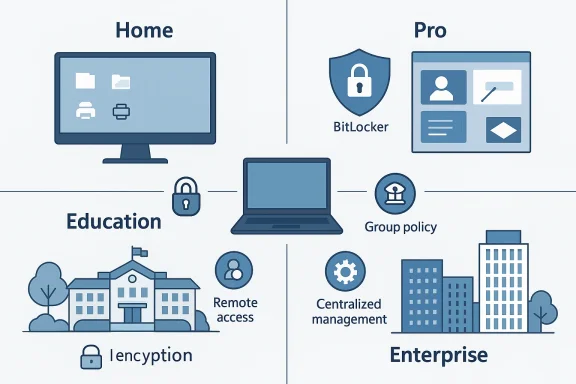
Windows edition choice is one of those deceptively small decisions that can shape everyday computing in surprisingly important ways, and the difference between Home, Pro, Education, and Enterprise is bigger than Microsoft’s surface-level marketing suggests. The key distinction is not speed, interface polish, or gaming performance, but capability: the higher editions add security controls, management tools, and deployment features that matter most once a PC is doing more than casual consumer work. Microsoft’s own positioning has long described Home as the consumer edition, Pro as the business-ready desktop edition, and Enterprise and Education as organizational editions built around centralized control, deployment, and advanced protection rather than standalone retail use.
At first glance, all four editions look almost identical. You still get the same desktop, taskbar, Start menu, File Explorer, and broad Windows 11 experience. That sameness is intentional: Microsoft wants the operating system to feel familiar no matter which SKU you’re on. The real differences sit underneath, in areas such as encryption, remote access, virtualization, policy management, update control, and enterprise deployment.
That’s why so many users run the “wrong” edition for years without noticing. If your daily tasks are browsing, streaming, shopping, document work, and light creative use, Windows Home will often feel perfectly adequate. But once you begin managing sensitive data, connecting remotely, testing software, or wanting more granular control over system behavior, Home starts to look less like a limitation-free default and more like an intentionally simplified baseline. Microsoft’s licensing model reinforces that split: Home is the retail consumer tier, while Pro is the retail/business crossover, and Education and Enterprise are generally distributed through schools, universities, or volume licensing rather than normal shopping.
For users who travel, carry their laptop to work or school, or keep personal and professional data on the same device, this is not a cosmetic bonus. It’s the difference between “we hope nobody gets into this” and “the data is protected even if the device disappears.” In practical terms, Pro’s full encryption tooling is one of the clearest justifications for paying more.
For power users, remote access is often less about convenience than continuity. A machine that can host Remote Desktop becomes a tool you can depend on even when you are away from it. That’s especially useful for people who leave a desktop running at home as a file server, a game library, or a lab machine.
This is one of the more underrated additions in Pro because it doesn’t feel like a “business” feature in the traditional sense. It is a safety feature and a workflow feature at the same time. If you routinely try new tools or need to assess something untrusted, Sandbox can save time and reduce risk. Home users get none of that built in.
For ordinary consumers, that may sound abstract. For anyone who likes to lock down update behavior, control sign-in rules, adjust device policies, or enforce repeatable settings across a machine, it is one of the most valuable Pro features. It is the difference between changing a setting and managing a system.
This is one of the best arguments for Pro in a small-business or professional setting. The OS becomes less of an unpredictable guest and more of a managed platform. Even if you are the only person using the PC, better control over updates can reduce disruptions.
That makes Enterprise less of a “premium consumer” SKU and more of an operating environment. If you are shopping for a personal license, it is generally irrelevant. If you are running a company with lots of endpoints and compliance requirements, it can be the most important edition of all.
The article also notes that Education often disables certain consumer-oriented experiences by default, such as suggested apps or Store promotions, to reduce distraction. That aligns with the broader philosophy of school-managed devices: less consumer clutter, more control, and a more predictable environment for administrators.
One especially notable point is that Education is the edition that allows administrators to fully remove the Recommended section from the Windows 11 Start menu via Group Policy. That is a small detail on paper, but it speaks volumes about the target audience: schools want the interface to support learning, not promote apps.
There is also a cost argument. If you do not need BitLocker management, Remote Desktop hosting, Sandbox, or Group Policy, paying extra for Pro can be hard to justify. The edition gap is real, but it is not universal. Home is often the right answer when the machine is primarily a consumption device.
The broader point is that Pro’s value is measured less in spectacle and more in reduced friction. That is why the article’s strongest claim lands: the features are “small but significant.” They are not flashy, but they are the kinds of tools that make a machine easier to live with over time.
It is also right to push back on the idea that Enterprise or Education automatically mean a better desktop experience for individuals. Those editions are not about extra speed or prettier visuals; they are about administrative scope, licensing channel, and organizational control. That is an important distinction that many users miss.
There is, however, one place where readers should stay careful: some of the exact details around feature availability can vary by Windows version, hardware configuration, or policy changes over time. For example, Home may expose limited encryption options depending on the device, and Microsoft’s education and enterprise feature sets have evolved across Windows releases. So the broad lesson is stable, but readers should always verify the current feature matrix before buying or upgrading.
That is what makes the article’s self-correction so relatable. It is not really about embarrassment over being on Home. It is about the moment a user realizes that the edition they had accepted as default was quietly leaving useful tools on the table. For a Windows power user, developer, journalist, or small-business owner, that discovery can be enough to make Pro feel less like an upgrade and more like the edition they should have chosen all along.
Source: MakeUseOf I finally understand the difference between Windows Home, Pro, Education, and Enterprise — and I've been on the wrong one
 Background
At first glance, all four editions look almost identical. You still get the same desktop, taskbar, Start menu, File Explorer, and broad Windows 11 experience. That sameness is intentional: Microsoft wants the operating system to feel familiar no matter which SKU you’re on. The real differences sit underneath, in areas such as encryption, remote access, virtualization, policy management, update control, and enterprise deployment.That’s why so many users run the “wrong” edition for years without noticing. If your daily tasks are browsing, streaming, shopping, document work, and light creative use, Windows Home will often feel perfectly adequate. But once you begin managing sensitive data, connecting remotely, testing software, or wanting more granular control over system behavior, Home starts to look less like a limitation-free default and more like an intentionally simplified baseline. Microsoft’s licensing model reinforces that split: Home is the retail consumer tier, while Pro is the retail/business crossover, and Education and Enterprise are generally distributed through schools, universities, or volume licensing rather than normal shopping.
Home vs. Pro: the real dividing line
The most practical decision for an individual buyer is usually Windows Home or Windows Pro. Education and Enterprise are typically not editions you casually select off a shelf; they tend to arrive through institutional licensing. In that sense, they “choose you,” not the other way around. That leaves most consumers comparing Home and Pro, and that comparison is where the overlooked value lives.BitLocker and device encryption
One of the most consequential differences is BitLocker. Windows Home includes device encryption on some hardware, but Pro and Enterprise provide the full BitLocker feature set, including more flexible drive encryption options and better control over recovery keys. That matters most for laptops, because a stolen or lost machine is far easier to treat as a contained incident if the storage is properly encrypted.For users who travel, carry their laptop to work or school, or keep personal and professional data on the same device, this is not a cosmetic bonus. It’s the difference between “we hope nobody gets into this” and “the data is protected even if the device disappears.” In practical terms, Pro’s full encryption tooling is one of the clearest justifications for paying more.
Remote Desktop hosting
Another major difference is Remote Desktop. Windows Home can initiate a Remote Desktop connection, but it cannot host one. Windows Pro can do both. That distinction sounds trivial until you need to log into your own PC from another location, assist a family member remotely, or maintain access to a work machine while traveling. Home lets you make the call; Pro lets you receive it.For power users, remote access is often less about convenience than continuity. A machine that can host Remote Desktop becomes a tool you can depend on even when you are away from it. That’s especially useful for people who leave a desktop running at home as a file server, a game library, or a lab machine.
Windows Sandbox and safer experimentation
Windows Sandbox is another Pro-only feature that often sounds niche until you actually use it. Sandbox creates an isolated temporary Windows environment that disappears when closed, making it ideal for opening suspicious files, testing unfamiliar software, or evaluating downloads without polluting your main installation. The article’s description of it as a disposable desktop is apt, and that is exactly why developers, journalists, testers, and cautious users tend to appreciate it.This is one of the more underrated additions in Pro because it doesn’t feel like a “business” feature in the traditional sense. It is a safety feature and a workflow feature at the same time. If you routinely try new tools or need to assess something untrusted, Sandbox can save time and reduce risk. Home users get none of that built in.
Group Policy and system control
Pro also gives access to Group Policy, which Home does not include. That matters because Group Policy is the central administrative layer for many Windows settings, enabling cleaner and more organized control over system behavior than the Registry or scattered Settings panels. On Home, users can still tweak some settings manually, but there is no full Local Group Policy Editor available by default.For ordinary consumers, that may sound abstract. For anyone who likes to lock down update behavior, control sign-in rules, adjust device policies, or enforce repeatable settings across a machine, it is one of the most valuable Pro features. It is the difference between changing a setting and managing a system.
Update control and practical stability
Windows Pro also provides more authority over Windows Update behavior. Administrators can delay or coordinate certain updates, which is especially useful when the computer has to remain stable during deadlines, presentations, or production work. That kind of control may not sound exciting, but it is exactly the sort of thing that becomes indispensable once Windows’s automatic maintenance collides with your schedule.This is one of the best arguments for Pro in a small-business or professional setting. The OS becomes less of an unpredictable guest and more of a managed platform. Even if you are the only person using the PC, better control over updates can reduce disruptions.
Education and Enterprise: similar goals, different packaging
Education and Enterprise occupy a different category entirely. They are not simply “better Home” or “better Pro.” They are organizational editions aimed at large-scale management, deployment, and policy enforcement. Microsoft’s historical documentation describes Enterprise as building on Pro with advanced features for medium and large organizations, while Education is distributed through academic licensing for schools and students.Enterprise is about fleet management
Windows Enterprise is designed for centralized administration across many machines. It is typically delivered through volume licensing, often associated with Microsoft 365 E3 or E5-style business arrangements, and its features are the sort of things IT departments care about more than end users do: deployment at scale, policy enforcement, advanced security posture, and broad device management. Microsoft has long framed Enterprise as the edition that adds the most comprehensive controls for organizations that need to govern whole fleets of PCs.That makes Enterprise less of a “premium consumer” SKU and more of an operating environment. If you are shopping for a personal license, it is generally irrelevant. If you are running a company with lots of endpoints and compliance requirements, it can be the most important edition of all.
Education is Enterprise-like, but school-focused
Windows Education is broadly similar to Enterprise in capability, but tailored and distributed for academic institutions. Microsoft has described it as being built for schools, teachers, administrators, and students, with academic volume licensing as the primary channel. In many ways, it behaves like Enterprise with a campus identity.The article also notes that Education often disables certain consumer-oriented experiences by default, such as suggested apps or Store promotions, to reduce distraction. That aligns with the broader philosophy of school-managed devices: less consumer clutter, more control, and a more predictable environment for administrators.
One especially notable point is that Education is the edition that allows administrators to fully remove the Recommended section from the Windows 11 Start menu via Group Policy. That is a small detail on paper, but it speaks volumes about the target audience: schools want the interface to support learning, not promote apps.
What Home still does well
It would be a mistake to treat Home as “bad” or “for beginners.” Microsoft ships it on the majority of consumer PCs for a reason. It is the least complicated path for most people, and it includes the core Windows experience needed for browsing, media, gaming, office work, and everyday productivity. For the average household, Home delivers almost everything they will ever notice.Simplicity has value
The biggest strength of Home is that it is uncomplicated. There are fewer administrative options to think about, fewer enterprise-style controls to configure, and less risk of a user accidentally digging into a feature they do not understand. For a parent, a student, or a casual user, that can actually be beneficial.There is also a cost argument. If you do not need BitLocker management, Remote Desktop hosting, Sandbox, or Group Policy, paying extra for Pro can be hard to justify. The edition gap is real, but it is not universal. Home is often the right answer when the machine is primarily a consumption device.
The hidden downside of “good enough”
Still, the danger of Home is not that it is broken. The danger is that it quietly blocks useful capabilities you may not realize you need until later. That is exactly why many users only discover the value of Pro after years of not missing it. In the article’s framing, the aha moment comes when those locked doors are finally listed out plainly.Why the upgrade can be worth it
Upgrading from Home to Pro is not a reinvention of the OS. It is an expansion of the same Windows installation. Microsoft does not replace the interface or force you into a new ecosystem; it simply unlocks additional tools on top of the one you already have. That makes the transition comparatively painless.Best reasons to choose Pro
If you need a quick rule of thumb, Pro is usually worth considering if you want any of the following:- Full BitLocker controls for better data protection on portable PCs.
- Remote Desktop hosting so you can access your machine from elsewhere.
- Windows Sandbox for isolated testing and safer experimentation.
- Group Policy for centralized local management.
- More flexible update control to reduce disruption.
The business-user angle
Small businesses and solo professionals also gain a lot from Pro. A laptop used for client work, financial documents, or admin tasks benefits from better encryption and policy controls. Remote Desktop and update management are not just convenience features in that context; they are workflow enablers.The broader point is that Pro’s value is measured less in spectacle and more in reduced friction. That is why the article’s strongest claim lands: the features are “small but significant.” They are not flashy, but they are the kinds of tools that make a machine easier to live with over time.
What the article gets right — and where caution is needed
The article is strongest when it strips away vague edition branding and focuses on practical use cases. That approach is useful because Windows edition marketing often sounds abstract until you map it to actual workflows. The explanation of Home, Pro, Education, and Enterprise as separate solutions for separate user types is consistent with Microsoft’s own long-standing positioning.It is also right to push back on the idea that Enterprise or Education automatically mean a better desktop experience for individuals. Those editions are not about extra speed or prettier visuals; they are about administrative scope, licensing channel, and organizational control. That is an important distinction that many users miss.
There is, however, one place where readers should stay careful: some of the exact details around feature availability can vary by Windows version, hardware configuration, or policy changes over time. For example, Home may expose limited encryption options depending on the device, and Microsoft’s education and enterprise feature sets have evolved across Windows releases. So the broad lesson is stable, but readers should always verify the current feature matrix before buying or upgrading.
The practical takeaway
For most people, Windows Home is enough. For users who need more control, better protection, or remote and virtualized workflows, Windows Pro is the real consumer upgrade. Education and Enterprise are not aspirational “premium” editions in the usual sense; they are organizational platforms meant for institutions that manage devices at scale.That is what makes the article’s self-correction so relatable. It is not really about embarrassment over being on Home. It is about the moment a user realizes that the edition they had accepted as default was quietly leaving useful tools on the table. For a Windows power user, developer, journalist, or small-business owner, that discovery can be enough to make Pro feel less like an upgrade and more like the edition they should have chosen all along.
Source: MakeUseOf I finally understand the difference between Windows Home, Pro, Education, and Enterprise — and I've been on the wrong one
