

MakeUseOf’s latest Windows hotspot diary argues that a laptop using a phone’s mobile hotspot can burn gigabytes of data in a single day unless cloud sync, game launchers, app updates, Windows Update, Delivery Optimization, startup apps, and metered connection settings are brought under control before connecting. The useful lesson is not that Windows has one villainous switch hiding in Settings. It is that modern Windows assumes bandwidth is cheap, persistent, and largely invisible — an assumption that collapses the moment your “Wi-Fi” is really a phone plan with a meter attached.
The MakeUseOf account is familiar because it describes the ordinary Windows experience, not an edge case. A laptop connects to a hotspot, sees a Wi-Fi network, and resumes all the maintenance work it was politely deferring at home: sync the files, update the apps, refresh the clients, pull down patches, and keep the ecosystem current.
That behavior makes sense in Microsoft’s ideal environment. Windows 11 is a cloud-connected operating system with Microsoft accounts, OneDrive folder backup, Microsoft Store apps, Defender intelligence, widgets, Teams hooks, Edge services, and Windows Update all designed around ongoing background communication. The pitch is convenience and security: fewer manual chores, fewer stale apps, fewer machines drifting into neglect.
But the hotspot scenario exposes the cost of that design. To Windows, a phone hotspot can look like just another Wi-Fi SSID. To the user, it may be the most expensive connection they will use all month. The operating system has controls for that distinction, but it still often depends on the user knowing to flip them before the damage is done.
When metered mode is enabled for a Wi-Fi network, Windows is supposed to reduce background data use. Microsoft’s own support documentation says Delivery Optimization will not automatically download or send parts of updates and apps to other PCs on the internet when a connection is metered. Microsoft’s Windows privacy and endpoint documentation also makes clear how many operating-system components can otherwise talk to Microsoft services as part of normal operation.
The problem is that metered mode is not a global “travel mode.” It is tied to the specific network profile. Change the hotspot name, switch from Wi-Fi tethering to USB tethering, use a different phone, or connect through a travel router, and Windows may need to be told again.
That distinction matters because users often think in terms of devices: “I am using my phone’s data.” Windows thinks in terms of network interfaces and connection profiles. The mismatch is small enough to miss and expensive enough to notice.
The MakeUseOf writer paused OneDrive sync and then throttled upload and download rates because they still needed access to cloud files while working. That is the right framing. The goal is not to pretend cloud storage is useless; it is to stop cloud storage from assuming that every connection deserves the same behavior.
This is especially important because many users did not make a deliberate OneDrive architecture decision. They signed in with a Microsoft account, accepted setup prompts, and let Windows redirect familiar folders into Microsoft’s cloud. Months later, while on a hotel chair with a phone hotspot, the consequences show up as unexplained data usage.
For IT departments, the OneDrive angle is even sharper. Known Folder Move is a common and often sensible enterprise policy, but mobile workers need policy and training around sync behavior. A user who understands how to pause sync is less likely to resort to worse workarounds, such as signing out, deleting local folders, or disabling security controls in frustration.
That is fine when a desktop gaming rig is plugged into a fast home connection. It is a trap when a laptop with several installed games wakes up on a phone hotspot. A single game patch can exceed the entire daily allowance of a budget mobile plan.
The MakeUseOf example of Steam getting deep into a No Man’s Sky update captures the absurdity. The user was not playing the game. They were not making an active choice to download a large patch. The launcher simply saw network access and behaved as designed.
This is not really a Steam problem or an Epic problem. It is a category problem. Every launcher wants to reduce friction at play time, and the way to do that is to move patching earlier and make it automatic. On mobile data, friction is not the enemy; surprise is.
The MakeUseOf writer paused Windows Update for two weeks while traveling. That is a reasonable short-term tactic, particularly when the alternative is exhausting a mobile plan on a non-urgent update. Windows 11 also allows update pauses for longer windows, though the exact options can vary by edition, policy, and update state.
The security trade-off should not be ignored. Pausing updates is a deferral, not a strategy. If a device is exposed to hostile networks, handles sensitive data, or is missing a critical security fix, the calculus changes. For managed environments, administrators should prefer policy-driven update rings, peer caching rules, and bandwidth controls over asking users to improvise.
Still, Microsoft’s design puts users in a bind. The company wants Windows to be continuously serviced, and it has good reasons for that. But the service model presumes that network cost is either negligible or centrally managed. Hotspot users live in the gap between those assumptions.
In an enterprise or household with multiple Windows machines, this can save bandwidth. One PC downloads update content, and others can retrieve pieces locally instead of each device pulling the same payload from Microsoft. In theory, it is a practical response to the scale of Windows servicing.
The hotspot concern is about scope and awareness. If Delivery Optimization is configured to use PCs on the internet, or if users do not understand the setting, a feature meant to optimize bandwidth can feel like Windows volunteering a capped connection for Microsoft’s distribution network. Microsoft says metered connections restrict this behavior, but many users only discover the setting after the first billable surprise.
The better default for consumer laptops would be more contextual. If a Wi-Fi network looks like a mobile hotspot, Windows should be more aggressive about asking before large update activity begins. Today, too much depends on the user finding the right page under Windows Update and Advanced options.
On a metered or capped connection, that quietness becomes the problem. A handful of app updates may not matter. A larger Store app, game component, media app, or bundled framework can matter a lot. If several apps have been waiting for maintenance, the first available connection becomes the release valve.
The MakeUseOf checklist disables automatic Store app updates and video autoplay. That is a pragmatic travel move, especially for users who know they will return to unmetered broadband soon. It is less attractive as a permanent configuration, because stale apps can carry bugs and security issues.
The right habit is seasonal rather than ideological. Before travel, reduce automation. After travel, restore it and update deliberately on a trusted, unmetered connection. The article’s telling detail is that once the writer returned home, the laptop consumed nearly 20GB catching up. The data did not disappear; it was rescheduled.
Individually, these apps may not use much. Together, they create a noisy baseline of sign-ins, syncs, previews, notifications, telemetry, cache refreshes, and update checks. On an unlimited line, that activity is part of the ambient hum of a modern PC. On a hotspot, the hum becomes measurable.
The MakeUseOf writer’s approach — disable unnecessary startup entries and launch apps only when needed — is the right kind of manual control. It does not break the apps. It changes the moment of consent.
That is the principle Windows itself should lean into more. The user should not have to choose between “everything runs at boot” and “nothing works.” There should be an obvious temporary state for constrained connectivity: keep security alive, keep user-requested apps online, and silence the rest.
Turning off background app behavior in browsers is a reasonable part of a hotspot checklist. It will not save everyone gigabytes, but it can stop tabs, extensions, and web apps from continuing to use data after the browser window appears closed. On a constrained connection, “closed” should mean closed.
Edge adds a uniquely Windows-flavored wrinkle because it is deeply integrated into the Microsoft ecosystem. That does not make it malicious; it makes it another example of how the boundaries between operating system, browser, identity provider, sync client, and app runtime have blurred. Data discipline now requires thinking across those boundaries.
The average user should not need to understand all of this. But until Windows exposes a clearer limited-data mode, browser background settings remain part of the practical toolkit.
What is missing is orchestration. These controls live in different places, use different language, and carry different assumptions. Some are per-network. Some are per-app. Some are per-account. Some are buried under advanced settings. Some are controlled by enterprise policy. Some are exposed clearly only after you already know what to search for.
This is why the MakeUseOf story resonates. It is not a breakthrough hack. It is a user manually assembling the Windows feature that should already exist: a conspicuous, temporary, reversible mobile data mode.
Microsoft could implement this without compromising security. A good version would keep Defender definitions and critical security metadata flowing while delaying feature updates, Store app bulk updates, cloud bulk sync, game launcher activity, nonessential widgets, media autoplay, and peer distribution. It would show estimated pending data rather than pretending background work is weightless.
But mobile data still finds the weak spots. A traveling executive on a phone hotspot, a field technician using LTE, a contractor on hotel Wi-Fi with a captive portal, or a remote employee tethering during an outage can all step outside the assumptions of the office network. The device may be managed, but the connection is improvised.
The danger for IT is overcorrecting. If users fear that Windows will burn through their data, they will pause updates indefinitely, kill sync clients, avoid VPNs, or work from personal devices. A rational bandwidth policy is also a security policy, because it keeps users from inventing their own.
The best enterprise answer is not “never pause anything.” It is to document what happens on constrained networks and make the desired behavior easy. Users should know which apps to close, which updates are mandatory, how to mark a connection as metered, and when to reconnect to corporate or home broadband for maintenance.
The issue is informed consent. Users understand that streaming a movie uses data. They understand that downloading a game uses data. They are much less likely to understand that a laptop sitting “idle” can be syncing folders, updating launchers, refreshing Store apps, pulling Windows packages, and letting background clients reconnect.
That difference changes how people feel about the system. Active use feels like spending. Background use feels like leakage. Once users perceive leakage, they stop trusting automation, even when automation is doing useful work.
Microsoft has spent years pushing Windows toward a service model. That model needs a better contract with users on constrained connections. If the system is going to make decisions in the background, it should be equally capable of explaining and deferring those decisions when the network is expensive.
Microsoft’s next step should be to make that ceremony explicit. Windows does not need to become less connected; it needs to become more context-aware, with a travel mode that treats mobile data as a first-class constraint rather than a user-discovered exception. Until then, the smartest hotspot users will keep doing what this experiment did: make Windows ask before it spends.
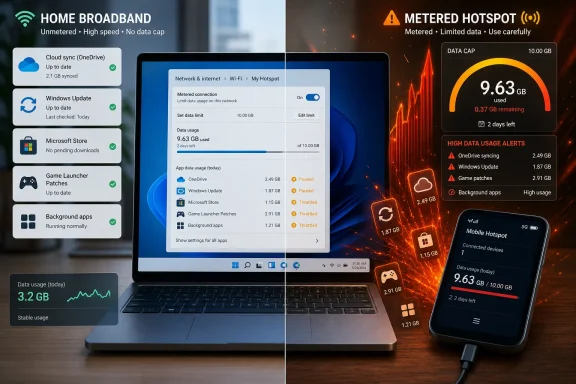 Windows Still Thinks Every Network Is Home Broadband
The MakeUseOf account is familiar because it describes the ordinary Windows experience, not an edge case. A laptop connects to a hotspot, sees a Wi-Fi network, and resumes all the maintenance work it was politely deferring at home: sync the files, update the apps, refresh the clients, pull down patches, and keep the ecosystem current.That behavior makes sense in Microsoft’s ideal environment. Windows 11 is a cloud-connected operating system with Microsoft accounts, OneDrive folder backup, Microsoft Store apps, Defender intelligence, widgets, Teams hooks, Edge services, and Windows Update all designed around ongoing background communication. The pitch is convenience and security: fewer manual chores, fewer stale apps, fewer machines drifting into neglect.
But the hotspot scenario exposes the cost of that design. To Windows, a phone hotspot can look like just another Wi-Fi SSID. To the user, it may be the most expensive connection they will use all month. The operating system has controls for that distinction, but it still often depends on the user knowing to flip them before the damage is done.
The Metered Connection Toggle Is the First Line of Defense, Not a Cure
The most important switch in the MakeUseOf piece is also the least dramatic one: setting the hotspot as a metered connection. Microsoft has supported metered network behavior for years, and in Windows 11 it remains the clearest way to tell the system that this connection should be treated differently.When metered mode is enabled for a Wi-Fi network, Windows is supposed to reduce background data use. Microsoft’s own support documentation says Delivery Optimization will not automatically download or send parts of updates and apps to other PCs on the internet when a connection is metered. Microsoft’s Windows privacy and endpoint documentation also makes clear how many operating-system components can otherwise talk to Microsoft services as part of normal operation.
The problem is that metered mode is not a global “travel mode.” It is tied to the specific network profile. Change the hotspot name, switch from Wi-Fi tethering to USB tethering, use a different phone, or connect through a travel router, and Windows may need to be told again.
That distinction matters because users often think in terms of devices: “I am using my phone’s data.” Windows thinks in terms of network interfaces and connection profiles. The mismatch is small enough to miss and expensive enough to notice.
OneDrive Turns Convenience Into Upload Traffic
OneDrive is the perfect example of a good feature becoming a bad citizen under the wrong economics. On a home fiber line, Desktop, Documents, and Pictures backup can feel invisible. On a phone hotspot, that same convenience can mean screenshots, edited documents, photo imports, project files, and application caches all becoming billable traffic.The MakeUseOf writer paused OneDrive sync and then throttled upload and download rates because they still needed access to cloud files while working. That is the right framing. The goal is not to pretend cloud storage is useless; it is to stop cloud storage from assuming that every connection deserves the same behavior.
This is especially important because many users did not make a deliberate OneDrive architecture decision. They signed in with a Microsoft account, accepted setup prompts, and let Windows redirect familiar folders into Microsoft’s cloud. Months later, while on a hotel chair with a phone hotspot, the consequences show up as unexplained data usage.
For IT departments, the OneDrive angle is even sharper. Known Folder Move is a common and often sensible enterprise policy, but mobile workers need policy and training around sync behavior. A user who understands how to pause sync is less likely to resort to worse workarounds, such as signing out, deleting local folders, or disabling security controls in frustration.
Game Launchers Are Update Engines Wearing Storefront Costumes
Steam, Epic Games Launcher, EA app, Battle.net, Ubisoft Connect, GOG Galaxy, and similar clients are not just places where games live. They are persistent software distribution systems, and their default posture is usually to keep installed titles ready to launch.That is fine when a desktop gaming rig is plugged into a fast home connection. It is a trap when a laptop with several installed games wakes up on a phone hotspot. A single game patch can exceed the entire daily allowance of a budget mobile plan.
The MakeUseOf example of Steam getting deep into a No Man’s Sky update captures the absurdity. The user was not playing the game. They were not making an active choice to download a large patch. The launcher simply saw network access and behaved as designed.
This is not really a Steam problem or an Epic problem. It is a category problem. Every launcher wants to reduce friction at play time, and the way to do that is to move patching earlier and make it automatic. On mobile data, friction is not the enemy; surprise is.
Windows Update Is Both Necessary and Poorly Timed
Windows Update is the hardest item to criticize cleanly because it is both essential and disruptive. A Windows machine that never updates is a liability. A Windows machine that pulls gigabytes of updates over a mobile hotspot without warning is also a liability, just of a different kind.The MakeUseOf writer paused Windows Update for two weeks while traveling. That is a reasonable short-term tactic, particularly when the alternative is exhausting a mobile plan on a non-urgent update. Windows 11 also allows update pauses for longer windows, though the exact options can vary by edition, policy, and update state.
The security trade-off should not be ignored. Pausing updates is a deferral, not a strategy. If a device is exposed to hostile networks, handles sensitive data, or is missing a critical security fix, the calculus changes. For managed environments, administrators should prefer policy-driven update rings, peer caching rules, and bandwidth controls over asking users to improvise.
Still, Microsoft’s design puts users in a bind. The company wants Windows to be continuously serviced, and it has good reasons for that. But the service model presumes that network cost is either negligible or centrally managed. Hotspot users live in the gap between those assumptions.
Delivery Optimization Is Sensible Infrastructure Until It Leaves the Building
Delivery Optimization is one of those Windows features that sounds alarming when described casually and reasonable when explained technically. Microsoft uses it to help deliver Windows updates, Microsoft Store apps, Office content, and other downloads. It can retrieve content from Microsoft and, depending on configuration, from other PCs.In an enterprise or household with multiple Windows machines, this can save bandwidth. One PC downloads update content, and others can retrieve pieces locally instead of each device pulling the same payload from Microsoft. In theory, it is a practical response to the scale of Windows servicing.
The hotspot concern is about scope and awareness. If Delivery Optimization is configured to use PCs on the internet, or if users do not understand the setting, a feature meant to optimize bandwidth can feel like Windows volunteering a capped connection for Microsoft’s distribution network. Microsoft says metered connections restrict this behavior, but many users only discover the setting after the first billable surprise.
The better default for consumer laptops would be more contextual. If a Wi-Fi network looks like a mobile hotspot, Windows should be more aggressive about asking before large update activity begins. Today, too much depends on the user finding the right page under Windows Update and Advanced options.
The Microsoft Store Is Quiet Until It Isn’t
Microsoft Store app updates are easy to forget because Store apps rarely look like the old patchers of the Win32 era. They do not always wave installer windows in your face. They simply update in the background, which is exactly what modern app platforms are supposed to do.On a metered or capped connection, that quietness becomes the problem. A handful of app updates may not matter. A larger Store app, game component, media app, or bundled framework can matter a lot. If several apps have been waiting for maintenance, the first available connection becomes the release valve.
The MakeUseOf checklist disables automatic Store app updates and video autoplay. That is a pragmatic travel move, especially for users who know they will return to unmetered broadband soon. It is less attractive as a permanent configuration, because stale apps can carry bugs and security issues.
The right habit is seasonal rather than ideological. Before travel, reduce automation. After travel, restore it and update deliberately on a trusted, unmetered connection. The article’s telling detail is that once the writer returned home, the laptop consumed nearly 20GB catching up. The data did not disappear; it was rescheduled.
Startup Apps Are the Death by a Thousand Clients
Once the obvious offenders are handled, the smaller background clients start to matter. Teams, Slack, Discord, Telegram, WhatsApp Desktop, Outlook, Thunderbird, Adobe Creative Cloud, printer utilities, hardware control panels, browser helpers, and updaters all compete to prove they are alive.Individually, these apps may not use much. Together, they create a noisy baseline of sign-ins, syncs, previews, notifications, telemetry, cache refreshes, and update checks. On an unlimited line, that activity is part of the ambient hum of a modern PC. On a hotspot, the hum becomes measurable.
The MakeUseOf writer’s approach — disable unnecessary startup entries and launch apps only when needed — is the right kind of manual control. It does not break the apps. It changes the moment of consent.
That is the principle Windows itself should lean into more. The user should not have to choose between “everything runs at boot” and “nothing works.” There should be an obvious temporary state for constrained connectivity: keep security alive, keep user-requested apps online, and silence the rest.
Browsers Are Platforms Now, So They Need Travel Discipline Too
Browsers deserve their own mention because Chrome, Edge, and Firefox are no longer just windows for web pages. They are application platforms with extensions, background processes, sync engines, preloading behavior, push notifications, password stores, and in some cases web apps that continue to behave like installed software.Turning off background app behavior in browsers is a reasonable part of a hotspot checklist. It will not save everyone gigabytes, but it can stop tabs, extensions, and web apps from continuing to use data after the browser window appears closed. On a constrained connection, “closed” should mean closed.
Edge adds a uniquely Windows-flavored wrinkle because it is deeply integrated into the Microsoft ecosystem. That does not make it malicious; it makes it another example of how the boundaries between operating system, browser, identity provider, sync client, and app runtime have blurred. Data discipline now requires thinking across those boundaries.
The average user should not need to understand all of this. But until Windows exposes a clearer limited-data mode, browser background settings remain part of the practical toolkit.
Microsoft Built the Right Pieces but Not the Right Experience
The frustrating part is that Microsoft is not missing the necessary technical concepts. Windows has metered connections. OneDrive can be paused or throttled. Windows Update can be paused. Delivery Optimization can be limited. Store updates can be disabled. Startup apps can be controlled. Data usage can be inspected.What is missing is orchestration. These controls live in different places, use different language, and carry different assumptions. Some are per-network. Some are per-app. Some are per-account. Some are buried under advanced settings. Some are controlled by enterprise policy. Some are exposed clearly only after you already know what to search for.
This is why the MakeUseOf story resonates. It is not a breakthrough hack. It is a user manually assembling the Windows feature that should already exist: a conspicuous, temporary, reversible mobile data mode.
Microsoft could implement this without compromising security. A good version would keep Defender definitions and critical security metadata flowing while delaying feature updates, Store app bulk updates, cloud bulk sync, game launcher activity, nonessential widgets, media autoplay, and peer distribution. It would show estimated pending data rather than pretending background work is weightless.
Enterprise IT Has Better Tools and the Same Human Problem
Managed Windows fleets can solve parts of this more elegantly. Administrators can use Intune, Group Policy, Windows Update for Business, Delivery Optimization policies, Microsoft Connected Cache, VPN rules, and application controls to shape update behavior. They can distinguish local network peers from internet peers, set update deadlines, and restrict Store auto-updates.But mobile data still finds the weak spots. A traveling executive on a phone hotspot, a field technician using LTE, a contractor on hotel Wi-Fi with a captive portal, or a remote employee tethering during an outage can all step outside the assumptions of the office network. The device may be managed, but the connection is improvised.
The danger for IT is overcorrecting. If users fear that Windows will burn through their data, they will pause updates indefinitely, kill sync clients, avoid VPNs, or work from personal devices. A rational bandwidth policy is also a security policy, because it keeps users from inventing their own.
The best enterprise answer is not “never pause anything.” It is to document what happens on constrained networks and make the desired behavior easy. Users should know which apps to close, which updates are mandatory, how to mark a connection as metered, and when to reconnect to corporate or home broadband for maintenance.
The Real Cost Is the Loss of Informed Consent
The deeper issue is not that Windows uses data. Computers connected to the internet use data. Secure, modern operating systems need updates, sync, reputation checks, app maintenance, certificate updates, and cloud services.The issue is informed consent. Users understand that streaming a movie uses data. They understand that downloading a game uses data. They are much less likely to understand that a laptop sitting “idle” can be syncing folders, updating launchers, refreshing Store apps, pulling Windows packages, and letting background clients reconnect.
That difference changes how people feel about the system. Active use feels like spending. Background use feels like leakage. Once users perceive leakage, they stop trusting automation, even when automation is doing useful work.
Microsoft has spent years pushing Windows toward a service model. That model needs a better contract with users on constrained connections. If the system is going to make decisions in the background, it should be equally capable of explaining and deferring those decisions when the network is expensive.
The Hotspot Checklist Windows Should Have Shipped
The practical lesson from the MakeUseOf experiment is simple: treat a mobile hotspot as a different class of network before Windows does anything ambitious. The exact savings will vary, but the hierarchy of risk is consistent across most Windows laptops.- Mark the phone hotspot as a metered connection before opening cloud apps, browsers, game launchers, or work clients.
- Pause or throttle OneDrive and any other cloud sync tool if large files, photos, project folders, or desktop backups might move in the background.
- Close game launchers completely and disable their startup behavior before connecting to mobile data.
- Pause non-urgent Windows updates, disable unnecessary Microsoft Store auto-updates temporarily, and review Delivery Optimization settings before travel.
- Disable nonessential startup apps so chat clients, updaters, printer utilities, and creative-suite helpers do not all reconnect at boot.
- Re-enable updates and sync on an unmetered connection later, because deferred maintenance still has to happen.
Microsoft’s next step should be to make that ceremony explicit. Windows does not need to become less connected; it needs to become more context-aware, with a travel mode that treats mobile data as a first-class constraint rather than a user-discovered exception. Until then, the smartest hotspot users will keep doing what this experiment did: make Windows ask before it spends.
References
- Primary source: MakeUseOf
Published: Sat, 04 Jul 2026 14:30:18 GMT
Loading…
www.makeuseof.com - Official source: support.microsoft.com
Loading…
support.microsoft.com - Related coverage: guidingtech.com
Loading…
www.guidingtech.com - Related coverage: windowscentral.com
Loading…
www.windowscentral.com - Related coverage: tomsguide.com
Windows is using your internet to update other people’s PCs — disable this hidden setting to speed up your connection | Tom's Guide
Microsoft uses other Windows PCs to distribute Windows Updates but fortunately you can disable this setting and maximize your computer's bandwidth.www.tomsguide.com - Related coverage: pcworld.com
Loading…
www.pcworld.com
- Related coverage: allthings.how
Loading…
allthings.how