

Microsoft’s Windows Insider preview quietly added a small but welcome concession to a long‑running annoyance: during Out‑of‑Box Experience (OOBE) setup you can now instruct Windows to use a custom name for the profile folder created under C:\Users. That convenience comes packaged with a much louder policy change — Microsoft has explicitly removed several in‑OOBE tricks that many enthusiasts and technicians used to create local accounts without connecting to a Microsoft Account — shifting the consumer setup experience further toward an account‑first, online model.
For years Windows has auto‑generated the local profile folder name at first sign‑in. When you use a Microsoft Account (MSA) during setup, Windows commonly derives the folder name from your email or the first characters of your account name. The result is often awkward: truncated names, email‑style prefixes, or unintuitive five‑character monikers that haunt screenshots, scripts, and support workflows.
Power users developed workarounds. The most notable were simple command‑prompt or script tricks entered during OOBE (the Shift+F10 prompt) that forced the installer to show an offline/local account path. Those tricks — widely known by names like BYPASSNRO or the ms‑cxh:localonly URI — were never official, but they worked for many users who wanted a local account or a predictable C:\Users\<name> path.
On October 6, 2025, Microsoft published Insider release notes that formalized two related changes: a supported helper to let you set the default profile folder name during OOBE, and the removal of the known, undocumented mechanisms used to create local accounts interactively during setup. The helper is small and command‑line based; the policy line is blunt: Microsoft is removing known mechanisms for creating a local account in the Windows Setup experience.
On the other hand, this is also a product decision with implications for user autonomy. Removing interactive local‑account options nudges consumers toward cloud accounts, and while there are valid reasons for that path, it’s not universally welcome. The SetDefaultUserFolder helper reads as a pragmatic compromise: Microsoft recognizes a usability pain and offers a supported fix while maintaining an account‑first posture for device configuration.
At the same time, the neutralization of in‑OOBE local‑account tricks tightens Microsoft’s control over the consumer setup experience. That’s likely to frustrate certain user groups — particularly those with privacy, connectivity, or refurbishing concerns — and will force changes in many informal provisioning workflows.
Practical recommendations:
In the end, this change is emblematic of Windows’ modern crossroads — a tug‑of‑war between cloud‑integrated convenience and local control. The SetDefaultUserFolder helper is a modest, welcome nod to the latter; the removal of local‑account bypasses is a firm, unmistakable step in the former’s direction. For administrators and power users, the upshot is straightforward: update your playbooks, test with the new Insider behavior, and move critical provisioning off fragile OOBE tricks onto supported deployment tools. For everyone else, the new helper should make the first‑boot experience a little less messy — as long as you’re willing to sign into a Microsoft Account to get the benefit.
Source: Windows Report https://windowsreport.com/windows-11-may-soon-let-users-choose-their-user-folder-name-during-setup/
 Background
For years Windows has auto‑generated the local profile folder name at first sign‑in. When you use a Microsoft Account (MSA) during setup, Windows commonly derives the folder name from your email or the first characters of your account name. The result is often awkward: truncated names, email‑style prefixes, or unintuitive five‑character monikers that haunt screenshots, scripts, and support workflows.Power users developed workarounds. The most notable were simple command‑prompt or script tricks entered during OOBE (the Shift+F10 prompt) that forced the installer to show an offline/local account path. Those tricks — widely known by names like BYPASSNRO or the ms‑cxh:localonly URI — were never official, but they worked for many users who wanted a local account or a predictable C:\Users\<name> path.
On October 6, 2025, Microsoft published Insider release notes that formalized two related changes: a supported helper to let you set the default profile folder name during OOBE, and the removal of the known, undocumented mechanisms used to create local accounts interactively during setup. The helper is small and command‑line based; the policy line is blunt: Microsoft is removing known mechanisms for creating a local account in the Windows Setup experience.
Overview of the change
What Microsoft added
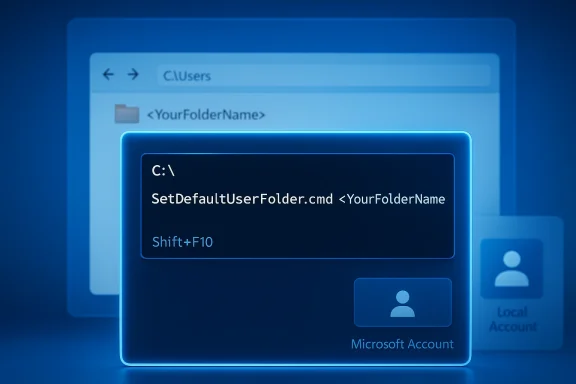
- A supported OOBE helper named SetDefaultUserFolder.cmd that you can run from the in‑setup command prompt to request a specific folder name for the new user profile folder.
- The helper is invoked from the Microsoft Account sign‑in page during OOBE using the standard Shift+F10 trick to open a command prompt, then running a short sequence of commands.
How to run the helper (the supported flow)
- On the Microsoft Account sign‑in page during OOBE, press Shift + F10 to open Command Prompt.
- Type: cd oobe and press Enter.
- Type: SetDefaultUserFolder.cmd <YourFolderName> and press Enter.
- Continue with the Microsoft Account sign‑in flow. If your chosen name is valid the installer will apply it to the profile folder that ends up under C:\Users.
- The name can be up to 16 characters.
- Only Unicode characters are supported and unsupported special characters are stripped by the helper.
- The custom folder name only takes effect if you proceed with the Microsoft Account sign‑in; it is not a way to bypass MSA or to create an offline only local account.
What Microsoft removed or neutralized
Microsoft explicitly targeted the ad‑hoc, in‑OOBE workarounds that had become a community standard for creating a local account without an MSA. The changes neutralize or ignore the commonly used shortcuts that previously produced a local‑account flow, including:- The OOBE\BYPASSNRO script (often invoked as bypassnro), which toggled a registry flag and rebooted into a limited setup branch.
- The one‑line trick run from OOBE’s command prompt (for example, start ms‑cxh:localonly) that launched a local account dialog.
Why this matters: the practical implications
This two‑part move — adding a supported profile‑naming helper while removing informal local‑account shortcuts — is simultaneously small in scope and large in consequence.- For everyday users who simply wanted a readable C:\Users folder name, the helper addresses a persistent quality‑of‑life gripe. It lets you avoid embarrassing folder names or truncated prefixes without having to resort to risky post‑setup renames.
- For power users, refurbishers, technicians, and privacy‑minded individuals who relied on quick in‑OOBE offline account creation, the removal of those shortcuts is a door closing. The easiest consumer path to a truly local account has been narrowed in preview images.
- Enterprise and managed provisioning paths are not the target. Microsoft’s change is focused on the interactive consumer OOBE surface: Autopilot, unattend.xml unattended installs, MDT/SCCM, and MDM tools like Intune still allow deterministic local or managed account creation and will continue to work for managed devices.
Technical walkthrough and caveats
The supported steps, with precise behavior
The supported flow is intentionally terse: there’s no GUI toggle; it’s a command‑line helper surfaced in OOBE for advanced users and technicians.- Open the OOBE command prompt: Shift + F10 on the MSA sign‑in screen.
- Change to the OOBE folder: cd oobe
- Execute the helper: SetDefaultUserFolder.cmd DesiredFolderName
- If the name conforms to the helper’s constraints it will be recorded and applied when the profile is created after completing the Microsoft Account sign‑in.
- If you supply an invalid name or omit the command, Windows falls back to the auto‑generated profile folder name that it normally creates from the MSA email or account name.
- The helper strips special characters and supports Unicode; only the first 16 characters are considered.
What can go wrong
- The helper is a supported convenience, not a guaranteed GUI feature across all builds. Because the change uses controlled feature rollout, the helper may not appear in every Insider ISO or device at once; some users reported it missing on specific images.
- The helper does not restore the full range of offline/local account behavior. If the goal is to avoid Microsoft Account sign‑in entirely, this helper will not help — you’ll still need to use enterprise provisioning, pre‑seeded images, or other supported unattended install mechanisms.
- Renaming the user folder after the fact remains fraught. Many third‑party applications and even Microsoft components can store absolute paths under the original profile path. Changing C:\Users\<old> to C:\Users\<new> post‑install requires careful registry edits, permission fixes, and validation of OneDrive and Office licensing behavior.
Strengths of Microsoft’s approach
- A supported, deterministic fix to a long‑standing annoyance. The SetDefaultUserFolder helper gives an official path to set the profile folder name during the single moment where the system actually creates the profile. That’s safer and cleaner than patching the folder after setup.
- Reduced technical debt for support teams. When devices leave OOBE with predictable profile paths and completed cloud‑link steps, support scripts and documentation work more reliably.
- Better security posture for new devices. Microsoft’s stated rationale is that undocumented bypasses could skip critical setup screens — BitLocker recovery key backup, account recovery options, device registration — leaving devices less recoverable and harder to support. Enforcing the account‑first path helps ensure those steps are completed.
- Enterprise provisioning remains intact. Organizations that rely on unattended installs, Autopilot, and imaging are unaffected in their supported workflows.
Risks and trade‑offs
- Privacy and connectivity implications. For users in low‑bandwidth regions, on metered connections, or with privacy concerns about tying a device to a Microsoft Account, removing quick interactive local‑account options reduces choices during setup.
- Impact on refurbishers and technicians. Small refurbishers and local technicians who used quick OOBE tricks to provision machines for customers will need new workflows or must switch to imaging tools that require more expertise.
- Potential for broken assumptions. Some scripts, tutorials, and third‑party installers assume certain folder names; changing how OOBE behaves might break longstanding community expectations and tools.
- User experience limitations. The helper is command‑line only — there’s no GUI option yet in OOBE for users who prefer point‑and‑click. That makes the convenience primarily accessible to advanced users.
- Controlled rollout uncertainty. Because the change is being rolled out via Insider controlled feature flags, users and technicians may see inconsistent behavior across machines and media until the update is broadly released.
Who should care — and what to do
Consumers who just want a tidy C:\Users name
- If you’re comfortable using Shift+F10 during setup, try the new helper: open the command prompt, run cd oobe, then run SetDefaultUserFolder.cmd <YourName> (under 16 characters).
- If you prefer GUIs, wait. Microsoft may expand this into a GUI option in the future, but for now the helper is command‑line only.
Power users and privacy‑minded people
- If you prefer a local account during setup, plan for a supported provisioning path. Options include using an unattended answer file (unattend.xml), imaging, or device management tools that let you create local accounts deterministically.
- Be cautious about third‑party “bypass” utilities; their behavior can break or leave the device in a non‑ideal state. Test on spare hardware before deploying to production devices.
Technicians, refurbishers, and SMBs
- Review and adjust your provisioning documentation. Replace fragile in‑OOBE tricks with supported unattended or imaging approaches.
- If you need deterministic C:\Users names at scale, it’s safer to bake the desired account into your image or use an unattend.xml that creates the account and sets the profile path reliably.
IT administrators / Enterprise
- No immediate action is required for managed deployments. Autopilot, MDT/SCCM images, and Intune provisioning continue to work as before.
- If you have mixed environments with hand‑provisioned devices, update runbooks to account for the new behavior in consumer OOBE.
Practical guidance and troubleshooting
- If SetDefaultUserFolder.cmd is missing on your install media, it may be due to controlled feature rollout or build differences. Try a different Insider image or allow Windows Update to fetch the preview build where the feature is enabled.
- If you accidentally accept an auto‑generated folder name and need to change it later, proceed with extreme caution:
- Create and backup a full system image before attempting changes.
- Create a second local administrator account (not the one you want to rename).
- Rename the C:\Users\<old> folder in File Explorer while signed into the alternate admin account.
- Update the ProfileImagePath value in the registry for the affected account under HKLM\SOFTWARE\Microsoft\Windows NT\CurrentVersion\ProfileList\<SID>.
- Search the registry and important configuration files for occurrences of the old path and update them as needed.
- Validate OneDrive, Office activation, and application behavior.
- Consider the safer route: keep the auto‑generated profile, create a new local account with the desired name, migrate data manually, then remove the original account. This avoids registry surgery but can be time‑consuming.
Larger context: why Microsoft made this choice
Microsoft’s product and support posture has progressively emphasized cloud‑tied identities and integrated recovery/sync features that rely on a Microsoft Account. The company frames the change as an operational necessity: undocumented workarounds can skip critical setup steps that help secure and recover a device. From a support perspective, fewer divergent first‑boot states make diagnosing problems and providing assistance simpler.On the other hand, this is also a product decision with implications for user autonomy. Removing interactive local‑account options nudges consumers toward cloud accounts, and while there are valid reasons for that path, it’s not universally welcome. The SetDefaultUserFolder helper reads as a pragmatic compromise: Microsoft recognizes a usability pain and offers a supported fix while maintaining an account‑first posture for device configuration.
Final analysis and recommendations
Microsoft’s addition of SetDefaultUserFolder.cmd during OOBE is a smart, narrowly scoped improvement that fixes a visible annoyance without reopening the door to the problems the company says it wants to prevent. The helper gives administrators and advanced users an official, safer way to pick a useful C:\Users name before the profile is created — the right time to make that decision.At the same time, the neutralization of in‑OOBE local‑account tricks tightens Microsoft’s control over the consumer setup experience. That’s likely to frustrate certain user groups — particularly those with privacy, connectivity, or refurbishing concerns — and will force changes in many informal provisioning workflows.
Practical recommendations:
- If your priority is a deterministic, tidy profile path, use the supported helper during OOBE when available, or adopt unattended imaging/unattend.xml workflows for scale.
- If you must avoid MSAs for privacy or policy reasons, migrate to supported offline deployment tools rather than rely on fragile command‑line tricks.
- For script authors and community tutorial writers: update guidance and lab notes to reflect the change; educate readers about the new helper and explain the supported enterprise alternatives.
- Microsoft should consider a GUI option or an explicit “Create local account with custom folder name” checkbox in OOBE for users who legitimately prefer local accounts, or publish clearer guidance for low‑connectivity and privacy‑sensitive scenarios.
In the end, this change is emblematic of Windows’ modern crossroads — a tug‑of‑war between cloud‑integrated convenience and local control. The SetDefaultUserFolder helper is a modest, welcome nod to the latter; the removal of local‑account bypasses is a firm, unmistakable step in the former’s direction. For administrators and power users, the upshot is straightforward: update your playbooks, test with the new Insider behavior, and move critical provisioning off fragile OOBE tricks onto supported deployment tools. For everyone else, the new helper should make the first‑boot experience a little less messy — as long as you’re willing to sign into a Microsoft Account to get the benefit.
Source: Windows Report https://windowsreport.com/windows-11-may-soon-let-users-choose-their-user-folder-name-during-setup/
