

Microsoft’s Photos app on Windows 11 is getting a serious upgrade: a built‑in, generative AI object eraser that can remove unwanted items from photos with a few brush strokes — and it’s arriving alongside other AI conveniences such as Clipchamp’s Silence Removal. The change turns Photos from a lightweight viewer into a practical, day‑to‑day photo editor for rapid fixes, and it comes with meaningful implications for privacy, performance, and the responsibilities of both consumers and IT teams.
Practical tips:
That said, several open questions remain:
However, these tools are not a wholesale replacement for professional editing suites. Where pixel‑perfect results, forensic integrity, or complex compositing is required, professionals will still rely on higher‑precision tools. For IT and privacy officers, the addition highlights the need for policy updates, targeted training, and careful update management.
If you want a quick workflow right now: update Photos from the Microsoft Store, test Generative Erase on non‑sensitive images, keep originals, and use Clipchamp’s Silence Removal for recorded content — the productivity gains are real, but so are the responsibilities that come with accessible generative AI.
Conclusion
Windows 11’s Photos app now delivers a genuinely useful piece of generative AI: a low‑barrier object eraser that democratizes quick photo fixes. Paired with Clipchamp’s Silence Removal, Microsoft has moved more intelligent editing power into the hands of everyday users. Expect continued iteration — better blending, faster local execution on NPU‑equipped machines, and more AI conveniences — but temper enthusiasm with caution: test, retain originals, and update organizational policies to reflect the new editing landscape.
Source: Mashable Windows 11 Photos app gets sick new AI feature – macOS users may get envious
 Background
The Photos app’s slow evolution into an AI editor
For years, Windows’ Photos app was a simple viewer with a few basic edits. Over the past 18–24 months Microsoft has steadily folded more advanced tools into the inbox app — background blur, background removal, OCR, resizing, and now a generative inpainting tool called Generative Erase (an AI‑supercharged successor to the old “Spot fix”). That evoder Microsoft strategy: embed Copilot‑style features across everyday utilities so users get more power without leaving the OS. The feature first appeared for Windows Insiders in February 2024 and has since been widened to more channels and device families.What “Generative Erase” actually is
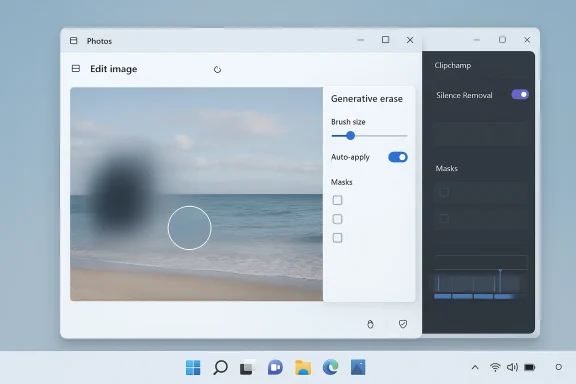
Generative Erase is an AI‑driven inpainting tool: you brush over an unwanted object and the model predicts and fills the cleared area with pixels sampled and synthesized from the surrounding image. The intent is to create a natural merge so the edit is visually seamless. Microsoft documents the workflow — Edit Image → Erase → brush, with an Auto‑apply toggle and mask controls for multi‑area edits — and states the operation is performed locally on the device when the configuration supports it. That on‑device processing is important for latency and privacy, though hybrid cloud execution may still occur on certain devices or workflows.What’s included in this release
Core additions
- Generative Erase: AI inpainting to remove objects, blemishes, and visual clutter from photos. Users can adjust brush size, toggle Auto‑apply, and work with multiple masks to remove several items in one pass.
- Background Remove & Replace: improved background extraction and replace with solid colors or alternate imagery (an evolution of background blur).
- Clipchamp: Silence Removal: a separate but related update gives Clipchamp an AI‑powered silence remover that detects pauses longer than ~3 seconds and offers automatic or granular deletion of dead air. This tool is free for Clipchamp users and works on imported media as well as recordings made inside the editor.
Platform and availability notes
- Microsoft began rolling Generative Erase to Windows Insiders on February 22, 2024; wider rollout to stable channels followed in the months after, but availability can vary by app version, Windows build, and hardware. Microsoft listed a minimum Photos app version in early releases (for example, 2024.11020.21001.0) and advised updating the app from the Microsoft Store if the feature is not visible.
- Microsoft’s documentation states can run locally, and for many common scenarios the operation is done on‑device, which reduces the need to upload photos to cloud services. That said, the actual execution mode (local vs cloud) can depend on device hardware (Copilot+ PCs with NPUs may run more locally) and on the specific edit being requested.
How to use Generative Erase — quick steps
- Open a photo in the Photos app (double‑click in File Explorer or open from within Photos).
- Click Edit (or Edit Image) to enter the editor.
- Select the Erase tool (labelled Erase / Generative Erase).
- Adjust brush size and paint over the object or area to remove.
- If you want finer control, disable Auto‑apply, add or subtract masks, and thtisfied.
- Preview the result and Save as a new file or overwrite the original.
Practical testing and real‑world behavior
Strengths — when Generative Erase shines
- Fast fixes for simple scenes: Removing fences, small photobombers, stray trash, or blemishes on relatively uniform backgrounds works very well. The tool is low‑friction and saves a full context switch to Photoshop oAccessible UI**: Brush sizing and the Auto‑apply/mask model are familiar metaphors for anyone who has used selection or healing tools in consumer editors. That makes Generative Erase approachable for non‑experts.
- On‑device processing where supported: For many machines the operation is performed locally, which improves latency and reduces potential cloud privacy exposure. Microsoft documents the local‑by‑default intention for supported configurations.
Limitations — where it still trips up
- Complex textures and tight edges: Scenes with repeating patterns, reflections, hair, or intricate geometry can reveal artifacts: blurring, mismatched lighting, or odd textures where the model failed to infer structure. Users report mixed results on group photos and detailed backgrounds. Expect to need manual refinements for professional output.
- Hardware variance: Performance and responsiveness depend on CPU/GPU/NPU capability. Older laptops will process more slowly and may fall back to cloud processing, which introduces latency and may consume account AI credits in some Copilot flows.
- Not a full generative fill yet: The tool is optimized for removal/inpainting, not for complex generative composition (e.g., reimagining a scene with new objects or adding realistic elements that never existed). For advanced generative edits you’ll still need dedicated tools.
Clipchamp’s Silence Removal — why it matters
Clipchamp’s AI Silence Removal finds and highlights silences longer than about three seconds, lets you preview each candidate gap, remove them individually or batch‑remove “all” silences, and then export a tightened video timeline. The feature is aimed at streamlining vlog editing, tutorials, lecture clips, and anyir. Microsoft’s Clipchamp documentation notes the feature is free and integrated into the timeline workflow; it will transcribe your video to locate pauses and show them as selectable segments.Practical tips:
- Transcribe first if you plan to use silence removal with captions or to fine‑tune conversational timing.
- Review suggested cuts before “remove all”; the tool intentionally leaves tiny pauses to avoid jarring edits.
- Silence Removal is especially helpful for long recorded interviews or screen recordings where editing out filler can be tedious.
Comparison: Windows’ Generative Erase vs platform alternatives
Google Pixel / Android Magic Eraser
Google’s Pixel phones popularized “Magic Eraser” in the mobile photos experience. The concept is similar: mark, then remove and fill. On Pixel devices, Magic Eraser runs on‑device for privacy and speed and benefits from smartphone hardware tuned to photo workloads. Windows’ Generative Erase brings the same convenience to desktop users, but with more vardware diversity. Independent comparisons show parity for simple tasks but divergence on dense scenes or when high‑fidelity seam blending is required.macOS Photos and third‑party apps
macOS Photos and native macOS utilities have added smart retouching features over the years, but high‑quality object removal often still falls to third‑party apps (Affinity Photo, Photoshop). The Photos app in macOS isn’t usually the plating, which is why some Mac users may now envy Windows’ inbox capabilities. That said, professionals still default to dedicated editors for pixel‑perfect work.Privacy, security, and policy considerations
Is my photo data uploaded?
Microsoft’s support page for Generative Erase explicitly states that the process is done locally on your device, and that the feature is designed to keep the photo data on‑device when the configuration supports it. That significantly reduces the chance of inadvertent cloud exposure for casual edits. However, Microsoft’s broader Copilot/AI model architecture uses a hybrid model across the product family; on some hardware or in certain feature flows, cloud processing may be used. Administrators and privacy‑minded users should therefore confirm device configuration and update policies.Misuse and deepfake risk
Generative tools that remove or alter people raise obvious misuse risks: erasing individuals from historical images, sanitizing evidence, or creating misleading visuals. Microsoft enforces moderation controls in its generative pipelines, and consumer apps often include usage policies,el can make automated moderation trickier. Users and IT managers should treat generative edits like any powerful content tool: log edits where required, maintain originals, and educate users about ethics and legal constraints.Enterprise policy and compliance
- IT teams should verify the Photos app and Clipchamp update cadence in their environment and decide whether to push updates via Microsoft Store for Business or keep them on the standard channel.
- For regulated data, consider disabling AI editor circulation for images containing PII, health data, or other sensitive content until governance is clarified.
- Audit whether cloud fallbacks consume tenant AI credits or interact with Microsoft 365 Copilot licensing — licensing implications differ between consumer and commercial Copilot entitlements.
Best practices for using Generative Erase (tips & troubleshooting)
- Save an original: Always export a copy before heavy editing. Generative edits are destructive if you overwrite the original.
- Work incrementally: Use small brushes, and toggle Auto‑apply off to build masks for each object, then apply together to spot artifacting early.
- Check edges and reflections: After erasing, zoom to 100% and inspect edges, shadows, and reflections — these are the most common failure points.
- Use simple backgrounds for the best results: Solid colors, grass, sky, or walls yield cleaner fills than patterned tiles or repeating textures.
- If results are poor, fall back to targeted edit techniques: use the inpainted result as a starting point, then refine in Paint or a professional editor for critical work.
IT and admin guidance
Update management
- Photos and Clipchamp updates are distributed through the Microsoft Store; enterprises using managed devices should control update policy via Microsoft Endpoint Manager or Store for Business to test feature behavior before mass deployment.
- Track the Photos app version that introduces Generative Erase for your fleet and pilot on representative hardware to validate performance and local vs cloud execution.
Privacy and acceptable use
- Add guidance to acceptable use policies about the responsible use of generative image edits, specifically prohibiting manipulations that could create legal exposure or misrepresentations.
- Require retention of originals for audits in regulated contexts (legal, healthcare, finance).
Training and communications
- Provide short internal guides: “How to remove an unwanted object with Photos” and “When not to use Generative Erase” so users understand both the capability and the risks.
- Encourage staff to use Clipchamp’s Silence Removal for internal training videos to speed up editing and reduce editing turnaround.
Broader implications and the road ahead
Generative Erase in Photos and AI features in Clipchamp are part of a larger trend: AI is moving from optional cloud services into the OS experience. Microsoft’s incremental rollout strategy (Insider flights, feature gating by app version and hardware) shows the company’s intent to balance capability with gradual exposure. As on‑device NPUs proliferate, more operations will run locally, delivering both speed and privacy benefits.That said, several open questions remain:
- How will Microsoft handle moderation and abuse detection for on‑device edits?
- What are the precise thresholds that determine local vs cloud processing across different device families?
- Will enterprises get administrative controls to prevent cloud fallbacks or restrict generative edits on managed devices?
Final verdict: useful, but not a professional replacement
Generative Erase is a meaningful, practical addition to Windows 11 that lowers the friction for everyday photo cleanup. For social posts, slide decks, quick touch‑ups, and casual photo repair, it’s fast, convenient, and often excellent. Clipchamp’s Silence Removal answers the perennial need to tighten video recordings with minimal effort.However, these tools are not a wholesale replacement for professional editing suites. Where pixel‑perfect results, forensic integrity, or complex compositing is required, professionals will still rely on higher‑precision tools. For IT and privacy officers, the addition highlights the need for policy updates, targeted training, and careful update management.
If you want a quick workflow right now: update Photos from the Microsoft Store, test Generative Erase on non‑sensitive images, keep originals, and use Clipchamp’s Silence Removal for recorded content — the productivity gains are real, but so are the responsibilities that come with accessible generative AI.
Conclusion
Windows 11’s Photos app now delivers a genuinely useful piece of generative AI: a low‑barrier object eraser that democratizes quick photo fixes. Paired with Clipchamp’s Silence Removal, Microsoft has moved more intelligent editing power into the hands of everyday users. Expect continued iteration — better blending, faster local execution on NPU‑equipped machines, and more AI conveniences — but temper enthusiasm with caution: test, retain originals, and update organizational policies to reflect the new editing landscape.
Source: Mashable Windows 11 Photos app gets sick new AI feature – macOS users may get envious
