

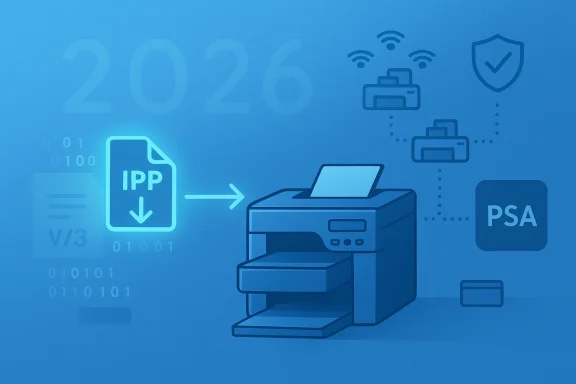
Microsoft has quietly converted a long‑teased roadmap into enforced policy: as of January 15, 2026, Windows Update will no longer act as the default distribution channel for new legacy V3 and V4 third‑party printer drivers for Windows 11 and Windows Server 2025+. That change is the first hard milestone in a multi‑year deprecation that steers Windows toward a standards‑based, inbox printing model — the Microsoft IPP Class Driver plus vendor Print Support Apps — and it has immediate operational consequences for home users, IT teams, and organizations that still rely on vendor kernel drivers and custom print stacks.
Microsoft announced the end‑of‑servicing plan for legacy third‑party printer drivers in September 2023 and has published a staged timeline that converts that plan into concrete enforcement dates. The key milestones to anchor any planning are:
That reasoning has broad technical merit. The Windows print stack and the print spooler historically have been a common source of privilege escalation and remote‑code vulnerabilities — most notably the PrintNightmare series of vulnerabilities in 2021 — which exploited driver installation and spooler behaviors to achieve system compromise. Moving vendor code out of kernel paths and into standardized, inbox drivers and user‑mode support apps reduces attack surface and simplifies patching.
If you manage printers, do not treat Microsoft’s timeline as optional. Inventory your print estate now; test the IPP inbox driver plus vendor PSAs; update deployment tooling to rely less on Windows Update for driver provisioning; and prioritize replacement of devices that have no modern upgrade path. That proactive work will convert what could be a cascade of last‑minute helpdesk incidents into a planned, low‑risk migration.
The technical and security rationale is real — history shows printing and spooler code attract attackers — but the human part of the migration is the hard part. Start with a small pilot, pressure vendors for PSAs and firmware, and treat July 1, 2026 and July 1, 2027 as hard operational milestones rather than theoretical guidance. The result will be a smaller, safer, and more predictable printing surface — at the cost of short‑term work that IT teams should already be scheduling.
Source: AOL.com The New Windows Update Discontinued Support For A Bunch Of Popular Printers
 Background / Overview
Microsoft announced the end‑of‑servicing plan for legacy third‑party printer drivers in September 2023 and has published a staged timeline that converts that plan into concrete enforcement dates. The key milestones to anchor any planning are:- September 2023 — Microsoft published the deprecation roadmap.
- January 15, 2026 — Windows 11+ and Windows Server 2025+: no new third‑party V3/V4 printer drivers will be automatically published to Windows Update; new submissions are subject to case‑by‑case review and must include a justification.
- July 1, 2026 — Windows will change driver ranking logic to prefer the Microsoft IPP inbox class driver when multiple drivers are available.
- July 1, 2027 — Windows Update will generally limit third‑party printer driver updates to security‑only fixes; non‑security feature updates via Windows Update will be curtailed.
That reasoning has broad technical merit. The Windows print stack and the print spooler historically have been a common source of privilege escalation and remote‑code vulnerabilities — most notably the PrintNightmare series of vulnerabilities in 2021 — which exploited driver installation and spooler behaviors to achieve system compromise. Moving vendor code out of kernel paths and into standardized, inbox drivers and user‑mode support apps reduces attack surface and simplifies patching.
What changed on January 15, 2026 — what it really means
The January 15 enforcement is a distribution and servicing change, not an instant functional ban. That distinction matters because it determines what users will actually experience.- Existing V3/V4 drivers already in the Windows Update catalog remain available for installation in most cases, and vendor‑supplied installers continue to work. But new legacy driver packages that vendors submit for Windows Update targeting Windows 11+ or Windows Server 2025+ will be blocked by default and routed for manual review; only narrow exceptions (e.g., devices that can’t support Mopria, native ARM64 drivers, or packages that target older Windows releases) are likely to be approved.
- For many modern printers, there is no impact: they already support IPP/Mopria or have vendor Print Support Apps that restore device‑specific features while using the inbox IPP class driver for the core printing flow. Vendors — particularly managed print vendors and major OEMs — have been shipping PSAs and guidance for migration.
- The practical risk is for older, niche, or heavily customized printers and multifunction devices (MFDs) where vendors relied on V3/V4 drivers to deliver finishing, scanning, fax endpoints, or special tray mappings. Those devices will still work today if their drivers are already installed, but they may not be discoverable and automatically installed via Windows Update on a fresh machine or after a clean OS image without manual intervention from the vendor installer.
Why Microsoft made this move — the upside
The policy has several clear advantages at platform scale:- Smaller kernel attack surface. Kernel‑mode drivers are risky; historic print spooler bugs (including high‑severity PrintNightmare CVEs) illustrate the danger of shipping thousands of third‑party driver code paths that integrate with privileged OS services. Shifting to a standard inbox driver and user‑mode PSAs reduces that exposure.
- Fewer environmental regressions. A huge catalog of vendor drivers, often written for older Windows versions, can introduce reliability and compatibility issues across updates. Inbox class drivers simplify the installation surface and make behavior more predictable.
- Cross‑version consistency. The IPP class driver model and PSAs run consistently across supported Windows releases, reducing the need for version‑specific vendor builds and simplifying vendor QA.
- Modern features and standards. IPP/Mopria and the Print Support App model encourage vendors to expose functionality via standard protocols and user‑mode services, making it easier to support scanning, faxing, and cloud workflows in a controlled way.
The risks and real‑world impacts — what to watch for
The benefits don’t erase practical headaches. The migration transfers operational responsibility to vendors and IT teams, and introduces a few real risks:- Inventory exposure. Organizations that haven’t inventoried printers by driver type risk discovering many devices that rely on legacy drivers only when they need to redeploy or recover a host. This is painful for organizations with long refresh cycles or embedded printing in point‑of‑sale (POS), manufacturing, medical, or lab equipment.
- Feature loss on install. When Windows prefers the IPP class driver (July 1, 2026), an OS may opt for the inbox driver instead of a vendor‑specific package during device discovery. That can result in missing finishing options, custom UIs, or one‑button scan workflows until a Print Support App or vendor installer is applied.
- Vendor readiness variance. Major OEMs and managed print vendors have resources to ship PSAs and update device firmware for IPP, but smaller vendors and older devices may not. Where vendors don’t provide an installer or PSA, the only realistic options could be continued reliance on older drivers (installed manually and maintained off‑update), deploying print servers that host legacy drivers centrally, or hardware replacement.
- Operational overhead. IT teams must change deployment and imaging practices: driver provisioning may require vendor installers distributed through Intune/SCCM or packaged as offline installers rather than being fetched automatically via Windows Update. This increases testing and validation workloads.
- Perception and miscommunication risks. Poorly worded statements or update notes can cause public confusion that “printers will stop working.” Microsoft explicitly corrected some messaging after user confusion; documentation clarifies that existing drivers are still installable and that Windows won’t disable legacy features, but misunderstanding persists in social threads and headlines. Communicate clearly to your users.
Practical checklist: what home users should do now
If you’re a consumer or small‑office user, the change is unlikely to force an immediate purchase — but you should be proactive.- Identify the printers you own and the driver model in use.
- On a running Windows machine: Settings → Bluetooth & devices → Printers & scanners → select the printer → Printer properties → Advanced → Driver Provider / Driver Version.
- Or run PowerShell:
Get-PrinterandGet-PrinterDriver(PrintManagement module) to list installed printers and their driver packages. - If your printer is newer (past ~5 years), chances are it supports IPP/Mopria or has a vendor PSA; check the manufacturer’s support/download page for an IPP‑capable mode or a Print Support App.
- If your printer is old and vendor support is absent, plan for manual driver install from the vendor site if you ever need to reinstall Windows or set up a new PC. Keep a copy of the installer or the vendor INF in a safe place.
- When buying a new printer, prefer models that advertise Mopria, IPP Everywhere, or explicit Windows Store Print Support Apps support. That reduces future operational risk.
Practical checklist: what enterprise IT should do now
Enterprises and managed services face the real work. Treat Microsoft’s dates as project milestones and act now.- Inventory and categorize (weeks 0–4)
- Use endpoint management tooling (SCCM/ConfigMgr, Intune, or custom PowerShell) to export
Get-PrinterandGet-PrinterDriverresults from clients and print servers. Also runpnputil /enum-driverson critical servers to enumerate driver packages in the driver store. - Flag devices by driver provider, INF names, and port type (IPP vs Standard TCP/IP vs USB).
- Prioritize MFDs and devices in critical workflows (clinical scanners, POS, production systems).
- Vendor engagement and roadmap (weeks 1–6)
- Contact printer OEMs and managed print vendors to request explicit migration guidance: IPP/IPP‑USB support, PSAs, firmware updates, and published installer packages.
- Record which models have PSAs in the Microsoft Store or downloadable installers and the timelines for vendor support.
- Pilot and test (weeks 4–10)
- Build a small pilot group: test migration to the Microsoft IPP inbox class driver plus any available PSA.
- Verify print fidelity, tray mapping, finishing, stapling, and the accessibility of scan/fax endpoints (IPP‑over‑USB, eSCL, WS‑Scan). Validate security and audit logging.
- Deploy and document (weeks 8–20)
- Update imaging scripts and driver provisioning: vendor installers should be packaged for MSI/MSIX or distributed through Intune/SCCM rather than depending on Windows Update.
- Consider centralizing drivers on print servers where vendor installers are required; this can reduce endpoint complexity and preserve feature parity for network printers.
- Replacement strategy and procurement (quarterly)
- For devices with no viable migration path, plan hardware refreshes on a prioritized basis. When procuring new devices, require IPP/Mopria and PSA support in vendor contracts.
- Security and compliance
- Keep applying OS and firmware security updates. If legacy drivers remain in use, restrict system privileges and monitor print spooler behavior with EDR tools to detect misuse — history shows print spooler vulnerabilities are attractive to attackers.
Technical how‑to: quick commands and checks
- Enumerate driver packages in the driver store:
pnputil /enum-drivers- List printers and their installed drivers (PowerShell PrintManagement):
Get-Printer | Format-Table Name,ShareName,PortNameGet-PrinterDriver | Format-Table Name,Manufacturer,DriverVersion,PrinterEnvironment- Remove a problematic driver package from the driver store (test on non‑production systems first):
pnputil /delete-driver oemX.inf /uninstall- Export inventory to CSV for centralized analysis:
Get-Printer | Export-Csv printers.csvGet-PrinterDriver | Export-Csv drivers.csv
Migration patterns that work
- Inbox + PSA model (recommended): Where available, use the Microsoft IPP inbox driver for core printing, and install the vendor Print Support App to restore UI features, authentication, and advanced options.
- Vendor installer deployment: When a PSA isn’t available, package the vendor installer for deployment through your management system. Prefer signed WHCP/WHQL packages and verify the installer’s behavior in a lab.
- Central print servers: For complex fleets with legacy drivers, host print queues on a centralized print server (Windows or Linux) that still runs the legacy drivers, and expose shared queues to endpoints. This isolates driver code to the server and simplifies endpoint management.
- Firmware and configuration updates: Some older MFDs can be modernized with firmware that exposes IPP endpoints. Check vendor firmware notes and test thoroughly — firmware updates can both fix and introduce issues.
Procurement guidance — what to require from vendors
When buying new printers, include these requirements in procurement RFPs or purchase orders:- Support for IPP Everywhere or Mopria and explicit ability to operate in IPP Over USB or network IPP mode.
- Availability of a Print Support App in the Microsoft Store or a vendor‑supported PSA installer for enterprise deployment.
- Clear firmware and PSA roadmap for the lifecycle of the device (3–5 years).
- Signed driver packages or installers compliant with Microsoft’s Partner Center/WHCP signing process where vendor installers remain necessary.
Final assessment — tradeoffs and the prudent course
Microsoft’s move to stop automatic distribution of new V3 and V4 drivers via Windows Update is technically defensible and, at scale, a positive change: it reduces an outsized attack surface, simplifies servicing, and encourages standards‑based printing. For everyday users with modern printers, the transition should be neutral or beneficial. For enterprises with extended life cycles and heavily customized print workflows, it is a project: inventory, vendor engagement, testing, and selective replacement.If you manage printers, do not treat Microsoft’s timeline as optional. Inventory your print estate now; test the IPP inbox driver plus vendor PSAs; update deployment tooling to rely less on Windows Update for driver provisioning; and prioritize replacement of devices that have no modern upgrade path. That proactive work will convert what could be a cascade of last‑minute helpdesk incidents into a planned, low‑risk migration.
The technical and security rationale is real — history shows printing and spooler code attract attackers — but the human part of the migration is the hard part. Start with a small pilot, pressure vendors for PSAs and firmware, and treat July 1, 2026 and July 1, 2027 as hard operational milestones rather than theoretical guidance. The result will be a smaller, safer, and more predictable printing surface — at the cost of short‑term work that IT teams should already be scheduling.
Conclusion
The headline that “Windows Update discontinued support for a bunch of popular printers” simplifies a nuanced shift: Microsoft has stopped publishing new legacy V3/V4 driver packages to Windows Update for Windows 11+ as of January 15, 2026, and will steer installations toward the Microsoft IPP inbox class driver and Print Support Apps in subsequent milestones. Existing drivers remain installable, but the distribution channel and servicing guarantees have changed, and that change bestows real work on vendors and administrators. Treat this as a modernization deadline: inventory, test, and engage vendors now so your users — and your printers — keep printing when the next rebuild or device replacement arrives.Source: AOL.com The New Windows Update Discontinued Support For A Bunch Of Popular Printers
