• Thread Author
Microsoft has quietly flipped a major switch in Windows 11’s print ecosystem: beginning in mid‑January 2026 Microsoft stopped accepting and automatically publishing new legacy V3 and V4 printer drivers through Windows Update, and is steering Windows toward the Microsoft IPP inbox class driver and Print Support Apps as the preferred printing path.

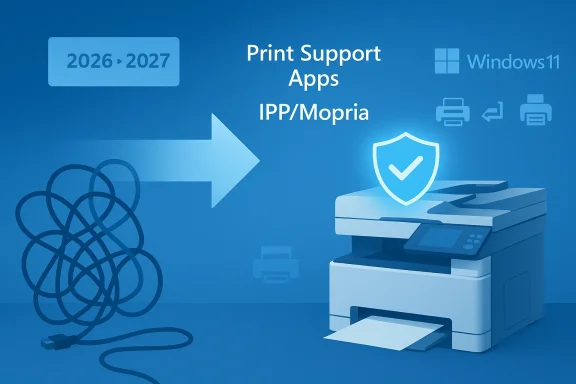
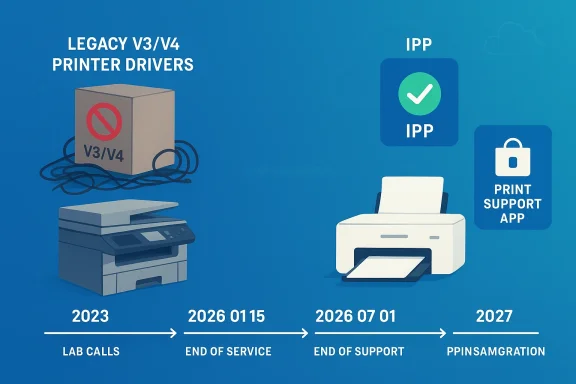
Timeline of legacy V3/V4 printer drivers ending service and moving to IPP and Print Support App.Background / Overview​

Windows has historically supported a variety of print driver models. V3 and V4 printer drivers — sometimes called legacy drivers — were the mainstay for many vendor-specific feature sets and multifunction devices for years. Those drivers exposed advanced options (finishing, scanning endpoints, custom UI dialogs) and in many deployments were distributed silently via Windows Update so printers would “just work” when added to a PC. Microsoft began a formal deprecation plan for these legacy drivers in September 2023 and staged a multi‑year roadmap that converts that plan into operational deadlines.
The practical pivot is twofold: first, Microsoft has implemented a stricter intake and publishing process for V3/V4 driver submissions (effective January 15, 2026), and second, the OS will increasingly prefer a generic, protocol‑centric class driver — the Microsoft IPP Class Driver — and user‑mode Print Support Apps for vendor customizations. Those steps are designed to reduce kernel‑mode complexity, compress the driver surface area, and simplify servicing.

What changed (the timeline and the mechanics)​

Key dates you need to know​

  • September 2023 — Microsoft announced the end‑of‑servicing plan for legacy third‑party printer drivers.
  • January 15, 2026 — New V3/V4 printer driver submissions for Windows 11 (and Windows Server 2025+) are blocked by default and now require a manual Driver Exception Justification to be considered for signing and Windows Update publication. Existing drivers already in the Windows Update catalog remain available but will be updated only under strict, case‑by‑case conditions.
  • July 1, 2026 — Windows will change driver ranking so it prefers the Microsoft IPP inbox class driver when multiple drivers are available. That means the OS may automatically select Microsoft’s generic driver over a vendor’s legacy driver during installation.
  • July 1, 2027 — Windows Update will generally limit third‑party printer driver updates to security‑only fixes; non‑security servicing for legacy drivers will be greatly curtailed.
These dates are not advisory — they are Microsoft’s published milestones and they are already affecting driver intake and driver ranking behavior on Windows 11.

How Microsoft enforces the rule now​

As of January 15, 2026, any partner submitting a print driver package (WHQL or Attestation) must include a JSON‑formatted justification document describing why the legacy driver is required and which exception category it falls into. Submissions are halted during intake and sent for manual review; without an approved justification, the package will not be automatically signed or published to Windows Update. In short: the default is “no new legacy drivers via Windows Update” unless you make a convincing case.
Exceptions exist, but they are narrow: examples include devices that cannot support Mopria/IPP, bona fide fax devices, adding an ARM64 build, or drivers that target very old Windows versions (Windows 10 22H2 or earlier) or older servers. Even updates to existing drivers are restricted: new hardware IDs or functional changes are disallowed unless they meet specific exception criteria or are security fixes.

Why Microsoft is doing this — the rationale​

Microsoft’s stated rationale is technical and security‑oriented: moving away from hundreds of vendor kernel and legacy Win32 drivers toward protocol‑centric printing (IPP/Mopria/IPP‑Everywhere) plus user‑mode Print Support Apps reduces the kernel‑mode attack surface, simplifies servicing, and makes the printing subsystem more predictable and maintainable. The IPP inbox class driver provides a reliable, standards‑based path for printing, while Print Support Apps deliver vendor‑specific features in user mode where they are safer and easier to update through the Microsoft Store.
The security argument is not theoretical. The Print Spooler service has been the vector for high‑profile vulnerabilities — most notably the PrintNightmare family of vulnerabilities in 2021 — which demonstrated how driver installation APIs and spooler behavior can be abused for privilege escalation and remote code execution. Microsoft’s push to reduce kernel‑mode code and rely on protocol standards is an explicit mitigation strategy against similar classes of vulnerabilities.

What this actually means for users and administrators​

For home users​

If your printer is relatively modern (shipped within the last several years) and supports IPP/Mopria or offers a Print Support App, you will likely see no loss of basic printing capability. Windows will often choose the IPP inbox class driver which provides basic printing functionality out of the box, and vendor PSAs can be installed to restore advanced functions. However, if your printer relies on an older V3/V4 driver for advanced features or multifunction behaviors (scan/fax endpoints, finishing options, authentication support), you may need to install the manufacturer's installer manually to regain full capability. Independent reporting and Microsoft guidance make the same point: default distribution of new legacy driver packages via Windows Update has stopped, but vendor installers remain available outside Windows Update.

For small businesses and IT admins​

This change affects the automation and “plug‑and‑play” expectations that many deployments rely on. If you used Windows Update / WSUS to automatically deliver vendor printer drivers, new legacy drivers will no longer arrive that way by default. Administrators should:
  • Inventory printers and document which models rely on V3/V4 drivers.
  • Confirm vendor support channels and obtain installers for models that need vendor drivers.
  • Test the Microsoft IPP class driver for basic printing needs and evaluate Print Support Apps for feature parity.
  • Adjust imaging and provisioning processes (SCCM, Intune, provisioning packages) to include vendor installers where necessary.
Multiple industry reporters saw real‑world impacts after the January 15 enforcement — print queues and multifunction behavior changed where vendors had previously relied on Windows Update distribution. That means testing and process changes are urgent for environments with many legacy devices.

For large enterprises and managed print services​

Enterprises with heterogeneous fleets face the most operational risk. Automated driver distribution, print server inheritance, and group policy deployments assume Windows Update as a reliable distribution channel; with that path limited, organizations must invest in:
  • Robust printing inventories and driver catalogs.
  • Vendor relationships for long‑tail support or to obtain signed driver packages.
  • Migration plans to IPP/PSA models where possible.
  • Compensating controls for security (e.g., restricting spooler capabilities, using protected print modes).
Expect procurement cycles and refresh plans to accelerate for devices that cannot be modernized without breaking core workflows.

Which printers are affected — and which are not​

There is no single “list” of affected models published by Microsoft because the change targets driver model types (V3 and V4), not specific SKUs. Practically speaking:
  • Affected: devices that require vendor V3 or V4 drivers for installation and feature support, especially older multifunction printers and specialized enterprise hardware. These are commonly the devices sold a decade ago or earlier.
  • Largely unaffected: printers that implement modern IPP/Mopria/IPP‑Everywhere standards and those where the vendor provides a Print Support App or an IPP‑based implementation. Newer consumer and office printers increasingly fall into this category.
Any headline numbers claiming “millions” of devices affected should be treated cautiously — Microsoft has not published a global device count of impacted printers, and vendor inventories vary widely by region and vertical. That count is plausible given how many printers sold over the last 10–15 years still use legacy drivers, but it remains an estimate rather than a verifiable fact. Treat population‑size claims as likely but unconfirmed.

Practical, step‑by‑step guidance: what to do if your printer stops installing or loses features​

If you find a printer that used to be delivered via Windows Update is now missing features or will not install, follow these steps:
  • Pause and document: Don’t immediately replace the device. Note the printer make, model, and which features are missing (scan, fax, finishing).
  • Check Windows Update and Installed Drivers: Confirm whether the existing driver is present in the device manager or Printers & scanners settings. Use Device Manager → Printers → Driver tab to inspect the driver version. Microsoft guidance covers basic troubleshooting steps like re‑installing or rolling back drivers.
  • Download the vendor installer: Go to the printer manufacturer’s support site and download the latest driver/installer for Windows 11 (or the platform you use). Vendors are explicitly expected to continue shipping installers outside Windows Update. If your vendor offers a Print Support App in the Microsoft Store, try that next.
  • Test the Microsoft IPP Class Driver: Remove the printer and let Windows re‑add it to see whether the IPP inbox class driver provides acceptable functionality. For many basic printing scenarios this will be sufficient and will restore plug‑and‑play behavior.
  • Reinstall vendor software if needed: If scanning, fax, or advanced finishing are missing, install the vendor’s full package. Note that some vendor packages still rely on kernel components — those must be run from vendor installers (not Windows Update) and may require admin rights.
  • If all else fails, contact vendor support and request a roadmap: Ask whether there is an IPP/PSA migration plan or a signed installer for modern Windows versions. Vendors will have to provide their own distribution channels going forward.
If you manage many printers, script step 1 (inventory) and step 3 (vendor retrieval) as part of your build and imaging process.

Exceptions, caveats, and vendor responsibilities​

Microsoft’s new intake process still allows exceptions but requires formal justification. The allowed exception categories in 2026 include scenarios such as:
  • Devices that cannot support Mopria/IPP.
  • Fax devices that fundamentally require legacy drivers.
  • Adding an ARM64 architecture build.
  • Targets that are intentionally for older OS builds (Windows 10 22H2 or earlier).
Even with exceptions, Microsoft’s posture is explicit: moving the ecosystem away from kernel‑mode vendor drivers is their default preference. Vendors that historically relied on Windows Update for distribution now must operate their own distribution channels for legacy installers or accelerate migration to IPP/PSA architectures. Several independent reports and community posts document vendors shipping Print Support Apps or alternative installers to preserve functionality for customers.

The security trade‑off and the PrintNightmare context​

The deprecation decision cannot be separated from the security history of the Windows printing stack. The PrintNightmare saga of 2021 illustrated how printer driver installation APIs and the spooler service can be weaponized for elevation and arbitrary code execution. Microsoft’s architecture pivot — fewer vendor kernel drivers, a smaller trusted codebase, and user‑mode extensibility for features — is aimed at preventing similar systemic risks in the future. That is a defensible technical choice, but it also imposes migration and compatibility costs on users and vendors.
Important caveat: while the security rationale is clear, not all legacy drivers are insecure or poorly written. Some vendors produced robust legacy drivers that have worked for years. The policy treats whole driver models as legacy risk surfaces and therefore applies a broad operational fix rather than a case‑by‑case security audit of every driver. That judgment trades short‑term operational friction for long‑term reduction in complexity and attack surface.

Vendor responses and the migration story​

In the months since Microsoft’s January enforcement, vendors have followed two paths:
  • Ship Print Support Apps and IPP‑based implementations that provide feature parity while avoiding kernel‑mode drivers. This is Microsoft’s preferred modernization path.
  • Continue offering legacy installers and signed driver packages outside Windows Update for customers who need them. Microsoft’s updated intake process does not prevent vendors from shipping installers directly; it prevents those installers from being automatically distributed by Windows Update without justification.
Real‑world reports from IT communities indicate mixed success: where vendors have delivered robust PSAs, the transition is smooth; where vendors have not, multifunction devices have lost queue behavior, scan endpoints, or device‑specific features unless the vendor installer is used. That is why administrators should lean on vendor roadmaps and begin testing IPP/PSA alternatives now.

Risks, unknowns, and things to watch​

  • Device count ambiguity: Microsoft hasn’t published a precise total of legacy devices in the wild, so estimates about “how many printers are affected” remain approximate. Avoid breathless claims; treat population numbers as informed estimates.
  • Edge cases: Some vertical devices (medical imaging printers, industrial labelers, embedded multi‑function devices) may require legacy drivers because they expose nonstandard endpoints or integrate with proprietary workflows. Those cases will need vendor engagement and exception justifications.
  • Support lifecycles: Even if a vendor continues to supply installers, those installers may not be updated indefinitely. After July 1, 2027, Microsoft intends to restrict non‑security servicing for third‑party drivers via Windows Update — meaning the long tail of non‑security fixes may not be available through Microsoft’s channel. Plan for long‑term device replacement or vendor commitments.
  • User confusion: End users accustomed to “add printer and Windows Update fetches the driver” will encounter new behaviors. Clear helpdesk scripts and automated inventory checks will reduce friction.

Recommendations — a migration checklist​

  • Inventory: Catalog all printers, driver versions, and whether they use V3/V4 or IPP.
  • Test: In a lab, remove vendor drivers and let Windows add the printer to evaluate the IPP class driver and PSAs.
  • Vendor roadmap: Contact vendors for IPP/PSA migration plans or signed installers—obtain long‑term support commitments for mission‑critical devices.
  • Imaging and provisioning: Include vendor installers and signed packages in your OS images or use managed deployment tools to push vendor installers where required.
  • Security posture: Harden print servers, consider disabling the spooler where not needed, and evaluate protected print modes to mitigate risk.
For everyday users, the immediate actionable steps are simple: check your printer’s support page for a Windows 11 driver/installer or a Print Support App, and test whether the default Windows driver covers your everyday needs before paying for replacement hardware.

Conclusion​

Microsoft’s decision to stop publishing new V3 and V4 printer drivers to Windows Update and to move toward the IPP inbox class driver is a structural shift with real benefits and real costs. On the upside, Windows’ printing surface becomes smaller, easier to service, and more secure — a meaningful reaction to past spooler vulnerabilities and the maintenance burden of thousands of vendor relics. On the downside, the industry must shoulder migration work: vendors must produce IPP/PSA alternatives or distribute installers directly, and administrators must inventory and remediate fleets that depend on legacy drivers.
This is not a “printer apocalypse” — existing drivers and vendor installers remain available — but it is a decisive nudge. If you manage printers, start the inventory and testing work now; if you’re a home user, check your manufacturer’s support pages before assuming everything will behave exactly as it did in the past. The next 12–18 months will decide how smoothly the transition goes for millions of devices.

Source: bgr.com The New Windows Update Discontinued Support For A Bunch Of Popular Printers - BGR
 

Microsoft’s quiet policy shift this January has quietly but materially changed how Windows 11 handles printer drivers: the operating system will no longer automatically publish new legacy V3 and V4 printer drivers to Windows Update, and Windows is being reconfigured to prefer Microsoft’s modern, standards-based printing stack instead. ([learn.microsoft.cosoft.com/en-us/windows-hardware/drivers/print/end-of-servicing-plan-for-third-party-printer-drivers-on-windows)

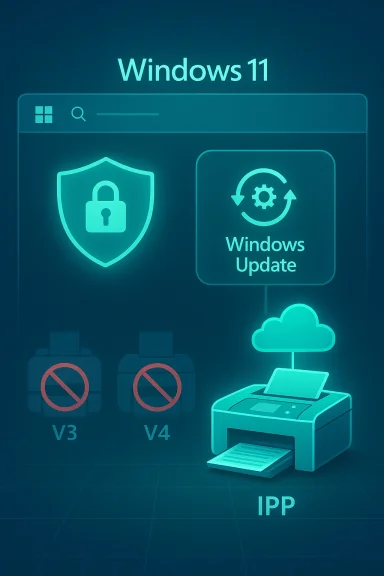
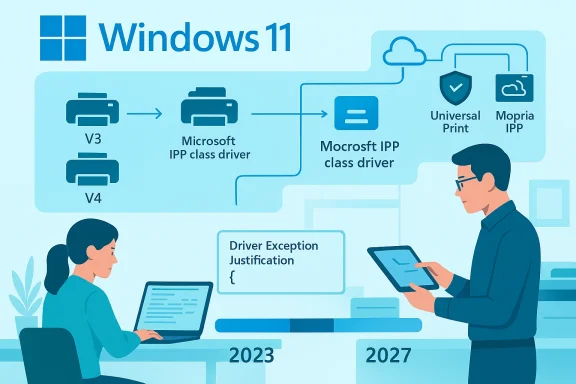
Windows 11 UI featuring a security shield, Windows Update tile, blocked legacy printers, and cloud IPP printing.Background / Overview​

For nearly two decades Windows has supported multiple printer driver models that vendors used to deliver device-specific features and functionality. The two legacy families most users and administrators recognize are V3 (the older kernel-mode and user-mode mixed drivers) and V4 (a later, more modular model designed to reduce complexity). Microsoft began signaling a multi‑year plan to deprecate third‑party legacy drivers in September 2023, and that plan moved into an enforcement phase in early 2026.
Under the new servicing model, Windows Update will not accept routine submissions of new V3/V4 third‑party drivers for Windows 11 and Windows Server 2025+. Existing drivers already in the catalog remain available in many cases, but new submissions are blocked by default and require special review and justification from printer partners. Microsoft then phases further changes — such as preferring the IPP inbox class driver and tightening Windows Update servicing for third‑party drivers — in later milestones.
This is not an instantaneous “your printer stops working” action. It is primarily a change to the distribution and servicing channel — the default path Windows uses to discover and install drivers automatically. Still, the practical consequence is real: if a user reinstalls Windows, deploys a fresh PC image, or connects an older printer that needs a vendor-supplied V3/V4 driver, Windows Update may no longer provide that driver automatically. Multiple outlets covering the rollout have emphasized the same operational reality.

What exactly changed — the timeliney dates and what they mean​

  • September 2023 — Microsoft publicly announced its roadmap to phase out Windows Update distribution for legacy third‑party printer drivers.
  • January 15, 2026 — Microsoft implemented the next active phase: Windows Update will no longer publish new third‑party V3/V4 printer drivers to the Windows Update catalog for Windows 11 and Windows Server 2025+. New submissions are blocked by default and must include a justification.
  • July 1, 2026 — Windows will adjust driver ranking order to prefer the Microsoft IPP inbox class driver when multiple drivers are available.
  • July 1, 2027 — Windows Update servicing will largely limit third‑party driver updates to security fixes only; non‑security feature updates from vendors will be constrained.
These milestones convert a roadmap into operational constraints that impact how drivers are discovered, installed, and updated on both consumer and enterprise devices. The Microsoft documentation describes the submission process changes and the requirement that printer partners produce a driver exception justification for any new driver submission after January 15, 2026.

Mechanics: driver ranking and the IPP inbox class driver​

Windows uses an internal driver ranking algorithm to choose which driver to install when multiple candidates exist. Under the new plan Windows will increasingly favor the Microsoft IPP (Internet Printing Protocol) inbox class driver — a standards-based, protocol-driven class driver that relies on IPP/Mopria-capable printers or on vendor-provided Print Support Apps for enhanced features. That means, in many add‑printer flows, Windows may choose a generic inbox driver rather than a manufacturer’s V3/V4 package. This is intentional and aimed at reducing attack surface and maintenance complexity.

Why Microsoft made the change (and the security case)​

Microsoft frames the move as a security-, reliability-, and maintenance-driven decision. Legacy V3/V4 drivers surface a number of long-standing problems:
  • They multiply the number of vendor-supplied kernel and user‑mode components that must be validated, tested, and signed.
  • Kernel‑mode or complex printer drivers have historically been an attack vector (for example, print‑spooler vulnerabilities have had severe consequences in the past).
  • Maintaining thousands of vendor drivers in the Windows Update catalog is expensive and error-prone, creating reliability and compatibility regressions across Windows releases.
Shifting to a standards-based approach — IPP, Mopria, inbox class drivers, and optional Print Support Apps — reduces the platform’s exposure to buggy or malicious vendor code and simplifies servicing. Multiple industry outlets covering the rollout echoed Microsoft’s security rationale, while also pointing out the operational trade-offs for legacy fleets.

Who is affected — scope and real-world impact​

Home users​

Most home users running modern printers will see no change. Newer devices from mainstream vendors increasingly ship with modern driver models or are IPP/Mopria compatible, and they continue to install and function normally. However, if you:
  • perform a clean Windows install,
  • add an older printer for the first time, or
  • move your printer to a new PC,
then Windows Update may not automatically supply a V3/V4 driver — and you’ll need to install the vendor’s driver manually. Coverage from mainstream outlets has emphasized that the immediate risk is a manual-install requirement rather than an abrupt hardware failure.

Small businesses and schools​

Organizations that run mixed fleets — especially with older multifunction printers (MFPs) that rely on vendor drivers for scan, fax, or advanced finishing — face higher operational impact. Image deployment, zero‑touch provisioning, and rapid device replacement workflows rely heavily on driver availability from Windows Update. Removing that as the default distribution channel forces IT teams to adopt alternate provisioning strategies or to coordinate with vendors for installation packages or Print Support Apps. Several IT-focused outlets and forum discussions have flagged this as a practical migration project rather than a simple update.

Industrial, medical, and niche devices​

Some verticals use specialized printers with long lifecycles, custom drivers, or integrated workflows. For these environments the change can be nontrivial: vendor drivers may be tied to bespoke management software, MFP features, or HIPAA/regulated workflows. The onus now falls on vendors and system integrators to make compatible installation packages and to test those flows against Windows 11’s staged roadmap. Forum and community reporting indicates these vertical scenarios are where most friction will appear.

Practical risks and unintended consequences​

  • Fresh installs and imaging — If you rebuild a PC or create a new enterprise image, older printers may not self-install. That breaks “out-of-box” expectations and demands manual steps or scripted installers.
  • Deployment automation gaps — SCCM/Intune and imaging teams that depended on Windows Update as a one-stop driver source must ensure vendor packages are included in deployment images or pushed via management tooling.
  • Feature loss — Generic IPP class drivers provide basic printing, but can omit advanced vendor features (duplex optimization, device-specific scanning, secure print PIN integration). Organizations that rely on those features will need vendor Print Support Apps or drivers deployed in a non‑Windows Update channel.
  • Support load and helpdesk tickets — Expect an initial bump in support calls as users and admins encounter missing automatic installs and must download and install drivers manually. Industry coverage has already noted that support teams will see the first impact.
  • Supply-chain and vendor readiness — Not all printer manufacturers will accelerate Print Support App development or provide updated installers for every legacy model. That gap may force hardware replacement in cost-sensitive deployments.

What users and IT teams should do now — practical, prioritized steps​

Below is a pragmatic checklist for home users, power users, and IT teams to prepare for and respond to the change.

1. Inventory and categorize printers (high priority for IT)​

  • Export an inventory of printers deployed across your estate (model, firmware, driver family).
  • Tag devices that rely on V3/V4 drivers or drivers older than a specific date (for example, >5 years old).
  • Identify business‑critical printers and MFPs where vendor features are required.
    This planning step reduces surprises when an endpoint is rebuilt or replaced.

2. Validate vendor driver availability (medium priority)​

  • Check each manufacturer’s support site for installation packages or Print Support Apps for your model.
  • Confirm whether the vendor offers an IPP/Mopria-capable firmware or alternative driverless modes.
  • If a vendor offers a Print Support App, test it in your environment to ensure parity with the older driver’s features.

3. Update deployment and imaging processes (high priority)​

  • Add vendor installer packages to your images or software distribution systems (SCCM/Intune).
  • Script driver installations where possible (use DISM or vendor silent-install switches).
  • Document manual steps for local helpdesk escalation.

4. Embrace IPP/Mopria and the inbox class driver where feasible (strategic)​

  • Where compatible printers exist, migrate to IPP/Mopria-capable printing which reduces driver complexity.
  • Prefer standards-based printing for new procurement to avoid vendor driver entanglement.

5. Plan hardware refresh where necessary (budgeting)​

  • For aging or unsupported devices that require vendor drivers but lack installers or Print Support Apps, budget replacements.
  • Consider Total Cost of Ownership (TCO) including support overhead and manual install time.

6. Prepare end-user guidance and helpdesk scripts (operational)​

  • Create short KB articles describing how to manually install drivers from vendor sites and how to add a printer via IPP.
  • Train first‑line support to recognize device types and to retrieve vendor installers quickly.

For printer manufacturers: what you must deliver​

Microsoft’s submission changes make it clear that vendor responsibility increases. Printer OEMs should prioritize:
  • Distributing robust, signed installer packages outside of Windows Update (with silent-install flags suitable for enterprise deployments).
  • Developing Print Support Apps that provide feature parity with legacy drivers while allowing Windows to use the inbox class driver for baseline functionality.
  • Publishing IPP/Mopria-capable firmware updates where hardware allows, enabling driverless printing on modern networks.
Manufacturers that move early to support IPP/Mopria or that supply easy-to-deploy installers will reduce support friction for their customers and preserve installed bases that would otherwise face forced replacement.

Enterprise migration playbook — a concise roadmap​

  • Audit: Inventory printers, drivers, and features required across the estate.
  • Prioritize: Identify mission‑critical devices and categorize by risk (replace, migrate, or maintain).
  • Pilot: Select representative models and test vendor installers and Print Support Apps with your imaging tools.
  • Deploy: Integrate tested installers into your deployment pipeline and update imaging documentation.
  • Monitor: Track helpdesk tickets and printing telemetry to find lingering issues.
  • Refresh: Replace devices that cannot be supported cost-effectively.
This sequence targets the highest-risk items first and keeps user disruption to a minimum. Several IT commentators and community threads already recommend this staged approach for organizations facing the change.

Alternatives and complementary options​

  • Universal Print / Cloud Print Services: Microsoft’s Universal Print (and other cloud print solutions) can offload driver management and provide a central print queue. These solutions are attractive for cloud-first environments but require network and policy changes.
  • Print Server consolidation: Consolidate print queues on managed print servers that have vendor drivers installed; endpoints then connect to the server rather than to the printer directly. This preserves legacy driver functionality while reducing per-endpoint complexity.
  • Third‑party print management suites: Many print-management vendors package drivers and supplies features such as secure print release and accounting; they may provide a smoother migration path for environments that rely heavily on multifunction features.

What to tell users — plain language guidance​

  • If your printer currently works, it will likely continue to work; this change mostly affects automatic driver delivery on fresh installs or new PCs.
  • If a printer stops installing automatically after a reinstall, go to the manufacturer’s support page and download the installer for your model (or ask your IT helpdesk to deploy it).
  • Consider upgrading to a modern, IPP-capable printer when your device is near end-of-life; modern devices are more secure and easier to manage.

Strengths of Microsoft’s approach — why this makes technical sense​

  • Reduced attack surface: Fewer vendor-supplied kernel and complex user-mode drivers in Windows Update reduces vectors for supply-chain or driver-based attacks.
  • Simpler servicing: Microsoft can focus Windows Update on inbox drivers and security fixes, reducing the operational burden of curating thousands of vendor drivers.
  • Standards-first future: Encouraging IPP/Mopria aligns Windows with common network printing standards and reduces vendor lock-in over time.

Risks, gaps, and unanswered questions​

  • Vendor readiness: Not all manufacturers will produce Print Support Apps or update firmware for legacy models, creating orphaned devices.
  • Feature parity: IPP/inbox drivers may not expose advanced MFP features — scanning workflows, secure-print stamping, or device‑specific optimizations may require vendor apps.
  • Operational cost: Small businesses and public sector organizations with large fleets risk unexpectedly high support and replacement costs if they defer planning.
  • Communication and timing: Messaging around “end of driver support” created early confusion; Microsoft has clarified the staged nature of the rollout, but some documentation was updated or removed during the communications cycle, leaving admins uncertain. This underlines the need for clear vendor and platform communication.
Where claims are not fully verifiable at scale — for example, precise numbers on how many printer models will be orphaned or the exact timeline for every vendor’s Print Support App releases — treat projections as probabilistic and plan conservatively.

Final assessment and recommendations​

Microsoft’s removal of automatic distribution for new V3/V4 drivers via Windows Update is a deliberate, security-driven pivot that will accelerate the move toward a simpler, standards-based printing ecosystem. The change is technically sound: inbox class drivers and IPP/Mopria reduce complexity and the long tail of vendor code in the OS. However, the change also transfers operational responsibility to vendors, IT teams, and end users — and that transfer will create real work for organizations that rely on older or specialized printers.
Immediate, pragmatic steps for readers:
  • Inventory your printers now and identify those using V3/V4 drivers.
  • Check vendor support pages for installer packages or Print Support Apps and test those on a small pilot group.
  • Update deployment images and management scripts so driver installation doesn’t depend on Windows Update alone.
  • For long-term resilience, prefer IPP/Mopria-capable devices or centralized print-server architectures in new procurements.
This is not a sudden hardware death sentence for legacy printers, but it is a clear deadline for IT planning. Organizations that act early — auditing fleets, coordinating with vendors, and updating deployment tooling — will navigate the transition with minimal disruption. Those that wait risk higher helpdesk loads, surprise compatibility issues, and potentially accelerated hardware refresh costs.
Microsoft’s modernization of the Windows print stack solves long‑standing security and maintenance problems, but it also marks a significant shift in where responsibility for driver distribution now lives: with printer manufacturers and IT administrators rather than with Windows Update. Prepare accordingly.

Source: thewincentral.com Windows Update Drops V3/V4 Printer Drivers
 

Microsoft has quietly converted a long‑teased roadmap into enforced policy: as of January 15, 2026, Windows Update will no longer act as the default distribution channel for new legacy V3 and V4 third‑party printer drivers for Windows 11 and Windows Server 2025+. That change is the first hard milestone in a multi‑year deprecation that steers Windows toward a standards‑based, inbox printing model — the Microsoft IPP Class Driver plus vendor Print Support Apps — and it has immediate operational consequences for home users, IT teams, and organizations that still rely on vendor kernel drivers and custom print stacks.

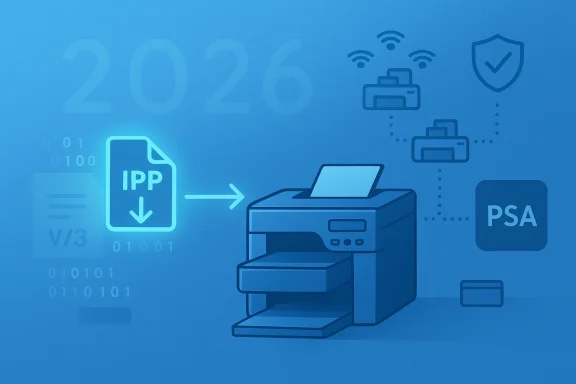
Illustration of an IPP document being printed over a network.Background / Overview​

Microsoft announced the end‑of‑servicing plan for legacy third‑party printer drivers in September 2023 and has published a staged timeline that converts that plan into concrete enforcement dates. The key milestones to anchor any planning are:
  • September 2023 — Microsoft published the deprecation roadmap.
  • January 15, 2026 — Windows 11+ and Windows Server 2025+: no new third‑party V3/V4 printer drivers will be automatically published to Windows Update; new submissions are subject to case‑by‑case review and must include a justification.
  • July 1, 2026 — Windows will change driver ranking logic to prefer the Microsoft IPP inbox class driver when multiple drivers are available.
  • July 1, 2027 — Windows Update will generally limit third‑party printer driver updates to security‑only fixes; non‑security feature updates via Windows Update will be curtailed.
Microsoft’s rationale is straightforward: reduce the kernel‑mode footprint of the OS, avoid the long tail of loosely maintained vendor code, and favor a protocol‑centric model (IPP/Mopria/IPP Everywhere) with user‑mode vendor extensions through Print Support Apps. The company argues this will improve reliability, reduce security exposure, and simplify servicing across Windows versions.
That reasoning has broad technical merit. The Windows print stack and the print spooler historically have been a common source of privilege escalation and remote‑code vulnerabilities — most notably the PrintNightmare series of vulnerabilities in 2021 — which exploited driver installation and spooler behaviors to achieve system compromise. Moving vendor code out of kernel paths and into standardized, inbox drivers and user‑mode support apps reduces attack surface and simplifies patching.

What changed on January 15, 2026 — what it really means​

The January 15 enforcement is a distribution and servicing change, not an instant functional ban. That distinction matters because it determines what users will actually experience.
  • Existing V3/V4 drivers already in the Windows Update catalog remain available for installation in most cases, and vendor‑supplied installers continue to work. But new legacy driver packages that vendors submit for Windows Update targeting Windows 11+ or Windows Server 2025+ will be blocked by default and routed for manual review; only narrow exceptions (e.g., devices that can’t support Mopria, native ARM64 drivers, or packages that target older Windows releases) are likely to be approved.
  • For many modern printers, there is no impact: they already support IPP/Mopria or have vendor Print Support Apps that restore device‑specific features while using the inbox IPP class driver for the core printing flow. Vendors — particularly managed print vendors and major OEMs — have been shipping PSAs and guidance for migration.
  • The practical risk is for older, niche, or heavily customized printers and multifunction devices (MFDs) where vendors relied on V3/V4 drivers to deliver finishing, scanning, fax endpoints, or special tray mappings. Those devices will still work today if their drivers are already installed, but they may not be discoverable and automatically installed via Windows Update on a fresh machine or after a clean OS image without manual intervention from the vendor installer.
In short: this is a decisive nudge toward modern printing, not an emergency “printer apocalypse.” But the nudge is operational: organizations that delay will face a sprint to inventory, test, and remediate when they rebuild endpoints or replace systems.

Why Microsoft made this move — the upside​

The policy has several clear advantages at platform scale:
  • Smaller kernel attack surface. Kernel‑mode drivers are risky; historic print spooler bugs (including high‑severity PrintNightmare CVEs) illustrate the danger of shipping thousands of third‑party driver code paths that integrate with privileged OS services. Shifting to a standard inbox driver and user‑mode PSAs reduces that exposure.
  • Fewer environmental regressions. A huge catalog of vendor drivers, often written for older Windows versions, can introduce reliability and compatibility issues across updates. Inbox class drivers simplify the installation surface and make behavior more predictable.
  • Cross‑version consistency. The IPP class driver model and PSAs run consistently across supported Windows releases, reducing the need for version‑specific vendor builds and simplifying vendor QA.
  • Modern features and standards. IPP/Mopria and the Print Support App model encourage vendors to expose functionality via standard protocols and user‑mode services, making it easier to support scanning, faxing, and cloud workflows in a controlled way.
For many modern deployments — small businesses, home offices, and most campus networks — the transition will be largely invisible. The Microsoft inbox driver will “just work” for standards‑compliant network and USB printers, and vendor PSAs will restore the advanced features that earlier required V3/V4 packages.

The risks and real‑world impacts — what to watch for​

The benefits don’t erase practical headaches. The migration transfers operational responsibility to vendors and IT teams, and introduces a few real risks:
  • Inventory exposure. Organizations that haven’t inventoried printers by driver type risk discovering many devices that rely on legacy drivers only when they need to redeploy or recover a host. This is painful for organizations with long refresh cycles or embedded printing in point‑of‑sale (POS), manufacturing, medical, or lab equipment.
  • Feature loss on install. When Windows prefers the IPP class driver (July 1, 2026), an OS may opt for the inbox driver instead of a vendor‑specific package during device discovery. That can result in missing finishing options, custom UIs, or one‑button scan workflows until a Print Support App or vendor installer is applied.
  • Vendor readiness variance. Major OEMs and managed print vendors have resources to ship PSAs and update device firmware for IPP, but smaller vendors and older devices may not. Where vendors don’t provide an installer or PSA, the only realistic options could be continued reliance on older drivers (installed manually and maintained off‑update), deploying print servers that host legacy drivers centrally, or hardware replacement.
  • Operational overhead. IT teams must change deployment and imaging practices: driver provisioning may require vendor installers distributed through Intune/SCCM or packaged as offline installers rather than being fetched automatically via Windows Update. This increases testing and validation workloads.
  • Perception and miscommunication risks. Poorly worded statements or update notes can cause public confusion that “printers will stop working.” Microsoft explicitly corrected some messaging after user confusion; documentation clarifies that existing drivers are still installable and that Windows won’t disable legacy features, but misunderstanding persists in social threads and headlines. Communicate clearly to your users.

Practical checklist: what home users should do now​

If you’re a consumer or small‑office user, the change is unlikely to force an immediate purchase — but you should be proactive.
  • Identify the printers you own and the driver model in use.
  • On a running Windows machine: Settings → Bluetooth & devices → Printers & scanners → select the printer → Printer properties → Advanced → Driver Provider / Driver Version.
  • Or run PowerShell: Get-Printer and Get-PrinterDriver (PrintManagement module) to list installed printers and their driver packages.
  • If your printer is newer (past ~5 years), chances are it supports IPP/Mopria or has a vendor PSA; check the manufacturer’s support/download page for an IPP‑capable mode or a Print Support App.
  • If your printer is old and vendor support is absent, plan for manual driver install from the vendor site if you ever need to reinstall Windows or set up a new PC. Keep a copy of the installer or the vendor INF in a safe place.
  • When buying a new printer, prefer models that advertise Mopria, IPP Everywhere, or explicit Windows Store Print Support Apps support. That reduces future operational risk.
These steps are quick to perform and will avoid the surprise of an “I reimaged my PC and the office printer won’t install” helpdesk call.

Practical checklist: what enterprise IT should do now​

Enterprises and managed services face the real work. Treat Microsoft’s dates as project milestones and act now.
  • Inventory and categorize (weeks 0–4)
  • Use endpoint management tooling (SCCM/ConfigMgr, Intune, or custom PowerShell) to export Get-Printer and Get-PrinterDriver results from clients and print servers. Also run pnputil /enum-drivers on critical servers to enumerate driver packages in the driver store.
  • Flag devices by driver provider, INF names, and port type (IPP vs Standard TCP/IP vs USB).
  • Prioritize MFDs and devices in critical workflows (clinical scanners, POS, production systems).
  • Vendor engagement and roadmap (weeks 1–6)
  • Contact printer OEMs and managed print vendors to request explicit migration guidance: IPP/IPP‑USB support, PSAs, firmware updates, and published installer packages.
  • Record which models have PSAs in the Microsoft Store or downloadable installers and the timelines for vendor support.
  • Pilot and test (weeks 4–10)
  • Build a small pilot group: test migration to the Microsoft IPP inbox class driver plus any available PSA.
  • Verify print fidelity, tray mapping, finishing, stapling, and the accessibility of scan/fax endpoints (IPP‑over‑USB, eSCL, WS‑Scan). Validate security and audit logging.
  • Deploy and document (weeks 8–20)
  • Update imaging scripts and driver provisioning: vendor installers should be packaged for MSI/MSIX or distributed through Intune/SCCM rather than depending on Windows Update.
  • Consider centralizing drivers on print servers where vendor installers are required; this can reduce endpoint complexity and preserve feature parity for network printers.
  • Replacement strategy and procurement (quarterly)
  • For devices with no viable migration path, plan hardware refreshes on a prioritized basis. When procuring new devices, require IPP/Mopria and PSA support in vendor contracts.
  • Security and compliance
  • Keep applying OS and firmware security updates. If legacy drivers remain in use, restrict system privileges and monitor print spooler behavior with EDR tools to detect misuse — history shows print spooler vulnerabilities are attractive to attackers.

Technical how‑to: quick commands and checks​

  • Enumerate driver packages in the driver store:
  • pnputil /enum-drivers
  • List printers and their installed drivers (PowerShell PrintManagement):
  • Get-Printer | Format-Table Name,ShareName,PortName
  • Get-PrinterDriver | Format-Table Name,Manufacturer,DriverVersion,PrinterEnvironment
  • Remove a problematic driver package from the driver store (test on non‑production systems first):
  • pnputil /delete-driver oemX.inf /uninstall
  • Export inventory to CSV for centralized analysis:
  • Get-Printer | Export-Csv printers.csv
  • Get-PrinterDriver | Export-Csv drivers.csv
Use these tools to build a machine‑level and print‑server‑level inventory and to spot drivers where the provider is a vendor INF (a candidate for remediation) rather than Microsoft.

Migration patterns that work​

  • Inbox + PSA model (recommended): Where available, use the Microsoft IPP inbox driver for core printing, and install the vendor Print Support App to restore UI features, authentication, and advanced options.
  • Vendor installer deployment: When a PSA isn’t available, package the vendor installer for deployment through your management system. Prefer signed WHCP/WHQL packages and verify the installer’s behavior in a lab.
  • Central print servers: For complex fleets with legacy drivers, host print queues on a centralized print server (Windows or Linux) that still runs the legacy drivers, and expose shared queues to endpoints. This isolates driver code to the server and simplifies endpoint management.
  • Firmware and configuration updates: Some older MFDs can be modernized with firmware that exposes IPP endpoints. Check vendor firmware notes and test thoroughly — firmware updates can both fix and introduce issues.

Procurement guidance — what to require from vendors​

When buying new printers, include these requirements in procurement RFPs or purchase orders:
  • Support for IPP Everywhere or Mopria and explicit ability to operate in IPP Over USB or network IPP mode.
  • Availability of a Print Support App in the Microsoft Store or a vendor‑supported PSA installer for enterprise deployment.
  • Clear firmware and PSA roadmap for the lifecycle of the device (3–5 years).
  • Signed driver packages or installers compliant with Microsoft’s Partner Center/WHCP signing process where vendor installers remain necessary.
These contract terms reduce long‑term operational risk and make future migrations smoother.

Final assessment — tradeoffs and the prudent course​

Microsoft’s move to stop automatic distribution of new V3 and V4 drivers via Windows Update is technically defensible and, at scale, a positive change: it reduces an outsized attack surface, simplifies servicing, and encourages standards‑based printing. For everyday users with modern printers, the transition should be neutral or beneficial. For enterprises with extended life cycles and heavily customized print workflows, it is a project: inventory, vendor engagement, testing, and selective replacement.
If you manage printers, do not treat Microsoft’s timeline as optional. Inventory your print estate now; test the IPP inbox driver plus vendor PSAs; update deployment tooling to rely less on Windows Update for driver provisioning; and prioritize replacement of devices that have no modern upgrade path. That proactive work will convert what could be a cascade of last‑minute helpdesk incidents into a planned, low‑risk migration.
The technical and security rationale is real — history shows printing and spooler code attract attackers — but the human part of the migration is the hard part. Start with a small pilot, pressure vendors for PSAs and firmware, and treat July 1, 2026 and July 1, 2027 as hard operational milestones rather than theoretical guidance. The result will be a smaller, safer, and more predictable printing surface — at the cost of short‑term work that IT teams should already be scheduling.

Conclusion​

The headline that “Windows Update discontinued support for a bunch of popular printers” simplifies a nuanced shift: Microsoft has stopped publishing new legacy V3/V4 driver packages to Windows Update for Windows 11+ as of January 15, 2026, and will steer installations toward the Microsoft IPP inbox class driver and Print Support Apps in subsequent milestones. Existing drivers remain installable, but the distribution channel and servicing guarantees have changed, and that change bestows real work on vendors and administrators. Treat this as a modernization deadline: inventory, test, and engage vendors now so your users — and your printers — keep printing when the next rebuild or device replacement arrives.

Source: AOL.com The New Windows Update Discontinued Support For A Bunch Of Popular Printers
 

If your printer suddenly refuses to cooperate on Windows 11, the problem may not be the printer at all but a deliberate change in how Microsoft ships and prioritizes printer drivers — and the clock on that change started ticking in January 2026. ([learn.microsoft.coosoft.com/en-us/windows-hardware/drivers/print/end-of-servicing-plan-for-third-party-printer-drivers-on-windows)

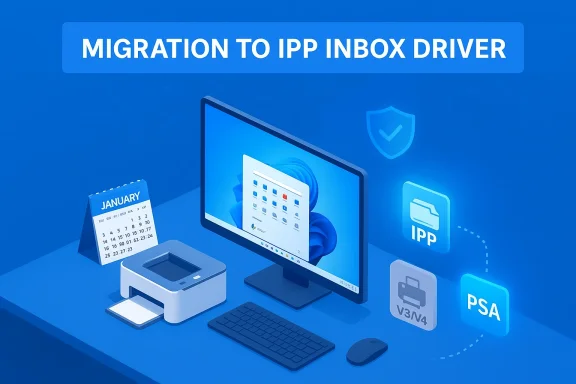
Blue illustration of a computer setup showing migration to the IPP Inbox Driver with printer and icons.Background / Overview​

For decades, Windows relied on a mix of vendor-supplied printer drivers and Microsoft-provided class drivers to translate documents into the printer-specific instructions that machines understand. The two legacy models most people recognize are V3 and V4 printer drivers — long-standing architectures many printers still use today. Microsoft announced a formal deprecation plan for these legacy drivers in September 2023 and began executing that plan in stages over subsequent years.
The intention behind the roadmap is straightforward: reduce complexity and attack surface by steering Windows toward a modern, standards-based printing model built around the Microsoft IPP (Internet Printing Protocol) inbox class driver and lightweight Print Support Apps (PSAs) that vendors can publish separately. That shift favors a smaller, more maintainable inbox footprint in Windows while letting printer makers supply device-specific features as user-mode apps.
This is not an overnight “kill switch” for older printers — existing drivers remain installable and many printers will continue to function — but the practical consequences are real: Windows Update no longer serves as the routine distribution channel for new V3/V4 driver packages, and internal driver-selection logic will increasingly prefer Microsoft’s inbox driver over vendor drivers in many install flows.

The timeline you need to know (short and concrete)​

Microsoft laid out specific milestones that turn policy into consequences. These dates are authoritative planning anchors:
  • September 2023 — Microsoft announced the end-of-servicing plan for legacy third‑party printer drivers.
  • January 15, 2026 — Windows 11 (and Windows Server 2025+) will no longer publish new third‑party V3/V4 printer drivers to Windows Update by default; new submissions routed to a manual review process and require justification. Existing driver packages already in the catalog may still be updated in narrow cases.
  • July 1, 2026 — Windows will modify driver ranking to prefer the Microsoft IPP inbox class driver when multiple drivers are available, increasing the chance that a generic inbox driver will be selected rather than a vendor-specific legacy driver.
  • July 1, 2027 — Windows Update will generally restrict third‑party printer driver updates to security fixes; non-security servicing for legacy drivers will be largely ended.
These are not ambiguous guidelines — they are the operational dates Microsoft published and vendors and IT teams must plan around. Community reporting and field conversations reflect that the January 15, 2026 milestone is already changing how new drivers get submitted and distributed.

What changed in January 2026 (the practical mechanics)​

Beginning January 15, 2026, Microsoft changed the intake, validation, and Windows Update publication behavior for third‑party legacy printer drivers:
  • Driver submissions are blocked-by-default. New V3/V4 driver submissions through Microsoft’s Partner Center and hardware signing process are halted unless a justification is supplied and approved through manual review. The company introduced a Driver Exception Justification requirement — a structured JSON justification and supporting documents — for partners who still need to sign or publish legacy packages.
  • Windows Update is no longer the automatic distribution path. Existing legacy drivers already on Windows Update may still be available, but new driver packages and many driver updates will not be published to the Windows Update catalog except under limited exceptions. Vendors can still distribute installers directly or support users via their own deployment methods.
  • Driver-selection behavior will change later in 2026. Windows will prefer the IPP inbox class driver in the driver ranking order as of July 1, 2026, which means many discover-and-install flows will select Microsoft’s generic driver plus a vendor Print Support App for device-specific features rather than a full vendor V3/V4 package.
Taken together, these mechanics turn a vendor-driven, decentralized printing stack into a protocol-first model with smaller trusted Windows inbox code and vendor-supplied user-mode apps for features. That improves security and maintainability but imposes migration and feature trade-offs for legacy hardware.

Why Microsoft did this — the technical and security case​

There are three tightly connected motivations behind Microsoft’s plan:
  • Security. Vendor-supplied kernel-mode components and long-tail legacy drivers have been a recurring source of vulnerabilities in the Windows printing stack (for example, the high-profile "PrintNightmare" class of issues highlighted how the printer ecosystem can expose critical attack surfaces). Moving to a smaller inbox surface and user-mode PSAs reduces the potential for kernel exploits and simplifies patching.
  • Servicing and reliability. Maintaining thousands of unique vendor drivers across architectures and OS versions complicates Windows Update and increases the odds of incompatibility. A single, standards-based inbox driver (IPP) is easier to validate, sign, and service, and reduces driver conflicts.
  • Modern protocols and manageability. IPP and Mopria-aligned devices are common in contemporary printers. Pairing a standards-based inbox driver with small Print Support Apps enables vendors to deliver advanced features (finishing, accounting, color profiles) without shipping kernel-mode code — a better model for frequent updates through app stores or vendor installers.
Put simply: Microsoft is trading device-specific richness in the OS driver stack for a more secure, maintainable, and standards-compliant model that pushes device-specific complexity into higher-level, updateable user-mode components.

Who is affected — and who probably isn’t​

  • Likely affected groups:
  • Owners of older printers (commonly running V3 or V4 drivers) whose manufacturers have not published IPP-compatible replacements or Print Support Apps.
  • Small businesses, schools, clinics, and other environments that rely on older fleets and automatic driver rollout via Windows Update.
  • Environments that require vendor-specific features not available via the IPP inbox driver (special media trays, stapling/finishing presets, job-accounting interfaces) and where the vendor has not supplied an alternate PSA or packaged installer.
  • Who is unlikely to be severely impacted:
  • Users with recent printers from mainstream vendors where the vendor already supports IPP, publishes Print Support Apps (or DCH-style drivers), or supplies an installer package on their website. Many vendors are publishing PSAs or Microsoft-compatible installers for recent models.
Important nuance: existing drivers and drivers already present in Windows Update are not forcibly removed from client machines. You can still install vendor-supplied drivers manually; what changes is the default discovery and distribution path via Windows Update and the preference Windows will give the inbox class driver in many scenarios. That’s a crucial distinction that mitigates the "printer will stop working overnight" fear — but it still leaves administrators with an active migration project.

Real-world risks and second-order consequences​

Microsoft’s shift improves long-term security and maintainability, but it also creates operational and interoperability risks you should plan for now.
  • Feature regressions. The Microsoft IPP class driver deliberately exposes a narrower feature set than many vendor packages. Users who rely on advanced finishing, paper-tray mapping, or proprietary color profiles may experience degraded functionality unless a vendor PSA fills the gap. This is already showing up in field reports where tray selection, envelope feeds, or multi-function integration behave differently under the IPP class driver.
  • Manufacturer variability. Vendor responses vary. Some major OEMs are publishing PSAs and DCH replacements; others offer only legacy drivers or are slow to update older models. That asymmetry increases fragmentation: two identical printers from different vendors might receive very different migration support.
  • Deployment complexity for IT teams. For enterprises used to delivering drivers via Windows Update or group-policy-managed installs, the new model requires driver inventories, manual packaging, or alternate distribution channels (SCCM, Intune, vendor installers). That means testing, re-imaging, and possibly maintaining a private driver catalog. Community discussions confirm admins are actively scrambling to inventory printers and craft remediation plans.
  • Security paradox. Ironically, if vendors don’t commit to timely replacements, organizations could end up continuing to run outdated driver packages installed manually — which defeats some of the security intent behind the deprecation. Microsoft’s model reduces the attack surface for new installs, but it doesn’t (and can’t) forcibly uninstall legacy drivers already in use; the onus remains on admins and users to remediate vulnerable drivers.
  • Support cost for small organizations. Small businesses and home offices that relied on seamless Windows Update-based installs now face the cognitive and labor cost of finding, downloading, testing, and deploying drivers — or, in some cases, replacing hardware earlier than planned. Media coverage of the change has captured both relief (security-minded readers) and frustration (users forced to do manual installs).

How to tell if your printer is affected (quick checks)​

You should inventory your printers and identify which driver model is in use. Here are practical ways to check on a Windows 11 machine:
  • Open Settings > Bluetooth & devices > Printers & scanners, select a printer, then choose Printer properties (or Advanced). Look at the Driver and Driver Provider fields; vendor names and older INF names are a clue that you’re using a legacy package. You can also look for the text “Microsoft IPP Class Driver” to see if the inbox driver is in use.
  • Use PowerShell (admin) for a quick inventory:
  • Get-PrinterDriver | Format-Table Name, Version, Manufacturer — lists installed drivers and providers.
  • Use the Printer Server Properties dialog to view all driver packages:
  • Run rundll32 printui.dll,PrintUIEntry /s /t2 to open the Printer Server Properties window to the Drivers tab, where installed driver packages and their installation paths are visible.
  • On print servers, use Print Management (MMC) or PowerShell to export driver tables from many machines and identify which models still rely on vendor V3/V4 packages. That’s the first step toward creating a prioritized remediation list.
If you discover vendor-specific V3/V4 drivers in active use, treat those devices as candidates for follow-up: contact the vendor, check for a Print Support App or DCH replacement, and test behavior with the IPP inbox class driver to quantify any feature loss.

Concrete, step-by-step remediation for home users and small offices​

If you own a single printer or run a small office, these steps will minimize disruption and preserve the features you need.
  • Identify: Use the checks above to confirm whether your queue uses a vendor V3/V4 driver or the Microsoft IPP inbox driver.
  • Visit the manufacturer’s support site and search for a Windows 11 driver, DCH package, or a Print Support App. If a PSA is available, that is generally the supported migration path. If the vendor already provides a PSA, install it before you change the driver.
  • Test the Microsoft IPP inbox driver: create a new printer queue and choose the Microsoft IPP Class Driver if offered, or use the Add Device flow that lists an IPP/Network printer. Print a range of test jobs to confirm basic functionality. Keep a copy of your original driver package so you can roll back if critical features are lost.
  • If features are missing (tray mapping, finishing), install the vendor-provided PSA or driver installer and re-test. If the vendor hasn’t published anything, contact the vendor support team and request guidance — many OEMs have published migration guides or store apps for recent models.
  • If a vendor driver is required and not available via Windows Update, you can still manually install it from the vendor’s website. Treat manually installed legacy drivers as a maintenance responsibility: obtain the latest signed package and keep it in a known repository.
Numbered key actions:
  • Inventory printers and driver packages now.
  • Prioritize devices that are USB-connected or deliver vendor-only features.
  • Test IPP inbox driver + PSA where available.
  • Create a fallback plan (local driver repository) for any devices that require vendor installers.
  • Budget replacement for devices that cannot be supported in the long term.

Guidance for IT teams and enterprises​

Large-scale environments need a formal migration plan. The following checklist condenses best practices from Microsoft guidance and field experience:
  • Run a scripted inventory across endpoints and print servers (PowerShell + Export-CSV with Get-PrinterDriver and Get-Printer).
  • Classify printers by risk and replacement difficulty: (a) IPP/Mopria-capable and PSA-available; (b) vendor-driver-dependent with supported replacement; (c) legacy hardware with no vendor-provided route.
  • Pilot the IPP inbox class driver and vendor PSAs in a segment of users to quantify functional gaps (finishing, tray selection, accounting). Document any manual reconfiguration required for job presets.
  • Prepare a private driver catalog and packaging pipeline (SCCM/Intune) for vendor installers that must be distributed outside Windows Update. Maintain a tested rollback plan.
  • Engage vendors proactively; require a migration plan and timelines for models that are important to your business. Escalate to vendor account teams if the models are critical and unsupported.
Enterprises should treat July 1, 2026 and July 1, 2027 as firm deadlines for driver-preference behavior and long-term servicing policy. Plan procurement and upgrades around those anchor dates.

What manufacturers are doing (examples)​

Major printer vendors have moved quickly on multiple fronts:
  • Publishing Print Support Apps in the Microsoft Sti modern models so the IPP inbox driver can be augmented with device features. HP’s PSA program is an example where the vendor exposes features through an app layer instead of kernel-mode drivers.
  • Offering DCH-style or updated driver packages for newer models that conform better to Microsoft’s driver-signing and distribution policies. However, timelines vary by vendor and by model — older models are less likely to receive new packages.
If your vendor has not published a PSA or DCH replacement for an older model, escalate the question to vendor support and document the response — that record will be useful if you need to justify continued use of legacy drivers in regulated environments.

What Microsoft’s documentation does and does not say (a reality check)​

Microsoft’s official documentation is explicit about the staged plan, exceptions, and the mechanics for partner submissions. It clarifies that:
  • Vendors can still sign and distribute drivers, but new submissions targeted at Windows 11+ are blocked-by-default and require justification; certain exceptions (fax devices, ARM64, devices that can’t support Mopria, drivers targeting older Windows releases) exist.
  • Windows will continue to allow installation of vendor-supplied drivers from separate installer packages; the policy affects Windows Update publication and default driver selection, not an absolute ban on installation.
Where ambiguity has arisen is in media restatements and social conversations that simplified the messaging into “Windows 11 will no longer support these drivers,” which created alarm. Microsoft’s FAQ and technical pages contain the precise caveats; read them carefully rather than relying on a headline.

Final analysis — trade-offs, opportunities, and a clear path forward​

Microsoft’s move to deprioritize legacy V3/V4 driver distribution through Windows Update and to prefer the IPP inbox class driver is a security-first, long-term modernization of the Windows print stack. It reduces risk, simplifies servicing, and encourages vendors to adopt standards-based protocols and user-mode feature delivery. For most modern devices, this is a net positive.
But the migration exposes an unavoidable truth: the long tail of older printers and device-specific features will require human attention. Administrators and users must inventory, test, and in some cases replace or manually manage printer drivers. The most productive approach is proactive and pragmatic:
  • Inventory now. Don’t wait for a break/fix event. Use PowerShell and Print Management to identify legacy drivers.
  • Test the IPP inbox class driver plus vendor PSAs before you change production queues. Measure any functional regressions.
  • Maintain a private driver repository and deployment workflow for any installers that must be distributed outside Windows Update.
  • Prioritize procurement for devices that vendors support with modern drivers or PSAs if replacement is on the table.
This is a classic platform modernization trade-off: short-term friction for long-term stability and security. If your printer “refuses to cooperate” on Windows 11, check whether the queue is using a legacy V3/V4 package, contact the vendor for a PSA or updated driver, and test the Microsoft IPP class driver as a resilient fallback. For organizations, treat January 15, 2026; July 1, 2026; and July 1, 2027 as non-negotiable planning dates and build your migration timeline around them.

The Windows printing landscape is changing — deliberately and with good technical reasons — but the change is not instantaneous. With a clear inventory, vendor engagement, and staged testing, most users and IT teams can avoid surprises and keep printers printing while moving to a more secure, modern platform.

Source: Dagens.com Windows Could Be the Reason Your Printer Refuses to Cooperate
 

Microsoft quietly walked back a badly worded roadmap update and confirmed that Windows 11 will not suddenly “break” millions of printers — but the company is making a deliberate, irreversible push away from legacy V3/V4 printer drivers on Windows Update and toward the Modern Print Platform, with practical consequences for IT admins, enterprises, and anyone still relying on older, vendor-supplied drivers.

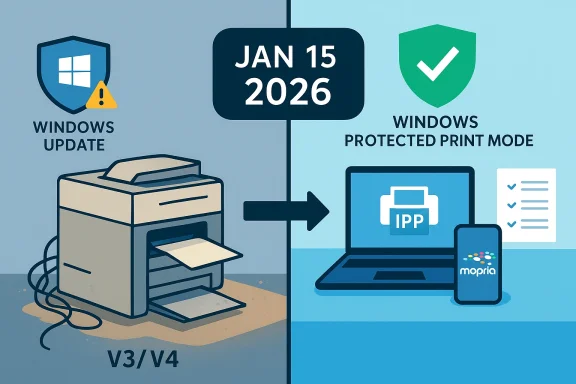
Windows Update on the left and Windows Protected Print Mode with IPP/Mopria printing on the right.Background​

For more than a decade Windows has relied on a mix of vendor-supplied printer drivers and in-box drivers to deliver print functionality. The old models — commonly referred to as V3 and V4 printer drivers — were written by manufacturers to expose device-specific features and performance optimizations, but they also increased the platform’s attack surface and created fragmentation problems across architectures (x86, x64, ARM). Microsoft’s strategy for the past few years has been to replace that model with the Modern Print Platform, which favors driverless printing (IPP/Mopria), standardized print support apps, and a more controlled update process.
That transition accelerated after Microsoft published an end-of-servicing plan for third-party printer drivers. The plan set a key milestone: as of January 15, 2026, Microsoft changed how it handles V3 and V4 driver submissions and their distribution via Windows Update. The technical details matter: Microsoft will continue to allow existing, installed V3/V4 drivers to function and will still provide security fixes while the OS version is in support, but the automated path that allowed manufacturers to publish new or updated legacy drivers to Windows Update has been curtailed and now requires additional controls and manual review.

What Microsoft actually confirmed — the facts​

  • Microsoft removed a misleading sentence from a Windows Roadmap entry that implied Windows would no longer “support” V3/V4 drivers in the sense of preventing them from working. The company clarified to journalists that established drivers will continue to work if they already function on a given PC.
  • What is changing is distribution and vetting: new V3/V4 driver packages submitted for distribution via Windows Update are blocked by default and will be subject to manual review and stricter justification requirements, effective January 15, 2026. That means vendors can still supply drivers through their own channels, but the automated Windows Update pipeline is being shut down for the legacy models except in exceptional cases.
  • Microsoft will continue to issue security fixes related to the legacy driver platform while the OS itself remains within Microsoft’s support lifecycle. The company also says it has no plans to disable legacy driver features in the OS — it’s primarily a servicing and distribution change.
  • The underlying rationale is consistent with Microsoft’s longer-term pitch: the Modern Print Platform reduces the need for vendor drivers by using standard protocols (IPP, Mopria) and can enable features such as Windows Protected Print Mode that improve security and reliability. However, the transition can and will create short‑to‑medium term friction for organizations that depend on vendor features not yet available through modern, driverless approaches.

Why this matters: practical impact for users and IT​

Many readers jumped quickly from a headline to panic: “My printer will stop working.” That’s not what Microsoft’s clarification says, but there are real and material changes that matter for different audiences.
  • For home users with a plug-and-play printer that already runs, the short-term risk is low: if your printer works on Windows 11 today, it will continue to work. You can still download drivers from the manufacturer’s site and install them manually.
  • For enterprise and managed environments, the ramifications are deeper. Organizations that rely on automatic driver deployment through Windows Update (or WSUS/Intune pipelines that ingest Microsoft-distributed drivers) must now plan for alternative distribution methods, tighter change control, and compatibility testing — particularly where multi-function devices expose scanner, fax, or custom control panel features.
  • For printer vendors, getting new legacy driver submissions onto Windows Update is no longer routine. Submissions will be blocked by default, require a justification document, and be reviewed manually. Partners must update internal processes and be prepared to demonstrate why a legacy driver is still required rather than moving to a modern driverless or print support app model.
These are operational changes — not an immediate compatibility apocalypse — but they are the kind of platform-level policy shifts that create unexpected operational work for administrators if ignored.

Technical nuance: V3, V4, Modern Print, and Windows Protected Print Mode​

What are V3 and V4 drivers?​

V3 and V4 are legacy driver architectures that allowed vendors to expose features and customizations specific to their hardware. V3 is the older model, with V4 being introduced later to improve reliability and architecture compatibility. Both still rely on third-party code running in privileged contexts on the PC. That historical model allowed rich device support, but it also increased risk and complexity.

What is the Modern Print Platform?​

The Modern Print Platform focuses on:
  • Driverless printing using IPP (Internet Printing Protocol), often via Mopria certification.
  • Print support applications for custom features rather than kernel-level or privileged vendor drivers.
  • Windows Protected Print Mode, which isolates printing to reduce attack surface and prevent untrusted driver code from undermining system security.
This model is designed for improved security, cross-architecture compatibility (including ARM), and simplified servicing. It’s also a precondition for Microsoft to safely scale driver-management decisions across billions of endpoints.

Windows Protected Print Mode: promise and caveats​

Windows Protected Print Mode (WPP) can improve security by enforcing that printing executes in a constrained environment. But it is not neutral for enterprises: enabling WPP can change how certain universal drivers (like HP’s Universal Print Driver) behave, potentially deleting or altering print queues and customizations in some configurations. Administrators must test WPP in lab and pilot environments before broad enablement. An HP advisory highlights how queue configurations may be lost when WPP is enabled with certain HP universal drivers — underscoring the need for careful testing.

What changed on January 15, 2026 — the policy mechanics​

Microsoft implemented a procedural and distribution-focused change rather than an instantaneous compatibility cutoff. Key operational facts:
  • Effective date: January 15, 2026 was the date Microsoft applied its next phase of the deprecation plan. This is when legacy driver submissions to Windows Update became blocked by default and subject to manual review.
  • Distribution vs. functionality: Existing V3/V4 drivers already in the wild and installed on devices continue to function; Microsoft will still provide security fixes for the legacy driver platform while the OS is supported. What’s changing is automated distribution via Windows Update and the requirements for new submissions.
  • Submission requirements: Partners now need to include a Driver Exception Justification Document with each new driver submission that targets V3/V4 classes. Submissions are blocked by default and will only be considered after a manual review process; adding new Hardware IDs to published packages is restricted and handled case-by-case.
  • Platform scope: The policy applies to Windows 11 and Windows Server 2025+; it is not limited to a single SKU. Security servicing for legacy drivers will continue while an OS version remains in its mainstream support lifecycle.

Strengths of Microsoft’s approach​

Microsoft’s changes are defensible and have clear benefits.
  • Security-first rationale. The historic print driver ecosystem has been a recurring attack vector (for example, print spooler vulnerabilities have been exploited in the wild). Reducing the number of third‑party drivers distributed automatically reduces exposure and simplifies patching strategies. The Modern Print Platform and Protected Print Mode are explicitly pitched to reduce this risk.
  • Long-term reliability and cross-architecture compatibility. The Modern Print Platform is designed to work consistently across device architectures and eliminates many driver incompatibility cases that have plagued Windows for years. This is particularly valuable as ARM devices proliferate in enterprise fleets.
  • Operational clarity for manufacturers. Vendors have notice and a clear process for exceptions; the new submission rules force a re-evaluation of whether legacy drivers are truly necessary versus moving to IPP, Mopria, or print support apps. That can encourage modernization.

Risks and shortcomings​

The plan is not without friction, and Microsoft’s communication missteps exposed critical operational risks.
  • Poorly worded communications created fear and confusion. The initial roadmap language led to headlines suggesting mass printer failures. That required rapid clarification — a clear sign that this kind of policy change demands careful messaging to avoid unnecessary panic.
  • Feature gaps remain in the Modern Print model. Many printers, especially enterprise multi-function devices, expose vendor-specific features (advanced finishing, secure-print workflows, custom PDL handling) that are not always replicated by print support apps or IPP. Until vendors fully support those features in driverless forms, organizations may face functionality trade-offs.
  • Operational burden on IT teams. Organizations that relied on automated Windows Update distribution for drivers must now implement alternative update pipelines, maintain vendor driver repositories, or accept manual installs. That increases administrative overhead and complicates patching and compliance audits.
  • Edge cases where protected mode can break workflows. As HP’s advisory illustrates, enabling Protected Print Mode without testing can lead to lost queue configurations or unusable print queues. Large fleets with custom print configurations are particularly exposed.

What administrators and power users should do now — an action plan​

Don’t wait for a printer to “stop working.” Use this policy transition as an opportunity to inventory, test, and modernize.
  • Inventory and classify your printers
  • Identify all printers and multi-function devices, including model, driver type (V3/V4 or modern), and how they are installed (Windows Update, vendor installer, manual INF). Prioritize high-volume or high-complexity devices for early review.
  • Test the Modern Print experience
  • For each model, test IPP/Mopria connectivity and evaluate whether required features are available through print support apps. If features are missing, document the gap and assess vendor timelines for modern support.
  • Create a vendor-driver fallback plan
  • For devices that require legacy drivers, implement a secure internal driver repository and a managed installation workflow (e.g., use Intune, MEM, or SCCM to push vendor-signed packages). Don’t rely solely on Windows Update for distribution.
  • Pilot Windows Protected Print Mode consciously
  • Test WPP in a non-production environment first. Check behavior with universal drivers and multi-function devices. Back up queue configurations before enabling WPP broadly, and coordinate with printer vendors on known issues.
  • Engage with vendors early
  • Ask your printer vendors for roadmaps showing when devices will support IPP/Mopria or print support apps. If necessary for your environment, request an exception process and clarify how the vendor will deliver updates outside Windows Update.
  • Harden security and monitoring
  • Ensure your endpoint protection and patching processes account for vendor-supplied installers. Monitor for print-related anomalies and log print spooler and driver installations so you can trace issues that appear after policy changes.

Vendor perspective: why manufacturers will resist and how they'll adapt​

Printer manufacturers face a choice: invest in modern, driverless features or continue to maintain legacy driver stacks and alternative distribution strategies. For many vendors the cost of re-engineering device-specific features into IPP and print support apps is non-trivial — particularly for older models.
  • Short-term: vendors will rely on their own websites, installer packages, and corporate support channels to ship legacy drivers. The Microsoft manual-review process for new legacy submissions will be used sparingly.
  • Medium-term: expect a push for Mopria certification and expanded IPP feature sets for new devices, as vendors seek to be compatible with Microsoft’s modern platform and minimize the friction of OS-driven distribution changes.
  • For enterprise-focused vendors, specialized print support apps that replicate advanced features (secure print release, custom job accounting, finishing options) will be a differentiator and likely a focus of investment.

Common questions answered​

  • Will my printer stop printing after January 15, 2026?
  • No. Printers that already have functional V3/V4 drivers installed will continue to work. The change affects how new legacy drivers are distributed via Windows Update and requires manual review for new submissions.
  • Can manufacturers still release drivers?
  • Yes. Manufacturers can still publish drivers through their own channels, and exceptions to Windows Update distribution will be handled case-by-case with justification. However, the automated Windows Update pipeline for new legacy drivers is effectively closed by default.
  • Will Microsoft stop fixing security issues in legacy drivers?
  • Microsoft stated it will continue to issue security fixes related to the legacy driver platform while the OS version is still within Microsoft’s support lifecycle. That is not the same as ongoing feature support.

Balanced assessment: progress with friction​

Microsoft’s policy shift is a logical step in the company’s long-term strategy to reduce attack surface, standardize printing across architectures, and encourage vendors to adopt a modern, driverless approach. Security and reliability gains are real and meaningful for the ecosystem as a whole.
That said, the operational realities of enterprise printing — complex multi-function devices, embedded workflows, and vendor-specific features — mean the transition will be bumpy. The biggest near-term risks are administrative: broken automation, untested print policies, and inadequate vendor coordination. Microsoft’s communications stumble didn’t change the technical reality, but it did highlight the importance of careful messaging for platform-level policy changes.

Final recommendations for Windows users and administrators​

  • Inventory and classify printers now — don’t wait for a failure to trigger remediation.
  • Prioritize pilot testing of the Modern Print Platform and Windows Protected Print Mode before broad rollouts.
  • Build a secure vendor-driver distribution process and ensure drivers pushed to endpoints are vendor-signed and vetted.
  • Press vendors for timelines on IPP/Mopria support and ask about plans to replicate device-specific features in print support apps.
  • Communicate clearly with end users about expected changes, especially in managed environments where print workflows are business‑critical. Poor messaging caused confusion already — plan your communications better.

Windows printing is entering a deliberate but disruptive phase. Microsoft’s move to restrict legacy driver distribution on Windows Update is defensible from a security and platform-maintenance point of view, and the company has clarified that existing drivers will not be forcibly disabled. Still, the transition places the onus on organizations and vendors to act: inventory, test, and modernize now, or assume the operational and security risk of running legacy drivers outside Microsoft’s automated servicing channels.

Source: Windows Report https://windowsreport.com/microsoft-confirms-windows-11-will-keep-legacy-printer-drivers/
 

Microsoft's late-February clarification that Windows 11 will not abruptly abandon older V3 and V4 printer drivers is a welcome course correction — but the practical implications of the company's multi‑year deprecation plan remain real and urgent for IT teams and anyone relying on older multifunction devices.

Blue Windows 11 graphic promoting print support apps (IPP/Mopria) with a printer and shield.Background / Overview​

Microsoft publicly announced a phased End of Servicing for third‑party legacy printer drivers in September 2023 and followed up with a formal timeline and FAQ on Microsoft Learn. The plan stages key changes across 2026 and 2027: beginning January 15, 2026, Microsoft stopped publishing new legacy V3/V4 drivers to Windows Update by default; on July 1, 2026, Windows will prefer Microsoft’s IPP inbox class driver when selecting a driver for a newly added printer; and on July 1, 2027, Windows Update will generally limit third‑party legacy driver updates to security‑only fixes. These milestones shift driver distribution and selection behavior while leaving existing on‑device functionality intact under most circumstances.
Last week Microsoft told Windows Central that the wording in a recent Windows Roadmap update implying an immediate removal of V3/V4 support was inaccurate and has been removed. The spokesperson explicitly said, “Windows has not ended support for legacy printer drivers. If your printer works with Windows today, it will continue to work, and no action is required.” At the same time, Microsoft confirmed the enforcement posture that prevents routine publication of new legacy drivers to Windows Update without an exception process. Independent reporting from major outlets tracked both the original roadmap wording and Microsoft’s clarification, and Microsoft’s Learn documentation still publishes the staged timeline and technical rationale for the change.
This distinction — between ending support entirely and changing how drivers are distributed and preferred — is crucial, yet easily misunderstood. The immediate consumer takeaway is reassuring: your old printer likely won’t become a paperweight overnight. The operational reality for administrators, procurement teams, and organizations that manage many devices is that the mechanics of installation, automatic replacement, and servicing are changing in ways that require planning.

Why Microsoft is shifting printer driver strategy​

The security and reliability rationale​

For more than a decade, Windows printing has relied on a mix of vendor‑supplied legacy drivers — commonly identified as V3 (legacy kernel‑mode drivers) and V4 (a later, more modular model). Those drivers often run code in privileged parts of the operating system and have been a persistent source of security and reliability issues, including high‑severity vulnerabilities that have targeted the print spooler and driver components.
Microsoft’s strategy aims to:
  • Reduce kernel‑mode attack surface by preferring inbox, protocol‑driven drivers.
  • Improve overall stability and reliability by standardizing on tested class drivers.
  • Simplify servicing and testing by limiting the explosion of vendor‑specific code paths distributed via Windows Update.
The company is encouraging vendors to move functionality out of kernel drivers into Print Support Apps (PSAs) and into modern protocols like IPP (Internet Printing Protocol) and Mopria/IPP Everywhere standards. PSAs run in user mode and can be updated independently, while IPP‑centric printing leverages a well‑tested inbox driver to provide baseline print functionality.

What changes technically​

  • Microsoft will no longer publish new legacy V3/V4 driver packages to Windows Update by default beginning January 15, 2026.
  • Driver ranking logic will be modified so that, when Windows installs a printer, it will prefer the Microsoft IPP inbox class driver by default starting July 1, 2026.
  • After July 1, 2027, Windows Update will generally only accept security‑related fixes for third‑party legacy drivers; non‑security updates will be restricted except by exception.
Those are policy and distribution changes more than an immediate technical cutoff. Vendors can continue to provide drivers via direct downloads or installer packages; administrators can still install drivers through management tools. But the plug‑and‑play experience where Windows Update silently supplies a vendor‑specific driver for an older printer will weaken or disappear in many cases.

How this affects users and organizations​

Home users and small offices​

For most consumers and small offices using moderately recent printers, little will change: modern printers typically support IPP/IPP Everywhere or are Mopria‑certified and will work with Microsoft’s inbox IPP class driver without additional vendor drivers. If your printer already works in Windows 11, the short answer is it should continue to work.
That said, there are practical considerations:
  • Feature‑rich functions like scanning, fax, advanced finishing, or vendor‑specific job accounting may require the vendor’s Print Support App or a legacy driver. Those features may not be available automatically via Windows Update.
  • If a manufacturer has no modern alternative, you may need to manually download and install the vendor driver from the manufacturer’s support site.
  • Some older USB‑attached devices rely on IPP‑over‑USB modes or alternate scanning protocols like eSCL or WS‑Scan; these modes will continue to work where supported, but may require configuration.

Small and medium businesses (SMBs)​

SMBs that rely on a mixture of older consumer devices and newer fleets will see friction where plug‑and‑play behavior breaks:
  • New hires or newly imaged PCs may not automatically get vendor drivers via Windows Update. IT will need to deploy vendor installers through management tools or provide self‑service installers.
  • Multi‑function devices that combine scanning and advanced printer features may need additional installs or configuration to keep full functionality.
  • The July 1, 2026 driver ranking change could cause Windows to select the IPP inbox driver over the vendor driver during new device installs, potentially altering behavior in shared environments.

Enterprises, schools, healthcare, government​

Large fleets and regulated environments face the greatest operational impact:
  • Print servers and imaging infrastructures should be audited. Many enterprise setups depend on Windows Update distribution of WHCP/WHQL‑signed vendor drivers for consistent deployments.
  • Specialized hardware in healthcare or manufacturing that depends on device‑specific drivers may require exception requests to Microsoft or vendor remediation plans to ensure feature parity.
  • Organizations with long refresh cycles or procurement timelines must plan hardware replacement or vendor migration well in advance of the 2026‑2027 milestones.

Strengths of Microsoft’s approach​

  • Improved security posture. Moving functionality out of kernel mode into user mode and prioritizing protocol‑based drivers reduces the attack surface and is a defensible security strategy.
  • Consistency and reliability. Using a well‑tested inbox IPP class driver for the majority of devices simplifies validation and reduces variance across Windows installs.
  • Push toward standards. Encouraging IPP/Mopria adoption benefits cross‑platform interoperability and reduces dependency on vendor lock‑in.
  • Modern update model. Print Support Apps can be updated through modern channels without requiring kernel‑mode driver cycles, giving vendors a safer, faster update path.

Risks, trade‑offs, and practical downsides​

  • Feature loss for legacy devices. Some multifunction printers depend on vendor kernel drivers to expose scanning endpoints, fax functionality, or advanced finishing. Those features may become harder to install automatically.
  • Administrative burden. IT must inventory, test, and deploy vendor installers manually or host drivers internally — a new operational cost for organizations that previously relied on Windows Update.
  • Vendor readiness variance. Not all manufacturers have Print Support Apps or IPP‑compatible firmware for older models. Smaller vendors may abandon legacy devices rather than produce updated installers.
  • User confusion and support load. Help desks may see increased tickets when plug‑and‑play stops working for certain older models, particularly in mixed environments.
  • Edge cases remain. There are legitimate scenarios (specialized hardware, regulatory requirements) where legacy drivers are the only workable solution; the exception process may be slow or unsatisfactory.

What administrators and power users should do now — a practical playbook​

Below is a prioritized, time‑bound plan that administrators and technically capable home users can use to prepare for the changes.

Immediate (within 2 weeks)​

  • Inventory printers and MFDs.
  • Record make, model, connection type (USB, network), current driver type (V3, V4, or IPP), and which features are used (scan, fax, job accounting).
  • Capture vendor driver package files and store them in a secure, centralized location.
  • Identify critical devices.
  • Flag multifunction devices and scanners used in workflows where loss of features would disrupt operations.
  • Verify vendor support.
  • Check whether the vendor offers a Print Support App, IPP/IPP Everywhere support, or updated drivers for Windows 11. If the vendor provides a modern installer, document the recommended deployment path.

Short term (1–3 months)​

  • Test the Microsoft IPP class driver.
  • On a test machine, remove and re-add representative devices to see whether baseline printing and scanning work with the inbox driver.
  • Document any functionality gaps and determine whether a vendor PSA or manual driver resolves them.
  • Build driver repositories and deployment scripts.
  • For managed environments, place vetted driver installers in WSUS, SCCM/MECM, or your chosen MDM solution and test silent install/uninstall behavior.
  • Communicate with stakeholders.
  • Inform help desks, procurement, and end users about the policy shift and your remediation plan so tickets and purchase requests are triaged correctly.

Medium term (by July 1, 2026)​

  • Prepare for driver ranking changes.
  • Because Windows will prefer the IPP class driver by default on new installs, ensure your imaging and device provisioning processes explicitly install vendor drivers or PSAs where required.
  • Establish exceptions or vendor escalation paths.
  • For mission‑critical hardware that cannot be modernized, create a support escalation plan with the vendor and document the justification required for any Microsoft exceptions.
  • Start a hardware refresh plan where necessary.
  • For devices with no modern drivers or vendor support, begin budgeting and procurement cycles to replace the hardware on a sensible lifecycle timetable.

Long term (by July 1, 2027)​

  • Audit and confirm security patching.
  • Microsoft intends Windows Update to only serve security updates for legacy drivers after this date in most cases. Confirm that your retained legacy drivers will be patched or hosted internally if needed.
  • Reduce dependence on legacy drivers overall.
  • Move to IPP/Mopria‑compliant devices when feasible and adopt PSAs for vendor‑specific features to reduce future friction.

Troubleshooting quick wins for end users​

  • If a printer suddenly stops auto-installing via Windows Update, manually download and run the vendor installer (preferably the WHCP/WHQL signed package) and test whether scanning features are restored.
  • For network printers, try adding the device using the IPP/Internet Printing Protocol option — many modern devices expose IPP endpoints that work immediately with the inbox driver.
  • If a feature is missing after the switch to the IPP class driver, install the vendor’s Print Support App (if available) and verify whether it restores advanced features.

Vendor responses and what's reasonable to expect​

Major printer vendors have been preparing for this transition. The common vendor playbook includes:
  • Shipping a Print Support App that provides advanced features outside kernel drivers.
  • Offering IPP or Mopria firmware updates for newer hardware so the inbox driver provides acceptable baseline functionality.
  • Hosting legacy installers on their support sites for customers who must continue using older models.
However, vendor readiness varies. Some manufacturers will prioritize modern fleets, leaving older models dependent on packaged legacy installers. Organizations should not assume uniformity across vendors and should validate each critical device.

Regulatory, accessibility, and supply‑chain considerations​

  • In regulated industries, validated device configurations and vendor‑supplied drivers may be part of compliance regimes. Changes to driver distribution could complicate validation and audit trails.
  • Accessibility features baked into vendor software might not be fully replicated by the IPP class driver or a PSA. Test any assistive functionality to ensure accessibility obligations remain met.
  • Procurement cycles and spare parts availability for legacy devices should factor into replacement planning, especially in environments with extended device lifecycles.

What Microsoft’s clarification does and doesn’t do​

Microsoft’s public clarification — that existing legacy drivers remain supported and that devices that work today should continue to work — is important and alleviates panic. It confirms that there is no immediate, unilateral cutoff that will render existing printers unusable.
What the clarification does not change is the underlying policy: Microsoft will not be the default distribution channel for new legacy driver submissions to Windows Update starting January 15, 2026, and the OS will prioritize the IPP inbox class driver in many new installs. Those are operational realities that will still require proactive planning by administrators.
Where reporting diverged, the error was primarily in how the roadmap language was communicated and interpreted. The correct position to emphasize is pragmatic: printers are not being remotely disabled, but the convenience of automatic driver delivery via Windows Update is being curtailed in favor of a more secure, standards‑based model.

Final assessment and recommendations​

Microsoft’s shift away from distributing new legacy V3/V4 drivers via Windows Update is a strategic move with clear security and reliability benefits, but it also transfers a measurable management burden to organizations and users who continue to rely on older printers. The recent clarification that existing drivers and devices will continue to work is accurate and useful, yet it must not be an excuse for complacency.
Priority actions:
  • Inventory now. Know precisely what devices you have and how they are installed.
  • Validate vendor support. Confirm which printers have modern alternatives (IPP/Mopria or PSAs).
  • Preserve driver packages and deployment processes. Host vetted installers and create documented installation procedures.
  • Test proactively. Simulate new deployments and imaging workflows to observe how driver ranking and IPP preference affect device behavior.
  • Plan refreshes for unserviceable devices. Replace hardware when vendors do not provide modern alternatives and the device is critical.
This is not a crisis so much as a transition: Microsoft is steering the ecosystem toward a more secure, standardized future for printing. Organizations that treat the 2026 and 2027 milestones as project dates rather than footnotes will avoid surprises and preserve full printing functionality while benefiting from a cleaner, safer printing stack in the long run.

Source: Technobezz Microsoft Reverses Course on Legacy Printer Driver Support for Windows 11
 

Microsoft’s backpedal on recent roadmap wording won’t change the direction of travel: Windows 11 is not suddenly dropping support for legacy V3 and V4 printer drivers overnight, but the plumbing that delivered those drivers to millions of PCs has been reconfigured — and the practical effect for users, IT teams, and hardware partners will be significant over the next 18 months.

Windows 11 print workflow: V3/V4 to IPP class driver, with Universal Print and Mopria IPP options.Background: what spooked users and what Microsoft actually said​

Confusion began when an update to a Microsoft Roadmap entry earlier this month appeared to state that Windows would “no longer support V3 and V4 printer drivers.” The line suggested an immediate cutoff, and headlines followed that warned millions of older printers could stop working on Windows 11.
Microsoft quickly clarified the record: Windows has not ended support for legacy printer drivers. If your printer works with Windows today, it will continue to work, and no action is required. What changed — and what the company quietly implemented on January 15, 2026 — is a tightening of the submission and distribution path for new V3 and V4 drivers via Windows Update. New submissions are now blocked by default and require a case-by-case justification and manual approval. Existing drivers already published via Windows Update remain available, installed printers will continue to function, and manufacturers can still ship drivers directly to customers.
That distinction — between removing driver functionality and changing the publication and distribution policy — is the crucial one. Microsoft is not yanking drivers out of users’ PCs today. Instead, it is constraining Windows Update as a distribution channel for third-party legacy drivers and accelerating a longer-term move to a modern, driverless printing model.

Overview: the official timeline and the mechanics you need to know​

Microsoft’s deprecation plan for legacy third‑party printer drivers has been staged over several years. The important milestones IT staff and savvy consumers should note are:
  • September 2023: Microsoft announced an end-of-servicing plan for legacy third‑party printer drivers (V3/V4).
  • January 15, 2026: For Windows 11 (and Windows Server 2025+), new legacy V3/V4 printer driver submissions to Windows Update are blocked by default; submissions require a Driver Exception Justification and manual review. Existing drivers on Windows Update remain accessible and can still be updated under restricted conditions.
  • July 1, 2026: Windows will change its internal driver ranking to prefer the built‑in Microsoft Internet Printing Protocol (IPP) inbox class driver when both Microsoft’s class driver and a third‑party legacy driver are available.
  • July 1, 2027: Third‑party legacy printer driver updates delivered via Windows Update will be limited to security-related fixes only; general servicing of V3/V4 drivers through Windows Update will effectively end.
Put simply: the supply chain and update channel are being narrowed first, then Windows will lean on a built-in, standardized printing path, and finally general servicing of legacy drivers through Windows Update will be curtailed.

Why Microsoft is doing this: security, maintenance, and consistency​

The security problem with legacy drivers​

Legacy printer drivers — the V3 and V4 driver models that many vendors used for more than a decade — often run code at privileged levels in the OS. Over many years, that design has proven risky: printer drivers that run in kernel mode or have extensive system privileges can become vectors for remote code execution, privilege escalation, and persistent footholds for attackers. The infamous PrintNightmare class of vulnerabilities is a recent, high-profile example of how print-related components can be exploited to achieve kernel-level compromise.
By reducing reliance on third‑party legacy drivers, Microsoft aims to limit the attack surface, reduce the number of vendor-supplied binaries running with high privileges, and make the printing subsystem more auditable and uniform across devices.

Operational and maintenance costs​

Beyond outright security, maintaining an ecosystem of thousands of vendor drivers — each with its own versions, architectures (x86, x64, ARM64), and quirks — imposes a long-term maintenance burden. Microsoft’s move to prefer an inbox IPP class driver and promote modern print modes simplifies driver testing and servicing for Windows across SKUs and architectures.

User experience consistency​

Vendor drivers can produce inconsistent printing behavior, subtle crashes, or mismatches between Windows versions. Moving toward standardized, IPP-based printing and class drivers gives Microsoft a predictable baseline to optimize and improve for all users.

Exactly what changed on January 15, 2026​

Submission intake and review​

  • New V3/V4 submissions (WHQL and Attestation) that target Windows 11 and Windows Server 2025+ are now blocked by default at Microsoft’s intake stage.
  • Hardware partners who need to publish a legacy driver must include a Driver Exception Justification document — a structured JSON payload with supporting materials — explaining why the driver must be published.
  • Microsoft reviewers now evaluate exceptions manually; the default outcome is a block, with approval given only for specific, documented reasons.

Permitted exceptions (examples)​

Microsoft has defined specific exception categories for 2026, including but not limited to:
  • Devices that cannot support Mopria/IPP.
  • Fax devices.
  • ARM64 driver additions.
  • Drivers targeting Windows 10 22H2 or earlier, or Windows Server 2022 or earlier.
  • Driver updates that are strictly security fixes, or that do not add new hardware IDs or new functionality.
These exceptions are narrow by design; they preserve paths when necessary while restricting broad distribution of new legacy driver packages.

Distribution changes​

  • Windows Update is no longer the default delivery mechanism for newly signed legacy drivers targeting modern Windows releases.
  • Existing driver packages already published to Windows Update remain available; some updates may still be approved on a case-by-case basis.
  • Vendors retain the option to ship drivers through their own installers and distribution channels directly to customers.

Windows Protected Print Mode and the push to driverless printing​

Windows Protected Print Mode (WPP) — introduced as an optional feature in Windows 11 24H2 — is central to Microsoft’s long-term vision. WPP shifts printing to the modern print stack and removes third‑party drivers entirely while it is enabled: printers installed with third‑party drivers are uninstalled and replaced with the modern, Microsoft-provided IPP class driver where possible. WPP is disabled by default, but when turned on it creates an environment that enforces the driverless model.
WPP’s objectives are straightforward:
  • Eliminate risky third‑party binaries from the print path.
  • Standardize behavior across devices.
  • Encourage adoption of IPP and Mopria-compliant printing.
Hardware vendors and enterprise print managers have already reported that enabling WPP can delete driver-based queues and customizations, so the feature must be evaluated and tested before deployment.

What this means for consumers and small businesses​

Short answer: don’t panic, but take practical steps.
Most home users and small businesses will see no immediate change — installed printers continue to work. But the shift affects how new drivers are published to Windows Update, so future driver deliveries for older printers will be more likely to come directly from printer manufacturers rather than Microsoft’s update channel.
Recommended actions:
  • Check your printer model and current driver type. If the device is working now, it will continue to work. Make a note of the installed driver package and keep vendor installers handy.
  • Bookmark or record vendor support pages for your printer model. If Windows Update stops offering a new driver for a given model, the OEM’s support site is the primary place to find installers.
  • Avoid enabling Windows Protected Print Mode on personal or business machines that rely on vendor drivers unless you have validated compatibility.
  • If your printer supports Mopria or IPP, enable IPP in the device settings and test the Microsoft IPP class driver on a non-critical workstation to see if it meets your needs.
  • For critical printing functions (special finishing, custom trays, fax over IP), test thoroughly; some device-specific features may still require vendor software or Print Support Apps.

What this means for IT administrators and enterprise print managers​

Enterprises must treat this as a strategic change, not an emergency. The most important work is inventory, testing, and migration planning.
Immediate checklist for IT teams:
  • Inventory your print fleet.
  • Identify which printers use legacy V3/V4 drivers and which support Mopria/IPP.
  • Record which queues rely on vendor-specific features (finishers, staple, booklets).
  • Prioritize critical printers.
  • Map mission-critical print workflows and identify printers whose loss would interrupt business processes.
  • Test IPP and the Microsoft IPP class driver.
  • Create a lab environment and test migrating select printers to IPP/Mopria.
  • Validate feature parity. Some advanced features may require vendor-provided Print Support Apps (PSAs) or firmware updates.
  • Work with hardware vendors.
  • Ask vendors how they will deliver drivers going forward (direct installers, managed deployment packages, or moving customers to IPP/Universal Print).
  • Request ARM64 builds where needed and document support commitments.
  • Plan staged enablement of Windows Protected Print Mode (if appropriate).
  • Use pilot groups and test plans; enabling WPP will uninstall third‑party drivers and could remove customized queue settings.
  • Consider cloud and third‑party print management.
  • Evaluate Microsoft Universal Print or third-party managed print services for large or geographically-dispersed environments.
  • Update operational runbooks and endpoint imaging.
  • Ensure deployment scripts and imaging workflows include vendor installers for models that won’t be available via Windows Update or move to IPP-based provisioning scripts.
Larger organizations should view this as an opportunity to reduce long-term management effort by migrating to standardized print channels (IPP, Universal Print), but the migration will require coordination with vendors and careful validation of print features.

Vendor and channel implications​

Printer OEMs and resellers will need to adapt distribution and support processes. Under the new intake rules, publishing new legacy drivers to Windows Update is no longer a straightforward option. Partners who historically relied on Windows Update distribution must now consider:
  • Maintaining direct download pages and installer packages.
  • Building or promoting Print Support Apps and IPP capabilities.
  • Preparing justification documentation when a legacy driver must be published for exceptional reasons.
  • Accelerating firmware and feature development that supports IPP/Mopria to reduce reliance on legacy drivers.
The policy also nudges vendors toward cloud-managed print models, including Microsoft Universal Print and partner integrations, which reduce reliance on endpoint drivers and centralize management.

Migration strategies and technical options​

Here are practical migration strategies IT teams can use, ranked by typical enterprise suitability:
  • Universal Print (cloud-first): Best for organizations ready to adopt cloud services and simplify management by removing on-premises print servers and many drivers. Requires Universal Print licensing and connector setup for non-native printers.
  • IPP / Mopria conversion: For fleets with Mopria-compatible printers, switch endpoints to the Microsoft IPP class driver. This is often the most direct route to driverless printing without a cloud dependency.
  • Print Support Apps (PSAs): Use vendor PSAs where IPP does not expose the full feature set. PSAs can provide missing capabilities while minimizing kernel‑mode driver exposure.
  • Vendor-supplied installers: For devices that require legacy drivers, keep a catalog of installer packages and build deployment scripts (e.g., via Endpoint Manager or SCCM) to push drivers to endpoints.
  • Hybrid approach: Use Universal Print for general office printing and retain vendor drivers only on devices that perform specialized work (e.g., high-volume finishing centers).
Whichever path you choose, a staged pilot approach is essential to prevent surprises.

Security and compliance considerations​

  • Reducing third‑party kernel‑mode driver exposure limits one class of risk, but only if organizations actually remove or replace those drivers.
  • If you must keep legacy drivers, treat them as high-value assets: track versions, limit administrative privileges for driver installations, and maintain a patching cadence.
  • If sensitive prints travel through cloud-managed services, ensure compliance with applicable data protection and residency rules; evaluate Universal Print’s security and compliance posture against your organization’s requirements.
  • Enabling Windows Protected Print Mode strengthens endpoint security but must be balanced against operational impacts and tested thoroughly.

Practical troubleshooting tips and quick wins​

  • If a printer stops automatically appearing after update or migration, check whether the Microsoft IPP class driver can install and provide the needed job options.
  • For multifunction devices where scanning is critical, verify the scanner path separately; scanning often still relies on vendor utilities or network/MFP-native options.
  • Keep a local archive of vendor installers for every model you support; this is the fastest path to restore functionality if Windows Update no longer offers a driver for that model.
  • Use print queue scripts to export and import queue configurations during migration pilots, and document any customization lost during Protected Print Mode enablement.

The long-term outlook: what to expect by mid‑to‑late 2027​

Microsoft’s roadmap indicates a clear trajectory: restrict distribution (2026), prefer a modern class driver (mid‑2026), and limit third‑party driver servicing to security fixes only (mid‑2027). Over time, expect:
  • More aggressive enterprise adoption of IPP and cloud print management.
  • Vendor investment in Mopria/IPP compliance and cloud integrations to remain competitive.
  • Continued availability of vendor installers for legacy hardware, but with decreasing prominence in Windows Update.
  • Optional features like Protected Print Mode becoming a recommended hardening step for security-conscious organizations.
This will be a multi-year transition; legacy printers won’t suddenly stop working, but not preparing will increase operational friction as vendors and Microsoft steer the ecosystem toward a driverless, standardized future.

Final verdict: plan now, replace when needed, but don’t panic​

Microsoft’s clarification is real: Windows 11 is not immediately ending support for legacy V3/V4 drivers. But the policy change that took effect in January 2026 changes where and how those drivers get delivered. The underlying intent — improved security, fewer fragile vendor binaries, and a migration toward IPP/driverless printing — is well founded given the history of print-related vulnerabilities and the heavy maintenance burden of legacy drivers.
For most home users, there is no immediate action required beyond keeping vendor installers and checking for IPP compatibility. For IT teams and print managers, now is the time to inventory, pilot, and migrate: test IPP and Universal Print options, engage OEM partners to understand their roadmaps, and stage a careful rollout of Windows Protected Print Mode only after validation.
The printer in your office or den likely has more printing days ahead. The real work is preparing a resilient, tested path from today’s legacy drivers to tomorrow’s standardized, secure printing environment.

Source: Tom's Hardware Microsoft clarifies Windows 11 printer driver policy — support for legacy printers is not ending
 

Back
Top