

Windows Remote Assistance remains one of the simplest built‑in ways for a trusted helper to view or control a PC and fix problems from afar, but its practical usefulness today depends on which tool you pick, which Windows release you run, and — critically — whether you follow strict security hygiene to avoid tech‑support scams and unintended exposure. Microsoft’s support documentation still lists the legacy Remote Assistance workflow and explicitly recommends Quick Assist as the modern alternative, while warning users to only accept help they requested.
Remote help features have been part of Windows for nearly two decades. Windows Remote Assistance originated in Windows XP and was refined through Vista and Windows 7. It let a user generate an invitation and a temporary password so an invited helper could view and — with permission — control the remote desktop. Microsoft later introduced Quick Assist in Windows 10 and 11 as a simpler, code‑based relay using the Remote Desktop Protocol over HTTPS. Over time Quick Assist has become the recommended on‑demand tool for consumer support, while Windows Remote Assistance remains available in many systems for compatibility.
Source: Microsoft Support Solve PC problems remotely with Remote Assistance - Microsoft Support
 Background
Remote help features have been part of Windows for nearly two decades. Windows Remote Assistance originated in Windows XP and was refined through Vista and Windows 7. It let a user generate an invitation and a temporary password so an invited helper could view and — with permission — control the remote desktop. Microsoft later introduced Quick Assist in Windows 10 and 11 as a simpler, code‑based relay using the Remote Desktop Protocol over HTTPS. Over time Quick Assist has become the recommended on‑demand tool for consumer support, while Windows Remote Assistance remains available in many systems for compatibility. Why there are two tools
- Windows Remote Assistance: a legacy feature integrated into System Properties; invitations can be created and sent as files or via older Easy Connect mechanisms. It is useful for scenarios where the helper and requester have matching system capabilities or for environments where older workflows persist.
- Quick Assist: a modern, purpose‑built app included with Windows 10 and 11 that uses short, time‑limited security codes and Microsoft’s RDP relay services over TLS/HTTPS; designed for rapid, one‑off support sessions without router configuration. Quick Assist is the simpler, more robust option for most users.
How Remote Assistance works today (high‑level)
Remote Assistance and Quick Assist both let a helper see the user’s screen and, if granted, control the keyboard and mouse. But the transport and trust models differ.- Quick Assist uses an RDP relay service operated by Microsoft, communicates over port 443, and is encrypted with TLS (the helper signs in with a Microsoft account or Entra ID). Because Quick Assist relays traffic through Microsoft endpoints, it avoids most NAT/router configuration headaches.
- Traditional Remote Assistance originally offered an Easy Connect option that attempted peer‑to‑peer connections using Microsoft’s Peer Name Resolution Protocol (PNRP) and Teredo tunneling for IPv6. That path has proven unreliable in modern networks and many Windows builds because it depends on IPv6 tunneling, router support, and Microsoft PNRP infrastructure. If Easy Connect isn’t available, Remote Assistance can still work using invitation files and manual methods, but those require extra steps.
Step‑by‑step: Enable and use Windows Remote Assistance (legacy method)
If you prefer or require the legacy Remote Assistance flow, follow these steps to enable it and create an invitation file. These instructions reflect Microsoft’s published guidance and remain valid on Windows 10 systems that include the feature.- Open System Properties: press the Windows key and type "remote assistance" or search for "Allow Remote Assistance invitations to be sent from this computer".
- On the Remote tab, check Allow Remote Assistance connections to this computer and click OK.
- To request help: open the Remote Assistance dialog and choose Invite someone to connect to your PC and help you → Invite someone you trust to help you. Then:
- Use Easy Connect if it is available (it often is not).
- Otherwise, save an invitation file and send it to the helper via email or another secure channel; also provide the temporary password shown.
- The helper opens the invitation, authenticates as required, and connects. The local user must accept or allow control when requested.
Quick Assist: the recommended built‑in alternative
For most home users and many small organizations, Quick Assist is the better choice today. It’s included with Windows, trades files and passwords for short security codes, and requires no router changes. Quick Assist’s design emphasizes convenience and safer defaults for ad‑hoc sessions. Key points:- The helper signs in with a Microsoft account or Entra ID and generates a time‑limited code.
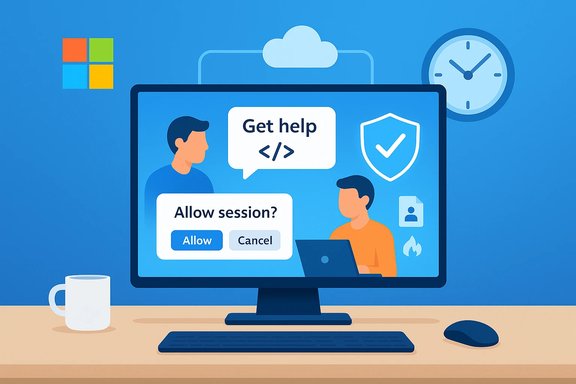
- The user enters that code in Quick Assist’s Get help pane; the user then explicitly allows the session and can revoke control at any time.
- Traffic is encrypted and relayed via Microsoft’s RDP service over HTTPS port 443, so it traverses most home and corporate firewalls without port forwarding.
Easy Connect and PNRP: why that option frequently fails
Easy Connect was an attractive convenience, but it depended on several fragile pieces: Peer Name Resolution Protocol (PNRP), IPv6/Teredo tunneling, and certain Microsoft network seeds and router behaviors. Over many Windows versions these components have become less reliable for consumer scenarios. Independent reporting and Microsoft community threads consistently show that Easy Connect is often unavailable or fails to bootstrap PNRP, leaving users with the invitation‑file fallback or Quick Assist for a smoother experience. If you see a message such as "Easy Connect is not available" or "Can't connect to the global peer‑to‑peer network," that’s usually the underlying cause. Because Easy Connect relies on IPv6 tunneling and name resolution that many consumer routers and ISPs don't fully support, administrators and helpers should expect inconsistent availability and prefer Quick Assist or third‑party tools for reliable, repeatable support.Security: tech support scams and safe practices
Microsoft’s published guidance on Remote Assistance and Quick Assist contains a stark, repeated warning: only allow a helper to connect if you initiated the interaction and you know exactly who is on the other end. Tech‑support scams remain a major industry problem where attackers pose as Microsoft or OEM support to obtain persistent access or payment for fake fixes. Microsoft instructs users to report scams through their technical support scam form if they suspect abuse. Practical precautions for any remote‑help session:- Only accept connections you requested from a verified helper (your company’s IT, a known friend, or a verified Microsoft support channel).
- Never share passwords, verification codes, or sign in to accounts at the helper’s request unless the helper is a known, trusted IT staff and you use an enterprise workflow.
- Observe the helper’s actions during the session; if anything looks suspicious, disconnect immediately.
- Prefer time‑limited, on‑demand methods (Quick Assist codes, one‑time invitation files) over unattended access mechanisms.
- For business environments, favor Intune Remote Help or enterprise remote management solutions that enforce Conditional Access, RBAC, auditing, and integration with endpoint detection tooling. Microsoft explicitly recommends Intune Remote Help for enterprise requirements because it provides stronger controls than consumer Quick Assist.
Practical comparison: Remote Desktop, Remote Assistance, Quick Assist, and third‑party options
Choosing the right remote access tool means balancing convenience, security, and use case.- Remote Desktop (RDP)
- Intended for unattended access, remote work, or administrative tasks.
- Requires Windows Pro/Enterprise on the host for incoming connections and typically needs network configuration (port forwarding or VPN) for internet access.
- Strong for continuous access and multi‑user admin scenarios but carries additional attack surface if exposed to the internet without protections.
- Windows Remote Assistance (legacy)
- Good for familiar pairings where both parties prefer the invitation‑file flow.
- Easy Connect often unreliable; invitation file method is manual and requires passing a file and password over a secure channel.
- Quick Assist
- Best for one‑off troubleshooting between Windows devices.
- Uses short codes, relays through Microsoft, and generally gets through NATs and firewalls. Safer and simpler for consumers.
- Third‑party remote support (TeamViewer, AnyDesk, Chrome Remote Desktop, etc.
- Feature sets vary: unattended access, file transfer, multi‑platform support, performance optimizations.
- Many reputable providers offer free or commercial offerings with more control (session logging, device groups, policy enforcement).
- When used in enterprise settings, these tools should be evaluated for compliance, logging, and security posture. Independent reviewers rank TeamViewer, AnyDesk, and Chrome Remote Desktop among reliable options for different needs.
How to reduce risk during a remote session — an operational checklist
- Verifying identity
- Confirm the helper’s identity via a secondary channel (work chat, official ticket URL, or corporate phone number).
- Limit scope
- Grant control only when needed; prefer view‑only while diagnosing.
- Monitor activity
- Watch the helper’s actions live. If they open unexpected consoles, browsers, or credential prompts, pause the session and ask for clarification.
- Use ephemeral access
- Use short, time‑limited codes (Quick Assist) or temporary invitation files rather than providing persistent credentials or installing remote agents for permanent access.
- Record and log
- In enterprise contexts, choose tools that record sessions or provide detailed logs and session metadata to support audits.
- Revoke and remediate
- After the session, run a quick security sweep: check installed programs, browser extensions, and credential stores. If you suspect compromise, rotate passwords and escalate to security teams.
When Remote Assistance is the right choice — and when it isn’t
Use Remote Assistance or Quick Assist when:- You need immediate, real‑time troubleshooting and the other person is not comfortable following phone instructions.
- The problem is interactive (UI or configuration issues) and requires mouse/keyboard control to demo fixes.
- You want a one‑time session and do not require unattended or persistent access.
- You require unattended access for servers or remote staff — use Remote Desktop with secure gateway, VPN, or enterprise remote‑management tooling.
- You are uncertain about the identity of the helper or receive an unsolicited call offering to fix your machine.
- Regulatory or compliance requirements mandate auditable, tenant‑bound controls — prefer Intune Remote Help or enterprise remote support suites.
Troubleshooting tips when sessions fail
- Easy Connect is frequently unavailable: if you see the Easy Connect error, switch to invitation files or Quick Assist. Many contemporary Windows builds and home routers don’t support the PNRP/Teredo plumbing Easy Connect relies on.
- Firewall and network restrictions: Quick Assist is designed to work over port 443. If a session fails, verify that HTTPS outbound is permitted. For legacy Remote Assistance, invitation file delivery or RDP port issues may be the blocker.
- Account and authentication problems: Quick Assist helpers must sign in with a Microsoft account or Entra ID. If authentication fails, confirm credentials and that your tenant’s conditional access policies allow the action.
Enterprise considerations: switch from Quick Assist to Intune Remote Help
Organizations using Quick Assist inside a single Microsoft Entra tenant should consider Intune Remote Help as a better, more secure alternative. Intune Remote Help brings:- Conditional Access enforcement to ensure only compliant devices connect.
- Role‑based access control to limit who can provide support.
- Session logging for compliance and incident response.
- Tenant isolation and better data sovereignty controls compared with the consumer Quick Assist model.
Alternatives, costs, and feature tradeoffs
- TeamViewer / AnyDesk: feature‑rich, cross‑platform, support unattended access and file transfer; often free for personal use but commercial licensing can be expensive.
- Chrome Remote Desktop: free, browser‑based, cross‑platform, great for quick cross‑platform connections but less feature‑rich for managed support.
- Remote Desktop Gateway / VPN + RDP: robust for business remote work, but requires configuration and strong network controls to avoid exposing RDP to the public internet.
- Convenience vs. control
- Short‑term help vs. long‑term unattended access
- Budget and licensing constraints
- Need for session logging and compliance features
What remains unverifiable or variable
Some legacy behaviors and Easy Connect availability vary by Windows build, ISP, and router firmware. Microsoft’s main support page still documents the Easy Connect option in the Remote Assistance dialog, but community reports and testing show Easy Connect is often nonfunctional on many modern setups because the necessary PNRP/Teredo services and seed servers are no longer universally available. That inconsistency means advice about “enable Easy Connect” must be framed as contingent: if Easy Connect appears and works on your system, great; if not, expect to use an alternative. Readers should treat Easy Connect availability as an environment‑dependent detail rather than guaranteed functionality.Final assessment — strengths and risks
Windows’ built‑in remote‑help options remain valuable for quick troubleshooting without installing third‑party software. Quick Assist in particular is an accessible, encrypted, relay‑based tool that avoids many network configuration headaches and is appropriate for consumers and small support teams. It also enforces ephemeral access through short codes, which is a security win over older invitation files that rely on moving a file and password. However, risks and limitations persist:- Tech‑support scams exploit user confusion; the primary defense is user verification and refusing unsolicited help requests. Microsoft repeatedly warns about this threat.
- Legacy Easy Connect is unreliable in modern networks and should not be relied upon for mission‑critical support workflows.
- For organizations with compliance or audit needs, consumer Quick Assist lacks the policy, logging, and tenant isolation that enterprise remote‑help solutions provide; Intune Remote Help or third‑party enterprise products are preferable.
Practical takeaway and next steps
- Prefer Quick Assist for ad‑hoc, verified, on‑demand support between Windows machines; it’s built into Windows 10/11 and uses an encrypted RDP relay.
- Use the legacy Remote Assistance invitation flow only when necessary and expect to rely on saved invitation files rather than Easy Connect on modern networks.
- Adopt enterprise remote‑help tools (Intune Remote Help or established third‑party suites) if you need role‑based access, conditional policies, and session auditing.
- Always verify the helper’s identity through a separate channel and disconnect immediately if anything seems off; report suspected scams through Microsoft’s abuse channels.
Source: Microsoft Support Solve PC problems remotely with Remote Assistance - Microsoft Support
