

Microsoft’s latest shift puts AI agents where you already look first: the taskbar. In a previewed set of changes rolling through the Windows Insider program, Microsoft is transforming the familiar taskbar search slot into an agentic control surface — a place where Microsoft 365 Copilot and third‑party agents can be launched, monitored, and let run in the background while you work. That pivot toward an “agentic OS” promises real productivity gains — automated, multi‑step tasks started from the taskbar — but it also raises new questions around isolation, auditing, and enterprise governance that organizations must confront before they flip the switch.
Microsoft’s plan builds on years of incremental Copilot integration across Windows: the Copilot app, Copilot Vision (screen‑aware analysis), voice activation, File Explorer actions, and the Copilot+ device tier that can accelerate local inference. The newest layer folds agentic automation into core OS surfaces by:
Source: How-To Geek Windows 11 is overhauling the taskbar, again
 Background / Overview
Microsoft’s plan builds on years of incremental Copilot integration across Windows: the Copilot app, Copilot Vision (screen‑aware analysis), voice activation, File Explorer actions, and the Copilot+ device tier that can accelerate local inference. The newest layer folds agentic automation into core OS surfaces by:- Introducing an Ask Copilot taskbar pill (opt‑in) that mixes fast, indexed Windows Search hits with conversational Copilot responses and multimodal inputs (voice and Vision).
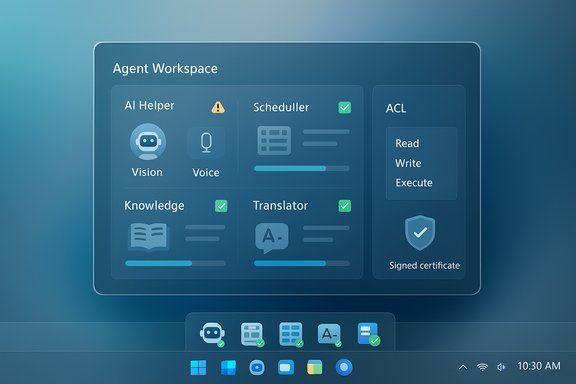
- Letting AI agents be visible on the taskbar as running entities with status badges, hover previews, and background execution.
- Shipping an Agent Workspace runtime and a security model where agents run under separate agent accounts with least‑privilege access and explicit folder permissions.
- Exposing a Model Context Protocol (MCP) and APIs so third‑party agents and apps can integrate with this agent framework.
What exactly is changing in the taskbar?
Ask Copilot: the taskbar pill becomes an assistant
When enabled, the traditional taskbar search field can be replaced with an “Ask Copilot” pill. Typing into the pill continues to surface local apps, files, and settings — because the feature layers on top of the existing Windows Search APIs — but now you also get Copilot‑style responses and the ability to escalate into a chat session. Two small icons in the pill let you:- Activate Copilot Vision (share a window or region for OCR and visual context).
- Use voice via press‑to‑talk or the opt‑in “Hey, Copilot” wake word.
Taskbar agents: visible, monitorable, and backgroundable
The big UI change is that agents are now treated like first‑class taskbar occupants. Key UI and behavioral elements include:- Taskbar icons for agents that display status badges (e.g., a yellow exclamation for an agent needing input, a green tick for completion).
- Hover previews that show a snapshot of what an agent is doing without switching context.
- Agents that can continue work in the background inside the Agent Workspace while you keep using the PC.
- Notifications and state updates surfaced directly on the taskbar icon.
Agent Workspace and security model
Microsoft’s agentic features rely on a new runtime called the Agent Workspace. Important technical and security design points Microsoft describes:- Agents run under separate Windows accounts (agent accounts), not under the user’s primary account, enabling clear ACL boundaries and per‑agent auditing.
- The workspace is a contained, parallel desktop session with runtime isolation — lighter than a full VM but isolated enough to limit unintended interactions with the user’s session.
- The platform enforces least‑privilege: agents only get access to specific known folders (Documents, Downloads, Desktop, Pictures, Music, Videos) if an administrator or user explicitly grants that access.
- Agents and agent binaries are required to be signed, enabling Microsoft or administrators to revoke compromised or malicious agent certificates.
How to enable or disable the experimental agentic features
Enabling agentic features is intentionally an explicit, administrative action. The general, verified steps to opt in (Insider preview) are:- Open Settings (Win + I).
- Go to System → AI Components.
- Under Agent tools, toggle Experimental agentic features on.
- Confirm the prompt to provision agent accounts/workspaces if you proceed.
File Explorer, Click‑to‑Do, and deeper Copilot integrations
The taskbar change is part of a broader push to make Copilot accessible across Windows. File Explorer is getting explicit Copilot actions in the context menu so users can summarize documents, generate drafts from a file’s contents, or ask questions about a file in one click. The same permissioned model applies: Copilot only reads file contents when you explicitly attach or grant permission. Microsoft also continues to evolve Copilot into a hub for file search, semantic search, and connectors to third‑party services (Outlook/Gmail, Google Drive, etc. in updates rolling through the Copilot on Windows app.Why this matters: practical benefits
- Reduced context switches. Short workflows like summarizing a document, extracting data from a spreadsheet, or drafting an email can be started and monitored without leaving your current app.
- Visible automation. Background tasks show progress on the taskbar; users can intervene, pause, or take over an agent if things go off course.
- Multimodal convenience. Vision and voice inputs make complex tasks faster (e.g., “Summarize that PDF” after sharing a window region).
- Extensibility. MCP and agent APIs open the door to third‑party agents that can be invoked from the same surface, extending capabilities beyond Microsoft services.
Critical analysis: strengths and weak points
Strengths
- Design for visibility and control. Moving agent status to the taskbar makes automation transparent by default, not opaque — an important UX security principle.
- Least‑privilege by default. The agent account and workspace model reduces the blast radius of a misbehaving agent compared to giving an agent full user access.
- Opt‑in and staged rollout. Microsoft’s preview posture lets IT teams pilot and test before broad exposure, which is appropriate for this class of features.
- Cross‑surface integration. Putting Copilot in search, Explorer, and the taskbar makes assistance discoverable where users already work.
Risks and gaps
- Complex attack surface. Agents that can interact with other apps, the web, and local files introduce new threat vectors (cross‑prompt injection, supply‑chain issues in agent signing, exfiltration risks).
- Permission complexity and inadvertent escalation. Users or admins who grant broad access to agents could unintentionally expose sensitive datasets; the UI must make permissions understandable.
- Auditability and telemetry questions. Visible icons and hover states are helpful, but enterprises will need robust logging, SIEM integration, and clear forensic controls to investigate agent actions.
- Third‑party trust. Allowing third‑party agents into the taskbar raises vetting, signing, and revocation challenges; gatekeeping policies and a trusted store will be critical.
- Local vs cloud processing ambiguity. Microsoft intends a hybrid model (local Copilot+ acceleration where available, cloud otherwise); organizations must know what data leaves the device and when.
Enterprise playbook: how IT should prepare
- Pilot, don’t blanket‑enable. Start with a small set of trusted users and devices, monitor logs, and collect feedback on agent behavior and permission flows.
- Update governance and DLP. Review Data Loss Prevention rules and calibrate them for agent access patterns—decide which folders/services agents may read or write.
- Establish signing and whitelisting policies. Use code‑signing trust paths and app allowlists to restrict which agents may be installed or invoked.
- Audit and telemetry. Ensure SIEM ingestion for agent actions, agent account usage, and alerting on unusual agent behavior.
- User education. Train pilot users on permission prompts, how to monitor agents from the taskbar, and how to revoke access.
- Plan rollback. Maintain procedures to disable Experimental agentic features at scale (Group Policy, MDM controls) and to remove the Copilot app or agent runtimes if an unacceptable risk is observed.
Practical user tips and controls
- If you don’t want AI agents in your taskbar, do nothing: the experimental agentic features are off by default and Ask Copilot is opt‑in.
- To enable safely on a personal device: open Settings → System → AI Components and toggle Experimental agentic features only after reading the permission dialogs.
- To inspect agent activity: hover the agent icon on the taskbar to see current actions; use the pause/stop controls in the Agent Workspace if you need to take control.
- To reduce surface area: only grant agents access to the minimum folders required for a task and revoke access once the task completes.
What’s still unverified or evolving
- Precise on‑device model names, exact TOPS/NPU requirements, and which workloads will always run locally vs. in the cloud are intentionally high‑level in public documentation. Microsoft describes a hybrid approach and a Copilot+ device tier for better local acceleration, but exact model manifests and fallback behavior may change. Treat claims about exact model sizes or performance as provisional until Microsoft publishes engineering details.
- The final commercial rollout timeline and the breadth of third‑party agent availability are subject to change. Insider builds and staged flags mean features in preview may be revised, restricted, or delayed.
- Long‑term enterprise controls (native MDM/Group Policy support for agent provisioning, centralized revocation for third‑party agents, or built‑in SIEM connectors) will expand over time; organizations should treat current tooling as preview‑grade and expect incremental additions.
The competitive and platform picture
Microsoft’s move mirrors industry momentum toward making AI assistants an integrated OS surface, not just a cloud service or sidebar widget. The approach emphasizes a hybrid model — local inference when hardware and entitlements allow it, cloud models for heavier tasks — and tries to square convenience with control by making agents visible and sandboxed. This positions Windows 11 differently from earlier assistant experiments (for example, Cortana), which failed to gain traction partly because they were isolated, forced, or opaque. The taskbar‑centric model aims to be discoverable and interruptible, which may improve trust and utility if executed well.What to watch next
- The evolution of agent signing and revocation processes for third‑party agents.
- New admin controls (Group Policy / MDM) that allow org‑wide enablement or forced opt‑out.
- The development of audit and forensic tooling tailored to agent actions and agent accounts.
- How Microsoft documents data flows for hybrid local/cloud processing—clarity here will drive adoption in regulated industries.
- The breadth of third‑party agent ecosystem (which apps connect via MCP and how vendors approach privacy and signing).
Conclusion
The taskbar makeover is more than a cosmetic tweak: it’s Microsoft’s bet on turning Windows into an agentic OS, where AI agents can be invoked, run, and monitored from the desktop’s most familiar real estate. The design balances convenience — multimodal access, background automation, and visible progress — with explicit, preview‑first controls: separate agent accounts, Agent Workspaces, and an opt‑in Experimental toggle under Settings → System → AI Components. For end users the promise is real, but for enterprises the risks require deliberate governance, pilots, and updated DLP and auditing frameworks before enabling agentic features broadly. Microsoft’s preview posture gives organizations time to prepare; the real test will be whether the controls and telemetry mature fast enough to match the productivity gains agents promise.Source: How-To Geek Windows 11 is overhauling the taskbar, again
