

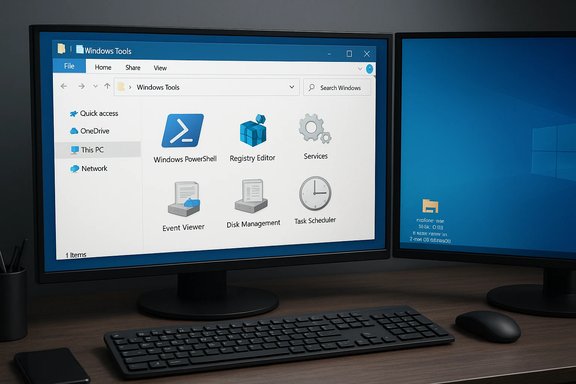
Microsoft’s recent reshuffle of Windows 10’s admin and system shortcuts into a consolidated Windows Tools panel is a quiet but practical change that brings together pieces of the Control Panel, Administrative Tools, PowerShell, Accessories and System shortcuts into one searchable, File‑Explorer‑backed view — a true one‑stop toolbox for tweakers, technicians and system administrators. The reorganization (announced in Insider builds 21343 and continued in 21354) doesn’t add new utilities so much as reduce friction: fewer clicks, less hunting around Start and the legacy Control Panel, and a clearer migration path for admin‑centric discoverability. This article reviews exactly what changed, how to access and use the new Windows Tools area, the benefits and tradeoffs for power users and IT teams, deployment and management implications, and practical tips for making the most of the consolidated admin surface.
Background / Overview
Microsoft has long maintained two partly overlapping worlds of system management and power‑user utilities: the old Control Panel (and its “All Tasks”/GodMode shell), the Administrative Tools folder, and modern Settings/Win32 apps. Those items historically lived in different Start menu folders — Windows Accessories, Windows Administrative Tools, Windows PowerShell, Windows System — which often forced administrators and power users to toggle between Start, Settings, File Explorer and command prompts to find what they needed.The Windows Tools change is part of a broader Start/Settings cleanup introduced to Windows Insiders. In Build 21343 the Windows Administrative Tools folder was renamed to Windows Tools, and in Build 21354 Microsoft removed several Start menu folders and redirected those app shortcuts to the consolidated Windows Tools entry point. The company’s blog explains the goal plainly: gather admin and system tools under a single entry that opens a full apps list in File Explorer while preserving search, pinning and shortcut behavior. Put simply: this is organizational housekeeping with pragmatic outcomes for discoverability and workflow. Multiple outlets (including BetaNews and other tech press) documented the change for Insiders and early testers; community sites and German Windows observers noted how much neater the Start menu looks after the consolidation.
What exactly changed in Start and the Control Panel?
The mechanics of the reorganization
- Microsoft consolidated several Start menu folders (Windows Accessories, Windows Administrative Tools, Windows PowerShell, Windows System) so the items they contained now appear under a single Windows Tools entry.
- When you launch Windows Tools it opens a File Explorer view that enumerates system and admin shortcuts — this is not an app hub but a shell folder showing the same links the old Administrative Tools area exposed.
- The underlying shortcuts and shell namespace remain intact; apps still appear in Start search results and can be pinned to the Start menu or taskbar. Custom shortcuts you previously created are preserved. File Explorer itself was moved to its own, separate place in the Start menu as part of this tidy‑up.
Not a feature expansion — a UX consolidation
This change is not Microsoft adding new functionality to Windows. The build notes are explicit: the team reorganized where items are surfaced, not what the OS contains. That distinction matters because it keeps risk low: the tools are unchanged; only the entry point and the Start menu layout have been altered. The practical benefit is improved discoverability and reduced start‑menu clutter for users who rely on admin utilities frequently.What’s in Windows Tools: a quick inventory
The consolidated Windows Tools view collects about forty shortcuts (the exact number can vary across builds and SKUs), including but not limited to:- Windows PowerShell (and consoles)
- Registry Editor (regedit)
- Services (services.msc)
- Event Viewer
- Computer Management / Disk Management
- Task Scheduler
- Resource Monitor / Performance Monitor
- Hyper‑V Manager (where present)
- Remote Desktop Connection
- Steps Recorder
- 3D Viewer, Character Map, and other small Accessories that lived in Windows Accessories
How to open Windows Tools (practical access methods)
There are multiple ways to reach the new Windows Tools view:- From the Start menu: open Start and select Windows Tools (it occupies a single place that replaces the older groupings). This is the most straightforward UI route.
- From the Run dialog or File Explorer: use the shell GUID to open the shell namespace directly. Run this command:
explorer.exe shell:::{D20EA4E1-3957-11d2-A40B-0C5020524153}
That GUID points to the Administrative Tools / Windows Tools shell folder and works on modern Windows builds. Many community guides and German Windows sites documented the shortcut for users who want a desktop icon or quick launcher. - Create a desktop shortcut: drag the Windows Tools icon from Start to the desktop, or create a shortcut that executes the explorer shell command above.
- Via the classic Control Panel command: the old control admintools command still opens the All Tasks view, and the Windows Tools listing is functionally a modernized representation of that namespace.
- Press Win+R and paste: explorer.exe shell:::{D20EA4E1-3957-11d2-A40B-0C5020524153}. Press Enter to open Windows Tools.
- With the Windows Tools window open, right‑click the Windows Tools icon in the title bar or Start entry and choose “Pin to Start” or drag the icon to the Desktop to create a shortcut.
- Optionally change the shortcut’s icon from the Properties → Shortcut → Change Icon dialog.
Why power users and admins will like this
- Faster discovery: one consolidated entry reduces time spent hunting through nested Start folders or remembering which legacy folder an item lived in.
- Search & pin parity: because the underlying items remain in the shell namespace, everything remains discoverable via Start search or can still be pinned to Start or the taskbar.
- Minimal risk: the change is UI‑level. Tools themselves — their permissions model and behavior — are unchanged. That makes the change safe for enterprises to adopt incrementally.
- Good for help desks: field technicians can give users a single instruction (open Windows Tools) rather than walking them through multiple Start‑menu paths or Control Panel navigation.
- A small step toward modern discoverability: by exposing admin tools in a File‑Explorer view, Microsoft leverages an already familiar UI for power users who use Explorer extensively during troubleshooting.
Risks, tradeoffs and things to watch
While low‑risk overall, several practical considerations and potential pitfalls deserve attention:- Perceived step backward for Settings migration: Microsoft has long been porting Control Panel functions into modern Settings; surfacing more Control Panel items may feel like a partial retreat from that long‑term goal. This is largely cosmetic but can confuse messaging about migrating management workflows to modern Settings.
- User training and documentation drift: IT documentation that referenced the previous Start menu paths needs a quick update. Scripts or deployment instructions that relied on the exact Start menu folder locations may require minor corrections.
- SKU and customization variance: the list of items in Windows Tools can differ by SKU and by what features are installed (for example, Hyper‑V or certain store apps). Administrators should validate the panel contents on representative images.
- Enterprise lock‑down considerations: in tightly managed environments where Start menu layout is enforced by Group Policy or MDM, the visual benefit may not be visible to end users. Test the change in a pilot group before rolling wide.
- Store‑delivered component behavior: Microsoft has been moving some smaller apps (Snipping Tool, MS Paint) to the Microsoft Store for out‑of‑band updates. That means behavior (install, restore, or visibility) may vary depending on Store availability and device policies. Admins should confirm Store access controls align with their provisioning and compliance rules.
Deployment and enterprise management guidance
For IT professionals considering the impact of the Windows Tools consolidation across an estate, follow these pragmatic best practices:- Pilot in a representative group: include examples of all SKUs you manage (Home/Pro/Edu/Ent, LTSC where applicable). Validate that the Windows Tools view contains the expected items and that custom shortcut paths still resolve.
- Audit Start/Taskbar provisioning scripts and policies: update any scripts that referenced the older Start folders. Because apps still surface via search and pinning remains supported, most provisioning workflows will continue to work but may need cosmetic updates.
- Confirm Store policy behavior: if your organization blocks Store access or uses private Store repositories, verify how Store‑packaged components (Snipping Tool, MS Paint, speech packs) are delivered, and plan remediation paths for missing entries.
- Document the new access method for help desk staff: replace multi‑step “go to Start > Windows Accessories > …” instructions with a single “open Windows Tools” item and include the shell:::{D20EA…} command for technicians who favor Run dialog shortcuts.
- Keep rollback options ready: because the change is UI‑level, a rollback is simple — update Start layouts or apply GPO settings to reintroduce old folder structures if absolutely needed. But such rollbacks are rarely necessary given the backward‑compatible architecture.
Practical tips and power‑user workflow ideas
- Use the Windows Tools folder as a bookmarkable toolkit: create sub‑shortcuts or copies of the most used tools on your desktop or a technician’s USB stick so you can work fast on any machine.
- Combine Windows Tools with PowerToys’ Always on Top or FancyZones to create a persistent admin workspace for multi‑monitor troubleshooting.
- Export a list of installed utilities or create a simple script that launches a curated subset of the Windows Tools items you use for first‑line triage.
- For automation: remember that the shell namespace commands and canonical applets (regedit, services.msc, etc. remain callable directly from the command line, so you can script workflows without depending on the Start menu layout.
- If you want fast, one‑click access, create a desktop shortcut using the explorer shell GUID mentioned earlier and assign it a hotkey via the shortcut properties.
Comparison to “GodMode”, Control Panel and prior approaches
The classic “GodMode” folder (the All Tasks view created by a special GUID folder name) was a well‑known trick for power users because it aggregated hundreds of Control Panel applets in one view. Windows Tools is a modern, supported iteration of the same idea: a curated, consistent shell representation of admin and accessory shortcuts surfaced in File Explorer.- GodMode was a static folder trick; Windows Tools is a supported Start menu entry backed by the shell namespace and managed by Microsoft’s Start/Settings teams.
- Unlike GodMode, Windows Tools is presented as a UX‑first entry point rather than an esoteric trick; it’s easier to find and more suitable for mainstream technicians and admins.
- The change signals that Microsoft recognizes the operational value of a consolidated admin view even as it continues to evolve Settings. For many admins, Windows Tools will function like a modern Control Panel that’s easier to discover and pin than its fragmented predecessor.
Cross‑verification and technical verification notes
To ensure accuracy this analysis cross‑checked Microsoft’s official Windows Insider announcement with independent reporting and community documentation:- Microsoft’s Windows Insider blog clearly documents the Build 21343 → 21354 sequence and the Start menu consolidation to Windows Tools. That post confirms the reorganization and the preservation of pinning/search behaviors.
- BetaNews and mainstream Windows press covered the change and emphasized discoverability and Start menu de‑cluttering as the main user benefits. Those writeups match Microsoft’s stated intent.
- Community sites and German Windows blogs (e.g., Deskmodder) captured the shell GUID and provided step‑by‑step notes for users who want shortcut commands or to add custom items. The GUID explorer command is widely documented and maps to the Administrative Tools shell namespace.
Final verdict — strengths, limitations, and what to expect next
Strengths- Immediate productivity gain for power users and technicians: a single entry for dozens of admin utilities speeds troubleshooting and reduces friction.
- Low risk and high compatibility: the change is a UX/organizing improvement that preserves underlying behavior and app access methods.
- Better Start menu hygiene: consolidating repeated or overlapping Start folders keeps the menu simpler and more maintainable.
- No functional new tools: this is not a feature expansion — if you expected new admin capabilities you won’t find them here.
- Possible documentation and policy churn: IT teams must update their guides and ensure that MDM/GPO flows still surface the expected admin items.
- Variability across editions: some tools may be present only on certain SKUs or when specific Windows features are installed, so don’t assume a universal canonical list.
- Microsoft will likely continue the dual path of modernizing Settings and maintaining discoverable admin surfaces while it transitions specific Control Panel applets to Settings. The Windows Tools consolidation is a pragmatic stopgap that improves day‑to‑day admin ergonomics while long‑term migration work continues.
Quick reference: steps to try it now
- Press Start → look for Windows Tools; open it to see the File Explorer collection of admin utilities.
- Or press Win+R and paste: explorer.exe shell:::{D20EA4E1-3957-11d2-A40B-0C5020524153}. Press Enter.
- Create a desktop shortcut by dragging the Windows Tools icon from Start or by creating a shortcut using the explorer command in step 2.
- Pin frequently used tools to the taskbar or Start for one‑click access (items remain pin‑able).
The Windows Tools consolidation is a small, thoughtful UX improvement that benefits the workflows of tweakers, technicians and system administrators by reducing Start menu noise and giving a predictable, Explorer‑based hub for the admin surface. It’s not a headline feature, but for anyone who frequently opens the Event Viewer, Services, Disk Management or PowerShell, those seconds saved add up — and in the world of system support, tidy ergonomics often translate into measurable operational gains.
Source: BetaNews Microsoft adds new Windows Tools to Windows 10 for tweakers and administrators
