

Windows’ Ultimate Performance power plan, first introduced for Windows 10 Pro for Workstations, can be enabled on many Home and Pro desktops with a Powercfg command, but it does not overclock the CPU; it mainly reduces power-saving transitions that can add tiny delays during sustained, interruption-sensitive workloads. That distinction punctures years of “hidden speed mode” mythology without making the feature useless. Ultimate Performance is best understood as a willingness to spend more electricity keeping processors and peripherals ready, not as a license to make them run beyond their designed limits. For most PCs, Balanced remains the sensible default; for a narrower class of workstations, virtual-machine hosts, test systems, and latency-sensitive rigs, the hidden plan can make the machine feel more consistent even when benchmark averages barely move.
“Ultimate Performance” is an unusually grand name for a collection of power-management decisions. It sounds like an overclocking switch, an unlocked turbo mode, or a shortcut around the limits imposed by a cautious PC manufacturer. It is none of those things.
As MakeUseOf’s Afam Onyimadu found after using the plan for a week, the practical change is simpler: Windows stops trying so aggressively to save power between bursts of work. The operating system keeps more of the platform prepared to respond instead of repeatedly letting components settle into lower-power states and then waiting for them to return.
That is a change in latency policy, not computational capacity. If a processor, SSD, GPU, or USB device already has all the time it needs to wake and complete a task, Ultimate Performance cannot manufacture additional hardware resources. If transitions into and out of power-saving states are contributing to tiny pauses, however, reducing those transitions may remove some of the friction.
The effect is easiest to understand in the gaps between visible work. A workstation may spend one moment compiling, the next launching a test environment, the next accessing storage, and the next waking a USB-attached device. Balanced mode continually looks for opportunities to reduce consumption during those gaps; Ultimate Performance treats more of them as pauses too short to justify backing down.
That makes Ultimate Performance a latency policy, not an overclock. Its purpose is to reduce hesitation, not raise the machine’s absolute ceiling.
The intended context matters. Windows 10 Pro for Workstations was not designed around checking email, streaming video, or opening a few browser tabs. The workloads identified in the source material include CAD, 3D rendering, engineering, and scientific computing—jobs that can remain active for extended periods and may repeatedly move data among the CPU, storage, accelerators, and peripherals.
Those workloads benefit differently from power tuning than an ordinary office PC does. A desktop that sits idle much of the day can save meaningful energy by parking cores and allowing links or devices to enter lower-power states. A workstation under uninterrupted load has fewer idle periods to exploit, and transitions that do occur may be brief enough that the latency of recovering from them becomes disproportionate.
Ultimate Performance therefore began with a defensible workstation premise: on a machine bought to complete expensive work as consistently as possible, responsiveness may matter more than shaving power consumption during short idle intervals. The problem is that the plan’s name later escaped that context.
Because it is hidden on most Home and standard Pro installations, Ultimate Performance acquired the aura of an undisclosed optimization. Online guides began presenting the Powercfg command as if it unlocked performance Microsoft had arbitrarily withheld from ordinary users. The command does expose a real Windows power scheme, but the secrecy is mostly an artifact of product defaults and hardware design—not evidence of a free speed upgrade.
Microsoft’s command-line documentation describes Powercfg as the management interface for power schemes, device power states, sleep behavior, and energy diagnostics. Duplicating a scheme through Powercfg is an administrative operation, not a firmware modification. It does not rewrite processor limits, raise voltage, replace an OEM thermal profile, or alter the physical capabilities of the machine.
The plan is absent from the regular Power Options menu on most Home and Pro systems because Microsoft does not consider it the appropriate default for the average PC. That judgment is broadly reasonable. A feature intended for sustained workstation use should not automatically become the everyday setting on every desktop and laptop simply because its label sounds faster.
Core parking allows Windows to reduce activity on processor cores that are not currently needed. It is one part of a broader effort to avoid keeping the entire CPU complex active when a smaller subset can handle the workload. Ultimate Performance disables or reduces that parking, although the exact result depends on the processor, Windows implementation, and OEM firmware.
The plan also keeps the processor’s minimum power state higher than Balanced mode does. That does not mean every core is fixed at its maximum frequency, nor does it mean the system is constantly doing useful work. It means Windows is less eager to move the processor toward its most conservative operating state whenever demand briefly subsides.
PCI Express Link State Power Management receives similar treatment. Balanced mode can allow PCIe links serving devices such as SSDs and GPUs to step down when activity falls. Ultimate Performance reduces that power saving so the link is more likely to be ready when the next transaction arrives.
USB selective suspend follows the same logic at the peripheral layer. Microsoft’s driver documentation explains selective suspend as a way to suspend an individual USB port without disrupting others, conserving energy when a device is not needed. Ultimate Performance reduces that behavior, accepting higher consumption in exchange for less potential delay when an idle device must respond again.
None of these transitions is necessarily slow in human terms. Some operate on timescales that disappear inside the normal variability of applications, drivers, storage queues, schedulers, and background services. But a sequence of small delays can become perceptible when a workflow repeatedly wakes different parts of the platform.
This is why the plan may change how consistent a system feels without producing a dramatic headline benchmark. It attacks transitions, and transitions often affect the worst or least smooth moments rather than the average.
The plan does not change Intel Turbo Boost or AMD Precision Boost behavior. Those technologies already allow compatible processors to increase frequency when workload, power, temperature, current, and firmware conditions permit. Selecting Ultimate Performance does not give Windows permission to ignore those constraints.
Thermal throttling remains intact as well. If the processor becomes too hot, it can still reduce performance to protect itself and remain within its operating limits. A more aggressive Windows power plan does not neutralize the temperature sensors, platform controller, firmware rules, or electrical limits governing the hardware.
That sharply separates Ultimate Performance from actual overclocking. Overclocking attempts to operate hardware at settings beyond its standard configuration, commonly by changing frequency, voltage, or related firmware parameters. Ultimate Performance changes when Windows seeks to conserve energy; it does not redefine what the silicon is allowed to do.
The distinction explains why GPU-bound gaming generally sees little or no improvement. If a game is already limited by the graphics processor, changing how aggressively Windows parks CPU cores or manages idle links does not create additional GPU rendering capacity. The bottleneck remains where it was.
CPU-heavy games could theoretically respond differently, particularly in their least consistent frame times rather than their average frame rates. Onyimadu suggested that any meaningful gaming difference would be more likely to appear in the lowest-performing slice of frames—the so-called 1% lows—than in the average. That remains a workload-dependent possibility, not a promised benefit.
This is also where many casual comparisons go wrong. A user enables the plan, sees the CPU boost to a frequency it had already been reaching under Balanced mode, and credits Ultimate Performance. Modern processors are designed to boost under demand regardless; observing a high clock after switching plans does not prove the new plan raised the ceiling or increased completed work.
A valid test must look beyond a frequency readout. It should compare repeatable task completion, frame-time consistency, application-launch behavior, storage latency, device response, and power consumption under controlled conditions. Otherwise, the name of the plan becomes the strongest variable in the experiment.
Writing and browsing showed no noticeable difference. This is the expected result for ordinary interactive work on a reasonably responsive PC: the system already has ample capacity, and the applications spend much of their time waiting on the user, a network response, or their own software overhead.
Multiple virtual machines felt slightly more responsive. That observation fits the mechanism because virtualized workloads can produce frequent bursts of CPU, storage, and memory activity across several operating environments. Reducing power-state transitions may help the host respond more consistently as those bursts arrive, even if it does not make any individual processor core faster.
Installing and launching test software felt more consistent, with less hitching. Again, the important word is consistent. Software setup and launch sequences can involve storage access, decompression, security scanning, service creation, process startup, and device activity; reducing delays at several boundaries may smooth the sequence without radically shortening it.
GPU-bound gaming showed little to no change. That result is the clearest rebuttal to the idea that Ultimate Performance is a universal gaming mode. Where the graphics processor is the limiting resource, Windows cannot solve the problem by keeping CPU cores and peripheral links more awake.
These observations are anecdotal rather than a universal benchmark suite, but they align with the plan’s design. The improvement, where it exists, is not necessarily “this job now takes far less time.” It is often “the machine pauses less noticeably while moving from one part of the job to another.”
That makes Ultimate Performance particularly hard to evaluate through average scores. Average frame rates, average CPU throughput, or a long rendering result can hide a small number of stalls. A plan focused on wake-up latency may improve the distribution of delays while barely affecting the mean.
It can also produce no measurable improvement at all. Modern hardware and Balanced mode have become good at responding quickly to changing demand. If a PC’s firmware, processor, storage, and drivers already transition efficiently, Ultimate Performance may merely keep the same machine awake longer while doing the same amount of work.
The two systems are related, but users should not assume every visible control is a different name for the same configuration. Microsoft’s Powercfg documentation distinguishes traditional power schemes from newer overlay mechanisms that adjust the performance-versus-power-saving tradeoff. A custom plan can also affect whether the Windows 11 Power mode control is available.
Windows Central’s general guidance places Ultimate Performance beyond High Performance in its willingness to prioritize performance over efficiency. The source material makes the same broad distinction: High Performance and Ultimate Performance move in the same direction, but High Performance is less aggressive.
Balanced remains Microsoft’s general-purpose compromise. It permits power-saving transitions while attempting to deliver resources quickly enough that typical users do not notice. High Performance reduces some of that restraint; Ultimate Performance pushes further by minimizing the small latencies associated with power management.
The result is an interface problem as much as a technical one. Windows 11 encourages users to think in terms of a clean Power mode selector, while Ultimate Performance may live in the legacy Power Options panel—or remain absent altogether. The hidden-plan command can create an entry, but whether the platform will expose and honor it as expected depends on the system’s power architecture.
Modern Standby is the most important complication. On most laptops using Modern Standby, Ultimate Performance will not appear even after the duplication command is run. That is not merely an arbitrary menu omission; these systems are designed around a newer model that tightly integrates responsiveness, low-power idle behavior, battery life, and firmware.
Microsoft describes Modern Standby as an S0 low-power idle model in which the machine remains partially running and can wake quickly when required. Forcing a legacy-style power scheme onto such a platform is not equivalent to selecting a faster desktop profile. It can conflict with the assumptions under which the laptop and its firmware were designed to manage energy.
The source material provides a way to force activation by identifying the scheme and using Powercfg, but the existence of a command does not make the result advisable. A battery-powered device has far more to lose from higher idle consumption than a wall-powered workstation, and its cooling system may have been engineered around OEM-managed modes rather than a persistent maximum-readiness policy.
No reboot is required. Ultimate Performance should then appear among the available plans in Power Options, where it can be selected like another scheme.
If it does not appear,
The source material describes forced activation with
The key operational issue is not whether the command works. It is whether the plan changes an outcome that matters.
For a virtual-machine host, that might be responsiveness while several guests perform bursty work. For an engineering workstation, it might be repeatability during a long compute-and-I/O sequence. For a test machine, it might be launch and installation consistency across repeated software cycles.
A gaming PC should be evaluated with frame-time data, not merely an average frame-rate counter. A content-creation system should be tested with the applications and media formats actually used. If the results fall within normal run-to-run variation, the rational conclusion is that the plan is not helping that system.
The one guaranteed directional change in the comparison is higher idle power draw. The magnitude will vary by system and workload, but the plan explicitly reduces mechanisms whose purpose is to conserve energy. An organization applying it broadly would be choosing to spend more power keeping hardware ready whether or not users can perceive the result.
That does not make the plan irresponsible. A workstation completing expensive engineering, scientific, or rendering work may justify the trade if reduced delays improve throughput, consistency, or operator productivity. A virtual-machine test lab may value predictable behavior more than idle efficiency during an active test window.
The mistake is treating the plan as a harmless best-practice baseline. Office desktops used for documents and web applications are unlikely to reproduce the VM and test-software improvements reported by MakeUseOf. Many will instead reproduce the writing and browsing result: no noticeable difference.
Laptops are an even weaker target. Battery life is part of their core function, Modern Standby complicates the availability of classic schemes, and OEM software may already coordinate processor, fan, charging, and platform behavior. Overriding one Windows layer does not necessarily override the entire performance stack, but it can undermine the machine’s intended balance.
Administrators should also resist using Ultimate Performance to mask unrelated faults. Slow application launches can come from storage problems, antivirus scanning, network dependencies, damaged profiles, overloaded startup configurations, or software defects. USB delays may indicate a driver or device issue. Poor gaming performance may be a GPU, cooling, or configuration problem.
A more aggressive power plan can occasionally reduce a symptom while leaving the underlying cause untouched. If a system requires every power-saving feature to be curtailed merely to remain usable, that is evidence worth investigating rather than automatically standardizing.
Average measurements flatten those experiences. Ten operations may finish quickly while one pauses long enough to break concentration; the average can still look excellent. A long benchmark may report almost identical throughput even though one configuration produces fewer short stalls.
Reducing core parking, maintaining a higher processor minimum state, and discouraging PCIe or USB power-saving transitions all target that edge of the distribution. They attempt to make the next piece of work begin with less preparation.
This is why the plan is conceptually closer to tuning a workstation for predictability than tuning a processor for speed. Predictability can matter greatly in interactive technical work, real-time production, software testing, or complex multitasking. It matters much less when the user cannot distinguish a transition delay from the application’s ordinary behavior.
It also explains why results differ across machines. Firmware influences core-parking behavior. CPUs differ in how quickly they change states. Storage devices, GPUs, USB controllers, and drivers vary in their power-management implementations. Windows version and OEM configuration add further variability.
Two computers running the same edition of Windows can therefore respond differently to the same plan. One may shed a recurring delay; the other may consume more power without changing the user experience. The name remains constant while the platform underneath it does not.
Balanced mode has also improved over time. Its purpose is not to make the PC slow; it is to deliver performance when needed and save power when it is not. On well-designed modern hardware, those transitions can be fast enough that the more aggressive plan has little left to recover.
Ultimate Performance is consequently not the “correct” setting that Microsoft concealed behind a command. It is an alternative bias designed for machines and workloads where the cost of waiting may exceed the cost of remaining ready.
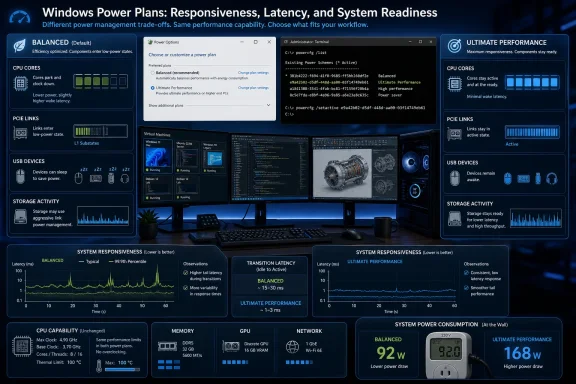 The Name Promises Speed; the Scheme Buys Readiness
“Ultimate Performance” is an unusually grand name for a collection of power-management decisions. It sounds like an overclocking switch, an unlocked turbo mode, or a shortcut around the limits imposed by a cautious PC manufacturer. It is none of those things.As MakeUseOf’s Afam Onyimadu found after using the plan for a week, the practical change is simpler: Windows stops trying so aggressively to save power between bursts of work. The operating system keeps more of the platform prepared to respond instead of repeatedly letting components settle into lower-power states and then waiting for them to return.
That is a change in latency policy, not computational capacity. If a processor, SSD, GPU, or USB device already has all the time it needs to wake and complete a task, Ultimate Performance cannot manufacture additional hardware resources. If transitions into and out of power-saving states are contributing to tiny pauses, however, reducing those transitions may remove some of the friction.
The effect is easiest to understand in the gaps between visible work. A workstation may spend one moment compiling, the next launching a test environment, the next accessing storage, and the next waking a USB-attached device. Balanced mode continually looks for opportunities to reduce consumption during those gaps; Ultimate Performance treats more of them as pauses too short to justify backing down.
That makes Ultimate Performance a latency policy, not an overclock. Its purpose is to reduce hesitation, not raise the machine’s absolute ceiling.
A Workstation Feature Escaped Its Workstation
Microsoft first introduced Ultimate Performance in Windows 10 Pro for Workstations, an edition aimed at high-end systems performing demanding and mission-critical work. Microsoft’s own positioning for that edition emphasized the performance and reliability needs of advanced users and hardware built for unusually intensive computing.The intended context matters. Windows 10 Pro for Workstations was not designed around checking email, streaming video, or opening a few browser tabs. The workloads identified in the source material include CAD, 3D rendering, engineering, and scientific computing—jobs that can remain active for extended periods and may repeatedly move data among the CPU, storage, accelerators, and peripherals.
Those workloads benefit differently from power tuning than an ordinary office PC does. A desktop that sits idle much of the day can save meaningful energy by parking cores and allowing links or devices to enter lower-power states. A workstation under uninterrupted load has fewer idle periods to exploit, and transitions that do occur may be brief enough that the latency of recovering from them becomes disproportionate.
Ultimate Performance therefore began with a defensible workstation premise: on a machine bought to complete expensive work as consistently as possible, responsiveness may matter more than shaving power consumption during short idle intervals. The problem is that the plan’s name later escaped that context.
Because it is hidden on most Home and standard Pro installations, Ultimate Performance acquired the aura of an undisclosed optimization. Online guides began presenting the Powercfg command as if it unlocked performance Microsoft had arbitrarily withheld from ordinary users. The command does expose a real Windows power scheme, but the secrecy is mostly an artifact of product defaults and hardware design—not evidence of a free speed upgrade.
Microsoft’s command-line documentation describes Powercfg as the management interface for power schemes, device power states, sleep behavior, and energy diagnostics. Duplicating a scheme through Powercfg is an administrative operation, not a firmware modification. It does not rewrite processor limits, raise voltage, replace an OEM thermal profile, or alter the physical capabilities of the machine.
The plan is absent from the regular Power Options menu on most Home and Pro systems because Microsoft does not consider it the appropriate default for the average PC. That judgment is broadly reasonable. A feature intended for sustained workstation use should not automatically become the everyday setting on every desktop and laptop simply because its label sounds faster.
Windows Is Trading Idle Efficiency for Less Hesitation
The core bargain becomes clearer when Ultimate Performance is placed next to Balanced mode. Balanced tries to deliver responsiveness while continually reclaiming power when hardware appears underused. Ultimate Performance pushes the same system toward readiness by reducing several of those power-saving behaviors.| Feature | Balanced | Ultimate Performance | Practical consequence |
|---|---|---|---|
| CPU core parking | More aggressive | Reduced or largely disabled, depending on Windows version, CPU, and OEM firmware | More cores may remain ready for work |
| Processor power saving | Higher | Lower | The processor’s minimum power state stays higher |
| PCIe power saving | Enabled | Reduced | SSD and GPU links are less likely to step down |
| USB selective suspend | Enabled | Reduced | Idle USB devices may wake with less delay |
| Idle power draw | Lower | Higher | The system spends more energy maintaining readiness |
The plan also keeps the processor’s minimum power state higher than Balanced mode does. That does not mean every core is fixed at its maximum frequency, nor does it mean the system is constantly doing useful work. It means Windows is less eager to move the processor toward its most conservative operating state whenever demand briefly subsides.
PCI Express Link State Power Management receives similar treatment. Balanced mode can allow PCIe links serving devices such as SSDs and GPUs to step down when activity falls. Ultimate Performance reduces that power saving so the link is more likely to be ready when the next transaction arrives.
USB selective suspend follows the same logic at the peripheral layer. Microsoft’s driver documentation explains selective suspend as a way to suspend an individual USB port without disrupting others, conserving energy when a device is not needed. Ultimate Performance reduces that behavior, accepting higher consumption in exchange for less potential delay when an idle device must respond again.
None of these transitions is necessarily slow in human terms. Some operate on timescales that disappear inside the normal variability of applications, drivers, storage queues, schedulers, and background services. But a sequence of small delays can become perceptible when a workflow repeatedly wakes different parts of the platform.
This is why the plan may change how consistent a system feels without producing a dramatic headline benchmark. It attacks transitions, and transitions often affect the worst or least smooth moments rather than the average.
The CPU Ceiling Never Moves
The most important limitation is also the one most frequently lost in performance folklore: Ultimate Performance does not raise the processor’s maximum clock speed. A CPU that tops out at a particular boost frequency before the change has the same ceiling afterward.The plan does not change Intel Turbo Boost or AMD Precision Boost behavior. Those technologies already allow compatible processors to increase frequency when workload, power, temperature, current, and firmware conditions permit. Selecting Ultimate Performance does not give Windows permission to ignore those constraints.
Thermal throttling remains intact as well. If the processor becomes too hot, it can still reduce performance to protect itself and remain within its operating limits. A more aggressive Windows power plan does not neutralize the temperature sensors, platform controller, firmware rules, or electrical limits governing the hardware.
That sharply separates Ultimate Performance from actual overclocking. Overclocking attempts to operate hardware at settings beyond its standard configuration, commonly by changing frequency, voltage, or related firmware parameters. Ultimate Performance changes when Windows seeks to conserve energy; it does not redefine what the silicon is allowed to do.
The distinction explains why GPU-bound gaming generally sees little or no improvement. If a game is already limited by the graphics processor, changing how aggressively Windows parks CPU cores or manages idle links does not create additional GPU rendering capacity. The bottleneck remains where it was.
CPU-heavy games could theoretically respond differently, particularly in their least consistent frame times rather than their average frame rates. Onyimadu suggested that any meaningful gaming difference would be more likely to appear in the lowest-performing slice of frames—the so-called 1% lows—than in the average. That remains a workload-dependent possibility, not a promised benefit.
This is also where many casual comparisons go wrong. A user enables the plan, sees the CPU boost to a frequency it had already been reaching under Balanced mode, and credits Ultimate Performance. Modern processors are designed to boost under demand regardless; observing a high clock after switching plans does not prove the new plan raised the ceiling or increased completed work.
A valid test must look beyond a frequency readout. It should compare repeatable task completion, frame-time consistency, application-launch behavior, storage latency, device response, and power consumption under controlled conditions. Otherwise, the name of the plan becomes the strongest variable in the experiment.
The Benchmark Is the Pause Between Tasks
MakeUseOf’s week-long trial is useful precisely because it did not produce a miraculous benchmark story. Onyimadu used the plan during a routine involving writing, browsing, software installation, configuration testing, scripting, and multiple virtual machines. That mixture is closer to a developer or technical tester’s real workday than a single synthetic test running in isolation.Writing and browsing showed no noticeable difference. This is the expected result for ordinary interactive work on a reasonably responsive PC: the system already has ample capacity, and the applications spend much of their time waiting on the user, a network response, or their own software overhead.
Multiple virtual machines felt slightly more responsive. That observation fits the mechanism because virtualized workloads can produce frequent bursts of CPU, storage, and memory activity across several operating environments. Reducing power-state transitions may help the host respond more consistently as those bursts arrive, even if it does not make any individual processor core faster.
Installing and launching test software felt more consistent, with less hitching. Again, the important word is consistent. Software setup and launch sequences can involve storage access, decompression, security scanning, service creation, process startup, and device activity; reducing delays at several boundaries may smooth the sequence without radically shortening it.
GPU-bound gaming showed little to no change. That result is the clearest rebuttal to the idea that Ultimate Performance is a universal gaming mode. Where the graphics processor is the limiting resource, Windows cannot solve the problem by keeping CPU cores and peripheral links more awake.
These observations are anecdotal rather than a universal benchmark suite, but they align with the plan’s design. The improvement, where it exists, is not necessarily “this job now takes far less time.” It is often “the machine pauses less noticeably while moving from one part of the job to another.”
That makes Ultimate Performance particularly hard to evaluate through average scores. Average frame rates, average CPU throughput, or a long rendering result can hide a small number of stalls. A plan focused on wake-up latency may improve the distribution of delays while barely affecting the mean.
It can also produce no measurable improvement at all. Modern hardware and Balanced mode have become good at responding quickly to changing demand. If a PC’s firmware, processor, storage, and drivers already transition efficiently, Ultimate Performance may merely keep the same machine awake longer while doing the same amount of work.
Windows 11 Makes the Old Power Plan Look Increasingly Awkward
Ultimate Performance belongs to Windows’ classic power-plan architecture, while Windows 11 presents most users with a simpler Power mode control in Settings. Microsoft exposes choices that trade power efficiency against performance without requiring users to navigate the older Control Panel interface.The two systems are related, but users should not assume every visible control is a different name for the same configuration. Microsoft’s Powercfg documentation distinguishes traditional power schemes from newer overlay mechanisms that adjust the performance-versus-power-saving tradeoff. A custom plan can also affect whether the Windows 11 Power mode control is available.
Windows Central’s general guidance places Ultimate Performance beyond High Performance in its willingness to prioritize performance over efficiency. The source material makes the same broad distinction: High Performance and Ultimate Performance move in the same direction, but High Performance is less aggressive.
Balanced remains Microsoft’s general-purpose compromise. It permits power-saving transitions while attempting to deliver resources quickly enough that typical users do not notice. High Performance reduces some of that restraint; Ultimate Performance pushes further by minimizing the small latencies associated with power management.
The result is an interface problem as much as a technical one. Windows 11 encourages users to think in terms of a clean Power mode selector, while Ultimate Performance may live in the legacy Power Options panel—or remain absent altogether. The hidden-plan command can create an entry, but whether the platform will expose and honor it as expected depends on the system’s power architecture.
Modern Standby is the most important complication. On most laptops using Modern Standby, Ultimate Performance will not appear even after the duplication command is run. That is not merely an arbitrary menu omission; these systems are designed around a newer model that tightly integrates responsiveness, low-power idle behavior, battery life, and firmware.
Microsoft describes Modern Standby as an S0 low-power idle model in which the machine remains partially running and can wake quickly when required. Forcing a legacy-style power scheme onto such a platform is not equivalent to selecting a faster desktop profile. It can conflict with the assumptions under which the laptop and its firmware were designed to manage energy.
The source material provides a way to force activation by identifying the scheme and using Powercfg, but the existence of a command does not make the result advisable. A battery-powered device has far more to lose from higher idle consumption than a wall-powered workstation, and its cooling system may have been engineered around OEM-managed modes rather than a persistent maximum-readiness policy.
Enabling It Is Easy; Proving It Helps Is Harder
On a compatible desktop, making the plan available is a short administrative operation. Open an elevated Terminal and runpowercfg -duplicatescheme e9a42b02-d5df-448d-aa00-03f14749eb61.No reboot is required. Ultimate Performance should then appear among the available plans in Power Options, where it can be selected like another scheme.
If it does not appear,
powercfg -list displays the power schemes currently registered on the system. Microsoft’s documentation confirms that Powercfg uses this listing to return the scheme identifiers required by other commands.The source material describes forced activation with
powercfg -setactive Power Scheme GUID, replacing the placeholder with the identifier returned for the intended scheme. Administrators should treat that step as a diagnostic or controlled configuration change, not an invitation to override the platform model on every machine where the graphical option is missing.The key operational issue is not whether the command works. It is whether the plan changes an outcome that matters.
Action checklist for admins
- Confirm whether the target is a wall-powered workstation, test host, or other sustained-load system rather than a general-purpose laptop.
- Record the current scheme with
powercfg -listbefore making changes. - Establish a repeatable workload and baseline its completion time, responsiveness, and idle behavior under Balanced mode.
- Run
powercfg -duplicatescheme e9a42b02-d5df-448d-aa00-03f14749eb61from an elevated Terminal; no reboot is needed. - Activate the plan through Power Options, or use
powercfg -setactive Power Scheme GUIDonly after confirming the correct identifier. - Compare the same workload again, looking for reduced hitching or latency as well as any increase in idle power use.
- Revert systems that show no practical benefit, and avoid forcing the plan across Modern Standby laptops without platform-specific testing.
For a virtual-machine host, that might be responsiveness while several guests perform bursty work. For an engineering workstation, it might be repeatability during a long compute-and-I/O sequence. For a test machine, it might be launch and installation consistency across repeated software cycles.
A gaming PC should be evaluated with frame-time data, not merely an average frame-rate counter. A content-creation system should be tested with the applications and media formats actually used. If the results fall within normal run-to-run variation, the rational conclusion is that the plan is not helping that system.
Fleet-Wide Deployment Turns a Niche Optimization Into a Cost
For enterprise IT, Ultimate Performance is less interesting as a user tweak than as a policy decision. Applying it to one workstation with a measured latency problem is different from deploying it to hundreds or thousands of endpoints because its costs accumulate even when its benefits do not.The one guaranteed directional change in the comparison is higher idle power draw. The magnitude will vary by system and workload, but the plan explicitly reduces mechanisms whose purpose is to conserve energy. An organization applying it broadly would be choosing to spend more power keeping hardware ready whether or not users can perceive the result.
That does not make the plan irresponsible. A workstation completing expensive engineering, scientific, or rendering work may justify the trade if reduced delays improve throughput, consistency, or operator productivity. A virtual-machine test lab may value predictable behavior more than idle efficiency during an active test window.
The mistake is treating the plan as a harmless best-practice baseline. Office desktops used for documents and web applications are unlikely to reproduce the VM and test-software improvements reported by MakeUseOf. Many will instead reproduce the writing and browsing result: no noticeable difference.
Laptops are an even weaker target. Battery life is part of their core function, Modern Standby complicates the availability of classic schemes, and OEM software may already coordinate processor, fan, charging, and platform behavior. Overriding one Windows layer does not necessarily override the entire performance stack, but it can undermine the machine’s intended balance.
Administrators should also resist using Ultimate Performance to mask unrelated faults. Slow application launches can come from storage problems, antivirus scanning, network dependencies, damaged profiles, overloaded startup configurations, or software defects. USB delays may indicate a driver or device issue. Poor gaming performance may be a GPU, cooling, or configuration problem.
A more aggressive power plan can occasionally reduce a symptom while leaving the underlying cause untouched. If a system requires every power-saving feature to be curtailed merely to remain usable, that is evidence worth investigating rather than automatically standardizing.
The Real Target Is Tail Latency, Not Peak Throughput
Ultimate Performance makes the most sense when viewed through the concept of tail latency: the slowest or least consistent moments in a stream of otherwise acceptable work. Users often describe these moments as hitching, hesitation, stutter, or a machine taking a fraction too long to respond.Average measurements flatten those experiences. Ten operations may finish quickly while one pauses long enough to break concentration; the average can still look excellent. A long benchmark may report almost identical throughput even though one configuration produces fewer short stalls.
Reducing core parking, maintaining a higher processor minimum state, and discouraging PCIe or USB power-saving transitions all target that edge of the distribution. They attempt to make the next piece of work begin with less preparation.
This is why the plan is conceptually closer to tuning a workstation for predictability than tuning a processor for speed. Predictability can matter greatly in interactive technical work, real-time production, software testing, or complex multitasking. It matters much less when the user cannot distinguish a transition delay from the application’s ordinary behavior.
It also explains why results differ across machines. Firmware influences core-parking behavior. CPUs differ in how quickly they change states. Storage devices, GPUs, USB controllers, and drivers vary in their power-management implementations. Windows version and OEM configuration add further variability.
Two computers running the same edition of Windows can therefore respond differently to the same plan. One may shed a recurring delay; the other may consume more power without changing the user experience. The name remains constant while the platform underneath it does not.
Balanced mode has also improved over time. Its purpose is not to make the PC slow; it is to deliver performance when needed and save power when it is not. On well-designed modern hardware, those transitions can be fast enough that the more aggressive plan has little left to recover.
Ultimate Performance is consequently not the “correct” setting that Microsoft concealed behind a command. It is an alternative bias designed for machines and workloads where the cost of waiting may exceed the cost of remaining ready.
The Cases Where Ultimate Performance Earns Its Name
Ultimate Performance deserves consideration when the workload is sustained, the system is primarily wall-powered, and measurement shows that reduced power-state transitions improve consistency. It deserves skepticism everywhere else.- It does not raise the CPU’s maximum clock speed.
- It does not modify Turbo Boost, Precision Boost, or thermal throttling.
- It mainly reduces CPU, PCIe, and USB power-saving behavior.
- Writing, browsing, and GPU-bound gaming may show little or no change.
- Multiple VMs and repeated software testing may feel more consistent.
- Balanced should remain the default unless a repeatable workload proves the trade worthwhile.
References
- Primary source: MakeUseOf
Published: Sat, 11 Jul 2026 10:00:18 GMT
I enabled Windows’ Ultimate Performance plan — this is the one thing it actually changes
Turns out 'ultimate' doesn't mean what you'd assume here. www.makeuseof.com
- Official source: learn.microsoft.com
- Official source: support.microsoft.com
Change the power mode for your Windows PC - Microsoft Support
Learn how to change the power mode on your Windows PC to preserve your battery, limit notifications, and background activity.support.microsoft.com - Related coverage: windowscentral.com
How to change power modes for performance or battery on Windows 11 | Windows Central
On Windows 11, you can adjust the power settings to optimize the device for performance or battery life, and in this guide, I will explain how to complete this configuration.www.windowscentral.com - Related coverage: windowsforum.com
Ultimate Performance Power Plan in Windows: When and How to Enable | Windows Forum
Windows hides a high-drain, low-latency power profile called Ultimate Performance that can nudge certain workstation workloads a little faster—but it’s a...windowsforum.com - Related coverage: techdemis.com
HowToGeek.com Ultimate Performance Guide: Windows 11 & 10
Looking for the HowToGeek.com Ultimate Performance guide? Here's the updated version with Windows 11 steps, real benchmarks, and fixes.www.techdemis.com
- Related coverage: elevenforum.com
Change Power Plan in Windows 11 | Windows 11 Forum
This tutorial will show you how to choose a power plan to be the current active power scheme used by default for your account in Windows 11. A power plan...www.elevenforum.com - Related coverage: merging.com
- Related coverage: aerotech.com
- Official source: microsoft.com
Microsoft announces Windows 10 Pro for Workstations | Microsoft 365 Blog
Windows 10 Pro for Workstations is a high-end edition of Windows 10 Pro, comes with unique support for server grade PC hardware and is designed to meet demanding needs of mission critical and compute intensive workloads.www.microsoft.com - Official source: blogs.windows.com