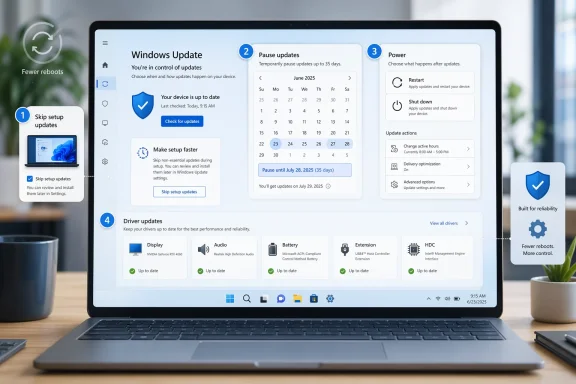
The latest Windows Insider changes to Windows Update are less about flashy new features than about a long-overdue reset of user control. Microsoft is rolling out a set of improvements that let Insiders skip setup-time updates, pause updates more flexibly, restart or shut down without being forced into an install, and see clearer labels for driver updates. At the same time, the company is also trying to reduce how often Windows asks for reboots by coordinating more update types into a single monthly cadence and tightening up recovery when updates fail.
Windows Update has always lived in tension between two valid goals: protecting users and not interrupting them. Microsoft’s own support materials still emphasize that updates are important, but also acknowledge the practical need for pause controls and scheduled restarts when people are busy. That balance has become more important as Windows has moved from a simple patching model to a layered system of quality updates, feature updates, driver updates, firmware updates, and out-of-band fixes.
This new Insider rollout is the result of a familiar feedback loop. Microsoft says it reviewed thousands of user comments and heard two themes over and over again: updates arrive at the wrong time, and users do not feel they have enough control over when they happen. That is not a surprising complaint, but it is a revealing one, because it cuts across both consumer frustration and enterprise manageability. A patching platform that feels unpredictable is a platform that users learn to delay, defer, or distrust.
The timing matters, too. Over the last year, Microsoft has increasingly framed Windows through its Secure Future Initiative, a broader push to make products secure by design, secure by default, and secure in operations. The company says that initiative, launched in November 2023, is meant to improve how Microsoft designs, builds, tests, and operates its technology. Windows Update is a natural place to show that philosophy in action, because patching is where security policy meets user experience most directly.
There is also a practical business context behind the redesign. Microsoft has spent the past several release cycles trying to make Windows more predictable for Insiders and more reliable for everyone else. The March 2026 “commitment to Windows quality” post laid the groundwork for several of the same ideas now appearing in the update experience: skipping setup updates, separating restart behavior from update behavior, and reducing notification noise. What is rolling out now looks less like a one-off experiment and more like the next step in a longer update-architecture cleanup.
A subtle but important part of the story is that Windows Update is no longer just “update checking.” It is now the front door to reliability, servicing, driver quality, and increasingly even recovery behavior. Microsoft’s support docs and Insider posts show an ecosystem where setup dynamic updates, recovery mechanisms, preview channels, and hotpatch-like servicing models all intersect. The more complex the servicing stack becomes, the more valuable a clear and predictable control surface becomes for users.
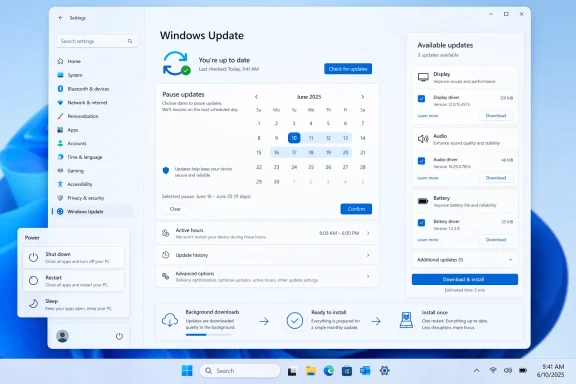
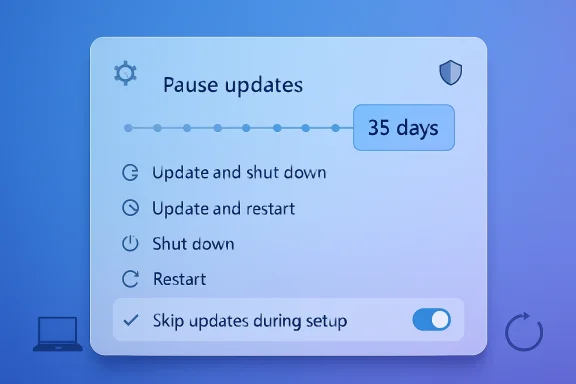
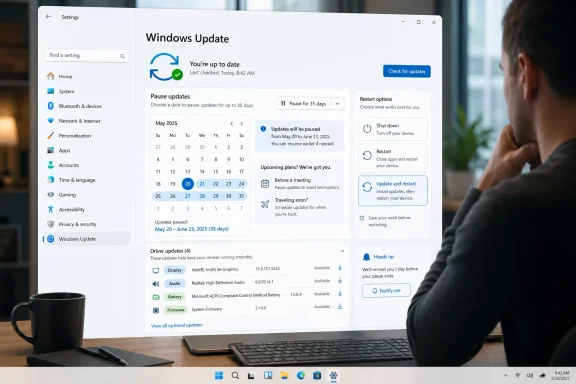
The second change is a more flexible pause mechanism. Instead of a generic pause interval, users can choose a specific calendar day and extend that pause repeatedly in 35-day increments. That is a meaningful shift because it lets people align update pauses with real events such as travel, exams, conferences, or project deadlines rather than forcing them into a rigid one-size-fits-all schedule. It also acknowledges that control is often not about disabling updates forever, but about controlling when the pain lands.
The third change may be the most visible one in daily use: the Power menu will now always show standard Restart and Shut down options, even if updates are pending. Update-specific choices remain available, but the menu is being split into plain power actions and update actions. That is a significant user-experience correction because it eliminates the “surprise update” feeling that many Windows users have been conditioned to expect.
The fourth change is informational rather than behavioral. Windows Update will now add device class labels to driver titles, making it easier to tell whether a pending driver applies to display, audio, battery, extension, HDC, or another class. This is a small but practical improvement, especially because driver update names have often been too vague for average users to interpret confidently. Clearer labels reduce confusion, and reduced confusion tends to reduce hesitation.
For consumers, the benefit is obvious: fewer moments where the computer seems to decide for you. For Microsoft, the benefit is more strategic: a calmer update experience may reduce resistance, lower the temptation to defer patches, and improve satisfaction without weakening the underlying servicing model. That is the kind of soft infrastructure change that can affect trust over time.
This matters because reboot fatigue is real. Many users are willing to accept one predictable restart, but fewer are willing to tolerate repeated interruptions that appear to come from unrelated subsystems. When the OS asks for multiple reboots in the same month, it creates the impression that patching is fragmented or poorly coordinated, even if each individual update is technically justified.
The reduction in restart count also ties into Microsoft’s broader reliability message. The company has been working to improve quality, reduce update noise, and make build channels clearer across the Insider Program. A more coherent servicing cadence is one of the simplest ways to make that message real. It is also a quiet admission that update complexity itself has become a user-facing problem.
For enterprises, the picture is more complicated. Consolidation can simplify patch windows, but it can also make change management feel more clustered if admins rely on staggered component servicing. Microsoft says it will share more about commercial controls later, which suggests the company is still working out how much of this consumer-oriented flexibility should be exposed to managed environments.
One way Microsoft is handling that tension is by improving automatic recovery from update failures. The company says devices will attempt to recover in real time if an installation fails, with some updates taking longer but succeeding more often. That is an interesting trade-off: more time per update in exchange for fewer broken installs and fewer manual interventions. It is a quality over speed decision, and it aligns well with a security-first operating model.
Microsoft has been moving in this direction elsewhere, too. The company has repeatedly emphasized secure-by-default ideas in Windows security materials, and its support ecosystem shows a growing reliance on automated recovery paths and servicing orchestration. The new update behavior fits that pattern neatly. It is not abandoning enforcement; it is making enforcement feel less chaotic.
If users believe they can pause, postpone, restart, and still understand what is happening, they are less likely to think of updates as an ambush. That, in turn, may improve the odds that they accept important security updates sooner rather than later. In that sense, the redesign is not anti-security; it is an attempt to make security feel less coercive.
Microsoft notes that this option is not available for commercial devices where OOBE is managed, or in cases where updates are required for the device to function. That caveat is important because it makes clear that this is a consumer flexibility feature, not a general loophole around provisioning policy. In enterprise settings, administrators still need deterministic setup flows.
There is also a bandwidth angle. For some users, especially on weaker connections, the first-update experience can be a pain point in itself. Microsoft has been talking about improving download and apply times, but choice during setup remains a useful pressure valve for people who simply want the machine usable now.
Still, pause controls are only as good as the user’s discipline. The ability to extend pauses repeatedly makes the tool more flexible, but it also raises the odds that some users will defer updates far longer than is wise. That is why Microsoft keeps pairing this flexibility with reminders that security updates should be taken soon after release.
The real test will be whether the new pause experience reduces accidental conflict without encouraging chronic avoidance. If the feature is used as a scheduling tool, it is a win. If it becomes a de facto “never update” button, then Microsoft will need to adjust the balance again.
That compromise is sensible. Users often need a few weeks, not a permanent exemption, and the system should recognize the difference. The better Windows gets at making pauses transparent, the less likely users are to feel tricked when a pause expires.
The update-specific options still remain, which is the right compromise. People who want to install now can still choose “Update and restart” or “Update and shut down,” but those choices are no longer conflated with ordinary power behavior. That separation may also reduce accidental update timing, especially when users are in a hurry.
Microsoft also says Windows will try to restore previously opened apps faster after a restart, helping users return to work more quickly. That is a meaningful companion feature because it softens the cost of a reboot. The company is effectively saying, “We still need restarts, but we can make the after-effect less annoying.”
The move also helps Windows compete on predictability. On a modern PC, users expect the operating system to be responsive and respectful of intent. If Microsoft can make power actions feel boringly literal, it will have improved the everyday texture of the platform in a way that actually matters.
This is especially relevant because Microsoft simplified update titles near the end of 2025, then received feedback that the simplification made some driver updates too opaque. The new device-class addition is a correction, not a reversal, and it shows Microsoft is still tuning the balance between simplicity and useful detail.
For power users and IT staff, clearer driver labels could also reduce troubleshooting time. If a user can tell that a driver update is related to audio or display, they are more likely to connect a later issue to a recent change. That kind of traceability is a small but valuable quality-of-life improvement.
It also reflects a broader design trend inside Windows: use just enough language to be comprehensible without exposing the user to raw technical noise. That is a difficult line to walk, but device-class labels are a decent example of the middle ground.
The change also speaks to Microsoft’s relationship with OEMs and silicon partners. Better driver labeling and fewer disruptive update moments can only help if hardware vendors cooperate with cleaner servicing practices. In that sense, this is as much an ecosystem story as an OS story.
For enterprise IT, Microsoft’s promise to say more about commercial controls later will be closely watched. Admins will want to know whether these consumer-facing gains can be mapped cleanly onto policy, compliance, and update rings. If Microsoft can do that, it will have created a more convincing pitch for Windows as a platform that is both manageable and humane.
Source: Microsoft - Windows Insiders Blog Your Windows update experience just got updated
 Background
Windows Update has always lived in tension between two valid goals: protecting users and not interrupting them. Microsoft’s own support materials still emphasize that updates are important, but also acknowledge the practical need for pause controls and scheduled restarts when people are busy. That balance has become more important as Windows has moved from a simple patching model to a layered system of quality updates, feature updates, driver updates, firmware updates, and out-of-band fixes.This new Insider rollout is the result of a familiar feedback loop. Microsoft says it reviewed thousands of user comments and heard two themes over and over again: updates arrive at the wrong time, and users do not feel they have enough control over when they happen. That is not a surprising complaint, but it is a revealing one, because it cuts across both consumer frustration and enterprise manageability. A patching platform that feels unpredictable is a platform that users learn to delay, defer, or distrust.
The timing matters, too. Over the last year, Microsoft has increasingly framed Windows through its Secure Future Initiative, a broader push to make products secure by design, secure by default, and secure in operations. The company says that initiative, launched in November 2023, is meant to improve how Microsoft designs, builds, tests, and operates its technology. Windows Update is a natural place to show that philosophy in action, because patching is where security policy meets user experience most directly.
There is also a practical business context behind the redesign. Microsoft has spent the past several release cycles trying to make Windows more predictable for Insiders and more reliable for everyone else. The March 2026 “commitment to Windows quality” post laid the groundwork for several of the same ideas now appearing in the update experience: skipping setup updates, separating restart behavior from update behavior, and reducing notification noise. What is rolling out now looks less like a one-off experiment and more like the next step in a longer update-architecture cleanup.
A subtle but important part of the story is that Windows Update is no longer just “update checking.” It is now the front door to reliability, servicing, driver quality, and increasingly even recovery behavior. Microsoft’s support docs and Insider posts show an ecosystem where setup dynamic updates, recovery mechanisms, preview channels, and hotpatch-like servicing models all intersect. The more complex the servicing stack becomes, the more valuable a clear and predictable control surface becomes for users.
What Microsoft Changed
The headline change is not one feature but a bundle of four user-facing controls. Microsoft is giving Insiders more flexibility to skip updates during out-of-box experience, pause updates with a calendar-based control, shut down or restart without being forced into an update path, and get more descriptive information about driver updates. These are small changes individually, but together they reshape the emotional texture of Windows Update from pushy to negotiable.Four controls, one philosophy
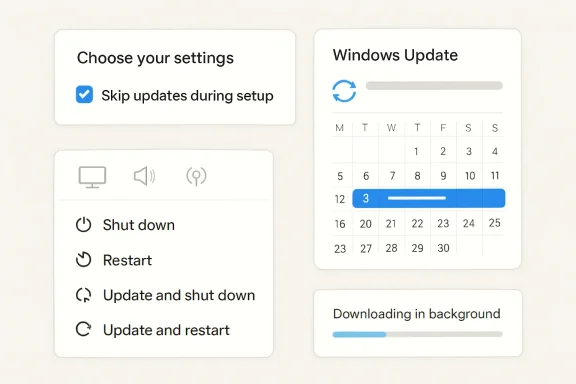
The first change is setup-time choice. If a user wants to get to the desktop quickly, they can now skip updates during OOBE and deal with them later. That might sound modest, but setup is where first impressions are formed, and first impressions matter in operating systems more than in most software. Microsoft says this does not apply to managed commercial devices or situations where updates are required for functionality, which is an important limiter for enterprise scenarios.The second change is a more flexible pause mechanism. Instead of a generic pause interval, users can choose a specific calendar day and extend that pause repeatedly in 35-day increments. That is a meaningful shift because it lets people align update pauses with real events such as travel, exams, conferences, or project deadlines rather than forcing them into a rigid one-size-fits-all schedule. It also acknowledges that control is often not about disabling updates forever, but about controlling when the pain lands.
The third change may be the most visible one in daily use: the Power menu will now always show standard Restart and Shut down options, even if updates are pending. Update-specific choices remain available, but the menu is being split into plain power actions and update actions. That is a significant user-experience correction because it eliminates the “surprise update” feeling that many Windows users have been conditioned to expect.
The fourth change is informational rather than behavioral. Windows Update will now add device class labels to driver titles, making it easier to tell whether a pending driver applies to display, audio, battery, extension, HDC, or another class. This is a small but practical improvement, especially because driver update names have often been too vague for average users to interpret confidently. Clearer labels reduce confusion, and reduced confusion tends to reduce hesitation.
Why this matters
This is really an argument about agency. Microsoft is not giving up on forced security outcomes; it is trying to make the path to those outcomes less abrasive. That is a subtle but important distinction, because the company still wants users on secure builds quickly, but no longer wants the user interface to feel like a trap.For consumers, the benefit is obvious: fewer moments where the computer seems to decide for you. For Microsoft, the benefit is more strategic: a calmer update experience may reduce resistance, lower the temptation to defer patches, and improve satisfaction without weakening the underlying servicing model. That is the kind of soft infrastructure change that can affect trust over time.
- Setup can now be faster for people who want the desktop first.
- Pause controls are becoming calendar-aware instead of purely interval-based.
- Power actions are being decoupled from update actions.
- Driver titles are becoming more understandable.
- The update experience is being redesigned around predictability, not just compliance.
Fewer Reboots, More Coordination
Microsoft is also trying to reduce the number of times Windows asks for a reboot each month. That is a deeper operational change than the UI tweaks, because it involves coordinating driver,.NET, and firmware updates to line up with monthly quality updates. If the company can make that work consistently, users should see fewer separate update events and a more unified servicing rhythm.Consolidation is the real story
The company says Windows quality updates already include monthly security updates, emergency out-of-band patches, and user-initiated optional non-security updates. The new approach appears to collapse more of the nearby update noise into the same general installation and restart window, rather than scattering reboots throughout the month. That should make Windows feel less chatty and more deterministic.This matters because reboot fatigue is real. Many users are willing to accept one predictable restart, but fewer are willing to tolerate repeated interruptions that appear to come from unrelated subsystems. When the OS asks for multiple reboots in the same month, it creates the impression that patching is fragmented or poorly coordinated, even if each individual update is technically justified.
The reduction in restart count also ties into Microsoft’s broader reliability message. The company has been working to improve quality, reduce update noise, and make build channels clearer across the Insider Program. A more coherent servicing cadence is one of the simplest ways to make that message real. It is also a quiet admission that update complexity itself has become a user-facing problem.
Consumer versus enterprise impact
For home users, fewer reboots mean less annoyance and fewer “I’ll do it later” moments. The practical benefit is not just saved time; it is reduced friction between the person and the machine. If Windows feels less likely to interrupt a work session, users are more likely to keep it current.For enterprises, the picture is more complicated. Consolidation can simplify patch windows, but it can also make change management feel more clustered if admins rely on staggered component servicing. Microsoft says it will share more about commercial controls later, which suggests the company is still working out how much of this consumer-oriented flexibility should be exposed to managed environments.
- Fewer separate reboots should reduce user disruption.
- Coordinated servicing may improve perceived reliability.
- Admins may need new scheduling expectations.
- Consolidation is useful only if it does not create larger failure domains.
- Windows is trying to become quietly consistent, not just more secure.
Security by Default, but Less Abrupt
Microsoft keeps stressing that these changes do not weaken its security posture. In fact, the company frames them as part of a Secure Future Initiative approach: secure by design, secure by default, and secure in operations. That framing is important because it explains why Microsoft is comfortable offering more control to users while still insisting that devices should get onto the latest security update soon after release.The security trade-off
There is an unavoidable tension here. The more freedom users have to delay or avoid updates, the more likely some devices will remain exposed for longer. Microsoft is clearly aware of that risk, which is why it keeps recommending that users take updates shortly after release and why it is tightening recovery behavior in the background. The design challenge is to reduce user frustration without normalizing dangerous postponement habits.One way Microsoft is handling that tension is by improving automatic recovery from update failures. The company says devices will attempt to recover in real time if an installation fails, with some updates taking longer but succeeding more often. That is an interesting trade-off: more time per update in exchange for fewer broken installs and fewer manual interventions. It is a quality over speed decision, and it aligns well with a security-first operating model.
Microsoft has been moving in this direction elsewhere, too. The company has repeatedly emphasized secure-by-default ideas in Windows security materials, and its support ecosystem shows a growing reliance on automated recovery paths and servicing orchestration. The new update behavior fits that pattern neatly. It is not abandoning enforcement; it is making enforcement feel less chaotic.
What this means for trust
The most interesting security question is not whether the new controls are permissive enough. It is whether users will trust Windows Update more because it is more predictable. Trust is often the missing variable in patch compliance, and a predictable system tends to produce better user behavior than a surprising one.If users believe they can pause, postpone, restart, and still understand what is happening, they are less likely to think of updates as an ambush. That, in turn, may improve the odds that they accept important security updates sooner rather than later. In that sense, the redesign is not anti-security; it is an attempt to make security feel less coercive.
- More predictable update timing can improve user trust.
- Automatic recovery aims to raise installation success rates.
- Longer pauses increase convenience but also increase exposure windows.
- Security messaging remains central to Microsoft’s pitch.
- The company is betting that clarity encourages compliance.
The OOBE and Setup Experience
Skipping updates during device setup is one of the most consumer-friendly pieces of this rollout. OOBE is already a cognitively dense moment, and forcing updates at that exact point often feels like a tax on excitement. Giving users the option to get to the desktop first is a smart acknowledgment that setup and servicing do not have to be the same moment.Why setup control is powerful
A first boot can shape a user’s entire impression of a device. If the device spends its first minutes installing patches, restarting, and waiting, the user experiences the machine as slow before they have done anything meaningful with it. Allowing a skip path changes that emotional arc, even if the update still has to happen later.Microsoft notes that this option is not available for commercial devices where OOBE is managed, or in cases where updates are required for the device to function. That caveat is important because it makes clear that this is a consumer flexibility feature, not a general loophole around provisioning policy. In enterprise settings, administrators still need deterministic setup flows.
There is also a bandwidth angle. For some users, especially on weaker connections, the first-update experience can be a pain point in itself. Microsoft has been talking about improving download and apply times, but choice during setup remains a useful pressure valve for people who simply want the machine usable now.
A practical ranking of OOBE priorities
- Get the user to the desktop.
- Preserve the option to update immediately.
- Avoid making setup feel like a forced maintenance window.
- Keep managed devices on policy-driven paths.
- Maintain security requirements where device functionality depends on them.
- Setup should feel like activation, not administration.
- A skip option is meaningful because it happens at the start of the relationship.
- Managed fleets need different rules than retail devices.
- Faster first-use experiences can improve satisfaction.
- The change acknowledges that first-run friction can damage goodwill.
The New Pause Model
The updated pause system looks simple on the surface, but it is actually one of the more carefully chosen changes in the batch. Microsoft is not just making pauses longer; it is making them more legible by letting users pick a specific day and then re-pause as needed. That turns a blunt tool into a planning tool.Planning instead of improvising
The old mental model for pauses was basically “buy time.” The new model is “schedule around life.” That matters because users rarely think in neat seven-day blocks; they think in terms of deadlines, travel, and bad weeks. A calendar-based pause aligns the product with real human routines rather than with engineering convenience.Still, pause controls are only as good as the user’s discipline. The ability to extend pauses repeatedly makes the tool more flexible, but it also raises the odds that some users will defer updates far longer than is wise. That is why Microsoft keeps pairing this flexibility with reminders that security updates should be taken soon after release.
The real test will be whether the new pause experience reduces accidental conflict without encouraging chronic avoidance. If the feature is used as a scheduling tool, it is a win. If it becomes a de facto “never update” button, then Microsoft will need to adjust the balance again.
Why 35 days is a compromise
A 35-day pause window is long enough to cover most short-term disruptions, but short enough to keep update debt from growing without bound. Microsoft’s repeated focus on this number suggests a compromise between convenience and mandatory security hygiene. In other words, it is meant to be a relief valve, not an escape hatch.That compromise is sensible. Users often need a few weeks, not a permanent exemption, and the system should recognize the difference. The better Windows gets at making pauses transparent, the less likely users are to feel tricked when a pause expires.
- Calendar-based pauses are easier to reason about.
- Re-pause capability increases flexibility.
- 35 days is a compromise, not an unlimited delay.
- Better pause controls should reduce surprise.
- The risk is turning convenience into prolonged exposure.
Restart and Shutdown, Reimagined
The restart and shutdown change is probably the one most people will notice first, because it affects a behavior users perform constantly. Microsoft is explicitly separating power actions from update actions, so “Restart” and “Shut down” do what they say even if updates are pending. That may sound obvious, but Windows users know it has not always felt that way.The psychology of the Power menu
When a system changes your chosen action into a different action, even for a good reason, the user experience becomes adversarial. Microsoft seems to understand that the Power menu should be a place of certainty, not negotiation. By keeping standard restart and shutdown options always visible, the company is restoring a basic expectation of control.The update-specific options still remain, which is the right compromise. People who want to install now can still choose “Update and restart” or “Update and shut down,” but those choices are no longer conflated with ordinary power behavior. That separation may also reduce accidental update timing, especially when users are in a hurry.
Microsoft also says Windows will try to restore previously opened apps faster after a restart, helping users return to work more quickly. That is a meaningful companion feature because it softens the cost of a reboot. The company is effectively saying, “We still need restarts, but we can make the after-effect less annoying.”
Usability gains that matter
For many people, the value here is not conceptual but emotional. A shutdown that feels like a shutdown is less stressful than one that might secretly become a patch operation. Reducing that uncertainty may seem minor, but software interfaces are built out of thousands of small trust decisions, and this is one of them.The move also helps Windows compete on predictability. On a modern PC, users expect the operating system to be responsive and respectful of intent. If Microsoft can make power actions feel boringly literal, it will have improved the everyday texture of the platform in a way that actually matters.
- Restart now means restart now.
- Shut down now means shut down now.
- Update actions remain available for people who want them.
- Restoring apps faster reduces reboot friction.
- Predictable power behavior is a quiet but important UX win.
Driver Updates Get Clearer
Driver updates have long been one of Windows Update’s least transparent categories. Titles were often vague, similar, or nearly identical, which left users guessing what was actually about to change. Microsoft’s new device-class labeling is a sensible response because it adds context without overwhelming the interface.Why labels matter
A driver update labeled only with a hardware ID or generic package name is not especially useful to most users. By contrast, seeing whether an update applies to display, audio, battery, extension, or HDC gives a user at least a rough sense of impact. That can help people prioritize critical changes and avoid unnecessary anxiety.This is especially relevant because Microsoft simplified update titles near the end of 2025, then received feedback that the simplification made some driver updates too opaque. The new device-class addition is a correction, not a reversal, and it shows Microsoft is still tuning the balance between simplicity and useful detail.
For power users and IT staff, clearer driver labels could also reduce troubleshooting time. If a user can tell that a driver update is related to audio or display, they are more likely to connect a later issue to a recent change. That kind of traceability is a small but valuable quality-of-life improvement.
More insight, less guesswork
This is the kind of change that rarely gets headlines but pays off in support efficiency. Users who understand what they are installing are more likely to feel confident doing it, and confidence is an underrated part of update adoption. Microsoft is trying to create less mystery around the system, and mystery is often what turns routine maintenance into unnecessary resistance.It also reflects a broader design trend inside Windows: use just enough language to be comprehensible without exposing the user to raw technical noise. That is a difficult line to walk, but device-class labels are a decent example of the middle ground.
- Driver update titles are becoming more readable.
- Device class labels reduce ambiguity.
- Better labels can improve support and troubleshooting.
- Clarity helps users decide what to install now versus later.
- This is a small change with outsized trust benefits.
What It Means for Windows’ Broader Strategy
Viewed together, these changes suggest Microsoft is trying to make Windows Update feel less like a compliance engine and more like a managed service with user-visible guardrails. That is a strategic repositioning, not just a cosmetic refresh. It acknowledges that reliability and control are no longer competing goals; they are mutually dependent if Microsoft wants users to stop dreading updates.Competition and market implications
Against competitors, the messaging is subtle but important. Windows is not trying to win by promising the fewest updates; it is trying to win by promising better-timed updates and fewer surprises. That is a more mature position for a desktop operating system that still has to support a sprawling hardware ecosystem.The change also speaks to Microsoft’s relationship with OEMs and silicon partners. Better driver labeling and fewer disruptive update moments can only help if hardware vendors cooperate with cleaner servicing practices. In that sense, this is as much an ecosystem story as an OS story.
For enterprise IT, Microsoft’s promise to say more about commercial controls later will be closely watched. Admins will want to know whether these consumer-facing gains can be mapped cleanly onto policy, compliance, and update rings. If Microsoft can do that, it will have created a more convincing pitch for Windows as a platform that is both manageable and humane.
The bigger design shift
The deeper shift is philosophical. Microsoft is admitting that forcing important maintenance is not the same as making it feel well designed. The company is now spending product capital on reducing the stress around updates, and that suggests it believes trust itself is a competitive asset. That is a very different tone from the old era of Windows patching.- Windows is moving toward a calmer servicing model.
- User control is being treated as part of security, not opposed to it.
- OEM and driver ecosystems remain essential to the plan.
- Enterprise policy support will determine how broadly this succeeds.
- Trust is becoming a first-class product objective.
Strengths and Opportunities
Microsoft’s update redesign has real upside because it addresses one of Windows’ most persistent pain points without backing away from the company’s security stance. The strongest part of the strategy is that it improves everyday control while preserving the underlying pressure to stay current. That combination could make users more willing to cooperate with Windows Update rather than treat it as a nuisance.- More predictable restart behavior should reduce frustration.
- Calendar-based pauses better match real-world schedules.
- Setup skipping can improve first-impression experiences.
- Better driver labels help users make informed choices.
- Recovery improvements may reduce update failures.
- Consolidated update timing should lower reboot fatigue.
- Microsoft can present this as security with less drama.
Risks and Concerns
The biggest risk is that more flexibility can become more deferral. If users repeatedly pause updates, they may unknowingly keep security fixes at arm’s length for too long. Microsoft’s challenge is to preserve autonomy without encouraging bad habits, and that balance will be harder to maintain if users experience fewer forced reminders.- Longer pauses may increase exposure to known vulnerabilities.
- Some users will interpret new control as a license to delay indefinitely.
- Consolidated updates could create more noticeable failure moments if something goes wrong.
- Enterprise admins may need new policies to keep fleets aligned.
- UI clarity alone will not solve driver quality issues.
- Automatic recovery may increase completion time on slow devices.
- If commercial controls lag behind consumer changes, management gaps could appear.
Looking Ahead
The next phase will be whether these changes survive Insider testing and arrive intact in mainstream Windows releases. Microsoft says many of the features are already beginning to roll out to Dev Channel and the new Experimental channel, which suggests the company is serious about gathering signal before broad deployment. The commercial story is still unfinished, and that may turn out to be the most important part for organizations that care about control, compliance, and consistency.What to watch
- Whether pause flexibility is retained in final retail builds.
- How Microsoft exposes these controls to enterprise admins.
- Whether fewer update restarts measurably improve user satisfaction.
- Whether clearer driver titles reduce support confusion.
- Whether recovery improvements shorten failure rates enough to matter.
- Whether monthly update coordination remains stable across hardware families.
Source: Microsoft - Windows Insiders Blog Your Windows update experience just got updated