

Winhance arrives as a practical answer to a very modern Windows problem: fresh installs that feel less like blank slates and more like a pile of preloaded clutter, service prompts, and privacy compromises. The tool is positioned as a free, open-source cleanup and configuration suite for Windows 10 and Windows 11, and the uploaded article argues that it saves users from spending the first hour after every reinstall undoing Microsoft’s defaults. Its value proposition is simple but compelling: remove the noise, restore control, and make repeated installs feel less like punishment.
The appeal of tools like Winhance starts with a familiar frustration. Windows 11 has become more opinionated over time, bundling promotional surfaces, inbox apps, cloud nudges, and settings that many power users would rather handle once and never see again. The source material frames that experience as a recurring tax on anyone who regularly reinstalls Windows, especially after hardware changes, failed updates, or major repairs.
That context matters because the complaint is not really about one app or one toggle. It is about the cumulative weight of defaults: Copilot on the taskbar, OneDrive prompts, inbox apps, buried privacy settings, and scattered controls for tasks that ought to be straightforward. In that sense, Winhance is less a “tweak tool” than a response to a platform philosophy many users do not share.
The article also places Winhance in a broader tradition of Windows cleanup utilities. It is described as having started as a PowerShell script built by a developer with years in IT support, then growing into a desktop app with a cleaner interface and wider feature set. That evolution is telling: users do not just want scripts, they want repeatable setup workflows that feel safer, clearer, and less error-prone.
There is also a deeper historical pattern here. Windows users have long relied on third-party tools to compensate for a gap between what Microsoft exposes in Settings and what advanced users actually want to configure. Winhance fits that pattern neatly, especially because it does not try to reinvent Windows so much as surface the controls that already exist.
At a high level, the article’s argument is not that Windows is broken. It is that Windows is inconveniently assembled for people who want a leaner, more personal machine. Winhance is presented as a way to make repeated installs feel intentional rather than adversarial.
The interface also communicates reversibility in a way that is unusually helpful for a utility in this category. According to the article, green dots indicate items that can be reinstalled later, while grey dots signal permanent removal. That distinction matters because it turns cleanup into a more informed decision rather than a blind purge.
That design choice is more important than it first appears. A lot of Windows friction comes from the fact that the operating system already contains the desired setting, but not in a place users can discover easily or access quickly. Winhance’s value is therefore organizational as much as technical.
There is also a trust element built into the presentation. Each option has a plain-language explanation and a Technical Details section that shows the exact registry path, current value, recommended value, and default. That kind of transparency is a major step up from the “trust the script” model common in the debloating world.
This is especially important because Windows users rarely apply only one tweak. They tend to remove a few apps, adjust privacy, change taskbar behavior, and experiment with update or power settings all in one sitting. If the tool did not build in a recovery path, the risk of cumulative breakage would rise quickly.
That kind of restraint is part of what separates a serious admin tool from a reckless “optimizer.” It does not stop users from changing important settings, but it slows them down just enough to reduce accidental damage. In a Windows environment, that is often the right compromise.
This matters for the taskbar and Start menu in particular. Those are among the most visible parts of the operating system, and they shape the daily feel of Windows more than many background services do. A clean, configurable entry point can make a machine feel immediately more yours.
There is also a strategic point here. Microsoft’s reluctance to modernize every rough edge of the shell has left room for tools that make those edges less painful. Winhance does not solve that platform-level problem, but it offers a pragmatic workaround for people who do not want to wait.
That is a meaningful workflow upgrade because it shifts effort from repetitive clicking to deliberate planning. Instead of spending an hour on every install, you front-load the decisions once and then reuse them when needed. For power users, that is where the real time savings live.
It also lowers the emotional cost of reinstalling Windows. If the aftermath of a clean install is no longer a chaotic scavenger hunt, users become more willing to do maintenance properly. That can improve long-term system hygiene as much as it improves convenience.
The article is careful to call this power-user territory, and that caution is warranted. Editing installation media and generating unattended setup files can save a great deal of time, but it also raises the stakes of getting a setting wrong. The payoff is high, but so is the need for discipline.
In practical terms, this means Winhance is not just for cleanup after installation; it can influence the installation itself. That broadens its value considerably, especially for users who repair, reimage, or provision multiple machines.
The difference is subtle but important. A user who understands what is being removed is far less likely to panic later, and far more likely to recover quickly if something does not suit their workflow. In that respect, transparency is a feature, not just a nicety.
It also helps that the tool is free and open-source. Those qualities do not automatically guarantee quality, but they do strengthen the trust argument because users can inspect the project’s direction and treat it as a community tool rather than a black box.
At the same time, the existence of tools like this is a reminder that Microsoft still has work to do. If so many users are reaching for cleanup utilities after every reinstall, then the platform’s defaults are not meeting expectations. The opportunity for Microsoft is obvious: reduce the need for after-the-fact surgery by making Windows less noisy from the start.
What to watch next is whether utilities like Winhance become standard parts of enthusiast setup, or whether Microsoft narrows the gap with better defaults and better exposed controls. For now, Winhance looks like a sensible answer to a stubborn Windows habit: if the OS insists on starting messy, users will keep building tools to start cleaner.
Source: MakeUseOf I've installed Windows eleven times, and I won't do it again without this free tool
 Background
The appeal of tools like Winhance starts with a familiar frustration. Windows 11 has become more opinionated over time, bundling promotional surfaces, inbox apps, cloud nudges, and settings that many power users would rather handle once and never see again. The source material frames that experience as a recurring tax on anyone who regularly reinstalls Windows, especially after hardware changes, failed updates, or major repairs.That context matters because the complaint is not really about one app or one toggle. It is about the cumulative weight of defaults: Copilot on the taskbar, OneDrive prompts, inbox apps, buried privacy settings, and scattered controls for tasks that ought to be straightforward. In that sense, Winhance is less a “tweak tool” than a response to a platform philosophy many users do not share.
The article also places Winhance in a broader tradition of Windows cleanup utilities. It is described as having started as a PowerShell script built by a developer with years in IT support, then growing into a desktop app with a cleaner interface and wider feature set. That evolution is telling: users do not just want scripts, they want repeatable setup workflows that feel safer, clearer, and less error-prone.
There is also a deeper historical pattern here. Windows users have long relied on third-party tools to compensate for a gap between what Microsoft exposes in Settings and what advanced users actually want to configure. Winhance fits that pattern neatly, especially because it does not try to reinvent Windows so much as surface the controls that already exist.
At a high level, the article’s argument is not that Windows is broken. It is that Windows is inconveniently assembled for people who want a leaner, more personal machine. Winhance is presented as a way to make repeated installs feel intentional rather than adversarial.
What Winhance Actually Does
Winhance is portrayed as a centralized control panel for three broad jobs: removing unwanted software, applying system optimizations, and adjusting visual and behavioral settings. The key selling point is not that it introduces magical capabilities, but that it gathers scattered Windows controls into one place.App removal without the scavenger hunt
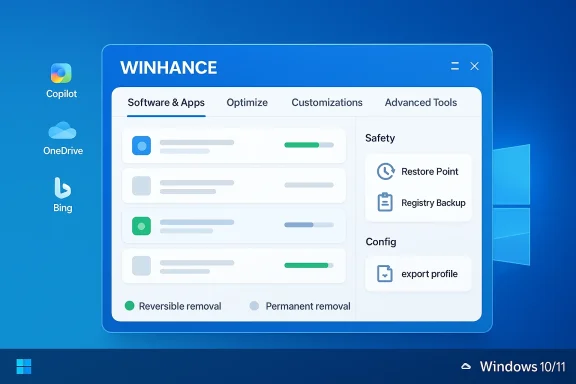
The Software & Apps area is split into Windows Apps & Features and External Software, with items grouped into Windows Apps, Windows Capabilities, and Windows Optional Features. That structure gives users a much more complete picture of what can be removed, and it reduces the guesswork that usually comes with finding and uninstalling built-in components one by one.The interface also communicates reversibility in a way that is unusually helpful for a utility in this category. According to the article, green dots indicate items that can be reinstalled later, while grey dots signal permanent removal. That distinction matters because it turns cleanup into a more informed decision rather than a blind purge.
- Copilot can be removed.
- OneDrive can be removed.
- Bing Search can be removed.
- Xbox Live In-Game Experience can be removed.
- Windows components are separated from third-party software.
- Reversible and permanent actions are clearly labeled.
A control layer for hidden settings
The Optimize tab is the article’s strongest example of consolidation. It collects settings under Privacy & Security, Power, Gaming & Performance, Update, Notifications, and Sound, which mirrors how users actually think about their machines rather than how Microsoft distributes them across menus.That design choice is more important than it first appears. A lot of Windows friction comes from the fact that the operating system already contains the desired setting, but not in a place users can discover easily or access quickly. Winhance’s value is therefore organizational as much as technical.
There is also a trust element built into the presentation. Each option has a plain-language explanation and a Technical Details section that shows the exact registry path, current value, recommended value, and default. That kind of transparency is a major step up from the “trust the script” model common in the debloating world.
Safety, Transparency, and the Restore Point Safety Net
One of the most reassuring details in the article is Winhance’s behavior on first launch. It automatically creates a system restore point and registry backups before making changes, which gives users a recovery path if a customization does not behave as expected. In a category where many tools ask for deep system access, that is not a minor detail.Why the safety model matters
Cleanup tools are easy to like and hard to trust. Their whole purpose is to alter the system quickly, often by making dozens of decisions on the user’s behalf. The article’s emphasis on restore points and backups suggests Winhance understands that speed without reversibility is a bad bargain.This is especially important because Windows users rarely apply only one tweak. They tend to remove a few apps, adjust privacy, change taskbar behavior, and experiment with update or power settings all in one sitting. If the tool did not build in a recovery path, the risk of cumulative breakage would rise quickly.
- First-launch backups reduce fear.
- Restore points make experimentation safer.
- Registry visibility improves accountability.
- Technical details help explain side effects.
- Guardrails are especially useful for power settings.
The warning gate for advanced settings
The article also notes that some sensitive power options sit behind an Advanced Setting Warning, which forces the user to consciously proceed. That is a small interface decision with big consequences, because it acknowledges that not every tweak is equal. Some settings are cosmetic; others can affect stability, performance, or battery behavior.That kind of restraint is part of what separates a serious admin tool from a reckless “optimizer.” It does not stop users from changing important settings, but it slows them down just enough to reduce accidental damage. In a Windows environment, that is often the right compromise.
Customization as a First-Class Feature
The Customizations tab is where Winhance moves beyond cleanup and into personal workflow design. The article says it covers Windows Theme, Taskbar, Start Menu, and Explorer, including deeper changes to the context menu and file behavior. That breadth gives the app a useful identity: it is not merely removing things, it is reshaping the desktop around the user.A more coherent approach than Windows Settings
One of the strongest criticisms in the article is also one of its most relatable: Windows already offers many of these controls, but scatters them across too many panels. Winhance’s advantage is not unique capability, but aggregation. If a user wants a consistent setup, having those settings in one place dramatically lowers friction.This matters for the taskbar and Start menu in particular. Those are among the most visible parts of the operating system, and they shape the daily feel of Windows more than many background services do. A clean, configurable entry point can make a machine feel immediately more yours.
Why the Explorer layer is important
Explorer settings are often underestimated because they seem mundane. In reality, the file manager governs a lot of the small annoyances that make an OS feel polished or clumsy, from context menu behavior to folder handling. When users complain that Windows “gets in the way,” this is often what they mean.There is also a strategic point here. Microsoft’s reluctance to modernize every rough edge of the shell has left room for tools that make those edges less painful. Winhance does not solve that platform-level problem, but it offers a pragmatic workaround for people who do not want to wait.
- Theme controls reduce visual friction.
- Taskbar controls improve daily navigation.
- Start menu controls help restore predictability.
- Explorer controls address workflow annoyances.
- Context-menu changes can make the OS feel less cluttered.
Configuration Reuse and the Real Power of Export
One of the most appealing ideas in the article is the ability to export a complete configuration file after setting up Winhance the way you like it. That turns the tool from a one-time cleaner into a reusable Windows profile system, which is much more valuable for anyone who installs Windows regularly.Set it once, use it everywhere
The logic is straightforward: if the same user keeps reinstalling Windows, then the ideal setup should not have to be reinvented every time. Exporting the configuration means apps removed, optimizations applied, and UI preferences can be captured in one portable file and reused later.That is a meaningful workflow upgrade because it shifts effort from repetitive clicking to deliberate planning. Instead of spending an hour on every install, you front-load the decisions once and then reuse them when needed. For power users, that is where the real time savings live.
Why repeatability matters in IT
Repeatability is one of the quietest virtues in systems administration. A machine that can be configured the same way every time is easier to support, easier to troubleshoot, and easier to hand off if needed. Winhance’s export feature fits that mindset very well.It also lowers the emotional cost of reinstalling Windows. If the aftermath of a clean install is no longer a chaotic scavenger hunt, users become more willing to do maintenance properly. That can improve long-term system hygiene as much as it improves convenience.
Advanced Tools: WIMUtil and Autounattend Automation
The article’s Advanced Tools section is where Winhance becomes especially interesting for IT-minded readers. It includes WIMUtil, a Windows Installation Media Utility, and an Autounattend XML Generator that can automate installation behavior based on the user’s current settings. That moves Winhance from post-install cleanup into pre-install engineering.Building Windows before it boots
WIMUtil suggests a more ambitious use case: customizing installation media so the operating system starts closer to your preferred state. That is a serious capability because it reduces the amount of post-install work and can make deployment much more efficient, especially in lab or repair scenarios.The article is careful to call this power-user territory, and that caution is warranted. Editing installation media and generating unattended setup files can save a great deal of time, but it also raises the stakes of getting a setting wrong. The payoff is high, but so is the need for discipline.
Why unattended setup matters
An Autounattend XML Generator is important because it formalizes the setup process. Instead of manually clicking through prompts each time, the system can be guided by a configuration file that reflects your preferred choices. That is a classic IT efficiency move, and it scales far better than ad hoc clicking.In practical terms, this means Winhance is not just for cleanup after installation; it can influence the installation itself. That broadens its value considerably, especially for users who repair, reimage, or provision multiple machines.
- WIMUtil supports preinstall customization.
- Autounattend files reduce setup labor.
- Installation workflows become more repeatable.
- Errors shift earlier, where they are easier to catch.
- Power users gain a deployment-oriented toolkit.
The Case for Winhance Over Random Debloat Scripts
Winhance stands out not because it is the only Windows cleanup tool, but because it appears to combine convenience with transparency. The article repeatedly stresses that it shows users what it is doing and why, rather than hiding changes behind opaque automation. That is a meaningful distinction in a category where trust is often the real product.A cleaner philosophy than “just run the script”
Debloat scripts often promise dramatic transformation while making it difficult to understand what changed. Winhance instead presents categories, explanations, technical details, and backup paths. That makes it feel less like a gamble and more like a controlled administrative workflow.The difference is subtle but important. A user who understands what is being removed is far less likely to panic later, and far more likely to recover quickly if something does not suit their workflow. In that respect, transparency is a feature, not just a nicety.
Where it fits in the Windows ecosystem
The article makes a strong case that Winhance is best understood as a helper for people who already know Windows will not configure itself the way they want. It is not trying to abolish the Microsoft model, but to make that model less frustrating to live with. For many enthusiasts, that is exactly the right scope.It also helps that the tool is free and open-source. Those qualities do not automatically guarantee quality, but they do strengthen the trust argument because users can inspect the project’s direction and treat it as a community tool rather than a black box.
Strengths and Opportunities
Winhance’s strongest advantage is that it addresses a real, recurring pain point without requiring users to become scripting experts. It makes Windows setup feel more deliberate, more portable, and less hostile, which is exactly why it is attractive to people who reinstall often. The article also suggests that its structure could serve as a model for how Windows configuration ought to be surfaced in the first place.- It centralizes common cleanup tasks.
- It exposes settings in plain language.
- It creates restore points and backups automatically.
- It supports repeatable configuration exports.
- It can streamline repeated Windows installs.
- It gives power users a deployment workflow.
- It makes Windows feel more personal and less cluttered.
Risks and Concerns
The main risk is the familiar one for any deep system tool: once users get comfortable, they may change more than they fully understand. Even with safeguards, any utility that touches apps, registry values, and advanced system settings can create problems if it is used carelessly. The article is generally positive, but it still implies that the tool deserves respect, not blind trust.- Advanced tweaks can destabilize the system if misused.
- Registry changes are powerful but easy to overestimate.
- Power settings can have side effects.
- Repeated automation can hide bad assumptions.
- Customization can become dependency if users forget what changed.
- Installation-media tools raise the stakes of mistakes.
- Any cleanup tool can become a crutch if used too aggressively.
Looking Ahead
The bigger story here is not just Winhance itself, but the demand signal it represents. People keep looking for ways to make Windows quieter, cleaner, and more configurable because the stock experience still feels too cluttered for many users. Winhance succeeds, at least in the article’s telling, because it respects that frustration rather than dismissing it.At the same time, the existence of tools like this is a reminder that Microsoft still has work to do. If so many users are reaching for cleanup utilities after every reinstall, then the platform’s defaults are not meeting expectations. The opportunity for Microsoft is obvious: reduce the need for after-the-fact surgery by making Windows less noisy from the start.
What to watch next is whether utilities like Winhance become standard parts of enthusiast setup, or whether Microsoft narrows the gap with better defaults and better exposed controls. For now, Winhance looks like a sensible answer to a stubborn Windows habit: if the OS insists on starting messy, users will keep building tools to start cleaner.
- Watch for broader adoption among power users.
- Watch for new configuration-export features.
- Watch for safer installation-media workflows.
- Watch for Microsoft to close more of these gaps in Settings.
- Watch for community pressure around cleaner defaults.
Source: MakeUseOf I've installed Windows eleven times, and I won't do it again without this free tool


