

The little utility that wants to “de‑slop” Windows 11 has suddenly gone from a niche script to a native GUI release — and the new date‑based stable drop, labeled Winslop 26.02.02, is already reshaping the conversation about control, privacy, and risk on modern Windows desktops.
Winslop began life as a community answer to what many users call AI clutter — the growing number of inbox AI features, promotional UI elements, and background helpers Microsoft has been adding to Windows. The project’s author, the same developer behind the FlyOOBE tool, took the community‑built RemoveWindowsAI techniques and wrapped them in a compact, native app with profiles, applicability checks, and explicit rollback capabilities. That transformation from script to native binary is the central news: versioning has moved to a date format (YY.MM.Patch), the app detects Windows builds and UBR values more robustly, and a handful of new taskbar and privacy‑focused actions were added in the 26.02.02 release.
Winslop’s stated goals are simple and direct: expose and, where the user chooses, remove the parts of Windows that users don’t want — Copilot UI affordances, widgets, “Meet Now” buttons, News & Interests, and other bundled extras. The tool emphasizes local, offline execution and a modular architecture intended to avoid applying incompatible fixes to unsupported Windows versions. Several independent outlets picked up the release, and mirrors such as SourceForge and aggregator pages show the project quickly spreading beyond its GitHub home.
This matters for three reasons:
Microsoft has begun to respond in small ways — for example, adding group policies in certain Insider builds intended to allow removal of Copilot for administrators — but the cadence and granularity of that control remains a contested point. Tools like Winslop will continue to flourish while many users feel the platform doesn’t offer straightforward, supported opt‑outs.
However, the tool is not risk‑free. The chief concerns are update fragility, the inherent danger of running elevated third‑party binaries, and the real potential for malicious actors to republish trojanized versions. Historical incidents of malware distributed as seemingly legitimate installers and wallets underline this risk. Treat Winslop like any other powerful system utility: verify origin, test in a sandbox, and keep a recovery plan.
Winslop 26.02.02 is a clear statement: the community will continue to create tools to reclaim control over the desktop OS when users feel vendors are moving faster than their consent. That’s an important part of the Windows ecosystem — but it’s also a reminder that with great power comes great responsibility. Test thoroughly, verify sources, and keep backups. The convenience of a one‑click tidy‑up is real; the cost of an untested change can be much higher.
Conclusion: Winslop is a pragmatic, community‑driven solution for those who want to strip nonessential AI and promotional elements from Windows 11. It’s also a case study in modern software tradeoffs: control versus fragility, convenience versus safety. Use it if you know what you’re doing; otherwise, test first and always keep a recovery plan.
Source: Neowin Winslop 26.02.02
 Background / Overview
Winslop began life as a community answer to what many users call AI clutter — the growing number of inbox AI features, promotional UI elements, and background helpers Microsoft has been adding to Windows. The project’s author, the same developer behind the FlyOOBE tool, took the community‑built RemoveWindowsAI techniques and wrapped them in a compact, native app with profiles, applicability checks, and explicit rollback capabilities. That transformation from script to native binary is the central news: versioning has moved to a date format (YY.MM.Patch), the app detects Windows builds and UBR values more robustly, and a handful of new taskbar and privacy‑focused actions were added in the 26.02.02 release.Winslop’s stated goals are simple and direct: expose and, where the user chooses, remove the parts of Windows that users don’t want — Copilot UI affordances, widgets, “Meet Now” buttons, News & Interests, and other bundled extras. The tool emphasizes local, offline execution and a modular architecture intended to avoid applying incompatible fixes to unsupported Windows versions. Several independent outlets picked up the release, and mirrors such as SourceForge and aggregator pages show the project quickly spreading beyond its GitHub home.
What’s new in 26.02.02 — the facts
The 26.02.02 release is the first stable milestone under the new date‑based scheme. The key, verifiable engineering changes announced by the project are:- Date‑based versioning (YY.MM.Patch) replacing older 0.x numbering.
- OS applicability system so non‑applicable features are skipped during Analyze/Fix/Restore operations (reduces risk of running incompatible operations).
- Improved Windows detection, including UBR/build tracking for Windows 10/11.
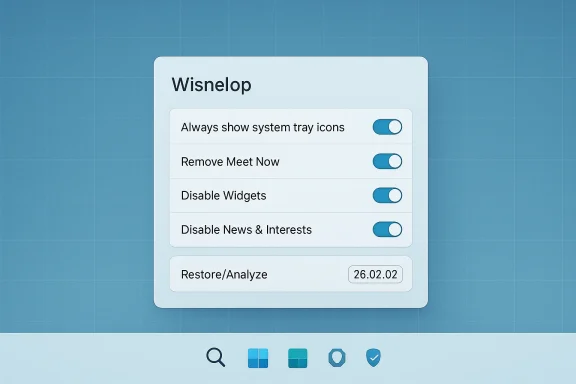
- New taskbar actions: Always show all system tray icons (Windows 10), remove Meet Now, Disable Widgets (Windows 11), Disable News & Interests (Windows 10), and a Clean Taskbar action that unpins items and clears favorites.
- Reduced memory footprint, minor bug fixes, and documentation updates.
Why Winslop matters — cultural and technical context
Microsoft’s push to integrate AI into the OS at multiple levels (Copilot, AI in inbox apps, AI‑driven suggestions) has prompted a reaction from a portion of the Windows community that prefers a leaner, more controllable desktop. Tools like Winslop are the natural outgrowth of that sentiment: they package commonly used tweaks into a user‑friendly interface and make them accessible to people who aren’t comfortable editing the registry or writing PowerShell scripts.This matters for three reasons:
- User agency — Winslop makes opt‑out possible in minutes rather than hours of manual tinkering. Many users consider that a fundamental right on a device they own.
- Operational speed — a GUI with profiles and explicit rollback is easier to test and revert than scattered scripts.
- Normalization of community tooling — the project converts community knowledge (RemoveWindowsAI techniques) into a packaged tool that can be widely distributed and discussed in mainstream tech outlets.
What Winslop actually does — technical breakdown
Winslop is not a single “delete Copilot” button. It’s a collection of targeted actions that, taken together, change UI surfaces, background services, scheduled tasks, group policy defaults, and provisioning behaviors. The most important technical actions are:- Taskbar and UI affordance toggles (hide Copilot UI elements, remove Meet Now, disable Widgets and News & Interests).
- Registry and Group Policy edits that flip privacy‑sensitive settings and disable specific features.
- Provisioning/servicing adjustments that reduce the chance Windows Update or provisioning packages will immediately re‑install components Winslop removes — these techniques are borrowed from community debloat scripts. That persistence trick is effective but also introduces fragility when Microsoft ships new servicing packages.
- Analysis/Fix/Restore modes — the tool scans for compatible settings, applies a chosen set of changes, and offers a restore path to revert them. The new release emphasizes skipping non‑applicable operations to avoid mismatches on different Windows builds.
Strengths: where Winslop delivers real value
- User‑friendly consolidation of tribal knowledge. What previously required separate scripts and manual registry edits is now a single app with profiles and rollback. This reduces user error when performed responsibly.
- Awareness of Windows build differences. The OS applicability system and improved UBR recognition are meaningful because many of the older debloat scripts blindly touch settings that don’t exist on all builds. Skipping non‑applicable features prevents avoidable failures.
- Focused scope. Winslop concentrates on UI, telemetry surface area, and provisioning — it doesn’t attempt to rewrite core system binaries or ship drivers, which would be a much higher risk vector.
- Rollback and restore. Having a built‑in restore mechanism is a practical safety net that many hobbyist scripts lack.
Risks, fragility, and the threat surface you must consider
- Update re‑provisioning and breakage. When a vendor (Microsoft) updates provisioning packages, features Winslop removed can be pushed back. Persistent prevention techniques (blocking packages or altering servicing store) are effective short‑term workarounds but can break after feature updates, causing UI glitches or functionality loss. This is the largest operational risk.
- Running third‑party binaries carries malware risk. Community tools that distribute ready‑to‑run executables are attractive targets for repackaging and malicious imitation. History shows malware has been marketed and distributed via seemingly legitimate download pages and installers that bundled or replaced expected functionality with backdoors and exfiltration modules. This is why the Winslop author warns to download only from the official GitHub Releases page.
- Admin privileges are required. Any tool that modifies registry keys, scheduled tasks, or services must run elevated — and any bug or malicious code executed at that level can cause system compromise.
- Enterprise and support implications. Removing or blocking components may void support expectations in managed environments, and corporate update channels can undo changes or flag altered images. Winslop is primarily aimed at enthusiasts and power users, not enterprise IT rollouts.
- False expectations about “privacy.” Some features that look like telemetry are tied into OS integrity and feature delivery. Blindly disabling them may decrease telemetry but also hamper diagnostics or accessibility improvements for some users. Technical nuance matters.
Practical, safe steps before you run Winslop (short checklist)
- Back up system: create a full system image or at minimum a Windows System Restore point and a user‑file backup.
- Download only from the official GitHub Releases entry shown on the project’s repository. Don’t use random mirrors unless you can verify checksums.
- Verify the binary: if the release provides cryptographic checksums or a signed installer, verify signatures. If no checksums/signatures exist, prefer running in a controlled test environment first (VM or spare machine).
- Run the tool in Analyze mode first. Review the list of changes it proposes; don’t accept a one‑click “apply all” without inspection.
- Keep a rollback plan: snapshot or export the tool’s restore data and know how to re‑enable features that matter to you.
- If you manage corporate devices, test in an isolated lab and confirm update behavior with your patching strategy before rolling out.
Step‑by‑step safe test plan (recommended)
- Create a virtual machine with a matching Windows build (the exact UBR/build you use on your daily machine).
- Take a VM snapshot.
- Install Winslop from the GitHub release and run Analyze. Document the proposed changes.
- Apply a conservative profile that disables nonessential UI bits only. Observe for 24–72 hours and test key workflows (Edge, Office apps, Windows Search, accessibility).
- Apply more aggressive changes if the conservative profile is stable, or revert via the restore option if not.
- Reboot and apply Windows Update to simulate real‑world re‑provisioning — note whether removed features return or cause errors. If problems appear, revert to the snapshot and adjust the approach.
The wider debate: should Microsoft be doing more?
Winslop’s rise is a symptom of a broader user expectation mismatch. For some users, modern Windows is too opinionated: AI features, promoted content, and automatic provisioning are seen as choices that should be optional, not default. The project’s author even framed winslop’s ambition as an active pushback against perceived “AI overhead” in Windows. This tension is visible across coverage and user reaction: outlets and communities are discussing not only the technical mechanics of removal, but the principle of user control.Microsoft has begun to respond in small ways — for example, adding group policies in certain Insider builds intended to allow removal of Copilot for administrators — but the cadence and granularity of that control remains a contested point. Tools like Winslop will continue to flourish while many users feel the platform doesn’t offer straightforward, supported opt‑outs.
Final assessment — should you use Winslop?
Winslop provides clear, practical value for power users and enthusiasts who want a leaner Windows experience and are comfortable with basic OS repair and testing workflows. The 26.02.02 release shows maturity: date‑based versions, improved applicability checks, and a focus on rollback. If you understand the tradeoffs, follow safe testing procedures, and download from the official release channels, Winslop is a useful addition to the community toolkit.However, the tool is not risk‑free. The chief concerns are update fragility, the inherent danger of running elevated third‑party binaries, and the real potential for malicious actors to republish trojanized versions. Historical incidents of malware distributed as seemingly legitimate installers and wallets underline this risk. Treat Winslop like any other powerful system utility: verify origin, test in a sandbox, and keep a recovery plan.
Quick reference — what to cite in your internal policy if you’re an admin
- Winslop modifies registry, scheduled tasks, and provisioning; administrative approval and testing are mandatory before use on managed devices.
- Use VM snapshots and medium‑term monitoring to detect re‑provisioning issues when applying persistent blocking techniques.
- Require cryptographic verification of any downloaded binary; prefer signed releases or checksums published by the official repository.
Winslop 26.02.02 is a clear statement: the community will continue to create tools to reclaim control over the desktop OS when users feel vendors are moving faster than their consent. That’s an important part of the Windows ecosystem — but it’s also a reminder that with great power comes great responsibility. Test thoroughly, verify sources, and keep backups. The convenience of a one‑click tidy‑up is real; the cost of an untested change can be much higher.
Conclusion: Winslop is a pragmatic, community‑driven solution for those who want to strip nonessential AI and promotional elements from Windows 11. It’s also a case study in modern software tradeoffs: control versus fragility, convenience versus safety. Use it if you know what you’re doing; otherwise, test first and always keep a recovery plan.
Source: Neowin Winslop 26.02.02
