

Chris Titus Tech’s WinUtil has quietly become one of the most consequential PowerShell toolboxes for Windows tweakers and technicians — a single, script-driven GUI that can debloat a fresh install, apply dozens of privacy and performance tweaks, bulk-install apps, and even build a custom “MicroWin” installation ISO — but with great power comes real risk, and anyone who plans to run it should treat it like a surgical instrument: precise, intentional, and backed by full backups.
WinUtil started as a pragmatic collection of the Windows fixes, debloat routines, and install scripts Chris Titus demonstrates on his channel and blog. Over time it was consolidated into a maintained, MIT‑licensed repository and documentation set, and released as a single PowerShell-driven utility that presents a tabbed graphical interface from within an elevated PowerShell session. The project is openly developed on GitHub and distributed both via the repository releases and a convenience launch command that pipes the remote script into PowerShell for immediate execution.
What makes WinUtil notable is its scope: it bundles multiple capabilities that historically required several different scripts and manual steps — from disabling telemetry and removing store-provisioned apps, to forcing service modes, running Disk Cleanup, changing DNS, and using winget to install a curated list of applications. It also includes a separate MicroWin workflow for creating customized, smaller Windows ISOs with many components stripped before installation.
Because WinUtil touches low-level settings, services, registry keys, and the installed image itself, adoption has spread mostly among power users, system builders, and those who manage many machines and want a repeatable, automated way to start from a clean baseline.
irm "https://christitus.com/win" | iex
This downloads the latest packaged WinUtil script and executes it in the current PowerShell session. There is also a development branch (windev) and the project provides direct release downloads from the GitHub releases page for offline review.
A few important technical points to verify before running:
A critical, often-cited convenience: Undo Selected Tweaks. Rather than rolling the entire system back via a restore point, you can select individual tweaks you previously applied and ask WinUtil to undo them. This lowers the barrier to experimentation, but it’s not a silver bullet — some reversions depend on uninstallable packages or restored registry keys and may not perfectly restore the original state in every environment.
Remember: enterprise or managed environments have different constraints and may be incompatible with permanent update disablement. WinUtil’s own guidance explicitly warns against disabling core security features unless you understand the consequences.
Capabilities include:
Community reports and GitHub issues show MicroWin is powerful but not frictionless: people have reported installer failures (missing install.wim/esd), driver recognition problems during setup, and even cases of File Explorer instability when too many components were stripped before installation. MicroWin is best used by those who understand Windows servicing and have the ability to test and recover.
Important operational notes:
That said, the very features that make WinUtil powerful — the ability to remove system components and change low-level settings — mean it must be used with caution. Follow these core recommendations:
Source: FilmoGaz PowerShell Script Transforms Every Windows Installation
 Background
WinUtil started as a pragmatic collection of the Windows fixes, debloat routines, and install scripts Chris Titus demonstrates on his channel and blog. Over time it was consolidated into a maintained, MIT‑licensed repository and documentation set, and released as a single PowerShell-driven utility that presents a tabbed graphical interface from within an elevated PowerShell session. The project is openly developed on GitHub and distributed both via the repository releases and a convenience launch command that pipes the remote script into PowerShell for immediate execution.What makes WinUtil notable is its scope: it bundles multiple capabilities that historically required several different scripts and manual steps — from disabling telemetry and removing store-provisioned apps, to forcing service modes, running Disk Cleanup, changing DNS, and using winget to install a curated list of applications. It also includes a separate MicroWin workflow for creating customized, smaller Windows ISOs with many components stripped before installation.
Because WinUtil touches low-level settings, services, registry keys, and the installed image itself, adoption has spread mostly among power users, system builders, and those who manage many machines and want a repeatable, automated way to start from a clean baseline.
Overview: What WinUtil Does (At a Glance)
- Consolidates common post-install tasks into one UI driven by PowerShell.
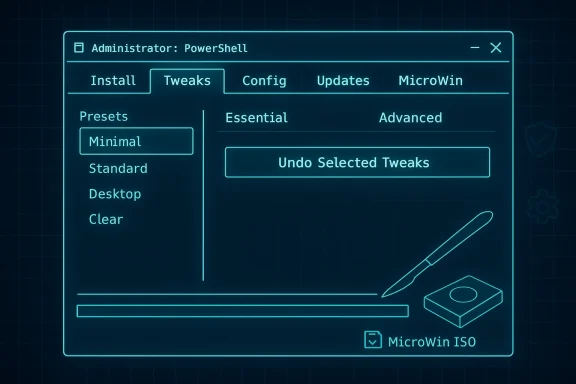
- Offers a multi-tabbed interface with major sections: Install, Tweaks, Config, Updates, and MicroWin.
- Provides presets (Minimal, Standard, Desktop, Clear) and categorized tweak lists (Essential vs Advanced).
- Includes an Undo Selected Tweaks mechanism to revert individual changes.
- Uses trusted system tools where possible (DISM for image servicing, winget for app installs).
- Is fully open-source and maintained on GitHub under an MIT license.
- Can be launched with a single command for convenience or run locally after inspection.
How WinUtil Launches and Runs
The most common quick-launch method is executed from an elevated PowerShell session. The convenience command used by many users is:irm "https://christitus.com/win" | iex
This downloads the latest packaged WinUtil script and executes it in the current PowerShell session. There is also a development branch (windev) and the project provides direct release downloads from the GitHub releases page for offline review.
A few important technical points to verify before running:
- WinUtil requires administrator privileges because it modifies system-wide settings and may manipulate provisioned packages, services, and registry values.
- PowerShell 5.1 or later is expected on Windows 10 / Windows 11 systems; PowerShell 7 can be used for some operations but the UI is tailored to the default Windows PowerShell host.
- Installing applications via the Install tab uses winget (Microsoft’s package manager), and winget depends on the App Installer package from the Microsoft Store in some environments — if winget fails, updating App Installer in the Store is a common fix.
Deep Dive: The Tweaks Tab — Essential vs Advanced
The Tweaks tab is WinUtil’s core for debloating and privacy adjustments. It’s organized into two broad categories:- Essential Tweaks — conservative, generally safe changes intended for most users. These typically include:
- Disabling telemetry services and diagnostics telemetry.
- Deleting temporary files and running Disk Cleanup.
- Disabling consumer features and GameDVR where appropriate.
- Creating a system restore point before making changes (WinUtil provides this as an option).
- Setting non-critical services to manual to reclaim resources.
- Advanced Tweaks — aggressive changes that can break some expected features or workflows. Examples include:
- Removing Microsoft Edge or all Microsoft Store apps (not recommended for many users).
- Disabling IPv6 or Teredo.
- Removing OneDrive or other built-in store apps.
- Disabling background apps or changing deep shell behaviors.
A critical, often-cited convenience: Undo Selected Tweaks. Rather than rolling the entire system back via a restore point, you can select individual tweaks you previously applied and ask WinUtil to undo them. This lowers the barrier to experimentation, but it’s not a silver bullet — some reversions depend on uninstallable packages or restored registry keys and may not perfectly restore the original state in every environment.
Updates Tab: Control, But Don’t Forget Security
WinUtil’s Updates tab gives you options to change how Windows installs updates:- Typical settings (default behavior).
- Security‑only settings that delay feature updates while applying security patches.
- An option to disable updates entirely (a high-risk choice).
Remember: enterprise or managed environments have different constraints and may be incompatible with permanent update disablement. WinUtil’s own guidance explicitly warns against disabling core security features unless you understand the consequences.
Config Tab, Quick Fixes and Legacy Access
The Config tab provides quick access to legacy Control Panel applets and troubleshooting fixes such as:- Reset Network
- Reset Windows Update
- System Corruption Scan
- WinGet reinstall
- Direct links to Control Panel, Power Options, Printer Settings, and more
MicroWin: Building a Minimal Windows ISO
One of WinUtil’s standout features is MicroWin, which allows users to create customized installation ISOs with many components removed prior to first boot.Capabilities include:
- Selecting an official Windows ISO or letting WinUtil download one for you.
- Choosing which components and apps to remove from the offline image using DISM and related tools.
- Optionally injecting drivers (including VirtIO drivers for virtualization) before building the ISO.
- Producing a smaller ISO and, depending on options, a smaller final installed footprint.
Community reports and GitHub issues show MicroWin is powerful but not frictionless: people have reported installer failures (missing install.wim/esd), driver recognition problems during setup, and even cases of File Explorer instability when too many components were stripped before installation. MicroWin is best used by those who understand Windows servicing and have the ability to test and recover.
Installing Applications: Winget Caveats and Practicalities
The Install tab largely orchestrates package installation through winget and other installation helpers. It’s a huge time saver for setting up common toolsets (browsers, productivity apps, developer tools) after a fresh OS install.Important operational notes:
- Ensure winget is present and up-to-date. On some fresh installs, winget will not behave until the App Installer package in the Microsoft Store is updated.
- If a winget-based install fails, check the Microsoft Store’s Library for App Installer updates or use the direct GitHub release.
- WinUtil installs packages sequentially and shows progress; some installers may require interactive confirmations if run without appropriate flags.
Safety, Security, and Best Practices — A Practical Checklist
WinUtil is intentionally powerful; with power comes responsibility. Follow this checklist to reduce risk:- Full Disk Backup: Make an image backup (not only file backup) of the system you plan to modify. This ensures recovery if critical components are damaged.
- Create a Restore Point: Use the built-in option in the Tweaks tab or create one manually before any major change.
- Inspect Code Before Execution: If you use the convenience command that pipes the remote script into PowerShell (irm | iex), consider downloading the .ps1 release and reviewing it locally first.
- Prefer the Official Release: When possible, run the code from the official GitHub release or clone and compile locally to avoid man-in-the-middle distribution risks.
- Start with Standard Preset: If uncertain, apply the Standard preset and avoid Advanced tweaks until you’ve tested on a disposable system.
- Don’t Disable Security Updates Permanently: If you tweak update behavior, prefer delayed feature updates with security updates preserved.
- Keep App Installer Updated: If winget is not working, update the App Installer in the Microsoft Store and re-run.
- Test MicroWin ISOs in a VM: Before deploying a MicroWin ISO to physical hardware, test installation and driver availability inside a virtual machine.
- Document Every Change: Maintain a short log of tweaks you applied; this is invaluable when diagnosing later problems.
Known Issues and Community-Reported Problems
WinUtil has a large user base, and with it a stream of community-reported edge cases. Key themes from issues and forum threads:- Antivirus False Positives: Because WinUtil makes deep system changes, Windows Defender and other AVs sometimes flag parts of the tool or wrapper EXE wrappers as suspicious. The recommended mitigation is to run the official script directly from the repository or add explicit defender exclusions after verifying the code.
- Broken Features After Aggressive Debloat: Reports include disabled hotkeys (e.g., Windows+L not locking), broken Store behavior, or apps no longer functioning due to removed dependencies. These are most commonly associated with Advanced tweaks or very aggressive MicroWin profiles.
- MicroWin Edge Cases: Some users have experienced installer errors claiming missing install.wim/install.esd, or driver recognition issues during setup if required driver bundles are not injected. Others have reported File Explorer instability when extremely aggressive options were selected.
- Winget Failures on Clean Installs: On a small number of clean installs winget failed until App Installer was updated in the Store — a simple but necessary step for many users.
Alternatives and Complementary Tools
WinUtil is not the only debloat or Windows tweaking tool. Depending on your trust model or need for granularity, consider:- Manual configuration via Group Policy or PowerShell scripts for deterministic, auditable changes.
- Smaller, single-purpose tools (e.g., tools that only remove specific store apps or only change telemetry settings) if you want a minimal blast radius.
- Enterprise management tools (MDM, SCCM, Intune) for centrally controlled and auditable error-proof deployment in managed fleets.
- Other community tools (with the same scrutiny) if you want a different user interface or more granular control.
Practical Step-by-Step: Safest Way to Run WinUtil for the First Time
- Prepare a recovery environment:
- Create a full disk image or backup.
- Ensure installation media and product license/keys are at hand.
- Open PowerShell as Administrator.
- Instead of piping from the internet, download the latest release from the GitHub releases page and open the .ps1 file in a text editor to review changes.
- Run in a controlled environment (VM or non-critical hardware) first.
- In WinUtil:
- Create a restore point from the Tweaks tab.
- Apply Essential tweaks or the Standard preset only.
- Reboot and validate core functionality (networking, File Explorer, system lock).
- If installing apps, update the App Installer in Microsoft Store first, then use the Install tab.
- If you plan to use MicroWin, test the generated ISO in a VM and verify driver compatibility and post-install behavior.
- Maintain a changelog and, for anything beyond Standard, consider running a staged rollout (1 device → small group → fleet).
Critical Analysis: Strengths, Risks, and Where WinUtil Fits
Strengths- Time-saving: WinUtil centralizes a wide set of repetitive tasks, saving hours when provisioning many systems.
- Openness: Being on GitHub under an MIT license allows public audit, contribution, and forks tailored to different needs.
- Feature breadth: From tweaks to app installs to ISO creation, the tool is unusually feature-rich for a single script-based utility.
- Usability: The tabbed GUI lowers the barrier for non-scripting users to apply script-level tweaks.
- Execution Model: The convenience of irm | iex is also the core security concern — executing remote code without inspection is risky.
- Stability: Advanced tweaks and MicroWin can break components or create unsupported system states.
- Supportability: Removing built-in components (Edge, Store, OneDrive) can complicate future troubleshooting and may affect updates.
- False Positives: As with many system-modifying tools, AV engines may flag parts of the project; this is sometimes a symptom of deep OS modifications and sometimes a distribution/build concern.
- Legal/License Gray Area: Modifying and redistributing Windows ISOs touches licensing and distribution nuance; MicroWin’s documentation recommends personal use and notes legal gray areas — keep that in mind for organizational deployments.
- WinUtil is an excellent tool for power users, independent system builders, and small-scale technicians who want a fast baseline. It is less suitable as a drop-in solution for enterprise or non-technical environments without rigorous testing and change control. For any scenario where uptime, vendor support, or Microsoft policy compliance matters, test thoroughly and adopt a conservative preset.
Final Verdict and Recommendations
WinUtil is an impressive, well-documented, and community-backed utility that meaningfully reduces the friction of provisioning Windows systems. Its open-source nature and modular codebase are important strengths — they permit inspection, community fixes, and forks. The UI and undo capabilities make experimenting less frightening than raw script execution.That said, the very features that make WinUtil powerful — the ability to remove system components and change low-level settings — mean it must be used with caution. Follow these core recommendations:
- Always verify and review code before piping remote scripts into PowerShell.
- Use WinUtil on test systems and create full-disk backups before running on primary devices.
- Favor conservative presets and only use Advanced options when you understand the consequences.
- Treat MicroWin like a tool for expert users: test generated ISOs in VMs before deploying to physical hardware.
- Maintain documented rollback plans and don’t disable critical security updates permanently.
Source: FilmoGaz PowerShell Script Transforms Every Windows Installation
